






SCCM Third-Party Software Updates SCUP Troubleshooting Part-2
In this post, I will cover SCCM’s Third-Party Software Updates. Despite integrating the feature into SCCM, there is still a reliance on SCUP, also known as Update Publisher. This post will provide comprehensive information about SCCM’s third-party software update feature and its limitations for existing SCUP customers.
For many years, SCUP helped many of us deploy third-party software updates. Now, SCCM doesn’t require SCUP to deploy Third-party updates. Let’s dive into the SCCM third-party software update setup.
Microsoft applications are patched as part of the Microsoft Software Update patching process. However, the third-party applications (non-Microsoft) are NOT patched using Microsoft updates.
The Third-Party Software Update Catalogs node in the Configuration Manager console lets users subscribe to different third-party catalogs, publish updates to the software update point (SUP), and deploy them to clients, improving software update management with more update sources.

- List of Free SCCM Catalogs for Third-Party Software Updates
- SCCM Third-Party Software Updates Setup Step-by-Step Guide Post 1
- SCCM Third-Party Updates Step-by-Step Troubleshooting Process Guide
SCCM Third-Party Software Updates
Anoop has written an excellent blog on configuring Third-Party Software Updates in your environment. I will continue researching the limitations of Third-party software updates and known issues.
If you have ever installed SCUP 2011 in your environment and integrated it with SCCM, then the new “SCCM Third-Party Software updates” feature is useless. You would have to question why.
Microsoft says if you have installed/configured SCUP and published updates in your environment, you still have to use SCUP. You cant use Third-party Software Updates and can’t post them from SCCM.
Problem Statement
Once you have added the catalog in SCCM using the method explained here and initiated a sync, once you have synchronized with WSUS successfully, you will see those updates in your SCCM console.
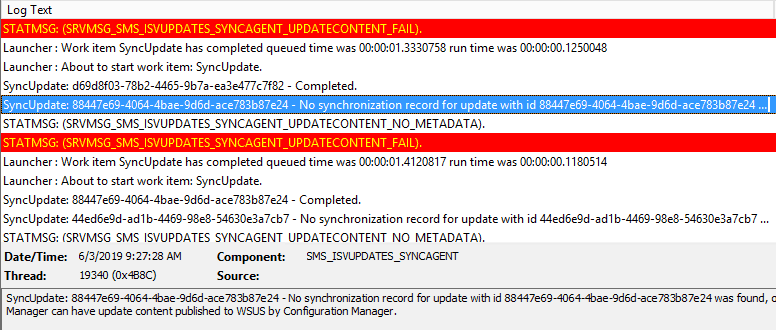
And when you try to publish them and check the log file SMS_ISVUPDATES_SYNCAGENT.log you will see the following error.
STATMSG: (SRVMSG_SMS_ISVUPDATES_SYNCAGENT_UPDATECONTENT_FAIL). SMS_ISVUPDATES_SYNCAGENT 6/3/2019 4:51:36 AM 17084 (0x42BC) Launcher : Work item SyncUpdate has completed queued time was 00:00:00.0650023 run time was 00:00:00.0690054 SMS_ISVUPDATES_SYNCAGENT 6/3/2019 4:51:36 AM 17084 (0x42BC) SyncUpdate: 43b53f17-0fac-4976-a005-c6ce840e8e91 - Completed. SMS_ISVUPDATES_SYNCAGENT 6/3/2019 4:51:36 AM 17084 (0x42BC) PollingWorkMonitor: There are 2 jobs that are pending in the jobs table. SMS_ISVUPDATES_SYNCAGENT 6/3/2019 4:56:36 AM 13448 (0x3488) PollingWorkMonitor: Starting job 11 for subject 49018fe2-3bd5-4f40-be88-ee2f997da55a. SMS_ISVUPDATES_SYNCAGENT 6/3/2019 4:56:36 AM 13448 (0x3488) Creating a new SyncUpdate work item for update 49018fe2-3bd5-4f40-be88-ee2f997da55a, jobid is 11 SMS_ISVUPDATES_SYNCAGENT 6/3/2019 4:56:36 AM 13448 (0x3488) Launcher : About to start work item: SyncUpdate. SMS_ISVUPDATES_SYNCAGENT 6/3/2019 4:56:36 AM 13448 (0x3488) PollingWorkMonitor: Removing duplicate pending job 12 for subject 49018fe2-3bd5-4f40-be88-ee2f997da55a. SMS_ISVUPDATES_SYNCAGENT 6/3/2019 4:56:36 AM 13448 (0x3488) SyncUpdate: 49018fe2-3bd5-4f40-be88-ee2f997da55a - No synchronization record for update with id 49018fe2-3bd5-4f40-be88-ee2f997da55a was found, only updates synchronized by Configuration Manager can have update content published to WSUS by Configuration Manager. SMS_ISVUPDATES_SYNCAGENT 6/3/2019 4:56:36 AM 12736 (0x31C0) STATMSG: (SRVMSG_SMS_ISVUPDATES_SYNCAGENT_UPDATECONTENT_NO_METADATA). SMS_ISVUPDATES_SYNCAGENT 6/3/2019 4:56:36 AM 12736 (0x31C0) STATMSG: (SRVMSG_SMS_ISVUPDATES_SYNCAGENT_UPDATECONTENT_FAIL).
Known Issues with SCCM Third-Party Software Updates
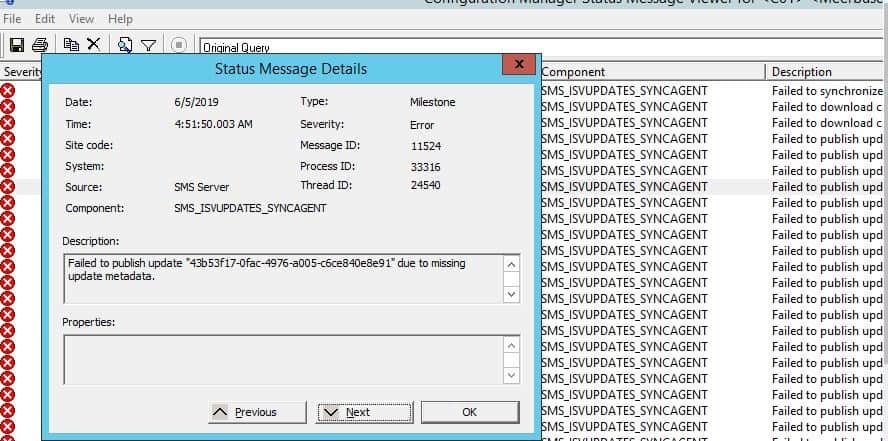
In the above log files and component status message, you have seen the error. While publishing, we got an error. You can check the message ID 11524 in SCCM third-party patching known issues in Microsoft documentation (it’s a bug).
According to Microsoft, The third-party software update synchronization service can’t publish content to metadata-only updates added to WSUS by another application, tool, or script, such as SCUP.
The Publish third-party software update content action fails for third-party updates. If you need to deploy third-party updates, use your existing process in full.
Solution
You have only two (2) options to resolve that issue.
- Uninstall SUP/WSUS from your environment and reinstall them again to clean up the published metadata and updates.
- Please find the updated ID and clean them from the database (only supported by Microsoft Premier support).
In my scenario, I installed SCUP 2011 4 years back in my lab, and after that, I never used SCUP 2011 for any SCCM third-party software updates.
I didn’t have any other options than to reuse SCUP in my Lab environment and wait for Microsoft to start supporting publishing updates even though SCUP or any other tools already publish them.
Troubleshooting SCUP SCCM Third-party Software Updates
All the following troubleshooting scenarios are related to SCUP Integrated SCCM third-party patching.
Failed to sign package Error 2147942403
I added a catalog for Adobe products (Adobe DC catalog). I could import the updates into the updated publisher, but I could not publish the updates. While publishing, I got an error.
--- Calling update server API for publishing update 'Adobe Acrobat DC Update 19.010.20064 (UpdateId:'34775f80-aded-417d-b908-bcf36e9b913e' Vendor:'Adobe' Product:'Adobe Acrobat')', timestamp enabled, server is http://timestamp.digicert.com. NormalPublishItem 7/3/2019 5:28:23 AM 9464 (0x24F8) 2019-07-03 03:28:23.273 UTC Info UpdatesPublisher.28 ThreadEntry ThreadPoolWorkQueue.Dispatch DEBUG_TRACE_REDIRECT 7/3/2019 5:28:23 AM 9464 (0x24F8) 2019-07-03 03:28:23.273 UTC Info UpdatesPublisher.28 ThreadEntry ThreadPoolWorkQueue.Dispatch TRACE_REDIRECT 7/3/2019 5:28:23 AM 9464 (0x24F8) 2019-07-03 03:28:23.275 UTC Error UpdatesPublisher.28 Publisher.PublishPackage PublishPackage(): Operation Failed with Error: CreateDirectory failed at Microsoft.UpdateServices.Internal.BaseApi.Publisher.PublishPackage(String sourcePath, String additionalSourcePath, String packageDirectoryName, Boolean dualSign, String httpTimeStamp) at Microsoft.UpdatesPublisher.BaseServices.WSUS.Publish.PublishItem.PublishPackage(PublishReportItem reportItem, IPublisher publisher, String contentFolder) at Microsoft.UpdatesPublisher.BaseServices.WSUS.Publish.NormalPublishItem.Publish(PublishReportItem reportItem, CancellationToken token) at Microsoft.UpdatesPublisher.BaseServices.WSUS.Publish.PublishItem.PublishUpdateAndDependencies(PublishReport report, CancellationToken token) at Microsoft.UpdatesPublisher.BaseServices.WSUS.Publish.PublishOperation.Start(CancellationToken token) at Microsoft.UpdatesPublisher.UI.PublishWizard.PublishProgressPageViewModel.DoWork(CancellationToken token) at System.Threading.Tasks.Task`1.InnerInvoke() at System.Threading.Tasks.Task.Execute() at System.Threading.ExecutionContext.RunInternal(ExecutionContext executionContext, ContextCallback callback, Object state, Boolean preserveSyncCtx) at System.Threading.ExecutionContext.Run(ExecutionContext executionContext, ContextCallback callback, Object state, Boolean preserveSyncCtx) at System.Threading.Tasks.Task.ExecuteWithThreadLocal(Task& currentTaskSlot) at System.Threading.Tasks.Task.ExecuteEntry(Boolean bPreventDoubleExecution) at System.Threading.ThreadPoolWorkQueue.Dispatch() DEBUG_TRACE_REDIRECT 7/3/2019 5:28:23 AM 9464 (0x24F8) 2019-07-03 03:28:23.275 UTC Error UpdatesPublisher.28 Publisher.PublishPackage PublishPackage(): Operation Failed with Error: CreateDirectory failed at Microsoft.UpdateServices.Internal.BaseApi.Publisher.PublishPackage(String sourcePath, String additionalSourcePath, String packageDirectoryName, Boolean dualSign, String httpTimeStamp) Microsoft.UpdatesPublisher.BaseServices.WSUS.Publish.PublishItem.PublishPackage(PublishReportItem reportItem, IPublisher publisher, String contentFolder) NormalPublishItem 7/3/2019 5:28:23 AM 9464 (0x24F8)
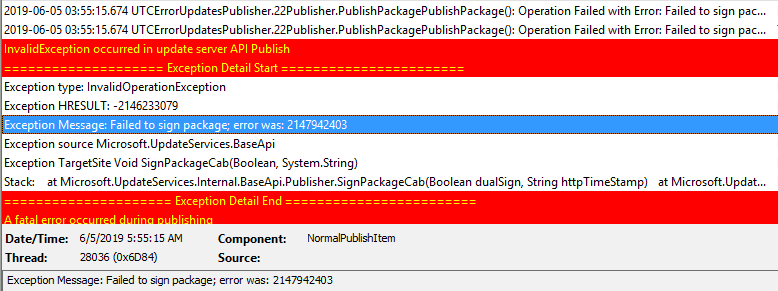
In the above log file, you can see an error that failed to create a directory while publishing the updates from SCUP. I didn’t have any clue why there was an error says was unable to make a directory.
After some analysis, I tried to find where the UpdateServicesPackages directory was located or not. Then, I found the UpdateServicesPackages folder was created. E:\WSUS\WSUSContent
The easiest way to find the directory is to use the following command and see where the directory is located.
- Run CMD as an administrator on the WSUS server
- C:\>net share
- There you will see WSUSContent and UpdateServicesPackages pointing to different network shares.
- UpdateServicesPackages = E:\wsus\WsusContent\UpdateServicesPackages
- WsusContent = E:\wsus\WsusContent
With the above commands, you can see the folders are not in the correct place. The folder UpdateServicesPackages should not be under the WSUSContent folder of the WSUS folder (as per my understanding), so I decided to delete it.
To delete that, run the following command
- net share UpdateservicesPackages /delete
- C:\>net share UpdateservicesPackages /delete UpdateservicesPackages was deleted successfully.
Once the share is deleted, the next action is to create UpdateServicesPackages incorrect share location. You can run the following command to create:
- net share UpdateservicesPackages =<Path to UpdateservicesPackages> /everyone,full
- C:\>net Share UpdateservicesPackages=E:\WSUS /grant: everyone, full UpdateservicesPackages was shared successfully.
- Once completed, the net share will be like the following: your UpdateservicesPackages is incorrect.
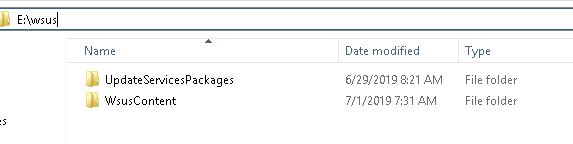
NOTE! – So always remember, if you install SCUP/update publisher, then UpdateServicesPackages should be in the WSUS directory.
Failed to sign package Error 2147954429
This 2147954429 is the most common error if you use a proxy in your environment. The actual WSUS API uses timestamping operation to http://timestamp.digicert.com, which uses a default proxy configured at the SYSTEM level.
NOTE! WSUS won’t use the proxy configured in WSUS, and that’s why it returns the above error while publishing updates.
To resolve that SCUP publishing-related proxy error, we need to configure the proxy at a system level and run the following commands.
- Download PSEXEC.exe
- Open command prompt as Administrator
- launch Internet Explorer as a system using a command line,
- psexec.exe -a-i “C:\program files\internet explorer\ieexplorer.exe
- In Internet Explorer–> Settings–>Connectionss–>Lan Settings–>Enable proxy which you are using in your environment
Verification of File Signature Failed for File
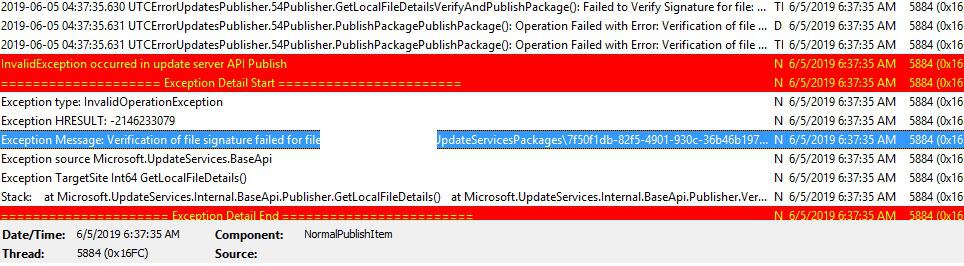
If you have installed SCUP 4.5 or earlier and created a certificate with SCUP 4.5, and your SCUP is upgraded to 2011 later, the certificate created with SCUP 4.5 (which would be 512 bits in length) is used by default SCUP 2011.
If this certificate is not valid and not accepted, you need to recreate the certificate once again. Open SCUP with the administrator, go to Option, and create the certificate.
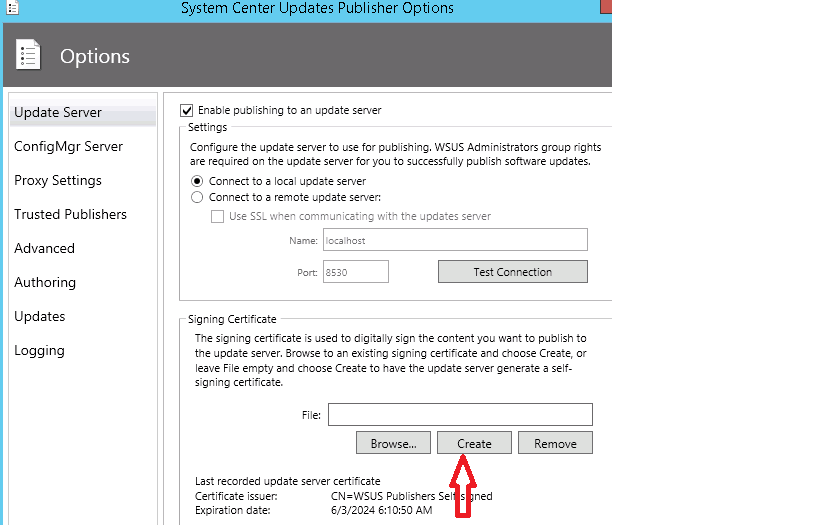
Once you have recreated the certificate, you are all set, and you can now publish the updates in your environment.
Results
Resources
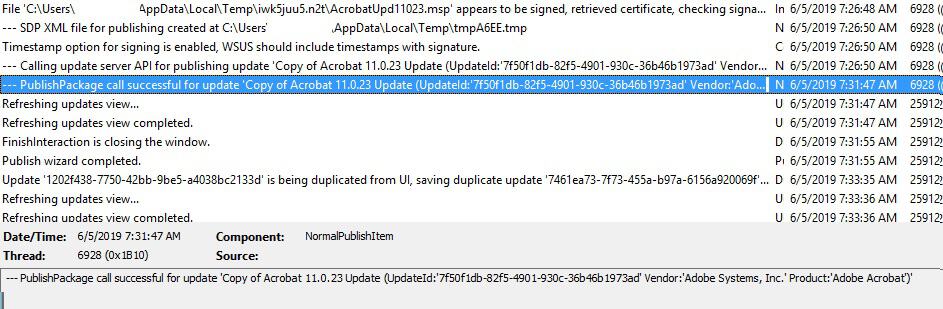
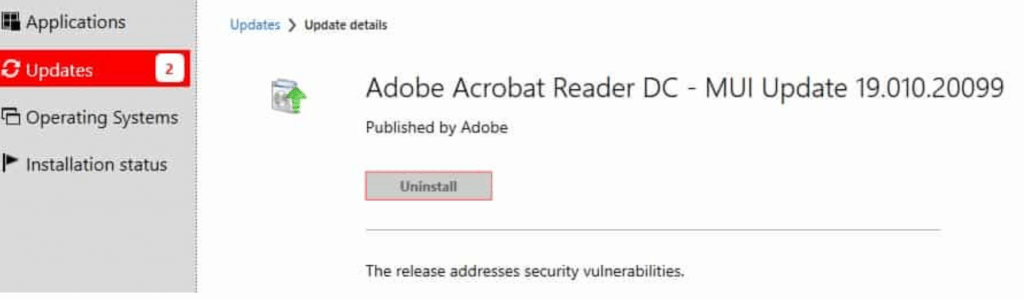
Now, you can see that the update has been published successfully. I have downloaded the update and deployed it in my environment. Follow the instructions for deployment updates in the SCCM Third-Party Software Updates Setup Step by Step Guide.
We are on WhatsApp. To get the latest step-by-step guides and news updates, Join our Channel. Click here –HTMD WhatsApp.
Author
Anoop C Nair is Microsoft MVP! He is a Device Management Admin with more than 20 years of experience (calculation done in 2021) in IT. He is a Blogger, Speaker, and Local User Group HTMD Community leader. His main focus is on Device Management technologies like SCCM 2012, Current Branch, and Intune. He writes about ConfigMgr, Windows 11, Windows 10, Azure AD, Microsoft Intune, Windows 365, AVD, etc




Thank you for sharing the information.
I’m struggling a bit with the “content” part of the 3rd party updates – because from what I can tell the content is stored not once, not twice but 3 times when you enable a 3rd party update (and that’s before you actually deploy them!). For example, I enabled the 3rd party update “Dell OpenManage Inventory Agent” – I see a folder within the “UpdateServicesPackages” folder with a CAB file for the update, and within that folder another folder with the MSI for the update, then a folder under WSusContent with another copy of the CAB file. That’s 3 copies of content before I even downloaded the content to a deployment package in SCCM. Is this correct? I’ve only published ONE 3rd party update in my environment – is this going to happen for every 3rd party update?