





Script to Edit SCCM Program Setting Under Requirement Tab ConfigMgr
Script to Edit SCCM Program Setting Under Requirement Tab ConfigMgr. I have seen the people requesting the script to change This program can run only on specified client platforms option in the program properties.
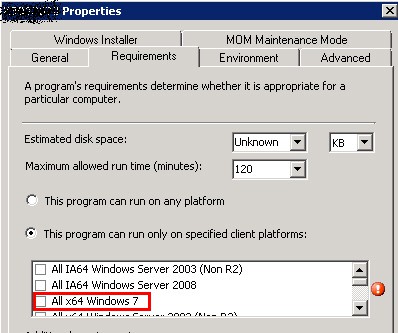
In this scenario, we are looking to migrate all the machines to Windows 7 and all the packages already created with the requirement to install them on the XP environment platform only.
We can edit the program setting under the requirement tab to make it possible to run on Windows 7, but there are ways to automate it.
In this blog post, we will learn about Script to Edit SCCM Program Setting Under Requirement Tab ConfigMgr.

Table of Contents
Script to Edit SCCM Program Setting Under Requirement Tab ConfigMgr
There is a script that I have seen that can read a package list from a text file and add a platform like “Windows 7”.
- ConfigMgr Reports Power Management | Default | SCCM
- SCCM Run Scripts – Realtime Deployment Options
- SCCM Run Script Results- Realtime Fast Channel Deployments
- How to Retrieve PowerShell Scripts from Intune using Microsoft Graph
- Intune Policy Assignment Classification Easy Secrets of using Graph API with PowerShell
- Managing Windows Bitlocker Compliance Policy Using Intune | MS Graph | Grace Period
- PowerShell Script to Create a Local Admin Account using Intune
Copy the below script – Script to Edit SCCM Program Setting Under Requirement Tab ConfigMgr
 ' Run the query to get the package.
  Set package = connection.Get(packageQuery)

  ' Output package name and ID.
  wscript.echo "Package ID:   " & package.PackageID
  wscript.echo "Package Name:  " & package.Name

  ' Build a query to get the programs for the package.
  programQuery = "SELECT * FROM SMS_Program WHERE PackageID='" & existingPackageID & "'"

  ' Run the query to get the programs.
  Set allProgramsForPackage = connection.ExecQuery(programQuery, , wbemFlagForwardOnly Or wbemFlagReturnImmediately)
  'The query returns a collection of program objects that needs to be enumerated.
  For Each program In allProgramsForPackage
    If program.ProgramName = existingProgramName Then
      'Get all program object properties (in this case we specifically need some lazy properties).
       programPath = program.Put_
       Set program = connection.Get(programPath)
       ' Check whether RUN_ON_SPECIFIED_PLATFORMS is already set.
       checkPlatformValue = (program.ProgramFlags XOR RUN_ON_SPECIFIED_PLATFORMS)
      If checkPlatformValue = 0 Then
        ' RUN_ON_SPECIFIED_PLATFORMS is not set. Setting RUN_ON_SPECIFIED_PLATFORMS value.
        program.ProgramFlags = (program.ProgramFlags XOR RUN_ON_SPECIFIED_PLATFORMS)
      End If

      ' Output the program name that is being checked for supported platforms.
      wscript.echo "Program Name: " & program.ProgramName

      ' Create
      Set tempSupportedPlatform = connection.Get("SMS_OS_Details").SpawnInstance_

      ' Populate tempSupportedPlatform values.
      tempSupportedPlatform.MaxVersion = newMaxVersion
      tempSupportedPlatform.MinVersion = newMinVersion
      tempSupportedPlatform.Name    = newName
      tempSupportedPlatform.Platform  = newPlatform

      ' Get the array of supported operating systems.
      tempSupportedPlatformsArray = program.SupportedOperatingSystems

      ' Add the new supported platform values (object) to the temporary array.
      'ReDim Preserve tempSupportedPlatformsArray (Ubound(tempSupportedPlatformsArray) + 1)
      'Loop to search All X86 Windows XP'
      For i=0 to Ubound(tempSupportedPlatformsArray)
      If ((tempSupportedPlatformsArray(i).MinVersion = "5.10.0000.0") AND (tempSupportedPlatformsArray(i).MaxVersion = "5.10.9999.9999")AND (tempSupportedPlatformsArray(i).Platform = "I386"))Then
      'If platform is All X86 Windows XP replace by Windows XP SP2'
       Set tempSupportedPlatformsArray(i) = tempSupportedPlatform
      Else
        wscript.echo tempSupportedPlatformsArray(i).Platform
      End If
      Next
      ' Replace the SupportedOperatingSystems object array with the new updated array.
      program.SupportedOperatingSystems = tempSupportedPlatformsArray
      ' Save the program.
      program.Put_
      ' Output success message.
      wscript.echo "Supported Platforms Updated "
    End If
  Next
End Sub
P.S – Test the script in the LAB environment before applying it on PRODUCTION.
References –SDK SMS_OS_Details server WMI Class and Technet Thread.
Script to Edit SCCM Program Setting Under Requirement Tab ConfigMgr
We are on WhatsApp. To get the latest step-by-step guides and news updates, Join our Channel. Click here –HTMD WhatsApp.
Author
Anoop C Nair is Microsoft MVP! He is a Device Management Admin with more than 20 years of experience (calculation done in 2021) in IT. He is a Blogger, Speaker, and Local User Group HTMD Community leader. His primary focus is Device Management technologies like SCCM 2012, Current Branch, and Intune. He writes about ConfigMgr, Windows 11, Windows 10, Azure AD, Microsoft Intune, Windows 365, AVD, etc.




Do we have any query to get output of all the Packages –> Programs –> Requirement tab ?
I would like to see in powershell all packages and programs in each package and what requirements are listed.
Hi thanks for posting this. I was looking for a script to enable my programs to run on Windows 10 x64, for the ones that have Windows 7 x64 enabled already. Wanted to enable the checkbox under the Requirements tab. Would I update this section as the below?:
tempSupportedPlatform.MaxVersion = “10.00.99999.9999”
tempSupportedPlatform.MinVersion = “10.00.0000.0”
tempSupportedPlatform.Name = “Win NT”
tempSupportedPlatform.Platform = “x64”
‘ Get the array of supported operating systems.
tempSupportedPlatformsArray = program.SupportedOperatingSystems
‘ Add the new supported platform values (object) to the temporary array.
‘ReDim Preserve tempSupportedPlatformsArray (Ubound(tempSupportedPlatformsArray) + 1)
‘Loop to search All X86 Windows XP’
For i=0 to Ubound(tempSupportedPlatformsArray)
If ((tempSupportedPlatformsArray(i).MinVersion = “6.10.0000.0”) AND (tempSupportedPlatformsArray(i).MaxVersion = “6.10.9999.9999”)AND (tempSupportedPlatformsArray(i).Platform = “x64”))Then