






Duo Desktop Self-Updating App Function in the Intune Enterprise App Catalog
This article overviews how Duo Desktop Self-Updating App Function in the Intune Enterprise App Catalog. Some apps in the Intune Enterprise App Catalog are self-updating. Self-updating apps automatically update when the vendor releases a new version by downloading content directly from the vendor, so you must ensure your network allows access to these download locations.
Intune ensures that the app has a minimum version and reports the version detected on the device. The app selection wizard will notify you when you select a self-updating app. You can update an Enterprise App Catalog app by selecting the app name to display additional options. You can then select Update and Supersede app.
The Enterprise App Catalog is a prepackaged catalog of apps that helps IT and security teams manage their applications. It includes applications based on the Win32 app type.
The Enterprise App Catalog contains applications that can update themselves. Intune verifies that these apps are at least at the target minimum version, and it considers the app installed if the detected version meets or exceeds this minimum requirement. Self-updating apps will refresh on client devices according to the vendor’s update process.


Table of Contents
Create Duo Desktop Enterprise App Catalog App
All the Enterprise App Catalog Apps are prepackaged in Intune, so it’s easy for an Admin to create them from the Intune Portal. Follow the steps below to make any Windows apps from scratch.
- Sign In to Microsft Intune Admin Center
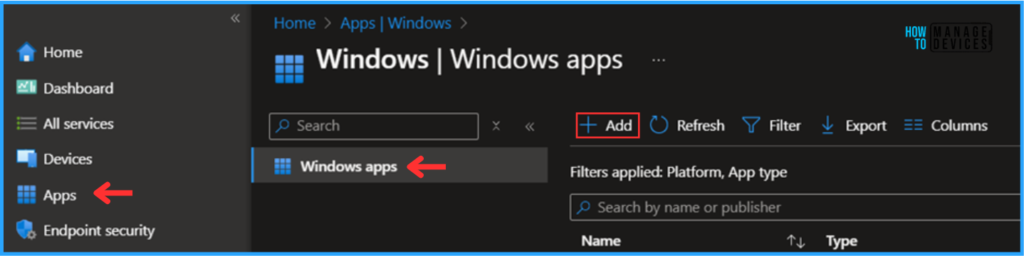
- Navigate to Apps > Windows > Add
- 7-Zip Update with Enterprise App Catalog App in Intune Best Step-by-Step Guide
- Install Zoom Client using Windows Enterprise App Catalog App with Intune
- Intune Win32 App Supersedence and Auto App Update Explained
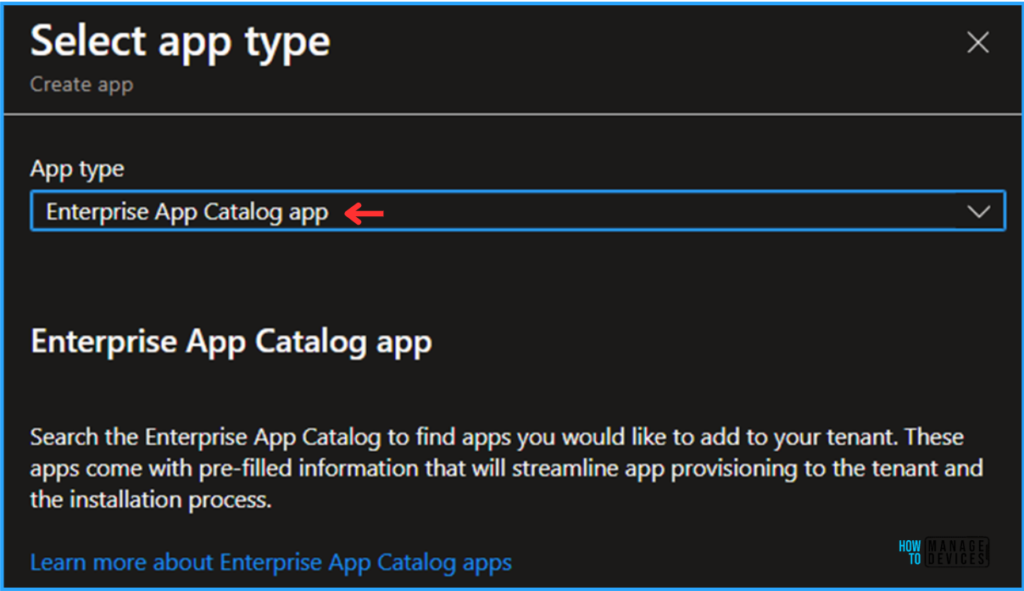
We’ll see a new window for Selecting an app type. From the drop-down menu, select the Enterprise App Catalog app.
Note! Search the Enterprise App Catalog to find apps you would like to add to your tenant. These apps come with pre-filled information that will streamline app provisioning to the tenant and the installation process.
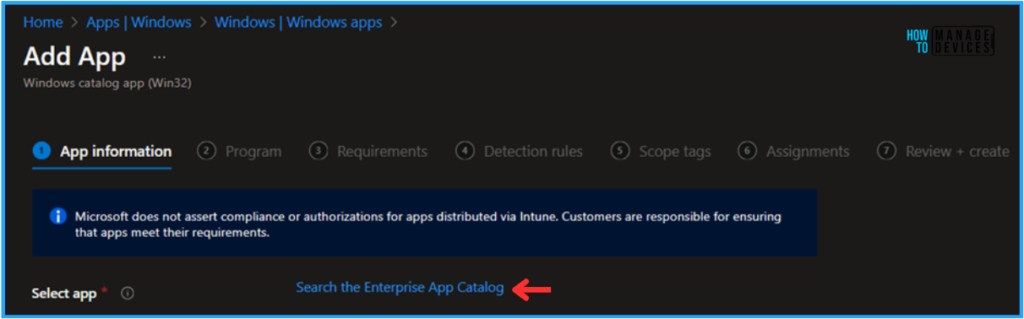
The App information pane now includes an option to Search the Enterprise App Catalog. Clicking on that will take you to the Select App window.
Note! Microsoft does not assert compliance or authorizations for apps distributed via Intune. Customers are responsible for ensuring that apps meet their requirements.
Duo Desktop Application Details
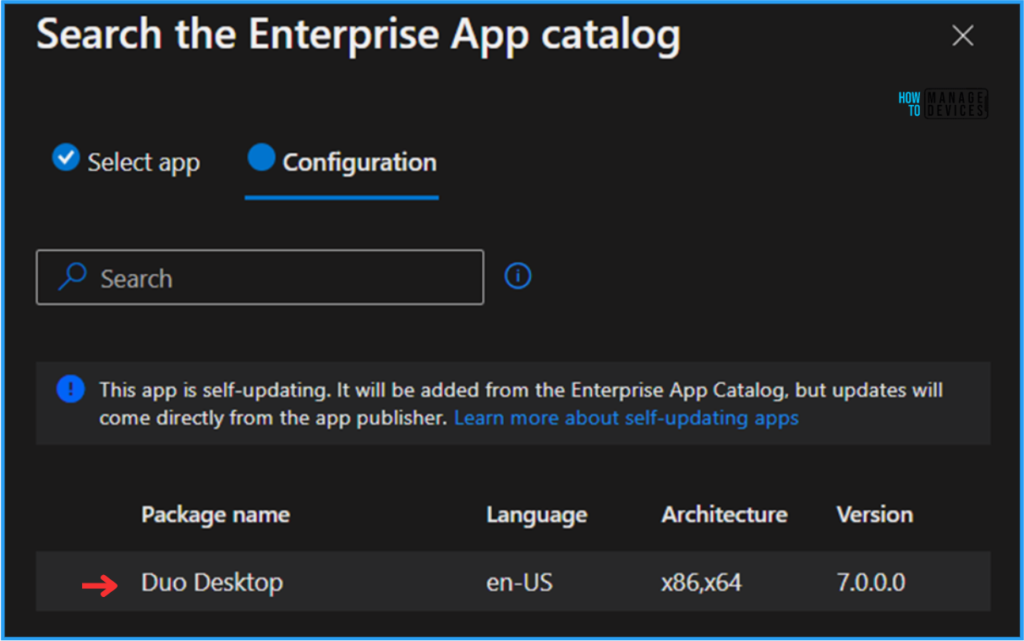
Find the table below to understand the complete details about the Enterprise Catalog app currently available in Intune
| Package name | Language | Architecture | Version |
|---|---|---|---|
| Duo Desktop | en-US | x86,x64 | 7.0.0.0 |
Search and Select Duo Desktop version 7.0.0.0. Click on Next, and you will see the app’s Configuration details. Once you are confined, Select the App.
Configure the Duo Desktop Self-Updating App
Most of the details on the App Information page are pre-populated by default. We only have to change two options manually.
- Show this as a featured app in the Company Portal – Yes
- Logo – download and upload a Duo Desktop logo and click Next.
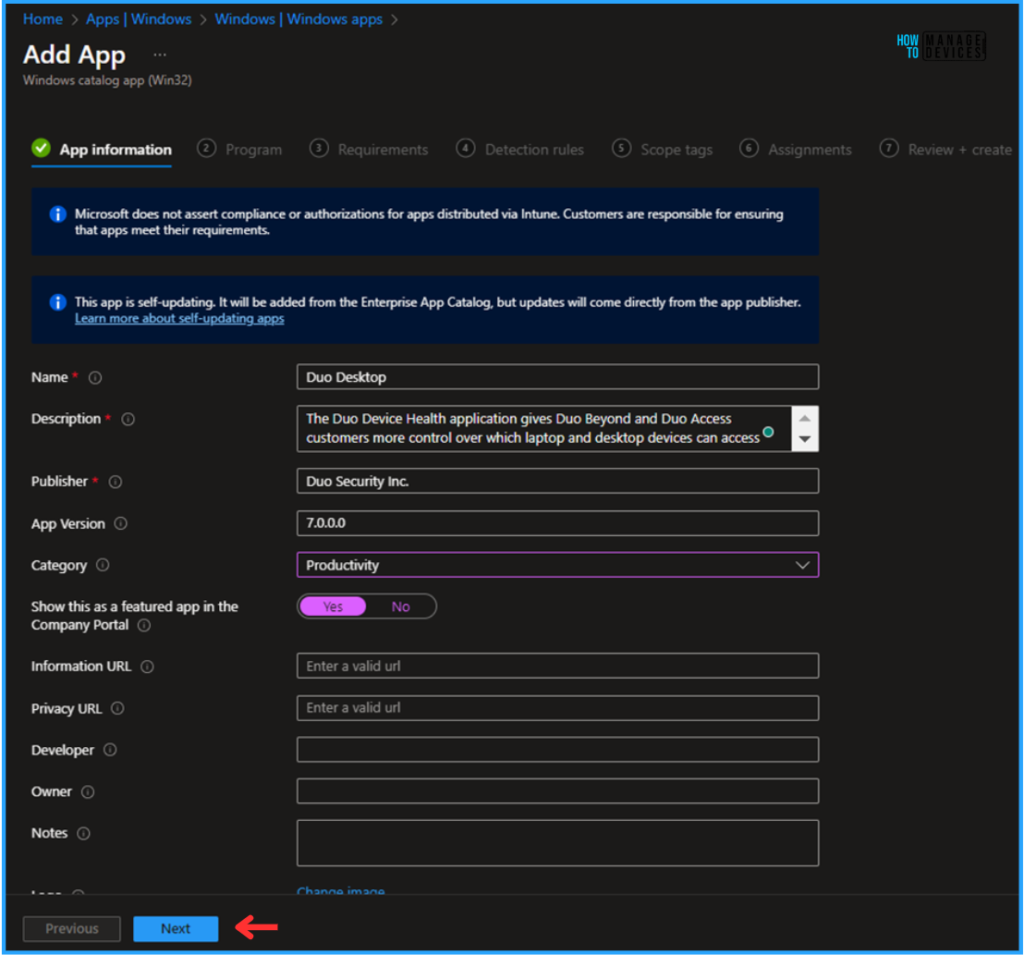
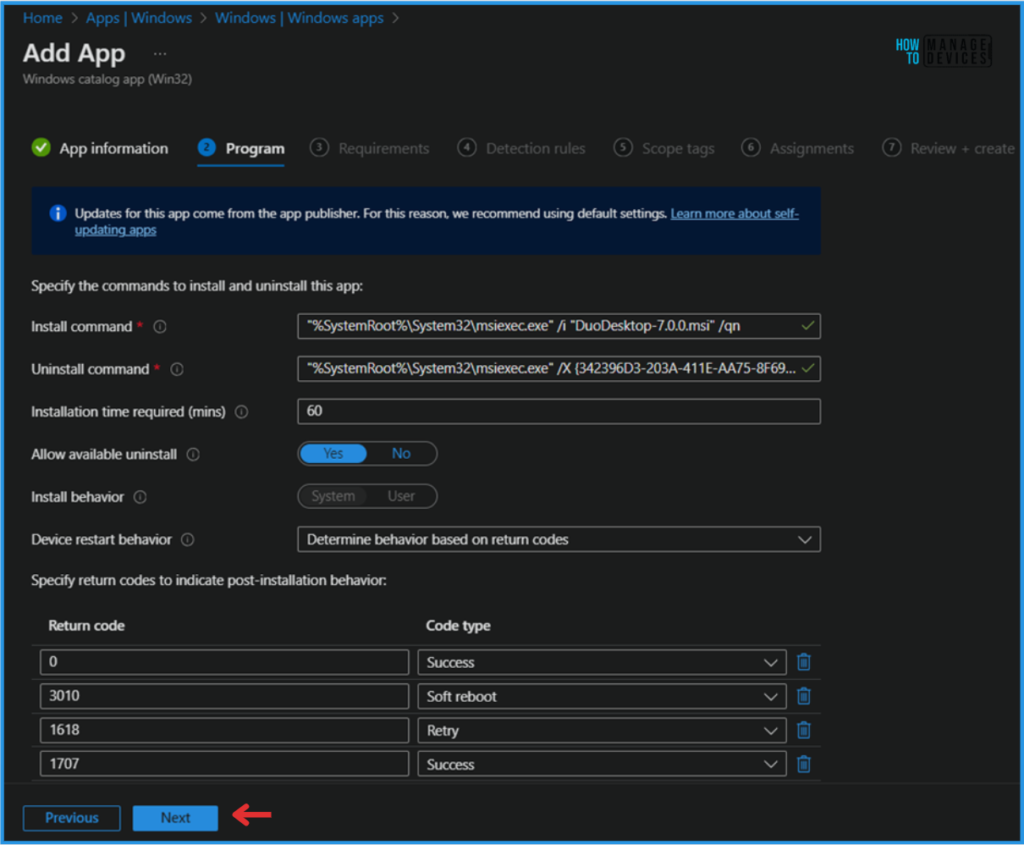
The significant advantage of the Enterprise App Catalog app is that we don’t need to find and test the installation and uninstallation commands.
The Program page will also prefill all the details, like install and uninstall commands, install behaviour, time, returns codes, etc. You are also allowed to need any details.
NOTE! – There is no self-updating app functionality on the Intune side (in the Intune Admin center portal). The current process that I explained here is a vendor-managed automatic update process.
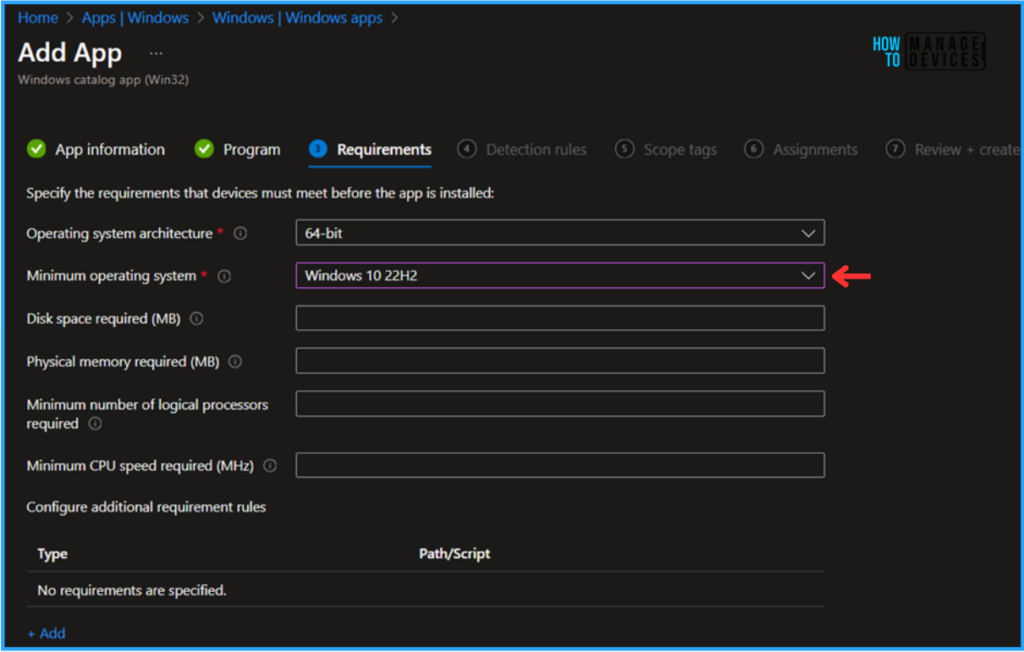
By default, a few options will be auto-filled on the Requirements page. You can modify any of them based on the requirements. Here, I am changing the minimum operating system to Windows 10 22H2. Leaving all other details as it is.
The Rule format is already configured as “Manually configured detection rules” in this pane. The detection rule will also be filled out. Intune configures it via File detection methods in this application. Detection types may defer App by App.
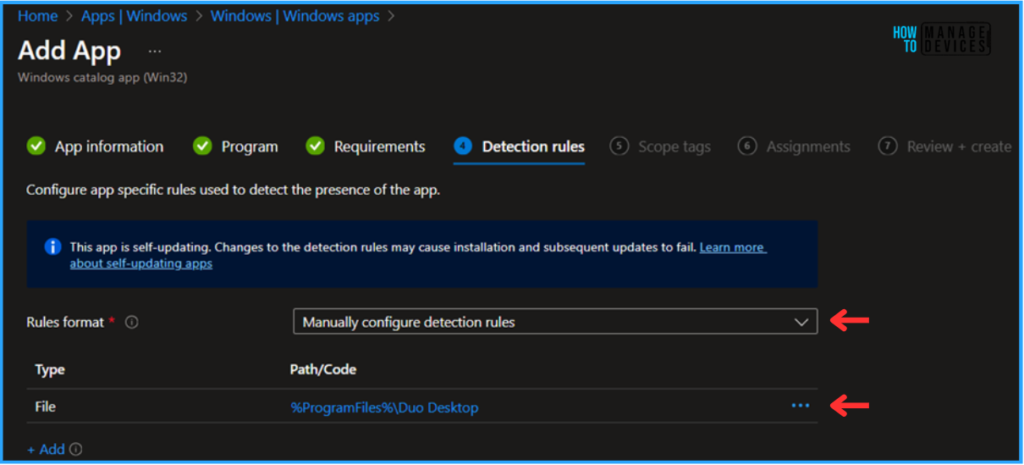
The table below helps you learn more about the rule that indicates the app’s presence. You can leverage the +Add option to and more Rule types.
| Detection Rule | Value |
|---|---|
| Rule type | File |
| Path | %ProgramFiles%\Duo Desktop |
| File or folder | Duo Desktop.exe |
| Detection method | String (version) |
| Operator | Greater than or equal to |
| Value | 7.0.0.0 |
| Associated with a 32-bit app on 64-bit clients | Yes |
| Report the detected file version as the app version | Yes |
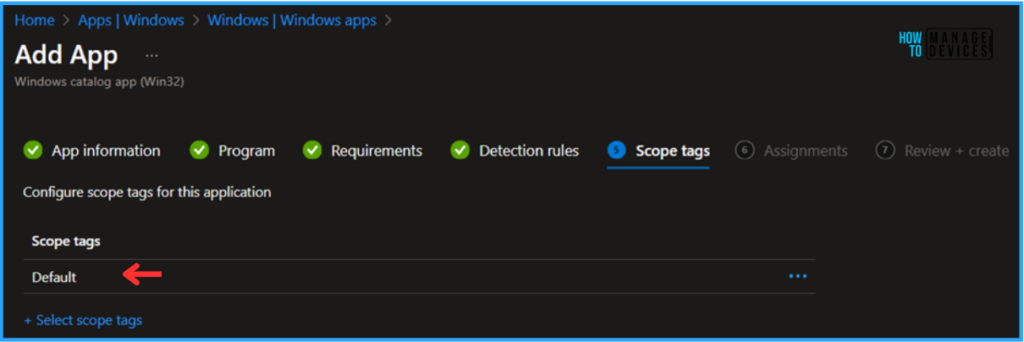
On the next page, click +Select scope tags and select a Scope tag based on your requirements. In this deployment, I am selecting the Default scope tag.
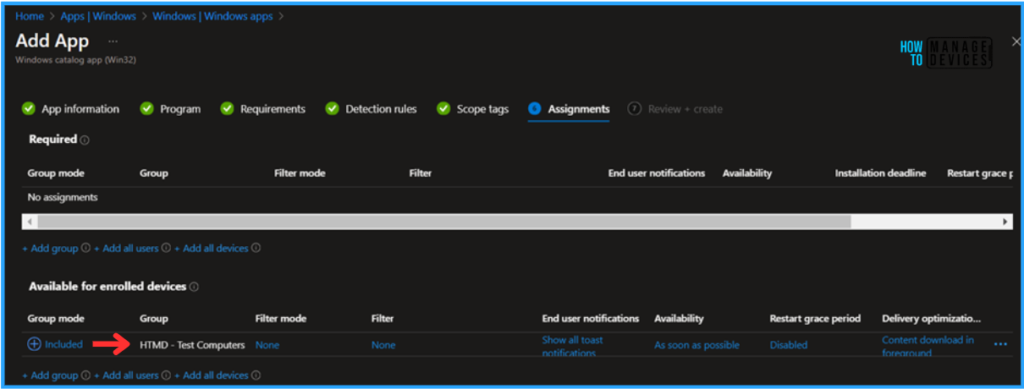
The next step is to assign the Application to a device group. Click +Add group under Available for Enrolled Devices and choose a device group. I am selecting HTMD – Test Computers, one of my test Device Groups, so that we can install the app from the Company Portal.
- Easy Method to Lock All Taskbar Settings on Windows Endpoints with Intune Policy
- How to Install Amazon WorkSpaces with Intune Enterprise App Catalog App
- Easy Guide to Deploy Azure VPN Client Microsoft Store App using Intune
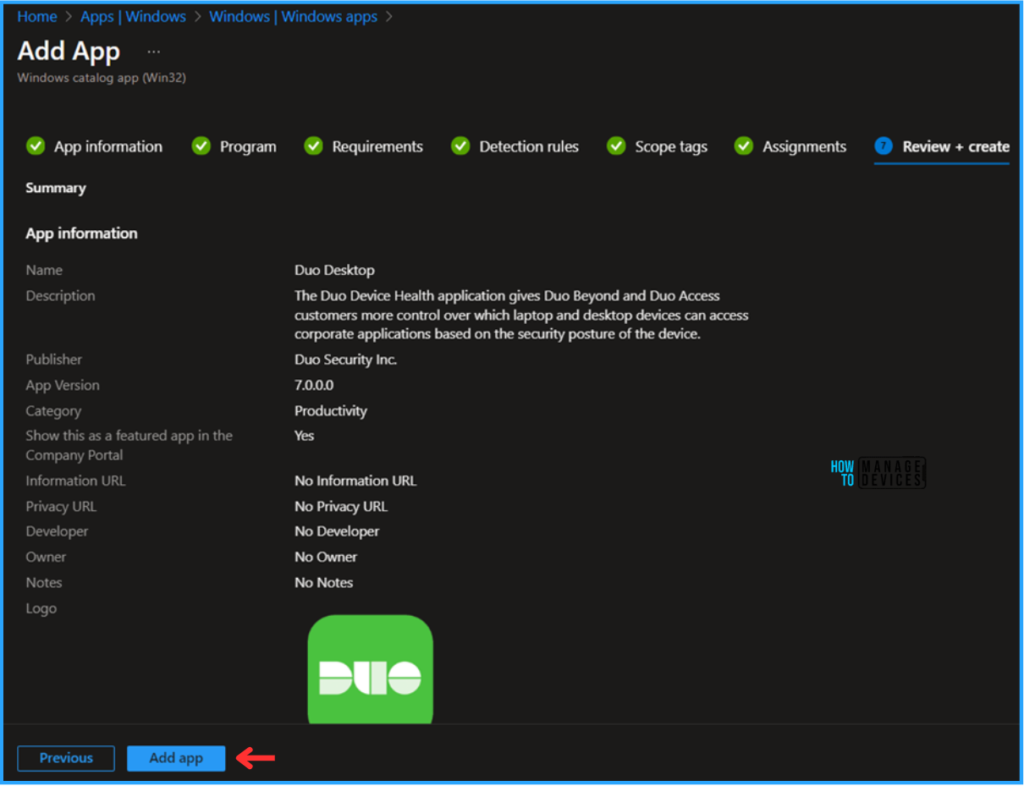
Once you carefully validate all the information about the Duo Desktop App from the Review+create page, you can click on the Add app button. Depending on the size of the binary, the app’s creation will usually take a couple of minutes.
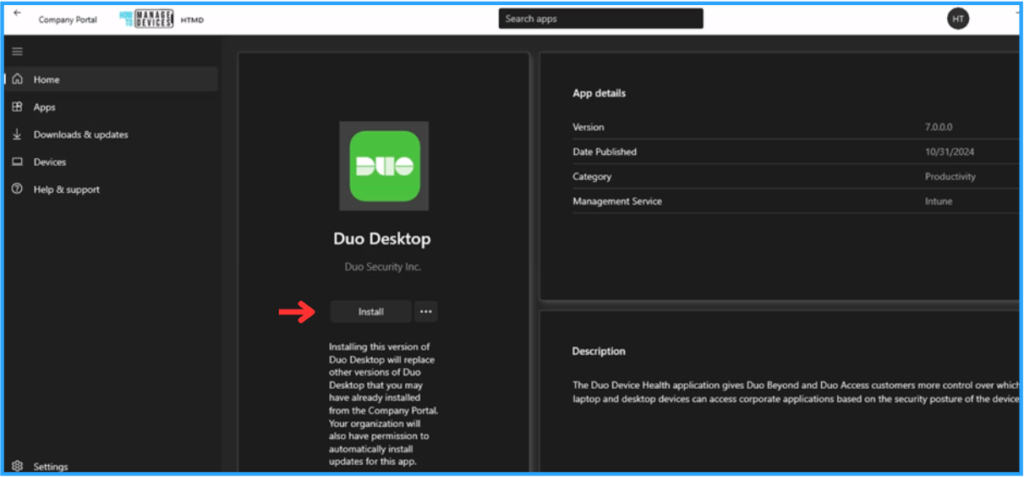
End User Experience of Duo Desktop App Deployment
The Duo Desktop Enterprise App has been deployed to one of the test device groups in Available mode. Let’s check the App from the Company Portal and install it since it has a Self-Updating App Function. The version will be automatically updated based on the vendor release.
Monitor the Duo Desktop App Deployment in Intune
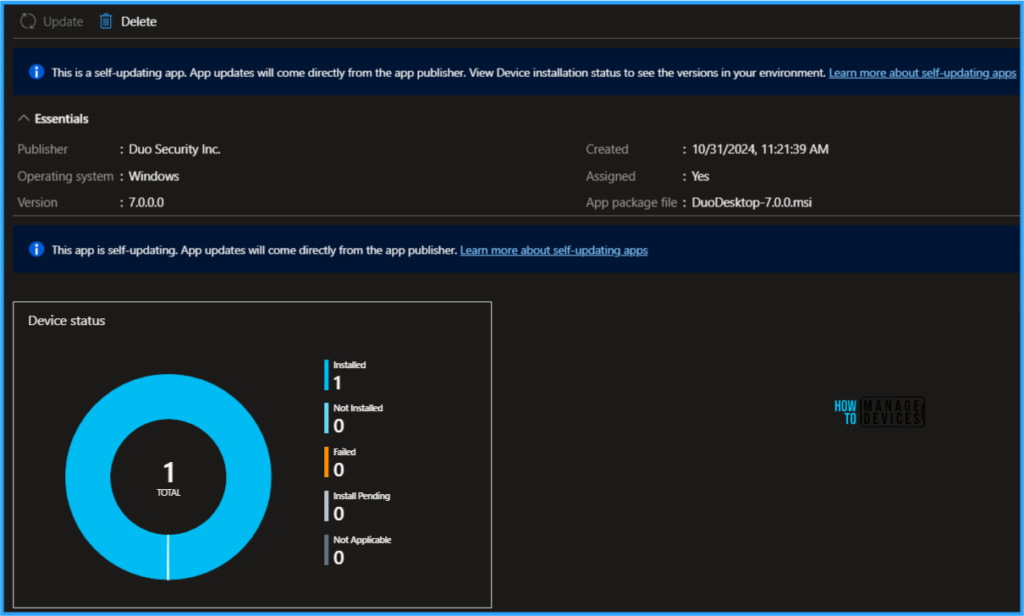
The App has been successfully installed on the targeted machine. At the top, we can see information about the app’s updating capability: “This is a self-updating app. App updates will come directly from the app publisher. View the Device installation status to see the versions in your environment.” To check the Intune Reporting Status, follow the steps below.
- Navigate to Apps > Windows > Search and Select Duo Desktop > Overview
Need Further Assistance or Have Technical Questions?
Join the LinkedIn Page and Telegram group to get the latest step-by-step guides and news updates. Join our Meetup Page to participate in User group meetings. Also, Join the WhatsApp Community to get the latest news on Microsoft Technologies. We are there on Reddit as well.
Author
Vaishnav K has over 11 years of experience in SCCM, Device Management, and Automation Solutions. He writes and imparts knowledge about Microsoft Intune, Azure, PowerShell scripting, and automation. Check out his profile on LinkedIn.


Discussion