






Allow Service Worker in Microsoft Edge to Control Srcdoc Inframes using Intune
Hey, let’s learn Allow Service Worker in Microsoft Edge to Control Srcdoc Inframes using Intune. The Enable Srccdoc Iframe “Allow-Same-Origin” Sandbox Policy in Microsoft Edge controls how small web pages inside another page (iframes) work with ServiceWorkers. If the policy is enabled or left unset, ServiceWorkers can manage these iframes. If it is disabled, they cannot.
This policy is used in the Microsoft Edge browser. It decides if ServiceWorkers should control iframes with the “allow-same-origin” setting. This makes a difference in how websites run and stay secure. It balances performance and security in Microsoft Edge
The importance of this policy is that it helps keep web browsing safe. Allowing ServiceWorkers can make sites work faster, but sometimes turning it off can protect against risks. It gives organisations a choice between better speed or stronger safety.
For users and organisations, the policy is helpful because it gives control and flexibility. Admins can set it through Intune, making sure browsers stay safe and follow company rules. This keeps data secure and improves web use.

Table of Contents
What are the Advantages of enabling this Policy using Intune?
1. Improves website performance and speed.
2. Allows better control and management of web content.
3. Supports advanced features in modern web apps.
4. Provides a smoother browsing experience for users.
Allow Service Worker in Microsoft Edge to Control Srcdoc Inframes using Intune
Before enabling this policy, Microsoft Edge allows ServiceWorkers to control srcdoc iframes that use the “allow-same-origin” sandbox attribute. This helps improve performance by letting ServiceWorkers manage caching and offline access for iframe content, but it also increases some security risks since the iframe gets more access under the same origin.
After enabling (or setting the policy to Disabled), ServiceWorkers are blocked from controlling srcdoc iframes. This improves security and isolation, as the iframe content stays independent, but it reduces performance benefits like faster loading and offline support.
- Configure Android Shared Devices using Intune
- Deploy Private LOB Apps to Android Devices using Intune
- Zero Touch Enrolment for Corporate-Owned Android Devices in Intune
Create a Profile
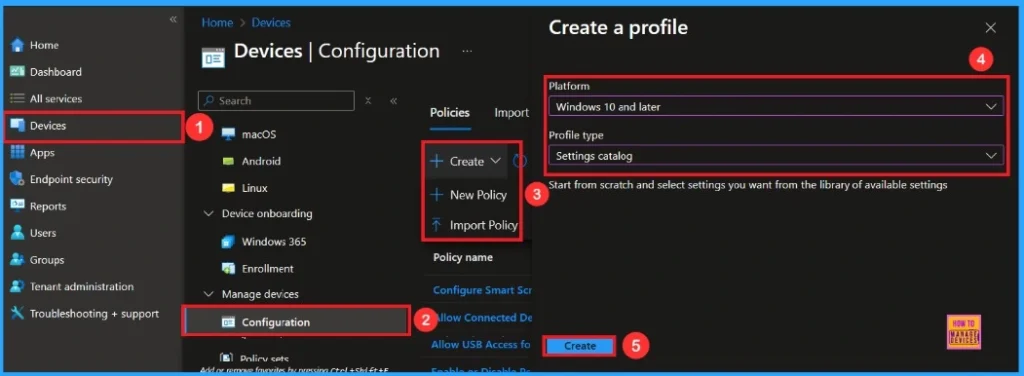
First, you need to configure this policy. Start by signing in to the Microsoft Intune Admin Center. Then, click on Devices. Under the Devices section, go to the Configuration tab, where you will find a + Create option. Click on it, and you will see 2 options, such as the new policy and the Import policy.
- Select New policy, and this will open a new window titled Create a profile.
- Here, you need to enter the Platform and Profile type details.
- After that, click Create.
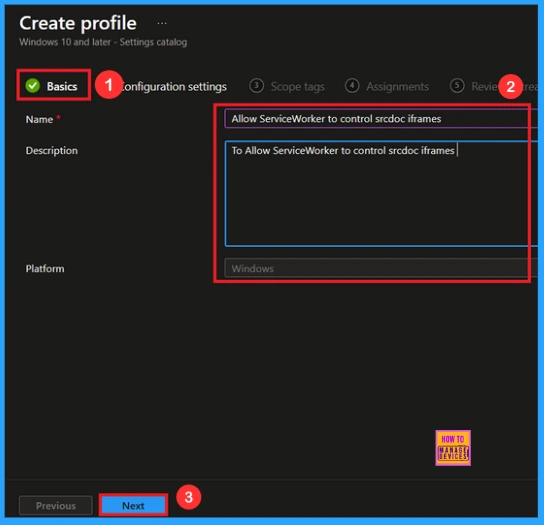
Basic Tab
The first step is Basics, in this section, you need to enter the basic details of the policy. First, provide an appropriate name(Allow Service Worker to Control Srcdoc Inframes) for the policy .You should also enter a description for better clarity. Then, set the Platform as Windows and click Next.
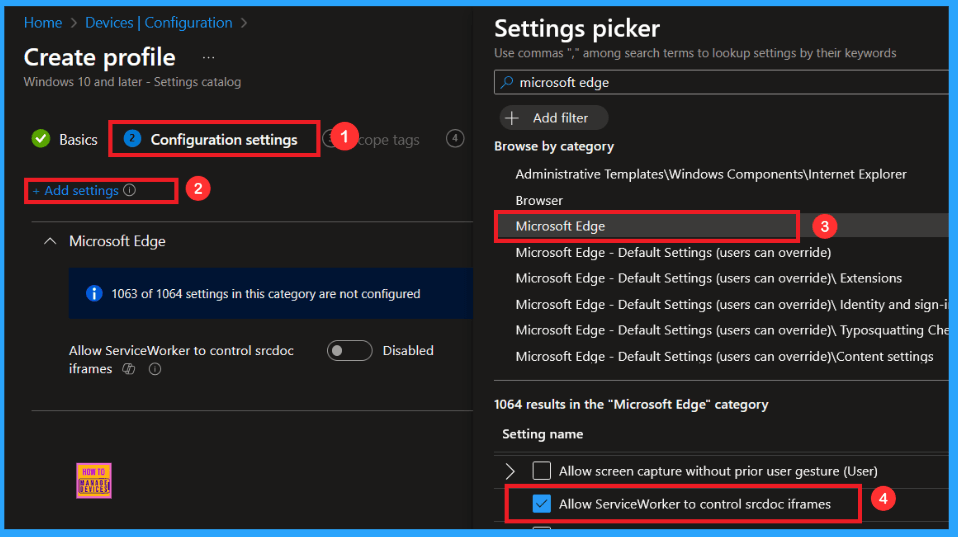
Configuration Settings
After completing the Basics tab, you will move to the Configuration settings. Here, click on the blue + Add settings button. This will open a Settings picker window. Then select the Policy from Settings Picker.
| Category | Setting Name |
|---|---|
| Microsoft Edge | Allow Service Worker to Control Srcdoc Inframes |
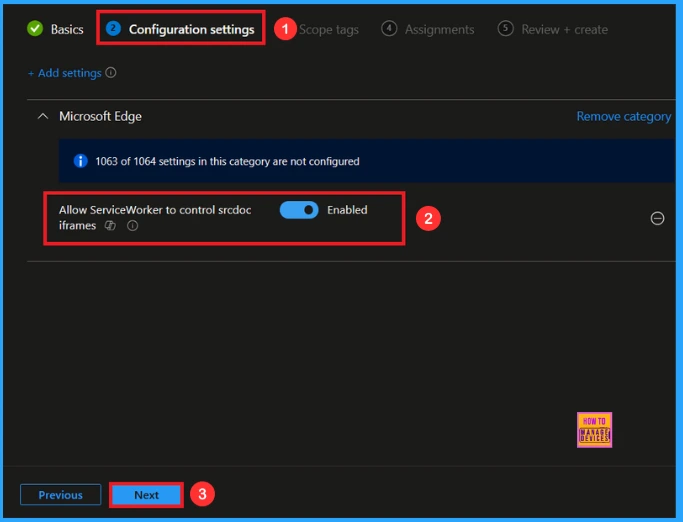
After selecting the settings, close the settings picker window. Now you are on the Configuration Settings main page. You will see that the policy has appeared on your screen. By default, this policy is disabled. If you want to continue with this default setting, you can click Next.
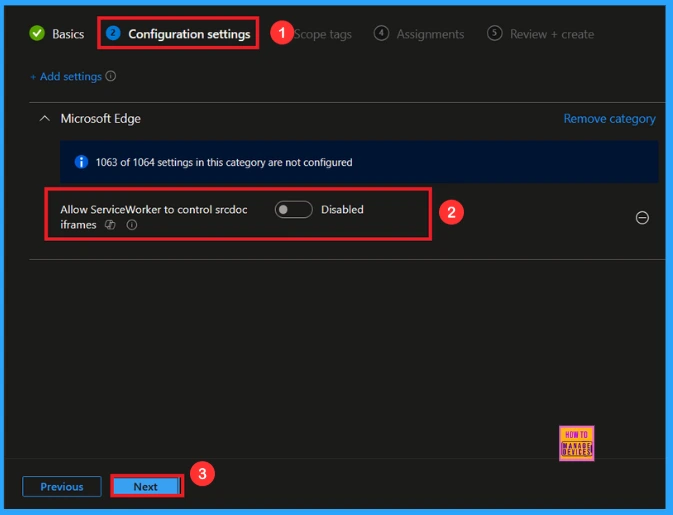
Enable Service Worker Policy
By default, this toggle is set to Disabled. To activate the policy, you just drag the toggle from left to right. Once enabled, the toggle will turn blue and change to Enabled. Then click Next to continue.
Scope Tag
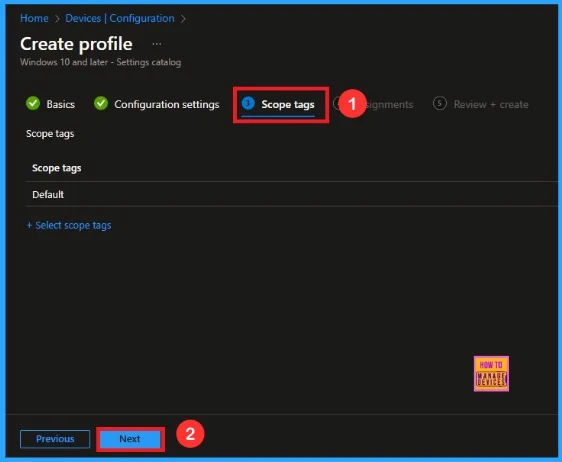
The next step is the Scope tag. While adding a scope tag to your policy is useful for the organization, it is not a required step. If you choose not to use a scope tag, you can skip this step and proceed by clicking Next to move forward.
Assignments
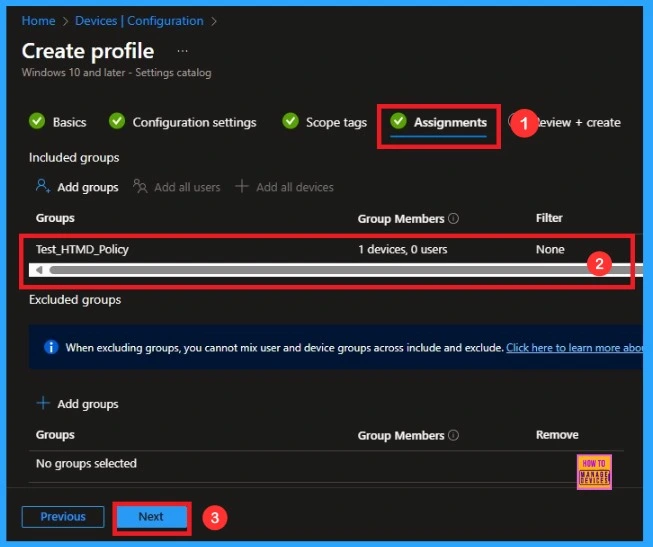
In the Assignments tab, you choose the users or devices that will receive the policy by clicking Add Group under Include Group, select the group that you want to target (e.g Test_HTMD_Policy) and then click Next to continue.
Final Step
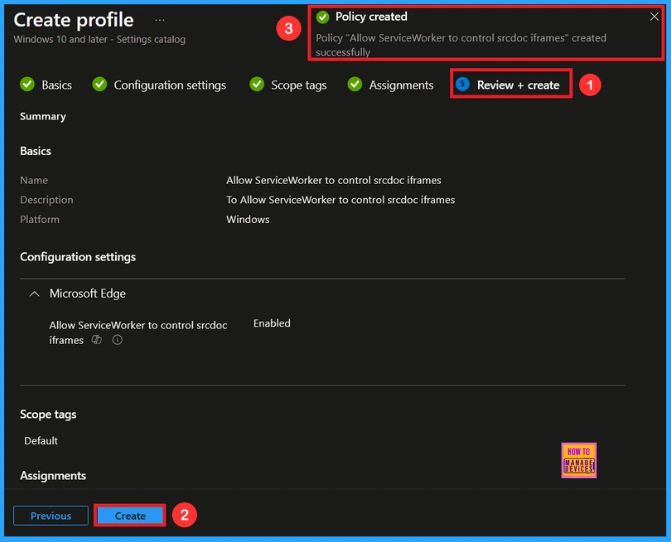
At the final Review + Create step, we see a summary of all configured settings for the new profile; after reviewing the details and making any necessary changes by clicking Previous. We click Create to finish, and a notification confirms that the “Allow ServiceWorker to control srcdoc iframe” created successfully.
Device and User Check-in Status
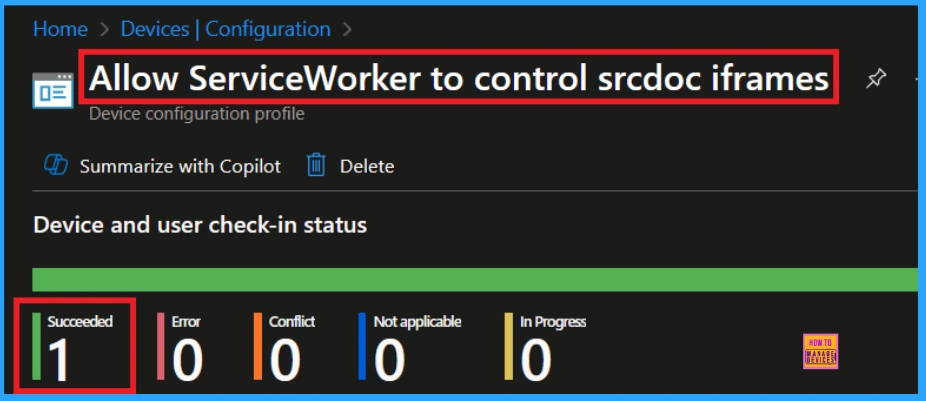
To view a policy’s status, go to Devices > Configuration in the Intune portal, select the policy (like Allow ServiceWorker to control srcdoc iframe), and check that the status shows Succeeded (1). Use manual sync in the Company Portal to speed up the process.
Client Side Verification
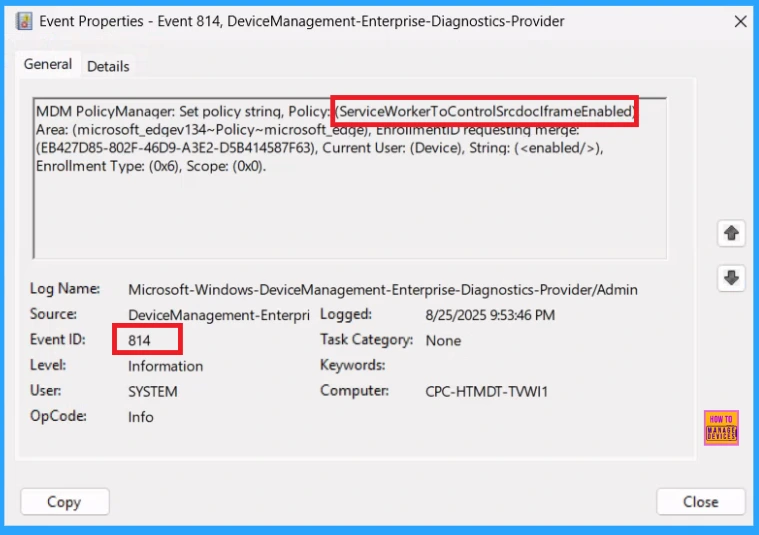
To confirm if a policy has been applied, use the Event Viewer on the client device. Go to Applications and Services Logs > Microsoft > Windows > Device Management > Enterprise Diagnostic Provider > Admin. From the list of policies, use the Filter Current Log option and search for Intune event 814
MDM PolicyManager: Set policy string, Policy: (ServiceWorkerToControlSrcdoclframeEnabled)
Area: (microsoft_edqev134~Policy~microsoft_eage), EnrolmenuD requesting merge:
(EB427D85-802F-46D9-A3E2-D5B414587F63), Current User: (Device), String: (),
Enrollment Type: (0x6), Scope: (0x0).
How to Remove a Group From ServiceWorker Policy
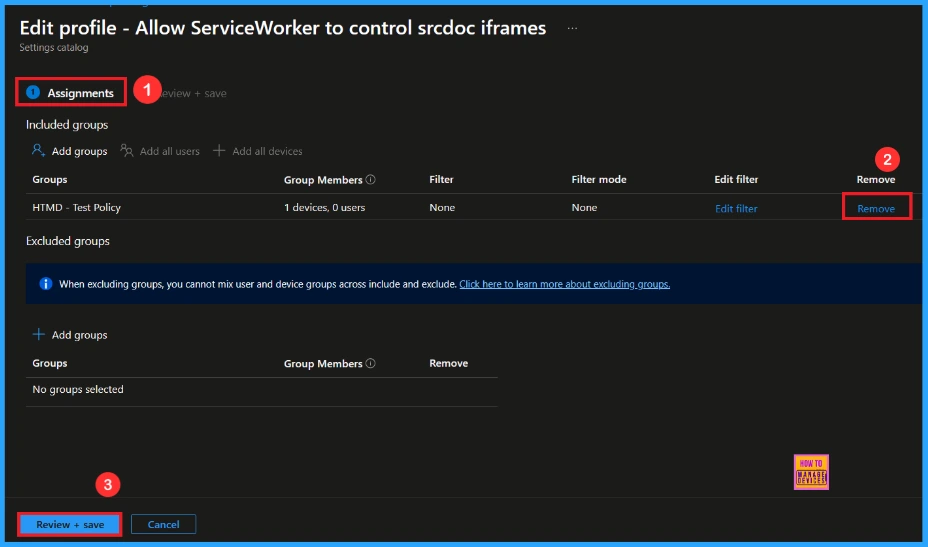
After creating the policy, if you want to remove the specific group that you previously selected, you can easily do that. First, go to Devices > Configuration policies. In the Configuration policy section, search and select the policy(Allow ServiceWorker to control srcdoc iframe). In the Assignment section, you will find an Edit option and click on it. Then, click the Remove option.
For detailed information, you can refer to our previous post – Learn How to Delete or Remove App Assignment from Intune using by Step-by-Step Guide.
How to Delete ServiceWorker Policy from Intune
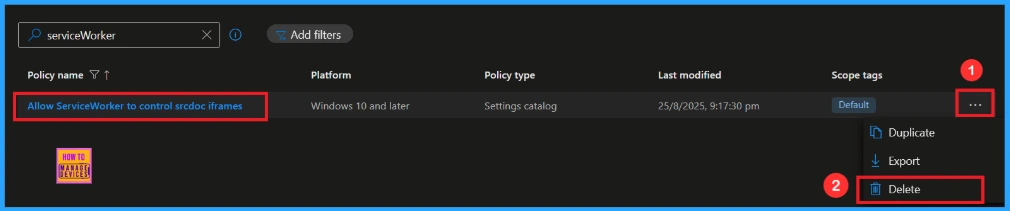
If you want to delete this policy for any reason, you can easily do so. First, search for the policy name in the configuration section. When you find the policy name, you will see a 3-dot menu next to it. Click on the 3 dots, then click the Delete button.
For detailed information, you can refer to our previous post – How to Delete Allow Clipboard History Policy in Intune Step by Step Guide.
Need Further Assistance or Have Technical Questions?
Join the LinkedIn Page and Telegram group to get the latest step-by-step guides and news updates. Join our Meetup Page to participate in User group meetings. Also, Join the WhatsApp Community to get the latest news on Microsoft Technologies. We are there on Reddit as well.
Author
Anoop C Nair has been Microsoft MVP from 2015 onwards for 10 consecutive years! He is a Workplace Solution Architect with more than 22+ years of experience in Workplace technologies. He is also a Blogger, Speaker, and Local User Group Community leader. His primary focus is on Device Management technologies like SCCM and Intune. He writes about technologies like Intune, SCCM, Windows, Cloud PC, Windows, Entra, Microsoft Security, Career, etc.


Discussion