






Best way to Install Shotcut Application using Intune Enterprise App Catalog App
Today, I am extremely happy to share the best way to install Shotcut Application using Intune Enterprise App Catalog App. Shotcut is a free, open-source video editor that supports various formats, native timeline editing, Blackmagic Design integration, and 4K resolution. It is available on Windows, Mac, and Linux.
Shotcut utilizes FFmpeg for broad format support and OpenGL for efficient playback. It offers a range of filters for video and audio editing and enables the creation of various output formats, such as ProRes, H.264, and more.
Shotcut leverages FFmpeg for comprehensive format support, enabling frame-accurate obtaining within many file types. This versatility extends to capturing video from webcams and audio sources and streaming playback from various network protocols like HTTP, HLS, RTMP, RTSP, MMS, and UDP.
Shotcut supports exporting Edit Decision Lists (EDL) in the CMX3600 format for seamless integration with other professional editing systems. In this blog post, I will share how to install the Shotcut Application using the Intune Enterprise App Catalog App.

Table of Contents
What is Shotcut Application’s History?
Dennedy wanted to create a new editor based on MLT and reused the Shotcut name. He wanted to make something that would exercise MLT’s new cross-platform capabilities, especially with the WebVfx and Movit plugins.
What are the Features of Shotcut Application?
>Wide Format Support
>Audio Features
>Video Effects
>Editing Features
>Cross Platform & Codec Independent
>Display and Monitoring
>Hardware Support
Installation of Shotcut Application using Intune Enterprise App Catalog App
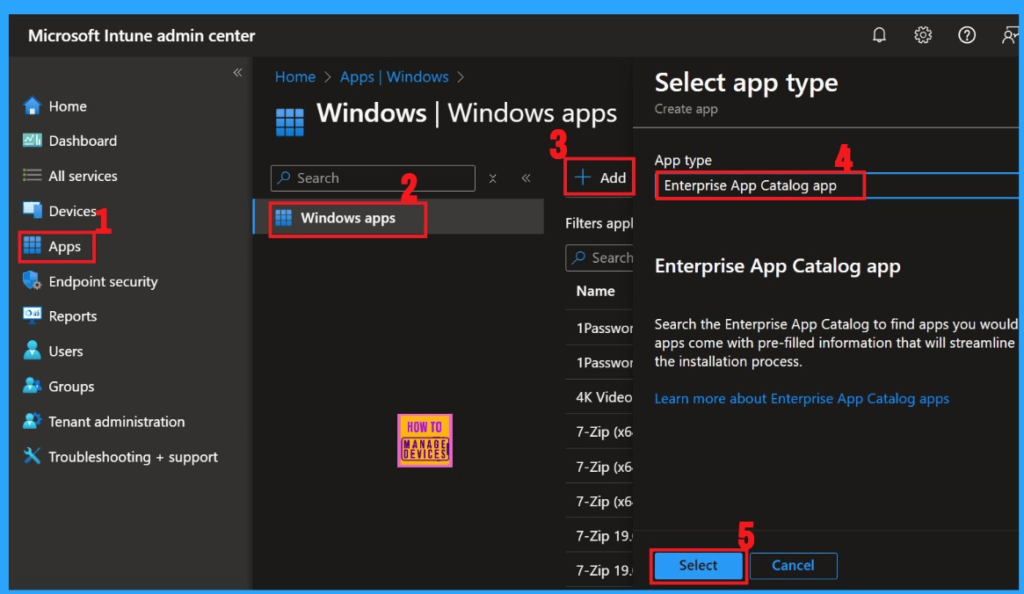
The Intune admin center manages app deployment straightforwardly. Log in to the Microsoft Intune admin center, then navigate to Apps > Windows apps > +Add.
- To get started, choose the App type as Enterprise App Catalog App.
- Click Select
- 6 Exciting Features Coming to Intune Enterprise App Management
- Top 75 Latest Intune Interview Questions And Answers
- Free Intune Training 2024 For Device Management Admins HTMD Blog
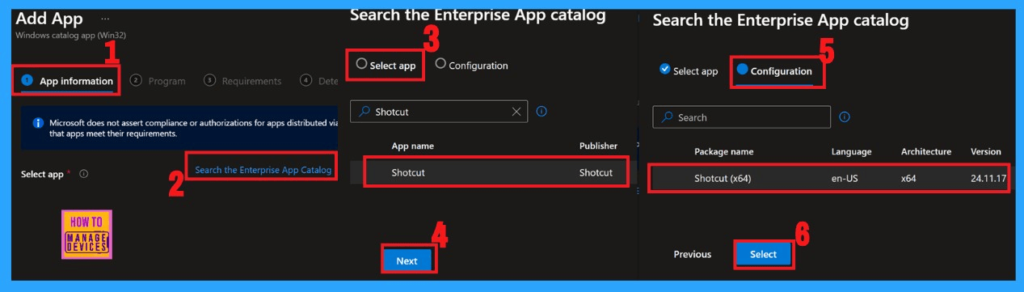
Click the Search the Enterprise App Catalog link in the App information settings in the next window. Select the app you would like to install from the provided list.
- Click Search the Enterprise App Catalog
- Click Select App and search the which you want to install.
- Click Next
- In the Configuration Settings, you will see details like the package name, language, architecture, and version.
- Hit Select to proceed.
| Package Name | Language | Architecture | Version |
|---|---|---|---|
| Shotcut (x64) | en-US | x64 | 24.11.17 |
After the configuration process, we are on the app information page. Here, we can see all the details about the selected app, including its Name, Description, Publisher, Version, Category, Logo, etc.
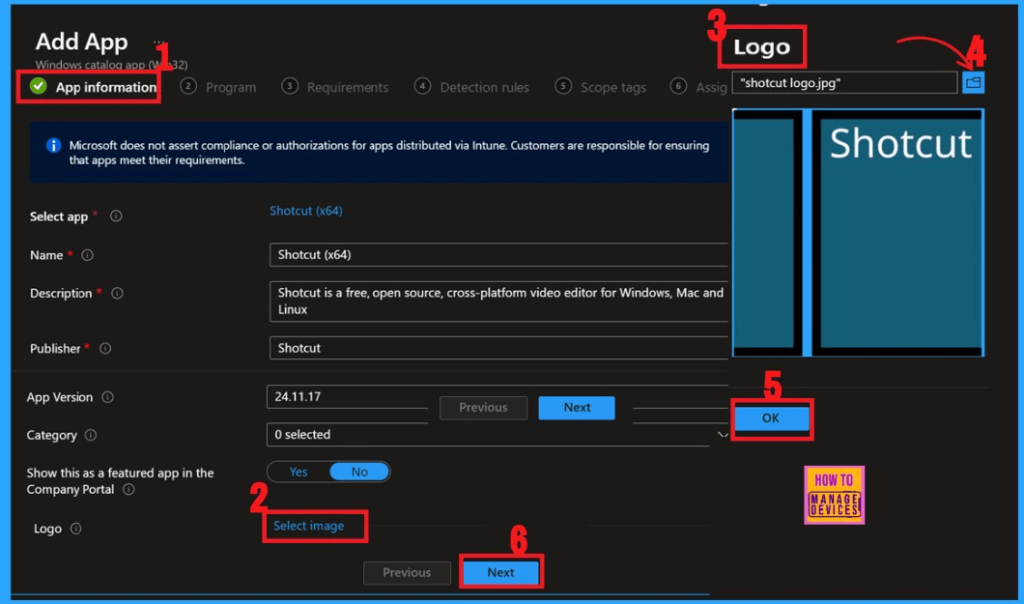
| App Details | Information |
|---|---|
| Name | Shotcut |
| Description | Shotcut is a free, open-source, cross-platform video editor for Windows, Mac and Linux. |
| Publisher | Shotcut |
| Version | 24.11.17 |
| Category | 0 selected |
| Logo | Please refer to the screenshot below |
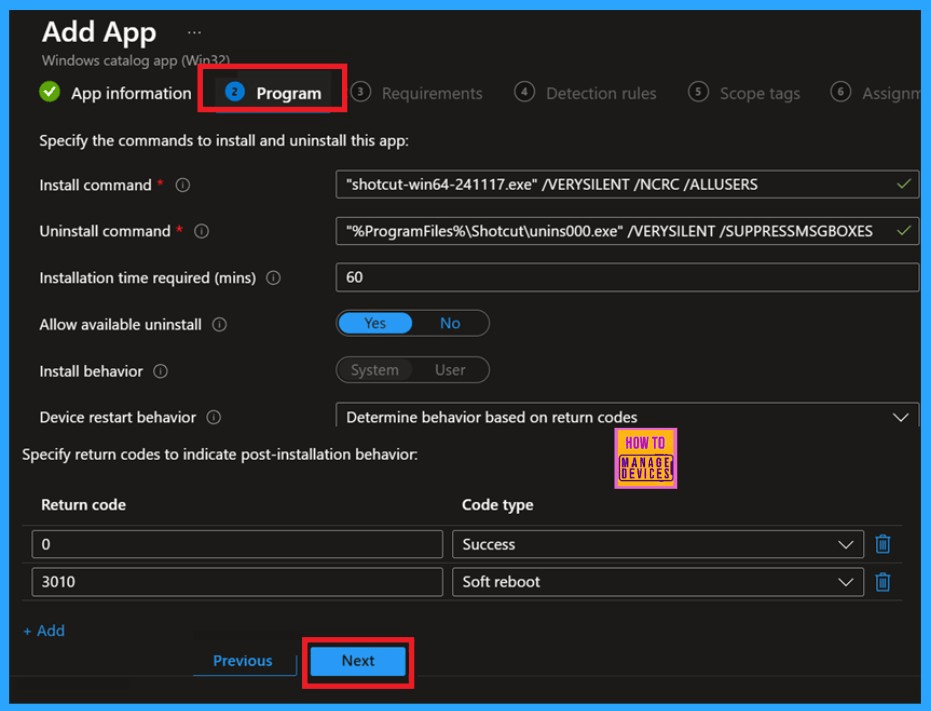
Next is the program, where you’ll find details like the install command (shotcut-win64-241117.exe/VERYSILENT/NCRC/ALLUSERS), the installation command, behavior, installation duration (60 Minutes), and more. This step automatically adds the information due to the nature of enterprise applications and catalog policies.
- Click Next
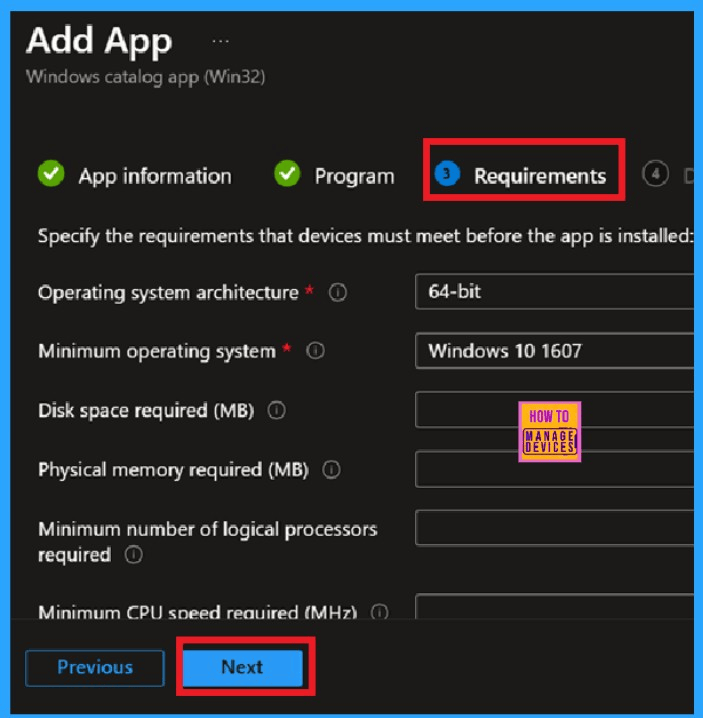
In the requirement settings, we can see the details like operating system architecture (64-bit) and the minimum operating system version required (Windows 10 1607). It is also a default section like Program settings.
- Click Next to further procedure.
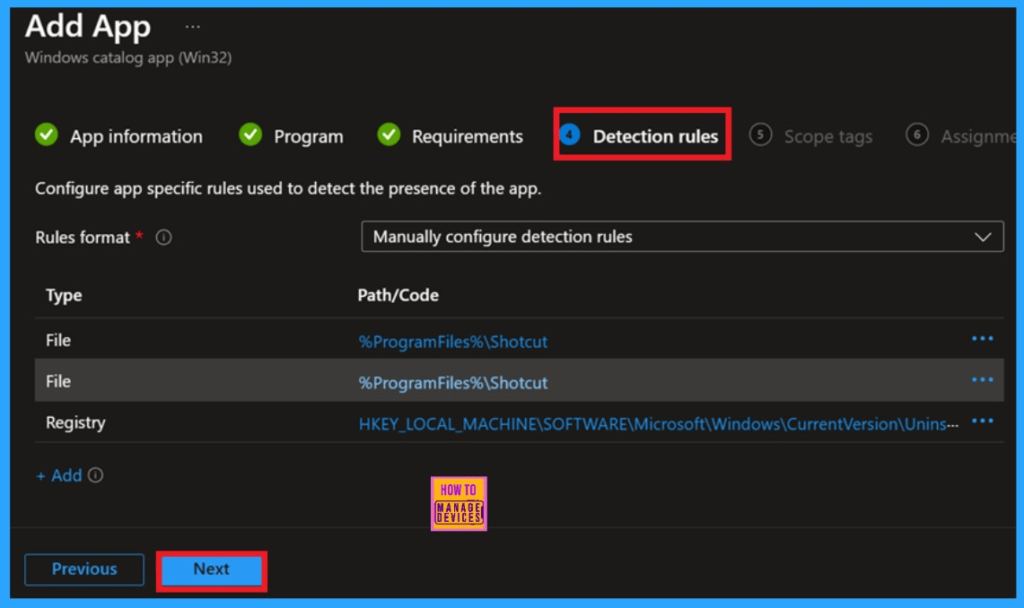
The Detection Rules section verifies whether an app is installed on a device. This tab helps Intune identify whether the application exists or needs to be installed or revised. This section offers information associated with file and registry paths.
- Click Next
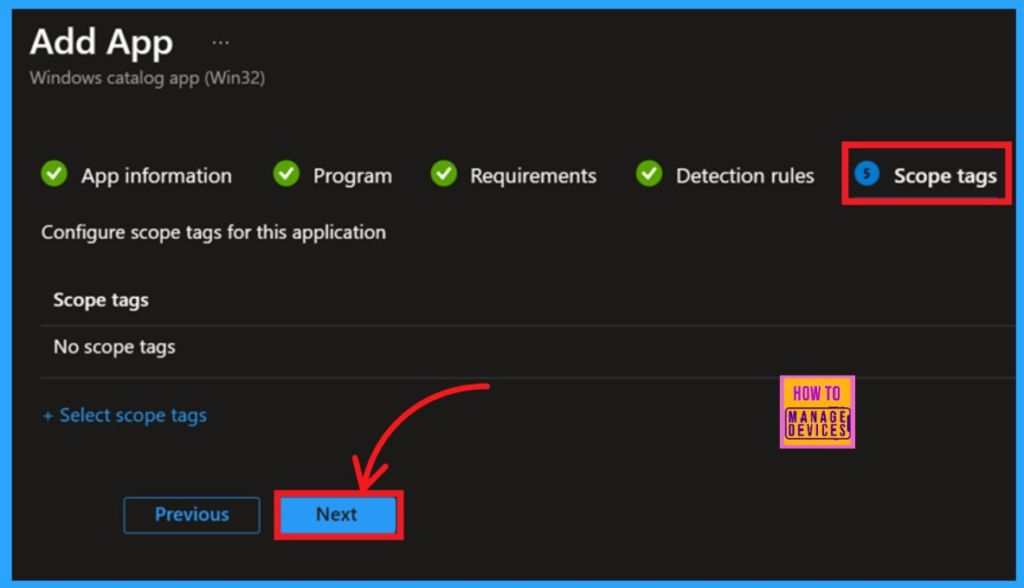
We are now on the Scope Tags, which assign and filter the visibility of specific resources, such as policies, apps, and configurations, to particular users or groups. Click Next to another Window.
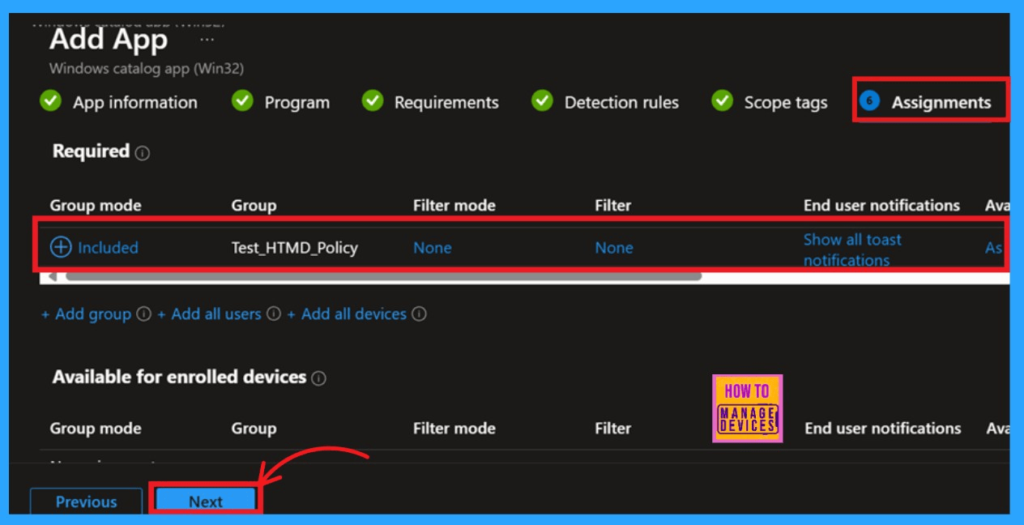
The Assignments section is mandatory for deploying an App in Intune. It assigns apps, policies, or configurations to specific groups of users or devices. Here, you can add groups to the policy.
- Click on Add Group to see a list of groups you can add to the app deployment.
- Select the group from the given list and click on Next.
- Here, I select Test_HTMD_Policy.
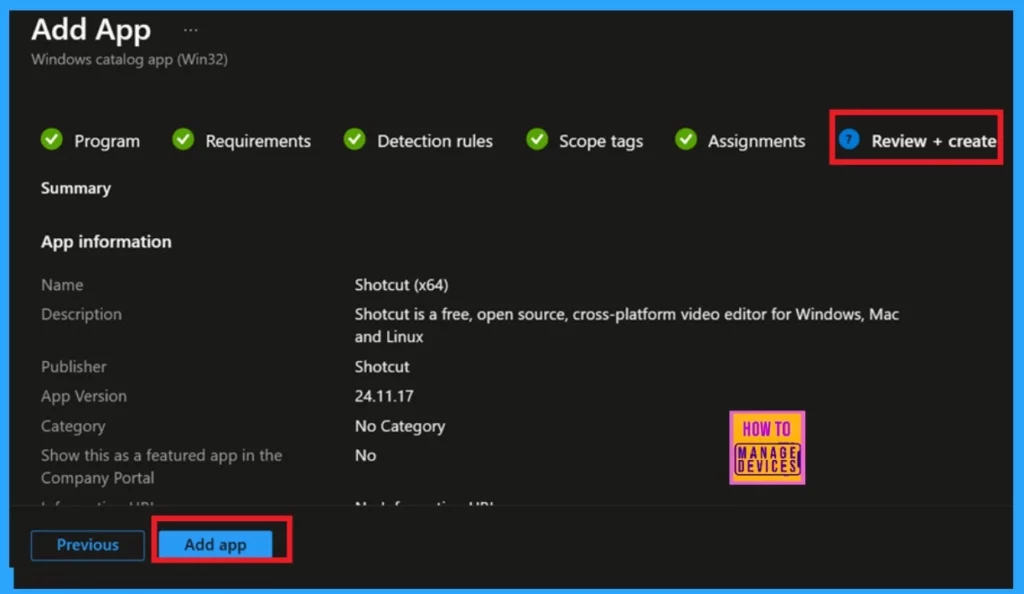
Review + Create summarises all the settings in the previous steps, such as app information, who it will be assigned to, and more. After a complete review, click Add App to deploy the App.
Application Deployment Status – Shotcut App
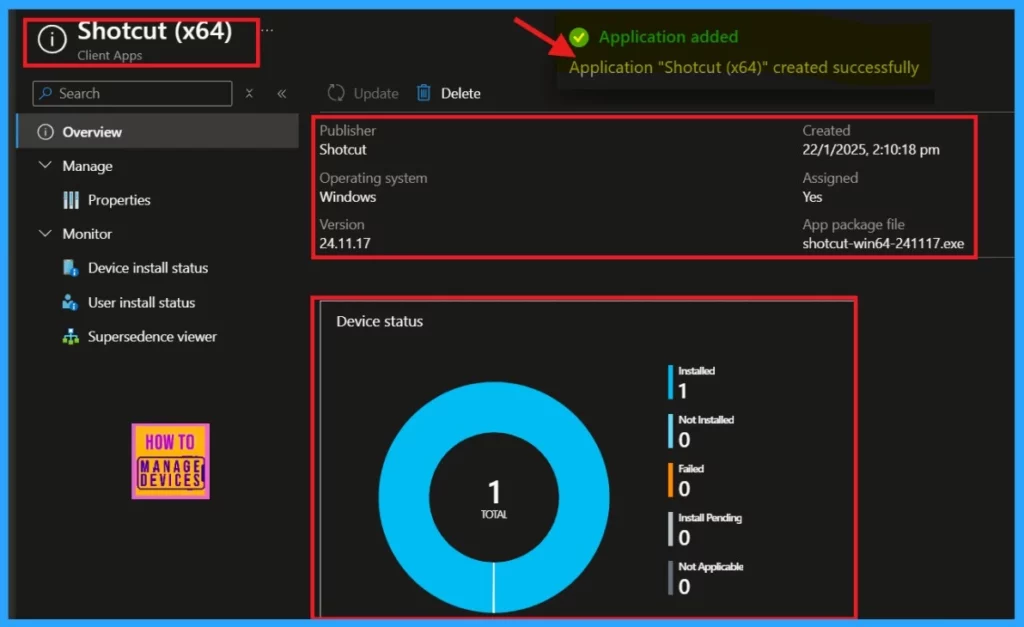
When you click on Add App, you will be notified that the application has been successfully created. This certifies that the app has been successfully installed on the assigned groups. However, it will take about 8 hours to deploy the app. So, you can sync the app manually in the company portal.
- Go to Company Portal > Settings > Sync
After manual syncing, we can see the App details on the overview setting page. It shows basic information about the App, like the publisher’s name, operating system details, version, created date, assigned status, app package file, etc. The screenshot below shows the details of the Shotcut App deployment.
End User Experience
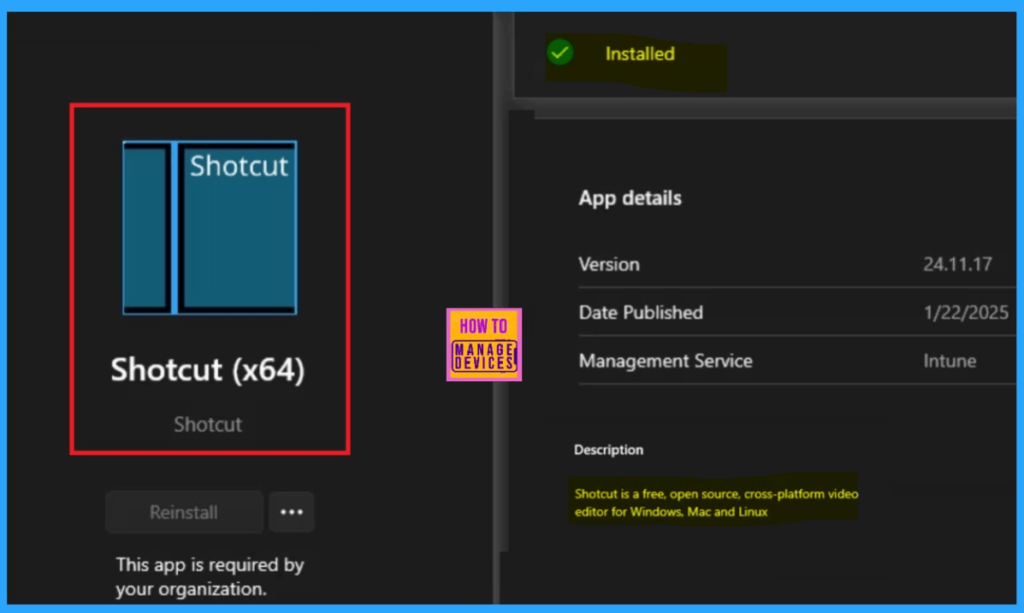
After the manual syncing, the app will automatically be installed on the workstation. To confirm it, go to Downloads and Updates in the Company Portal. Here, you can search for the installed App.
Need Further Assistance or Have Technical Questions?
Join the LinkedIn Page and Telegram group to get the latest step-by-step guides and news updates. Join our Meetup Page to participate in User group meetings. Also, Join the WhatsApp Community to get the latest news on Microsoft Technologies. We are there on Reddit as well.
Author
Anoop C Nair has been Microsoft MVP from 2015 onwards for 10 consecutive years! He is a Workplace Solution Architect with more than 22+ years of experience in Workplace technologies. He is also a Blogger, Speaker, and leader of the Local User Group Community. His primary focus is on Device Management technologies like SCCM and Intune. He writes about technologies like Intune, SCCM, Windows, Cloud PC, Windows, Entra, Microsoft Security, Career, etc.


Discussion