






How to Add iCloud Photos in Windows 11 Photos App
Learn how to add iCloud Photos to the Windows 11 Photos app. The Photos app is a helpful tool for viewing pictures, performing basic edits, and creating or editing videos.
It provides a user-friendly interface for organizing and enhancing photo and video collection. Additionally, iCloud Photos automatically syncs every photo and video you capture to your iCloud storage, ensuring that your entire library is accessible from any device, anywhere, and at any time.
iCloud images can now appear directly in the Photos app on Windows 11. iCloud Photos now integrates with the Photos app. With iCloud Photos, we can make more space available on our devices and still have access to our entire full-resolution collection wherever we go.
This new feature is straightforward to learn and understand. This blog post will help us quickly learn how to show iCloud Photos in the Windows 11 Photos app.

| Index |
|---|
| How to Add iCloud Photos in Windows 11 Photos App |
- Windows 11 Photos App Features and User Guide
- Issue with Photos App and BlockNonAdminUserInstall Policy
- Hide or Show Filmstrip in Photos App in Windows 11
- Windows 11 Photos App Background Blur and Latest Features Explained
What are the Features of the Photos App?
iCloud Photos helps keep the photos and videos in our Photos app securely stored in iCloud and in sync on your iPhone, iPad, Mac, Apple TV, and Windows computer. It can also access cloud photos and videos in a web browser. Some important features are given below.
1. The Photos app helps you to View, edit, and compare images in multi-view.
2. View and organize all our photos and videos in a multi-source, lightning-fast “All Photos” gallery.
3. Use our built-in editing tools, such as Crop, Retouch, and Mark-up, to create more vivid and powerful images.
4. Back up your photos to OneDrive to keep them protected and accessible across all your devices, and manage your storage directly from the Photos app.
How to Add iCloud Photos in Windows 11 Photos App
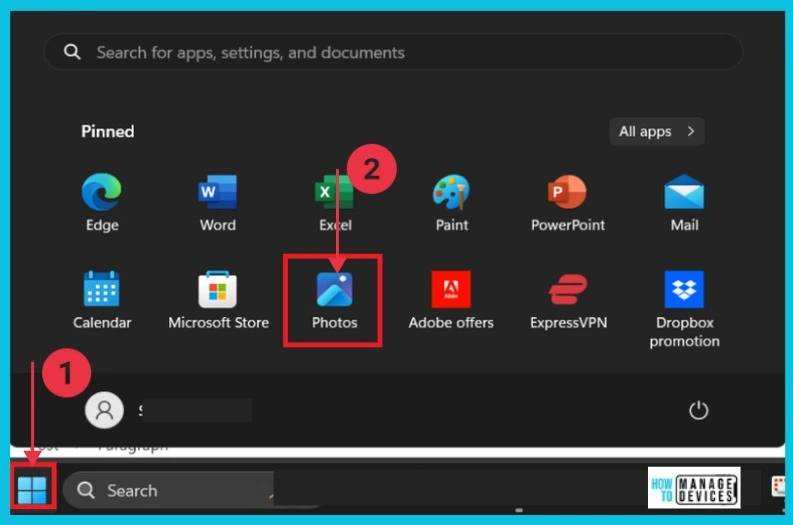
Let’s learn how to show or hide the iCloud Photos in Windows 11 Photos App. To access this feature, we have to follow the following steps:
- Select PhotosApp from the Start button.
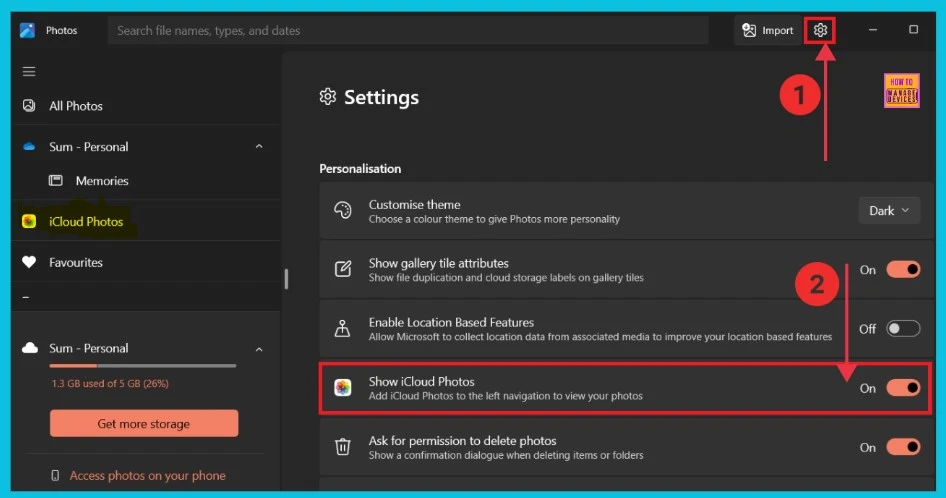
Now, a new window will open in the Photos App. Click the Settings option on the right side. Here, we can see different toggle on or off buttons. We can see the option to “Show iCloud Photos“. We can enable iCloud photos by toggle pane to the RIGHT side.
- How to Find Network Adapter Connection Speed in Windows 11
- How to Use the Snipping Tool to Record Your Screen in Windows 11
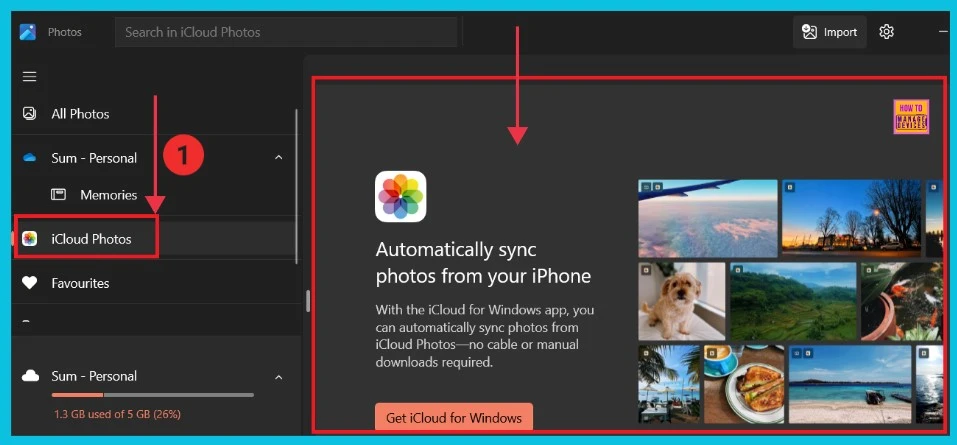
The screenshot below shows the details of iCloud photos. After clicking iCloud Photos on the left, we can see the details of the pictures on the right. Changes like uploads of new images, edits, and deletions will no longer sync across our computer when we turn off the iCloud photos.
The Photos app is more than just a tool for creative expression; it is also a way to remember the past. It captures moments that shaped our lives before now. With recent updates, the Photos app has become even better. It’s now easier to organize, edit, and share your memories.

We are on WhatsApp now. To get the latest step-by-step guides, news, and updates, Join our Channel. Click here. HTMD WhatsApp.
Author
Anoop C Nair is Microsoft MVP! He is a Device Management Admin with more than 20 years of experience (calculation done in 2021) in IT. He is a Blogger, Speaker, and Local User Group HTMD Community leader. His main focus is on Device Management technologies like SCCM 2012, Current Branch, and Intune. He writes about ConfigMgr, Windows 11, Windows 10, Azure AD, Microsoft Intune, Windows 365, AVD, etc.




Discussion