






Hi All, Today, let’s discuss installing Microsoft Skype for Desktop with Intune Enterprise App Catalog App. Installing Microsoft Skype for Desktop using the Intune Enterprise App Catalog App is straightforward, whether on Windows, Mac, or Linux.
Skype is a unique app made by Microsoft that helps you talk to people online. You can make video calls, make voice calls, and even send messages. It also lets you share files and make calls to regular phones. You can use Skype on your computer, phone, or game console.
Let’s discuss Robopack. Robopack Makes Intune App Deployment to the Next Level. Are you tired of spending lots of time dealing with tricky package stuff and boring app setups? With Robopack, you can handle packages and install apps super easily.
More exciting features will be added to the Intune Enterprise Catalog workflow later. Do you know how cool it is to have fresh apps? Well, Microsoft is making sure you get exactly that. They are bringing in more apps for even more fun and helpful stuff on your devices.


- Install Mozilla Firefox with Intune Enterprise App Catalog App
- Install Mozilla Firefox Browser from Microsoft Store using MEM Intune
- Guidelines for Installing Microsoft PC Manager from New Microsoft Store in Intune
- 6 Exciting Features Coming to Intune Enterprise App Management
- Create and Deploy Python Applications with Intune Enterprise App Catalog App
- Install Zoom Client using Windows Enterprise App Catalog App with Intune
What is Skype?
Skype is a communication app made by Microsoft. It allows you to talk to people using messages, voice calls, or video calls, regardless of their device.
What’s Unique about Skype Video Calls?
You can have HD video calls with up to 49 friends or colleagues. It’s like being together, even if you’re far apart.
Install Microsoft Skype for Desktop with Intune Enterprise App Catalog App
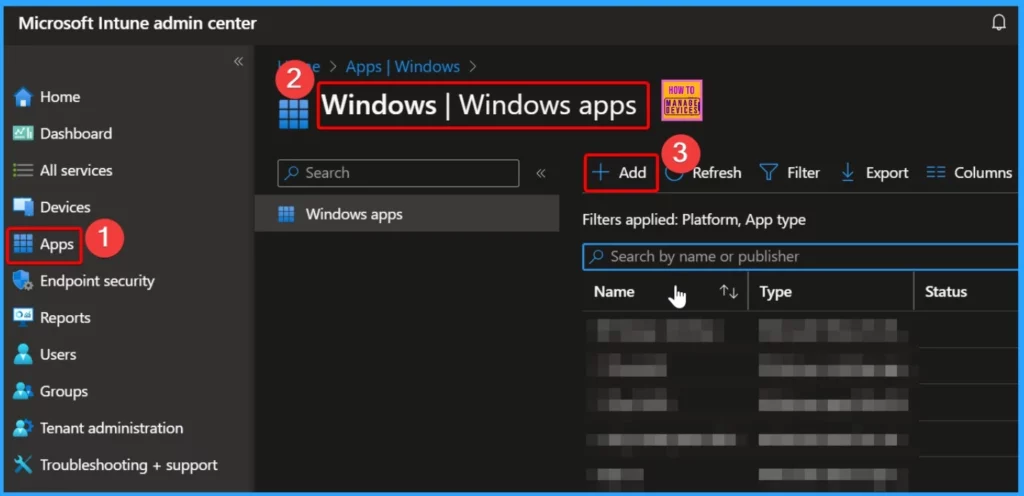
First, sign in to the Intune Admin Center portal. Then, go to where it says “Apps“, then “Windows“, and then “Windows Apps“. Next, look for the “Add” button and click on it. Now, you can start adding the app you want to deploy.
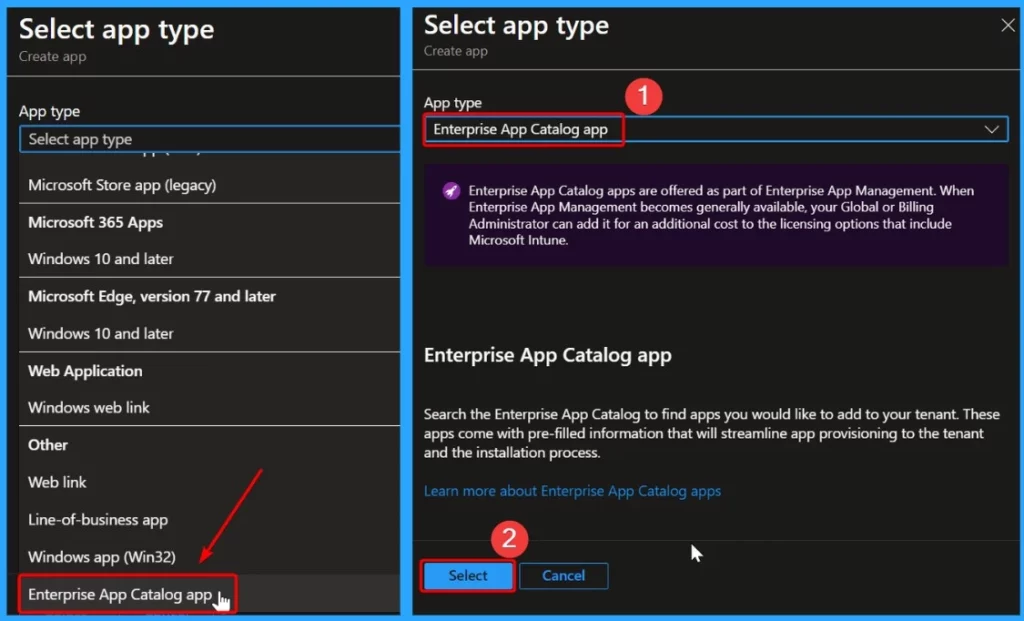
You can access Enterprise App Catalog apps with Enterprise App Management, simplifying app provisioning and installation. Once available, your Global or Billing Administrator can add this feature to your licensing options. If it’s already included, there’s no extra cost. If not, you can add it for an additional fee.
- Select Enterprise app catalog app as the App type.
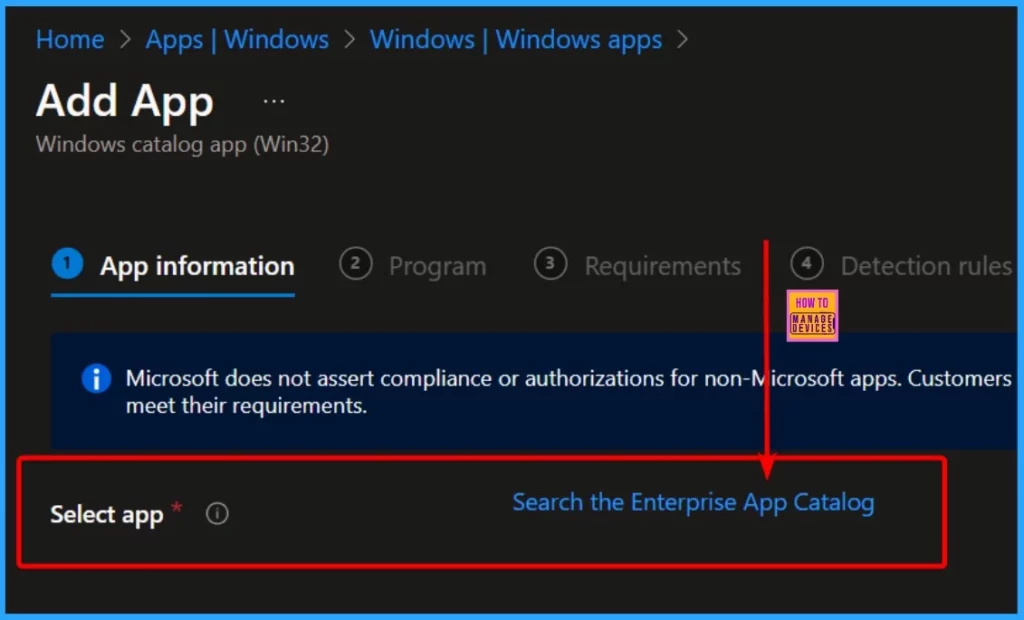
Click the “Search the Enterprise app catalog” hyperlink to install different apps. This link helps you find the specific app you want to add. Just click on it, and it will take you to the app you need to install. It’s an easy way to find and add the apps you want for your work.
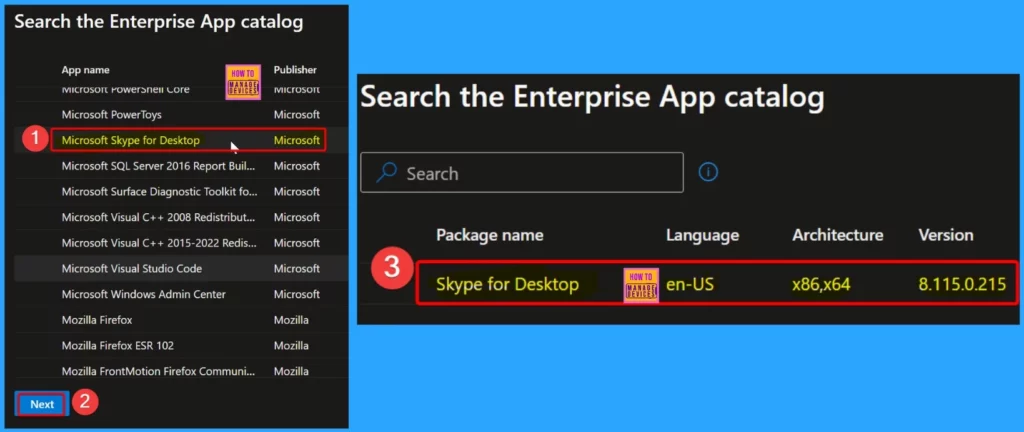
Here, you can see that the selected app is Microsoft Skype for Desktop, which Microsoft publishes. In the second screenshot, you can see all the details of Skype for Desktop. The table below shows all the details of Skype for Desktop.
| Package Information | Package Information |
|---|---|
| Package Name | Skype for Desktop |
| Language | en-US |
| Architecture | x86, x64 |
| Version | 8.115.0.215 |
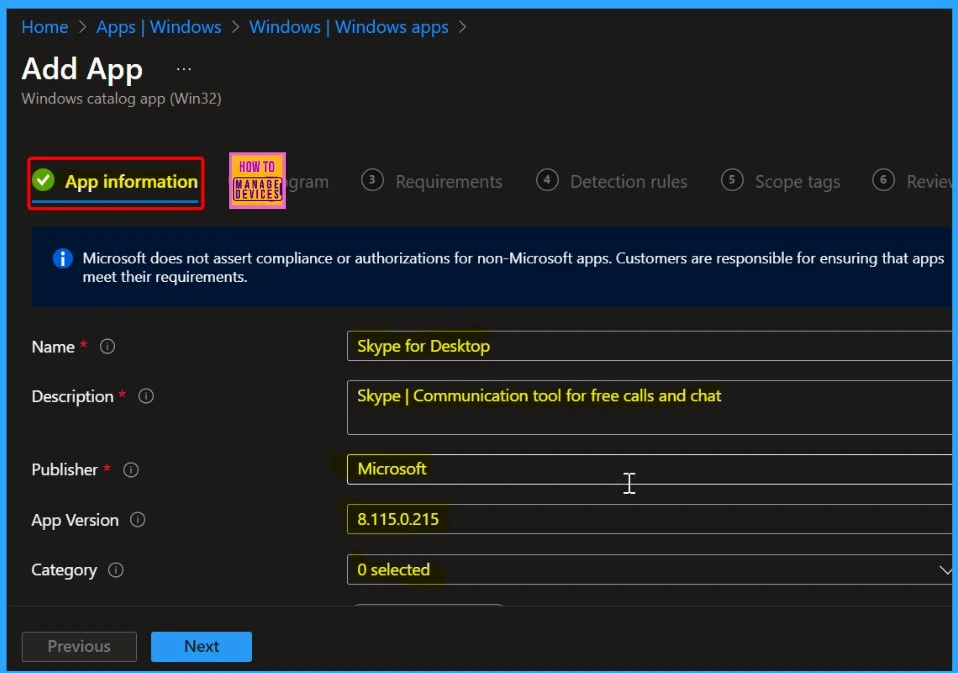
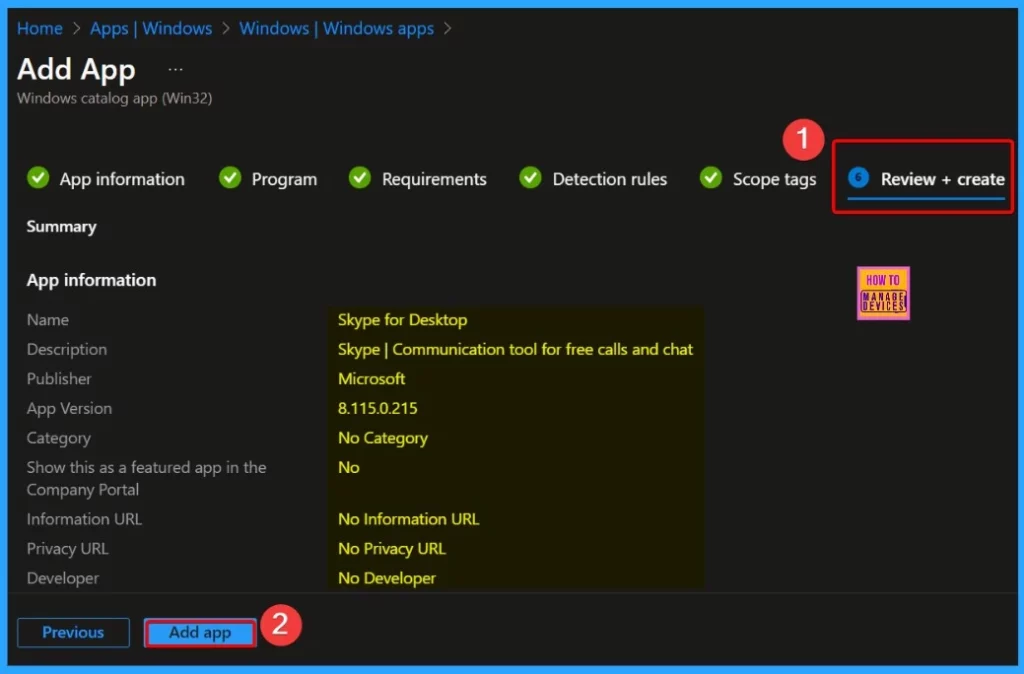
The “App Information” tab contains all the details in the screenshot below. This tab displays essential information about the app, including its name, version, language, and the type of system it runs on. When you open this tab, you will see the following information:
- Name: Skype for Desktop
- Description: Skype | Communication tool for free calls and chat
- Publisher: Microsoft
- App Version: 8.115.0.215
- Category: (Not specified)
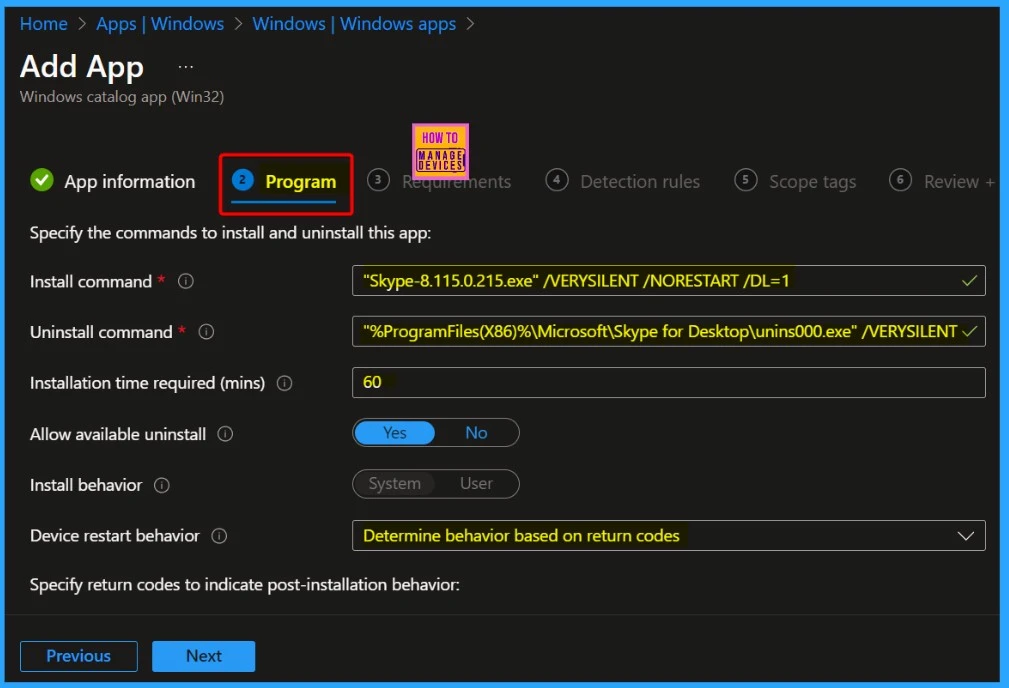
Under the “Program” tab, you’ll find essential details such as installing and uninstalling commands. This tab gives you instructions on how to install and uninstall the program. When you open this tab, you will see the following information:
| Information | Value |
|---|---|
| Install Command | “Skype-8.115.0.215.exe” /VERYSILENT /NORESTART /DL=1 |
| Uninstall Command | “%ProgramFiles(X86)%\Microsoft\Skype for Desktop\unins000.exe” /VERYSILENT |
| Installation Time Required (mins) | 60 |
| Allow Available Uninstall | Yes |
| Install Behavior | User |
| Device Restart Behavior | Determine Behavior Based on Return Codes |
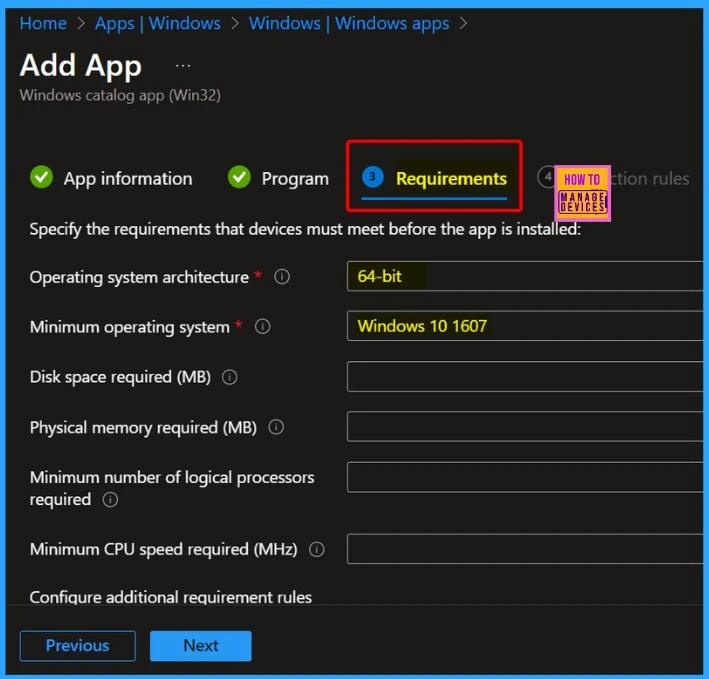
The “Requirements” tab is the third tab in the app deployment settings. Here, you’ll find essential information about your device’s needs before the app can be installed. You can also configure additional rules for requirements if needed.
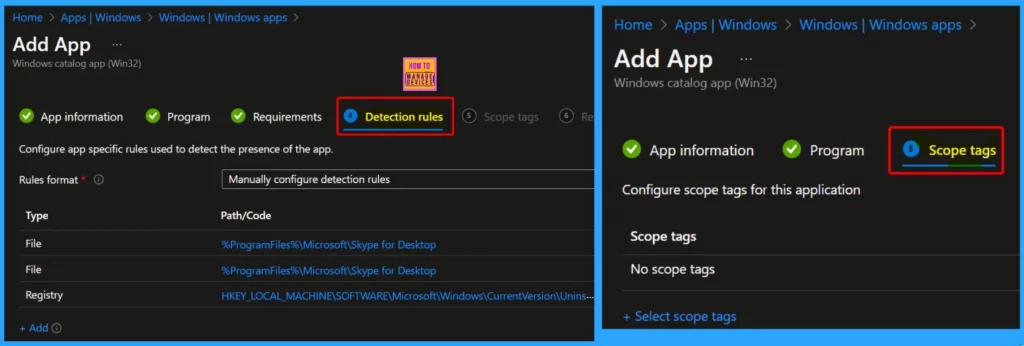
The screenshot below shows the two critical tabs, the Detection Rules and Scope tags. In-app, deployment, and “detection rules” determine whether an application is already installed on a device. These rules help the system understand whether the app needs to be installed or is already present.
In the “Review + Create” tab, you review your settings to ensure everything is as you want. Once you’re satisfied, you click on “Create.” This saves your changes and assigns the profile.
Skype for Desktop
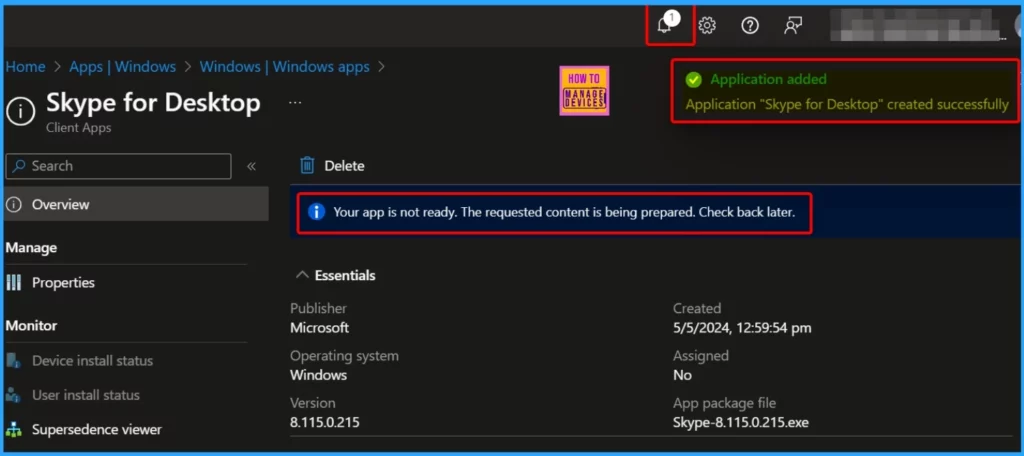
The window below confirms that the Skype for Desktop application has been successfully created. However, a banner message says, “Your app is not ready.” This means that even though the creation process is complete, the content needed for your request is still being prepared. You’ll need to check back later when everything is ready.
Assigning the App to Specific Groups or Users
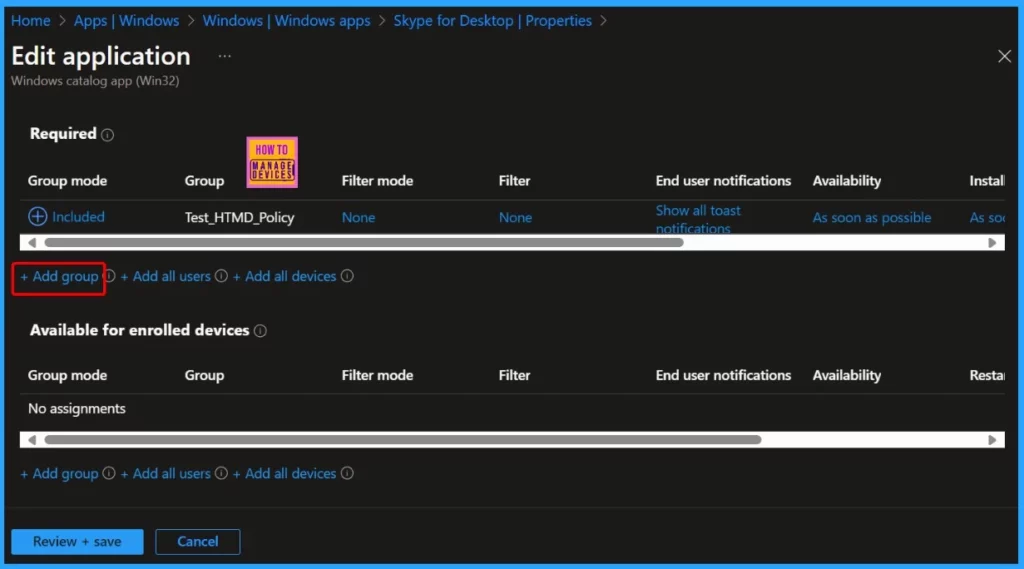
To assign the app to specific groups or users, click on the “Add group” link in the assignments section. This opens a window with a list of groups and a search box. In the search box, type the name of the group you want to assign the app to.
After typing, you select the group from the list that appears. This allows you to choose which groups can easily use the app. It’s a simple process of finding the right group and clicking to assign the app to them.
Monitoring Deployment Status
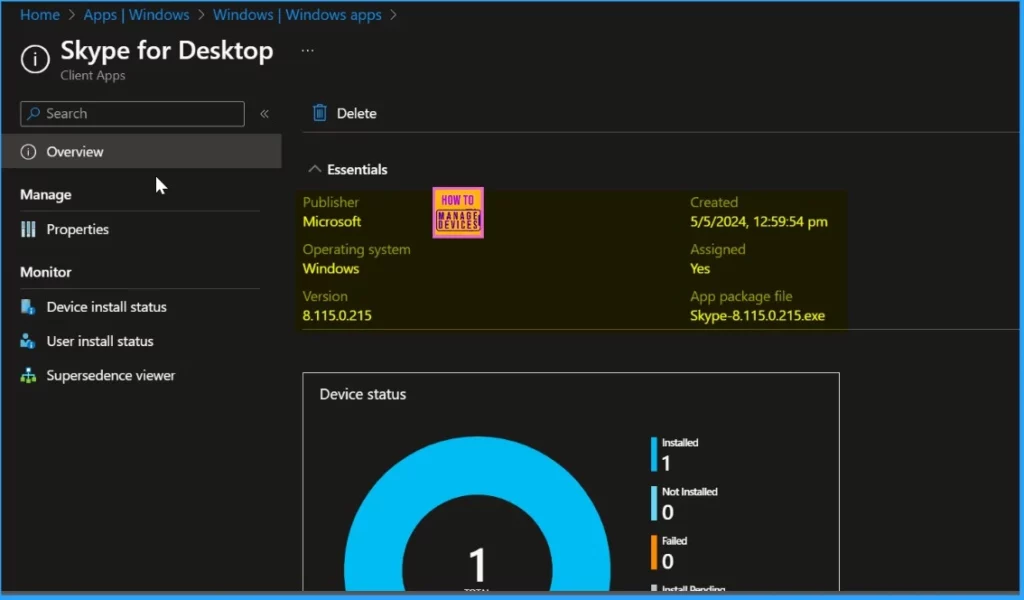
The screenshot below displays the deployment status of Skype for Desktop. It provides all the details about the app. Under device status, the installed status is 1. This means that the app has been successfully deployed to one device. It’s a quick way to check how many devices have the app installed.
End-User Experience
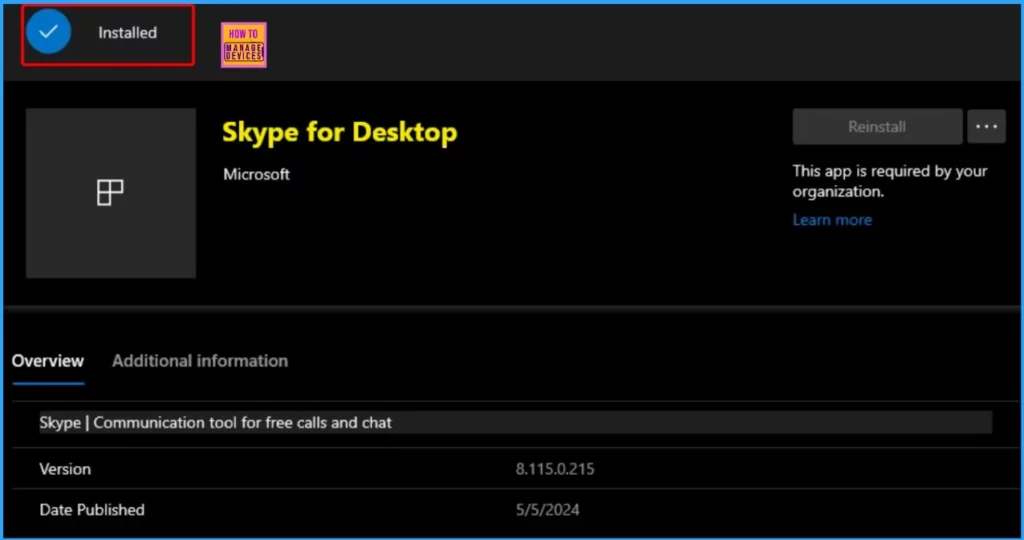
Skype for Desktop has been successfully installed. Skype is a communication tool that allows free calls and chats. It’s handy to stay in touch with friends, family, or colleagues, whether you want to chat or make voice or video calls.
We are on WhatsApp now. To get the latest step-by-step guides, news, and updates, Join our Channel. Click here. HTMD WhatsApp.
Author
About the Author: Vidya is a computer enthusiast. She is here to share quick tips and tricks with Windows 11 or Windows 10 users. She loves writing about Windows 11 and related technologies. She is also keen to find solutions and write about day-to-day tech problems.


Discussion