






Start Menu Stop Working in Windows 11 Insider Preview Build
Let’s discuss the Start Menu Stop Working in Windows 11 Insider Preview Build. In my recent use of Windows 11 Insider Preview Build, I encountered an issue with the Start Menu’s functionality. Despite several attempts to access it, the Menu either failed to open or did not appear.
This start menu issue made navigating through my applications and settings difficult. It persisted and impacted my productivity and overall user experience with the operating system.
I have attempted basic troubleshooting steps like restarting my system, shutting down, etc, but the problem persists. As a Windows operating system user, the Start Menu’s reliability is crucial for easy workflow management.
I shared my experience with a start menu issue in the Windows 11 insider preview build in this post. The Start Menu is supposed to help me quickly find and open apps, but it’s not working correctly.

- Start Menu Issues of Third-Party UI Customization Apps in Windows 11
- Fix Windows 11 Unable to Open Start Menu Issue
- Now Get Microsoft Teams Meetings Shortcut Directly from the Start Menu
- Start Menu Upgrade in Windows 11 Moment 5 Update
Start Menu Stop Working in Windows 11 Insider Preview Build
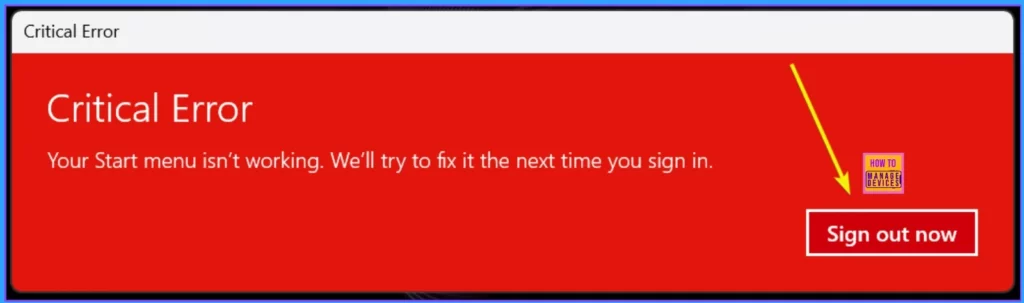
If you are using Windows 11 Insider Preview Build and suddenly find your Start menu not working, don’t worry. You might encounter a pop-up window showing a critical error message saying, “Your Start menu is not working. We will try to fix it the next time you sign in.” Along with this message, you will see an option to “Sign out now.”
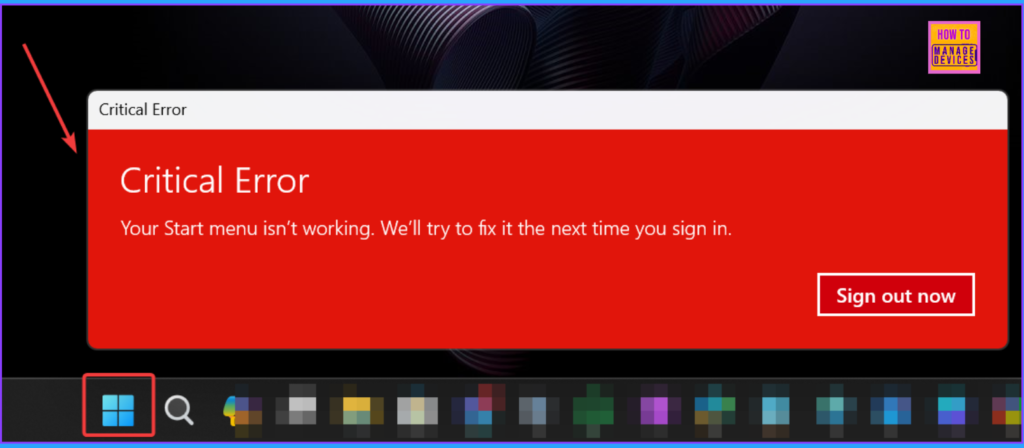
Steps Take to Resolve the Start Menu Stop Working Issue
Let’s discuss the steps to resolve the issue of the Start Menu not working. This issue can be frustrating, but you can take steps to fix it. One solution is to sign out of your account and sign back in again.
- You can quickly Sign out by clicking the “Sign out Now” button from the Critical Error Window.
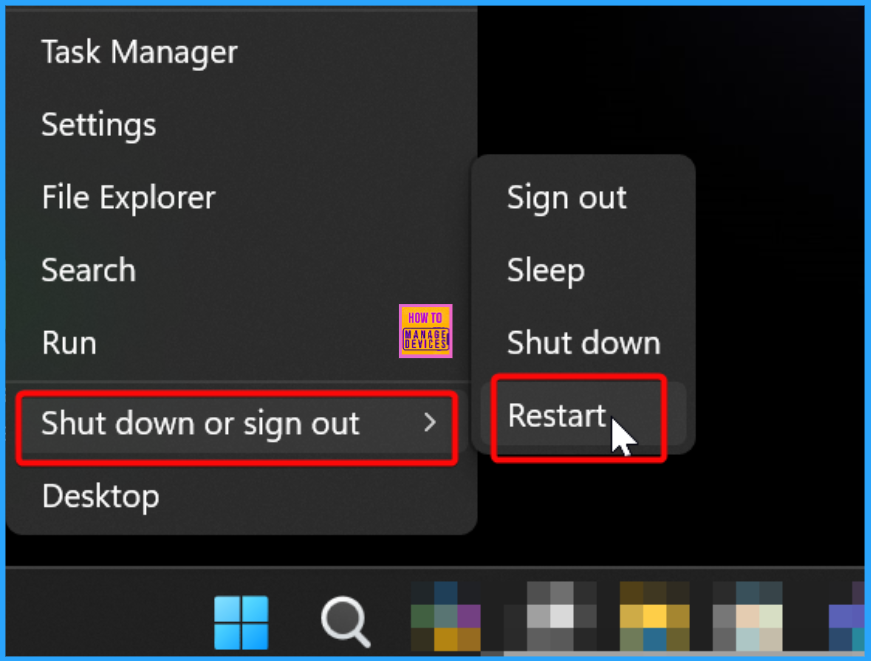
Restart Your PC
Restarting your computer is one of the simplest and easiest methods to fix the Start menu issue. It is a more effective fix for the Start menu stop-working issue. Restarting your PC gives it a chance to reset and clear any temporary issues that may be causing the problem—this straightforward solution to resolve the Start menu issue quickly.
Other Troubleshooting Steps
Let’s discuss the other troubleshooting steps to solve your Start menu not working issue. The other troubleshooting steps are as follows.
Restart Windows Explorer
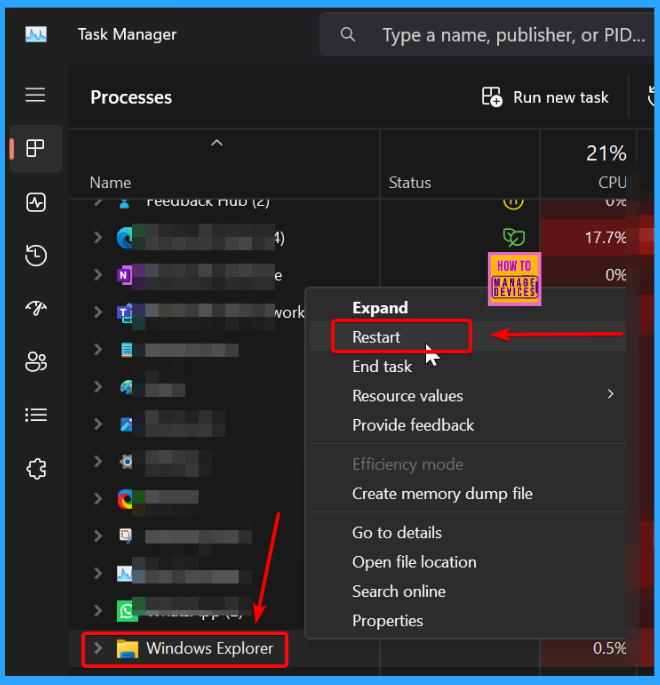
Restarting the Windows Explorer process can help refresh the system and resolve issues with the Start Menu. To do this, open the Task Manager (Ctrl + Shift + Esc), locate the “Windows Explorer” process, and select “Restart.”
Update Windows
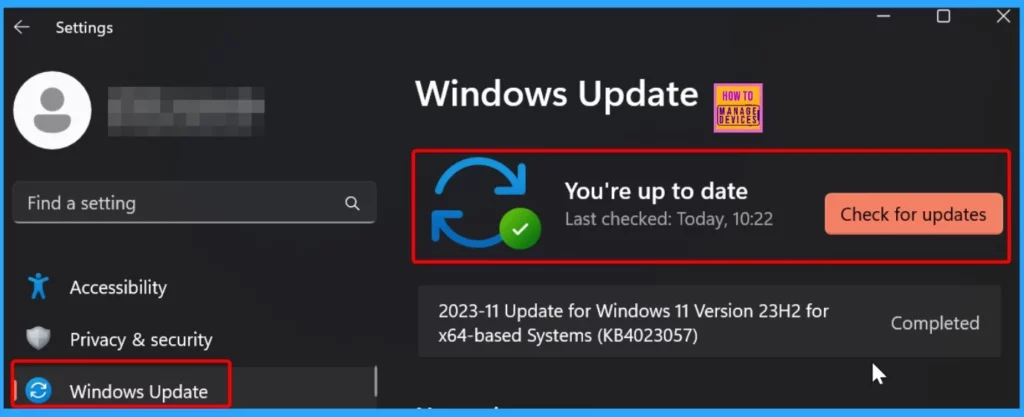
It is essential to ensure that your Windows operating system is up-to-date. Microsoft frequently releases updates that include bug fixes and performance improvements, which may address issues with the Start Menu.
Re-register Windows Store Apps
Improperly registered Windows Store apps can affect the functionality of the Start Menu. You can re-register these apps using PowerShell commands to resolve the issue of the Start menu not working.
- You can use the Command prompt with administrative privileges.
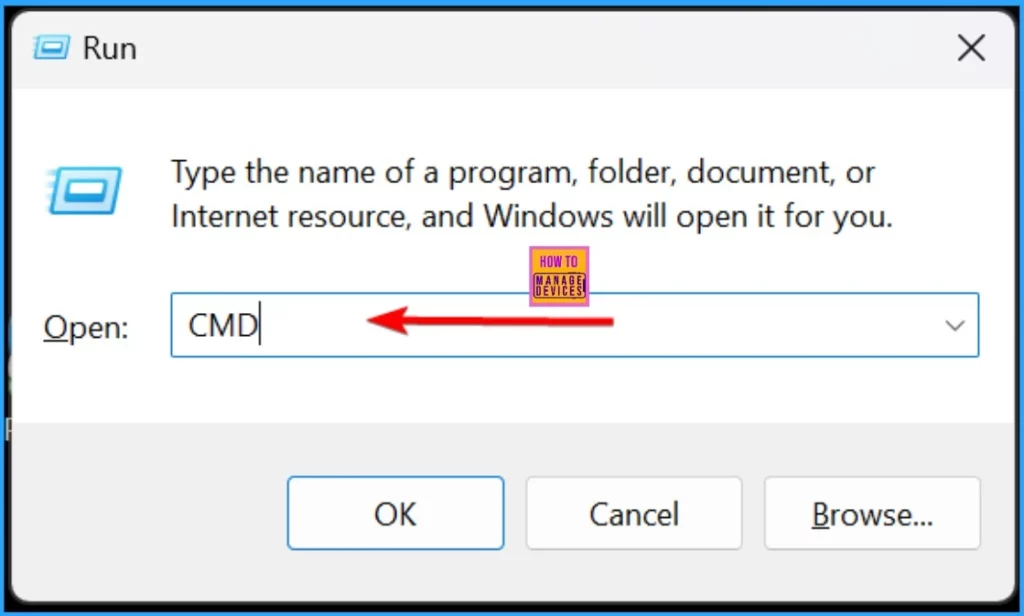
- Press Windows + R to open the Run dialog. In the open box, type CMD. Press Enter
- This action will open Command Prompt with elevated (admin) rights.
- When prompted by the User Account Control, click “Yes” to grant permission.
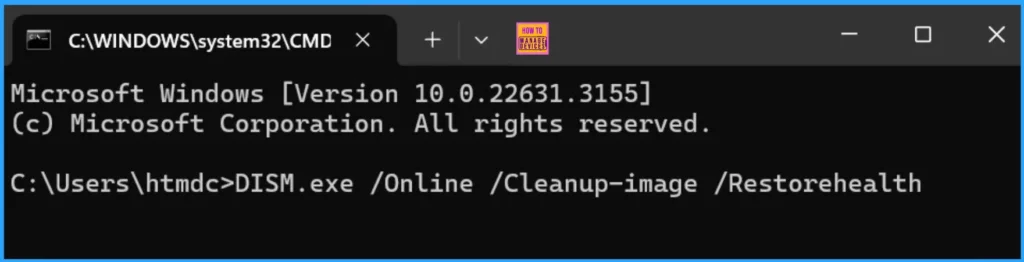
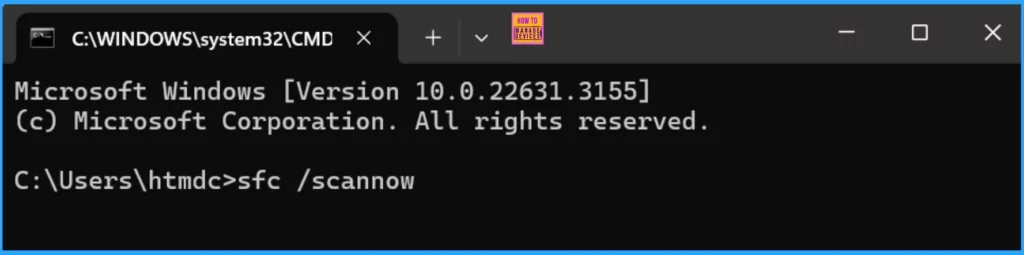
Type the following command into Command Prompt and press Enter. This command, called DISM, downloads the necessary files to fix any corrupted files on your PC.
DISM.exe /Online /Cleanup-image /Restorehealth
Then, type another command, “sfc /scannow,” and press Enter to fix your system’s destructive files. Once the scan is complete, restart your PC.
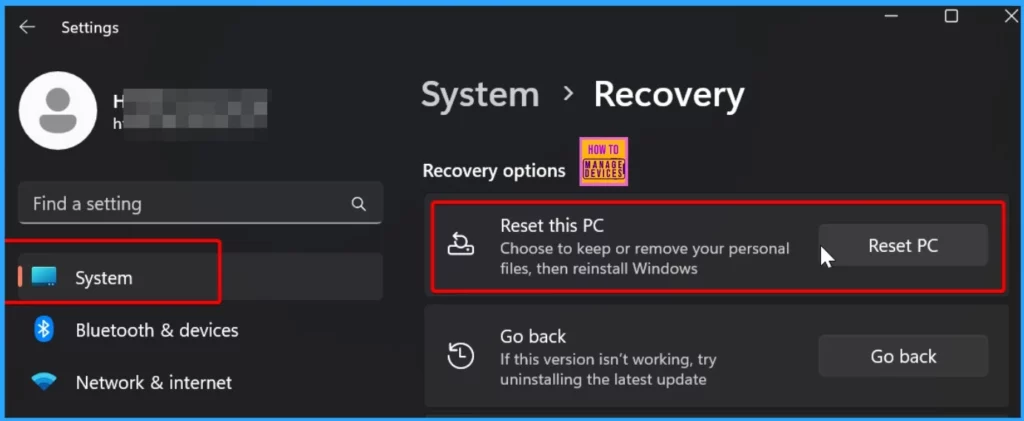
Reset PC Settings
You can try resetting your PC settings to their default configurations. This option will revert various system settings to their original state, potentially resolving any underlying issues affecting the Start Menu.
For more Fixes for the Start menu stop working issue, refer to this article: Fix Windows 11 Unable to Open Start Menu Issue.
Insider Preview Builds in Windows 11
Insider Preview Builds of Windows 11 are still being developed, so encountering bugs and errors, such as the Start Menu not working, is common. These builds are not the final product and are explicitly released for testing.
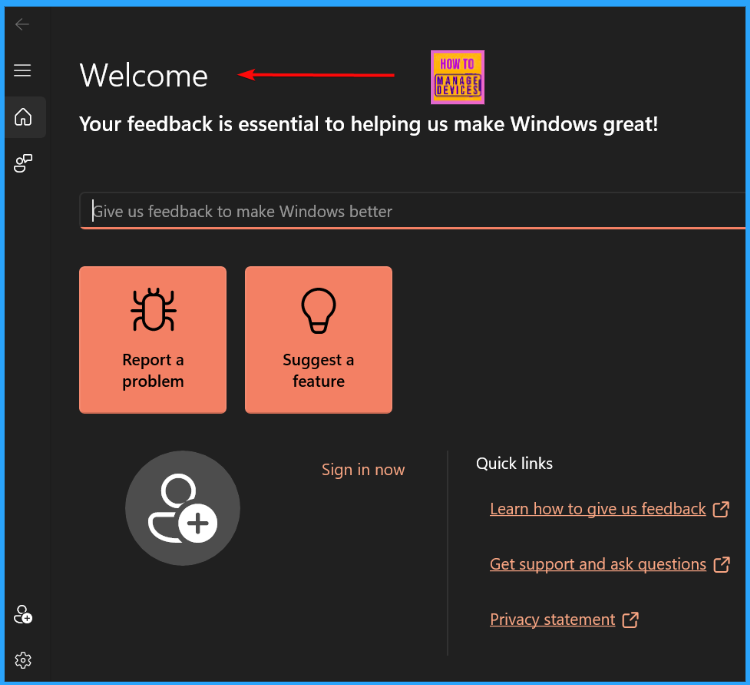
If you are facing any issues, providing feedback to Microsoft is essential. This feedback helps the development team identify and resolve issues, leading to a smoother and more stable user experience in future releases.
We are on WhatsApp now. To get the latest step-by-step guides, news, and updates, Join our Channel. Click here. HTMD WhatsApp.
Author
About the Author: Vidya is a computer enthusiast. She is here to share quick tips and tricks with Windows 11 or Windows 10 users. She loves writing about Windows 11 and related technologies. She is also keen to find solutions and write about day-to-day tech problems.




Discussion