






Storage Sense Cleanup of Temporary Files for Free Up Disk Space in Windows 11
Hi, everyone. Let’s discuss Storage Sense Cleanup of Temporary Files to Free Up Disk Space in Windows 11. Windows 11 is the best operating system to date. Do you know why Windows 11 is particular? It’s remarkable in its latest features and user-friendly tools. In Windows 11, many tools are meant for the user’s needs.
In Windows 11, Storage Sense is one unique tool for spacing up and using the best way to manage your system storage. I think some of you know this tool. It automatically clears the Recycle Bin, removes temporary files, and performs other tasks to keep your storage organized.
Do you know what this tool’s speciality is? I think it’s an effective tool that always cares about users’ storage space. The most important thing is clearing all the temporary files. We know that temporary files are important for us, but they can build up over time and take up a lot of space on your hard drive.
As you know, Temporary files are crucial to help the system run smoothly. Storage sense is also essential to free up storage space by clearing unnecessary files. This post discusses using Storage Sense Cleanup of Temporary Files in Windows 11.

- Managing The Storage Sense Policy In Windows Using Intune
- 2 Methods to View Reserved Storage Size in Windows 11
- How to Find Network Adapter Connection Speed in Windows 11
- 6 Different way to Find File System of a Drive in Windows 11
- Different Methods for Deleting Files in Windows 11
What is Storage Sense in Windows 11?
Storage Sense Cleanup of Temporary Files for Free Up Disk Space in Windows 11
Above, I shared an overall view on Storage Sense Cleanup of Temporary Files to Free Up Disk Space in Windows 11. Storage Sense is off by default. If your PC runs low on disk space, Windows might turn it on automatically to manage temporary files and notify you. So, we can see how to manage Storage Sense.
Manage Storage Sense
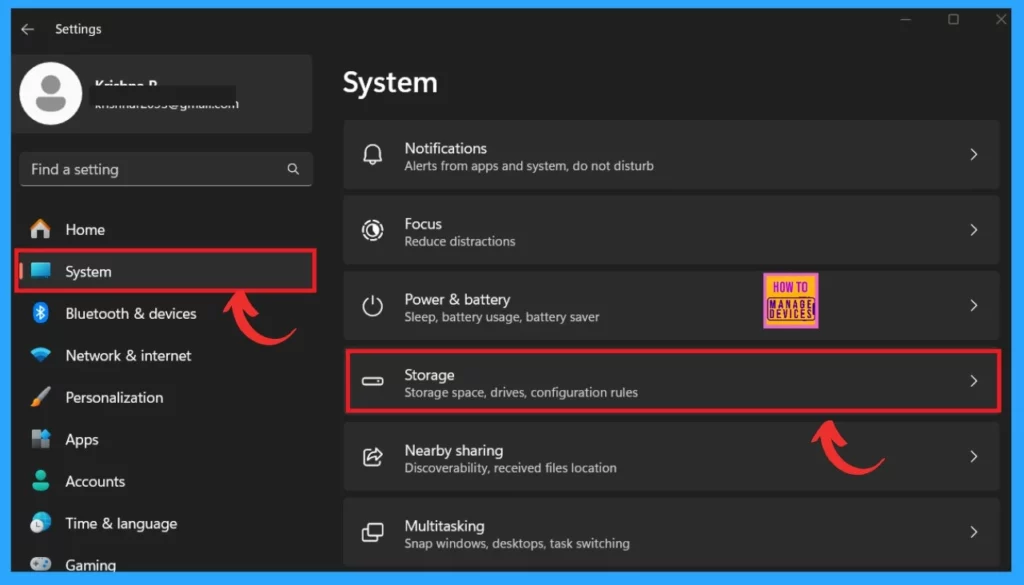
Managing storage is very important for keeping a computer running well. Windows 11 has a Storage Sense feature that helps users manage their storage space quickly. To manage storage sense, you must open Settings by clicking Win+I.
- In the Settings, Click on the System Option.
- Click on the Storage option.
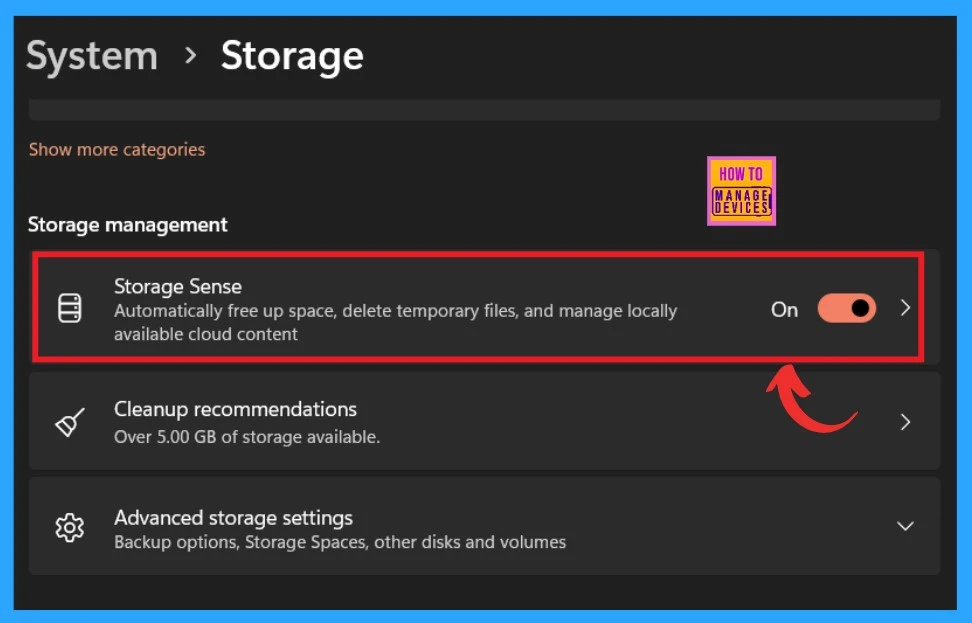
There are many storage options available. First, we must check the Storage Sense option, which automatically frees up space, deletes temporary files, and manages locally available cloud contents.
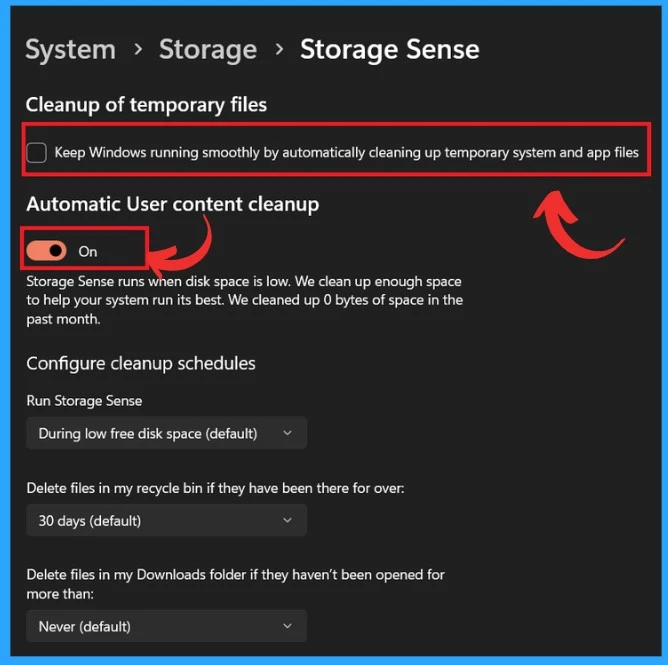
In the storage sense, there is an option to clean up Temporary files. This option is always on by default. If this option ” Kepp windows running smoothly by automatically cleaning up the temporary system and app files,” you can easily enable it by toggling the check box.
- Also, you can turn on the Automatic user content clean-up option when you want to storage sense run when disk space is low.
- Also, it shows the history of the past month.
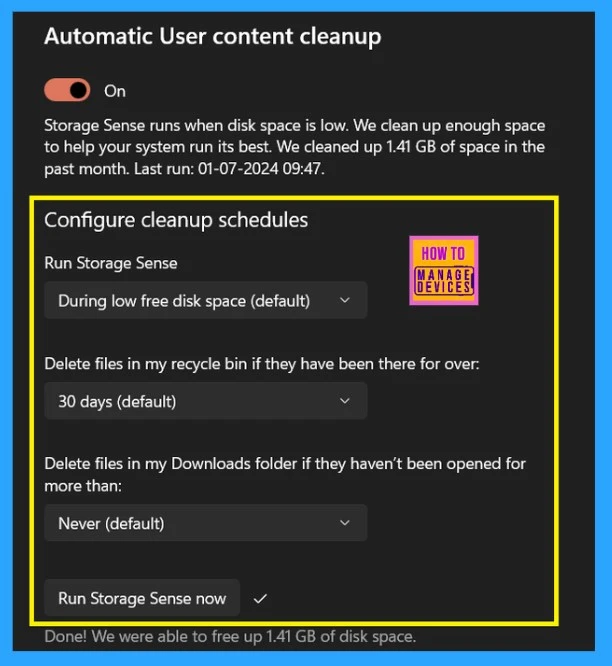
Also, in this window, some options must not be avoided; there are many options for configuring cleanup schedules called Run storage sense, Delete files in my recycle bin if they have been there for over a specific time, and Delete files in my downloads folder if it has not been opened in a particular time.
- Run Storage Sense manually.
- These will space up Storage.
| Cleanup schedules | Info |
|---|---|
| Storage sense | Every day, Every week Every month, During low free disk space (default) |
| Delete files in my recycle bin if they have been there for over a specific time. | Never,1 day,14 days, 30 days 60 days |
| Delete files in my downloads folder if they have not been opened for a certain time. | Never,1 day14 days,30 days 60 days. |
2. Cleanup Recommendations
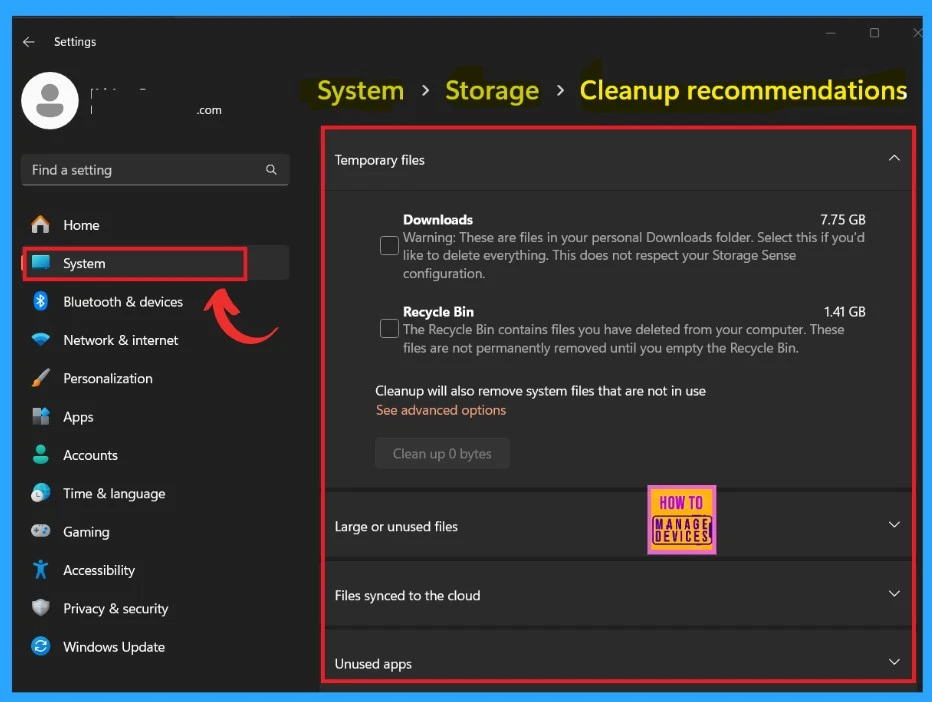
The other option for freeing up disk space is using the cleanup recommendations. You can access this option at System> Storage> Cleanup Recommendations. With this option, you have so many options that you can delete the files that you want. It will help free up your disk storage.
Storage Sense is a Windows 11 feature that automatically helps you manage your device’s storage space. Here are some key recommendations for using Storage Sense effectively:
- Temporary Files (Downloads, Recycle Bin)—This section allows you to select locations from which temporary and other files can be removed to free up disk space on your Windows 11 computer.
- Large or Unused files– This section lists apps that haven’t been used for a long time and are taking up unnecessary disk space. You can select these apps and remove them to free up space.
- Files synced to the Cloud– include files stored locally and in the cloud. You can choose to remove the local copies to save space.
- Unused apps – This section displays large files or files that haven’t been used recently. You can review these items and delete the ones you no longer need.
- How to Check Reset System Uptime in Windows 11
- Privacy and Security Settings in Windows 11
- 5 Ways to Check App Storage Space Usage in Windows 11
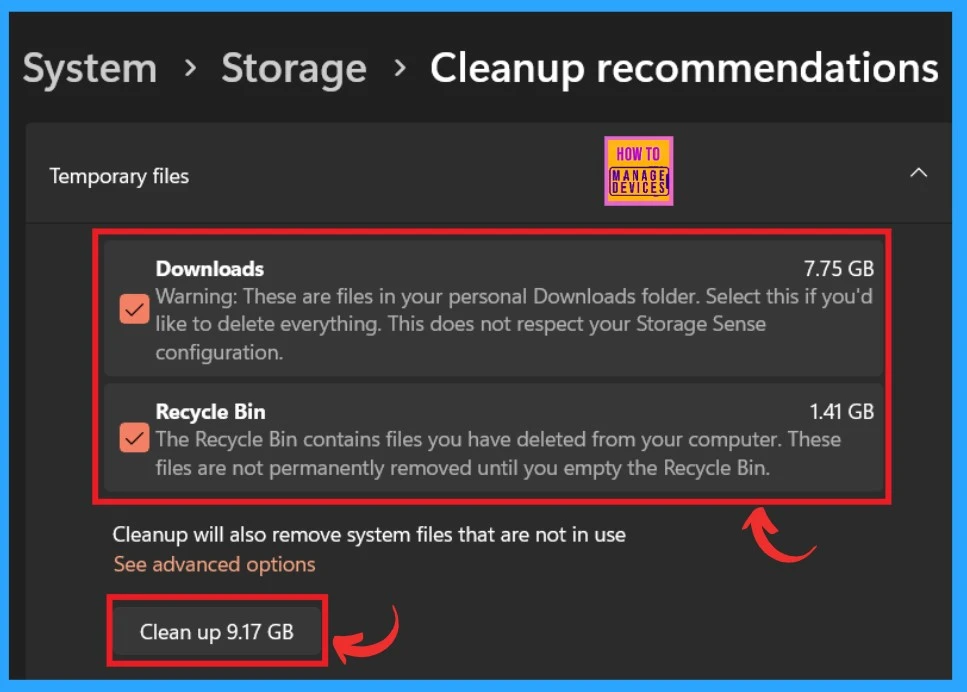
Above, you see that the recommendations now use how to clear temporary files from your system. When you delete temporary files, select the files you want to clear. Here, I selected the Downloads and Recycle bin from the Temporary files.
- Select the options Downloads and Recycle Bin.
- Click on the Clean-up option.
Enable or Disable Storage Sense Cleanup of Temporary Files in Local Group Policy Editor
Customizing Storage Sense cleanup through the Local Group Policy Editor provides greater control over disk space management. Whether you want to enable or disable the cleanup process, these steps allow you to Storage Sense to your preferences.
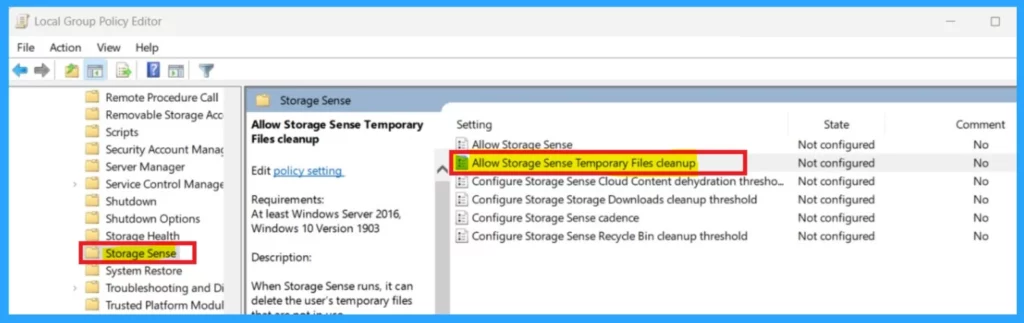
- Press the Win + R keys together on your keyboard and type gpedit.msc
- Navigate to Computer Configuration > Administrative Templates > System > Storage Sense in the Group Policy editor.
- In the right pane, you can see the option called ” Allow storage sense temporary file cleanup.” click on that.
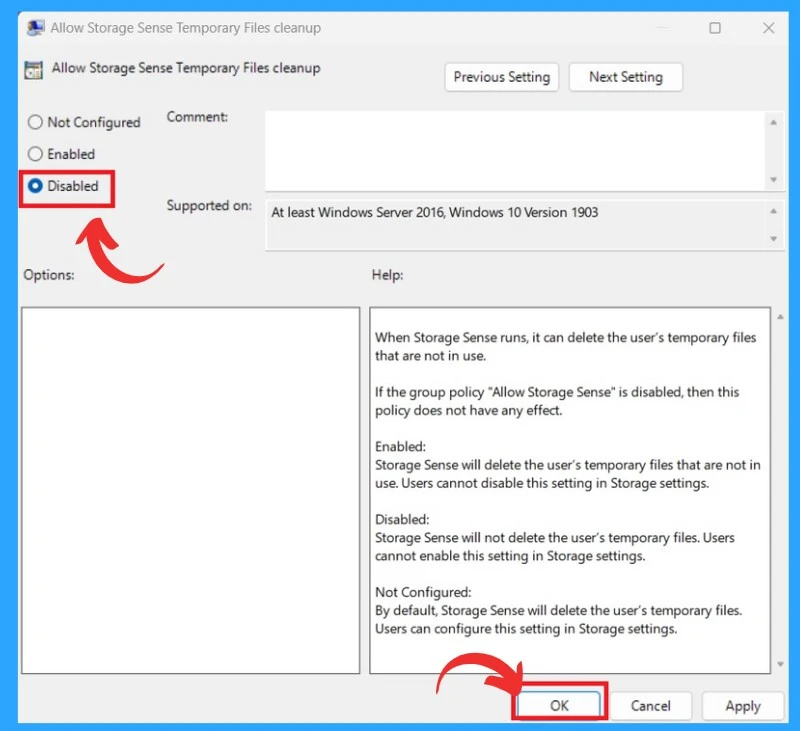
When you click on the option called ”Allow storage sense temporary file cleanup.” you can get a window with the option for Enable and Disable Storage Sense Cleanup of Temporary Files. Click any of them(Enable and Disable).
- Click on the Disable
- Click on the OK button.
We are on WhatsApp now. To get the latest step-by-step guides, news, and updates, Join our Channel. Click here. HTMD WhatsApp.
Author
Anoop C Nair is Microsoft MVP! He is a Device Management Admin with more than 20 years of experience (calculation done in 2021) in IT. He is a Blogger, Speaker, and Local User Group HTMD Community leader. His main focus is on Device Management technologies like SCCM 2012, Current Branch, and Intune. He writes about ConfigMgr, Windows 11, Windows 10, Azure AD, Microsoft Intune, Windows 365, AVD, etc.




Discussion