






Supported Application Types in Windows 365 Cloud PC
In this post, You will learn more about the supported application types in Windows 365. . Microsoft’s Windows 365 Cloud PC offering gives organizations an easy, streamlined way of providing Cloud PCs to their users. With Windows 365 Cloud PCs, you can stream your apps, data, content, settings, and storage from the Microsoft cloud.
In general, there are several types of application installation, maintenance, and removal technologies. Some of the examples are EXE, MSI, APP-V, etc. The MSIX is the new application installation, maintenance, and removal technique by Microsoft.
As an IT admin, one of the easiest ways to get started with Windows 365 is to create Cloud PCs with default gallery images of Windows 10/11 Enterprise. After provisioning, you can customize the user experience using Microsoft Endpoint Manager to push apps to your users’ Cloud PCs.
More details Cloud PC Windows 365 FAQs Frequently Asked + Questions AMA. You can get more information in the post for supported application types in Windows 365. The following apps are available with no need to upload –

- Microsoft 365 Apps for Enterprise
- Microsoft Teams
- Microsoft OneDrive
- Microsoft Edge
We would recommend having a quick read of Windows 365 Business Vs Enterprise versions. The Windows 365 Business is the version of Windows 365 specifically targeted at smaller companies (up to 300 seats)
- Windows 365 Cloud PC Web Client End User Experience Walkthrough
- Cloud PC In-Place Upgrade to Windows 11
- Cloud PC Monthly Patching Process using Intune
Supported Application Types in Windows 365
Let’s have a quick look at supported application types in Windows 365, supports the following formats for applications –
| Applications Types | Extensions | Description |
| Win32 Apps | .IntuneWin | The IntuneWin format is a way to pre-process Windows classic (Win32) apps. The tool converts application installation files into the intunewin format. |
| Windows Installer | *.msi file | A Windows Installer file. MSI format installers are supported by both the Line of Business and Windows app (win32) options within Intune. |
| Windows app package | .appx | A Windows app package file (.appx), known as modern (UWP) apps |
| Windows app package | msix | MSIX is Microsoft’s new Windows app package format that provides a modern packaging experience to all Windows apps. |
The applications insights will help you to get a better idea into Supported application formats in Windows 365
IntuneWin (Win32 Apps)
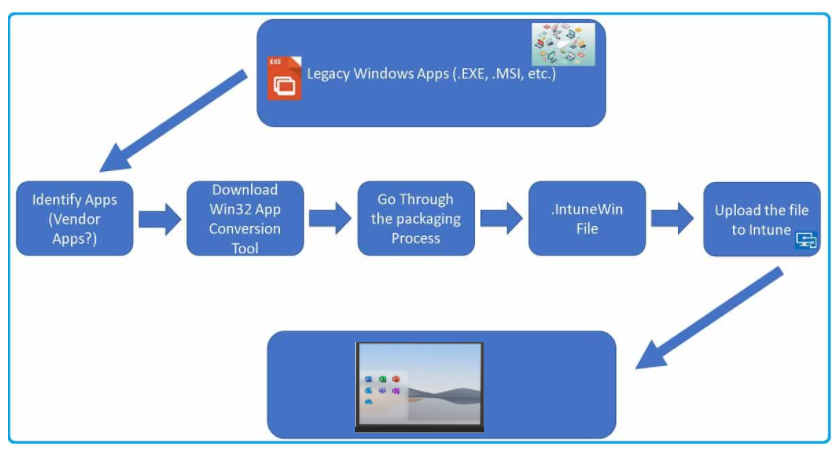
The IntuneWin format is a way to pre-process Windows classic (Win32) apps. You need to use a special package called “IntuneWin” to create the Intune Application Model.
Vimal explained how to create IntuneWin packages using the Command Line tool by Microsoft converts application installation files into the intunewin format. More details Intune Win32 App Deployment Step By Step Guide For ITPros.
If you select the most common application format (Win32), you must encapsulate the .exe or .msi file into an IntuneWin file. Windows 365 needs this as part of the App configuration set.
MSI
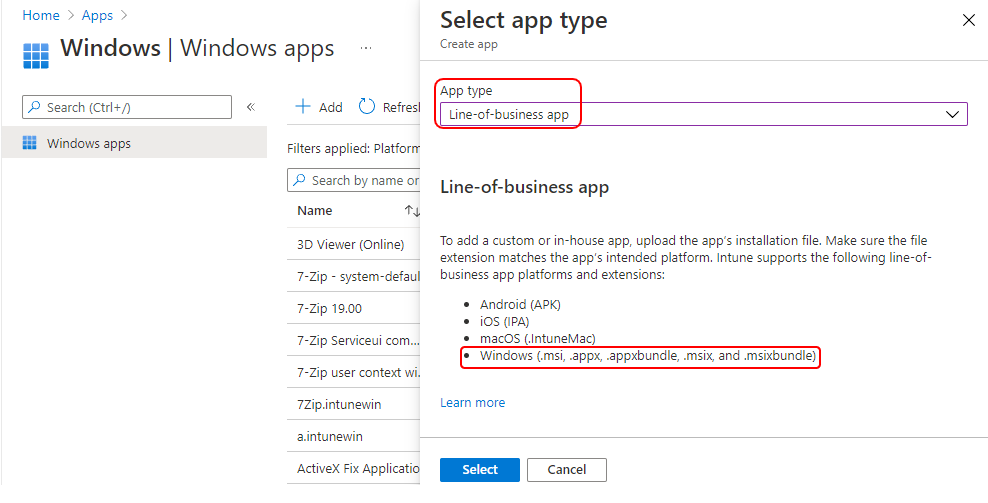
MSI format installers are supported by both the Line of Business and Windows app (win32) options within Intune. A line-of-business (LOB) app is one that you add from an app installation file. This kind of app is typically written in-house.
The fact is most organizations use the MSI application to deploy their LOB apps. Moreover, most of the vendors still use MSI technology for their products. You will see how to deploy MSI application from Intune.
MSIX
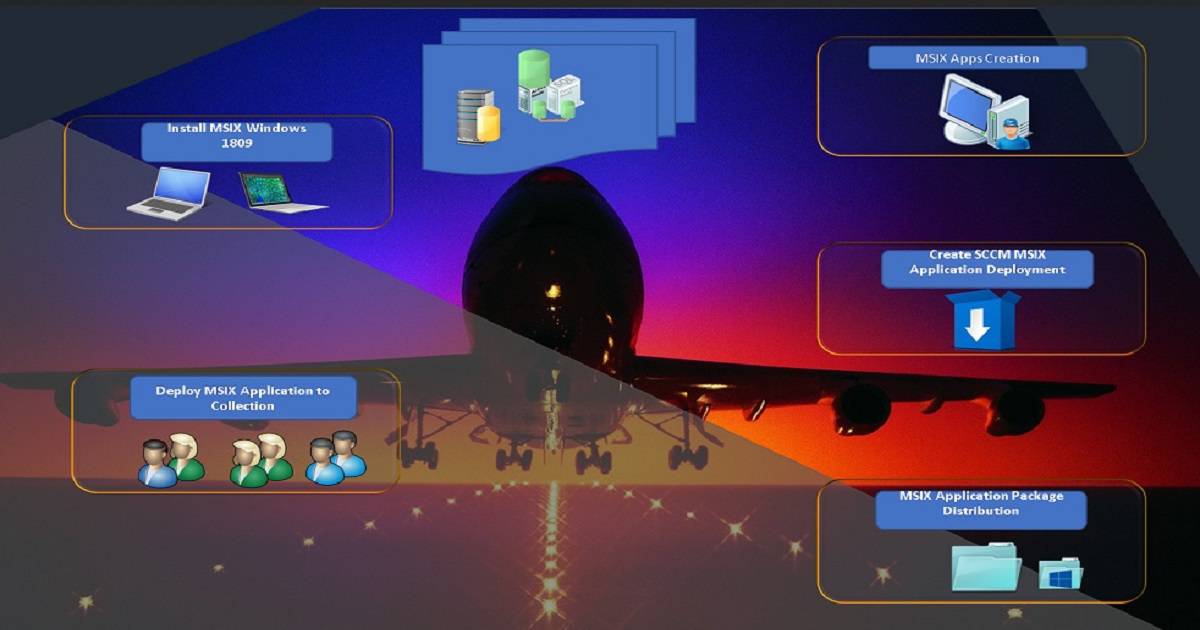
MSIX is the technology Microsoft is pushing for modern devices. They have taken care of old MSI and App-V packaging issues with MSIX. Windows Store application will also be in MSIX format.
The MSIX package format preserves the functionality of existing app packages and/or install files in addition to enabling new, modern packaging and deployment features to Win32, WPF, and Windows Forms apps. MSIX combines the best features of MSI, .appx, App-V.
MSIX enables enterprises to stay current and ensure their applications are always up to date. It allows IT Pros and developers to deliver a user centric solution while still reducing the cost of ownership of the application by reducing the need to repackage.
AppX
AppX is also known as modern (UWP) apps are supported application types in Windows 365. Files with an AppX extension added are ready for distribution and installation. As part of Windows 10/11 Enterprise, apps are automatically distributed as AppX – UWP format within the Windows Store.
AppX is helpful for distributing applications supported for multiple devices, including PCs, tablets, and smartphones that run on Windows. You can add Windows line-of-business app to Microsoft Intune. Select app package file. Then, select a Windows installation file with the extension .appx.
NOTE! – UWP application is still supported by Microsoft but there won’t be any new feature development for the UWP application framework.
Author
About Author -> Jitesh has over 5 years of working experience in the IT Industry. He writes and shares his experiences related to Microsoft device management technologies and IT Infrastructure management. His primary focus area is Windows 10 Deployment solution with Configuration Manager, Microsoft Deployment Toolkit (MDT), and Microsoft Intune.




Discussion