






Take Control During Screen Sharing Now Available in Teams for the Web
Let’s discuss Take Control During Screen Sharing Now Available in Teams for the Web. This will be Exciting news for Teams for web users. Microsoft introduced this impressive feature to enhance users’ experience in Teams Meetings.
As you know, Microsoft always introduces exciting features for its products. Now, the Take Control feature has been introduced on Microsoft Teams for web. With this feature, you can control screen sharing, allowing team members to collaborate more effectively.
The take control feature has already been introduced and is available in Teams for Windows and Mac. Now, you can explore this feature on the web as well. During a Teams meeting, the take control feature will be really helpful for screen sharing.
Screen sharing very important part in Teams Meeting. In this blog post, I will help you learn more about Taking Control of the Presentation During Screen Sharing in Teams for the Web. I will also share its features, how it works, and its availability.

Table of Contents
Take Control During Screen Sharing Now Available in Teams for the Web
I guess Take Control is a very familiar feature for you. As mentioned above, Taking Control of Screen sharing will enhance collaboration. It also has many benefits in Microsoft Teams. Let’s look at how it works.
- Big Changes in Microsoft Teams App Chats Teams and Channels moving into one place under Chat
- New Facilitator Agent Enhancing Meeting Productivity with Real Time Notetaking in Microsoft Teams
- Drag Teams Presenter Toolbar during Screen Sharing Frustrating Experience is Going to End Soon
How Take Control of the Presentation Features Works
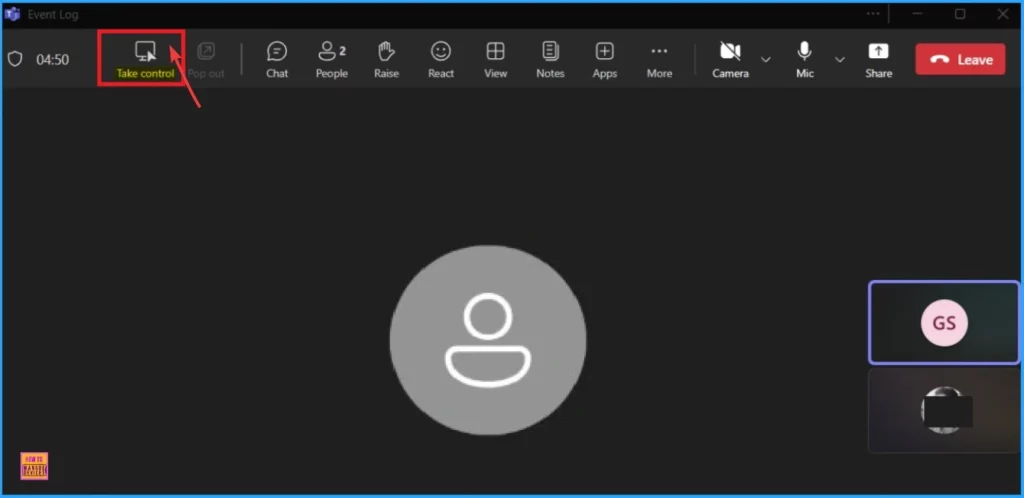
The Take Control Feature is applicable in Teams calls or meetings. In a Meeting or Team call where someone else is screen sharing, you can select the Take Control feature. Look at the below list.
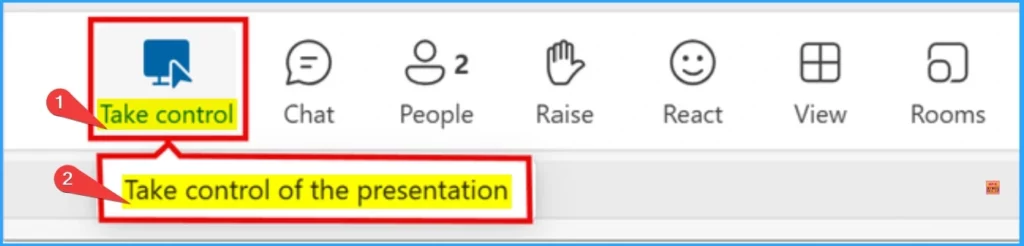
- Select Take Control feature from the tool bar
- Click on the Take control of the presentation
- The person presenting must approve or deny your request.
- Once you have control, you will be able to make other modifications to the shared screen, such as alter a file or provide a demonstration.
- To stop screen sharing or give control to another user, select Release control.
Feature of Take Control of the Presentation in Teams
There are many features included on Take Control in Teams. This enhancement improves collaboration by enabling multiple participants to interact with shared content in real-time, making meetings more efficient and seamless.
| Features | Details |
|---|---|
| Enhanced collaboration | This feature allows multiple participants to interact with shared content, making it easier to work together on documents, presentations, or other materials in real-time. |
| Improved meeting efficiency | It improves meeting efficiency by streamline the meeting process The presenter can navigate through the content without interruptions, ensuring that the meeting stays on track and covers all necessary points. |
| Seamless transitions | It provide a smooth transitions between presenters. If different team members need to present during the same meeting take control will help you. |
| Interactive demonstrations | Taking control of screen sharing is particularly useful for interactive demonstrations. |
| Focus and clarity | You can improve focus and clarity when one person controls the screen |
| Security and privacy | The presenter can control what is being shared and ensure that sensitive information is not accidentally displayed to the audience. |
Availability of Take Control of the Presentation in Teams
You can use the new take control feature; you must be a Teams Public Preview or Microsoft 365 Targeted release member and use the new Teams client web. Other meeting participants aren’t required to be members of the Teams Public Preview.
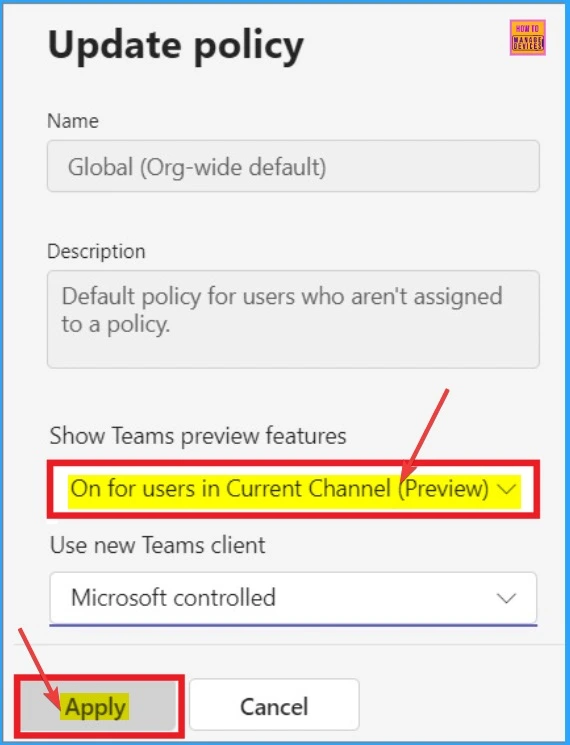
IT administrators must enable Show Preview features in their update policy if they want to allow teams to clients for the Public Preview. For Targeted release, global admins can go to the Microsoft 365 admin center and give access to a select set of individuals or the entire organisation.
Need Further Assistance or Have Technical Questions?
Join the LinkedIn Page and Telegram group to get the latest step-by-step guides and news updates. Join our Meetup Page to participate in User group meetings. Also, Join the WhatsApp Community to get the latest news on Microsoft Technologies. We are there on Reddit as well.
Resource
Take control during screen sharing in Teams for the web
Author
Anoop C Nair has been Microsoft MVP from 2015 onwards for 10 consecutive years! He is a Workplace Solution Architect with more than 22+ years of experience in Workplace technologies. He is also a Blogger, Speaker, and Local User Group Community leader. His primary focus is on Device Management technologies like SCCM and Intune. He writes about technologies like Intune, SCCM, Windows, Cloud PC, Windows, Entra, Microsoft Security, Career, etc.




Discussion