






Top 8 Quick Restart Methods for Windows 11 Troubleshooting
Hi, Friends. Today, we have another exciting topic: 8 Quick Effective Methods for Emergency Restart for Windows 11 When the System Faces Issues. While using the computer, we know the restart option, right? Most people use the restart option, but many still don’t know how to use it correctly and what methods can be used.
The restart option is always needed in emergencies; when our system hangs or freezes somewhere, we can quickly restart it to handle the situation. Like our system shutdown option, restart is one of the most important.
I think it’s essential to know about Emergency restart methods when facing system issues. The emergency restart works when the system hangs or freezes, and you have one option to restart your device. It can be considered a quick way of rebooting your device when it stops working.
This is an essential method for all of us to know about to keep our system running effectively and smoothly and reduce downtime when we work. In this post, learn the 8 Quick Effective Methods for Emergency Restart for Windows 11 When the System Faces Issues.

Table of Contents
What is a Restart Option in a Device?
Top 8 Quick Restart Methods for Windows 11 Troubleshooting
Above, we discuss the overall details of an emergency Restart. An emergency restart is not like a normal restart. We have to perform this restart without going through the usual shutdown procedures. When it’s done, it always forcefully closes all your applications and restarts your system immediately. So, let’s check the methods for the Emergency Restart.
- Set Active Hours to Avoid Random Restarts in Windows 11
- Enable Disable Auto-restart Notifications for Windows Update in Windows 11
- Top 83 Windows 11 Desktop Admin Interview Questions
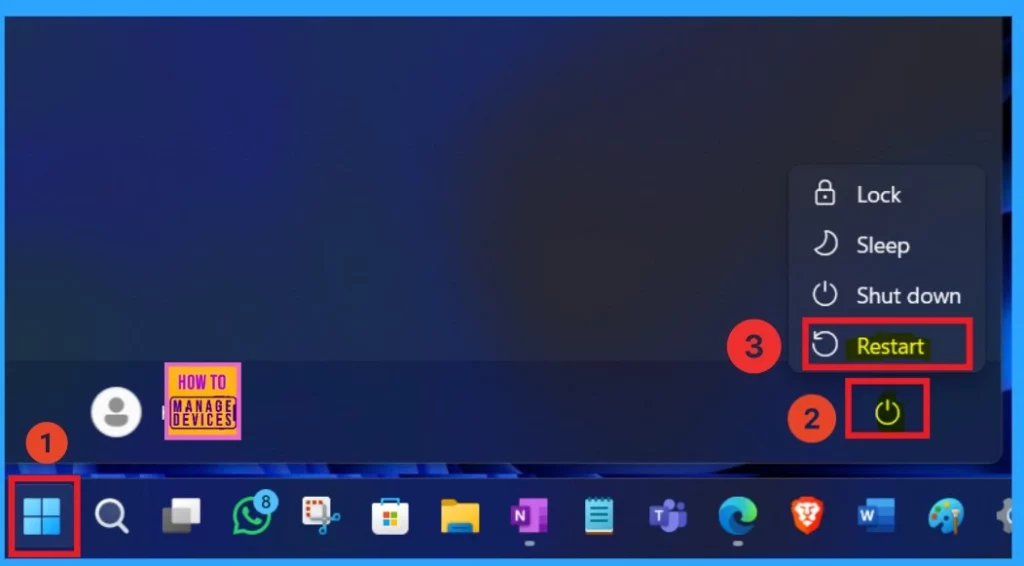
Restart the System Using the Start Menu
This is the First method we all use, right? When we start doing this in our system, it will ask us to save all our documents before restarting. When an emergency happens, it sometimes does not work, but mostly, this method is a very effective way to restart your Shutdown.
- Click on the Start Menu
- Click the Power button
- Select the Restart
- Now Restart the system will be going on
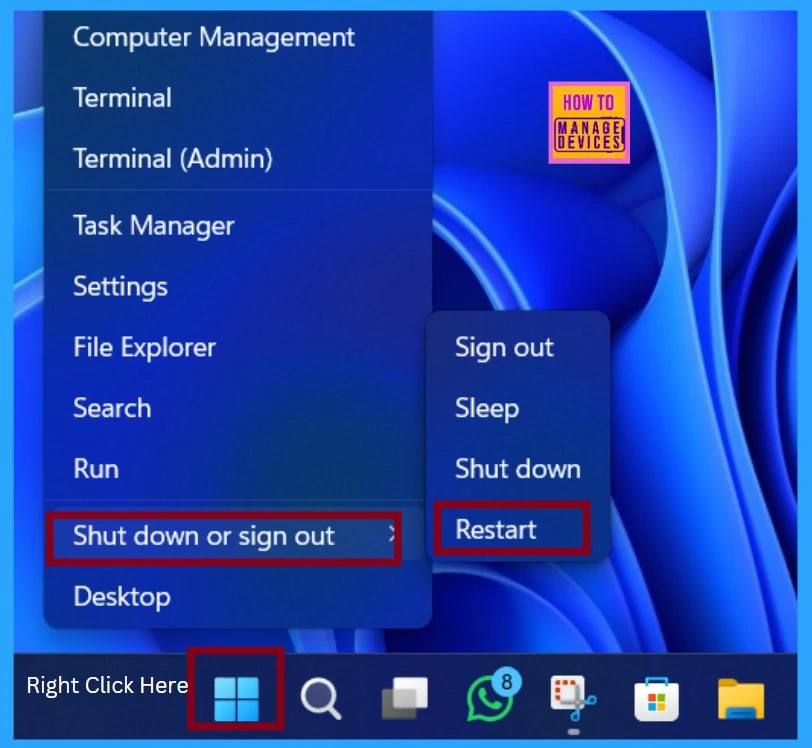
Emergency Restart Using the Win+X Quick Link Menu
This is an easy, quick method for an Emergency Restart for Windows 11 when the System Faces Issues. It is similar to restarting the System Using the Start Menu. You can use the shortcut key Win+X or right-click on the Start menu, select the Shutdown or Sign Out option, and click Restart.
- The screenshot below will help you.
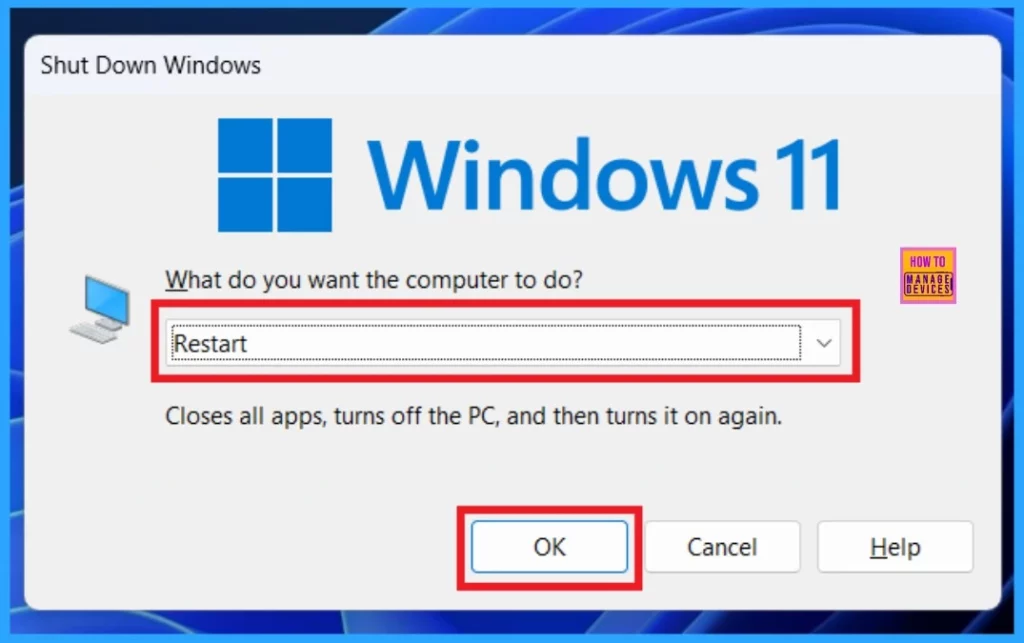
Alt+F4 ShutDown Windows Dialog
Another method is using the Alt+F4 ShutDown Windows Dialog. This shortcut key is usually used as a Closing window shortcut. If you press this, the active window will be closed. It shows the system’s down process if it does not have a closing window. So, we can use this tool for two different methods.
- Press the Alt+F4 Keys together
- Select the Restart Option and Click on the Ok button
| No | Options Alt+F4 Shutdown Windows Dialog Providing |
|---|---|
| 1 | Switch user |
| 2 | Sign out |
| 3 | Sleep |
| 4 | Shut Down |
| 5 | Restart |
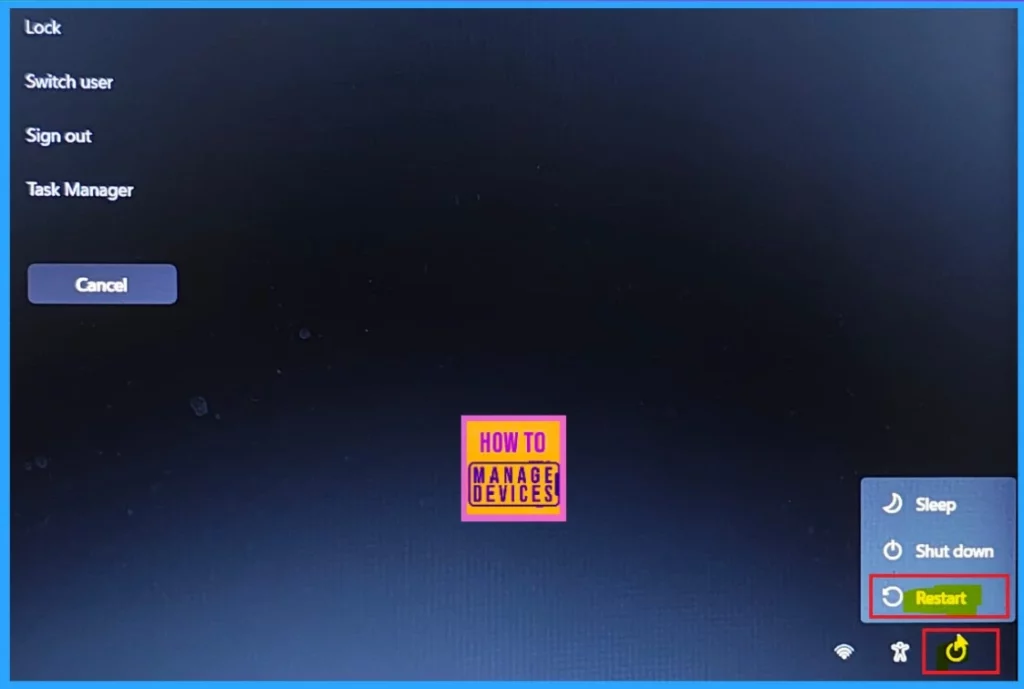
Restart Computer from Ctrl+Alt+Del Screen
This is an essential method for restarting the computer using the Ctrl+Alt+Del Screen. Pressing the Ctrl+Alt+Del keys together will open a window for the security screen; this window is used for many purposes, like locking the screen, switching user sign-out, and opening the task manager.
You can see that below the power icon. Click on this icon, and a menu will appear with options to Shut down, Restart, or Sleep. You can select the Restart option just like you do the above methods.
- This is the best method. When your system freezes or hangs, it will reboot your system.
Emergency Restart Computer
In this method, you can use the Ctrl + Alt + Del method like the above method. If you restart your computer immediately, all open programs will close, and any unsaved work will be lost. Use this method only if your computer is frozen or unresponsive and other solutions haven’t worked.
- Press the Ctrl, Alt, and Del keys together.
- This will create a screen with options like Lock, Switch User, Sign Out, and Task Manager.
- Press and hold the Control key
- Click/tap on the Power button, and release the Ctrl key
- The system will now proceed to restart
- How to Change Add Remove Windows 11 PC from Workgroup using PowerShell Settings App
- How to Turn On or Off Cloud Content Search in Windows 11 using Registry GPO Intune Policies
Sign-in Screen
This is the standard method we use; when we sign in to the system, we know we have an option for entering a PIN. You can also click the Power Icon button in that window to access the system restart option.
- Click on the Power Icon Button
- Select the Restart Option

Powershell
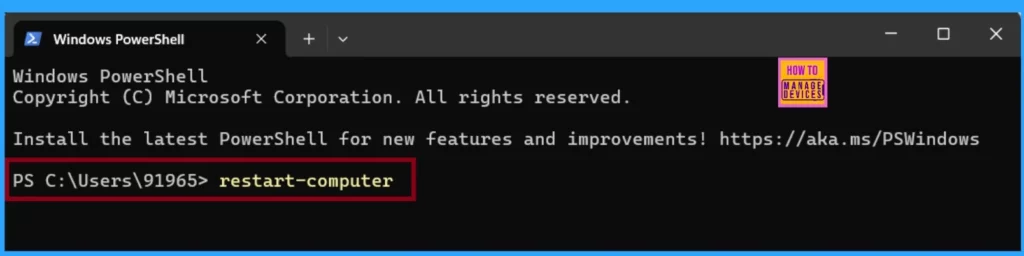
The other step is using the powershell method, which is way better than other methods; this is only for those who use the command line interface. This method is very effective, and it is a quick way to restart your system. First, open the Powershell in the Start menu. Or Right click on the start menu and select Terminal (admin)
- You have to open Powershell as an administrator.
- Now you can enter the following command: restart-Computer
| PowerShell commands | Purpose |
|---|---|
| restart-computer | It will start the Restart the computer Procedure |
| restart-computer –force | It allows you to force any running applications to close before restarting the computer. |
| restart-computer -confirm | This will prompt you for confirmation before proceeding with the restart. |
| Restart-computer -force -confirm | It prompts you to confirm before forcing running applications to close, and then it performs a full shutdown and restarts the computer. |
Command Prompt
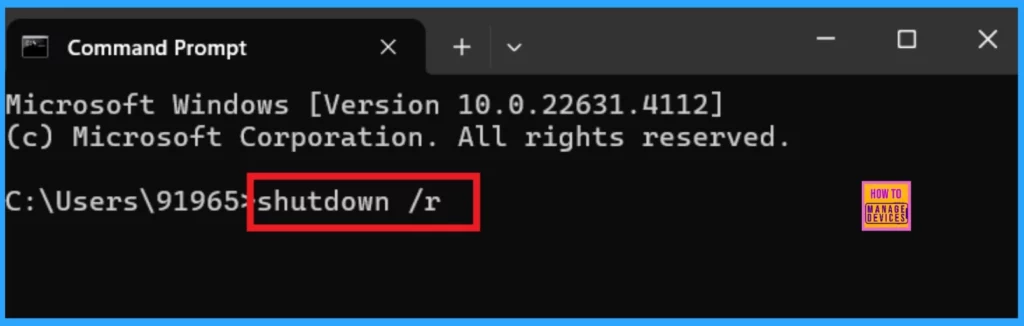
Like the Powershell command, another command option you all know is the Command Prompt. This is just like the powershell commands; first, you must open the Command prompt by searching the search menu, and it’s only to be on the admin level. So open it as administrator.
- After opening the Command Prompt
Copy this: shutdown /r
Read More – 12 Easy Ways to Shutdown Windows 11
- shutdown /r – It is used for the Restart option
- shutdown /r /f /t 0 – It forces running applications to close and restart.
- Shutdown/r /t xxx -It restarts after a specified timeout (in seconds). Replace
xxxwith a value between 0 and 315360000. - shutdown /r /c “Your comment here”– It helps to show a warning with your comment and restarts.
- Shutdown/r /t xxx /c– Displays a warning with your comment and restarts after a specified timeout.
- Shutdown/g– It restarts and will reopen any applications that are running.
- Shutdown/g /c ”Your comment here” – This command helps you to show a warning with your comment, restart and reopen applications.
- Shutdown/g /t xxx /c ”Your comment here” -This command helps you to show a warning with your comment, restart and reopen applications with a Time out.
Join the LinkedIn Page and Telegram group to get the latest step-by-step guides and news updates. Join our Meetup Page to participate in User group meetings. Also, Join the WhatsApp Community to get the latest news on Microsoft Technologies. We are there on Reddit as well.
Author
Anoop C Nair has been Microsoft MVP from 2015 onwards for 10 consecutive years! He is a Workplace Solution Architect with more than 22+ years of experience in Workplace technologies. He is also a Blogger, Speaker, and Local User Group Community leader. His primary focus is on Device Management technologies like SCCM and Intune. He writes about technologies like Intune, SCCM, Windows, Cloud PC, Windows, Entra, Microsoft Security, Career, etc.




Discussion