






New Working Time Settings for App Protection Policies in Intune Limit Access and Mute Notifications
Microsoft has introduced Working Time settings for App Protection Policies in Intune (MAM), providing organizations with new ways to manage app usage and notifications during non-working hours.
These settings allow administrators to limit access to apps like Microsoft Teams and Microsoft Edge on iOS/iPadOS and Android devices. Administrators can enforce policies that block or warn users attempting to use these apps during non-working hours.
The feature also allows for the muting of notifications from the Teams app, helping reduce disruptions and supporting an excellent work-life balance for employees. In this post, you will find everything about the new Working Time Settings for App Protection Policies in Intune. These settings allow you to control when work apps can be accessed and when notifications are muted, helping you manage your work-life balance.
You can now easily configure a Quiet Time Policy in the Intune Admin Center. This policy also extends to iPhones and iPads. It ensures that your work apps and notifications are stopped during non-working hours, helping you maintain a healthier work-life balance.

Table of Contents
What are the Working Time Settings for App Protection Policies?
Working Time settings allow IT administrators to enforce policies limiting app access and muting notifications during non-working hours.
Which Apps are Supported by the Working Time Settings?
The feature is currently available for Microsoft Teams and Microsoft Edge apps on iOS/iPadOS and Android devices.
How Does the Limit Access Setting Work?
The limit access setting allows admins to block or warn users when they attempt to access the Teams or Edge apps outside of working hours.
New Working Time Settings for App Protection Policies in Intune Limit Access and Mute Notifications
Microsoft’s Service Release 2409 launched a new Working Time Settings for App Protection Policies (APP) feature. This feature provides enhanced control over app usage and notifications by allowing administrators to manage access and mute notifications during non-working hours, offering greater flexibility in ensuring a work-life balance for employees.
| Steps |
|---|
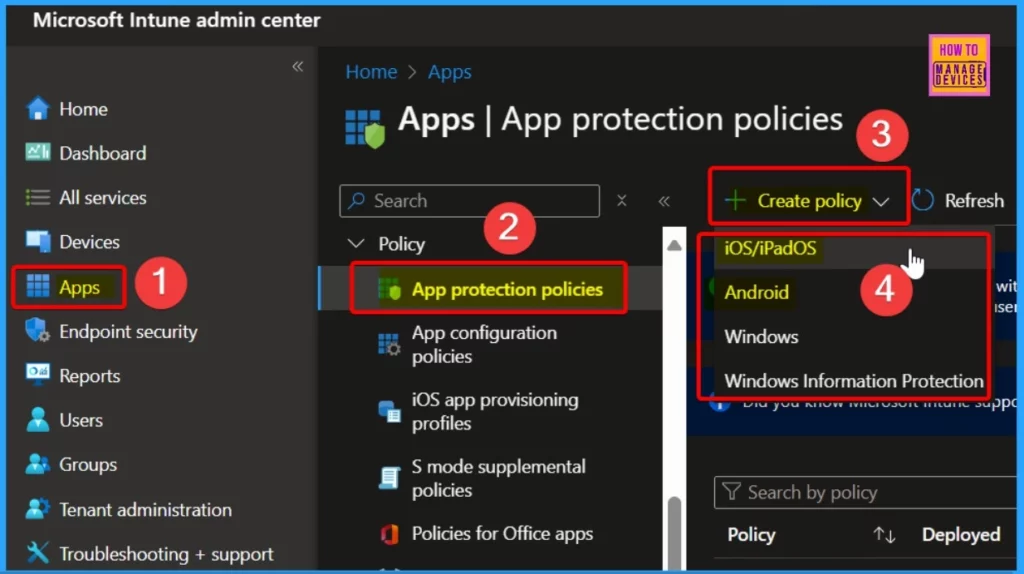
| Sign in to the Microsoft Intune admin center. |
| Select Apps > App protection policies. |
| Select Create policy. |
| Choose either iOS/iPadOS or Android (the platform you want to create the policy) |
- Create Intune Turn Off Real-Time Protection Policy
- CPU and RAM Spike Time Scores Report for Windows Physical Devices in Intune Advanced Analytics
You must provide essential information for your app protection policy on the Basics page of the Microsoft Intune admin center. First, enter a Name that identifies the purpose of this app protection policy. Next, you can add a Description of the policy, which can provide additional details.
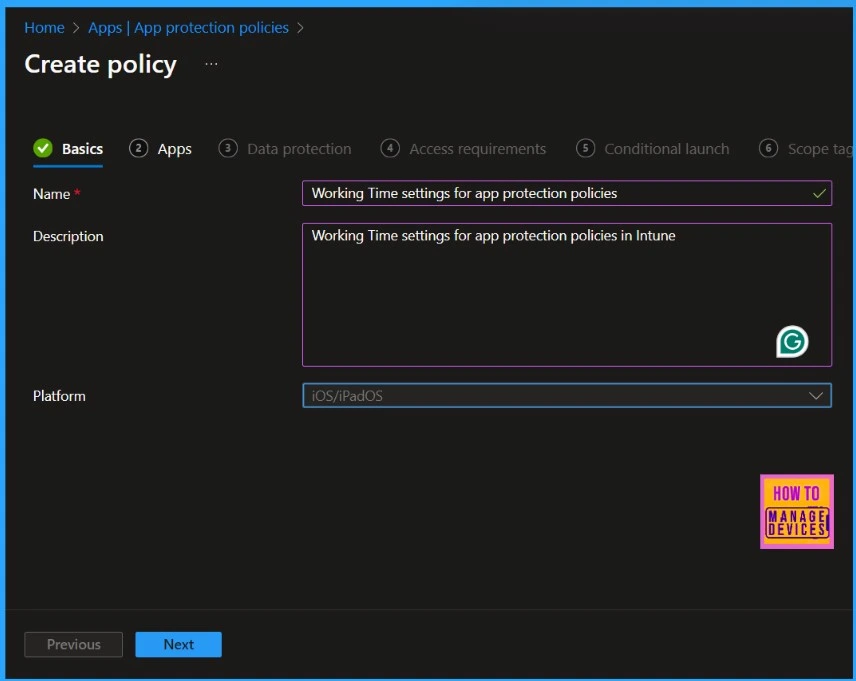
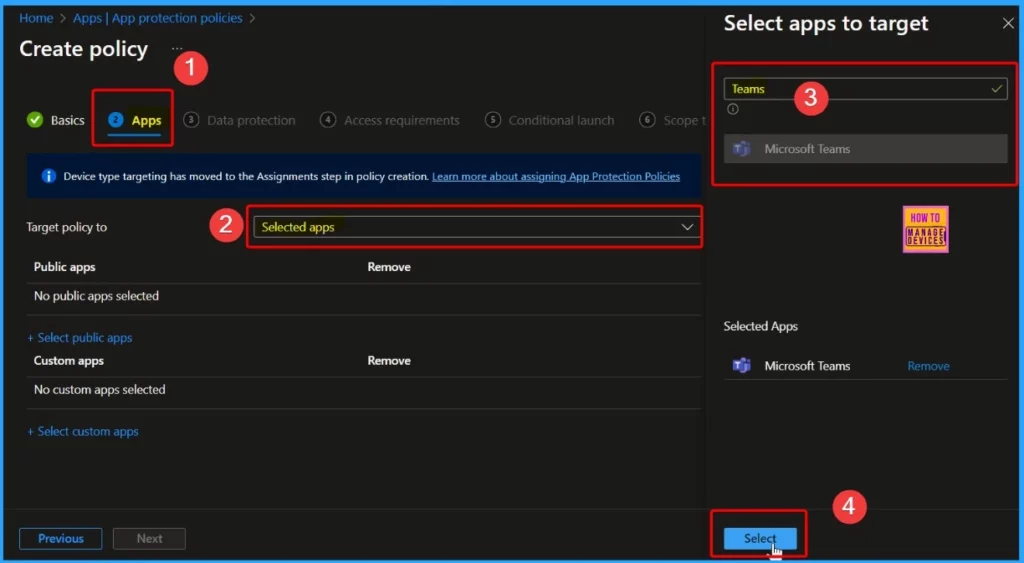
After entering the necessary information on the Basics page, click Next to proceed to the Apps page. This page allows you to select the apps targeted by the policy. Adding at least one app ensures the policy is applied effectively.
- Top 75 Latest Intune Interview Questions And Answers
- Configure Multiple Admin Approvals in Intune for Apps and Scripts
- Top 50+ Latest SCCM Interview Questions and Answers
Conditional Launch Settings
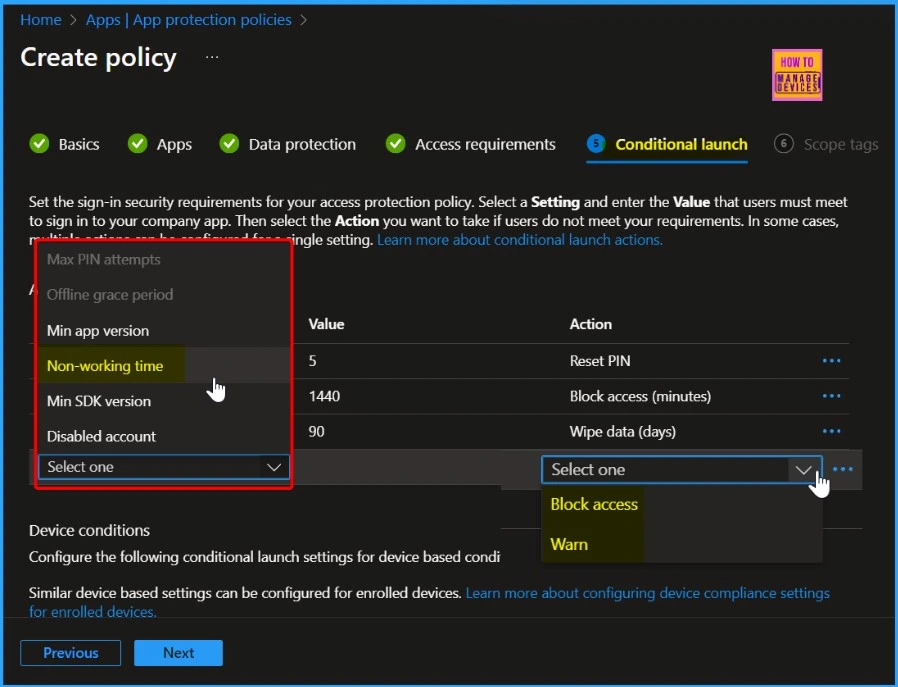
Conditional launch settings in App Protection Policies (APP) allow organizations to manage application access based on specific conditions, particularly regarding app usage timing. With these settings, administrators can establish rules that dictate how and when end users can access certain apps, such as Microsoft Teams and Microsoft Edge, on iOS/iPadOS and Android devices.
Features of Conditional Launch Settings
Conditional launch settings allow admins to specify non-working hours during which access to designated apps can be limited. This ensures employees are not distracted by work-related applications outside their regular working hours.
Administrators can choose two primary actions when conditions regarding non-working time are met. They are as follows.
| Non-working time | Settings |
|---|---|
| Block Access | This option completely prevents users from opening the specified apps during non-working hours. |
| Warn | If this option is selected, users trying to access the apps during non-working hours will see a warning message. This message lets them know they are using the app outside of their scheduled working hours, but they can still choose to proceed if they wish. |
Join the LinkedIn Page and Telegram group to get the latest step-by-step guides and news updates. Join our Meetup Page to participate in User group meetings. Also, Join the WhatsApp Community to get the latest news on Microsoft Technologies. We are there on Reddit as well.
Author
Anoop C Nair has been Microsoft MVP from 2015 onwards for 10 consecutive years! He is a Workplace Solution Architect with more than 22+ years of experience in Workplace technologies. He is also a Blogger, Speaker, and Local User Group Community leader. His primary focus is on Device Management technologies like SCCM and Intune. He writes about technologies like Intune, SCCM, Windows, Cloud PC, Windows, Entra, Microsoft Security, Career, etc.


If I understand correctly, this deactivates the sound outside working hours? The customer will either have the application blocked or will receive an email notification.
I understand that even Teams calls will be silent?
I thought it was interesting, provided that the user isn’t notified by e-mail and that notifications are silent except for incoming calls.
Many companies work in different time zones…
It’s a good start, but it’s not perfect.
Thanks for your blog