






Turn Off Copilot in Windows using Intune and Group Policy
In this post, you will learn how to turn off Copilot in Windows using Intune and Group Policy. Copilot in Windows adds AI to enhance your Windows 11 experience and help to more creativity and productivity.
Windows is the first PC platform to provide centralized AI assistance for customers. Together with Bing Chat, Copilot in Windows helps you bring your ideas to life, complete complex projects and collaborate instead of spending energy finding, launching and working across multiple applications.
Windows Copilot is a transformative feature introduced by Microsoft that integrates AI (Artificial Intelligence) capabilities directly into the Windows operating system. It acts as an intelligent assistant, providing personalized recommendations, insights, and streamlined workflows to enhance productivity and user experience.
The power of AI to Windows 11 provides a new era of productivity for customers and developers with Windows Copilot. The below window shows the Copilot icon. This icon is very similar to the Microsoft 365 icon. You can easily launch Windows Copilot by clicking this icon, and it is easy to ask questions.

- Microsoft Copilot LAB Windows 23H2 – Microsoft Event Live Updates
- Best Way To Install Chocolatey Application Using Microsoft Intune
Windows Copilot CSP Details
This policy setting allows you to turn off Copilot in Windows. If you enable this policy setting, users can’t use Copilot. The Copilot icon doesn’t appear on the taskbar either. If you disable or don’t configure this policy setting, users can use Copilot when it’s available to them. Windows Copilot is disabled by default for Windows 11, version 22H2 commercial update-managed devices.
CSP URI – ./User/Vendor/MSFT/Policy/Config/WindowsAI/TurnOffWindowsCopilot
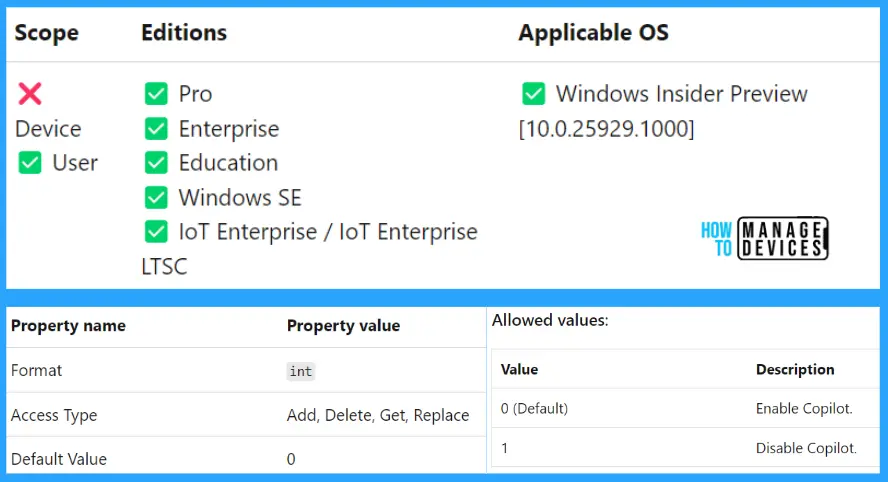
Turn Off Copilot in Windows from Intune
The following steps will help you to create an Intune custom CSP policy to turn off Copilot from all managed devices.
- Sign in to the Microsoft Intune Admin portal https://intune.microsoft.com/.
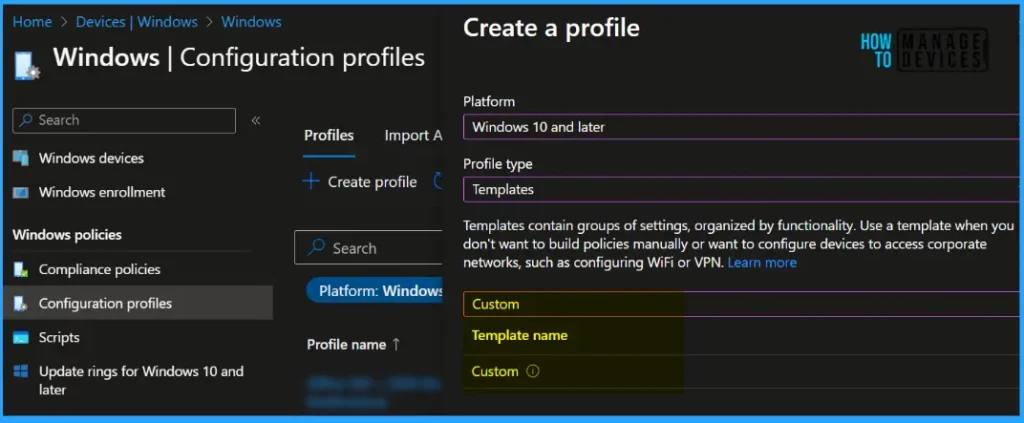
- Navigate to Devices – Windows – Configuration Profiles.
- Select the platform as Windows 10 and Later, Select Profile Type as Templates.
- In the Search bar – Type in “Custom“. Click on the Custom option to create a custom Intune policy.
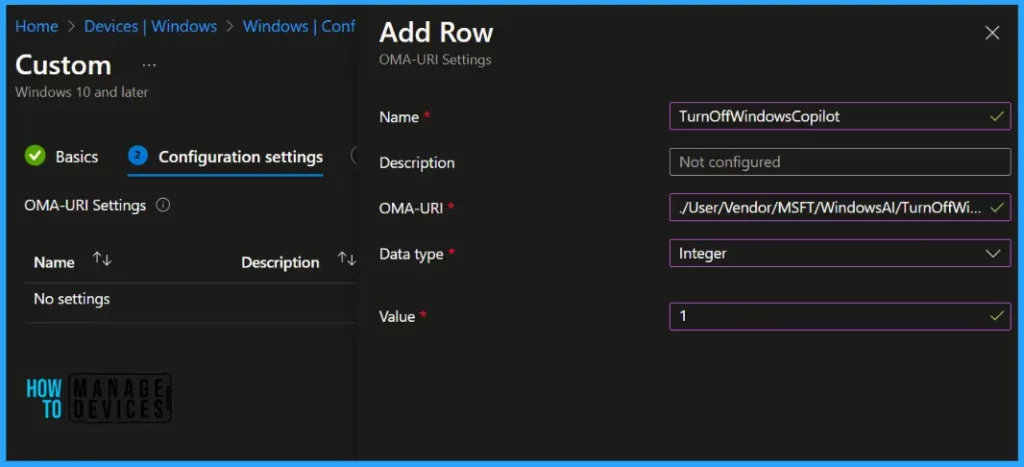
Now, it’s time to look into Windows CSP policies to turn off Copilot in Windows. You can click on the Add button to add additional configuration. You will need to follow the similar steps as mentioned above. Enter the name, description, OMA-URI, Data Type, and Value.
- Name – TurnOffWindowsCopilot
- Description – You can add the description for reference.
- OMA-URI – ./User/Vendor/MSFT/Policy/Config/WindowsAI/TurnOffWindowsCopilot
- Data Type – Integer
- Value – 1 (Disable Copilot)
- Click on the Save button to continue.
./User/Vendor/MSFT/Policy/Config/WindowsAI/TurnOffWindowsCopilot
Once completed, add the OMA-URI Settings, Proceed to the next step for completing the assignments and applicability rules if you need to set up the policy for turning off Copilot in Windows for Intune managed devices.
Note! As the Copilot feature is enabled by default for Windows 11, updated KB5030310. Ensure you added the applicability rules for targeting the policies to managed devices.
Turn Off Windows Copilot using Group Policy
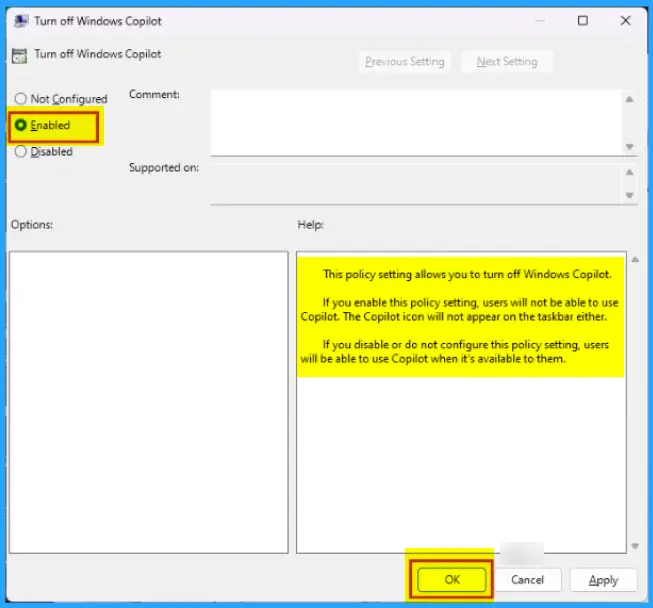
Here’s how you can access the Group Policy to turn off Copilot, By following this method to disable Copilot, simply make the Copilot icon disappear from the Taskbar.
Open Local Group Policy Editor directly (Windows key + R and enter gpedit.msc) or open MMC and load the Local Group Policy Editor snap-in.
In Group Policy Editor, Navigate to the User Configuration > Administrative Templates > Windows Components > Windows Copilot > Turn off Windows Copilot. You should see multiple policies.
In the Windows Copilot Settings, locate the policy, Turn off Windows Copilot, and Double-click on the policy to open and get the detailed view.
Registry Information
To check the policy deployment, You can validate the registry details for office update notification at the below location.
| Details | Registry Information |
|---|---|
| Registry Hive | HKEY_LOCAL_MACHINE |
| Registry Path | SOFTWARE\Policies\Microsoft\Windows\WindowsCopilot |
| Value Name | TurnOffWindowsCopilot |
| Value Type | REG_DWORD |
| Enabled Value | 0 |
| Disabled Value | 1 |
Author
About Author – Jitesh, Microsoft MVP, has over six years of working experience in the IT Industry. He writes and shares his experiences related to Microsoft device management technologies and IT Infrastructure management. His primary focus is Windows 10/11 Deployment solution with Configuration Manager, Microsoft Deployment Toolkit (MDT), and Microsoft Intune.


You have missed a step in:
User Configuration > Administrative Templates > Windows Copilot >
Should be
User Configuration > Administrative Templates > Windows Components >Windows Copilot >
The correct OMA-URI to use:
./User/Vendor/MSFT/Policy/Config/WindowsAI/TurnOffWindowsCopilot
As documented here:
https://learn.microsoft.com/en-us/windows/client-management/manage-windows-copilot
Being a \.User scoped policy can I still deploy it to Device Group or only User Group ?
only user group, I am working on trying to find a way to apply this to kiosk devices we have, that only have a local account deployed.
Hello
But that will remove it, so the Button to enable it over the settings is not possible.
How can I only disable it, so that the User can enable it, if necessary.
Did you find a way to disable this on Kiosk machines?
Neither the OMA-URI or importing the Windows 11 ADMX administrative template to ‘Turn off Windows Copilot’ work in intune.
Any updates on a resolution to this?
Is there any update on this?
I tried this on my a couple of test devices and it doesn’t appear to work. I tried the OMA-URI and importing the Windows 11 ADMX administrative template to ‘Turn off Windows Copilot’ work in intune.
Has anyone resolved this?
Doesn’t work. In the template it’s a User setting and the registry-value is under HKLM? That can’t work!