






Upgrade to Windows 10 2004 Using SCCM | ConfigMgr | Servicing
Let’s learn how to upgrade to Windows 10 2004 using SCCM. Windows 10 2004 is the latest version of Windows 10, and you can use servicing plans to keep it up-to-date and secure.
ConfigMgr (aka Configuration Manager) allows you to manage Windows as a service and learn how to upgrade to the Windows 10 2004 version. Windows 10 May 2020 Update is another name for Windows 10 2004.
Windows 10 servicing is the modern way of upgrading Windows 10 to the latest version without using the in-place upgrade (IPU) Task Sequence.
You can create service plans to form deployment rings and ensure that Windows 10 systems are updated when new builds are released. You can also view alerts when Windows 10 clients are near the end of support for their Semi-Annual Channel build.

Related post – How to Enable Windows 10 servicing using SCCM | ConfigMgr | WSUS
Prerequisites
- Windows 10 Software Update Management. Windows Update for Business should not be enabled.
- Online Service Connection Point
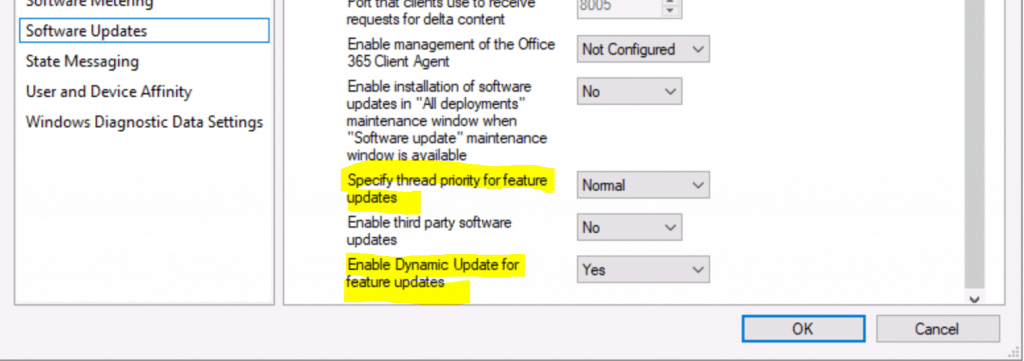
- Enable Specify thread priority for feature updates from Client settings (1902 or later).
- Enable Dynamic Update for feature updates from Client settings (1906 or later).
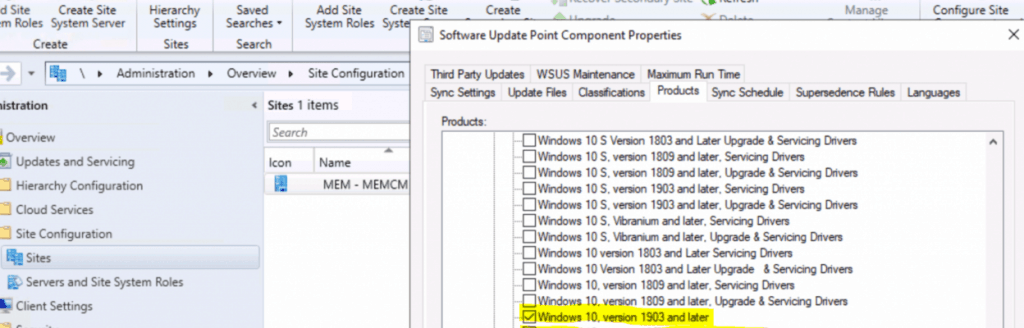
From the Products, you have enabled the following product.
- Windows 10, version 1903 and later
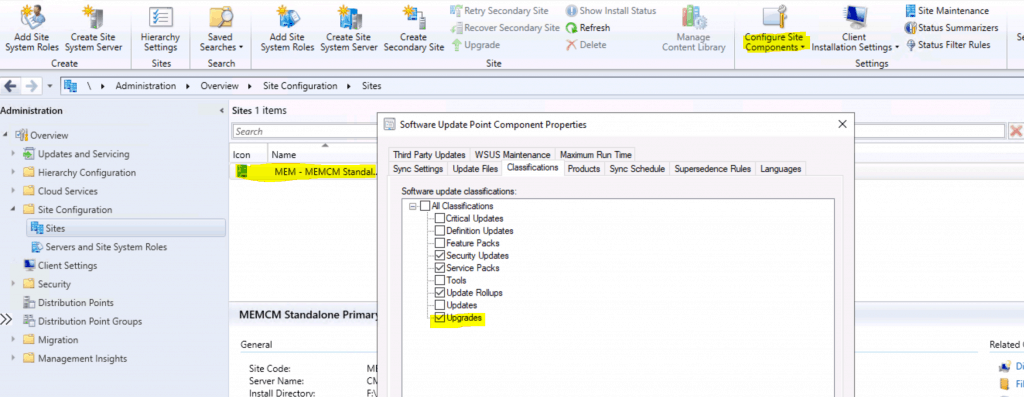
Click on UPGRADE and enable the checkmark for the upgrade option from the Classification tab from Software Update Point Component Properties.
NOTE! Make sure all the prerequisites mentioned in the following post are in place. Enable Windows 10 servicing using SCCM.
Search for Windows 10 2004 Servicing Package
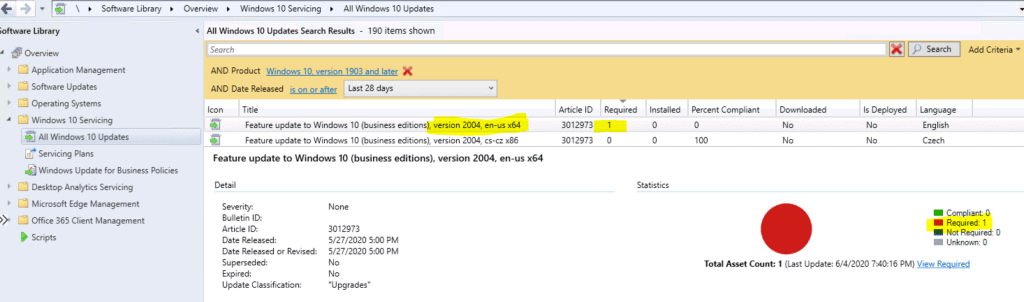
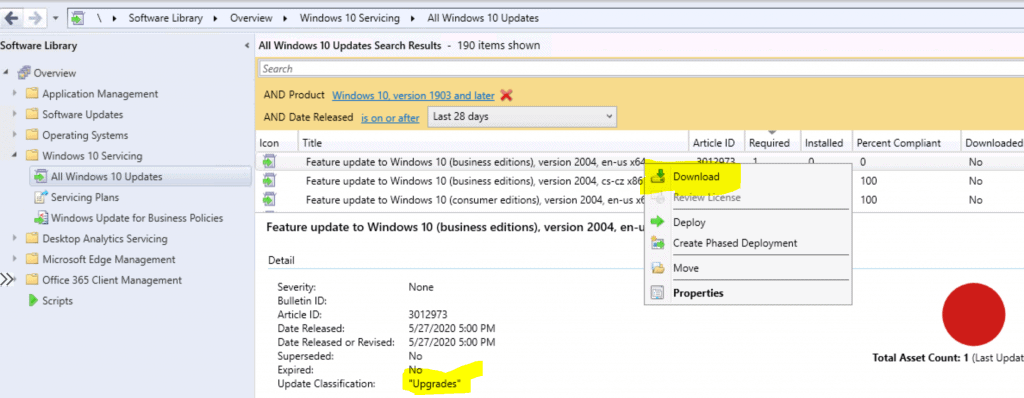
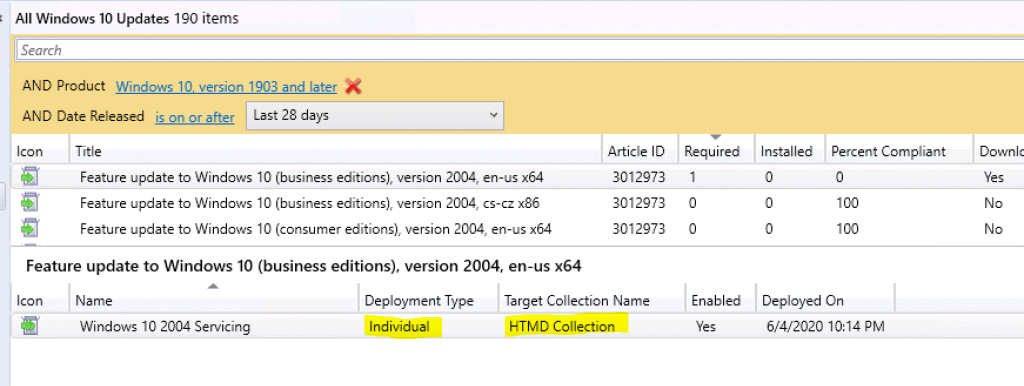
Navigate to \Software Library\Overview\Windows 10 Servicing\All Windows 10 Updates. Search with Product and Date Released:
- Product – Windows 10 version 1903 and Later.
- Date Released – is On or After – Last 28 Days.
- Click on the Search button.
- Click on the available update named – Feature update to Windows 10 (business editions), version 2004, en-us x64.
- The “required” column shows 1.
NOTE! – Select the other languages if you want to deploy non-English languages.
Download Windows 10 2004 Servicing Package
Right-click on Feature update to Windows 10 (business editions), version 2004, en-us x64 and Click on Download.
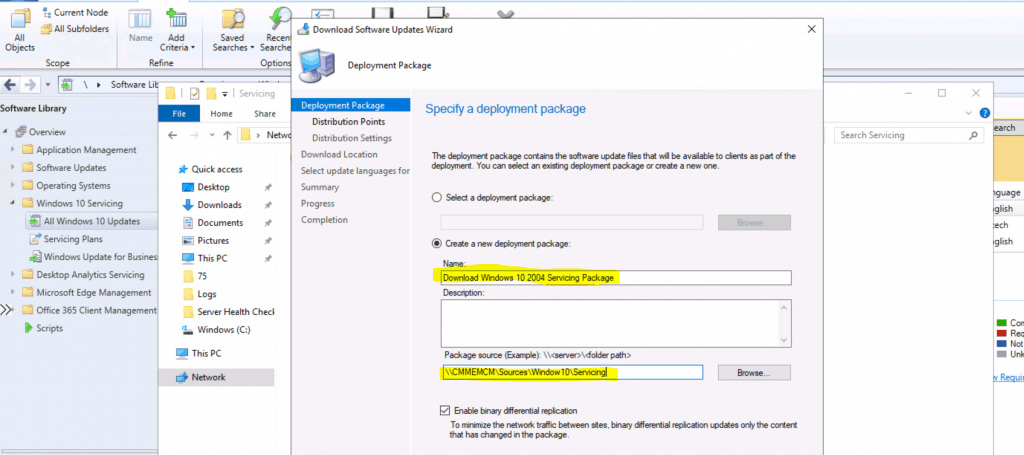
Select Create a new deployment package.
- Enter the Name – Download Windows 10 2004 Servicing Package.
- Enter the package name source – UNC path to store the source file.
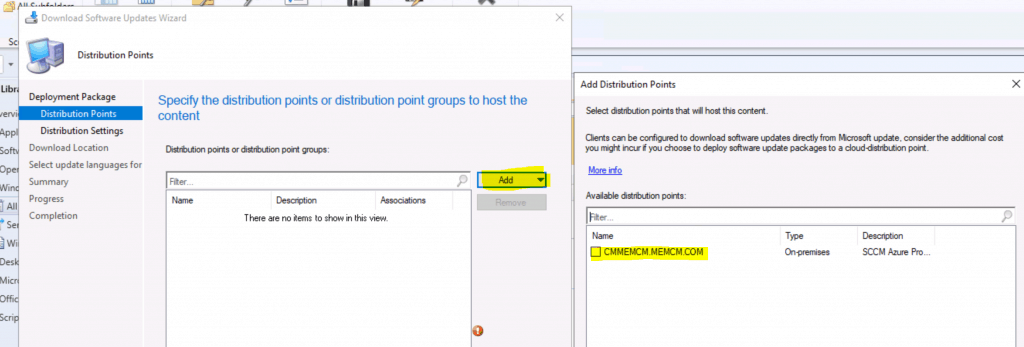
Click on Add and select Distribution Point. Select the Distribution Point – Click on the DP Name.
- Click OK and Next.
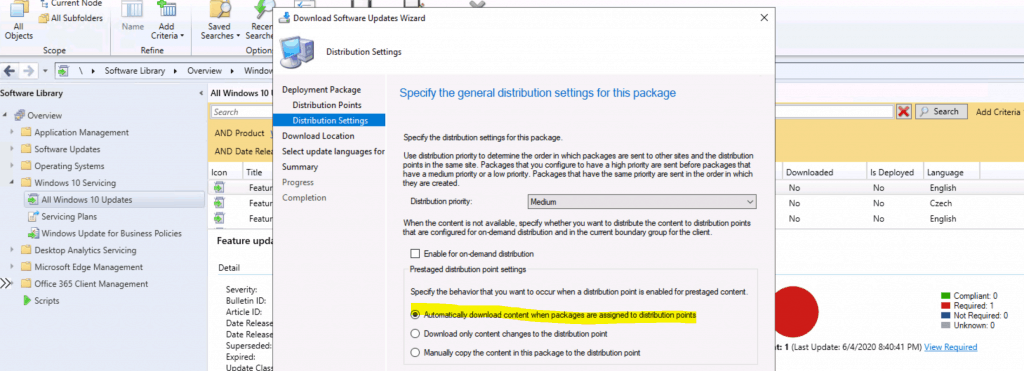
Select “Automatically Download Content when packages are assigned to distribution points.”
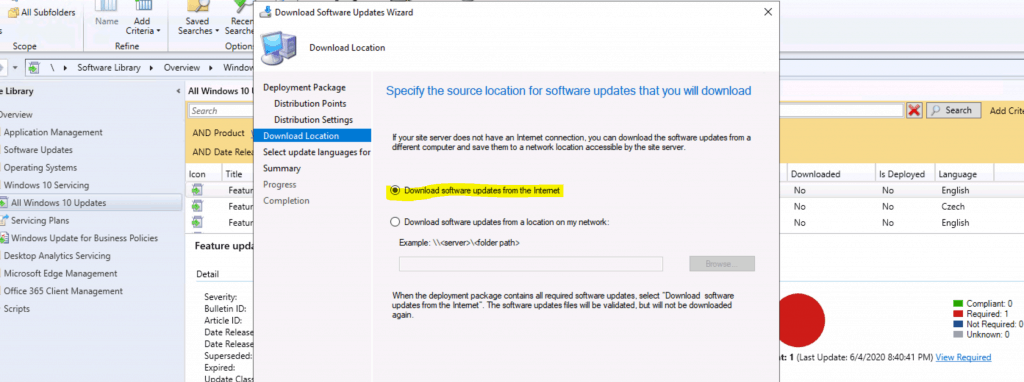
Download Source files from the Internet. Download Software Updates from the Internet.
- Click Next to continue
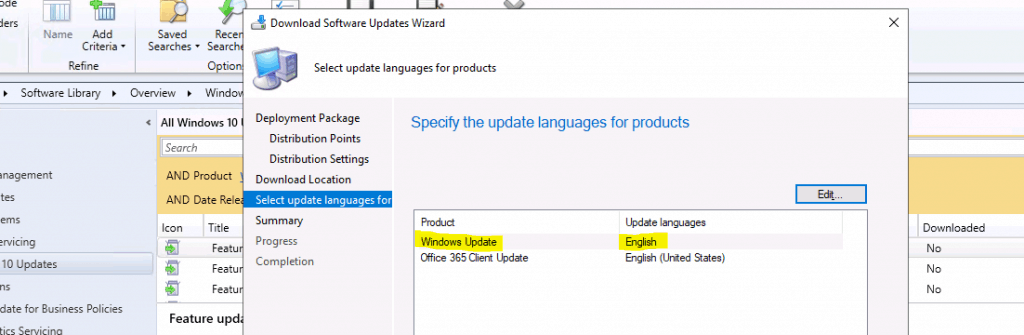
Specify the updated languages for products. Select the different languages by clicking on the Edit button.
- Click Next.
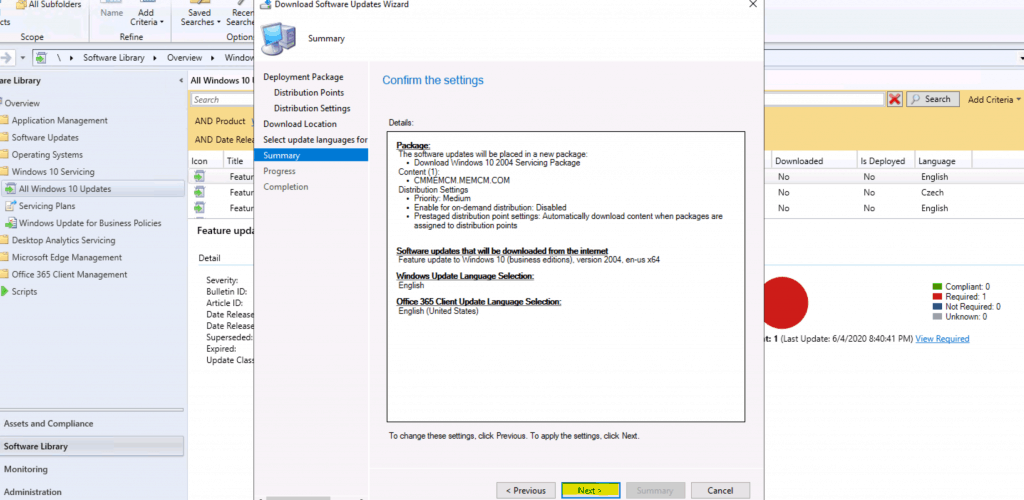
Click on Next on the Summary page.
Package:
The software updates will be placed in a new package:
• Download Windows 10 2004 Servicing Package
Content (1):
• CMMEMCM.MEMCM.COM
Distribution Settings
• Priority: Medium
• Enable for on-demand distribution: Disabled
• Prestaged distribution point settings: Automatically download content when packages are assigned to distribution points
Software updates that will be downloaded from the internet
Feature update to Windows 10 (business editions), version 2004, en-us x64
Windows Update Language Selection:
English
Office 365 Client Update Language Selection:
English (United States)
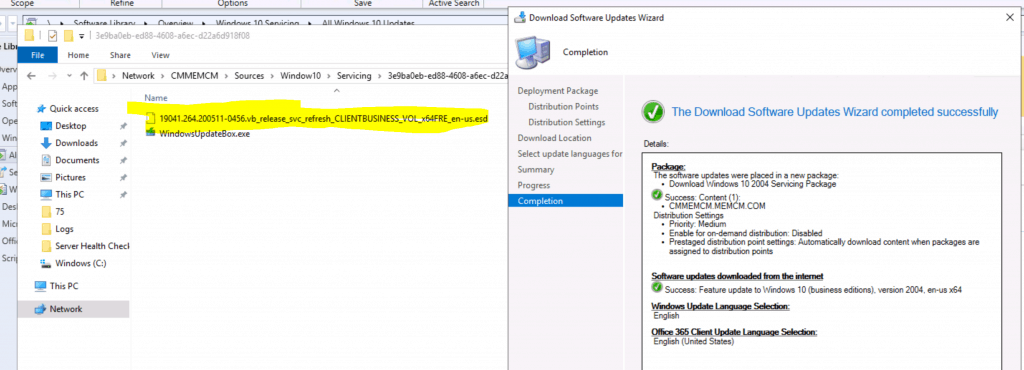
Download the following files completed –
- 19041.264.200511-0456.vb_release_svc_refresh_CLIENTBUSINESS_VOL_x64FRE_en-us.esd
- WindowsUpdateBox.exe
Download Column confirms the serving update is downloaded.

Deploy Windows 10 Servicing Package
You have already downloaded the Windows 10 2004 servicing package. Now, let’s deploy the Windows 10 servicing update to test collection.
- Navigate to \Software Library\Overview\Windows 10 Servicing\All Windows 10 Updates.
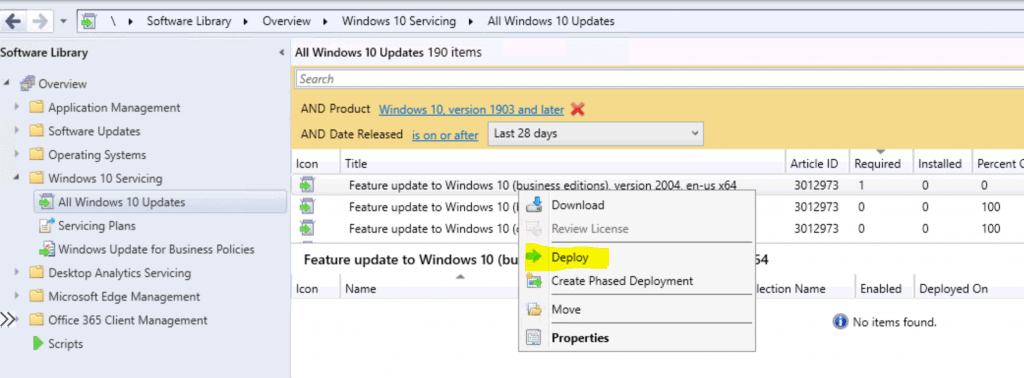
- Right-click on a Feature update to Windows 10 (business editions), version 2004, en-us x64 and click on Deploy.
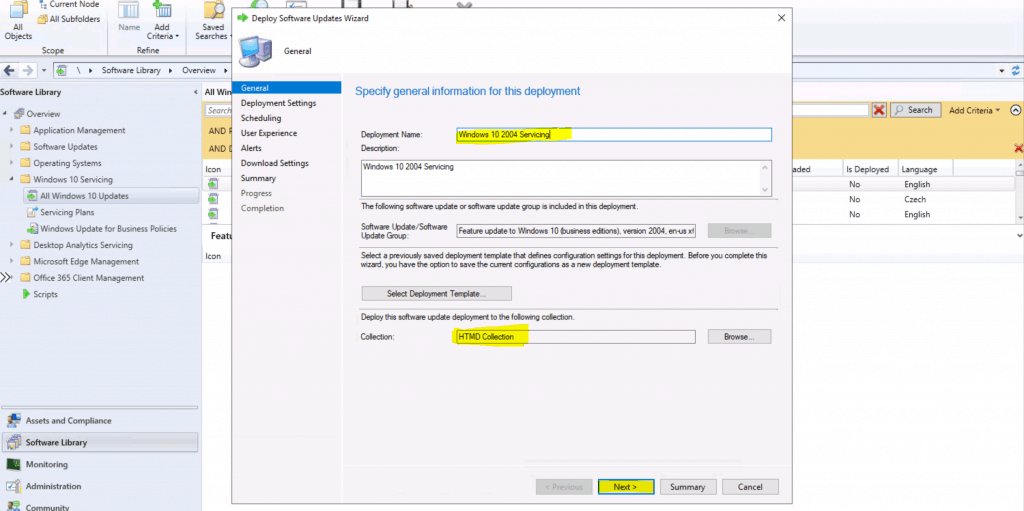
Enter the Name of Windows 10 Servicing Deployment
- Windows 10 2004 Servicing
- Click Next
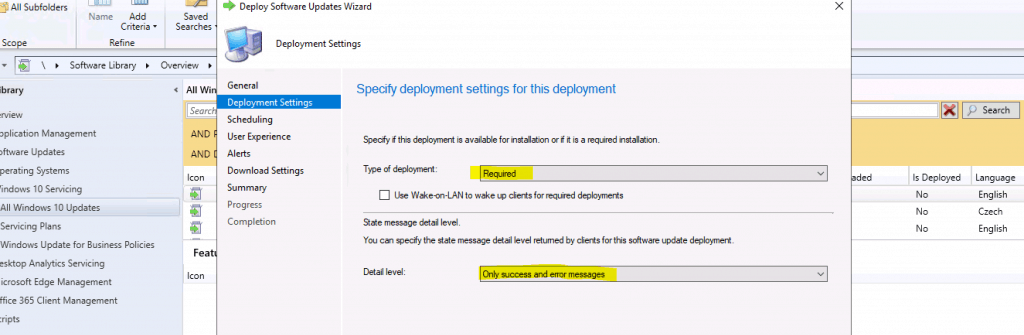
Specify deployment settings for this deployment in the Deploy Software Update Wizard.
- Select Type of Deployment – Required.
- Select State Message Level – Only Success and Messages.
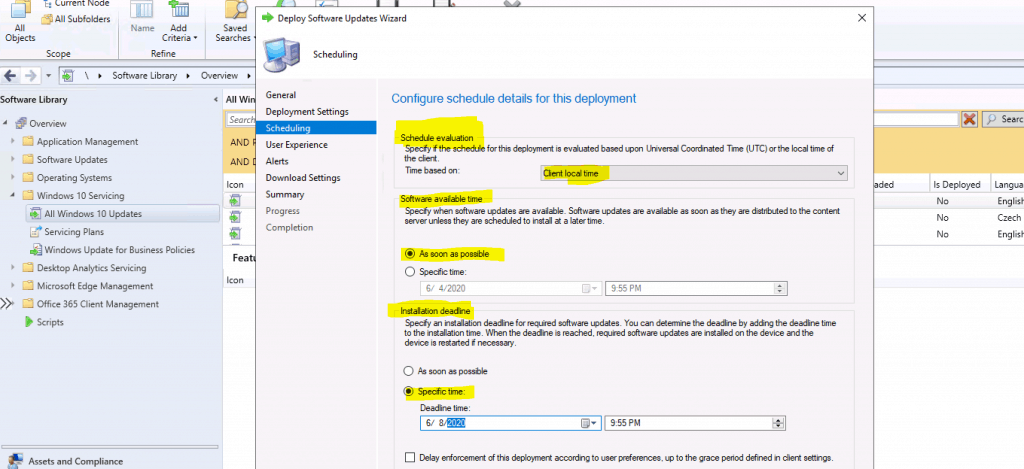
Scheduling Configure schedule details for the deployment in the Deploy Software Update Wizard.
- Select Schedule Evaluation – Client Local Time.
- Select Software Available Time – As Soon As Possible.
- Select Installation Deadline – Specific Time – Date and Time.
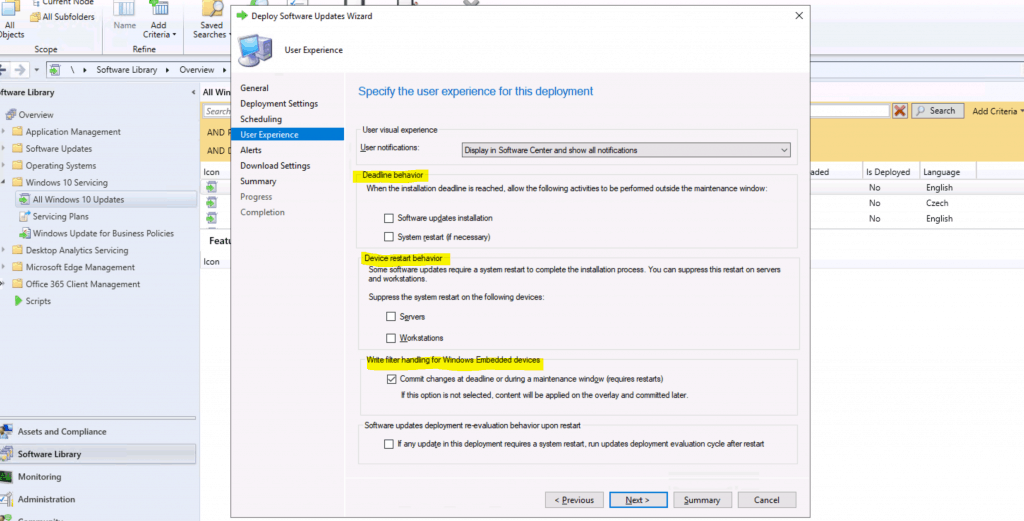
Specify the user experience for the deployment.
- Select all the default values for Windows 10 Servicing
- Deadline Behavior.
- Device Restart Behavior.
- Write Filter handling for Windows Embedded Devices.
- Software Updates Deployment re-evaluation behavior upon restart.
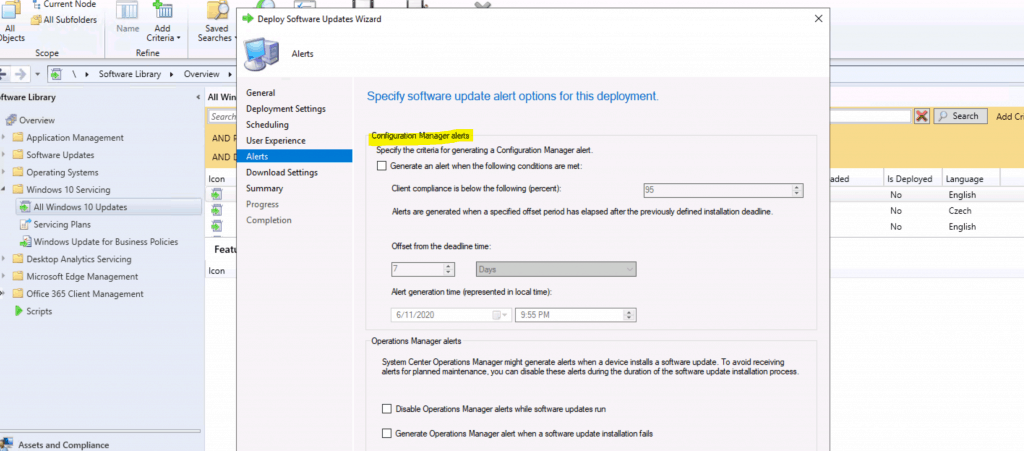
Select the default alert configuration for Windows 10 servicing deployment.
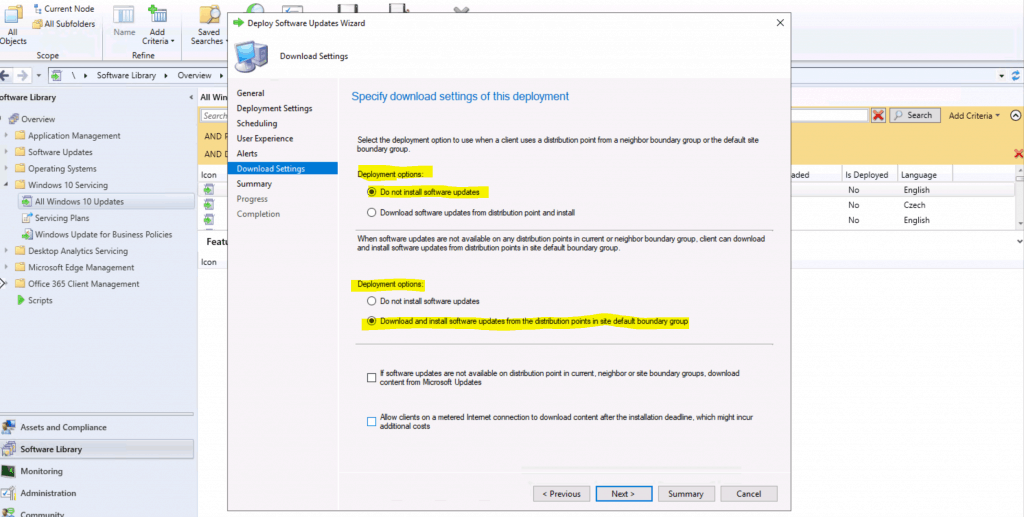
Select the following options for Windows 10 2004 servicing deployment using SCCM (a.k.a ConfigMgr).
- Deployment Options:
- Do not install software updates
- Deployment Options
- Download and Install software updates from the distribution points site default boundary group.
Summary – Deployment
Updates Targeted:
• Feature update to Windows 10 (business editions), version 2004, en-us x64 3012973(Article ID)
General:
• Deployment Name: Windows 10 2004 Servicing
• Description: Windows 10 2004 Servicing
• Collection: HTMD Collection
Deployment Settings:
• Send wake-up packets: No
• Verbosity Level: Only success and error messages
Scheduling:
• Deployment schedules will be based on: Client local time
• Available to target computers: 6/4/2020 10:13:00 PM
• Deadline for software update installation: 6/8/2020 9:55:00 PM
• Delayed enforcement on deployment: No
User Experience:
• User Notifications: Display in Software Center and show all notifications
• Install software updates outside the maintenance window when deadline is reached: No
• Restart system outside the maintenance window when deadline is reached: Suppressed
• If a restart is required it will be: Allowed
• Commit changes at deadline or during a maintenance window (requires restarts): Yes
• If any update in this deployment requires a system restart, run updates deployment evaluation cycle after restart: No
Alerts:
• On software update installation error generate a Window Event: No
• Disable Window Event while software updates install: No
Download Settings:
• Computers can retrieve content from remote distribution points: No
• Download and install software updates from the fallback content source location: Yes
- Click on the Next button.
- Click on the Close button to complete the deployment process.
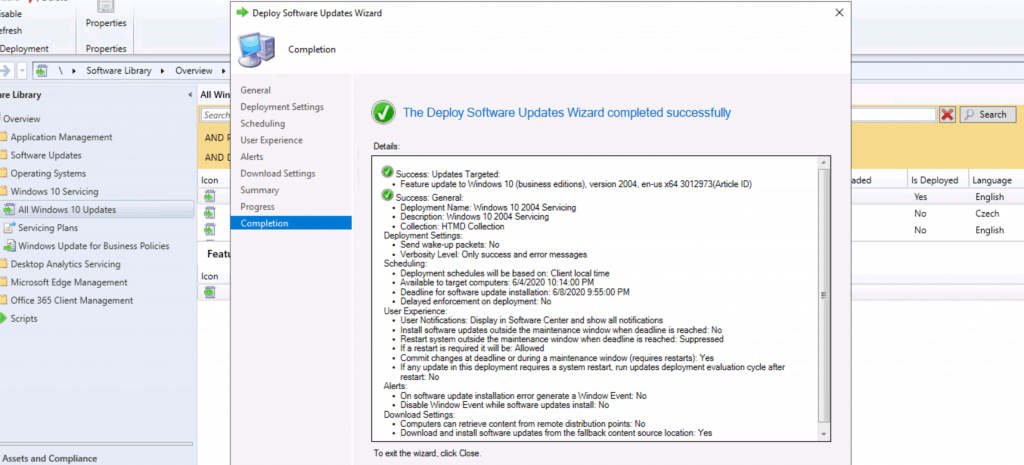
Confirm the deployment for Windows 10 servicing using Configuration Manager.
End-User Experience Windows 10
Manually Sync policies using the ConfigMgr applet from the Control Panel.
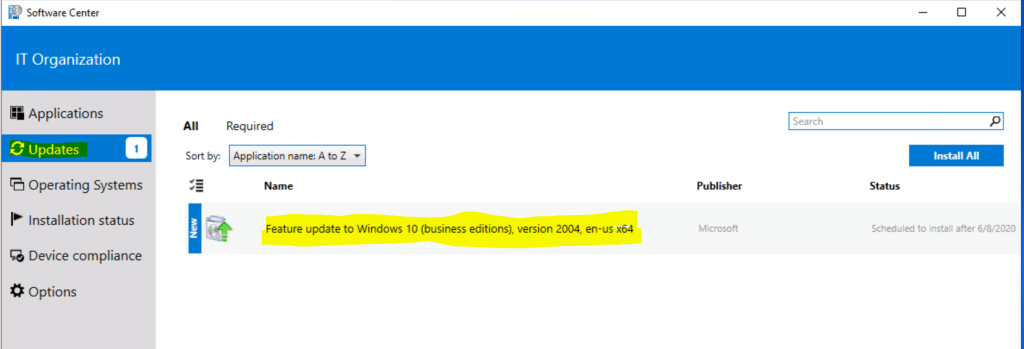
Launch Software Center, click on Updates and select the available update for Windows 10 2004.
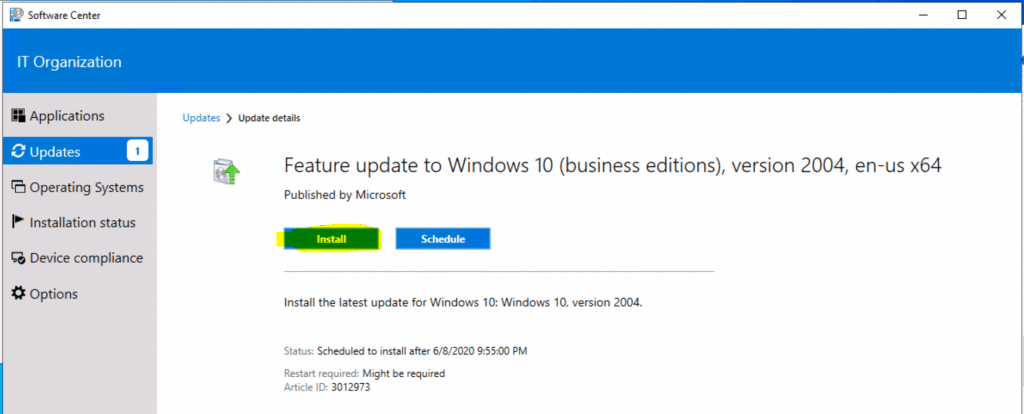
- Click on the Install button to start the installation.
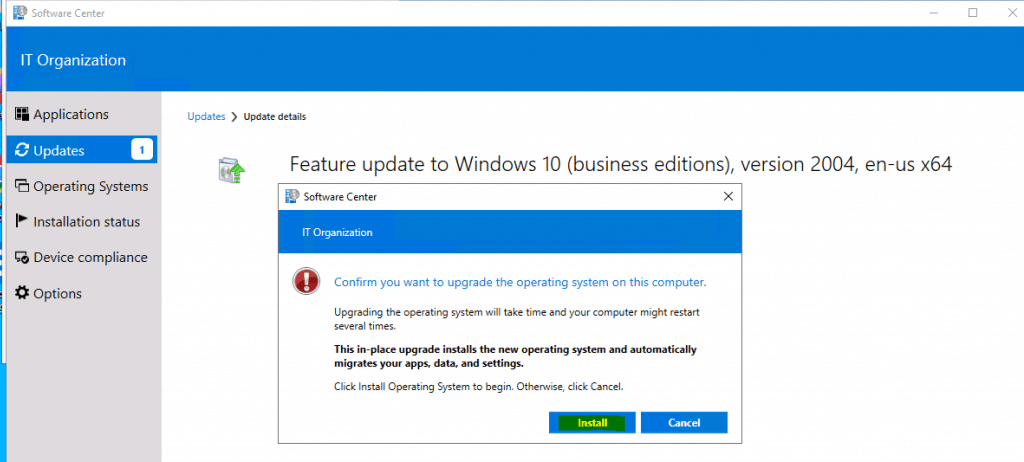
User Confirmation of Windows 10 upgrade.
- Click on Install again.
Log Files for Windows 10 Servicing
The following are the critical SCCM and Windows log files associated with Windows 10 servicing.
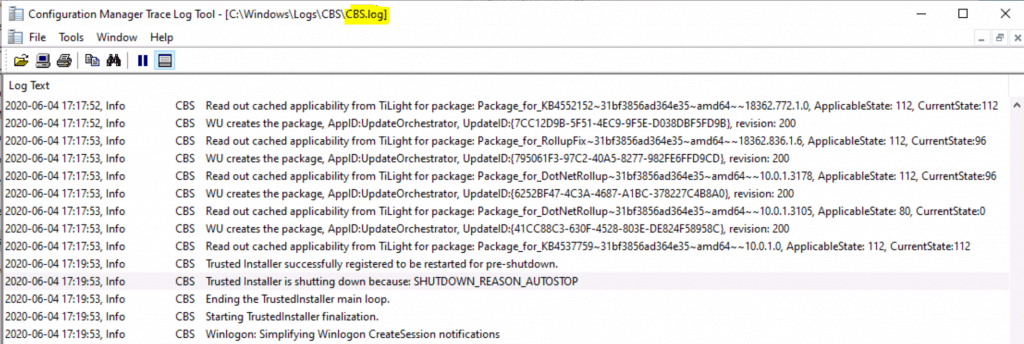
C:\Windows\Logs\CBS\CBS.log
CBS Appl: detectParent: parent found: Microsoft-Windows-Client-Features-Package~31bf3856ad364e35~amd64~~10.0.18362.836, state: Installed
CBS TI: started and RebootPending volatile key indicates that a reboot is pending, skip startup processing.
CBS TI: Startup Processing completes, release startup processing lock.
CBS WU creates the package, AppID:UpdateOrchestrator, UpdateID:{84858A33-7E49-4280-9CEB-67882C26B267}, revision: 200
CBS Read out cached applicability from TiLight for package: Package_for_KB4552152~31bf3856ad364e35~amd64~~18362.772.1.0, ApplicableState: 112, CurrentState:112
CBS WU creates the package, AppID:UpdateOrchestrator, UpdateID:{7CC12D9B-5F51-4EC9-9F5E-D038DBF5FD9B}, revision: 200
CBS Read out cached applicability from TiLight for package: Package_for_RollupFix~31bf3856ad364e35~amd64~~18362.836.1.6, ApplicableState: 112, CurrentState:96
CBS Trusted Installer is shutting down because: SHUTDOWN_REASON_AUTOSTOP
CBS Winlogon: Simplifying Winlogon CreateSession notifications
CBS Winlogon: Stopping notify server
CBS Winlogon: Unloading SysNotify DLL
Lock: Lock removed: WinlogonNotifyLock, level: 8, total lock:6
Info CBS Ending TrustedInstaller finalization.
Dism.log – C:\Windows\Logs\DISM
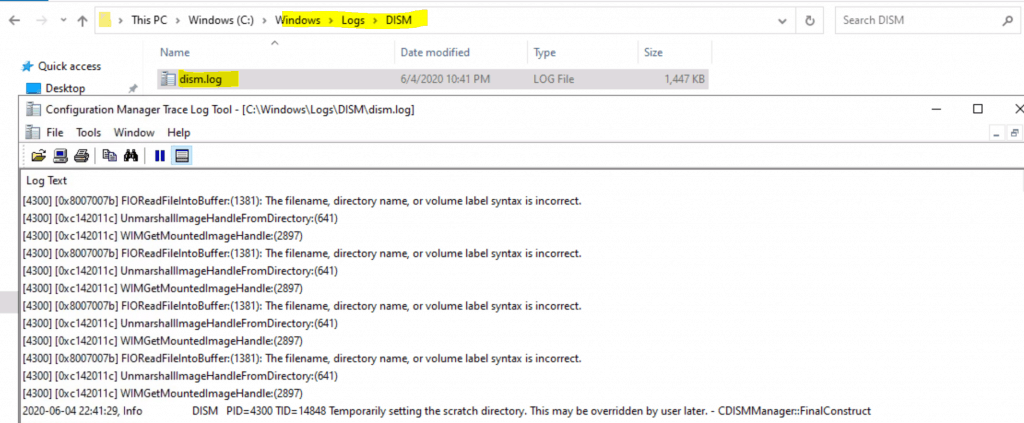
PID=4300 TID=14848 Temporarily setting the scratch directory. This may be overridden by user later. - CDISMManager::FinalConstruct
DISM PID=4300 TID=14848 Scratch directory set to 'C:\windows\TEMP\'. - CDISMManager::put_ScratchDir
DISM PID=4300 TID=14848 DismCore.dll version: 10.0.19041.264 - CDISMManager::FinalConstruct
DISM Initialized Panther logging at C:\windows\Logs\DISM\dism.log
Upgrade to Windows 10 2004 Using SCCM
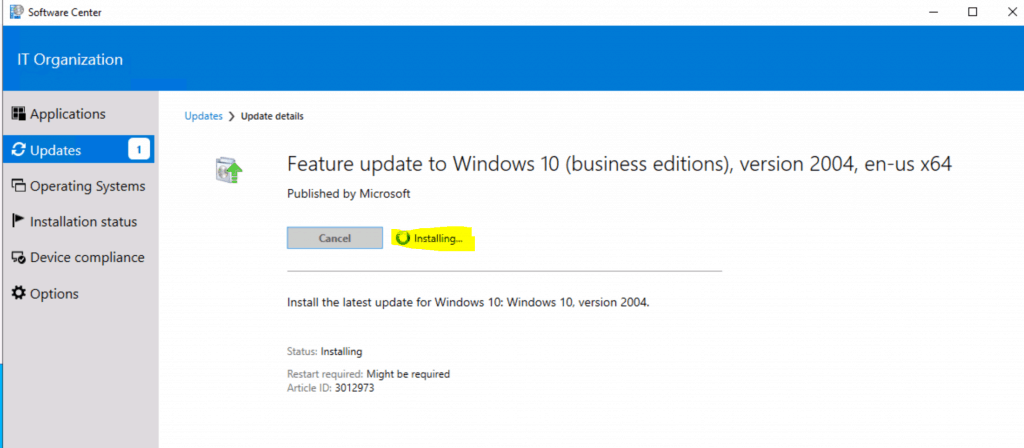
The process details are on the Windows 10 side.
Installing
Restart after installing Windows 10 2004
The installation of Windows 10 2004 is completed.
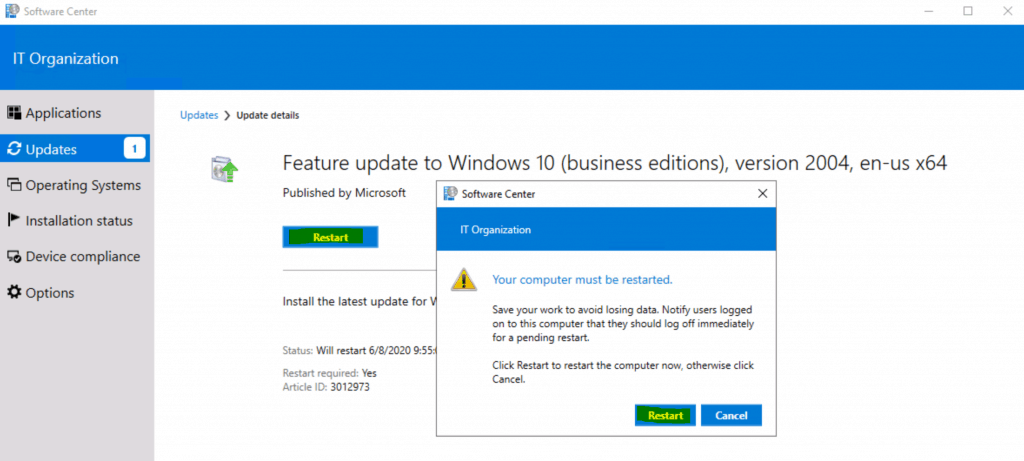
- Restart the device to complete the Windows 10 Servicing using SCCM.
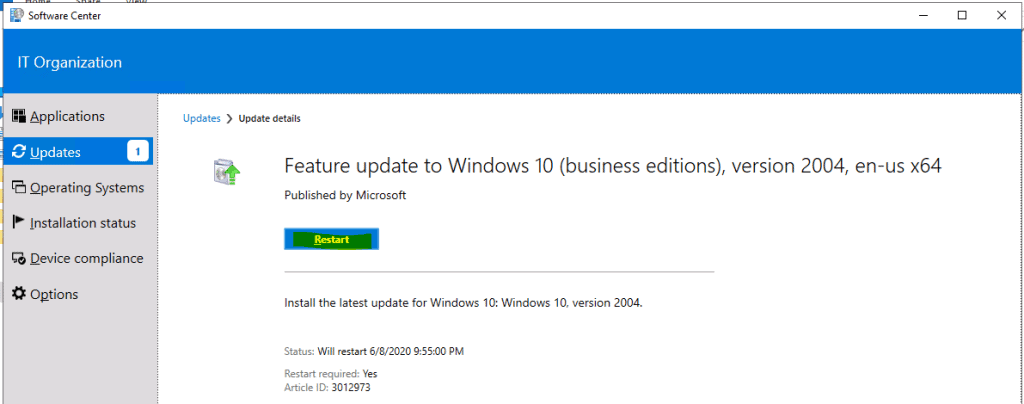
Let’s click on the restart confirmation pop-up window.
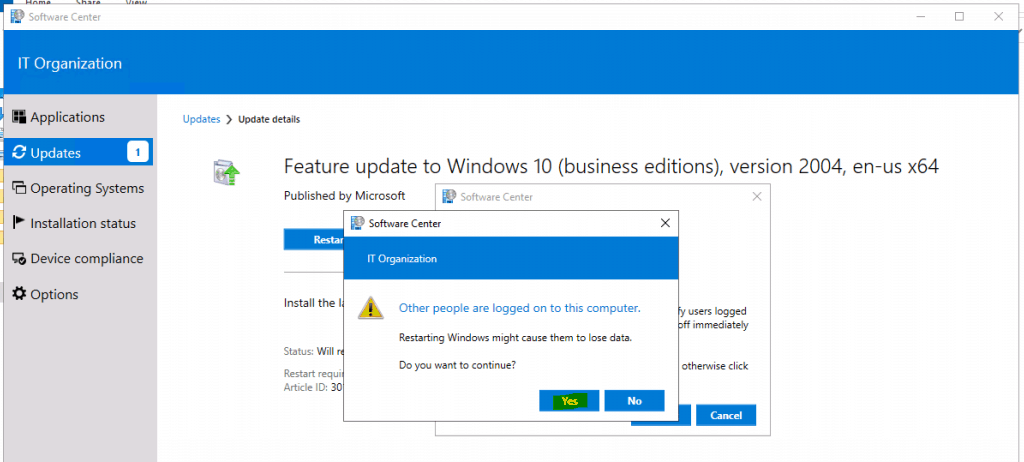
Click Yes to confirm the restart because other users were logged into the device.
Confirmation of Upgrade
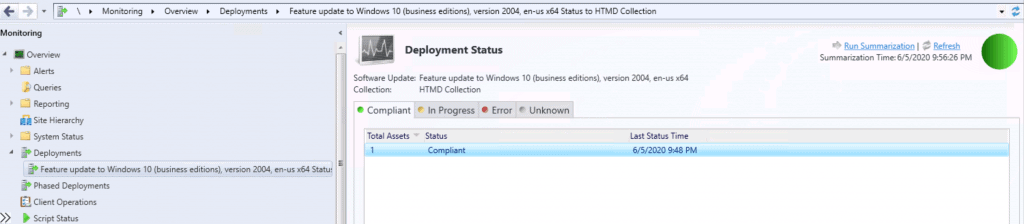
Check the status of the Windows 10 2004 servicing upgrade from the console.
- \Monitoring\Overview\Deployments\Feature update to Windows 10 (business editions), version 2004, en-us x64 Status to HTMD Collection
Resources
- How to Enable Windows 10 servicing using SCCM | ConfigMgr | WSUS
- Deploy Windows 10 2004 Using SCCM | ConfigMgr | MEMCM
We are on WhatsApp. To get the latest step-by-step guides and news updates, Join our Channel. Click here –HTMD WhatsApp.
Author
Anoop C Nair is Microsoft MVP! He is a Device Management Admin with more than 20 years of experience (calculation done in 2021) in IT. He is a Blogger, Speaker, and leader of the Local User Group HTMD Community. His primary focus is on Device Management technologies like SCCM 2012, Current Branch, and Intune. He writes about ConfigMgr, Windows 11, Windows 10, Azure AD, Microsoft Intune, Windows 365, AVD, etc.




Hi Anoop,
I want to know how many workstations are upgraded using feature upgrade.
StaffOne in my test lab
I have setup a Serving Plan for Windows 10 2004 based on your instructions. Everything in SCCM seems to be correct. The Pilot group I am using shows the 4 computers in the Monitoring/Deployments. Once computer shows Compliant (still at ver 1909), the other three show as Unknown/Client check passed/Active. This was done over a week ago, but the update still does not show in Software Center. The boundaries are correct, I can ping the computers from SCCM. Not sure where to look from here…
Hi Anoop,
thanks for that guide.
After the clients installed the update and click on restart now – Windows is not installing anything. After a reboot the MECM client says “Update installed” but after a policy rerun, it’s again showing as available.
Oh and yes the system is not on 2004 after the restart.
Do you have any idea? Its occuring on many different devices and also VMs we used for testing, no errors or whatever.
Kind regards,
Max
StaffHave you checked the log files mentioned please
i had a short look but i could identify an error – setupdiag.exe also ran and couldn’t find an error. the weird thing is that the Software center shows everything is fine and windows even gives me the “restart and update” options but then it just restarts. currently i started a new run on both VMs. After they finished installing and want a restart i grab the logs and post them.
StaffOk sure … have you tried any physical machines as well ?
Yes – they showed the same behaviour.
seems like i replied to the wrong answer – can you delete this please i can’t find a delete button for my answers 🙁
StaffI could see this error
[0x8007000e] StateStoreGetMountedImageWimbootEntries:(1285): Not enough memory resources are available to complete this operation.
Have you noticed this?
Yes i noticed this – but both devices have atleast 80gb space left and are running with 4gb RAM.
The physical devices we tested had at least 8gb RAM
StaffI also found this ..but this is also fine I think https://snipboard.io/eIEYKM.jpg
2020-07-24 11:17:25, Info CBS Failed to resolve the capability in the fod metadata:Hello.Face.Migration.18331~~~~0.0.1.0 [HRESULT = 0x80070490 – ERROR_NOT_FOUND]
It is so strange – i cannot find anything that is happening right before the restart or after restart that gives any hint why it’s not starting the update.
StaffWhat is the time restart is triggered
StaffAlso I can try to help if you post htmdforum.com
i will post there, it might be easier. thanks!
Does SCCM version 1910 able to upgrade windows 10 version 2004
StaffFeature updates or in place upgrade using Task sequence? The ADK version ? There are many things that need to consider for 2004 version…
using feature updates. has update my SCCM version 2002 still unable to update using feature update to upgrade from windows 1903 to windows 2004.
error on wuahanlder
Installation job encountered some failures. Job Result = 0x80240022. WUAHandler 10/11/2020 11:50:24 am 8636 (0x21BC)
eroor on DISM
2020-11-10 14:22:04, Info DISM API: PID=6032 TID=9080 Lookup in table by path failed for: DummyPath-2BA51B78-C7F7-4910-B99D-BB7345357CDC – CTransactionalImageTable::LookupImagePath
2020-11-10 14:22:04, Info DISM API: PID=6032 TID=9080 Lookup in table by path failed for: DRIVE_C – CTransactionalImageTable::LookupImagePath
2020-11-10 14:22:04, Info DISM DISM Provider Store: PID=6032 TID=3100 Failed to get and initialize the PE Provider. Continuing by assuming that it is not a WinPE image. – CDISMProviderStore::Final_OnConnect
2020-11-10 14:22:04, Warning DISM DISM Provider Store: PID=6032 TID=3100 Failed to load the provider: C:\Windows\system32\Dism\MetaDeployProvider.dll. – CDISMProviderStore::Internal_GetProvider(hr:0x80070
2020-11-10 14:22:08, Error EnumeratePathEx: FindFirstFile failed for [C:\$WINDOWS.~Q\*]; GLE = 0x3[gle=0x00000003]
What else can i check?