






How to Change or Upgrade Windows 10 Edition Using SCCM Current Branch CB
Let’s discuss how to change or upgrade the Windows 10 edition using SCCM’s current branch CB. How can we change the Windows 10 Professional version/edition to Enterprise?
This is explained in my previous post here. The manual process described in the last post is suitable for thousands of machines. Instead, we can use the SCCM Current Branch 1511 default compliance settings policy to automate the Windows 10 version change process.
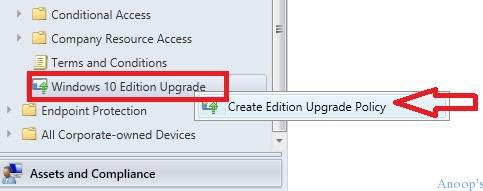
Follow the following path in the SCCM CB console: “\Assets and Compliance\Overview\Compliance Settings\Windows 10 Edition Upgrade“. Right-click on the Windows 10 Edition Upgrade node and click “Create Edition Upgrade Policy“.
On the “Create Edition Upgrade Policy” Wizard, you need to specify the name of the SCCM compliance policy for the Windows 10 edition upgrade “Windows 10 Pro to Ent“.

Table of Contents
- Upgrade Windows 10/11 Edition using Intune Policy
- Intune WUfB Feature Update Policy To Upgrade Windows 10
- How to Purchase or Upgrade to Windows 10 Professional Edition Change the Product Key
- Free Generic Windows 10 Product Keys from Microsoft
How to Change or Upgrade Windows 10 Edition Using SCCM Current Branch CB
Specify the target version of the Windows 10 edition you want to upgrade to I upgraded my Windows 10 Professional edition to Enterprise edition (SKU Upgrade Device to Windows 10 Enterprise) in this scenario.
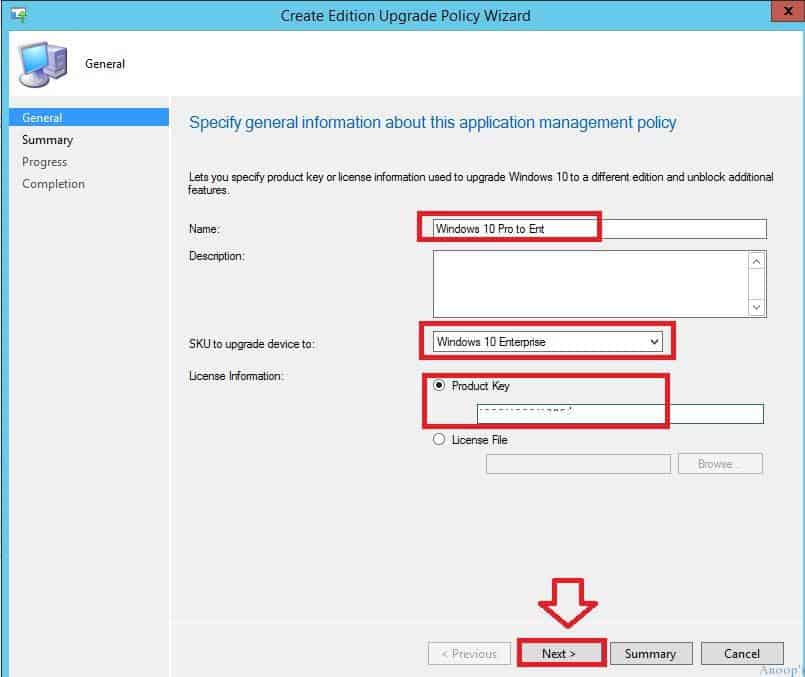
The above is the only configuration page in this SCCM CB compliance policy for the Windows edition upgrade. Once the policy is created, you need to deploy this policy device or user collection.
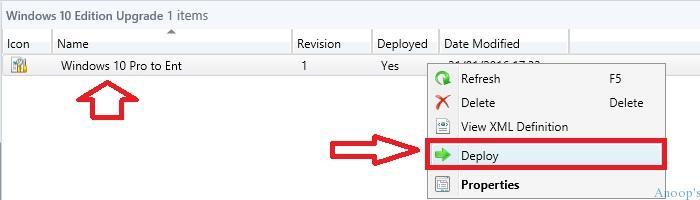
Once a deployment is created and targeted to user/device collections, the SCCM CB console view will look like this: Remember to set the Deployment action to “Remediate” rather than “Monitor.”
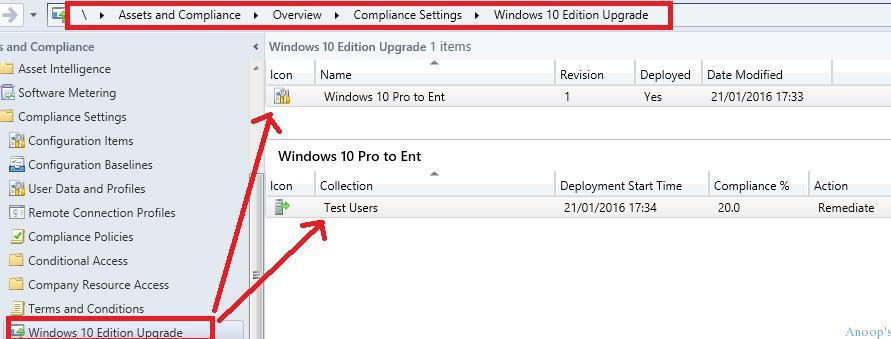
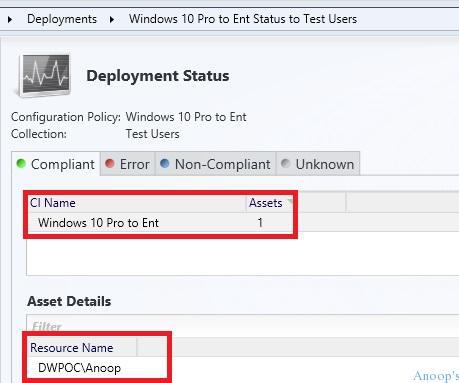
Give ample time to Intune MDM / SCCM full client to evaluate compliance policy for Windows 10 edition upgrade. You can check the status of the compliance policy from “\Monitoring\Overview\Deployments\Windows 10 Pro to Ent Status to Test Users“. You can see the CI Name = “Windows 10 pro to Ent”, targeted to user collection test users.
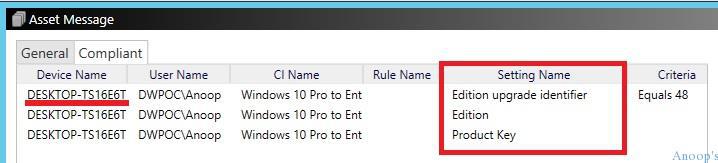
The SCCM CB Asset Message pop shows more compliance status, as shown in the following picture: Settings performed on the Windows 10 MDM client device: Edition Upgrade Identifier, Edition, and Product Key.
| Settings Name |
|---|
| Edition Upgrade Identifier |
| Edition |
| Product Key |
Resources
SCCM Related Posts Real World Experiences Of SCCM Admins (anoopcnair.com)
SCCM Video Tutorials For IT Pros – HTMD Blog #2 (howtomanagedevices.com)
We are on WhatsApp now. To get the latest step-by-step guides, news, and updates, Join our Channel. Click here. HTMD WhatsApp.
Author
Anoop C Nair is Microsoft MVP! He is a Device Management Admin with more than 20 years of experience (calculation done in 2021) in IT. He is a Blogger, Speaker, and Local User Group HTMD Community leader. His main focus is on Device Management technologies like SCCM 2012, Current Branch, and Intune. He writes about ConfigMgr, Windows 11, Windows 10, Azure AD, Microsoft Intune, Windows 365, AVD, etc.




Anoop,
As always, great post. Can you show that the license key and Windows version did change on your target system? We successfully applied this to a test collection and the configuration shows compliant. However, the license key and Windows version still shows Pro. Any pointers?
Thanks.
Brian
StaffHi Brian ! – This feature works only with MDM channel. Was your Windows 10 machine was MDM client or SCCM 1511 client? If it’s SCCM 1511 client then this is expected behavior.
KR/Anoop
So are you saying this can only be used if you are using Intune and that it does not work for full client? Thanks
StaffThis was true for 1511 version. I have not tested this for SCCM 1602 version 🙂
Hello Anoop
I noticed you deployed to a user collection – according to the name – this is not supported by Microsoft, this have to be deployed to a Device Collection unless we are talking about Intune.
https://docs.microsoft.com/en-us/sccm/compliance/deploy-use/upgrade-windows-version
Good blog btw.
Regards
Henrik Hansen
PFE @ Microsoft
StaffHello Henrik!- Thank you. The document says – “In the Deploy Windows 10 Edition Upgrade dialog box, choose the collection to which you want to deploy the policy and the schedule by which the policy will be evaluated, and then click OK. For PCs that are managed with the Configuration Manager client, you must deploy the policy to a device collection. For PCs that are enrolled with Intune, you can deploy the policy to a
. “
The document says under Deploy the policy “3. Choose the DEVICE collection to which you want to deploy the policy.”
Hi Anoop – Thank you for the nice article. Does this work with the KMS licensing as well or only with MAK??
Hello Anoop, This is a great post. I deployed this in my infrastructure, the issue I am facing is that os sku is updating but os caption is not. What can be done regarding this. Thanks
Hi guys, same issue here :-/
Same here
Where this key got written in Client machine?
Any registry path?
Reason
When we run Winver > we see professional
When we run slmgr/dlv >> we see enterprise.