






2 Methods to View Reserved Storage Size in Windows 11
Let’s discuss the 2 Methods to View Reserved Storage Size in Windows 11. Reserved storage is the most significant feature that Microsoft introduced for Windows 10. This option is an essential feature of our device. It helps prevent situations where updates fail due to insufficient space.
This option ensures a smooth update experience by automatically allocating sufficient free disk space for feature updates. Users will no longer need to free up space manually.
By reserving space specifically for system and app updates, Windows can operate more efficiently. Reserved storage always helps to improve the performance and stability of your system. Storage is essential for a device; if you want to install or update any files or data, you may need sufficient storage space.
If your PC lacks sufficient space, updates may fail to install correctly. There are many ways to check your reserved storage size. The Reserved Storage ensures that critical system functions always have enough space for files.

- FIX Windows 11 Version 23H2 Download Error – 0x80246019
- Easy Way to Recover Uninstalled Programs on Windows 11
What are the Advantages of Reserved Storage Space in Windows 11?
1. Reserved storage automatically managed by Windows
2. It improves the system’s performance
3. Reserved storage ensures that there’s always enough free disk space for feature updates
4. Enhances the overall stability and reliability of your OS
2 Methods to View Reserved Storage Size in Windows 11
Is reserved storage only for updates? No, it’s not only for updates. When not used by update files, it serves as storage for apps, temporary files, and system caches, improving day-to-day PC performance. There are specific sizes for Reserved storage, which you can easily find. There are 2 ways to see the storage size.
| 2 Methods to View Reserved Storage Size in Windows 11 |
|---|
| View Reserved Storage Size through Settings |
| View Reserved Storage Size through Windows Terminal |
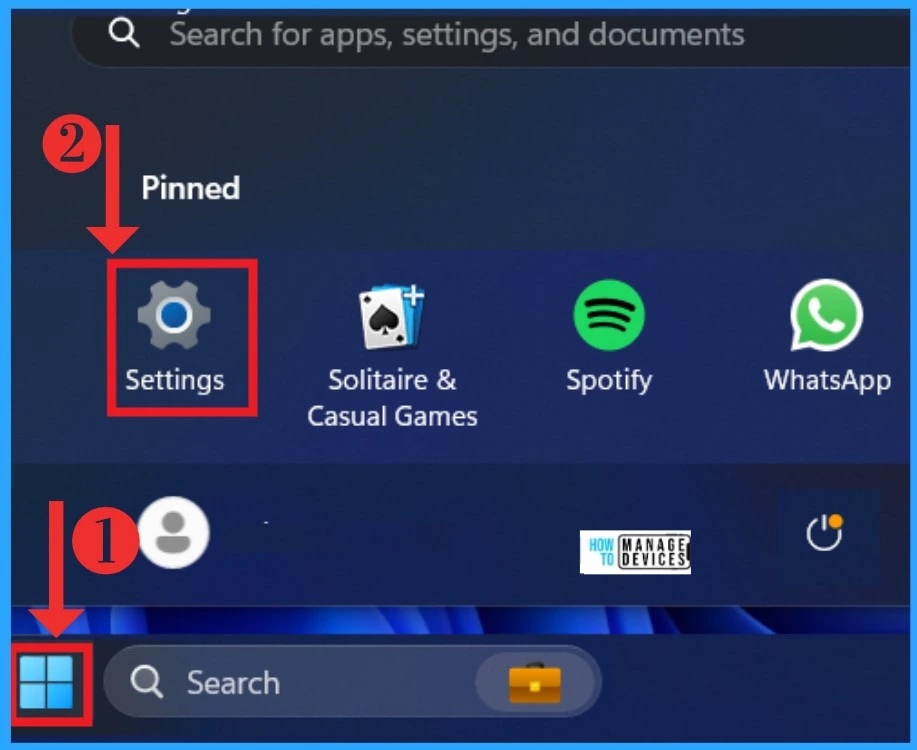
To view Reserved storage size through settings, select your device’s settings option. Press Win+I or select the setting option from the Start menu.
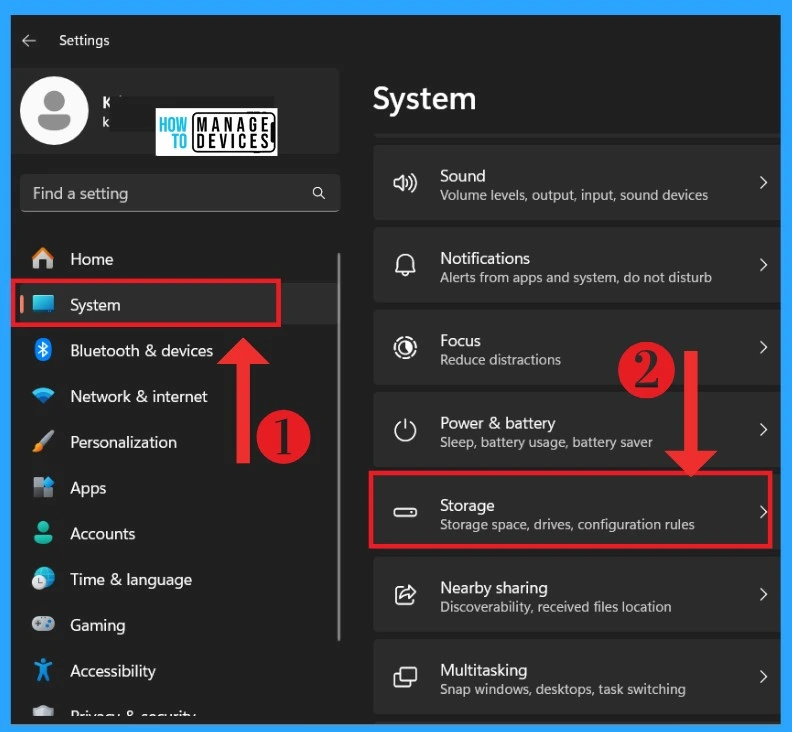
After opening Settings, you will see many setting options; you must select the system option there. There are many system options available in Settings. You can choose the storage option, which includes storage space configuration rules and drive settings.
- Manage App Settings options in Windows 11
- Fix Windows Issues Automatically with Recommended Troubleshooter
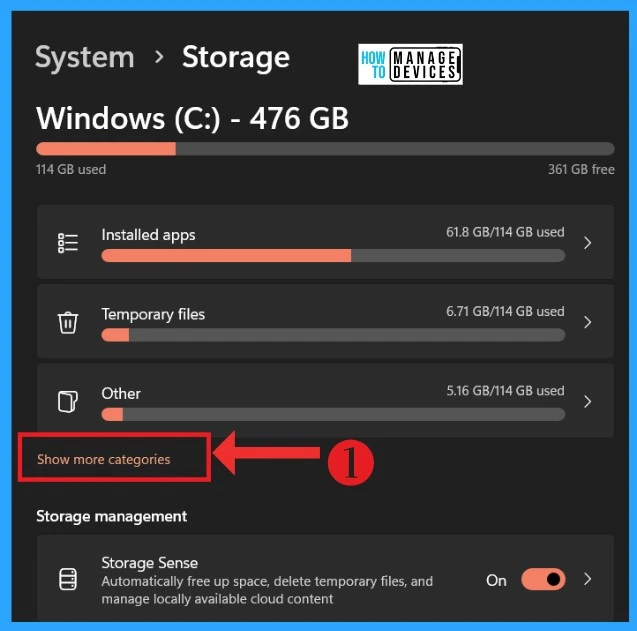
Many storage details are available in the system storage option, like installed apps, temporary files, etc. You can see more categories option; click on that option for another step.
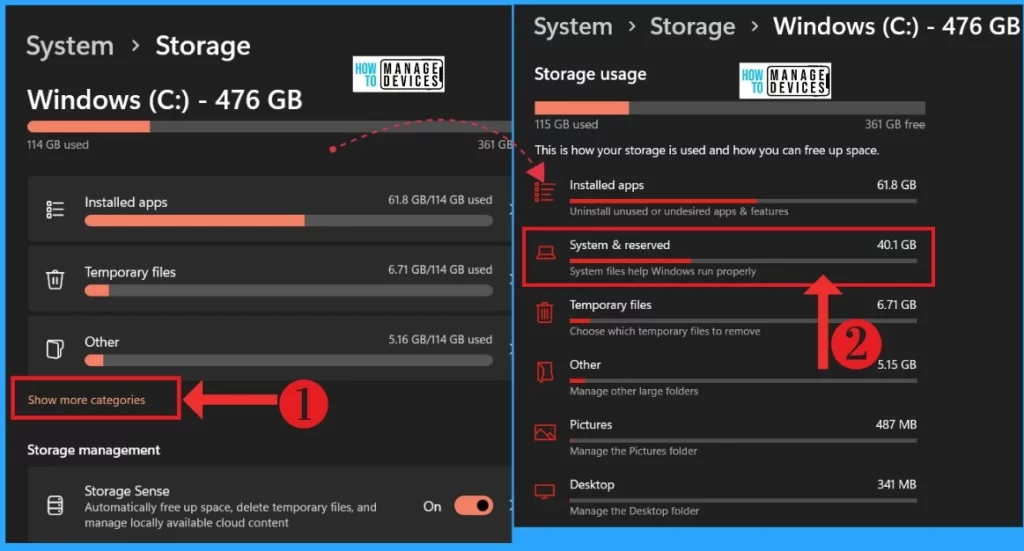
Different storage options are available for other categories in the Show More categories. You can see the possibilities called system and reserved. You can also visit the space used for each section.
- Reset Local Security Policy Settings to Default in Windows 11
- 11 Best Fixes for Windows 11 WiFi Connection Issues in 2024
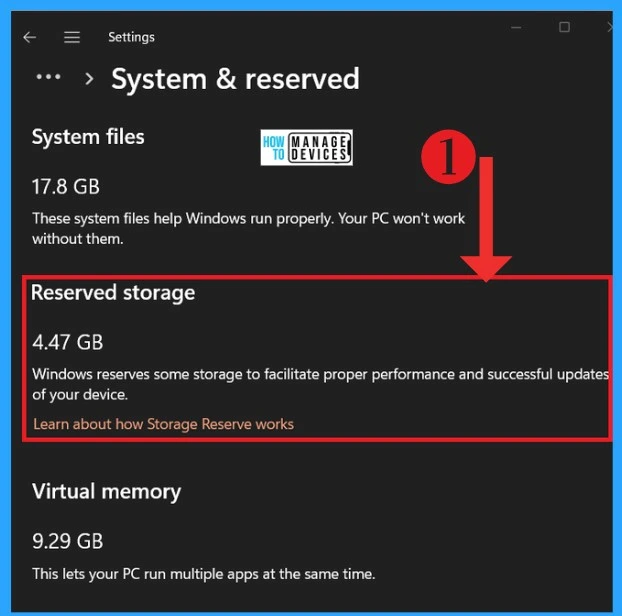
In the storage and reserved window system, files are used 17.8 GB. These system files help Windows run properly. Your PC is not working correctly without the system files. The reserved storage is 4.47GB, and Windows reserves some storage to facilitate proper performance and successful device updates.
View Reserved Storage Size through Windows Terminal
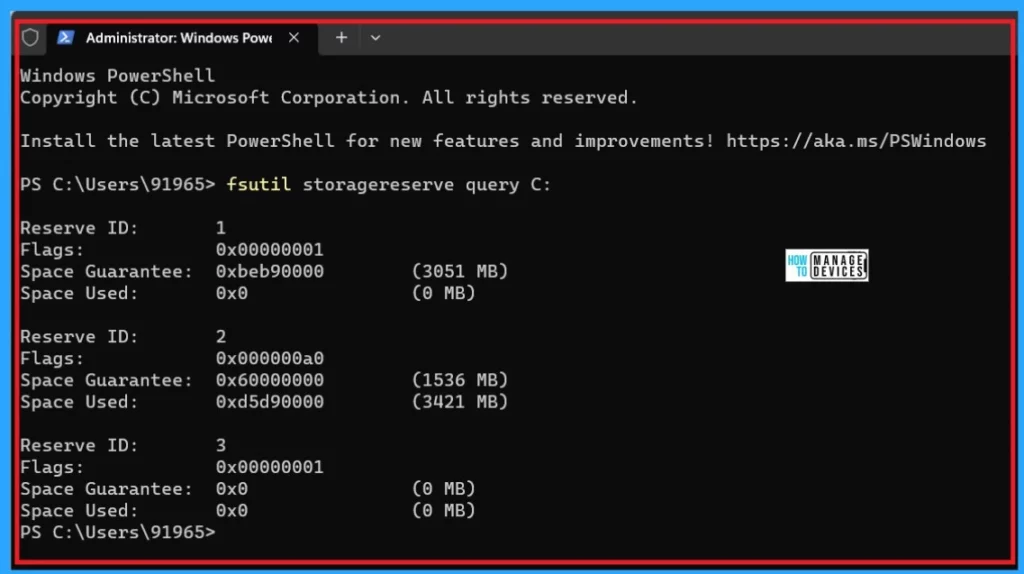
Let’s discuss the View Reserved Storage Size through Windows Terminal. Open Windows Terminal as Administrator, and Search for “Windows Terminal” in the Start menu. Right-click on it and choose Run as administrator. Here, I selected PowerShell from Windows Terminal.
Enter the Command: fsutil storagereserve query C:
- This command will display details about each reserved space on your C: drive.
- You can check the details of each reserved space in Windows 11 to determine how much disk space is allocated for reserved storage. Add up the sizes of each Space Guarantee, and you’ll choose the total amount of disk space reserved.
- If reserved storage is disabled on your Windows 11 PC, all the sizes of Space Guarantee should be zero.
- This straightforward method helps you understand how much disk space is set aside for reserved storage on your system.
We are on WhatsApp now. To get the latest step-by-step guides, news, and updates, Join our Channel. Click here. HTMD WhatsApp.
Author
Krishna. R is a computer enthusiast. She loves writing about Windows 11 and Intune-related technologies and sharing her knowledge, quick tips, and tricks about Windows 11 or 10 with the community.




Will reserved storage ensure that there will be enough space to migrate from Windows 10 to Windows 11 or do I need to check if there is 64GB of free space before upgrading ?