


Skip to content
Where is the ConfigMgr Service Manager? How to Change Log File Size?

Where is the ConfigMgr Service Manager? How to Change Log File Size?

Written By Anoop C Nair
Last Updated July 29, 2024
Posted In SCCM
SHARE

Where is the ConfigMgr Service Manager Option in the SCCM Console? This is a small, short, and simple blog post about the ConfigMgr Service Manager Option. How can I change the Log file Size using Configuration Manager Service Manager?

If you know SCCM, we’re familiar with the Tools – ConfigMgr Server Manager option in the SCCM 2007 console. During troubleshooting, it’s very useful to stop one particular component or thread ( such as SMS_OFFER_MANAGER).

Also, Configuration Manager Service Manager is useful if you want to increase the log file size of a particular component. You need to right-click and select the LOGGING option.

Where is the ConfigMgr Service Manager Tool option in SCCM 2012 or ConfigMgr 2012? Yes, it’s under “\Monitoring\Overview\System Status\Component Status.

Patch My PC
Index
ConfigMgr Current Branch Service Manager
Change SCCM Log Size ConfigMgr Service Manager Option
ConfigMgr 2007 – Where is ConfigMgr Service Manager Option
Where is the ConfigMgr Service Manager? How to Change Log File Size? – Table 1

ConfigMgr Current Branch Service Manager

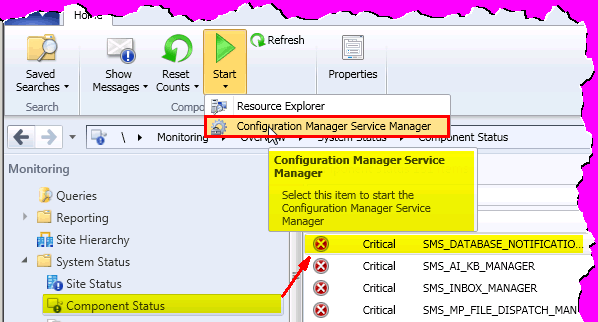
You can launch Configuration Manager Service Manager from the SCCM console. Below is an example of starting Configuration Manager Service Manager for SMS_Site_Component_Manager.

  • Navigate to \Monitoring\Overview\System Status\Component Status.
  • Select and right-click on the SMS_Site_Component_Manager for the secondary site.
  • Click on the Start button and select Configuration Manager Service Manager.
Where is the ConfigMgr Service Manager? How to Change Log File Size? - Fig.1
Where is the ConfigMgr Service Manager? How to Change Log File Size? – Fig.1

Change SCCM Log Size ConfigMgr Service Manager Option

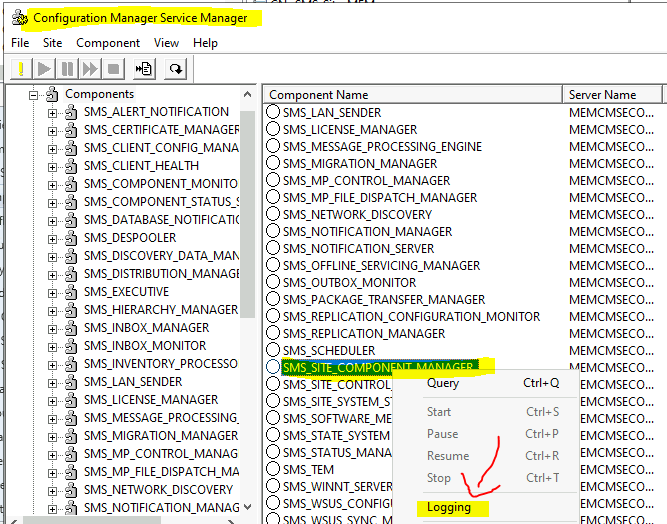
Let’s check how to Change each component’s SCCM Log Size Configuration Manager Service Manager Option.

  • Navigate to \Monitoring\Overview\System Status\Component Status.
  • Select and right-click on the SMS_Site_Component_Manager for the primary or secondary site.
  • Select the Logging option to change the log file size.
Where is the Configuration Manager Service Manager? How to Change Log File Size? - Fig.2
Where is the Configuration Manager Service Manager? How to Change Log File Size? – Fig.2

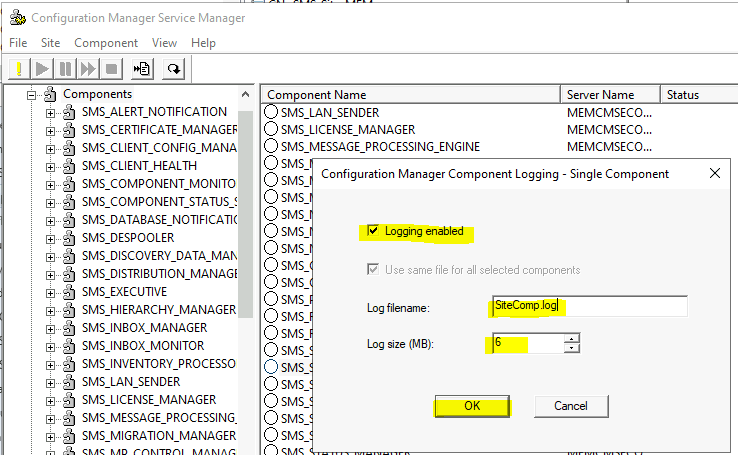
If you try to change the log file size of the remote site server, the message will appear as follows.
Where is the ConfigMgr Service Manager? How to Change Log File Size? - Fig.3
Where is the ConfigMgr Service Manager? How to Change Log File Size? – Fig.3

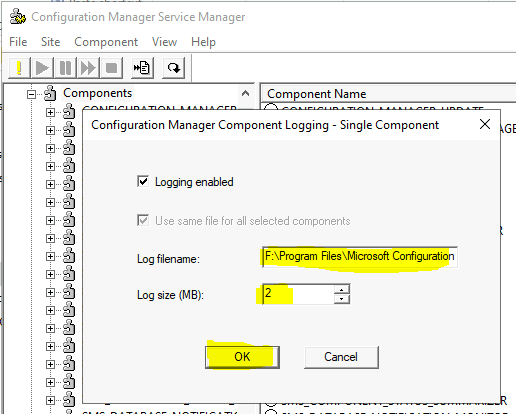
If you use a console from the primary server and want to change the log file size, you will see the following screen.

The default size of the log file is 2MB. You can change this size from the following window.
Where is the ConfigMgr Service Manager? How to Change Log File Size? - Fig.4
Where is the ConfigMgr Service Manager? How to Change Log File Size? – Fig.4

Configuration Manager 2007 – Where is ConfigMgr Service Manager Option

Where is the ConfigMgr Service Manager Option in ConfigMgr 2007?
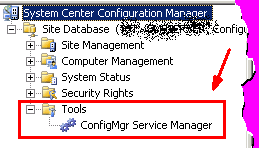
Where is the ConfigMgr Service Manager? How to Change Log File Size? - Fig.5
Where is the ConfigMgr Service Manager? How to Change Log File Size? – Fig.5

You can change the log file size for each SCCM 2007 component.
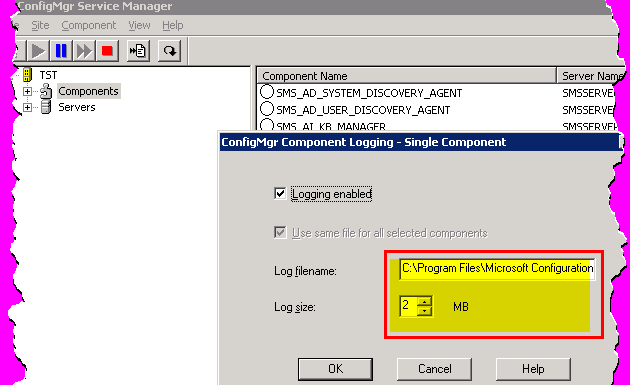
Where is theConfigMgr Service Manager? How to Change Log File Size? - Fig.6
Where is the ConfigMgr Service Manager? How to Change Log File Size? – Fig.6

Resources

We are on WhatsApp. To get the latest step-by-step guides and news updates, Join our Channel. Click here –HTMD WhatsApp.

Author

Anoop C Nair has been Microsoft MVP from 2015 onwards for 10 consecutive years! He is a Workplace Solution Architect with more than 22+ years of experience in Workplace technologies. He is also a Blogger, Speaker, and leader of the Local User Group Community. His main focus is on Device Management technologies like SCCM and Intune. He writes about technologies like Intune, SCCM, Windows, Cloud PC, Windows, Entra, Microsoft Security, Career, etc..

Written by

Anoop C Nair is Workplace Technology solution architect with 25+ years of experience in global enterprise organizations such as JP Morgan, Capgemini, etc. Microsoft Certified Trainer. Microsoft MVP from 2015 onwards for consecutive 11+ years! He also conducts Intune and modern workplace tech training for enterprise organizations. He is Blogger, Speaker, and Founder of HTMD Community and HTMD Conference. His main focus is on Device Management technologies like Intune, Windows, Cloud PC. He writes about technologies like Intune, SCCM, Windows, Cloud PC, Windows, Entra, Microsoft Security.

Discussion · 2 comments

Join the discussion

Your email address will not be published. Required fields are marked *

Related guides

Intune

Windows 11 KB5101650 KB5099414 July 2026 Patch and 3 Zero Day Vulnerabilities and 570 Flaws

Key Takeaways Windows 11 KB5101650 KB5099414 July 2026 Patch and 3 Zero Day Vulnerabilities and 570 Flaws! In the July 2026 Patch, Microsoft introduced new features designed to improve the overall Windows experience. The update adds enhancements to Windows Update for more flexible update management and introduces Point-in-Time Restore, providing an additional recovery option for […]

AC Anoop C Nair 9 min read
Intune

2026 June KB5094126 KB5093998 Windows 11 Patch | 3 Zero Day Vulnerabilities and 200 Flaws

Key Takeaways 2026 June KB5094126 KB5093998 Windows 11 Patch | 3 Zero Day Vulnerabilities and 200 Flaws! The June 2026 Windows 11 Patch Tuesday update brings several improvements to File Explorer. It adds support for additional archive formats, including UU, CPIO, XAR, and NuGet Packages (NUPKG). The update also preserves View and Sort preferences in […]

AC Anoop C Nair 10 min read
Intune

2026 May KB5089549 KB5087420 Windows 11 Patch | 0 Zero Day Vulnerabilities and 120 Flaws

Key Takeaways The Windows 11 May 2026 Patch KB5089549 KB5087420 Update brings important security fixes, performance improvements, and reliability enhancements across the operating system. The update introduces new features such as Xbox Mode for gaming, File Explorer improvements, enhanced input and sharing experiences, better taskbar and Windows Hello reliability, and additional enterprise management capabilities for […]

AC Anoop C Nair 8 min read
SCCM

ConfigMgr 2603 Introduces New Early Update Enrollment Process

Key Takeaways In this post we are discussing the ConfigMgr 2603 Introduces New Early Update Enrollment Process. Microsoft has officially released Configuration Manager version 2603 to the Early Update Ring, giving organizations an opportunity to test upcoming improvements before the global production rollout. The release is targeted at enterprises running ConfigMgr version 2409 or later […]

AC Anoop C Nair 3 min read



