Skip to content
Step-by-Step Guide How to Perform SCCM Recovery Using Restore Site Repair Wizard

Step-by-Step Guide How to Perform SCCM Recovery Using Restore Site Repair Wizard

Written By Anoop C Nair
Last Updated June 26, 2026
Posted In SCCM
SHARE

Step-by-Step Guide: Perform SCCM Recovery Using Restore Site Repair Wizard ConfigMgr.

I’ve been asked to create a site recovery wizard step-by-step guide with screenshots (for a child primary server restoration).

Running a Configuration Manager site recovery is vital in case of a site failure or data loss in the site database. Fixing and resynchronizing data are the main responsibilities during the recovery to avoid any interruptions to operations.

It’s pretty straightforward if you’ve good backups in place (except for one or two hiccups explained below). If you don’t have a good backup, the issue will hit you very hard, and you may need to work extra hours to fix it.

Patch My PC
Index
How to Perform SCCM Recovery Using Restore Site Repair Wizard

Step-by-Step Guide How to Perform SCCM Recovery Using Restore Site Repair Wizard – Table 1

How to Perform SCCM Recovery Using Restore Site Repair Wizard

Step-by-Step Guide How to Perform SCCM Recovery Using Restore Site Repair Wizard - Fig.1
Step-by-Step Guide How to Perform SCCM Recovery Using Restore Site Repair Wizard – Fig.1

Delete the child primary server’s AD system/machine account to level set. Rebuild the server with the same name, same path, same Drive letters, and same Patch level. I reapplied all the permissions that are required on the System Management container. Also, I added the machine account to all the required local groups of the central ConfigMgr server. I’ve already installed my primary site with the same name and configured SQL, IIS SCCM / ConfigMgr 2007 (with the same site code), R3, and WSUS.

For the first issue, I started the Site Repair Wizard with the user account used during ConfigMgr and SQL installations. The wizard resulted in an error message SCCM—Repair Wizard has stopped Working, as shown in the screenshot below. This is a known issue.
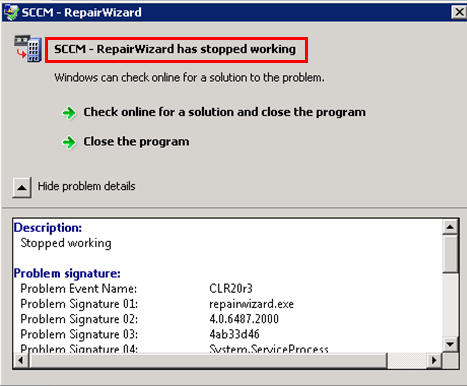
Step-by-Step Guide How to Perform SCCM Recovery Using Restore Site Repair Wizard - Fig.2
Step-by-Step Guide How to Perform SCCM Recovery Using Restore Site Repair Wizard – Fig.2

Solution: Run the Site Repair Wizard as administrator, as shown in the screenshot below.
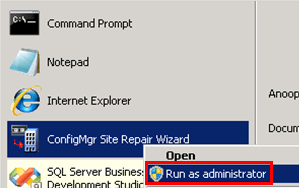
Step-by-Step Guide How to Perform SCCM Recovery Using Restore Site Repair Wizard - Fig.3
Step-by-Step Guide How to Perform SCCM Recovery Using Restore Site Repair Wizard – Fig.3

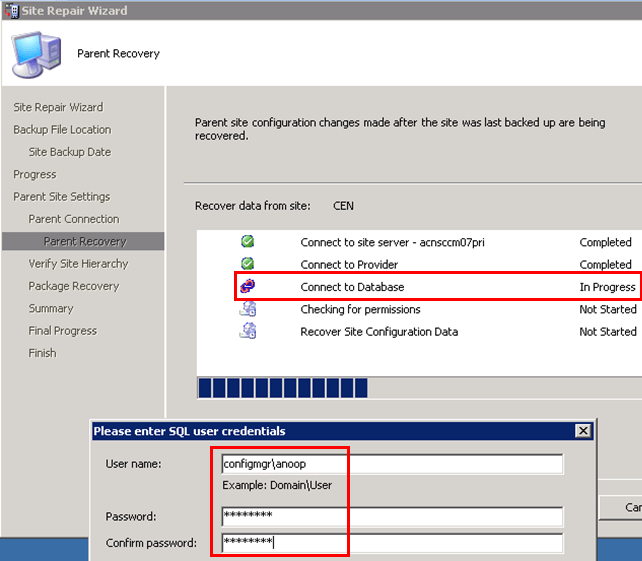
Second issue: Central server Database connectivity error faced during the restore, and the same is explained in STEP 9 (mentioned below) – Parent Recovery window, even though I’ve used the same user account which performed SQL and SCCM installation on my central server and it’s also part of the local administrator of that box. I tried adding my child primary server machine account to the local administrator’s group of the central server; even that didn’t work. The credentials window gets prompted three times, and then the task fails.
Step-by-Step Guide How to Perform SCCM Recovery Using Restore Site Repair Wizard - Fig.4
Step-by-Step Guide How to Perform SCCM Recovery Using Restore Site Repair Wizard – Fig.4

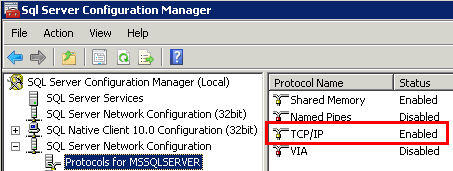
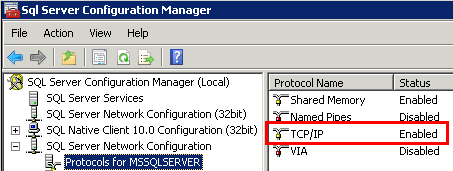
Solution: ENABLE TCP/IP in your SQL server protocols from SQL Server Configuration Manager. You can also check out the windows-noob link for more details (the link is for CM2012 SQL configuration, but it worked for me in the SCCM 07 repair site wizard).
Step-by-Step Guide How to Perform SCCM Recovery Using Restore Site Repair Wizard - Fig.5
Step-by-Step Guide How to Perform SCCM Recovery Using Restore Site Repair Wizard – Fig.5

Recoverymanager.log can be reviewed for details of the recovery process (this log file will be created only AFTER step 13)

If you’re looking for a guide that can help you restore the Central Site, then go through the I do IT blog post. Make Sure you’ve taken the backup of the srvacct folder located at the installation location of ConfigMgr 2007 before starting the restore process. This will avoid the issue “OSD and Task Sequences fail after restoring a Configuration Manager 2007 Central site from backup”, explained in the KB article 2509330.

The process starts from here !!!

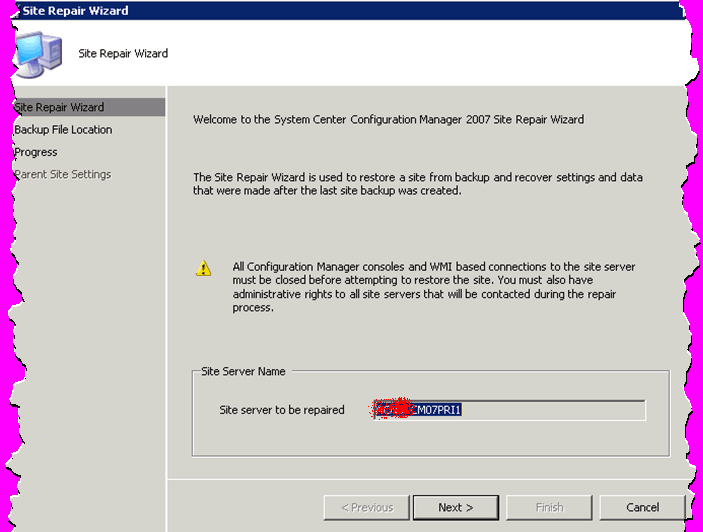
1. Enter the Site Server Name to be repaired/restored.
Step-by-Step Guide How to Perform SCCM Recovery Using Restore Site Repair Wizard - Fig.6
Step-by-Step Guide How to Perform SCCM Recovery Using Restore Site Repair Wizard – Fig.6

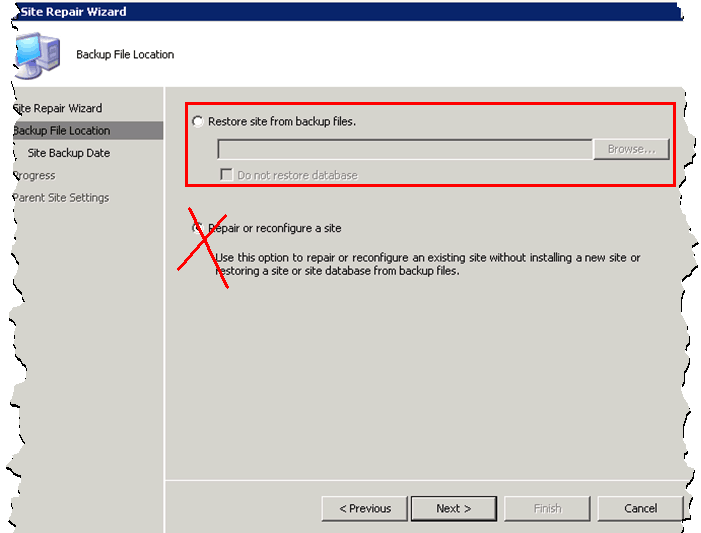
2. Select the first option and provide the valid Backup folder location.

Note – The second option is used only in the scenario “in case you want to repair or reconfigure an existing site without installing a new site or restoring a site or site database from backup files.”
Step-by-Step Guide How to Perform SCCM Recovery Using Restore Site Repair Wizard - Fig.7
Step-by-Step Guide How to Perform SCCM Recovery Using Restore Site Repair Wizard – Fig.7

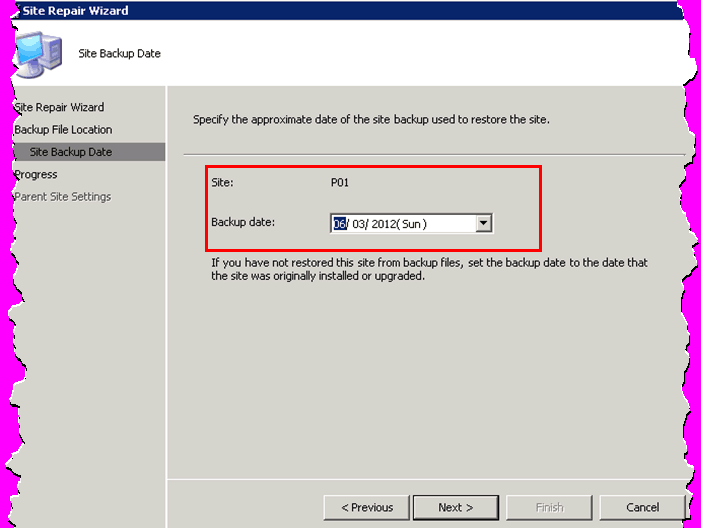
3. Specify the date of the site backup used to restore the site.

Note – Mention the date of the last good backup that you’ve.
Step-by-Step Guide How to Perform SCCM Recovery Using Restore Site Repair Wizard - Fig.8
Step-by-Step Guide How to Perform SCCM Recovery Using Restore Site Repair Wizard – Fig.8

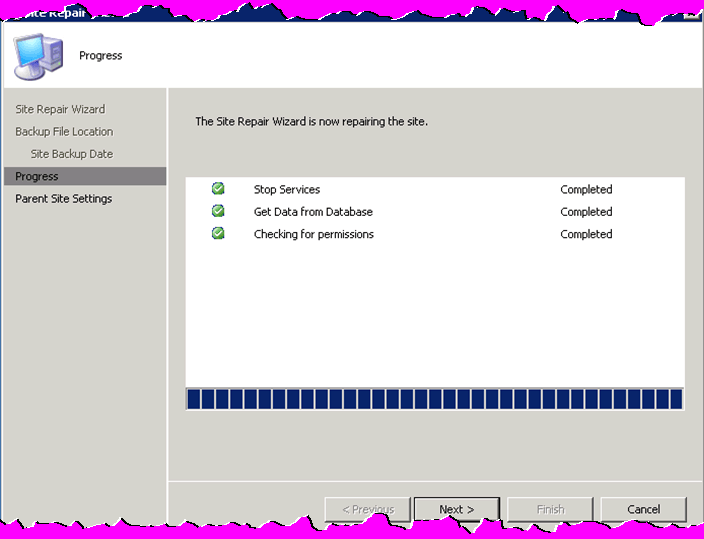
4. Ensure three progress steps are completed with a green icon.
Step-by-Step Guide How to Perform SCCM Recovery Using Restore Site Repair Wizard - Fig.9
Step-by-Step Guide How to Perform SCCM Recovery Using Restore Site Repair Wizard – Fig.9

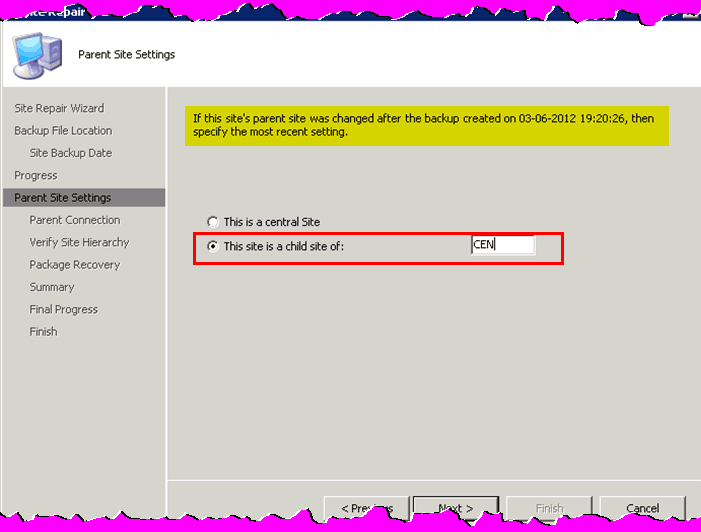
5. We need to specify the parent site code on this page.

We’re trying to restore the child primary site, which reports to the central site with site code CEN.
Step-by-Step Guide How to Perform SCCM Recovery Using Restore Site Repair Wizard - Fig.10
Step-by-Step Guide How to Perform SCCM Recovery Using Restore Site Repair Wizard – Fig.10

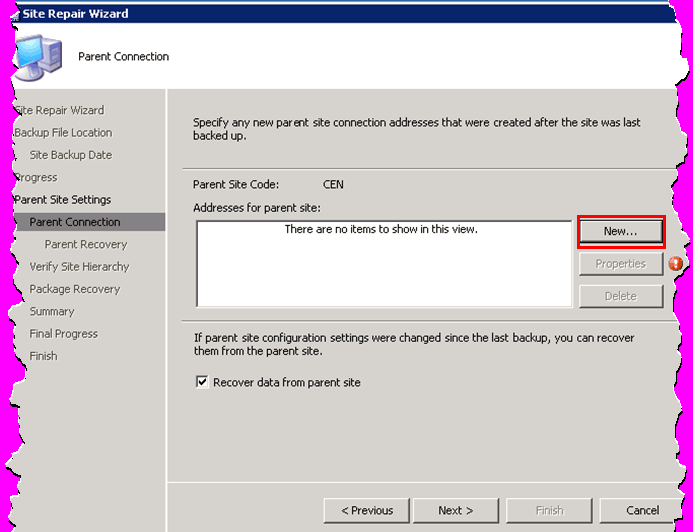
6. Create a new sender address for the parent site connection.

Note – If the parent site configuration settings were changed since the last backup, you could recover from the parent site. Select the “recover data from parent site” option.
Step-by-Step Guide How to Perform SCCM Recovery Using Restore Site Repair Wizard - Fig.11
Step-by-Step Guide How to Perform SCCM Recovery Using Restore Site Repair Wizard – Fig.11

7. Provide the central site details to create a standard sender address.
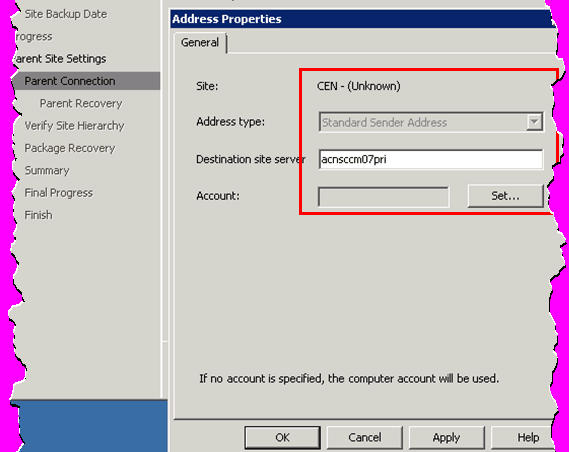
Step-by-Step Guide How to Perform SCCM Recovery Using Restore Site Repair Wizard - Fig.12
Step-by-Step Guide How to Perform SCCM Recovery Using Restore Site Repair Wizard – Fig.12

8. Provide the user name and password to connect to the site server (CEN).
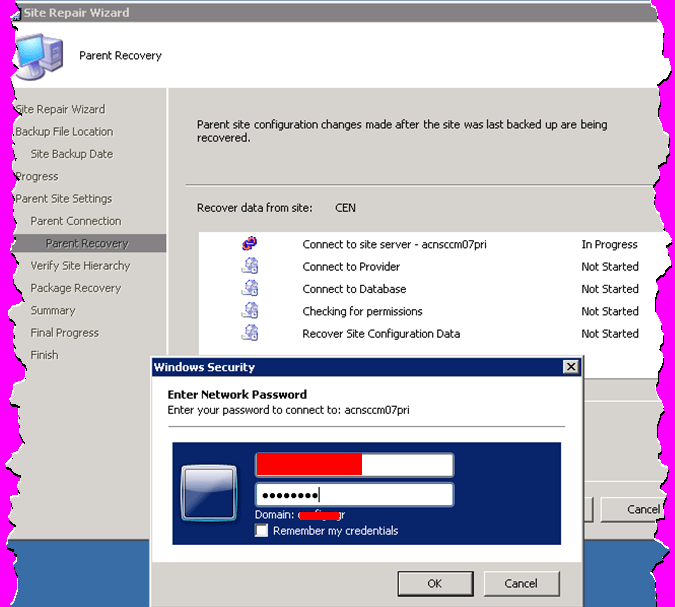
Step-by-Step Guide How to Perform SCCM Recovery Using Restore Site Repair Wizard - Fig.13
Step-by-Step Guide How to Perform SCCM Recovery Using Restore Site Repair Wizard – Fig.13

9. The Wizard completes the ‘Connect to Server’ and ‘Connect to Provider’ tasks.

However, the Credential window was prompted three times. Then the repair wizard task failed Parent Recovery, even though I’ve used the same user account that performed SQL and SCCM installation on my central server. It’s also part of the local administrator of that box. I tried adding my child primary server machine account to the local administrators group of the central server, but that didn’t work.
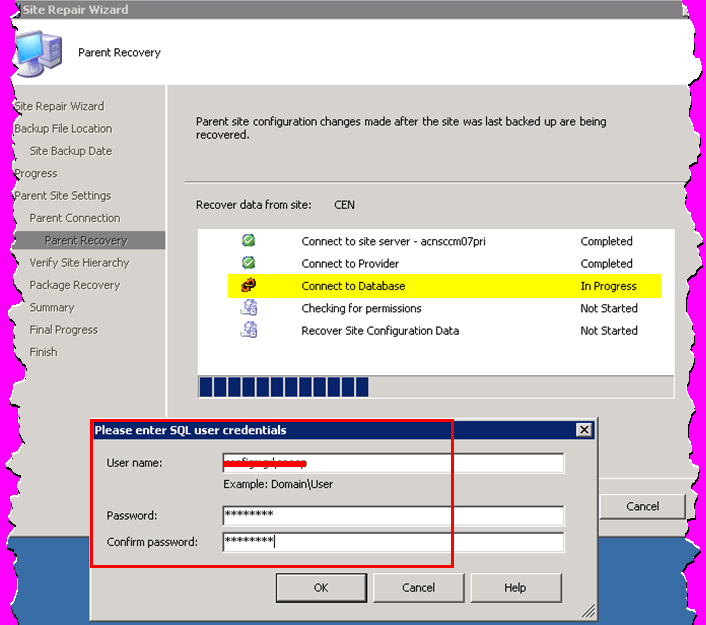
Step-by-Step Guide How to Perform SCCM Recovery Using Restore Site Repair Wizard - Fig.14
Step-by-Step Guide How to Perform SCCM Recovery Using Restore Site Repair Wizard – Fig.14

The solution was to ENABLE TCP/IP in your SQL server protocols from SQL Server Configuration Manager. You can also check out the windows-noob link for more details (the link is for CM2012 SQL configuration, but it worked for me in the SCCM 07 repair site wizard).

After this, I restarted the Site Repair Wizard process to Step 1.
Step-by-Step Guide How to Perform SCCM Recovery Using Restore Site Repair Wizard - Fig.15
Step-by-Step Guide How to Perform SCCM Recovery Using Restore Site Repair Wizard – Fig.15

10. Recover data from the parent site – CEN has been completed successfully.

All the following tasks were completed with green icons …

Connect to Site Server, Connect to Provider, Connect to Database, Check for permissions and Recover Site Configuration Data
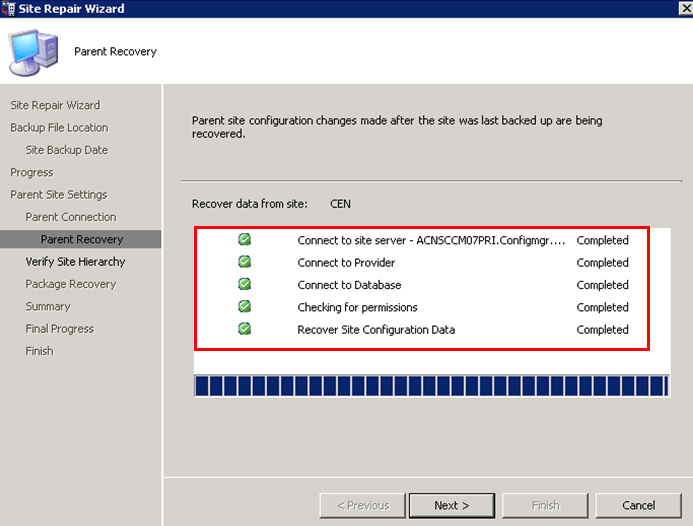
Step-by-Step Guide How to Perform SCCM Recovery Using Restore Site Repair Wizard - Fig.16
Step-by-Step Guide How to Perform SCCM Recovery Using Restore Site Repair Wizard – Fig.16

11. Verifying the site hierarchy information in this window.
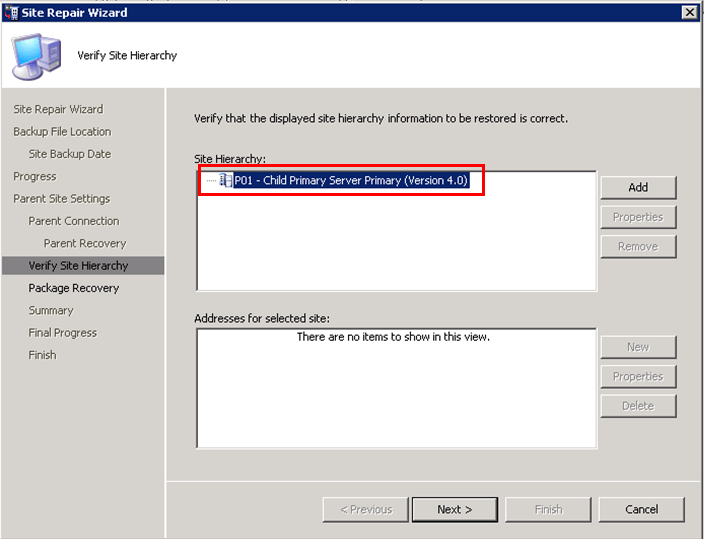
Step-by-Step Guide How to Perform SCCM Recovery Using Restore Site Repair Wizard - Fig.17
Step-by-Step Guide How to Perform SCCM Recovery Using Restore Site Repair Wizard – Fig.17

12. Verification of package source and Update DPs

It’s not advisable to select update the DPs on this site server option in your production environment as it could create a backlog and other issues.  
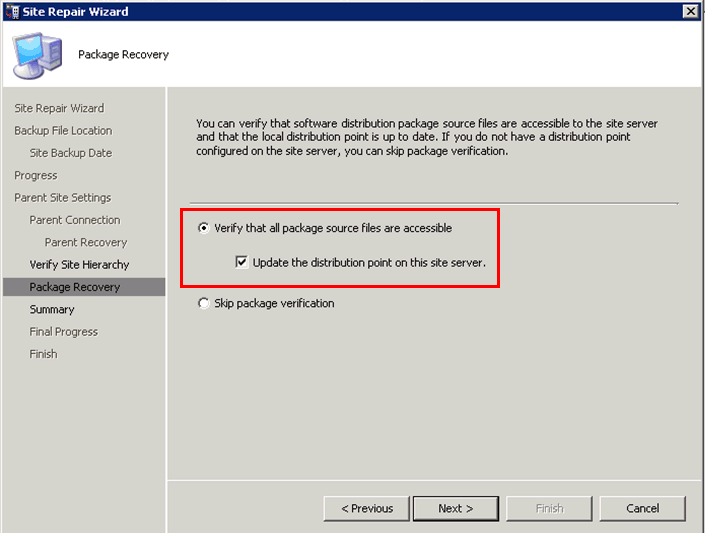
Step-by-Step Guide How to Perform SCCM Recovery Using Restore Site Repair Wizard - Fig.18
Step-by-Step Guide How to Perform SCCM Recovery Using Restore Site Repair Wizard – Fig.18

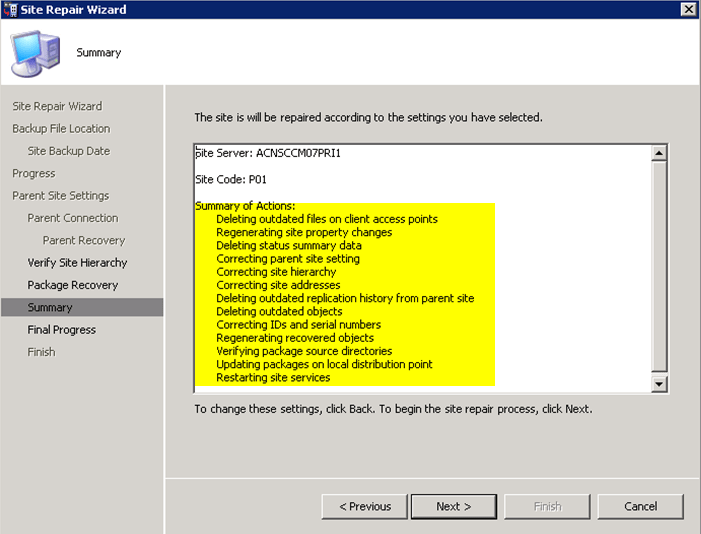
13. Summary Page

Step-by-Step Guide How to Perform SCCM Recovery Using Restore Site Repair Wizard - Fig.19
Step-by-Step Guide How to Perform SCCM Recovery Using Restore Site Repair Wizard – Fig.19

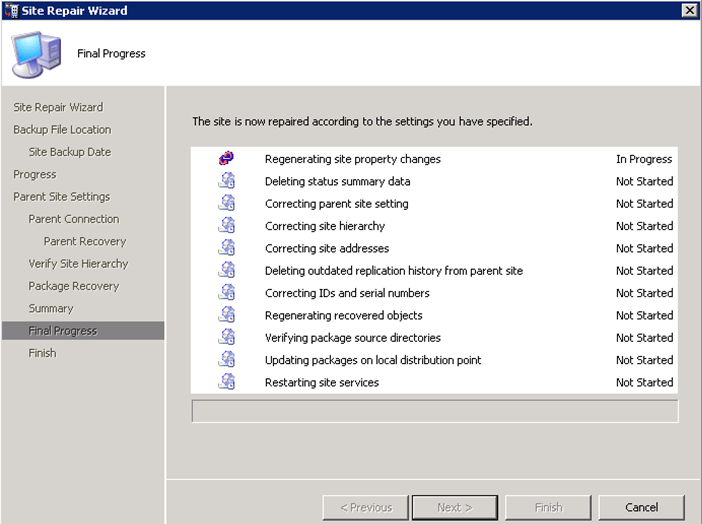
14. Final Progress

Step-by-Step Guide How to Perform SCCM Recovery Using Restore Site Repair Wizard - Fig.20
Step-by-Step Guide How to Perform SCCM Recovery Using Restore Site Repair Wizard – Fig.20

15. Here we go! Completes the site recovery wizard and restoration of the site server.
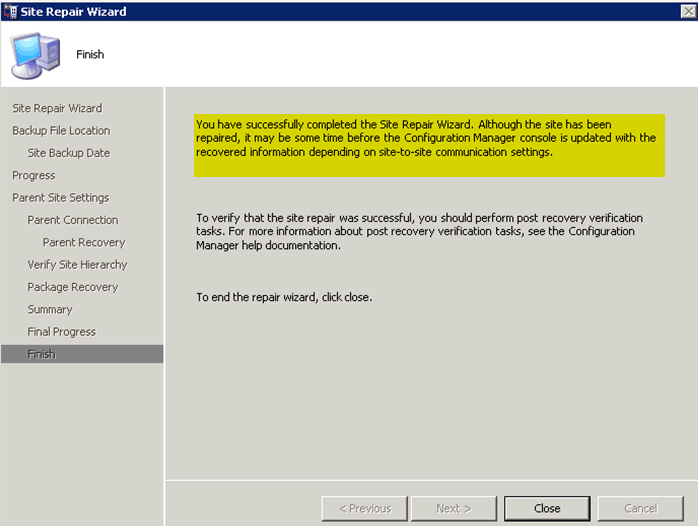
Step-by-Step Guide How to Perform SCCM Recovery Using Restore Site Repair Wizard - Fig.21
Step-by-Step Guide How to Perform SCCM Recovery Using Restore Site Repair Wizard – Fig.21

16. ConfigMgr 2007 child primary console after the recovery.
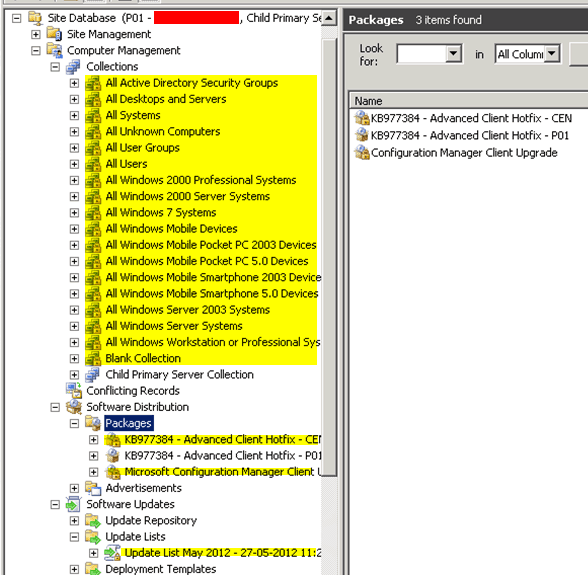
Step-by-Step Guide How to Perform SCCM Recovery Using Restore Site Repair Wizard - Fig.22
Step-by-Step Guide How to Perform SCCM Recovery Using Restore Site Repair Wizard – Fig.22

Here is Nicolas Moseley’s experience Recovering the SCCM Site from a Failed Bad Backup.

We are on WhatsApp. To get the latest step-by-step guides and news updates, Join our Channel. Click here –HTMD WhatsApp.

Author

Anoop C Nair has been Microsoft MVP from 2015 onwards for 10 consecutive years! He is a Workplace Solution Architect with more than 22+ years of experience in Workplace technologies. He is also a Blogger, Speaker, and leader of the Local User Group Community. His main focus is on Device Management technologies like SCCM and Intune. He writes about technologies like Intune, SCCM, Windows, Cloud PC, Windows, Entra, Microsoft Security, Career, etc..

Written by

Anoop C Nair is Workplace Technology solution architect with 25+ years of experience in global enterprise organizations such as JP Morgan, Capgemini, etc. Microsoft Certified Trainer. Microsoft MVP from 2015 onwards for consecutive 11+ years! He also conducts Intune and modern workplace tech training for enterprise organizations. He is Blogger, Speaker, and Founder of HTMD Community and HTMD Conference. His main focus is on Device Management technologies like Intune, Windows, Cloud PC. He writes about technologies like Intune, SCCM, Windows, Cloud PC, Windows, Entra, Microsoft Security.

Discussion

Join the discussion

Your email address will not be published. Required fields are marked *

Related guides

Intune

Windows 11 KB5101650 KB5099414 July 2026 Patch and 3 Zero Day Vulnerabilities and 570 Flaws

Key Takeaways Windows 11 KB5101650 KB5099414 July 2026 Patch and 3 Zero Day Vulnerabilities and 570 Flaws! In the July 2026 Patch, Microsoft introduced new features designed to improve the overall Windows experience. The update adds enhancements to Windows Update for more flexible update management and introduces Point-in-Time Restore, providing an additional recovery option for […]

AC Anoop C Nair 9 min read
Intune

2026 June KB5094126 KB5093998 Windows 11 Patch | 3 Zero Day Vulnerabilities and 200 Flaws

Key Takeaways 2026 June KB5094126 KB5093998 Windows 11 Patch | 3 Zero Day Vulnerabilities and 200 Flaws! The June 2026 Windows 11 Patch Tuesday update brings several improvements to File Explorer. It adds support for additional archive formats, including UU, CPIO, XAR, and NuGet Packages (NUPKG). The update also preserves View and Sort preferences in […]

AC Anoop C Nair 10 min read
Intune

2026 May KB5089549 KB5087420 Windows 11 Patch | 0 Zero Day Vulnerabilities and 120 Flaws

Key Takeaways The Windows 11 May 2026 Patch KB5089549 KB5087420 Update brings important security fixes, performance improvements, and reliability enhancements across the operating system. The update introduces new features such as Xbox Mode for gaming, File Explorer improvements, enhanced input and sharing experiences, better taskbar and Windows Hello reliability, and additional enterprise management capabilities for […]

AC Anoop C Nair 8 min read
SCCM

ConfigMgr 2603 Introduces New Early Update Enrollment Process

Key Takeaways In this post we are discussing the ConfigMgr 2603 Introduces New Early Update Enrollment Process. Microsoft has officially released Configuration Manager version 2603 to the Early Update Ring, giving organizations an opportunity to test upcoming improvements before the global production rollout. The release is targeted at enterprises running ConfigMgr version 2409 or later […]

AC Anoop C Nair 3 min read