






Who Deleted Application from SCCM Audit Reports Best Method to Track
Let’s find out who deleted Application from SCCM. You can use SCCM audit messages to find out these details. There are audit messages to track and find out who deleted the SCCM packages however there is nothing available to track the application.
Let’s also learn who modified App Deployment from ConfigMgr using the audit reports. You can find out who created, modified, and deleted the Configuration Manager Application deployments from this post. The main topic over here is Who Deleted Application from SCCM.
The SCCM application model uses the Configuration Items for end-to-end management of each component with this workflow. Hence you can’t track applications and packages using the same SCCM status messages.
You need to create a custom SCCM status message query to easily track and find out who deleted the SCCM application. You can also SQL queries to track the status message and find out the admin name and other details.

There are 13 audit status message queries available in SCCM but the application deletion status message query is not available in that list. You can also check the list of SCCM status message queries from SSMS (aka SQL Server Management Studio).
- Who deleted the SCCM collection?
- SCCM Audit Reports Who Initiated CMPivot Query | ConfigMgr
- Who Deleted ConfigMgr Task Sequence | Modified |Created | SCCM
SCCM Audit Status messages
How many default audit reports are available in SCCM? How many SCCM audit status messages are stored in SCCM etc. How many default audit reports are available in SCCM? How many SCCM audit status messages are stored in SCCM etc.
Navigate to \Monitoring\Overview\System Status\Status Message Queries from the SCCM admin console and search with Audit to list down all the Audit-related status message queries.
| Status Message query Name | Query ID |
|---|---|
| Boundaries Created, Modified, or Deleted | SMS580 |
| Site Addresses Created, Modified, or Deleted | SMS579 |
| Server Component Configuration Changes | SMS575 |
| Security Roles / Scopes created, modified, or deleted | SMS574 |
| Remote Control Activity Targeted at a Specific System | SMS573 |
| Remote Control Activity Initiated from a Specific System | SMS572 |
| Remote Control Activity Initiated by a Specific User | SMS571 |
| Remote Control Activity Initiated at a Specific Site | SMS570 |
| Queries Created, Modified, or Deleted | SMS569 |
| Programs Created, Modified, or Deleted | SMS568 |
| Packages Created, Modified, or Deleted | SMS566 |
| Collections Created, Modified, or Deleted | SMS557 |
| Collection Member Resources Manually Deleted | SMS556 |
| Client Component Configuration Changes | SMS514 |
| All Audit Status Messages for a Specific User | SMS502 |
| All Audit Status Messages from a Specific Site | SMS501 |
| Deployments Created, Modified, or Deleted | SMS500 |
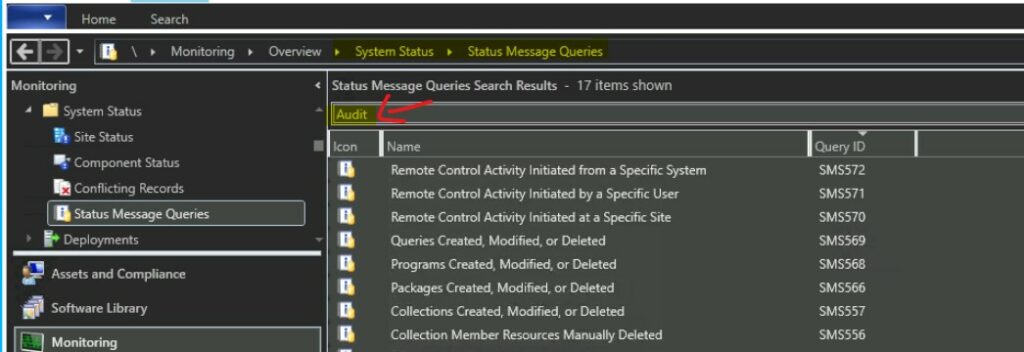
SCCM Audit Reports to Track the Deletion of Applications
Let’s create the SCCM Status Message query to find who deleted the application from SCCM. This is the same method that is been used for SCCM audit reports.
Read More -> Learn Who Modified App Deployment from ConfigMgr | Deleted | SCCM
- Navigate to \Monitoring\Overview\System Status\Status Message Queries from the SCCM admin console.
- Right-Click on Status Message Queries node and click on Create Status Message Query.
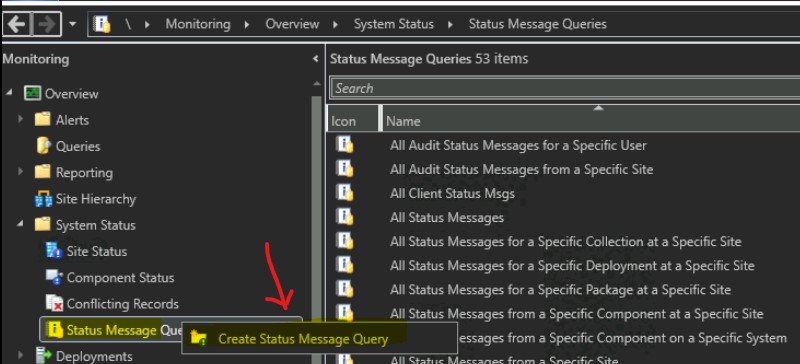
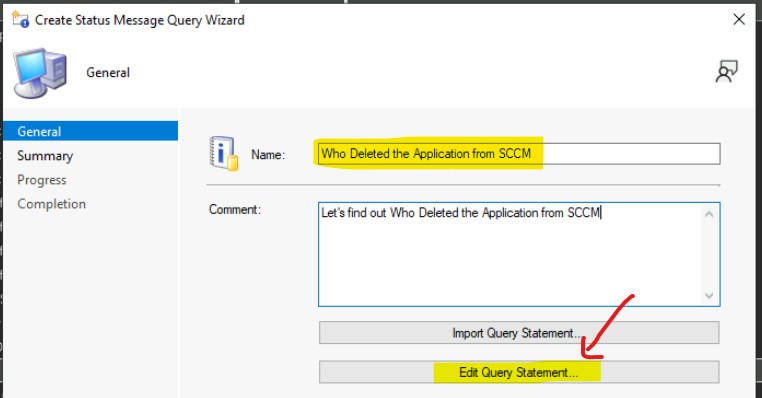
Let’s complete the Create Status Message Query Wizard. The first page is where you need to enter the Name, Description of the custom status message query to find who deleted SCCM Application.
- Enter Name of the Status Message Query -> Who Deleted the Application from SCCM
- Enter the description – Let’s find out Who Deleted the Application from SCCM
- Click on the Edit Query Statement button to continue.
Click on the Show Query Language button from the General tab in the new window.
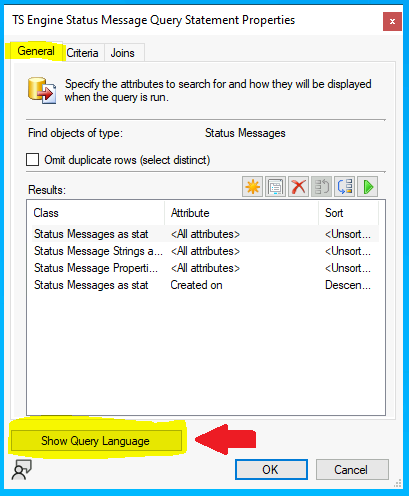
You need to copy the following WQL query to Create Custom SCCM Status Message Queries for Task Sequence Engine Status Message. This query prompts you to select the time frame you want to cover.
select SMS_StatusMessage.*, SMS_StatMsgInsStrings.*, SMS_StatMsgAttributes.* from SMS_StatusMessage left join SMS_StatMsgInsStrings on SMS_StatMsgInsStrings.RecordID = SMS_StatusMessage.RecordID left join SMS_StatMsgAttributes on SMS_StatMsgAttributes.RecordID = SMS_StatusMessage.RecordID where SMS_StatusMessage.MessageID = 30154 and att2.AttributeTime >= ##PRM:SMS_StatMsgAttributes.AttributeTime## order by att1.AttributeTime DESC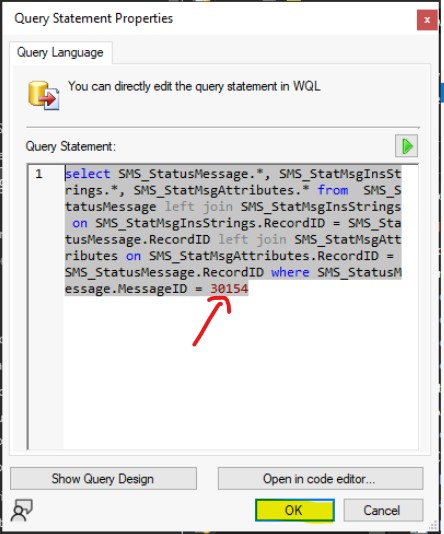
Click on the OK button to continue. Click on the Next button from the summary page and the Close button to finish the custom SCCM Status Message Queries for SCCM Application Audit Message tracking.
Who Deleted Application from SCCM?
Let’s check who deleted application from SCCM. The application model in SCCM (ConfigMgr) is based on Configuration Items (CIs), this is how all the components related to the SCCM app model work.
The Configuration Manager application model audit messages also must be tracked based on the deletion and creation of Configuration Items (CIs). However, the same tracking mechanism is used for other workloads as well if those workloads are using CIs.
Examples of the workloads are Software Update Groups, Configuration Items – Baseline, etc. So the SCCM audit messages for all these components are tracked through the same Status message ID. You must segregate the application deletion audit messages using the CI_UniqueID and the Application_ entry in the message.
Read More -> How to get the CI_UniqueID details from SCCM – Insiders Guide SCCM Application Model Troubleshooting.
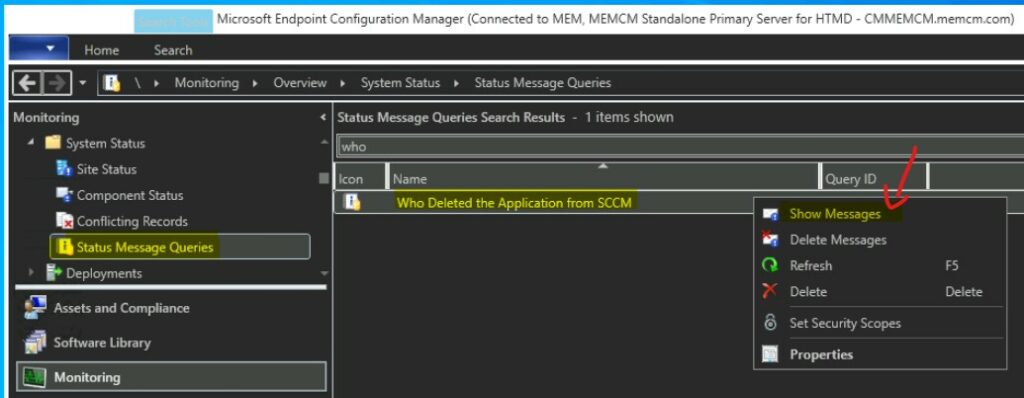
- Search for the custom Status Message Query that is created in the above section – I used WHO as the search word.
- Right-click on the custom status message query – Who Deleted the Application from SCCM.
- Select the Option Show Messages.
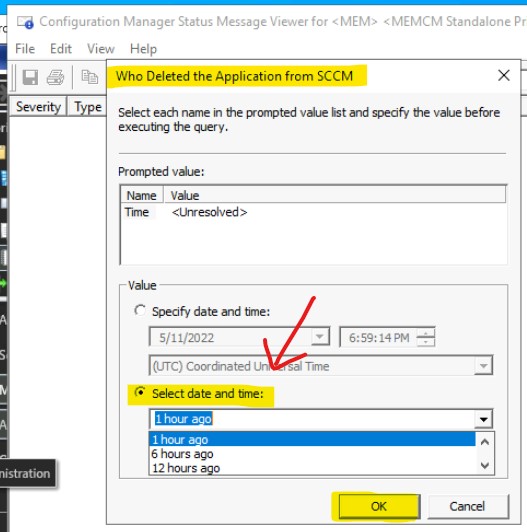
Select each name in the prompted value list (in this example it’s only the time) and specify the value before executing the query. Let’s select the TIme prompt value in this scenario and select the date and time. I have selected 6 hours from the drop-down list and clicked on the OK button.
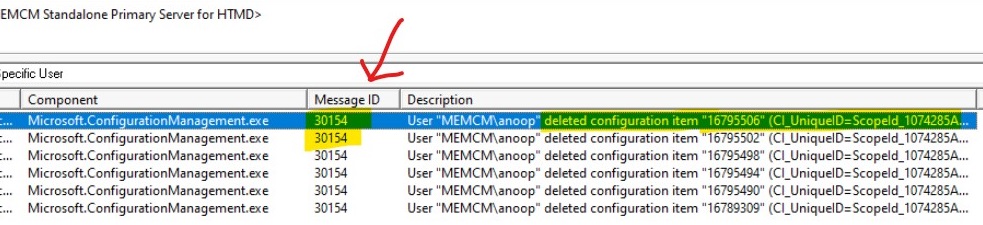
Who Deleted Application from SCCM Sample Status message is given below. You can have quick look at this to get a feel of the deletion of the application alert.
Severity Type Site code Date / Time System Component Message-ID Description
Information Audit MEM 5/11/2022 5:53:49 PM CMMEMCM.memcm.com Microsoft.ConfigurationManagement.exe 30154 User “MEMCM\anoop” deleted configuration item “16795506” (CI_UniqueID=ScopeId_1074285A-82C7-474F-B242-1EE20F8C3CE5/Application_46ffae83-a6e2-4350-a4c7-6223b94d010d/8, CIVersion=8).
SQL Query to Find Out Who Deleted the Application
Let’s check SQL Query to Find Out Who Deleted Application from SCCM. You need to use the SQL management studio to run the SQL query mentioned below and find the details.
I have added an additional filter called Application in the below SQL query to get the only application-related audit messages. Let me know whether this is useful. If you want you can remove the application filter but that might show Configuration Item deletion alerts as well?
- Open the SQL Management Studio.
- Connect your Database Engine.
- Right Click on your database CM_XXX and click on ‘New Query.’
- Copy the following SQL query to find the report about Who Deleted Application.
- Click on the Execute button to run the query and display the results.
/* 'Who deleted the application'*/
select * from vStatusMessagesWithStrings where MessageID = 30154 and InsStrValue3 like '%Application%'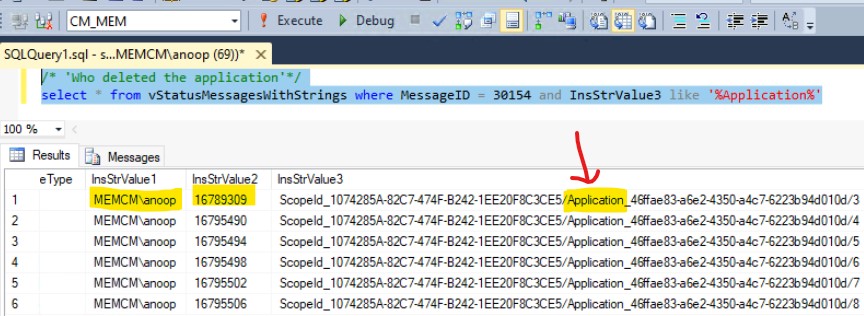
Who Created Deployment of Application
You already know Who Deleted Application from SCCM. Let’s use SQL Management studio to understand who Created the Deployment of the Application.
/* Who created a deployment of application*/
select * from vStatusMessagesWithStrings where MessageID = 30226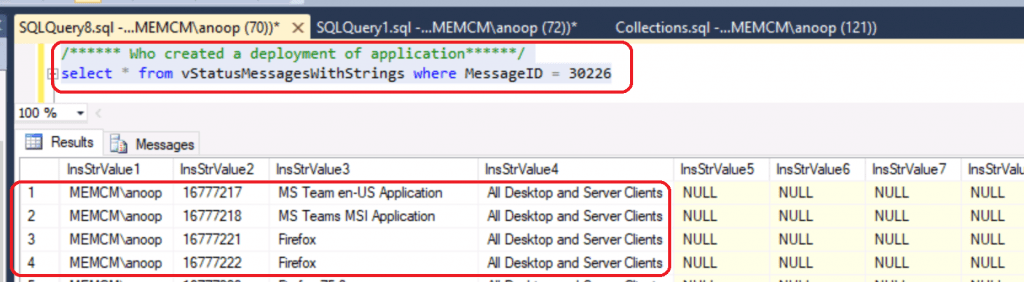
Who Modified App Deployment
Use SQL Management studio to understand who Modified the Deployment of the Application. You can get Who Deleted Application from SCCM details from the above section of this post.
/* Who modified the deployment of application*/
select * from vStatusMessagesWithStrings where MessageID = 30227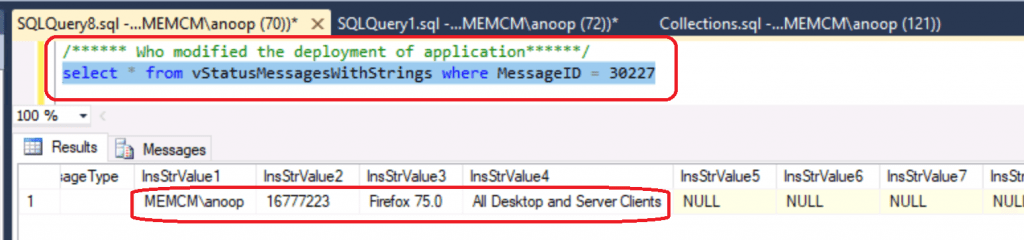
Who Deleted Deployment of Application
Use SQL Management studio to understand who Deleted the Deployment of the Application.
/* 'Who deleted the deployment of application'*/
select * from vStatusMessagesWithStrings where MessageID = 30228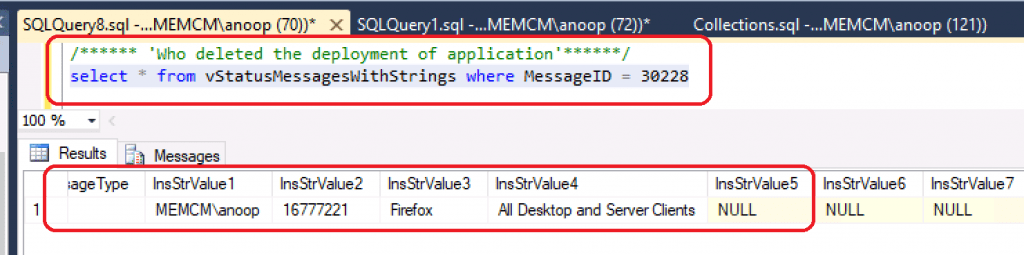
Video SCCM Audit Messages | Tracking SCCM Admin Audit Activities
Let’s find out the Video SCCM Audit Messages | Tracking SCCM Admin Audit Activities.




Hi folks
I have a additional question about «Find Out Who Deleted the Application»
The Query «select * from vStatusMessagesWithStrings where MessageID = 30154 Order by Time DESC» gives me the result «ScopeId_23493C8F-085E-45BF-8C7D-CA6F962A5362/Application_f09d82b6-7e8f-443a-8ce9-4e6210f1127f/7» at the column InsStrValue3.
How can I find out which application or CI it is?
StaffHave you checked the note How to get the CI_UniqueID details from SCCM – Insiders Guide SCCM Application Model Troubleshooting. The following link provides one of the ways https://www.anoopcnair.com/who-deleted-application-from-sccm-audit-reports/
For existing applications it is understandable. But can this also be applied to deleted applications?
StaffGood point. I don’t know whether there is any straightforward method for deleted apps. You might need to trace back with some logs or something else or DB backup, etc.