






Azure Bastion Locales keyboard Layout Connection Settings Available Now
Let’s check out the availability of the new Azure Bastion Locales keyboard Layout Connection Settings option. Microsoft has introduced a new connection settings option where you can select the keyboard setting for remote VMs.
The additional keyboard setting during the connection itself is useful because it can support regional language passwords, etc. The login to VM using bastion VM without EN-US keyboard layout will be tricky.
For example, you are using the EN-UK keyboard on your local computer (Laptop), and your VM is also with EN-UK keyboard settings. Now, new keyboard layout connection settings in the Azure portal help end-users avoid one hope.
With the new Azure Bastion Locales keyboard layout option, the admins don’t have to change their local keyboard setting to US-EN. It’s a bit painful process to change keyboard settings back and forth every time you use Azure Bastion.

Learn More – How to Setup Azure Bastion Connect to SCCM Server | ConfigMgr | MECM
What is Bastion?
Let’s have a quick look at what is Azure Bastion service? Azure Bastion Service enables you to securely and seamlessly RDP & SSH to your VMs in your Azure virtual network. The Azure Bastion helps take a remote connection without exposing a public IP on the VM.
You can directly connect to Azure Virtual Machine from the Azure portal without the need for any additional client/agent or any piece of software.
Read More – Step By Step Guide To Configure Azure Bastion Host
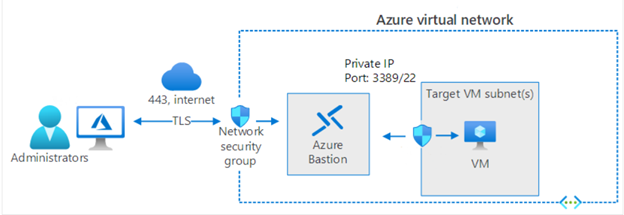
How to Connect to Azure Bastion
Let’s quickly see how to connect to Azure VM using the Bastion service. You need to follow the steps mentioned below.
- Login to Azure Portal https://portal.azure.com/
- Search for your SCCM|ConfigMgr Virtual Machine – CMMEMCM
- Click on Connect -> Bastion
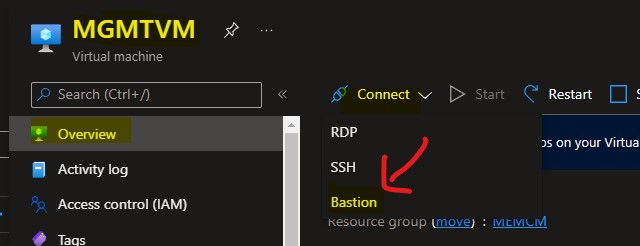
Azure Bastion Locales keyboard Layout Connection Settings
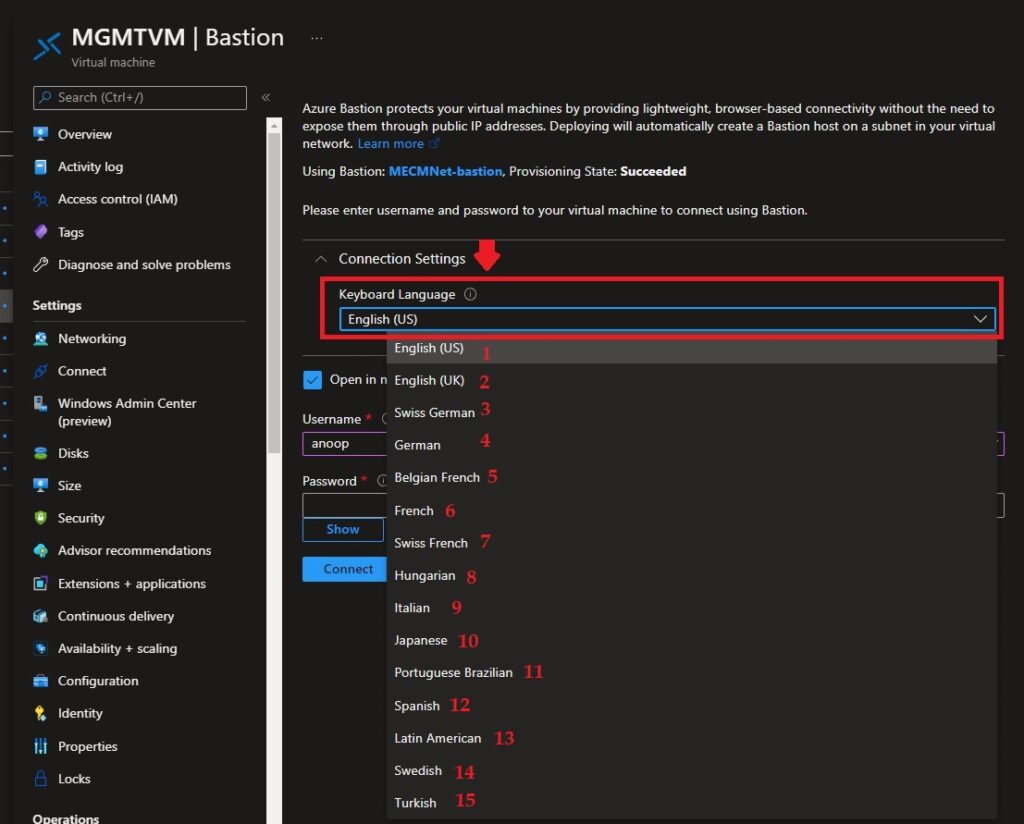
Let’s see how to use non EN-US Azure Bastion locales keyboard Layouts with connection Settings configuration. While writing this post, there are 15 additional languages in the drop-down menu. You have an option to select the non-US keyboard language of the VM.
NOTE! – The support for other locales for keyboard layout is now available in the Azure portal for Bastion services.
This helps avoid user name and password errors while the admins use the EN-US keyboard. You can enter your username and password to your virtual machine to connect using Bastion.
- Navigate to the Azure Bastion section of the Azure portal, as shown in the screenshot below.
- Expand Connection Settings drop-down menu.
- You can select any language from the drop-down menu for the keyboard layout.
There are 15 languages available in the drop-down menu. I hope this is going to expand further with time. So that you can avoid all the adjustments you have to make with local computer keyboard settings, this is for non US-EN keyboard layout.
- English (US)
- English (UK)
- Swiss German
- German
- Belgian French
- French
- Hungarian
- Italian
- Japanese
- Portuguese Brazilian
- Spanish
- Latin American
- Swedish
- Turkish
Azure Bastion Locales Keyboard Layout Support Inside the VM
As per Microsoft, Azure Bastion currently supports the following keyboard layouts inside the VM. The above section has connection settings and keyboard layout options while connecting to Azure VM.
NOTE! – The selected keyboard layout settings, explained in the above section, must match the keyboard language settings inside the VM.
To establish the correct keyboard key mappings between the local device and Azure VM, it’s important to have the same Locales keyboard layout selected from the connection setting in the Azure portal and on the remote VM.
For Example, You must set the keyboard layout on your local computer to English (UK) or the keyboard layout inside the target VM to en-gb-qwerty.
- Navigate to Settings > Time & Language > Language.
- Under “Preferred languages,” select “Add a language.”
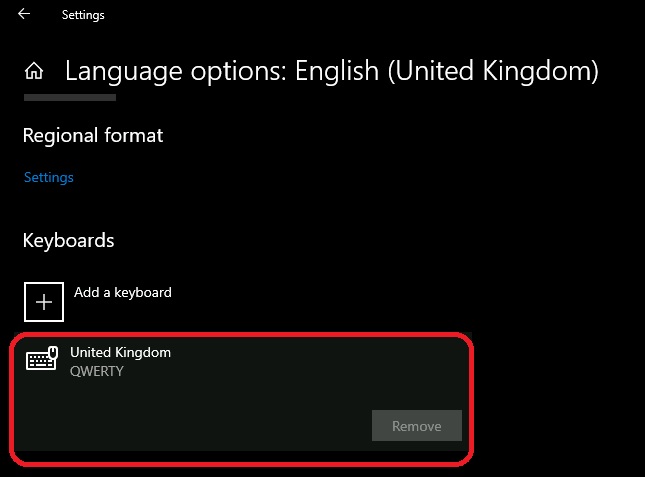
- Choose a Language to Install – I have selected English (United Kingdom) because I have selected the UK keyboard layout from Azure Portal.
- Click on the Next button to continue.
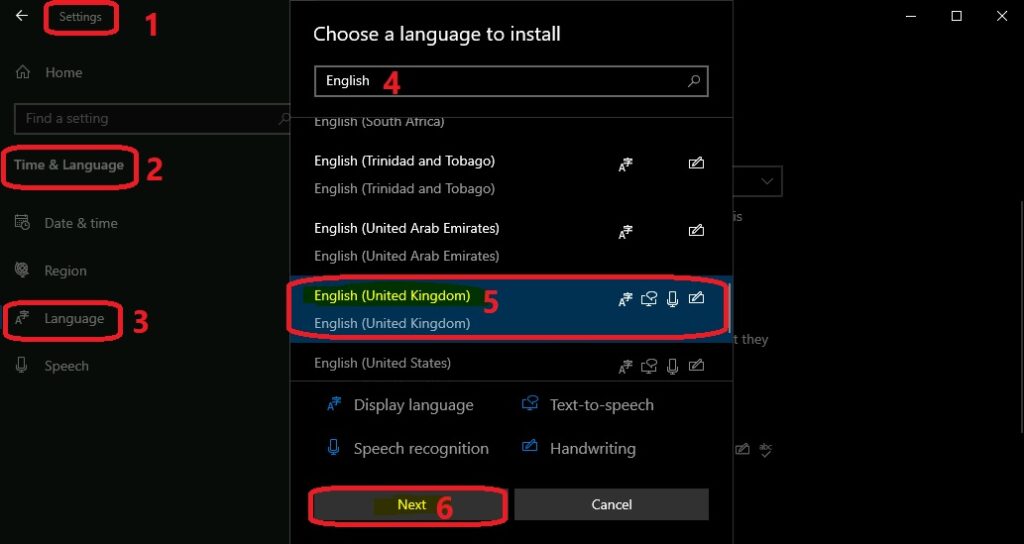
You need to install the Language pack if that is not already installed. In most scenarios, the VM’s display language would be English, which should be an issue. Otherwise, you need to go ahead and install the additional language pack for the en-GB scenario.
You can confirm whether the additional United Kingdom keyboard is added or not from the following page, as shown in the screenshot. You need to use another method such as DISM to add additional keyboard support if the servers don’t have internet access.
The list of supported keyboard layouts inside the VM is the same as the list available in the drop-down menu mentioned in the above section of this post.
| en-us-qwerty |
| en-gb-qwerty |
| de-ch-qwertz |
| de-de-qwertz |
| fr-be-azerty |
| fr-fr-azerty |
| fr-ch-qwertz |
| hu-hu-qwertz |
| it-it-qwerty |
| ja-jp-qwerty |
| pt-br-qwerty |
| es-es-qwerty |
| es-latam-qwerty |
| sv-se-qwerty |
| tr-tr-qwerty |
Keyboard Shortcuts for Azure Bastion Connected VMs
Let’s check how the keyboard shortcuts can be used when you have connected to a VM using Azure Bastion.
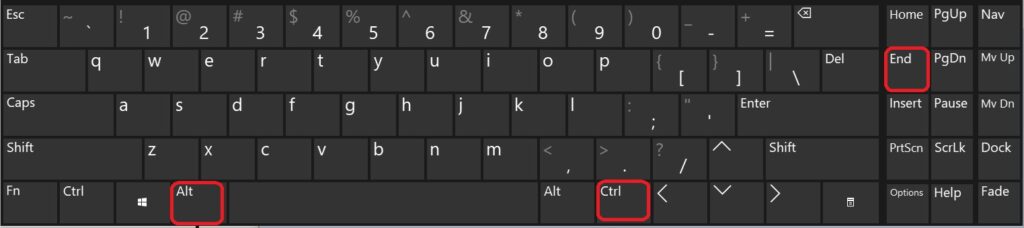
#1 – When connected to a Windows VM from a Windows 10 or Windows 11 device, you have to use CTRL+ALT+END as the keyboard shortcut for CTRL+ALT+Delete on a local computer.
#2 – If you want to use CTRL+ALT+Delete on a VM, connected using Azure Bastion, the keyboard shortcut that should be used is Fn+CTRL+ALT+Backspace to be used when connecting from a Mac while connected to a Windows VM.

Discussion