






Why Android Business Apps Failed After Login on Intune Managed Devices
Key Takeaways
- App Protection Policies can affect app authentication on Android Enterprise devices.
- The error No available apps configured to open this content may be caused by MAM policy restrictions.
- Microsoft Edge authentication requires the target app to be recognized as a managed app.
- Organizations with strict security requirements can use Apps to exempt for better control.
In this post we are discussing Why Android Business Apps Failed After Login on Intune Managed Devices. Organizations use Microsoft Intune to manage Android Enterprise fully managed devices and secure company data using App Protection Policies. But in some cases, a small policy configuration can createunexpected login issues for users. Recently troubleshooting was reported that, users across an organization suddenly lost access to a business application on their Android devices.
Table of Contents
Why Android Business Apps Failed After Login on Intune Managed Devices
The application opened normally, and users could sign in successfully, but the app failed immediately after authentication. The issue was reported to an Intune App Protection Policy setting that blocked Microsoft Edge from the login session back to the application. Updating the policy resolved the issue instantly for all affected users.
- Create Intune App Protection Policies for iOS iPadOS
- How to Create App Protection Policies for Windows MAM Devices
- Intune App Protection Policies for Android and iOS Devices
- Enforce Users to use Intune Approved Apps with App Protection Policies using Conditional Access Policies
Why This Happens
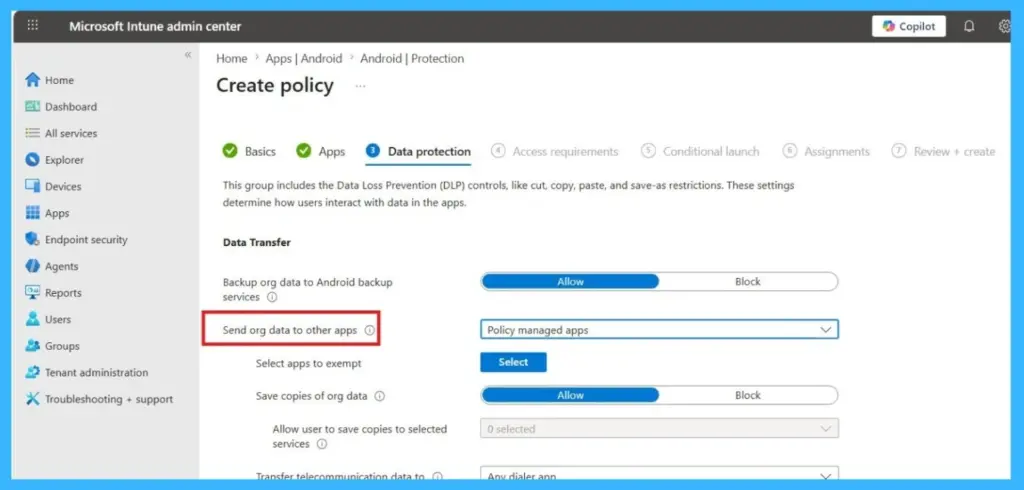
The issue was caused by an App Protection Policy setting in Microsoft Intune configured as Send org data to other apps > Policy managed apps. With this setting enabled, Microsoft Edge can only organizational data to applications that are recognized as MAM enabled apps. In this case, the target business application was not identified as a managed app, so Edge could not pass the authentication information back to the application after login.
- As a result, users received the error message and were unable to continue accessing the app.
- Users were redirected to Microsoft Edge for authentication, but after entering credentials, they saw the error – No available apps configured to open this content.
| Important to Know | Details |
|---|---|
| Policy setting | Send org data to other apps > Policy managed apps |
| Problem | The app was not recognized as a managed app |
| What happened | Microsoft Edge could not send the login information back to the app |
| Result | Users received an error message and could not access the app |
How to Resolve the Issue
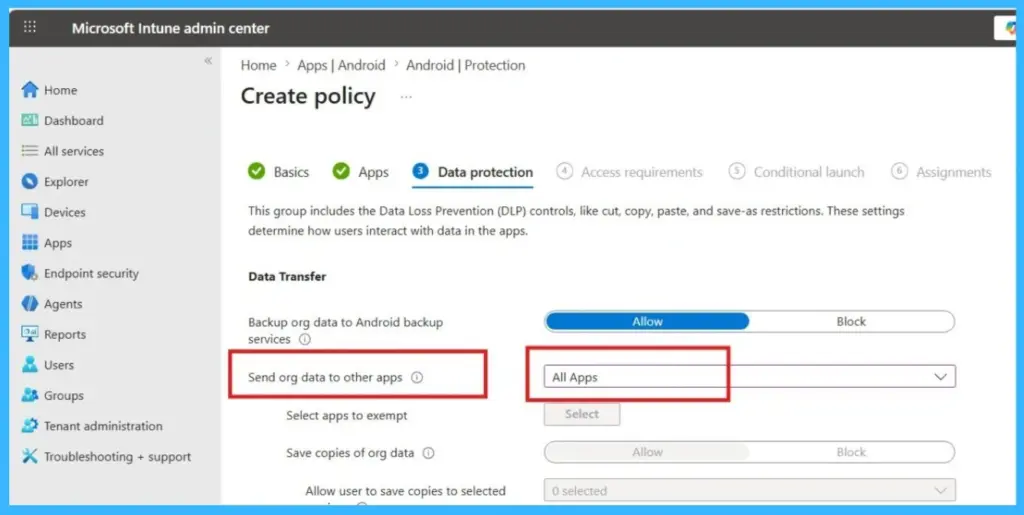
The issue was resolved by updating the App Protection Policy in Microsoft Intune. Administrators changed the setting Send org data to other apps from Policy managed apps to All apps, which allowed Microsoft Edge to successfully pass the authentication information back to the business application after login. Once the policy change was applied, users were immediately able to access the application again without receiving the error message.

- Changing the policy to Send org data to other apps > All apps fixed the login issue immediately.
Need Further Assistance or Have Technical Questions?
Join the LinkedIn Page and Telegram group to get the latest step-by-step guides and news updates. Join our Meetup Page to participate in User group meetings. Also, join the WhatsApp Community and the WhatsApp channel to get the latest news on Microsoft Technologies. We are there on Reddit as well
Author
Anoop C Nair has been Microsoft MVP for 10 consecutive years from 2015 onwards. He is a Workplace Solution Architect with more than 22+ years of experience in Workplace technologies. He is a Blogger, Speaker, and Local User Group Community leader. His primary focus is on Device Management technologies like SCCM and Intune. He writes about technologies like Intune, SCCM, Windows, Cloud PC, Windows, Entra, Microsoft Security, Career, etc.


Discussion