






Best Windows Shortcut RUN Commands for Settings
Let’s discuss the Windows Shortcut RUN Commands for Settings. Today morning, I was working on Surface 3 and checking whether the old CPL shortcut commands are still working with the latest build of Windows 10. Windows Key Shortcut A to Z Keyboard Shortcuts in Windows 10. Windows Shortcut RUN Commands Details.
Introduction—I’ve written two posts related to shortcut and run commands for Windows 8.1 and other operating systems: Post1 and Post2. My next question was, “How do I find out and launch new Settings application pages from the RUN menu on a Windows 10 machine?” Interesting, isn’t it? All the following commands can be run from the RUN menu (Windows Key + R).
How to launch the home page of the Settings application from Windows 10 : ms-settings: Privacy and Ease of Access setting pages run commands are very helpful.
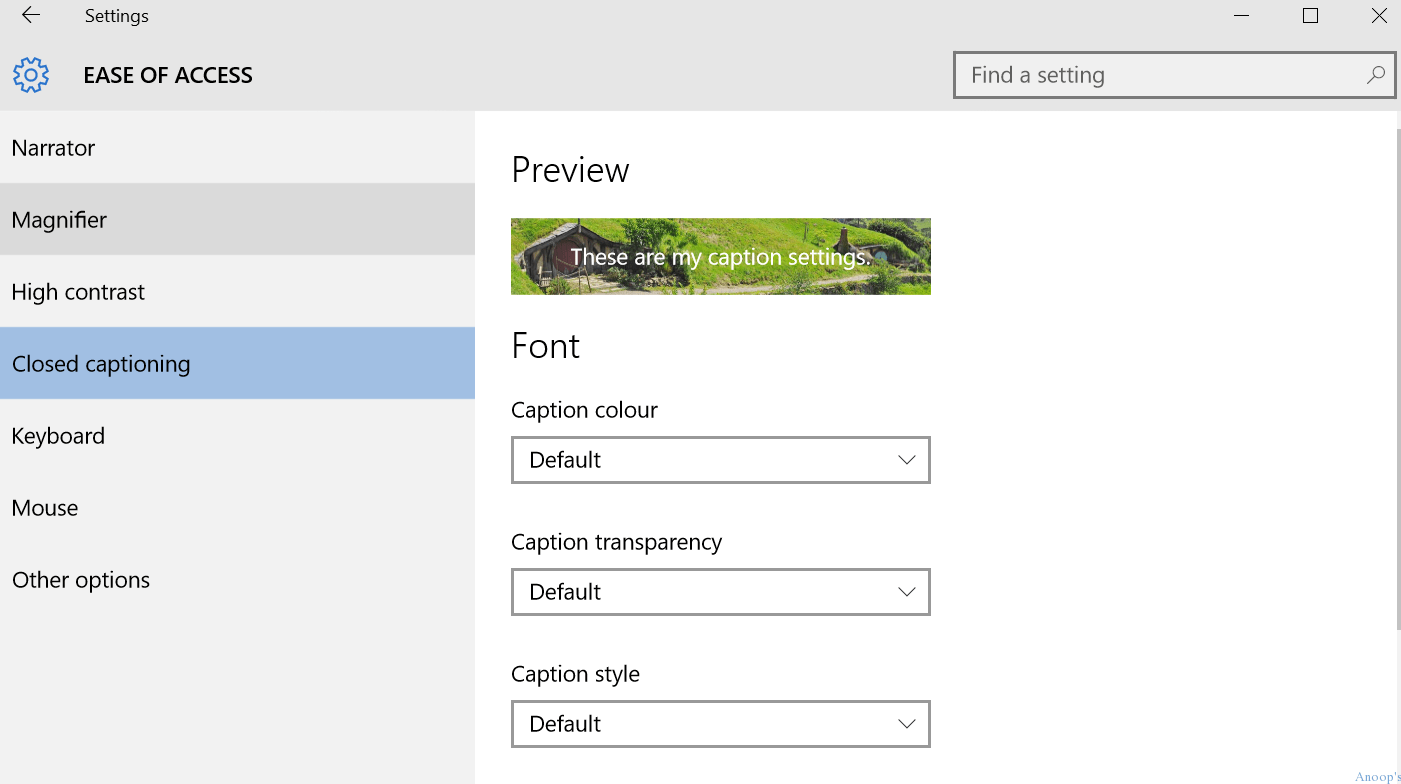
I’ve explained Privacy once at the bottom of the post. To launch the Ease of Access closed capturing setting pages, we need to run the following command from the RUN command :)—ms-settings:easeofaccess-closedcaptioning.

| Index |
|---|
| Windows Shortcut RUN Commands for Settings |
- 19 More Useful System Settings Run Commands for Windows
- Best 15 Accessibility Settings Run Commands for Windows
- Run Commands for Windows Update and Other Settings
- 53 Most Common Run Commands for Windows
- 41 Windows Tools Run Commands for Windows
- 32 Control Panel Run Commands for Windows
Windows Shortcut RUN Commands for Settings
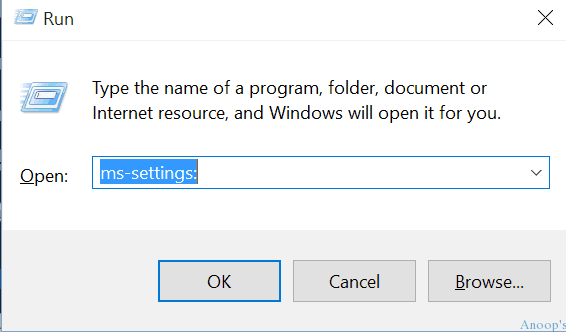
Let’s discuss the Windows Shortcut RUN Commands for Settings. To open a program, folder, document, or internet resource, type its name here, and Windows will open it for you.
| Windows Shortcut RUN Commands for Settings |
|---|
| ms-settings |
This is the settings for the ease of access page. Here, you can see different tab options on the Left side, such as the Narrator, Magnifier, High contrast, Closed captioning, keyboard, Mouse and other options.
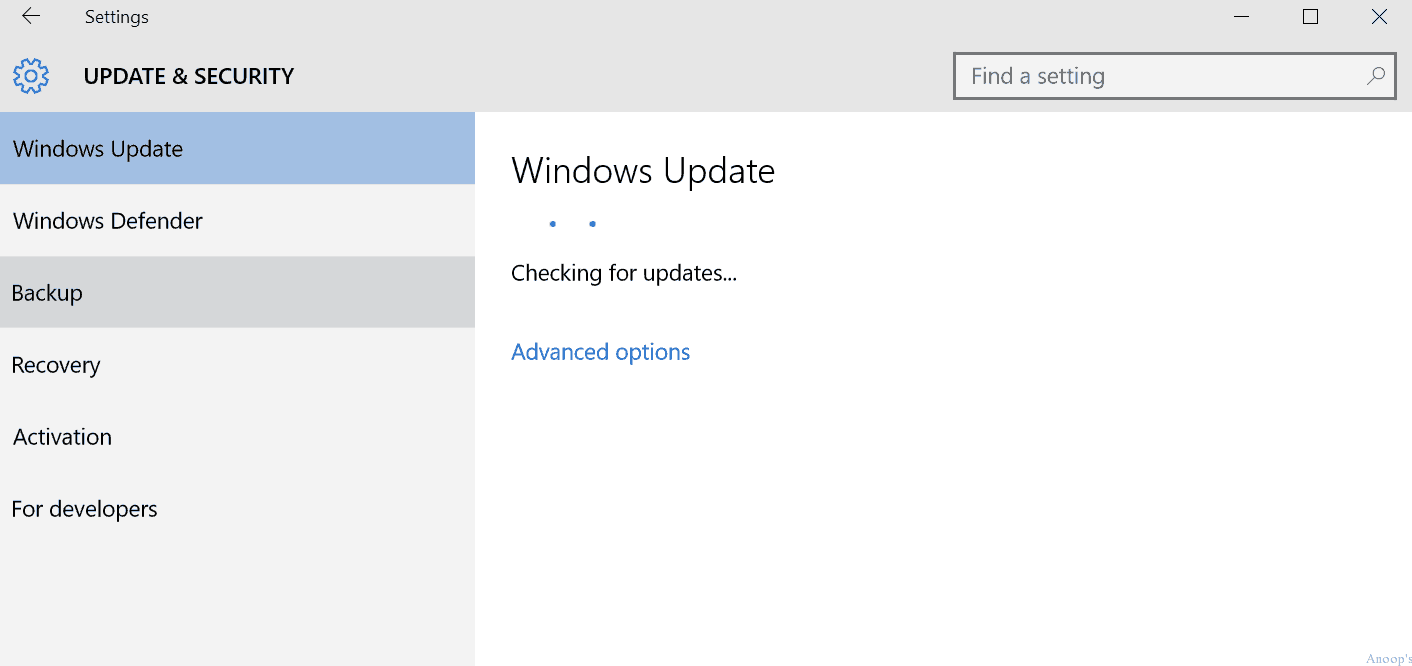
How to launch the Windows update configuration page of the Settings menu from Windows 10 : ms-settings:windowsupdate.
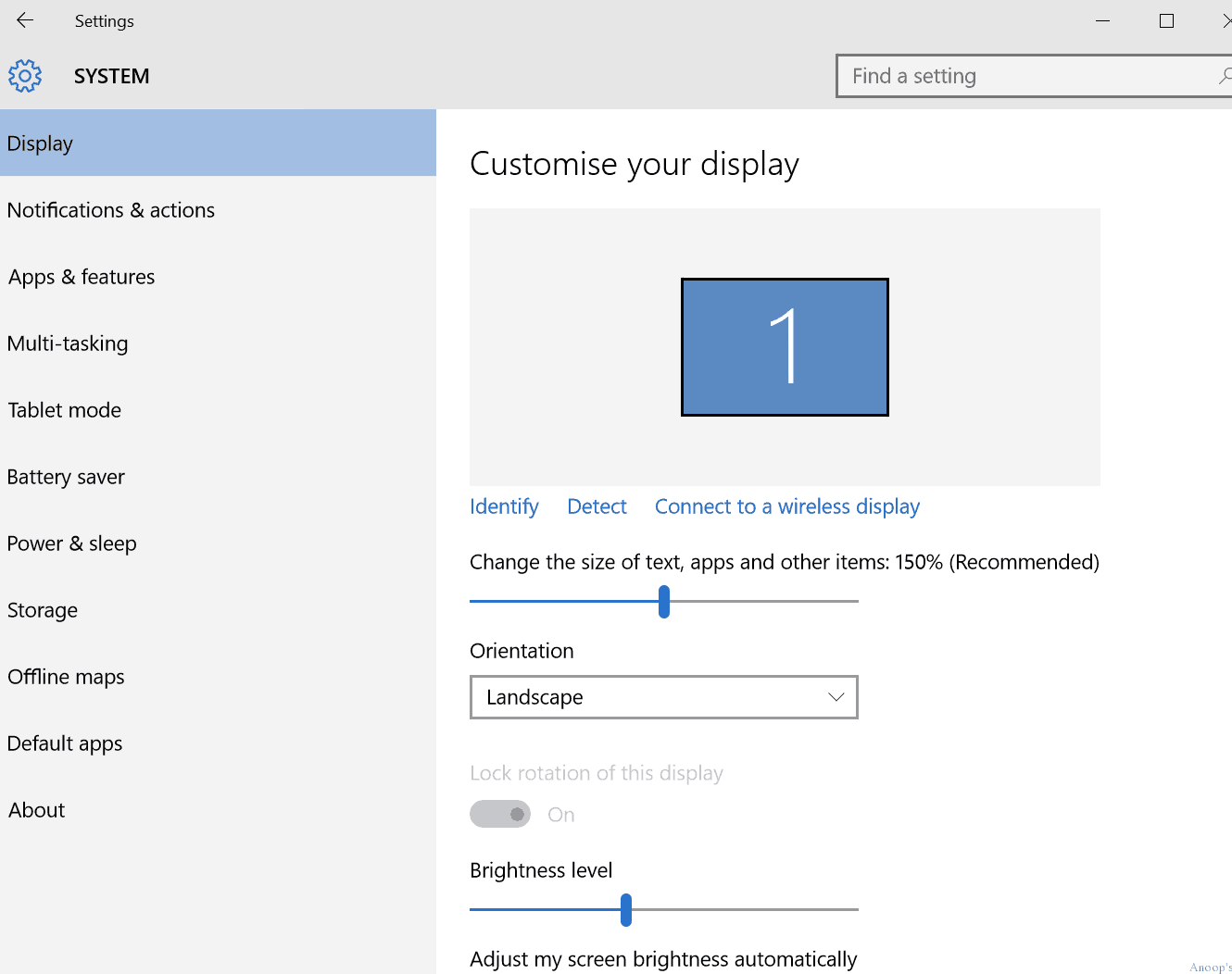
How to launch the DISPLAY configuration page of the Settings menu from Windows 10 : ms-settings:display or ms-settings:screenrotation.
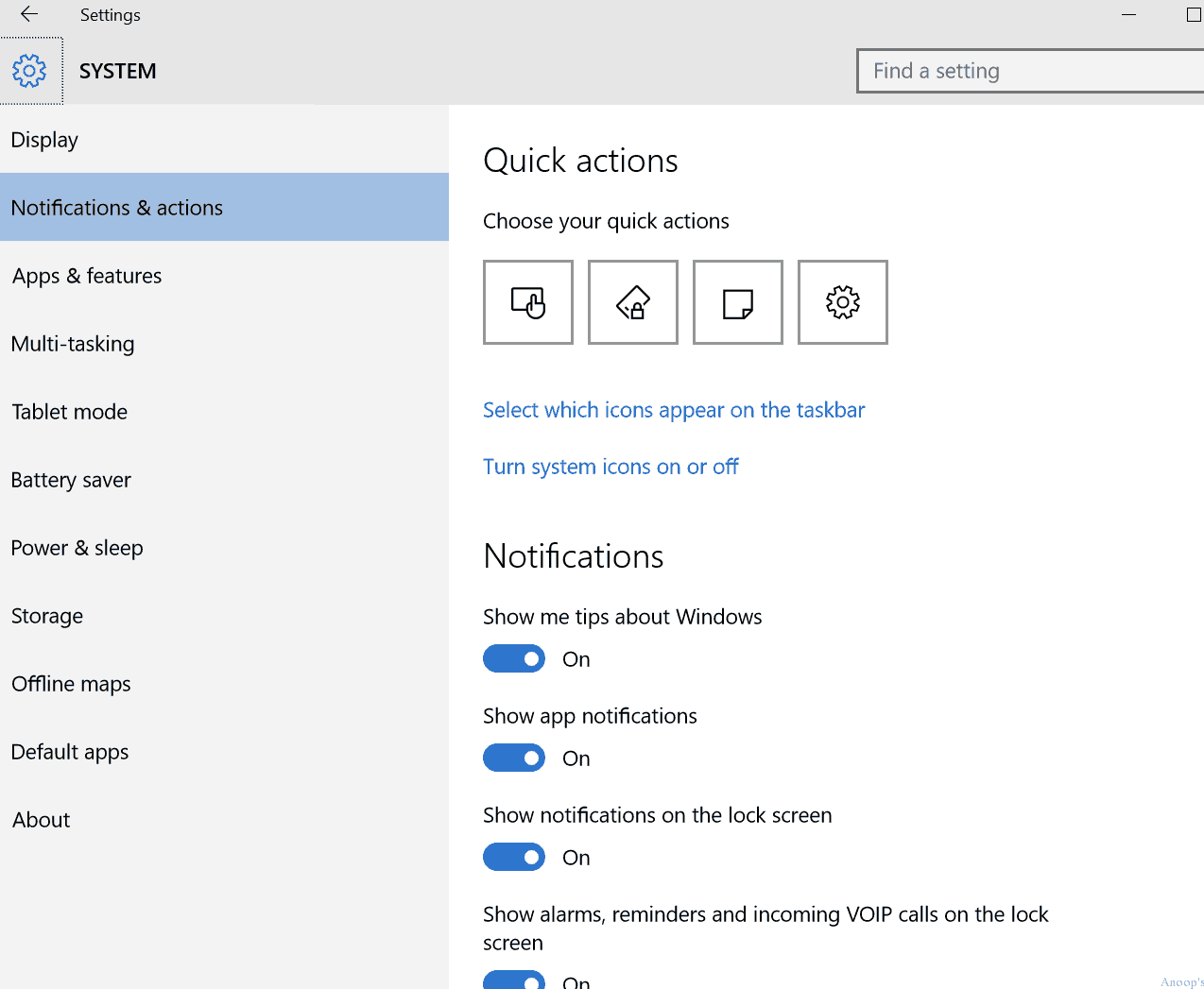
How to launch the Notification configuration page of the Settings menu from Windows 10 : ms-settings:notifications.
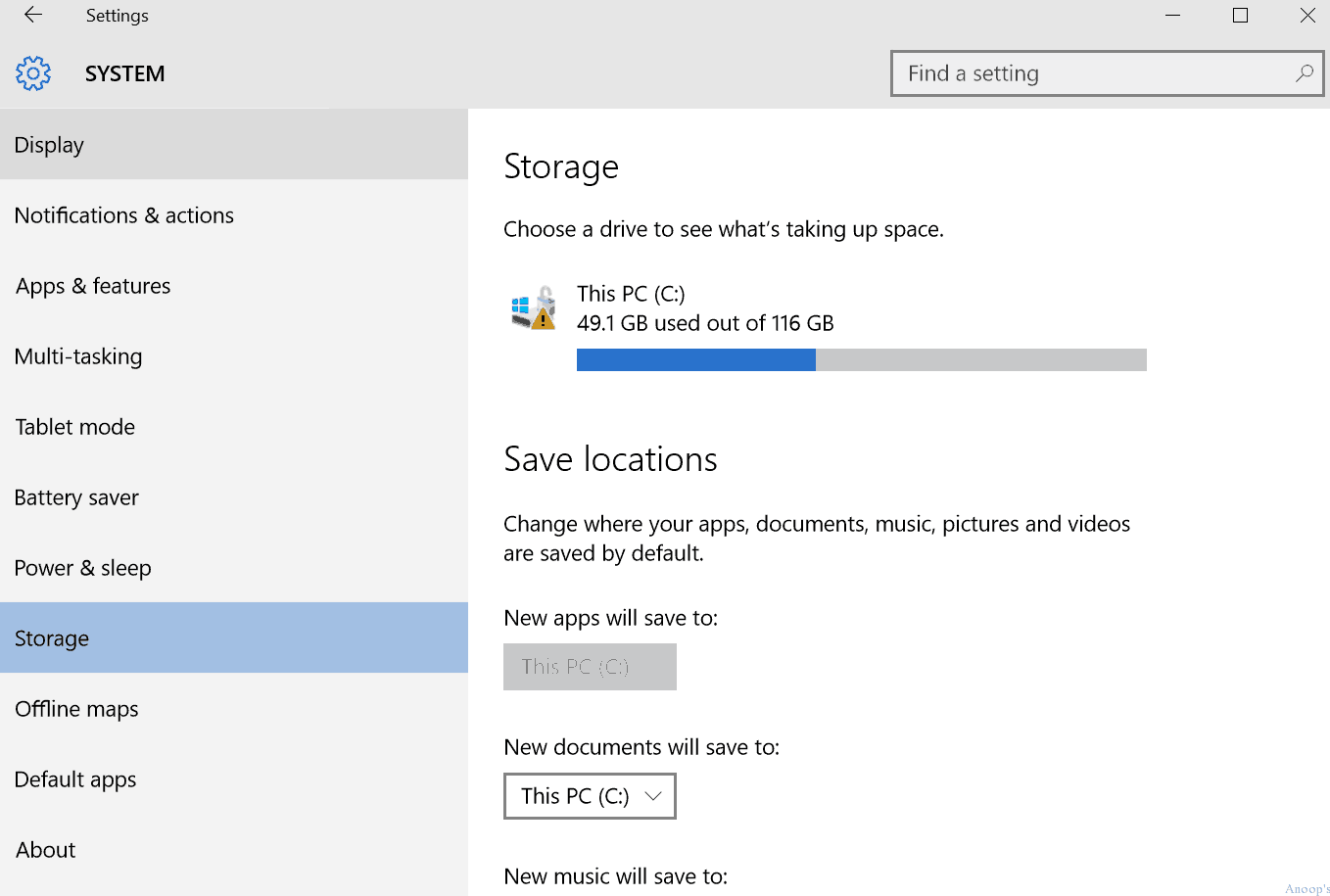
How to launch the Storage configuration page of the Settings menu from Windows 10 : ms-settings:storagesense.
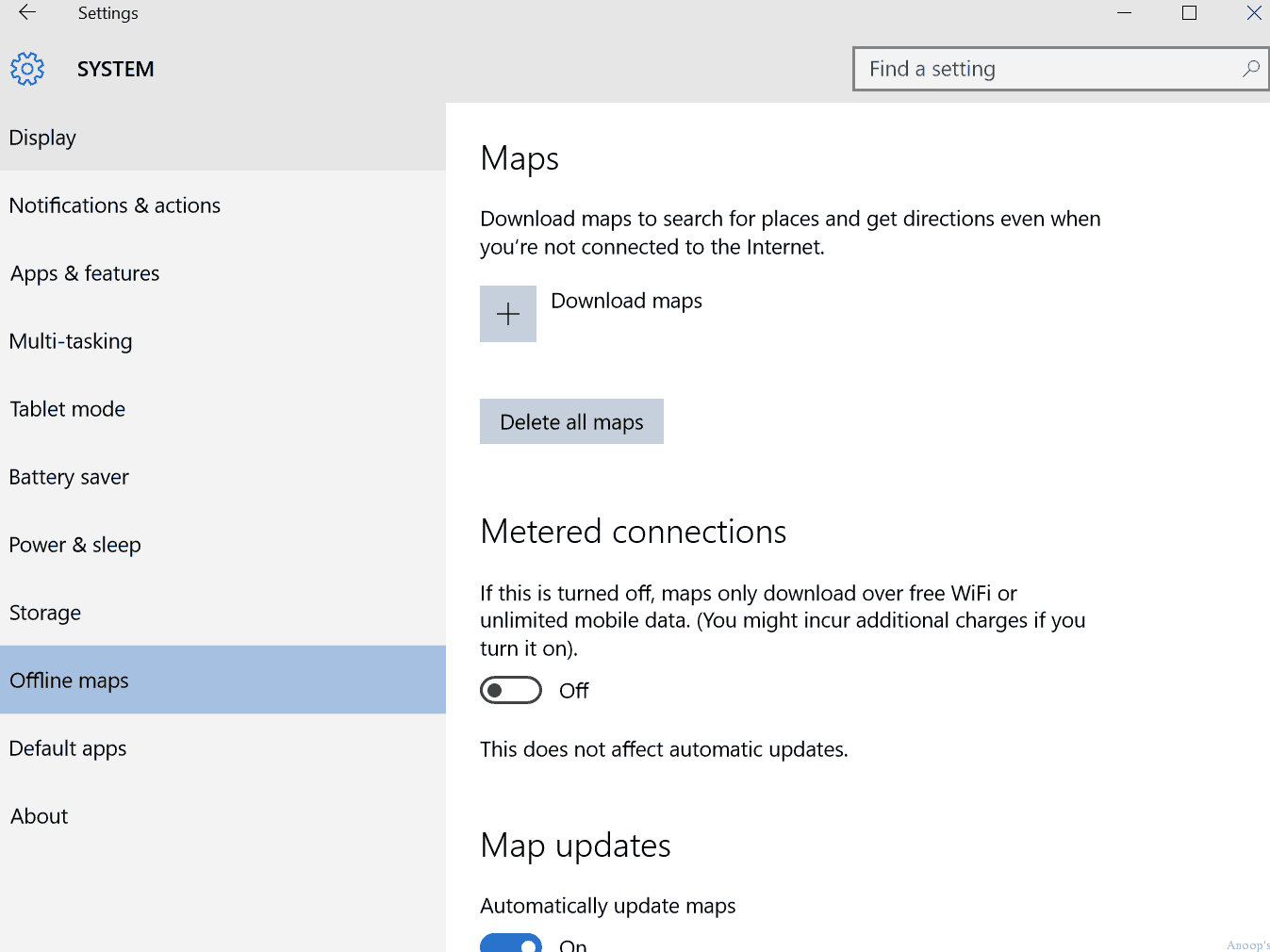
How to launch the Offline Maps configuration page of the Settings menu from Windows 10 : ms-settings:maps.
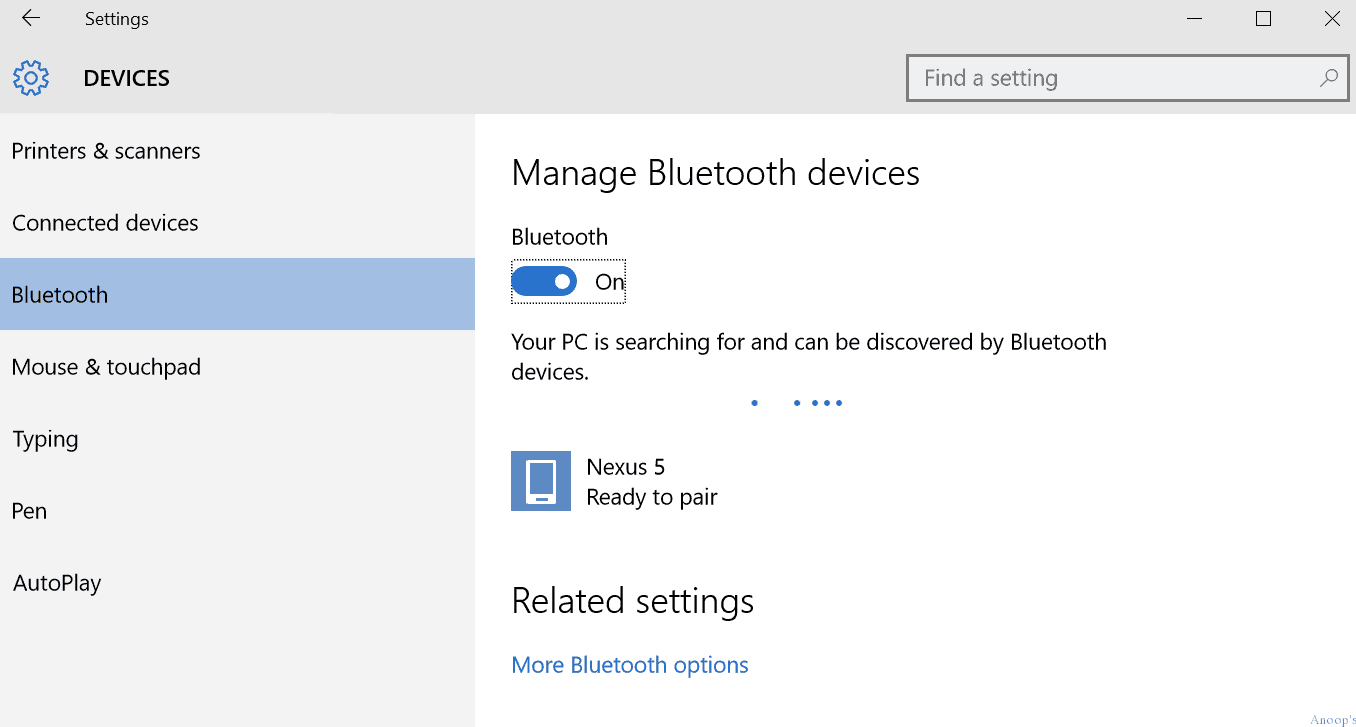
How to launch the Bluetooth configuration page the of Settings menu from Windows 10 : ms-settings-bluetooth: or ms-settings:bluetooth.
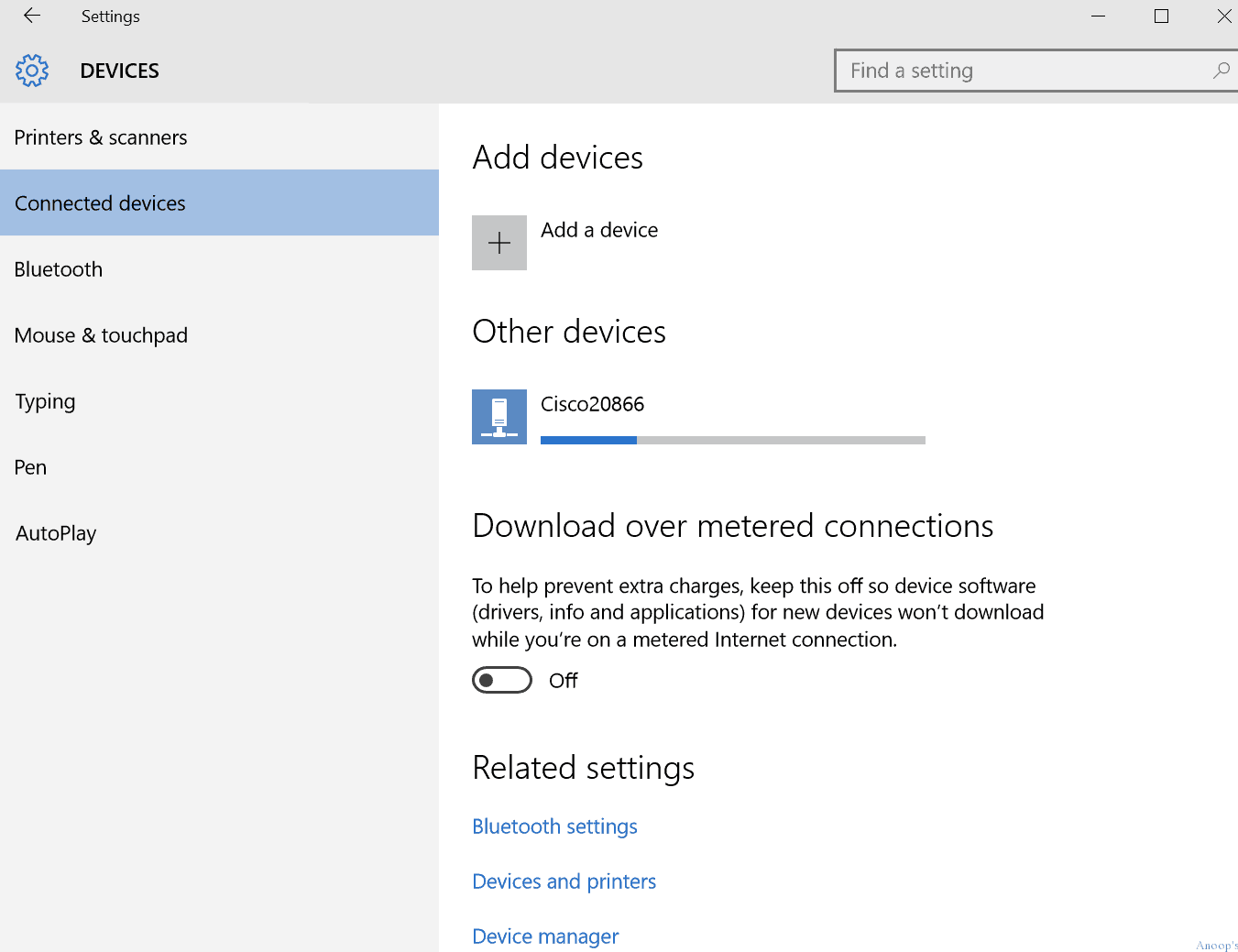
How to launch the CONNECTED DEVICES configuration page and Device Manager direct link of Settings menu from Windows 10 : ms-settings:connecteddevices.
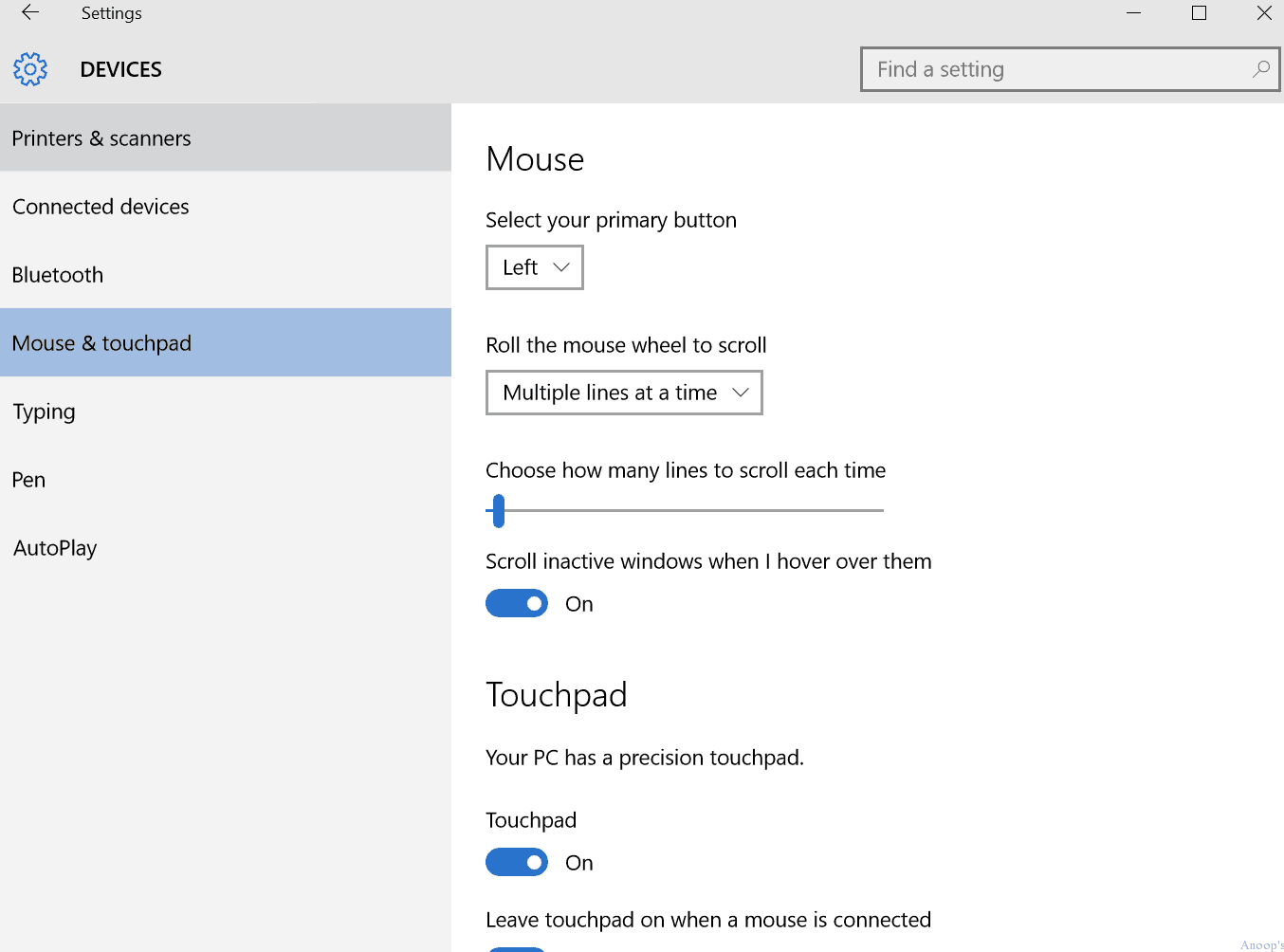
How to launch the Mouse & Touchpad configuration page the of Settings menu from Windows 10 : ms-settings:mousetouchpad.
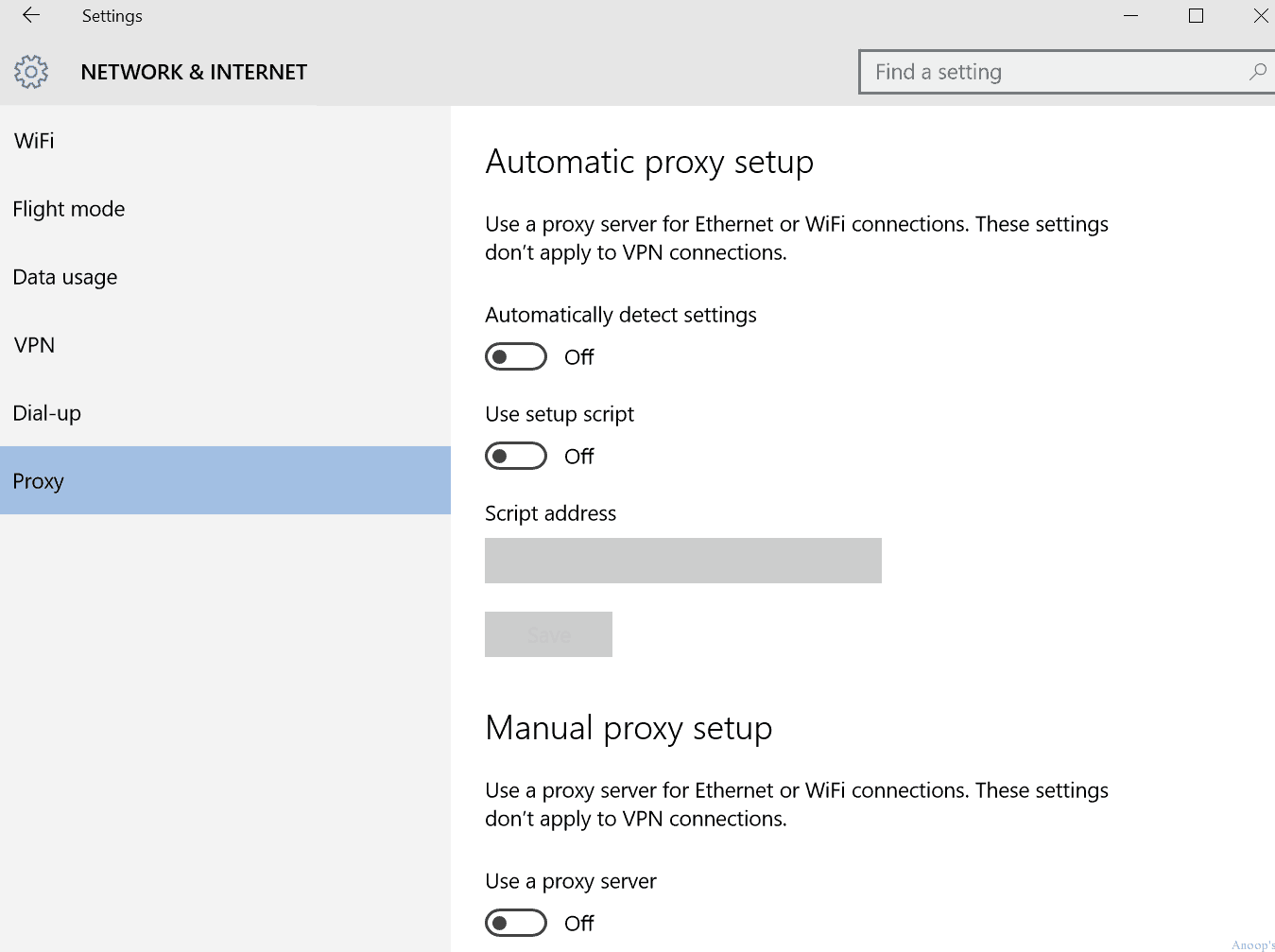
How to launch the NETWORK PROXY configuration page the of Settings menu from Windows 10 : ms-settings:network-proxy.
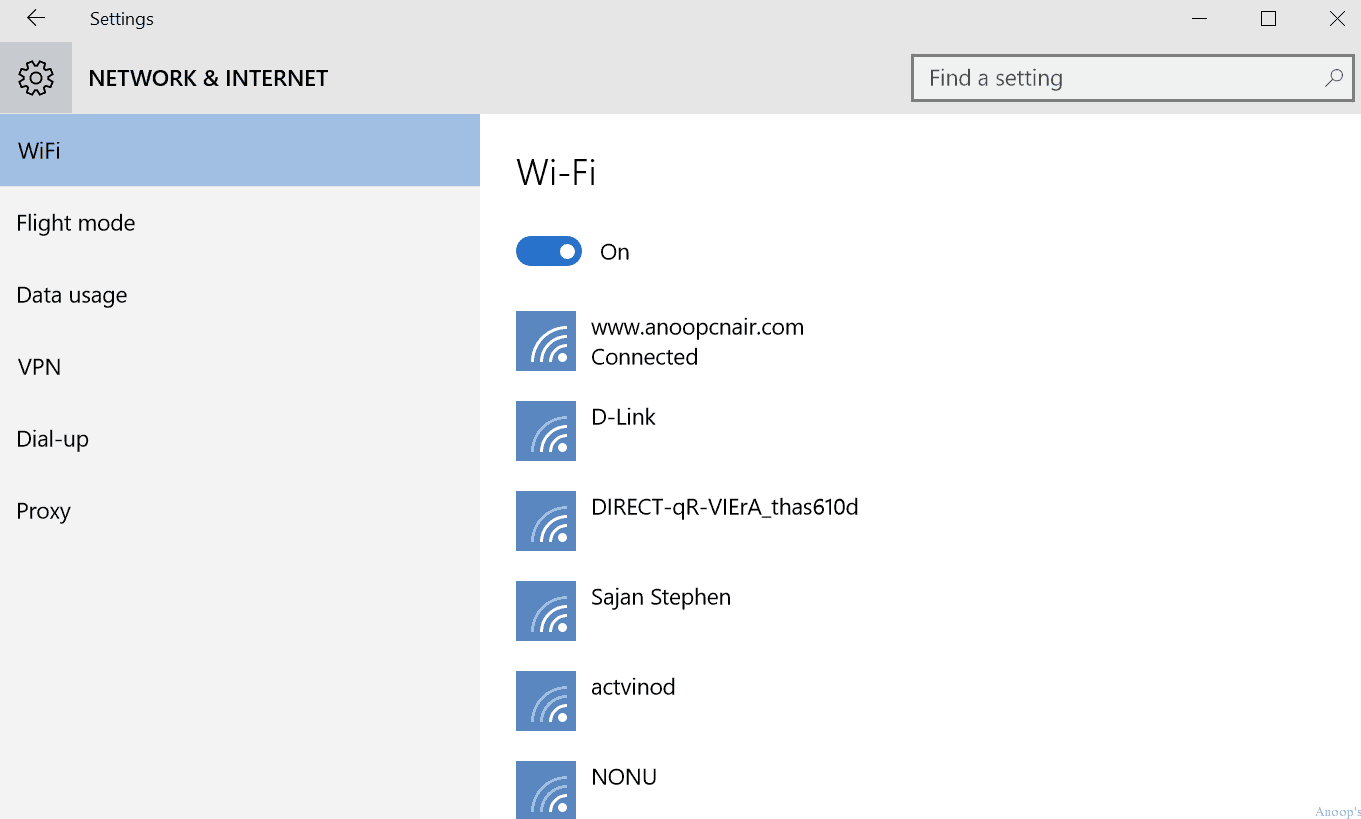
How to launch the Network and Internet configuration page in the f Settings menu from Windows 10 : ms-settings:network-internet.
How to launch the LOCK SCREEN configuration page the of Settings menu from Windows 10 : ms-settings:lockscreen.
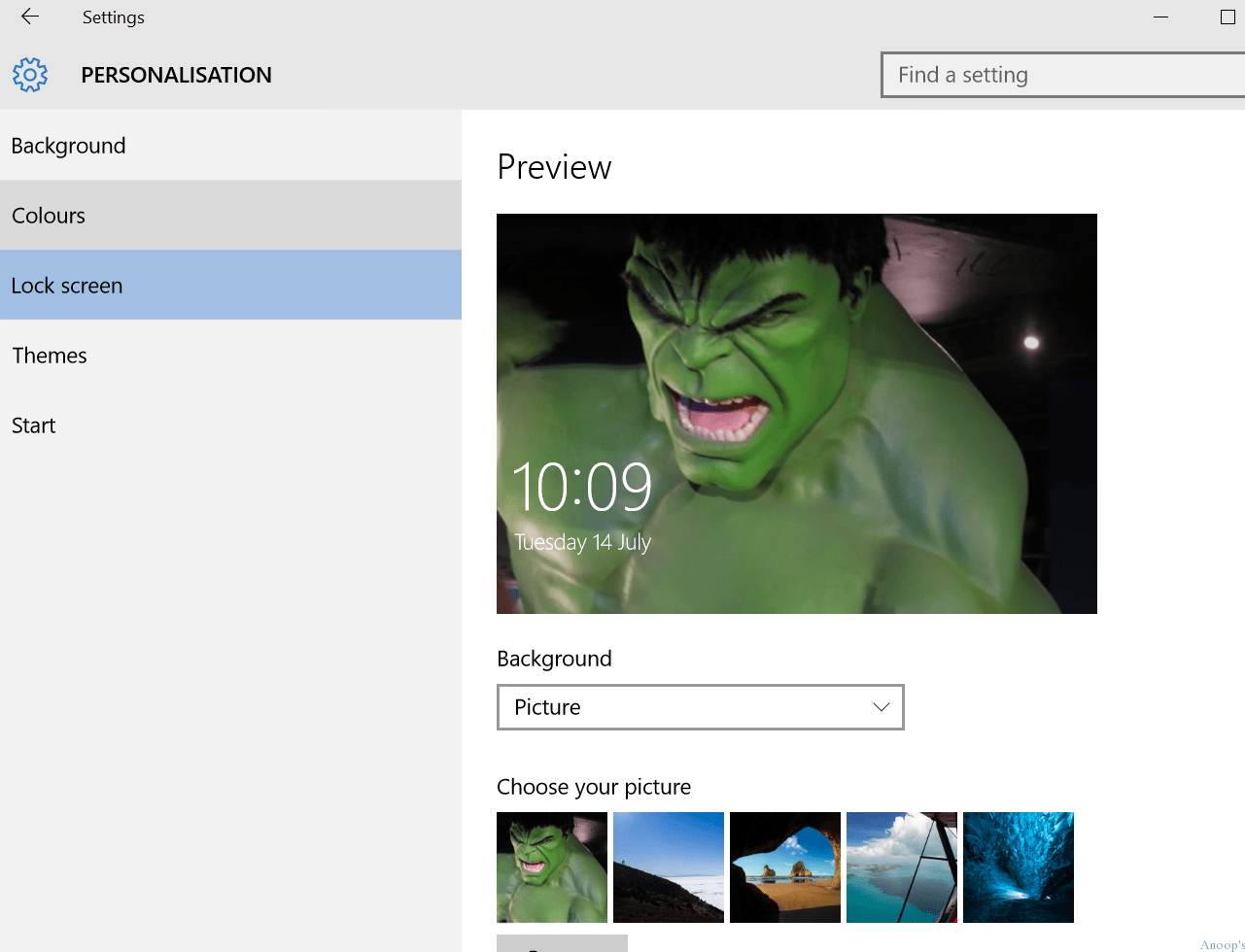
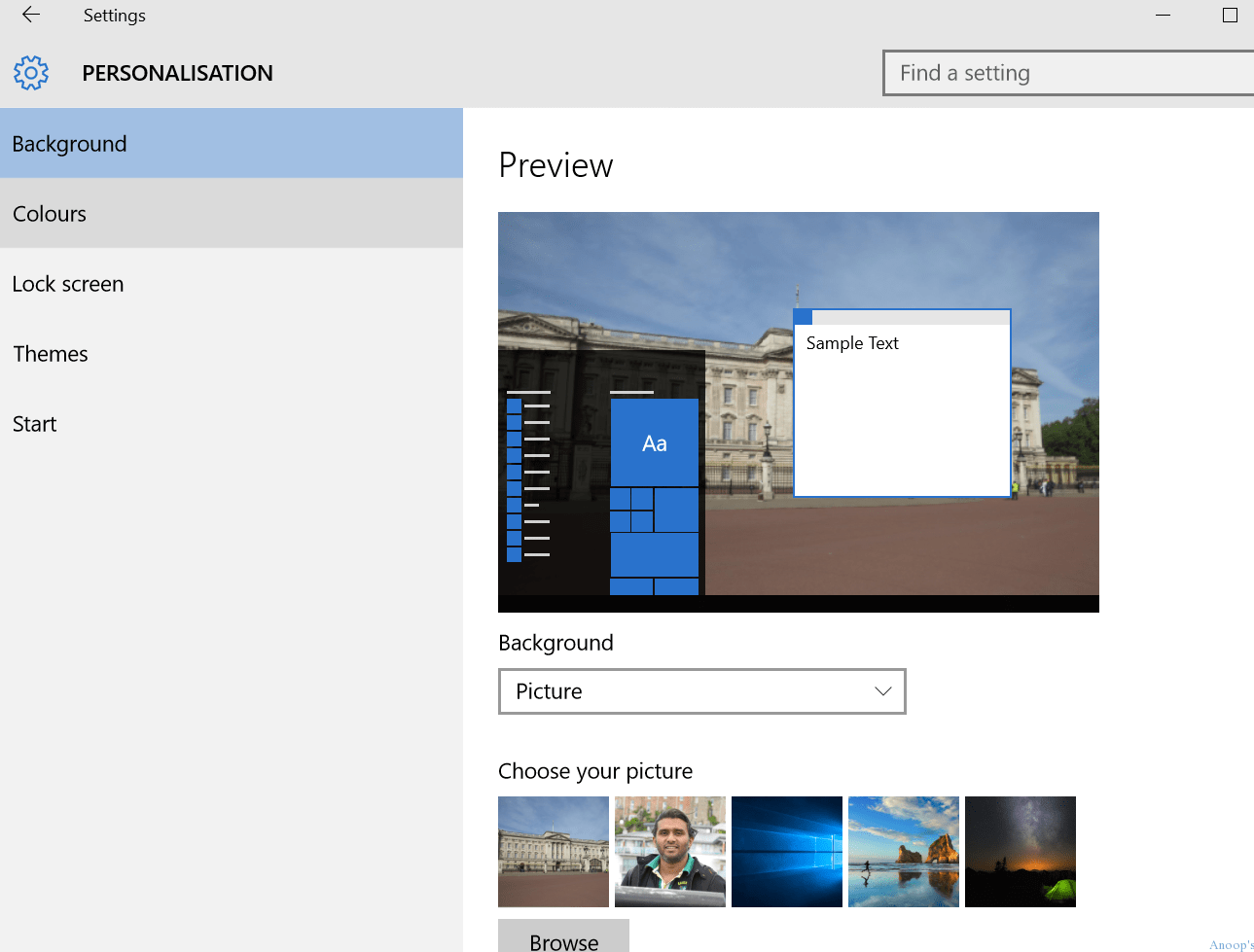
How to launch the Personalization configuration page of the Settings menu from Windows 10 : ms-settings:personalization.
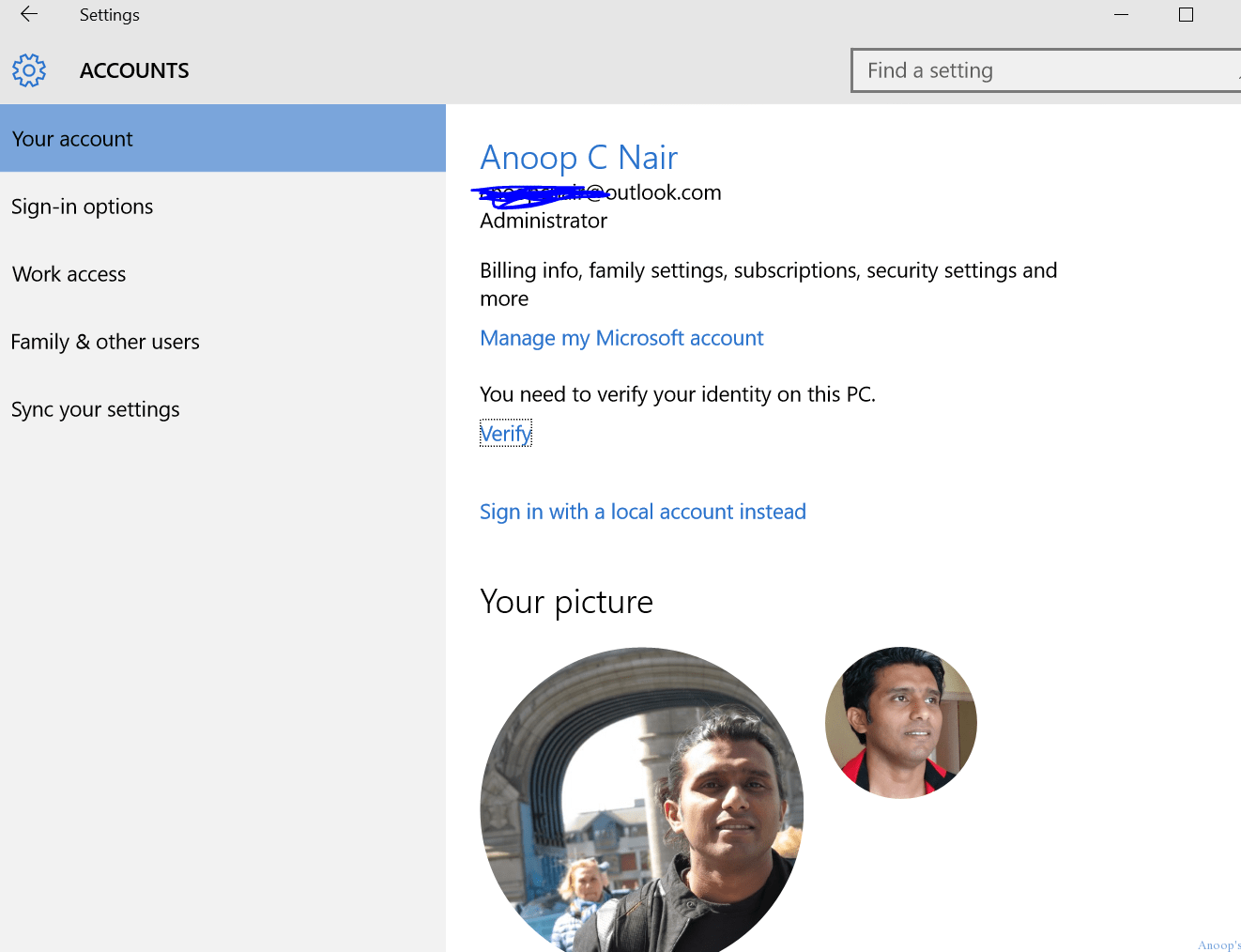
How to launch the email accounts configuration page the of Settings menu from Windows 10 : ms-settings:emailandaccounts.
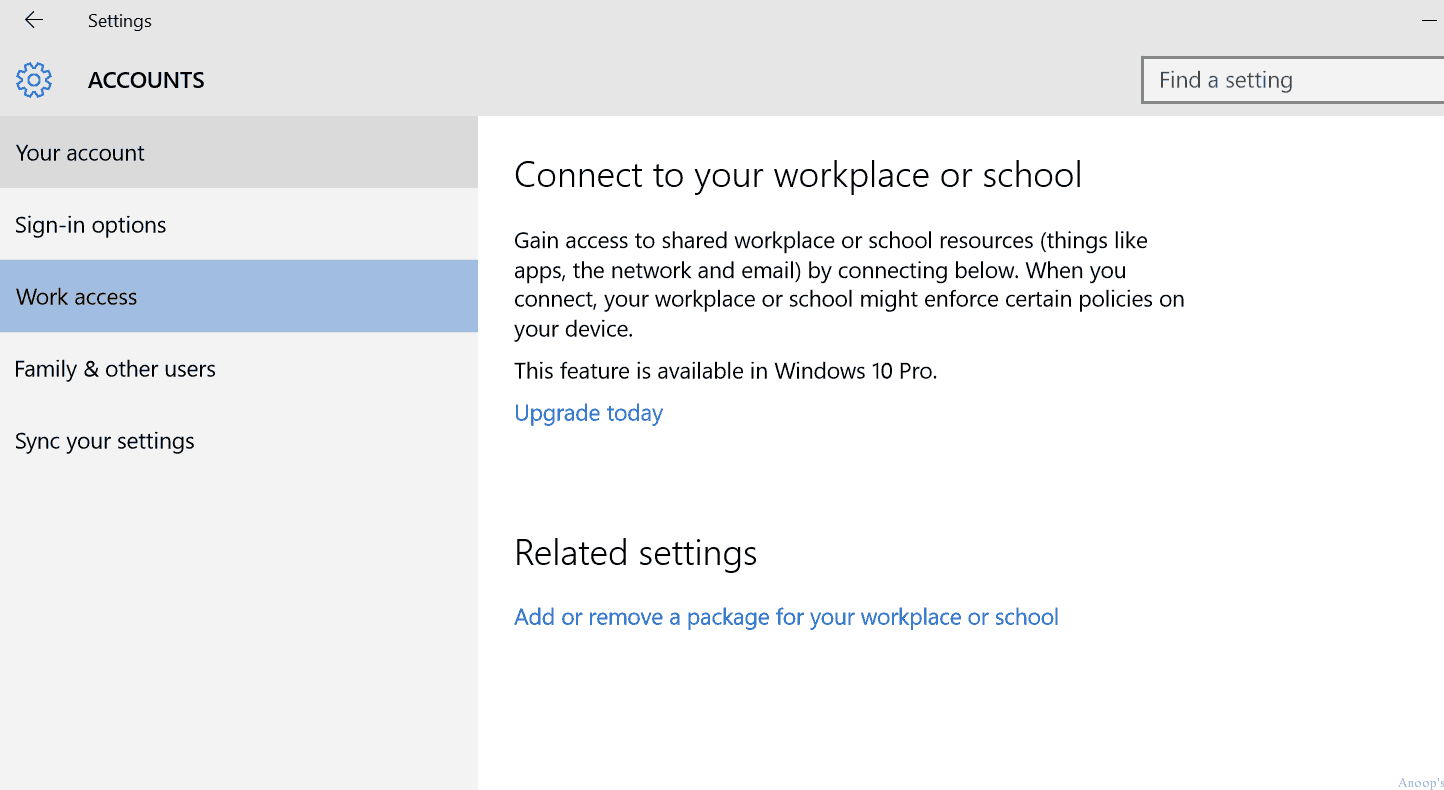
How to launch the Workplace configuration page of the Settings menu from Windows 10 : ms-settings:workplace.
How to launch the Date and Time configuration page the of Settings menu from Windows 10 : ms-settings:dateandtime.
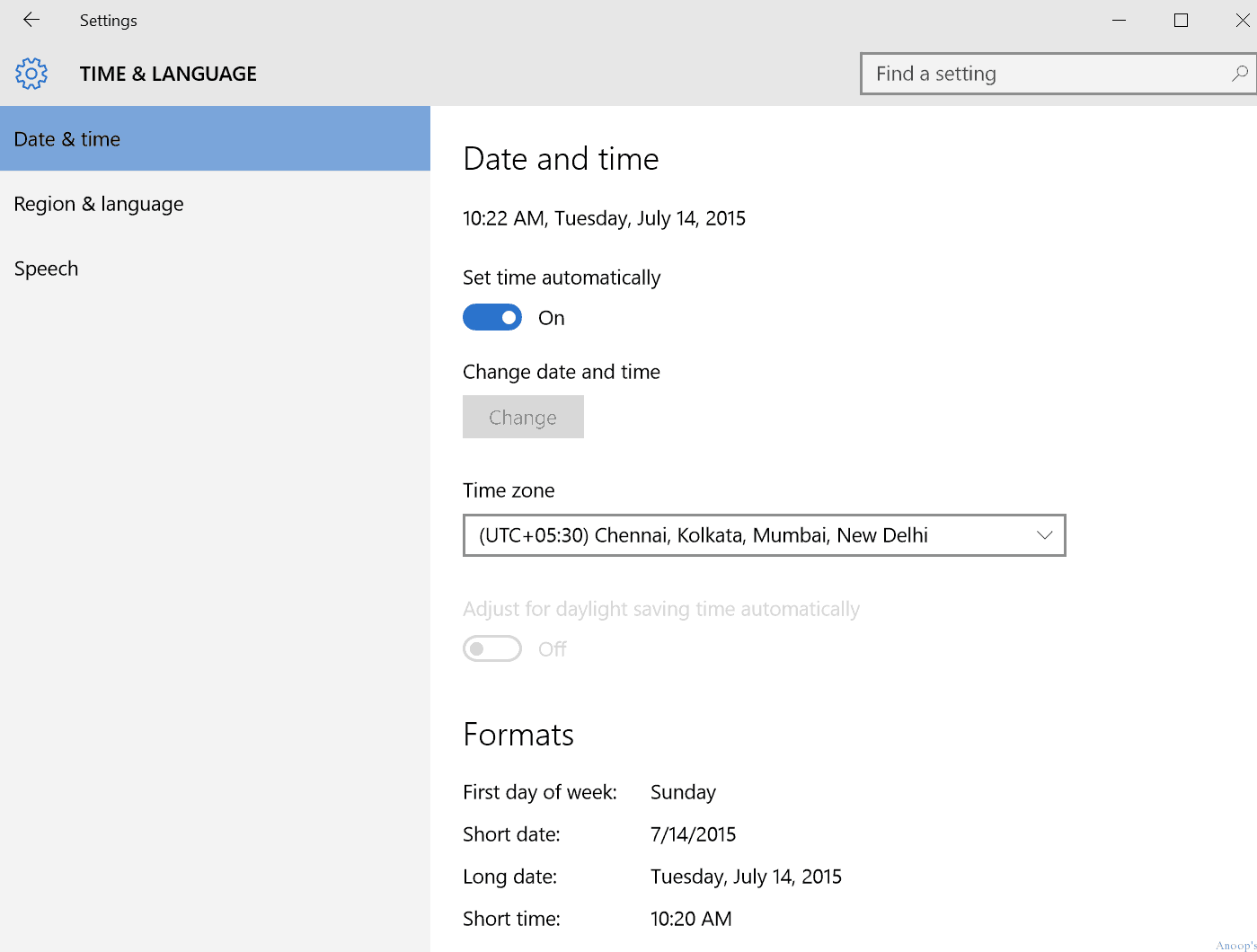
How to launch the Region & language configuration page the f Settings menu from Windows 10 : ms-settings:regionlanguage.
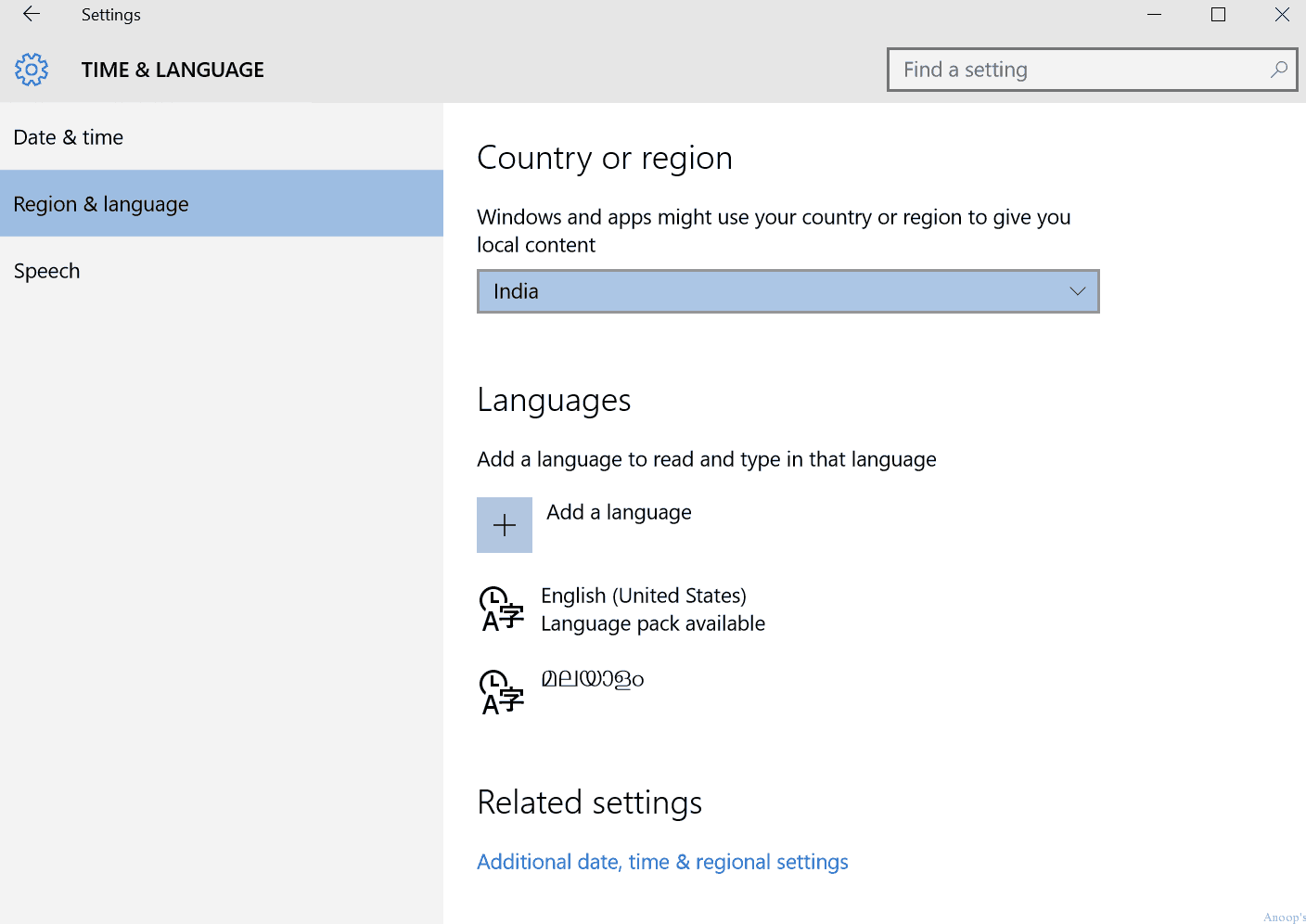
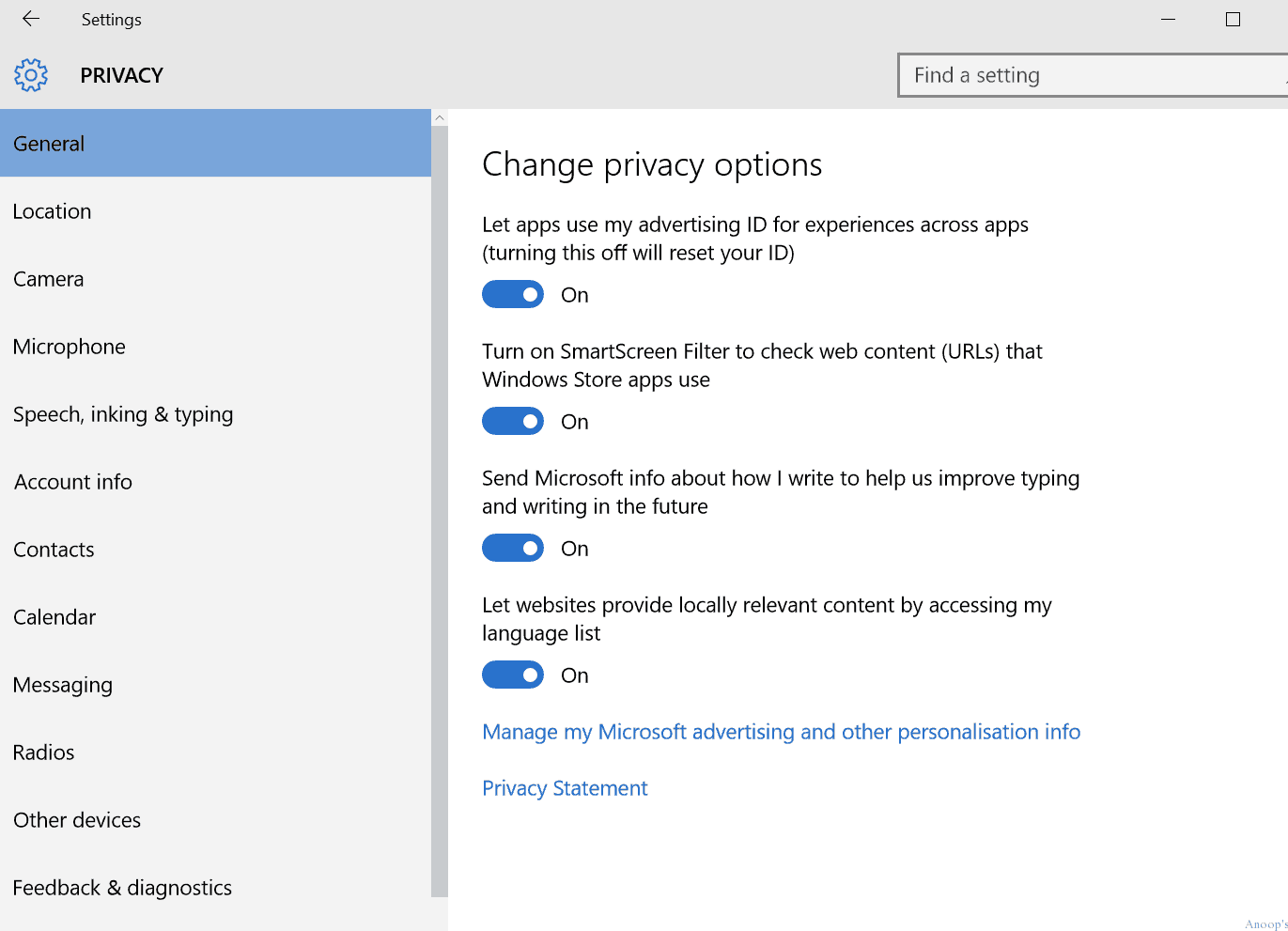
Launching the PRIVACY configuration page of the Settings menu from Windows 10 : ms-settings:privacy.
When launching different configuration pages under PRIVACY, you need to specify the configuration name in the command mentioned below.
- Calendar –> ms-settings:privacy-calendar
- Contacts –> ms-settings:privacy-contacts
- Feedback & diagnostics –> ms-settings:privacy-feedback
- Location –> ms-settings:privacy-location
- Messaging –> ms-settings:privacy-messaging
- Microphone –> ms-settings:privacy-microphone
- Other –> ms-settings:privacy-customdevices
- Radio –> ms-settings:privacy-radios
- Speech –> ms-settings:privacy-speechtyping
- Webcam –> ms-settings:privacy-webcam
- High Contrast –> ms-settings:easeofaccess-highcontrast
- Magnifier –> ms-settings:easeofaccess-magnifier
- Narrator –> ms-settings:easeofaccess-narrator
- Keyboard –> ms-settings:easeofaccess-keyboard
- Mouse –> ms-settings:easeofaccess-mouse
- Other Options (Ease of Access) –> ms-settings:easeofaccess-otheroptions
Windows 10 Sign in Options !! – ms–settings:signinoptions
Other RUN Commands
We are on WhatsApp now. To get the latest step-by-step guides, news, and updates, Join our Channel. Click here. HTMD WhatsApp.
Author
Anoop C Nair is Microsoft MVP! He is a Device Management Admin with more than 20 years of experience (calculation done in 2021) in IT. He is a Blogger, Speaker, and Local User Group HTMD Community leader. His main focus is on Device Management technologies like SCCM 2012, Current Branch, and Intune. He writes about ConfigMgr, Windows 11, Windows 10, Azure AD, Microsoft Intune, Windows 365, AVD, etc.


Hey! Thanks for this. Can you also share how to change the storage sense settings using command prompt on Win 10?
Thank You
I prefer run commands over other ways as it seems faster to me. Here are some run commands which I use daily for opening various windows applications .
On screen Keyboard – osk
Calculator – calc
WordPad – write
Windows Media Player – wmplayer
Windows Fax and Scan – wfs
Snipping Tools – snippingtool
Paint – mspaint
Notepad – notepad
Task manager – taskmgrt/
Sticky Notes – stikyno