





Enable Wireless Settings for Windows Connect Now using Intune
Key Takeaways:
- WCN simplifies wireless network configuration by enabling automatic setup of Wi-Fi profiles.
- Admins can configure WCN settings directly through Intune device configuration profiles.
- Intune provides granular controls to enable or disable WCN features.
- Ideal for enterprises deploying large fleets of Windows devices.
Let’s discuss Enable Wireless Settings for Windows Connect Now using Intune. The Windows Connect Now (WCN) policy is an administrative template setting that governs how Windows devices discover and configure wireless networks using external media (like USB flash drives) or via the Wi-Fi Protected Setup (WPS) protocol.
This policy setting prohibits access to Windows Connect Now (WCN) wizards. In modern enterprise environments, this setting is primarily a security control used to prevent unauthorized or insecure network configurations.
WCN often relies on WPS (Wi-Fi Protected Setup). WPS is notoriously vulnerable to brute-force attacks. By disabling WCN, you close a common entry point for attackers. Organizations want to ensure that corporate Wi-Fi certificates and passwords are only deployed via Intune or MDM, not via a USB stick.

If Wireless Settings for Windows Connect Now enabled, users might use a USB drive or a WPS button to connect a corporate laptop to an unmanaged, insecure home router or a rogue access point. This blog post helps you to Enable Wireless Settings for Windows Connect Now using Intune.
Table of Contents
Enable Wireless Settings for Windows Connect Now using Intune
Let me explain with an Example. An employee finds a USB drive in the parking lot and plugs it into their corporate laptop. If WCN is enabled and the drive is “maliciously” configured as a WCN configuration tool, the laptop could automatically attempt to join a hidden, malicious Wi-Fi network controlled by an attacker.
- How to Prevent Malware Spread and Remote Attacks by Blocking PsExec and WMI with Intune ASR Rule
- Block Untrusted Executables to Prevent Ransomware Attacks using Intune ASR Rule
- How to Delete Attack Surface Reduction ASR Policy from Microsoft Intune
Sign in with Intune Portal
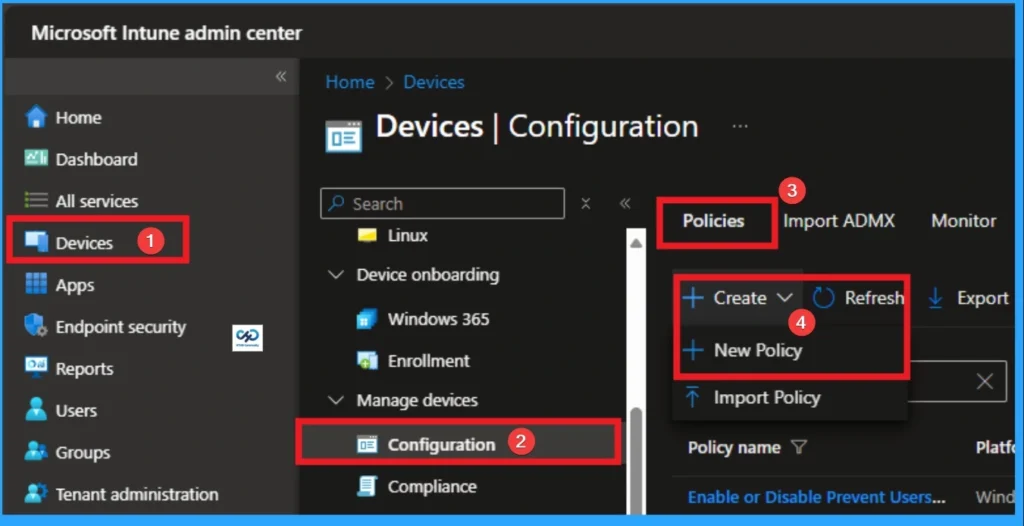
To configure, Require Password when Computer Wakes on Battery, you have to sign with Intune Portal with your credentials. Navigate to Devices > Configuration > + Create > New Policy.
Create Profile
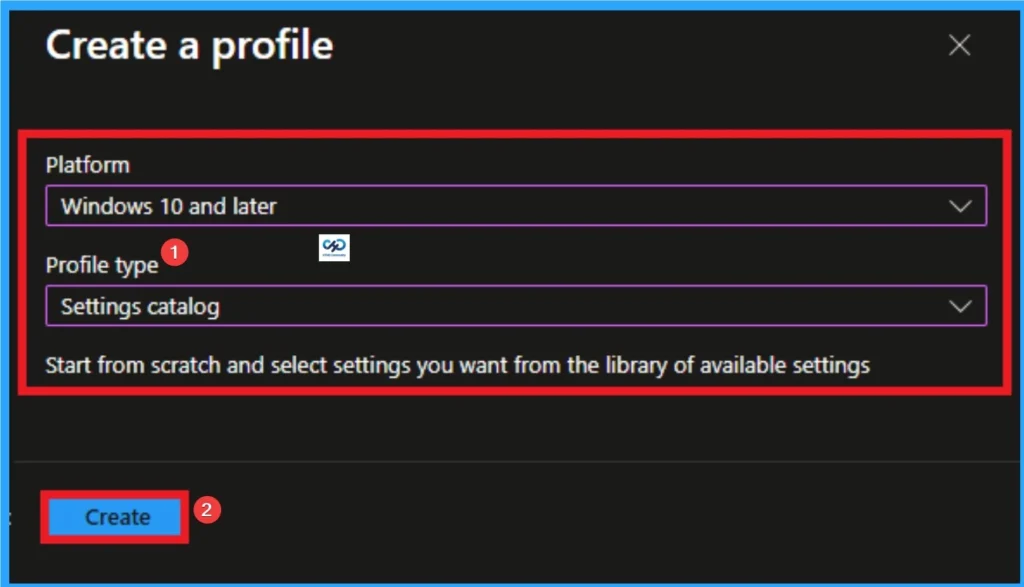
Creating Profile is the next step after clicking on Create button. On this step you can choose platform and profile type. Here I would like to configure the policy to Windows 10 and later platform and settings catalog profile. Then click on the Create button.
Beginning Step
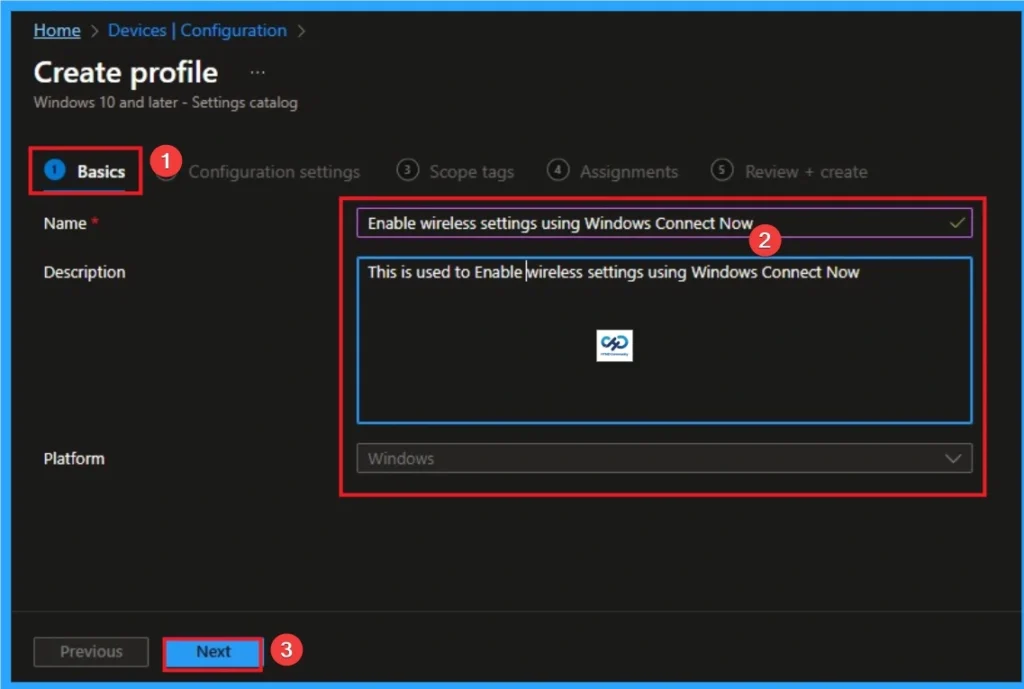
Basic Tab is the first tab that used to add Name and Description for the policy. This is very important step that gives an identity for your policy. Here Name is Mandatory and Description is optional. After adding this, click on the Next button.
Configuration Settings
Configuration tab is the crucial step that helps you to choose a settings from different categories available on
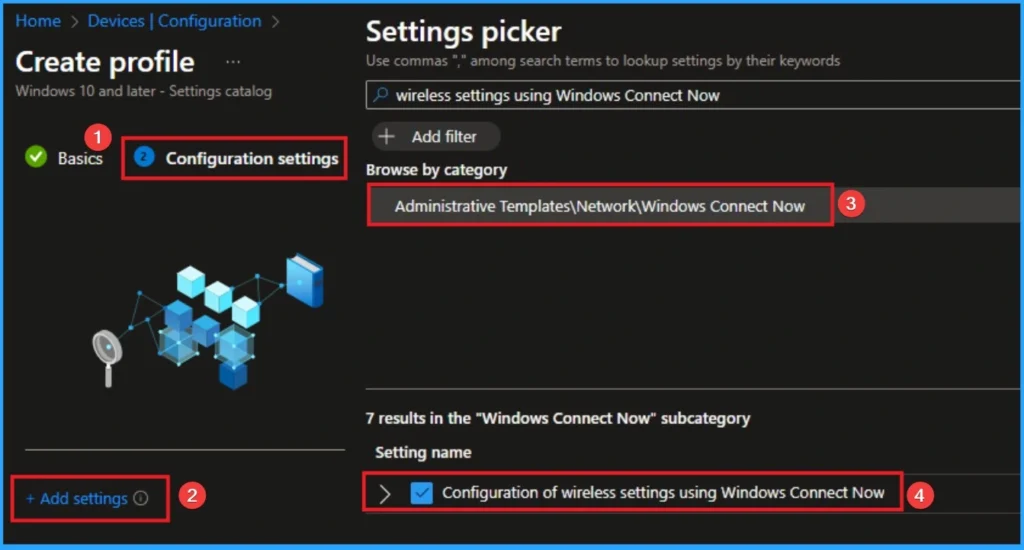
Microsoft Intune portal. Click on the +Add settings on the Configuration Settings tab. Then choose the Administrative Templates\Administrative Template > Network > Windows Connect Now.
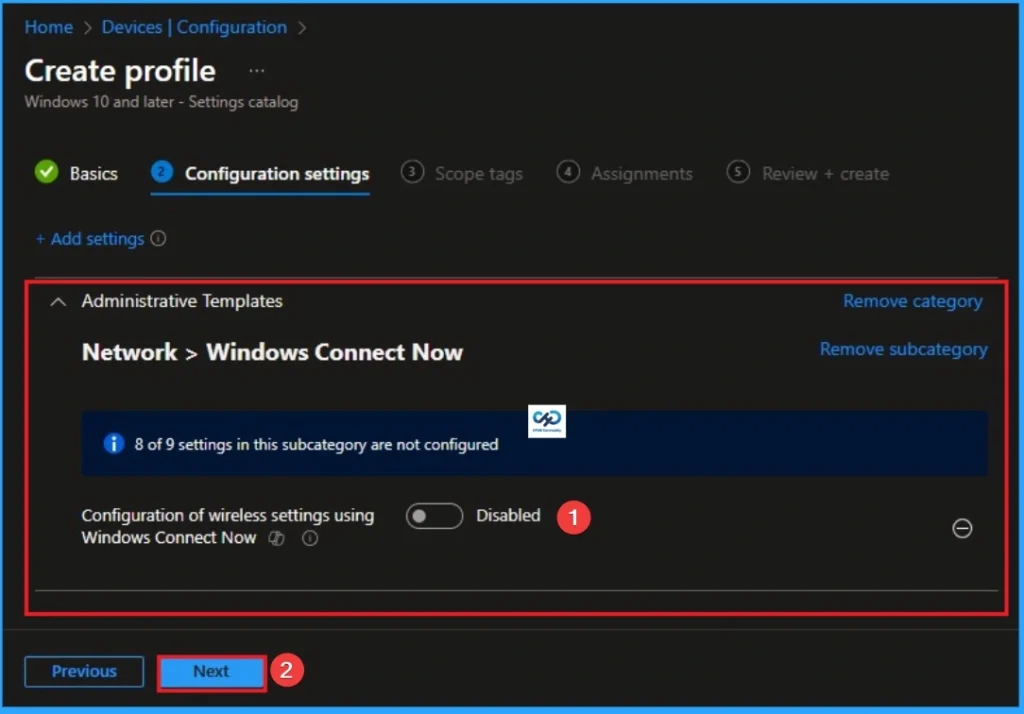
Disable Windows Connect Now
If you disable or don’t configure this policy setting, users can access the wizard tasks, including “Set up a wireless router or access point” and “Add a wireless device”. The default for this policy setting allows users to access all WCN wizards.
Enable Windows Connect Now
If you enable this policy setting, the wizards are turned off and users have no access to any of the wizard tasks. All the configuration related tasks, including “Set up a wireless router or access point” and “Add a wireless device” are disabled.

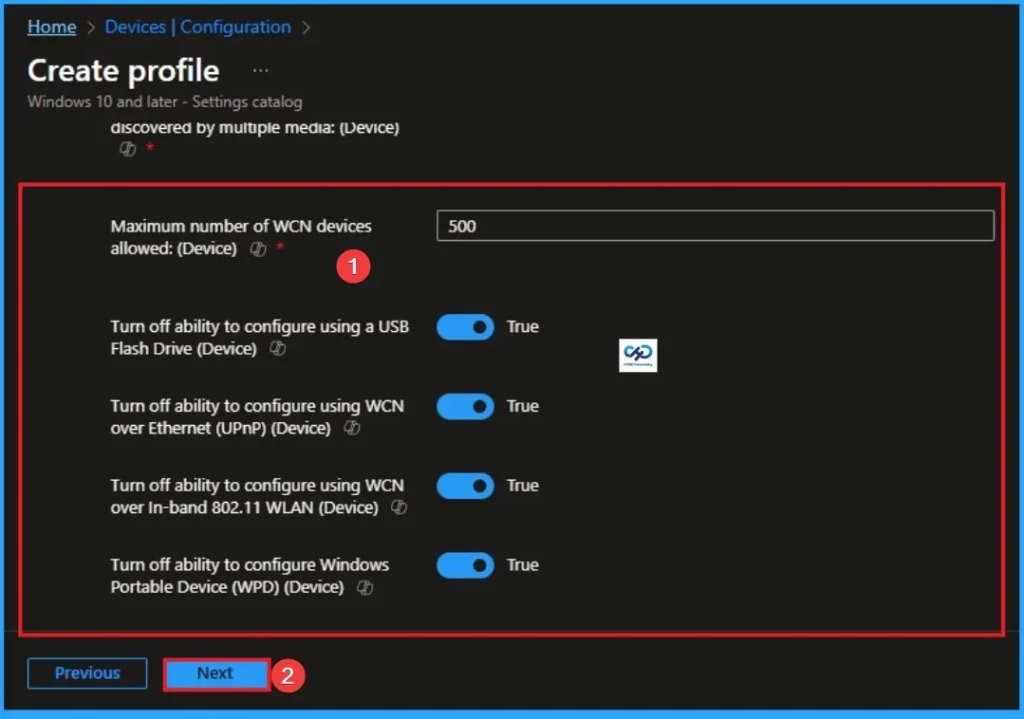
Here the Maximum number of WCN device allowed: (Device), value is 500. Here i choose True value for Turn off ability to configure using a USB Flash Drive (Device), Turn off ability to configure using WCN over Ethernet (UPnP) (Device), Turn off ability to configure using WCN over In-band 802.11 WLAN (Device), Turn off ability to configure Windows Portable Device (WPD) (Device).
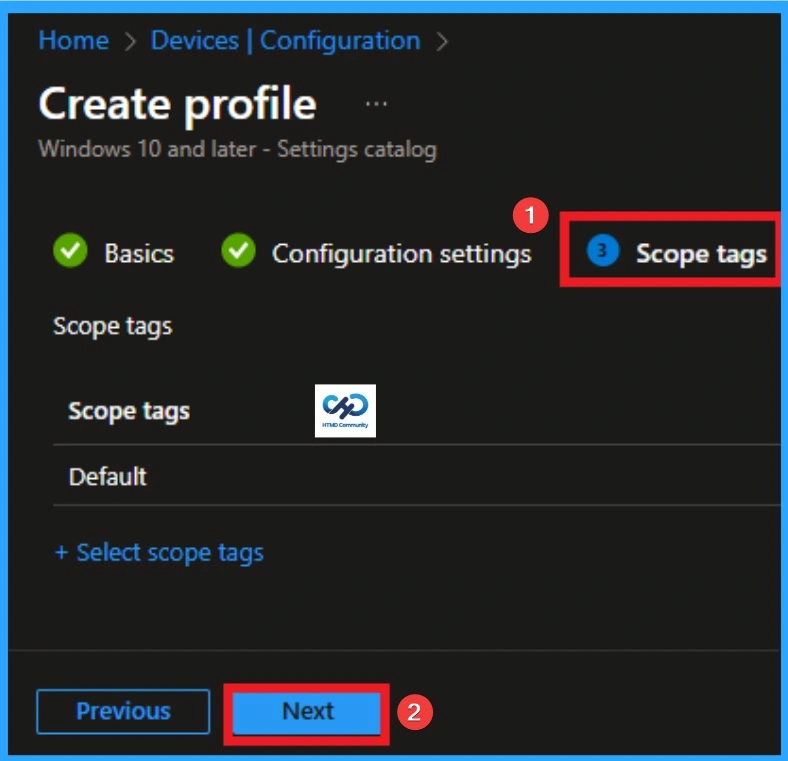
Scope Tags
The next section is the Scope tag and which is not a compulsory step. It helps to assign this policy to a defined group of users or devices. Here, I skip the section and click on the next button.
Assignments
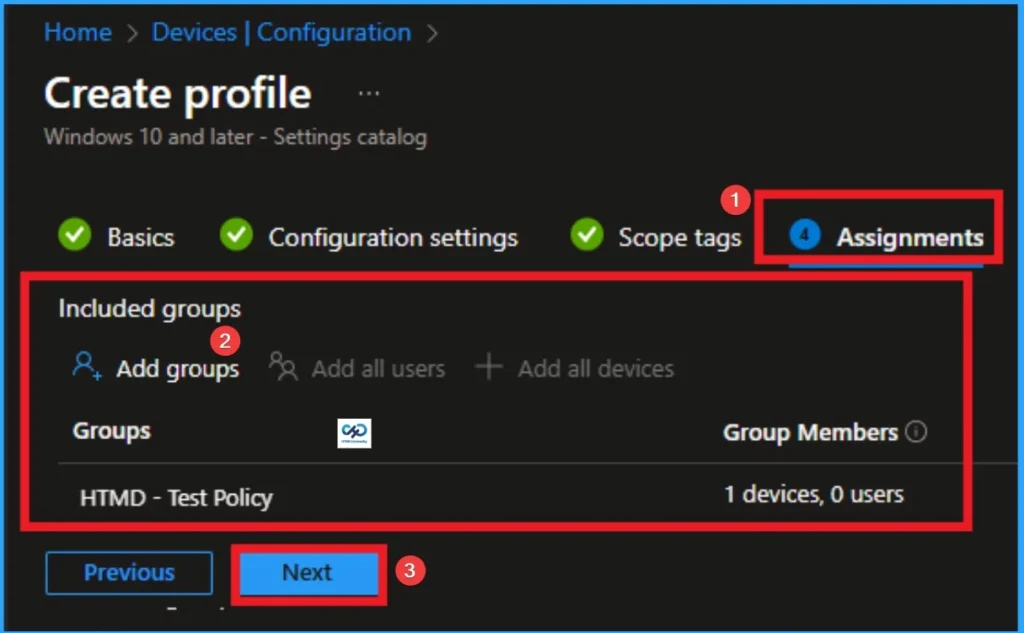
The next step is Assignments. In this section, you can specify which group the policy should be applied to. Our aim is to deploy this policy to a specific group; this step is essential. Look for the Add Groups option under the Include Groups section and click on it.
- After selecting the group, click Next to proceed to the next step.
- A list of available groups will appear and select the group you want to target.
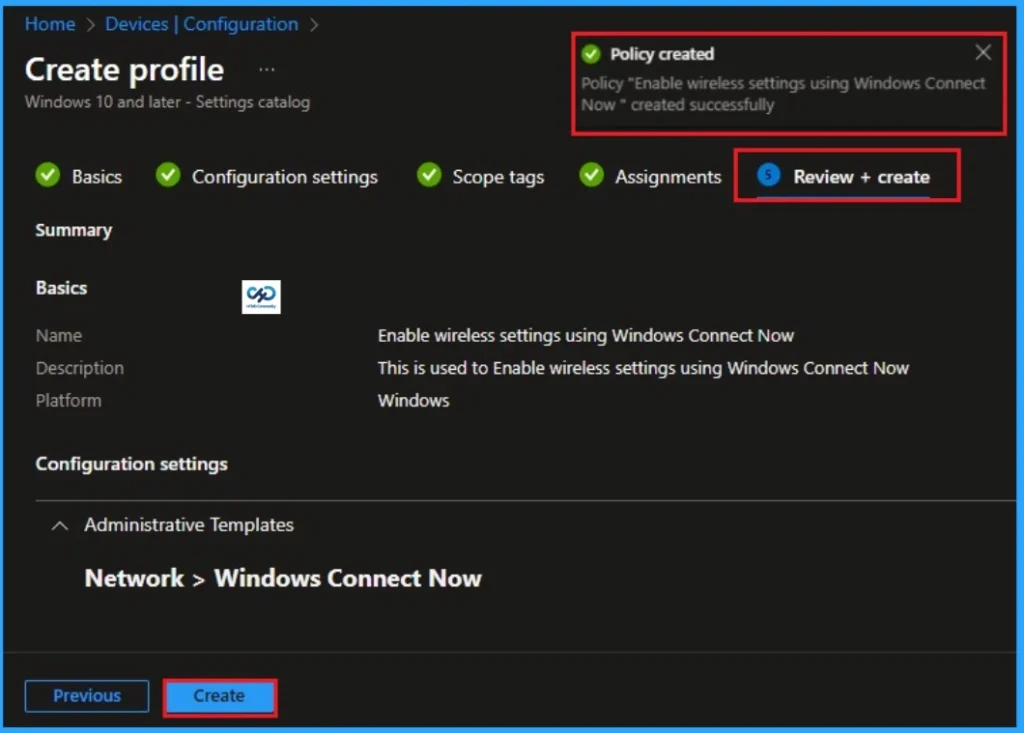
Review + Create in Policy Creation
After the Assignments step, you’ll reach the final tab called Review + Create. In this section, you can see a summary of everything you enter in the previous steps such as details configuration assignment details etc. If you don’t need to change anything, just click on the Review + Create.
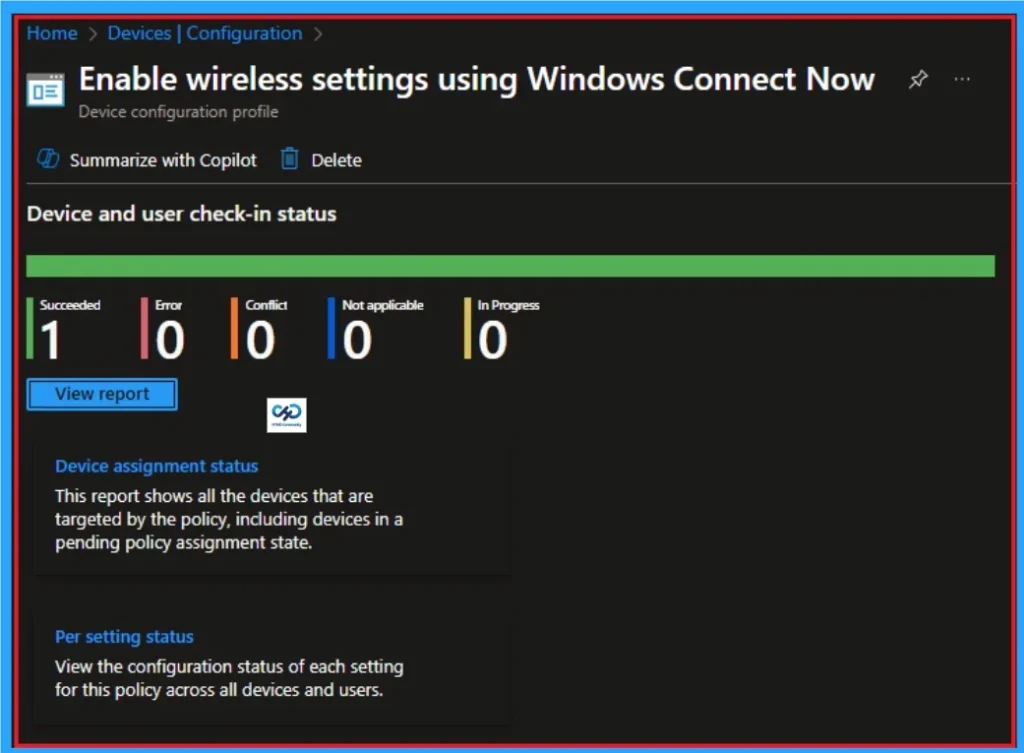
Device and User Check in Status
After creating a policy, we have to monitor that whether the policy was created successfully or not. To check this, you can either wait for up to 8 hours for the policy to apply automatically, or you can reduce the waiting time by manually syncing the policy through the Company Portal.
- It will show is this error successfully deployed or not.
- After syncing, you can check the policy’s status through the Intune Portal.
- To do this, go to Devices > Configuration Profiles.
- In the Configuration policy section, search for the name of the policy you created.
- Then you can get the details below from that Policy
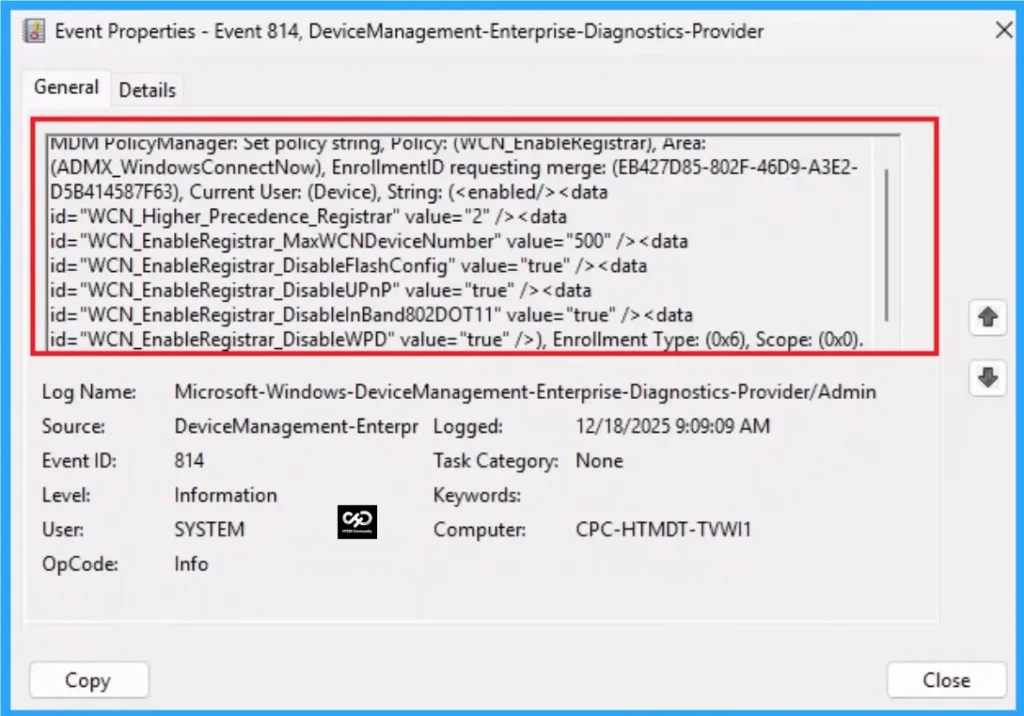
Client-Side Verification – Event Viewer
Event Viewer helps you to check if the policy succeeded or not. Event Viewer can be used as a client side verification. Here first go to the Event Viewer and check the Event ID that is usually in 813 or 814. Navigate to Applications and Services Logs > Microsoft > Windows > Device Management > Enterprise Diagnostic Provider > Admin.
| Event ID Details |
|---|
| MUM PolicyManager: Set policy string, Policy: (WUN_EnableKegistrar), Area: (ADMX_WindowsConnectNow), EnrollmentID requesting merge: (EB427D85-802F-46D9-A3E2- D5B414587F63), Current User: (Device), String: ( ), Enrollment Type: (0x6), Scope: (0x0). |
Removing the Assigned Group from Windows Connect Now Policy Settings
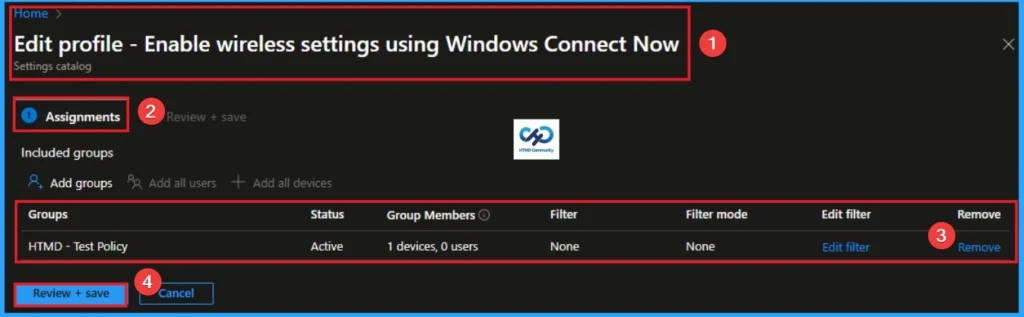
If you want to remove the Assigned group from the policy, it is possible from the Intune Portal. To do this, open the Policy on Intune Portal and edit the Assignments tab and the Remove Policy.
To get more detailed information, you can refer to our previous post – Learn How to Delete or Remove App Assignment from Intune using by Step-by-Step Guide.
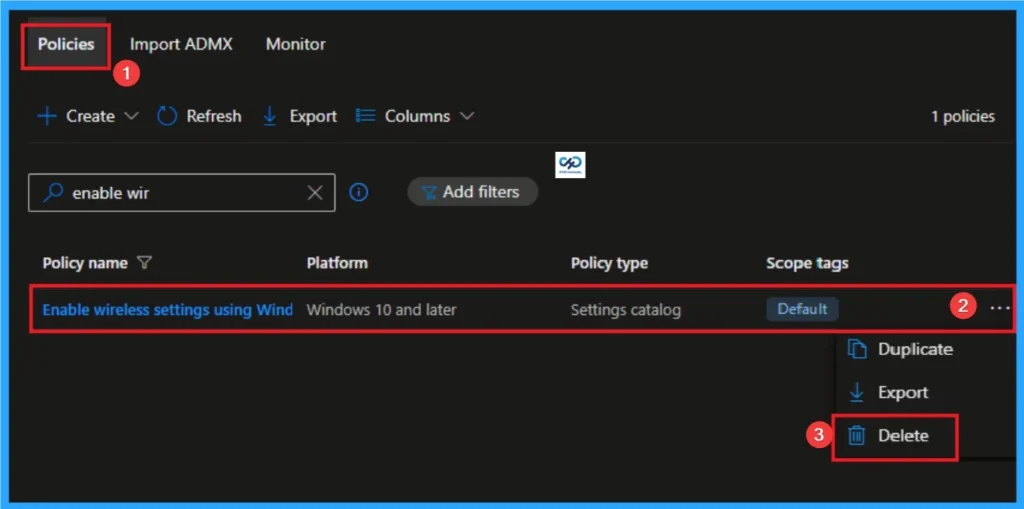
How to Delete Windows Connect Now Policy
You can easily delete the Policy from the Intune Portal. From the Configuration section, you can delete the policy. It will completely remove it from the client devices.
For detailed information, you can refer to our previous post – How to Delete Allow Clipboard History Policy in Intune Step by Step Guide.
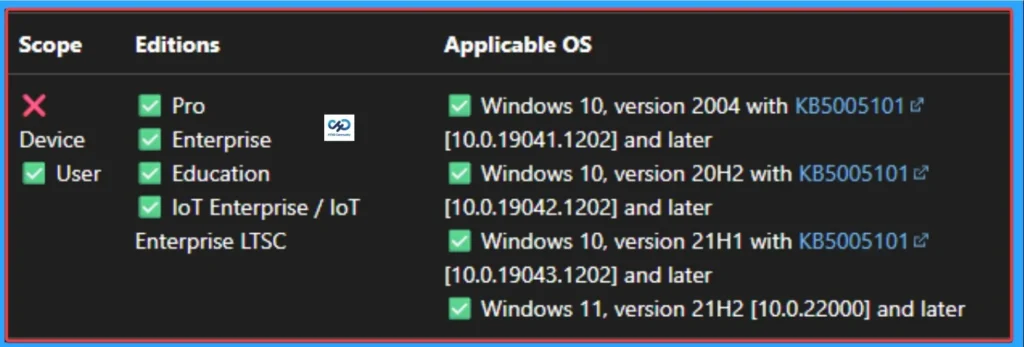
Windows CSP Details
This policy setting prohibits access to Windows Connect Now (WCN) wizards. This policy is applicable for Windows 10, version 2004 with KB5005101 [10.0.19041.1202] and later, Windows 10, version 20H2 with KB5005101 [10.0.19042.1202] and later, Windows 10, version 21H1 with KB5005101 [10.0.19043.1202] and later, Windows 11, version 21H2 [10.0.22000] and later.
Need Further Assistance or Have Technical Questions?
Join the LinkedIn Page and Telegram group to get the latest step-by-step guides and news updates. Join our Meetup Page to participate in User group meetings. Also, Join the WhatsApp Community to get the latest news on Microsoft Technologies. We are there on Reddit as well.
Author
Anoop C Nair has been Microsoft MVP from 2015 onwards for 10 consecutive years! He is a Workplace Solution Architect with more than 22+ years of experience in Workplace technologies. He is also a Blogger, Speaker, and Local User Group Community leader. His primary focus is on Device Management technologies like SCCM and Intune. He writes about technologies like Intune, SCCM, Windows, Cloud PC, Windows, Entra, Microsoft Security, Career, etc.


Discussion