






Enable Azure VMs Multiple Backups with Enhanced Policy
Let’s learn how to enable Azure VMs Multiple Backups with Enhanced Policy. Azure VMs now offer the enhanced policy of enabling multiple backups, providing users with enhanced data protection and peace of mind.
With this new feature, organizations can set up multiple backup policies for their Azure VMs, ensuring that critical data is safeguarded against unforeseen events. Users can tailor their backup strategies to meet specific requirements and compliance standards by defining multiple backup schedules and retention periods.
Azure Virtual Machine Backup enables you to create an enhanced policy to take multiple daily snapshots. This allows you to protect your virtual machines with Recovery Point Objective (RPO) for as low as four hours.
With this capability, you can define the duration your backup jobs would trigger and align your backup schedule with the working hours when there are frequent updates. Understanding your need for higher retention in instant restore, the enhanced policy offers instant restore retention with a default of seven days of retention and a maximum of 30 days.

Here you can check how to Improve VM Network Performance Using Azure Proximity Placement Groups, and This is useful for workloads where low latency is a requirement. Once configured with this Azure proximity solution, you can decrease the inter-VM network latency associated with your applications.
- Reboot the VM from Azure Portal Vs Operating System
- Use Managed Identities for Azure Resources | How to Guide
Create Enhanced Policy to Enable Azure VMs Multiple Backups
With Azure VMs’ enhanced policy for multiple backups, businesses can confidently protect their virtual machine data while efficiently managing their backup storage costs.
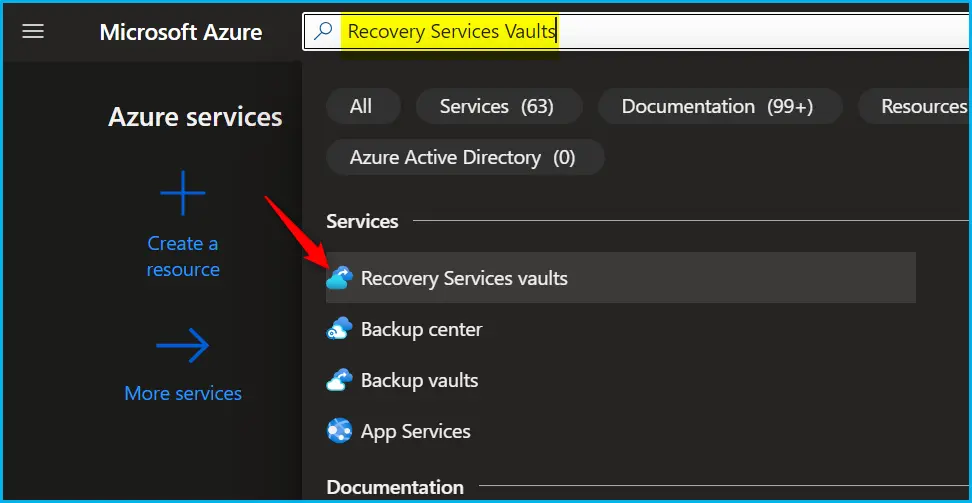
- In the Azure portal, select a Recovery Services vault to back up the VM.
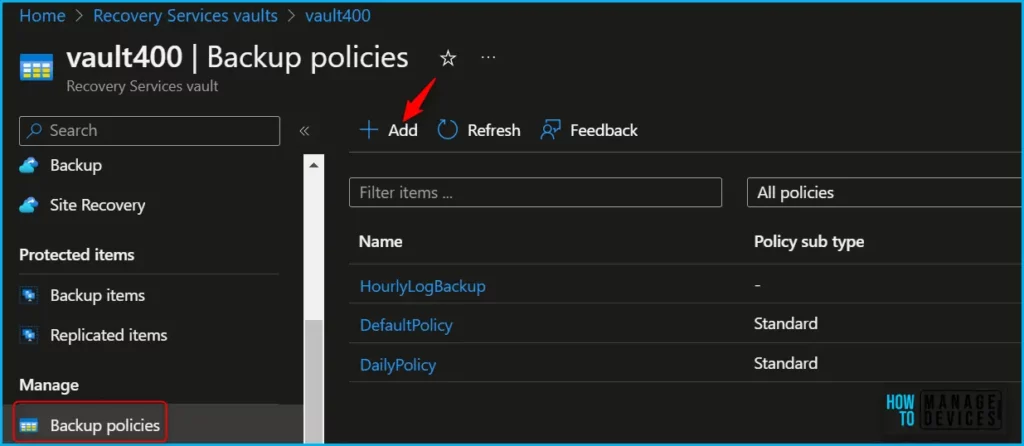
Under Backup, select Backup Policies. Select +Add.
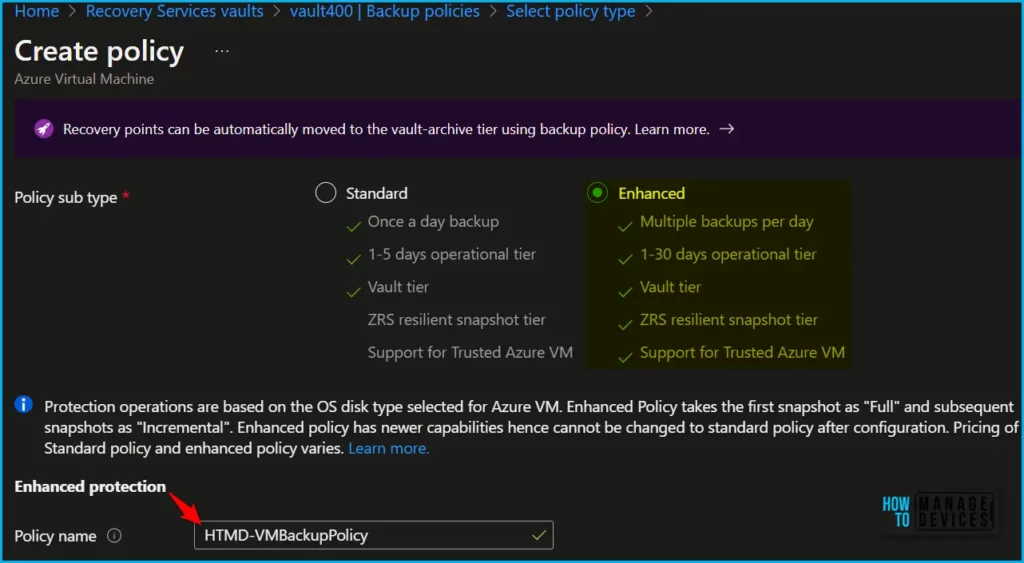
On Select policy type, select Azure Virtual Machine. On Create policy, perform the following actions: Policy sub-type: Select Enhanced type. By default, the policy type is set to Standard.
In the Enhanced Policy sub-type, You can configure multiple backups per day, 1-30 days operational tier, vault tier, ZRS resilient snapshot tier, and Support for Trusted Azure VM.
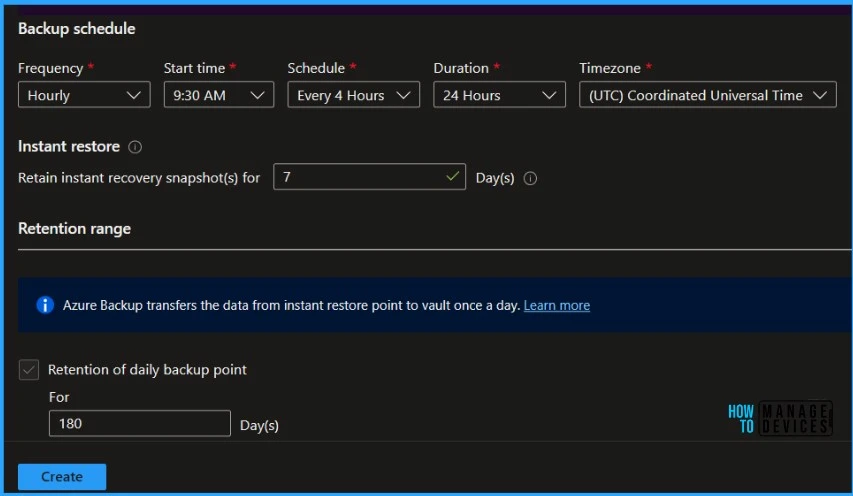
Here you can specify the different options, Backup schedule, Instant restore, and Retention range for the policies. Some of the settings and values are shown below.
- Backup schedule: You can select frequency as Hourly/Daily/Weekly. With the backup schedule set to Hourly, the default selection for start time is 8 AM, the schedule is Every 4 hours, and the duration is 24 Hours. Hourly backup has a minimum RPO of 4 hours and a maximum of 24 hours. You can set the backup schedule to 4, 6, 8, 12, and 24 hours respectively. Note that Hourly backup frequency is in preview.
- Instant Restore: You can set the retention of recovery snapshots from 1 to 30 days. The default value is set to 7.
- Retention range: Options for retention range are auto-selected based on backup frequency you choose. The default retention for daily, weekly, monthly, and yearly backup points are set to 180 days, 12 weeks, 60 months, and 10 years respectively. You can customize these values as required.
Once you create an enhanced policy, You will receive a notification that the policy is enabled for you.
In Azure Portal, Select Recovery Services Vault to back up the VM. Click on +Backup. The next step would be to select the VMs and configure Backup.
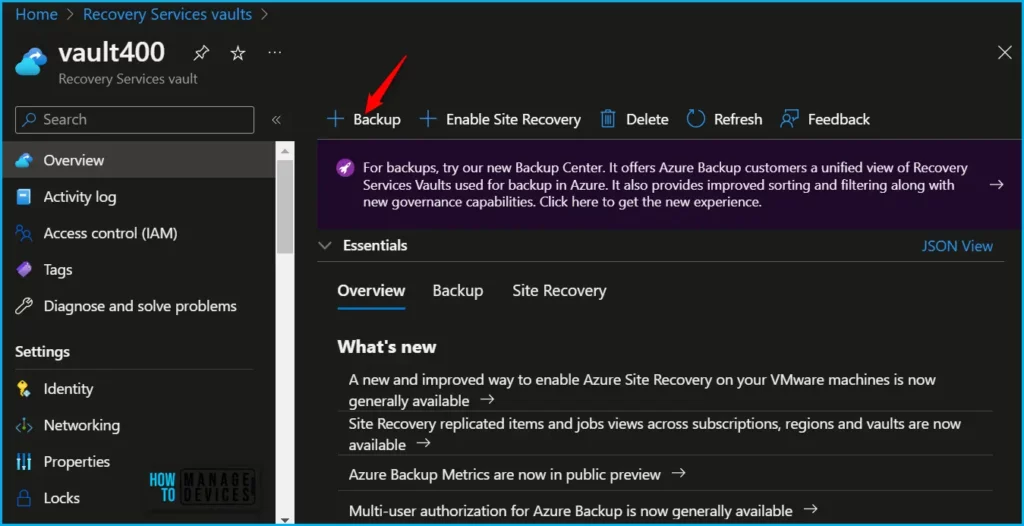
Select the Virtual Machines and Enable Backup. Once the backup will get completed. You can verify the status from Backup items > Azure Virtual Machine.
Author
About Author – Jitesh, Microsoft MVP, has over six years of working experience in the IT Industry. He writes and shares his experiences related to Microsoft device management technologies and IT Infrastructure management. His primary focus is Windows 10/11 Deployment solution with Configuration Manager, Microsoft Deployment Toolkit (MDT), and Microsoft Intune.
Discussion