






Easy Way to Create an Azure Resource Group on Azure Portal
An Azure Resource Group is a folder that helps you organize and manage all the resources you create in Azure, such as virtual machines, databases, and storage. Although you make the resource group in one specific region, it can also hold resources from the other areas.
There is no limit—your resources can be spread across multiple regions but will be managed and organized under the same resource group. This makes it easier to manage things together, like applying security rules, monitoring, or deleting everything at once when you’re done.
Azure is a cloud computing platform and service provided by Microsoft. It offers many tools and services to help you build, manage, and deploy applications and services.
In this post, you will find all the steps you need to create an Azure Resource Group using the Azure Portal easily. This guide will walk you through the process, making setting up a Resource Group simple.


Table of Contents
Why Do I Need to Provide a Location for My Resource Group?
When you create a resource group, you must specify a location, which determines where the metadata about the resources is stored.
What Factors Should I Consider when Defining my Resource Group?
When defining a resource group, consider the following.
> All resources should share the same lifecycle and be deployed, updated, and deleted.
> Each resource can exist in only one resource group.
> You can add or remove resources from a resource group anytime.
> Resources can be moved between resource groups if needed.
Easy way to Create an Azure Resource Group on Azure Portal
Resource groups provide a logical container for managing and organizing Azure resources, simplifying administration, and enabling efficient resource management. This article explains the easy steps to create an Azure Resource Group.
- Go to https://portal.azure.com/. This is the website where you can access the Azure Portal.
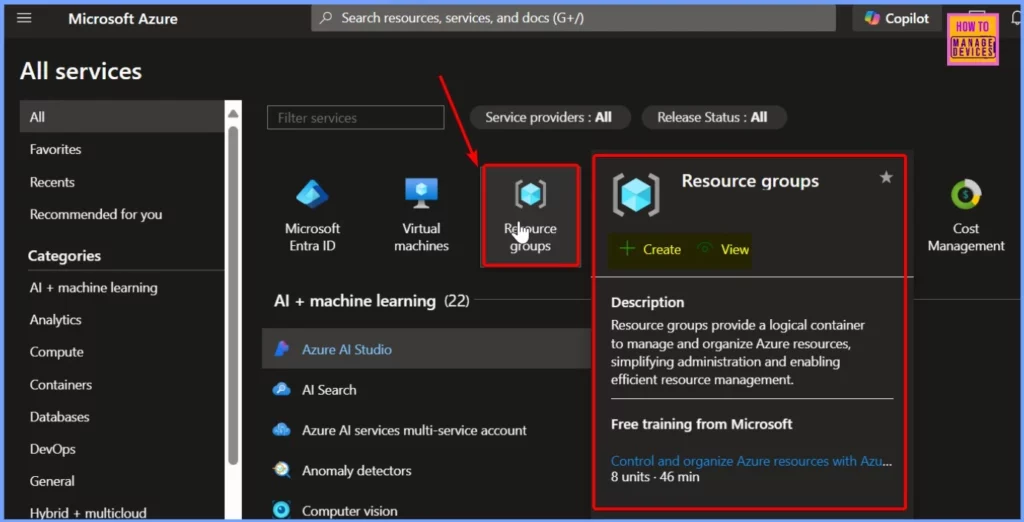
- Click on “Resource groups” Once you are in the portal, look for the “Resource groups” option on the left-hand side or search for it at the top. This is where you can create and manage resource groups.
- The Resource Groups pop-up window has two options: Create and View. To create a new resource group in Azure, click the Create button. This will start the process of setting up your resource group.
- Azure Fundamentals Microsoft Certification AZ-900 Exam Prep Guide | Azure Entry Level Exam
- 5 New Use Cases Like Secure Azure Managed Services Access for Entra Private Access
- Top 46 Azure Virtual Desktop AVD Interview Questions
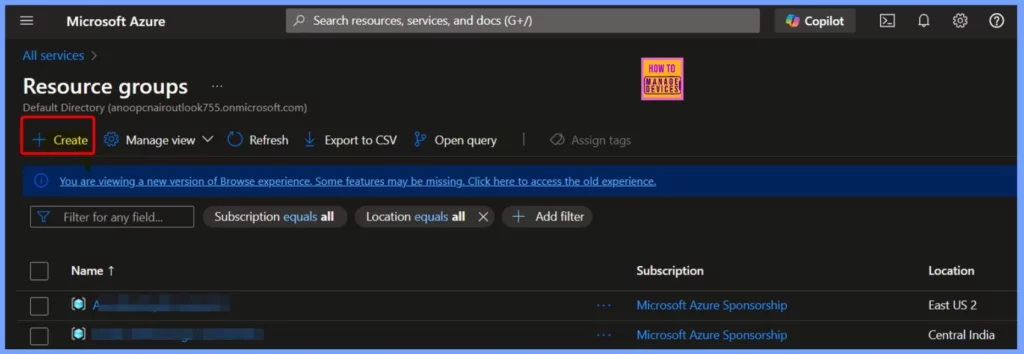
You can also click the Resource Groups icon and then hit the Create button, as shown in the screenshot below. This will let you create a new resource group quickly and easily.
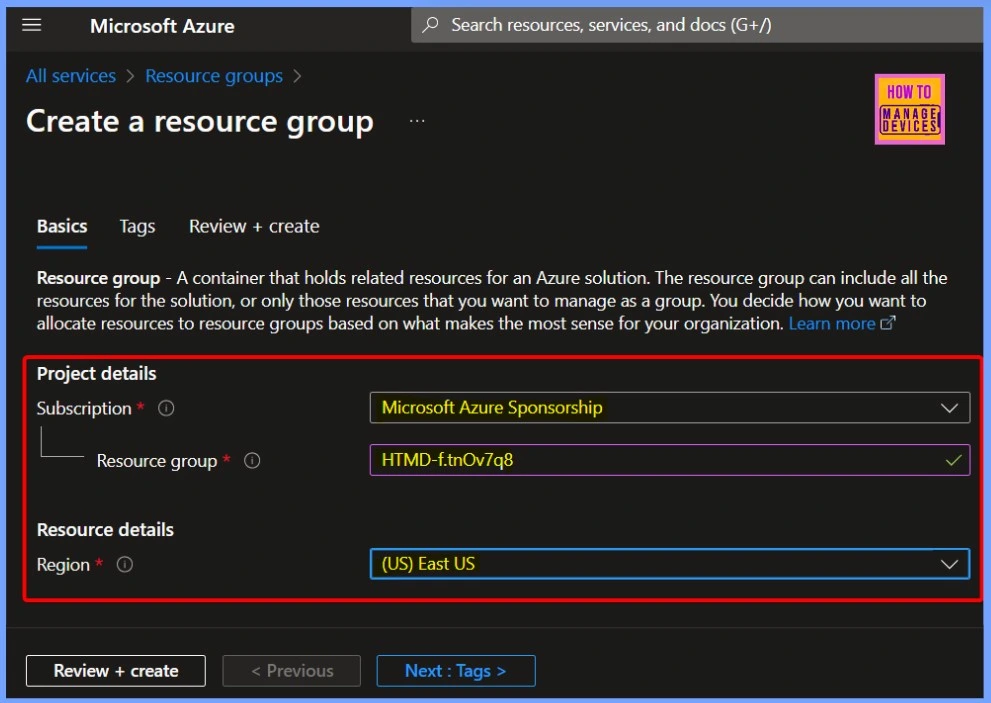
On the Basics tab, you need to fill in some vital information. A resource group is a container with related resources for an Azure solution. The resource group can include all the resources for the solution or only those you want to manage as a group. You decide how to allocate resources to resource groups based on what makes the most sense for your organization.
- Subscription – Microsoft HTMD Sponsorship
- Resource group – HTMD-f.tnOv7q8
- Region – (US) East US
| Basics Informations | Details |
|---|---|
| Subscription | All resources in a subscription are billed together |
| Resource group | A resource group is a collection of resources that share the same lifecycle, permissions, and policies. |
| Region | Choose the Azure region that’s right for you and your customers |
Use Tags to Organize your Azure Resources
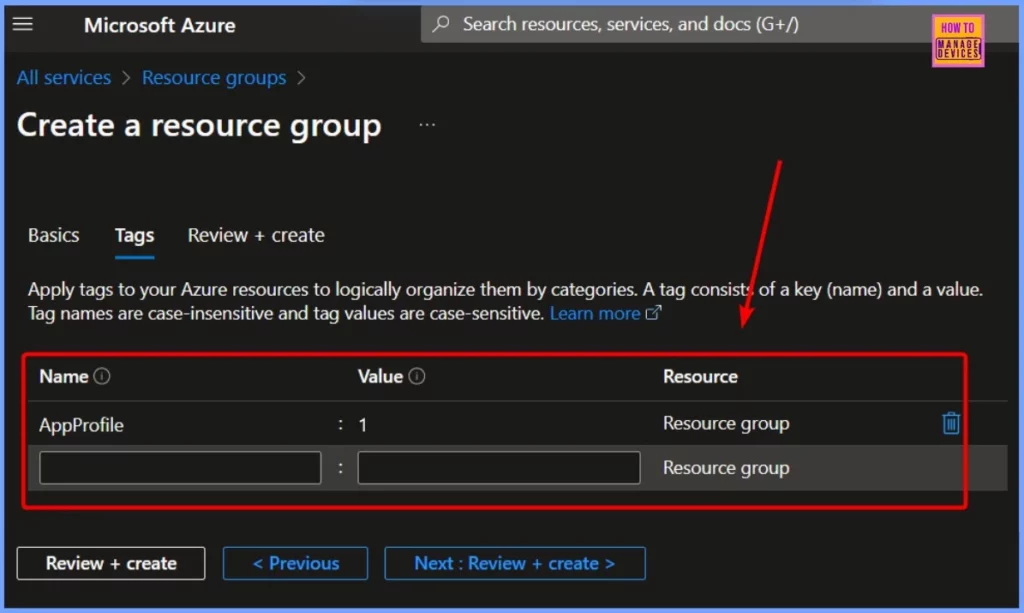
You can use tags in Azure to organize your resources, resource groups, and subscriptions, but you can’t tag management groups. Tags help track costs because they support all services that generate expenses. To ensure your cost-related services always have a tag, it’s recommended to use a tag policy.
- Under Tags, you need to provide the following details.
- Name
- Value
- Resources
Review and Create
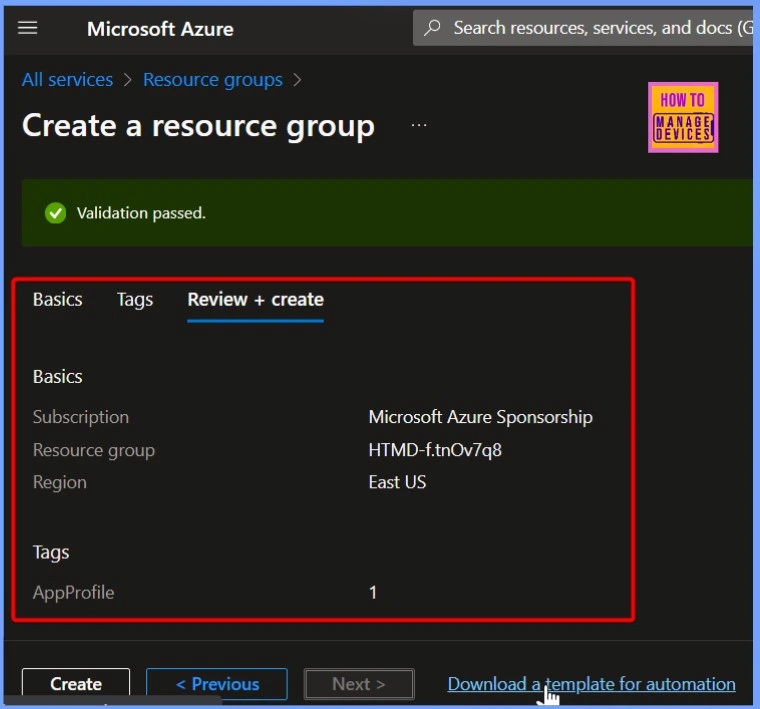
When creating a resource group, you’ll see a “Validation passed” message once everything is set up correctly. You can then click the Review + Create tab to check and confirm all your settings before finalizing the creation of the resource group.
- Click the Create button from the below Window
Monitoring the Resource Groups Creation Status
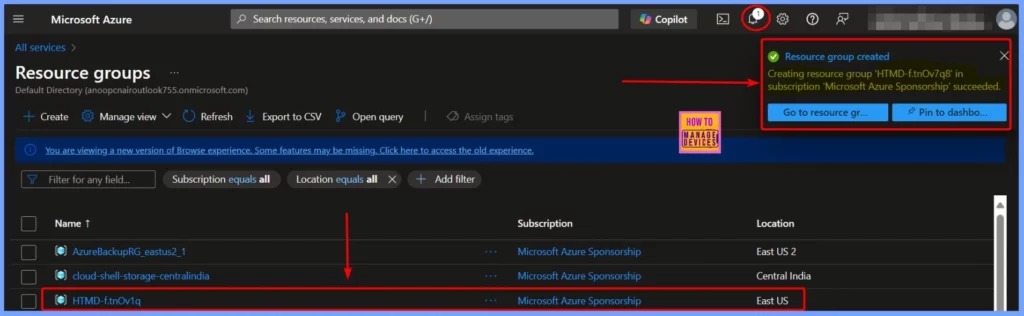
After you click the Create button, a notification will appear saying that the resource group HTMD-f.tnOv7q8 has been successfully created in your Microsoft Azure Sponsorship subscription. You will also see the new resource group listed in the Resource Groups section, confirming that it has been added.
Need Further Assistance or Have Technical Questions?
Join the LinkedIn Page and Telegram group to get the latest step-by-step guides and news updates. Join our Meetup Page to participate in User group meetings. Also, Join the WhatsApp Community to get the latest news on Microsoft Technologies. We are there on Reddit as well.
Author
Anoop C Nair has been Microsoft MVP from 2015 onwards for 10 consecutive years! He is a Workplace Solution Architect with more than 22+ years of experience in Workplace technologies. He is also a Blogger, Speaker, and Local User Group Community leader. His primary focus is on Device Management technologies like SCCM and Intune. He writes about technologies like Intune, SCCM, Windows, Cloud PC, Windows, Entra, Microsoft Security, Career, etc.
Discussion