






How to Manage Live Transcription in Teams Rooms on Windows with Enhanced Language and Speaker Controls
Let’s discuss how to Manage Live Transcription in Teams Rooms on Windows with Enhanced Language and Speaker Controls. Microsoft improve the Live transcription experience in Microsoft Teams on Windows devices. Now you can control live transcription during a meeting from a Teams Rooms.
This new transcription and live caption enhance accessibility and engagement during meetings and events. This new ability creates a real-time written record of what was said during a meeting or event. This feature is completely customizable.
As mentioned above, this real time transcript includes each speaker’s name, including those in a room that have enrolled their voice profile in Teams, and timestamp. This feature is available in Teams Rooms Pro and you can easily accessed.
By enabling and using Live Transcription of Microsoft Teams Meeting you can easily understand the discussion in the meeting. In this blog post i will help you to know more about Control Live Transcription of Microsoft Teams Meeting from Teams Room on Windows.

Table of Contents
Which are Settings can be Changed in Live Transcription
?
How to Manage Live Transcription in Teams Rooms on Windows with Enhanced Language and Speaker Controls
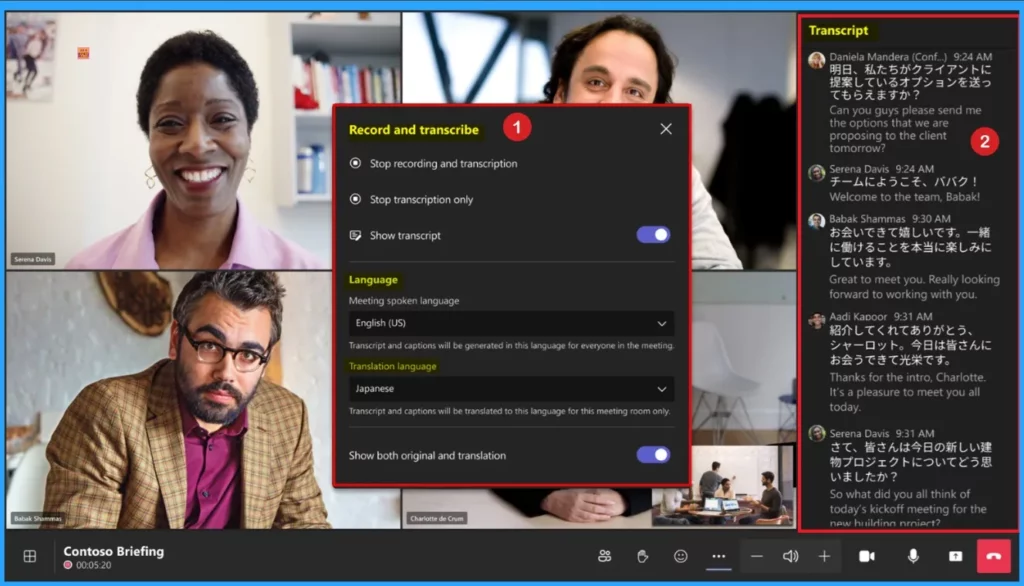
As mentioned above, Microsoft Teams provides real time transcription and live captions. Transcription creates a real-time written record of what was said during a meeting or event. Participants can view the transcript after the meeting along with timestamps and speaker attribution.
| Options in Live Transcription |
|---|
| Start |
| Stop |
| Show |
- How Organizers and Presenters can Join a Microsoft Teams Town Hall as an Attendee
- How to use New End Event Button in MS Teams to Enhance Town Halls Webinars and Meetings
- How to Enhance your Teams Experience with Snap Resizable Panes and Zoom Controls Features
How Microsoft Teams Create Live Transcription
Live Transcription works by capturing spoken dialogue in real time and converting it into text. When enabled, the transcript appears on the right side of the meeting window, displaying each speaker’s name alongside their statements. By providing transcription, participants can easily follow discussions. This feature is more useful in noisy environment.
- After the meeting, users can find the searchable transcription stored with the meeting recording.
- If transcription was turned on for the recording, Stream plays the video with the transcript next to the recording, and shows who is speaking and when as the video plays.
How to Manage Transcription using Teams Admin Center
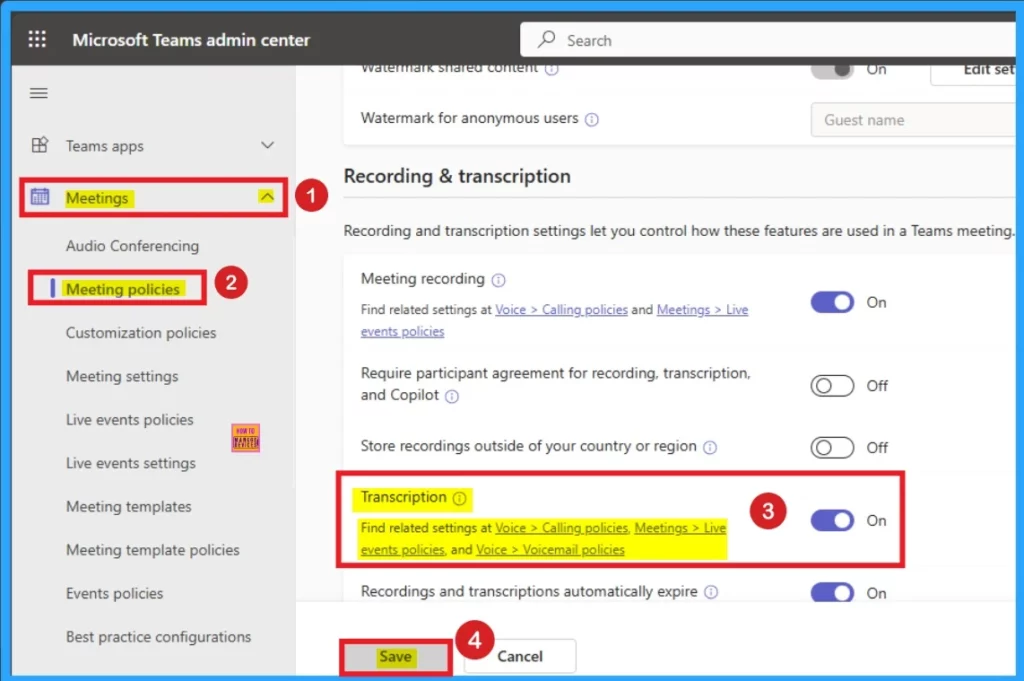
As an admin you can easily manage transcription, using Microsoft Teams Admin Center. You can allow or prevent meeting transcription using Teams Policy. Follow the below steps to manage transcription.
- Open Microsoft Teams Admin Center
- Go to Meetings > Meeting policies.
- Use the Global policy, to apply changes to all users in your organization who don’t have an existing policy assignment.
- Toggle Transcription On or Off. This setting is On by default for new policies.
- Select Save.
- You can Assign the policy specific users or groups
- Select Group policy assignment > select Add > enter the group’s name and enter the policy’s name > select Apply.
Need Further Assistance or Have Technical Questions?
Join the LinkedIn Page and Telegram group to get the latest step-by-step guides and news updates. Join our Meetup Page to participate in User group meetings. Also, Join the WhatsApp Community to get the latest news on Microsoft Technologies. We are there on Reddit as well.
Resource
What’s New in Microsoft Teams | April 2025
Author
Anoop C Nair has been a Microsoft MVP for 10 consecutive years from 2015 onwards. He is a Workplace Solution Architect with more than 22+ years of experience in Workplace technologies. He is a Blogger, Speaker, and Local User Group Community leader. His primary focus is on Device Management technologies like SCCM and Intune. He writes about technologies like Intune, SCCM, Windows, Cloud PC, Windows, Entra, Microsoft Security, Career, etc.


Discussion