






AVD Change Default Desktop Friendly Name Remote Desktop
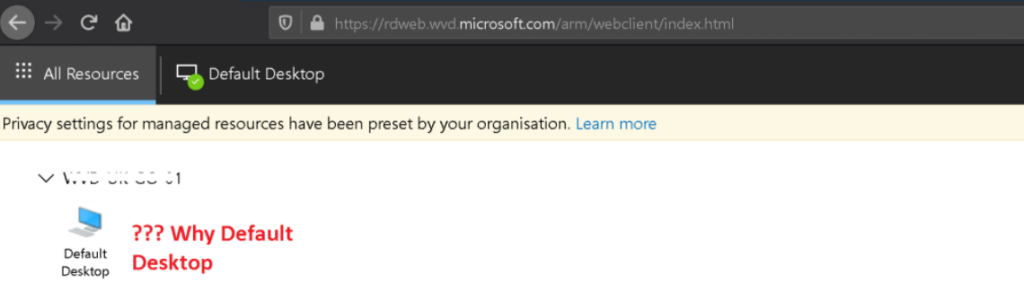
Let’s discuss AVD Change Default Desktop Friendly Name Remote Desktop. I’m unaware of the default name (Default Desktop) shown in the AVD client portal under the desktop icon.
Change the default desktop name and give the remote desktop icon a more user-friendly name (Default Desktop).
Adjusting the friendly name can modify the display name for a published RemoteApp. By default, the friendly name aligns with the RemoteApp program name.
Let’s learn how to provide a more user-friendly name for AVD remote desktop icons in AVD ARM-based (a.k.a AVD v2) deployments. It’s a bit different from how this is handled in AVD’s classic version.

| Index |
|---|
| The Issue with the AVD Desktop Friendly Name |
| Default Desktop – Friendly Name for Azure Virtual Desktop |
| Fix – AVD Change Default Desktop Friendly Name Remote Desktop |
| Results |
The Issue with the AVD Desktop Friendly Name
Let’s understand the Issue with the AVD Desktop Friendly Name. It’s not an AVD technical issue; instead, it’s a user experience issue. I think it’s always better to keep a more user-friendly name.
When a user logs on to the AVD client portal or RD client, the user can see the remote desktop icon name as the default desktop.
A client required that the name of the remote desktop icon be changed from Default Desktop to ABC Desktop.
Default Desktop – Friendly Name for Azure Virtual Desktop
The Default Desktop – Friendly Name for Azure Virtual Desktop. Let’s find out the details to understand where the name “Default Desktop” comes from.
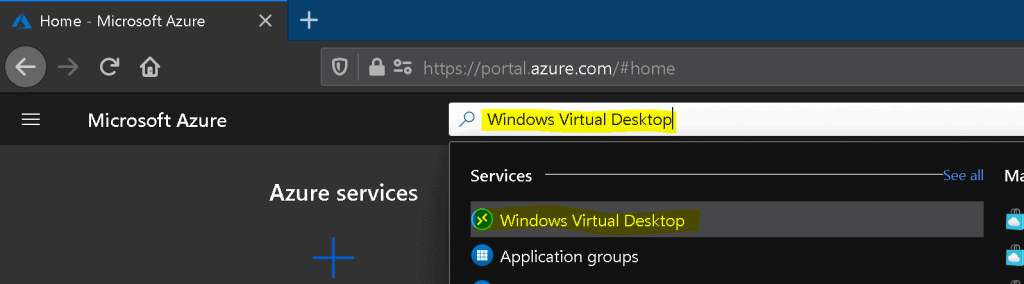
Launch Azure Portal – portal.azure.com and search with Windows Virtual Desktop.
- Click on the Azure Virtual Desktop icon, as shown in the below screenshot.
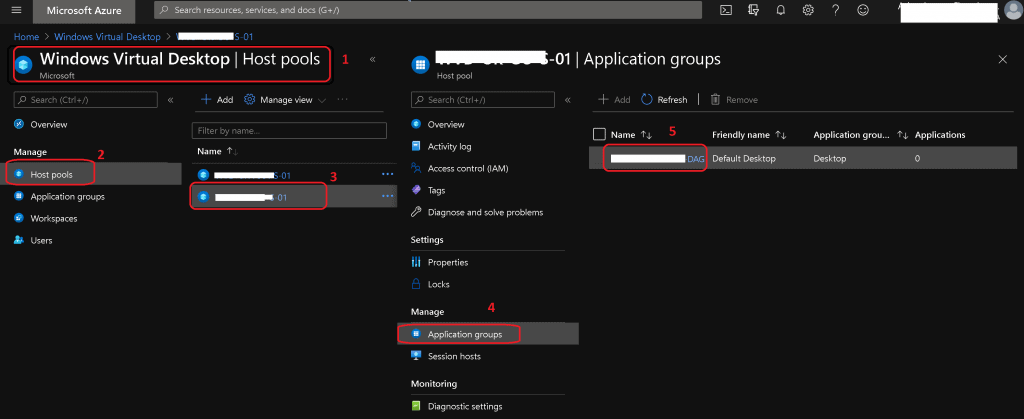
Click on the Host Pools icon (#2), then select the Host Pool (#3) that is having the Issue with a friendly name.
- Click on Application Groups (#4)
- Click on the Application Group Name (#5)
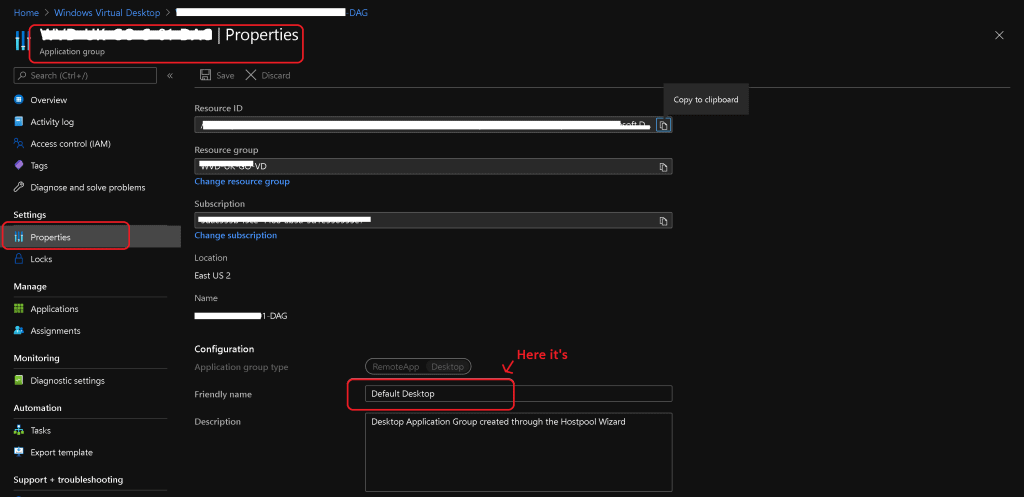
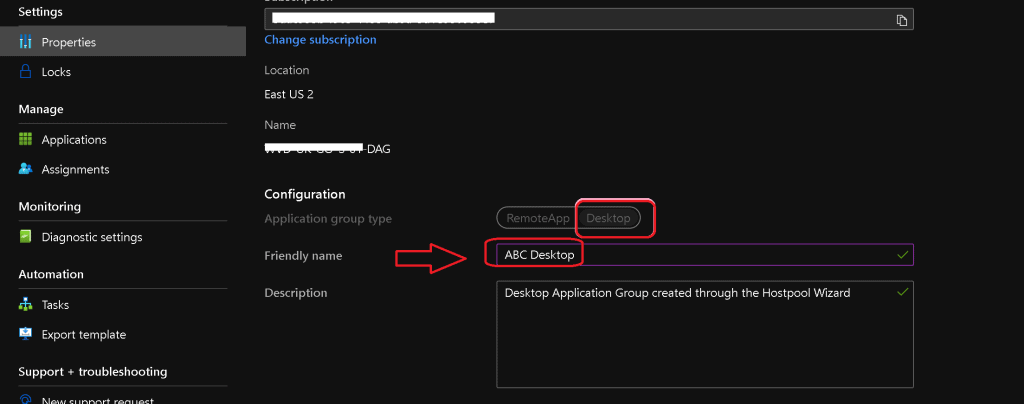
Now, we are on the Application Group blade in the Azure portal. Click on the Properties tab.
- You can see the Friendly Name of Remote Desktop ICON on the right side of the blade.
- Check the name shown under Friendly Name = Default Desktop.
Fix – AVD Change Default Desktop Friendly Name Remote Desktop
All the users assigned to the particular host pool shall get the same name for the shortcut. We don’t have an option to give a separate remote desktop name for each user assigned to the host pool.
NOTE: You can change the host pool-friendly name; however, that might NOT help to change the remote desktop icon name.
You cannot change the host Pool name; you can only change the “FriendlyName.” Typically, we expect desktop sessions to consume more resources (RAM, Network, etc.) since you can launch more applications and services. More details are here.
To change the name of the Remote Desktop icon within the host pool, follow the steps explained below.
- Follow the steps mentioned above: Default Desktop – Friendly Name.
- Now, we are on the Application Group blade in the Azure portal.
- Click on the Properties tab.
- You can see the Friendly Name of Remote Desktop ICON on the right side of the blade.
- Check the name shown under Friendly Name = Default Desktop.
Change the Friendly name to ABC Desktop, as I showed below.
- Click on the Save button to confirm the changes.
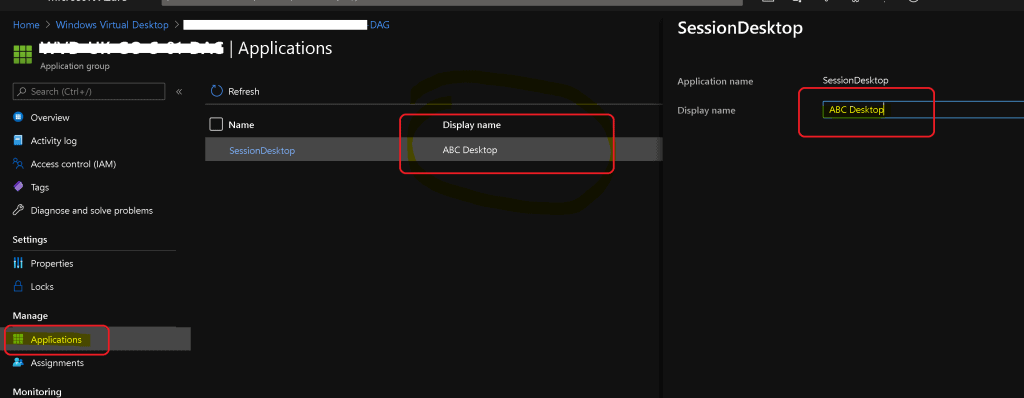
You can also change the name from Applications Blade. Click on SessionDesktop from the ARM-based AVD portal.
- Change the Display name to ABC Desktop.
- Click on the Save button to complete.
Results
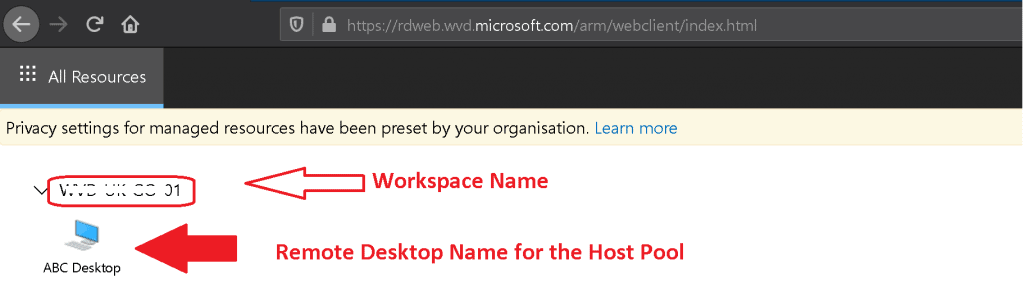
Let’s launch the AVD client portal or RD client. Select the Workspace (AVD Tenant in AVD Classic world).
- Check the name of the remote desktop icon. As you can see in the screenshot below, it’s now changed to ABC desktop.
Resources
- Get started with the web client – https://docs.microsoft.com/en-us/windows-server/remote/remote-desktop-services/clients/remote-desktop-web-client
- Install Subscribe Windows RD Client for AVD End User Step-by-Step Guide
- Microsoft VDI Story AVD Concept Setup Guide Myths Known Issues
We are on WhatsApp. To get the latest step-by-step guides and news updates, Join our Channel. Click here –HTMD WhatsApp.
Author
Anoop C Nair is Microsoft MVP! He is a Device Management Admin with more than 20 years of experience (calculation done in 2021) in IT. He is a Blogger, Speaker, and Local User Group HTMD Community leader. His primary focus is Device Management technologies like SCCM 2012, Current Branch, and Intune. He writes about ConfigMgr, Windows 11, Windows 10, Azure AD, Microsoft Intune, Windows 365, AVD, etc.


Discussion