






Use Shareable Link for Azure Bastion Host Connect
Let’s learn how you can create shareable link for Azure Bastion host. The Bastion Shareable Link feature lets users connect to virtual machine or virtual machine scale set using Azure Bastion without accessing the Azure portal.
With the new Azure Bastion shareable links feature in public preview and included in Standard SKU, Shareable links is not currently supported for peered VNets that are not in the same subscription or same region.
When a user without Azure credentials clicks a shareable link, a webpage opens that prompts the user to sign in to the target resource via RDP or SSH. Users authenticate using username and password or private key, depending on what you have configured for the target resource.
The shareable link does not contain any credentials – the admin must provide sign-in credentials to the user. This feature will solve two key pain points:

- Administrators will no longer have to provide full access to their Azure accounts to one-time VM users—helping to maintain their privacy and security.
- Users without Azure subscriptions can seamlessly connect to VMs without exposing RDP/SSH ports to the public internet.
By default, users in your org will have only read access to shared links. If a user has read access, they’ll only be able to use and view shared links, but can’t create or delete a shareable link.
- Step By Step Guide To Configure Azure Bastion Host
- Setup Azure Bastion Connect To SCCM Server | ConfigMgr
Prerequisites Create Shareable Link for Azure Bastion
- Azure Bastion is deployed to your VNet.
- Bastion must be configured to use the Standard SKU for this feature. You can update the SKU from Basic to Standard when you configure the shareable links feature.
- The VNet contains the VM resource to which you want to create a shareable link.
Enable Shareable Link for Azure Bastion
Before you can create a shareable link to a VM, you must first enable the feature. This post helps you use the Shareable Link feature to create a shareable link for an existing Azure Bastion deployment.
- In the Azure portal, https://portal.azure.com/.
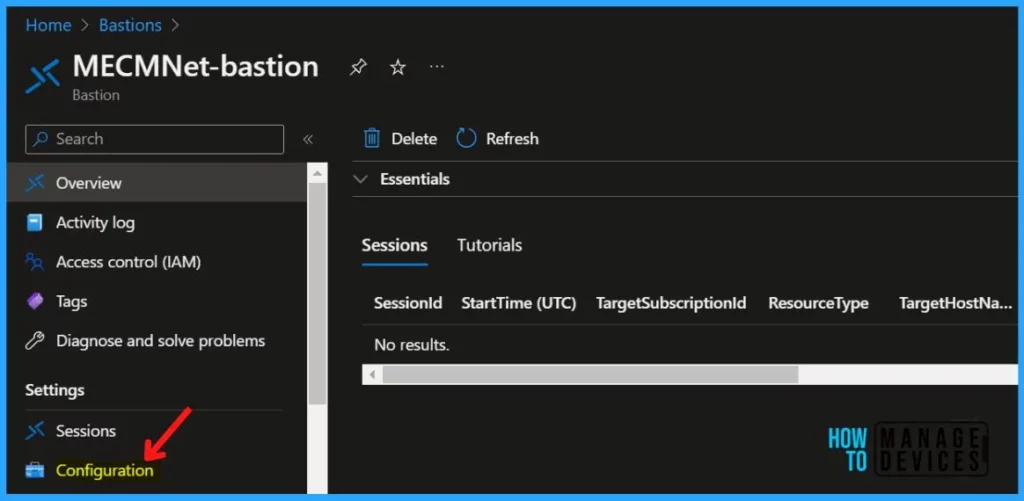
- Navigate to your bastion resource. On your Bastion page, in the left pane, click Configuration.
On the Configuration page, for Tier, select Standard. This feature requires the Standard SKU. The Standard tier enables host scaling and customization of additional features. Once enabled, you cannot downgrade to the Basic tier.
NOTE! Shareable Link is not available for the Bastion Basic SKU. To enable the feature, upgrade to Bastion Standard, check the box and save your changes.
Select Shareable Link from the listed features to enable the Shareable Link feature. Verify that you have selected the settings that you want, then click Apply.
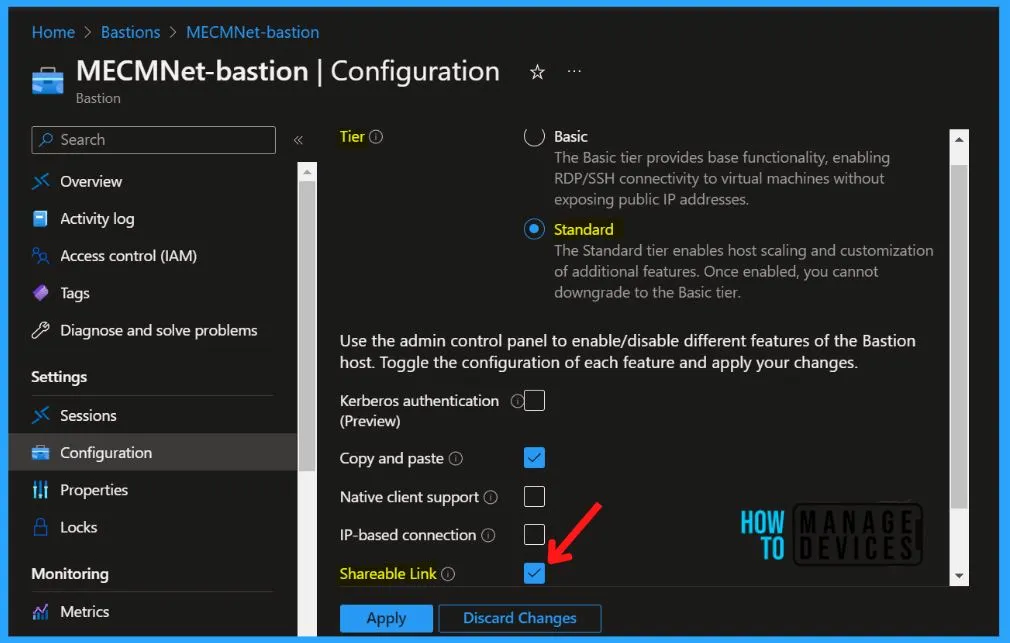
Bastion will immediately begin updating the settings for your bastion host. Updates will take about 10 minutes.
Create Shareable Link for Azure Bastion
Let’s check how you can create shareable links for Azure Bastion, you specify each resource for which you want to create a shareable link.
- In the Azure portal https://portal.azure.com/, Navigate to your bastion resource.
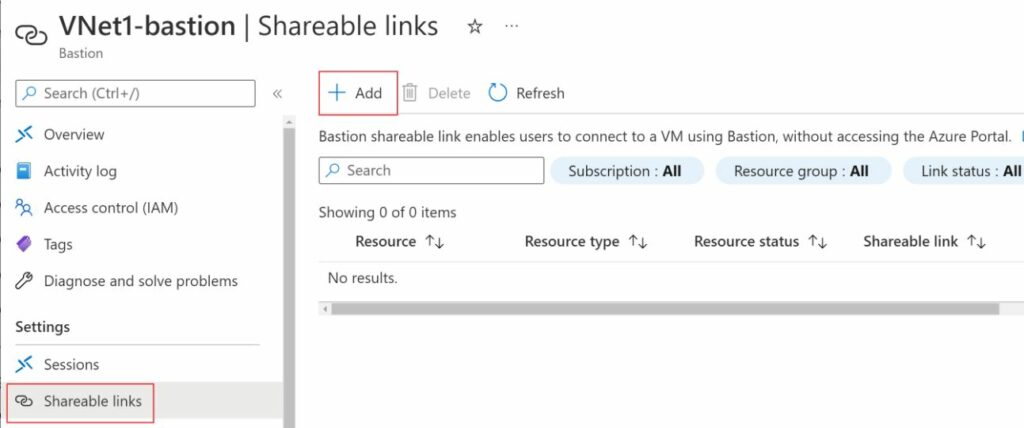
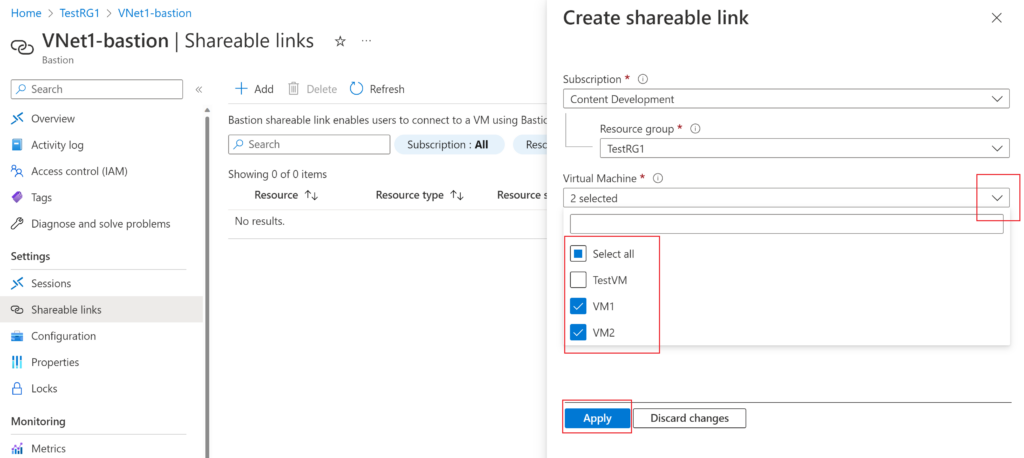
- On your bastion page, in the left pane, click Shareable links. Click + Add to open the Create shareable link page.
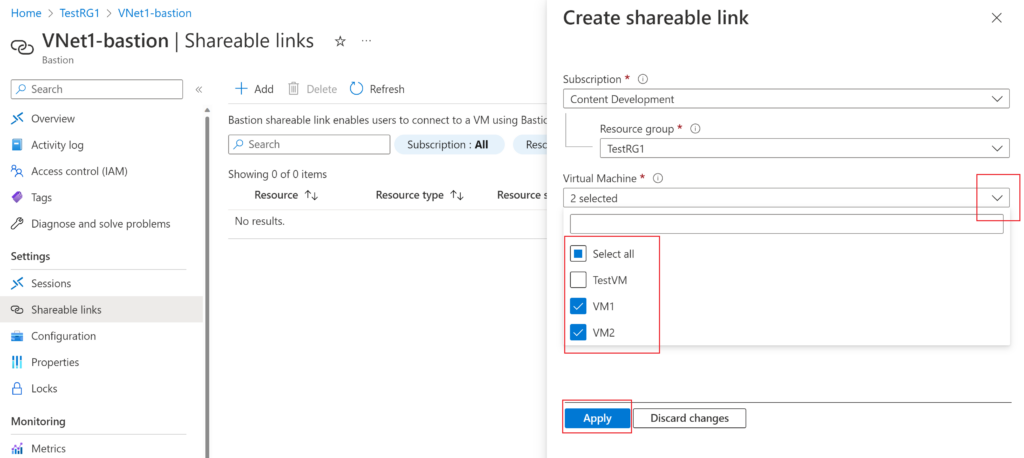
On the Create shareable link page, select the resources for which you want to create a shareable link. You can select specific resources, or you can select all. A separate shareable link will be created for each selected resource. Click Apply to create links.
Once the links are created, you can view them on the Shareable links page. The following example shows links for multiple resources. You can see that each resource has a separate link and the link status is Active.
To share a link, copy it, then send it to the user. The link doesn’t contain authentication credentials.
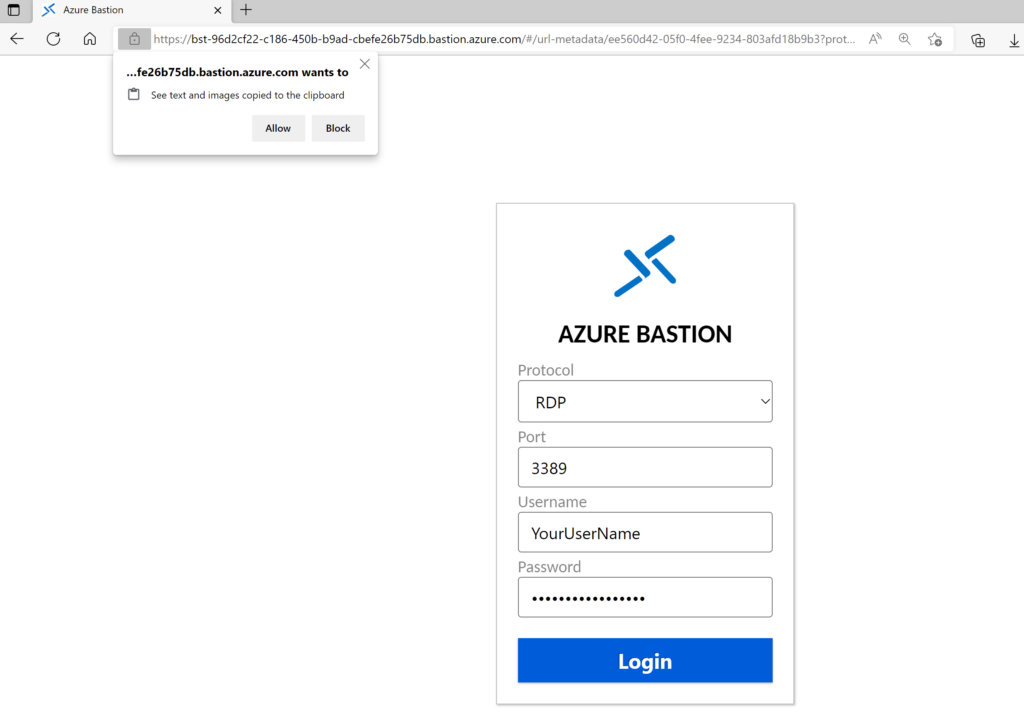
After receiving the link, when the user opens the shareable link in their preferred browser to connect the VMs.
In the left corner, the user can select whether to see text and images copied to the clipboard. The user inputs the required information, then clicks Login to connect.
NOTE! A shared link doesn’t contain authentication credentials. The admin must provide sign-in credentials to the user. Custom port and protocols are supported.
I tested in my lab and was able to rdp without any mfa all you need is the username and password of the VM and you are logged on. This is a horrible solution and dont know what Microsoft was thinking .
why is it a horrible solution?? its just RDP without the need of a public facing machine its actually a genius idea