






AVD Azure AD Dynamic Device Group for Windows 10 Multi-Session | Enterprise for Virtual Desktops
Let’s check how to create AVD Azure AD Dynamic Device Group for Windows 10 Multi-Session | Enterprise for Virtual Desktops. The Azure AD dynamic groups must deploy policies and applications to AVD session hosts using Intune.
Azure AD join, and Intune support are also coming soon, per the latest blog post from Microsoft. You can read more details in the following post – Azure Virtual Desktop Azure AD Join Support with Intune Management | Endpoint Manager | WVD.
I have a post about creating WVD Azure AD dynamic device groups for the Windows 10 single-session operating system with DisplayName properties.
You can also create Intune assignment filters to provide more flexible logic for app and policy assignment—MEM Intune: Create Assignment Filters For Azure Virtual Desktop Single Session Windows 10.

Table of Contents
AVD Azure AD Dynamic Device Group for Windows 10 Multi-Session
Let’s create Azure AD Dynamic Device Group for Windows 10 Enterprise for Virtual Desktops. This dynamic Azure AD device group is based on the type of operating system used.
- Open portal.azure.com
- Navigate to Azure Active Directory -> Groups – All Groups.
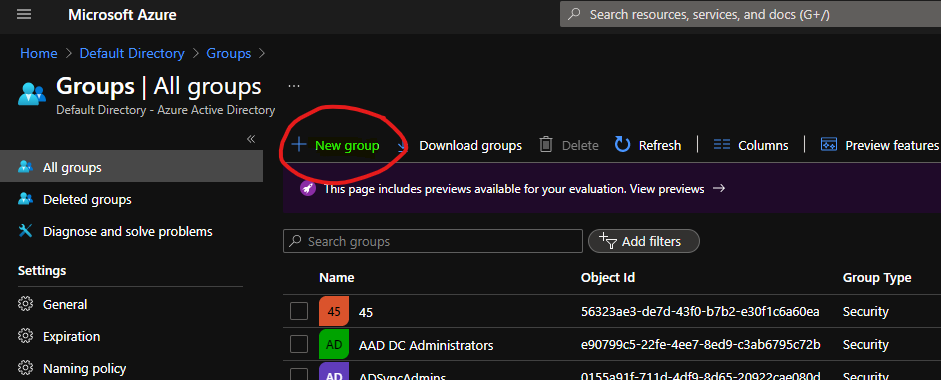
- Click on “+ New Group“.
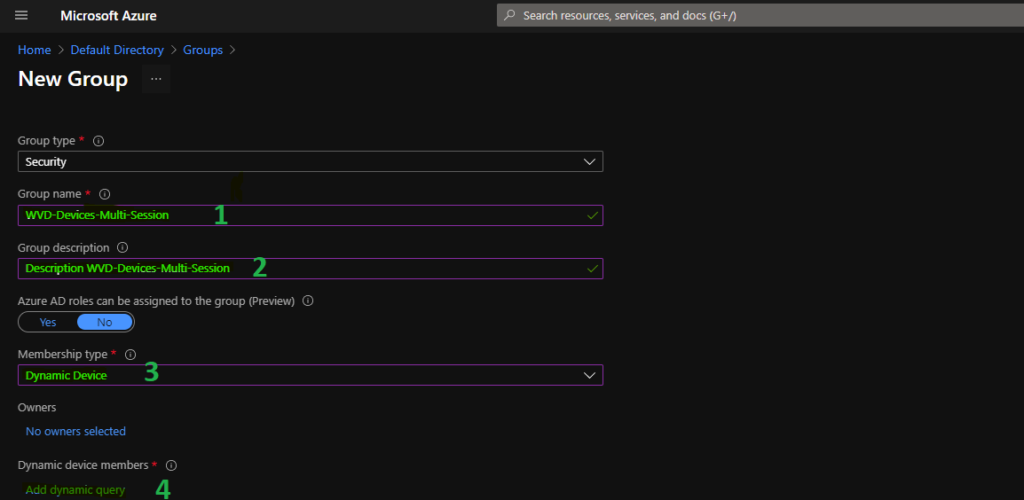
- Select Security – Group Type from the drop-down option.
- Enter the Group Name “WVD-Devices-Multi-Session” (any name is fine).
- Enter Group Description “WVD-Devices-Multi-Session” (any description is fine).
- Select Dynamic Device as the Membership type.
- Click on Add Dynamic Query under Dynamic Device Members.
- Azure AD Dynamic Device Group Managed by MDE Defender for Endpoint | MicrosoftSense
- Create AVD Azure AD Dynamic Device Group using systemLabels Property
- Azure AD Dynamic Device Group Using Display Name Property | Azure Virtual Desktop | VM Name
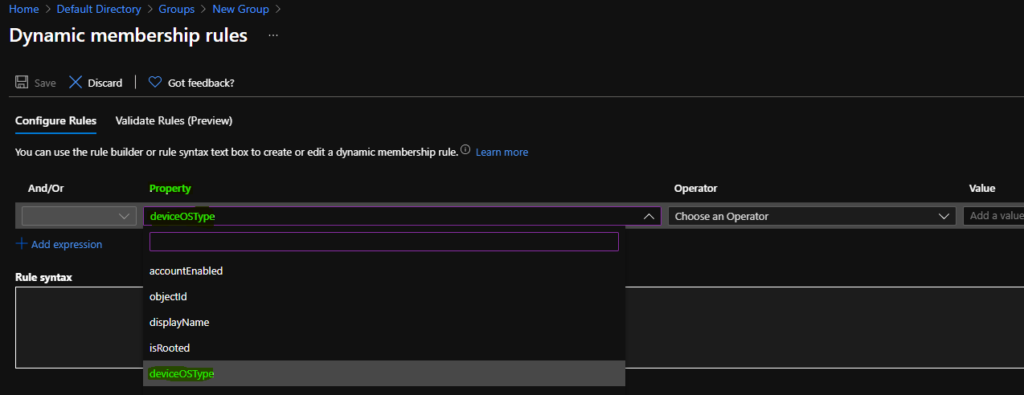
Hover over the properties column so that you get an option to select Azure Active Directory, dynamic device groups, for Windows 10 multi-session based on Device OS Type.
On the Dynamic Membership Rules blade, select the deviceOSType property column drop-down options.
You can select the option ” Equals ” from the operator column to select the hostname of Azure Virtual Desktop (a.k.a WVD) session hosts.
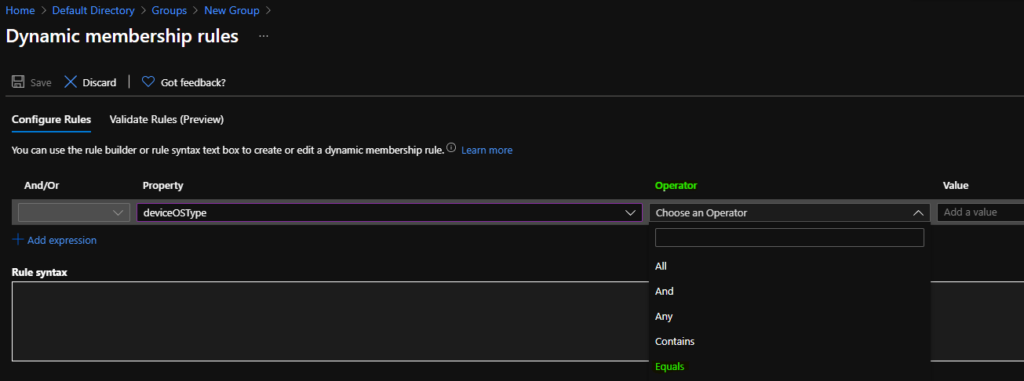
The device OS type is equal to “Windows 10 Enterprise for Virtual Desktops.” You can enter the device OS type in the value column, as shown in the screenshot below.
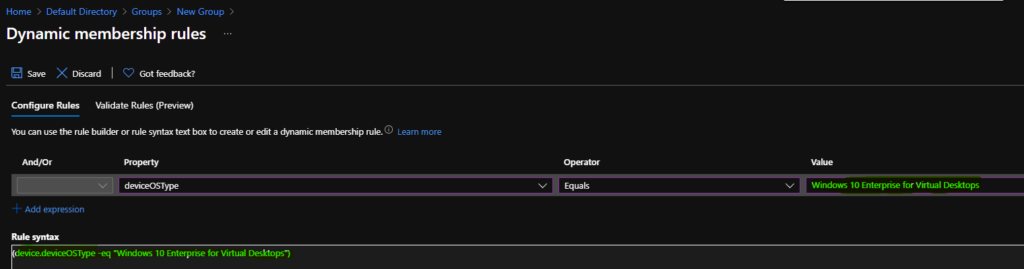
Click on the SAVE and CREATE buttons to complete the process of building Azure AD dynamic device group creation.
Dynamic Query – Windows 10 Enterprise for Virtual Desktops
You can use the following Azure AD device dynamic query to create Windows 10 multi-session AAD dynamic groups.
(device.deviceOSType -eq "Windows 10 Enterprise for Virtual Desktops")Result
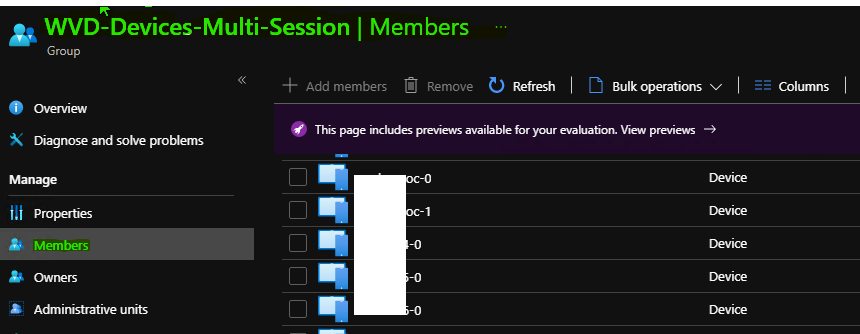
You can check the members of the dynamic device group from the Members tab in the Azure AD Device group. You can also validate Azure AD Dynamic Group Rules | Intune.
Resources
- Dynamic membership rules for groups in Azure Active Directory https://docs.microsoft.com/en-us/azure/active-directory/enterprise-users/groups-dynamic-membership#using-attributes-to-create-rules-for-device-objects
- Validate Azure AD Dynamic Group Rules | Intune
- How to Create Azure AD Dynamic Device Groups for Windows BYOD CYOD Devices Microsoft Intune
We are on WhatsApp. To get the latest step-by-step guides and news updates, Join our Channel. Click here –HTMD WhatsApp.
Author
Anoop C Nair has been Microsoft MVP for 10 consecutive years from 2015 onwards. He is a Workplace Solution Architect with more than 22+ years of experience in Workplace technologies. He is a Blogger, Speaker, and Local User Group Community leader. His primary focus is on Device Management technologies like SCCM and Intune. He writes about technologies like Intune, SCCM, Windows, Cloud PC, Windows, Entra, Microsoft Security, Career, etc.



Humm, for me this doesn’t work… I’m using:
(device.deviceOSType -eq “Windows 10 Enterprise for Virtual Desktops”)
If I validate the rule against an AVD machine I get a failure and this:
device.deviceOSType -eq “Windows 10 Enterprise for Virtual Desktops” [deviceOSType = “Windows”]
Sure enough if I look at the “hardware” of the machine in Intune, it is just “Windows”, but with a system edition of “EnterpriseMultisession”… which doesn’t seem to be an available option to use in a rule. 🙁
StaffEven I have seen inconstancy with Azure AD device properties especially with versions like 10.0.19041.1052. I could see 10.0 (17763) and 10.0 (18363) show Windows 10 Enterprise for Virtual Desktops as OS version. Have you tried filter rules to avoid this inconsistency with Azure AD device properties https://www.anoopcnair.com/wvd-intune-filters-windows-10-multi-session-vms/?
This one will work in current iterations (late 2022) of AVD
(device.deviceOSType -eq “Windows”) and (device.deviceManufacturer -eq “Microsoft Corporation”) and (device.deviceModel -eq “Virtual Machine”)
Thanks Bruce! that query worked!!!
That will return all Azure or Hyper-V VMs, will it not? I don’t think it’s specific to Windows multi-session.
Did some one manage to set this up? Filters work just fine, but still having issues in getting this right in dynamic grouping. As mentioned by Pete Mitchell, the query from Brook returns Hyper-V VMs along with AVD session hosts. Please share if you have found a working dynamic rule.
Thanks,
Seemon
I have the same issue as everyone else. But I got it working by doing this based on my host names in my dynamic group membership query. I am doing this for assigning applications via Intune and obviously this will be different for everyone else but is an acceptable work around for me. Any of my AVD hosts will have this in the name always AND I will then pair this with a filter as well, just to be sure no other non-multisession host will be included in my device assignments because I do also have hosts that begin with AVD that are NOT multisession, hope this helps anyone else who got stuck.
Dynamic group syntax
(device.displayName -startsWith “AVD”) or (device.displayName -startsWith “NV5”) and (device.deviceOSType -eq “Windows”)
Filter syntax
(device.operatingSystemSKU -eq “ServerRdsh”)
powershell
Connect-AzureAD
Get-AzureADDevice -Filter “displayname eq ‘avd'” | fl DevicePhysicalIds
you have something where you created vm
[AzureResourceId]:/subscriptions//resourceGroups//providers/Microsoft.Compute/virtualMachines/avd
then creates dynamic group
(device.devicePhysicalIds -any (_ -startsWith “[AzureResourceId]:/subscriptions//resourceGroups//providers/Microsoft.Compute/virtualMachines/”))
Hey,
I tried following what you were doing but Get-AzureADDevice didn’t have the details you mentioned. I was able to find the details using Get-AzVM, but then the group’s Device Query didn’t like the forward slashes.
How did you make this work?