






Step by Step Guide to Creating Access Packages in Microsoft Entra Face Check
Let’s discuss Step by Step Guide to Creating Access Packages in Microsoft Entra Face Check. Microsoft Entra’s Access Package is part of Entra ID Governance. It allows you to manage access to resources in a streamlined and automated manner. It is also useful for managing applications and SharePoint Online sites.
Face check is very valuable is when people change roles or locations within an organization. Now, Microsoft enhance the abilities of Access Package with Entra Face Check. Entitle Management in Microsoft Entra is used to manage access for apps.
Our blog post provides an overview of the Face Check feature and explains different use cases of Microsoft Entra Face Check. You can read it to learn more about these use cases and try them.
Access packages now support Face check to ensure that such access is only granted upon verification. In this blog post, I will explain all the aspects of Access Packages in Microsoft Entra Face Check. You will get step by step guidance for creating access package from this post.

Table of Contents
Step by Step Guide to Creating Access Packages in Microsoft Entra Face Check
As mentioned above, Access packages now support Face check. You can set up a one-time configuration for a group of resources. In this blog post, I will explain how to create an Access package in Microsoft Entra Face Check with an example demonstrated by Microsoft.
- Microsoft Entra Enhances Security with New AI face Check Feature
- How QR Code and PIN Authentication Simplifies Sign-In for Frontline Workers in Microsoft Entra ID
- How to Access Claude 3.7 in GitHub Copilot for Faster Coding
Steps for Creating Access Package
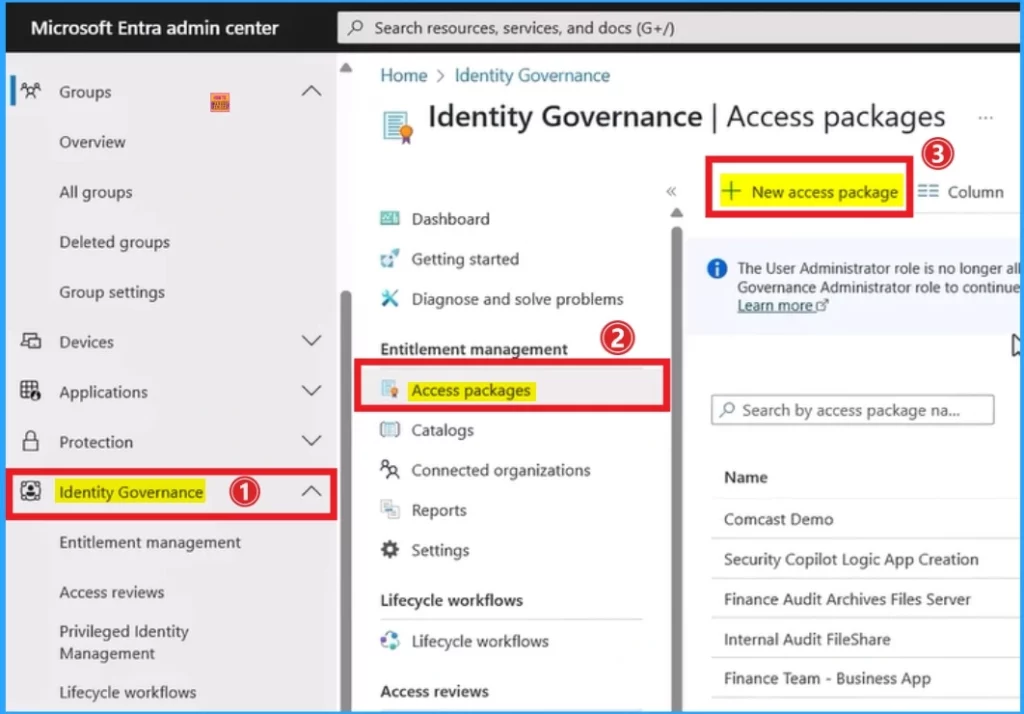
You can create access packages on the Microsoft Entra Portal. In this example, the access package is created based on the employee’s role in the company. To create the Access Packages, Open the Microsoft Entra admin center, go to Identity Governance, and click on the + New Access Package button.
Basic Tab
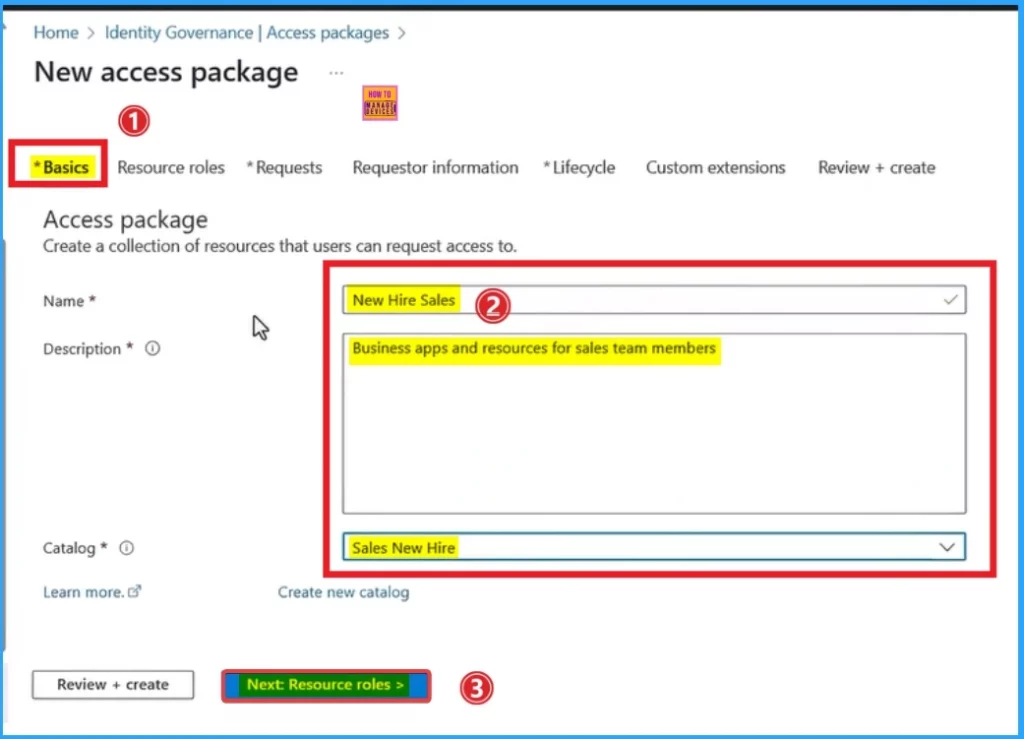
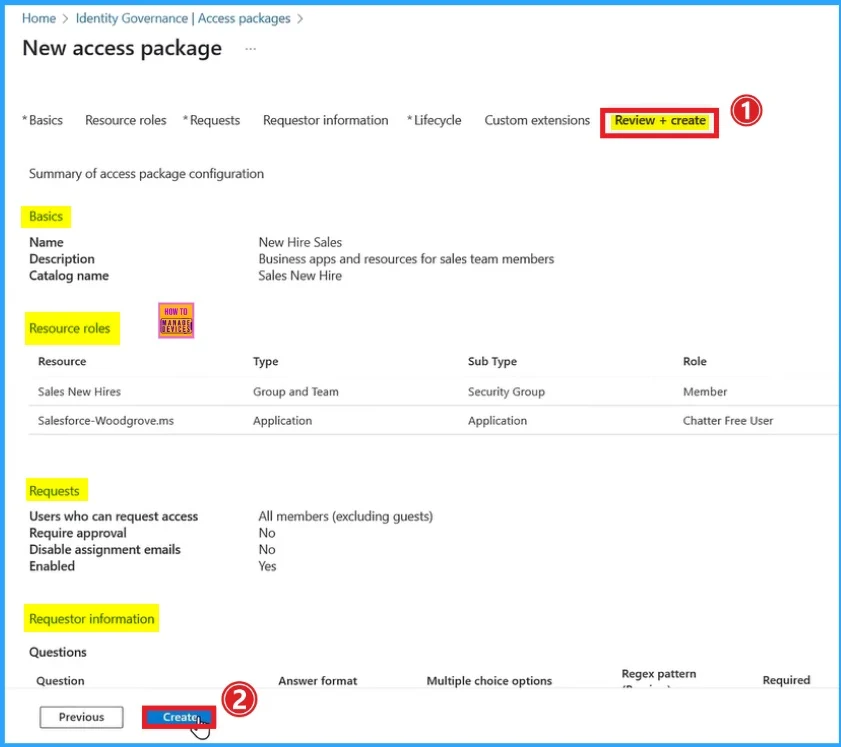
On the Basic Tab, you can enter the Name, Description and Catalog for the Access Package. All the fields are mandatory. After adding all the data, click on the Next: Resource roles.
- Name – New Hire Sales
- Description – Business apps and resources for sales team members
- Catalog – Sales New Hire
Resource Roles
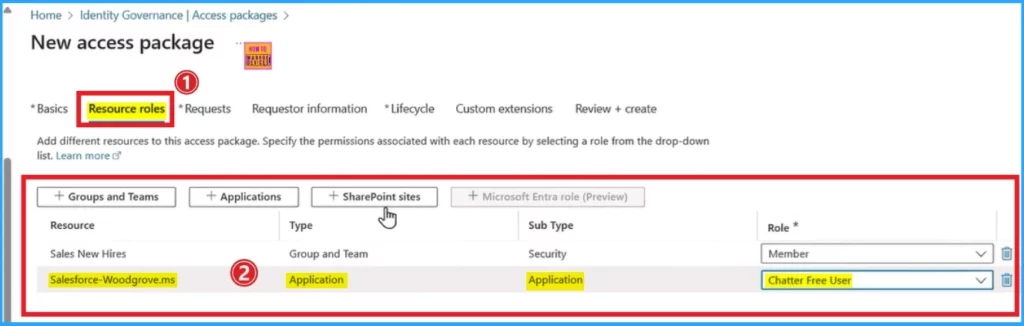
First, I will add them to the right groups and teams, along with their roles. Next, I will add an enterprise app like Salesforce, which you can see here. Optionally, you can also grant access to the right internal SharePoint sites.
Requests Tab
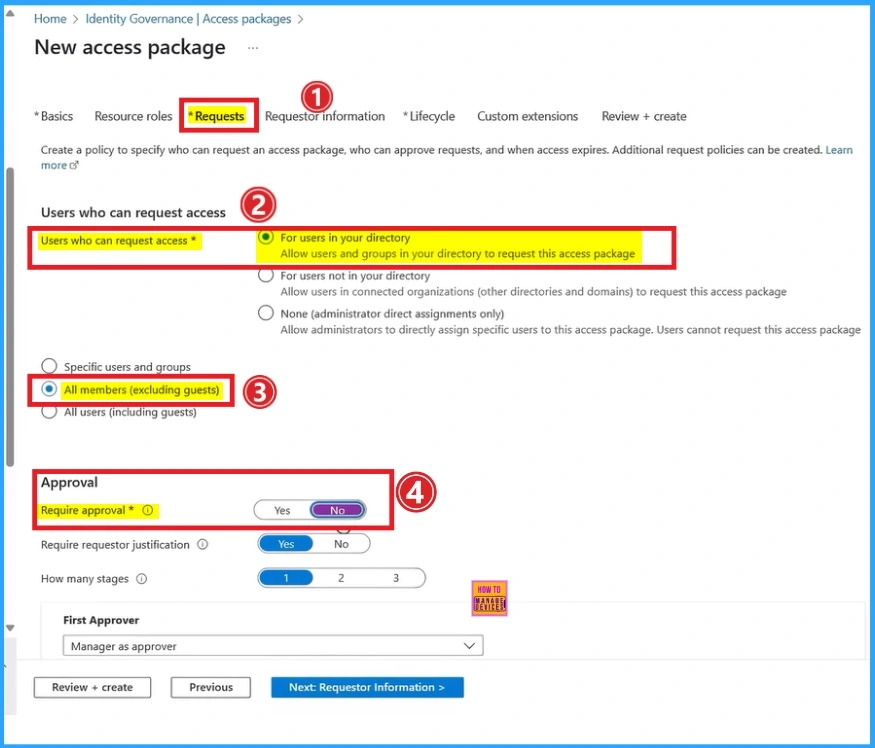
On this tab, you can configure access packages in the Request step, along with a few other standard options. Here, you can see different options such as Users who can request access, Approvals, etc. These fields are mandatory. The table below shows the options I selected on the screenshot.
| Options on Requests tab | Selected option |
|---|---|
| Users who can request access | For users in your directory |
| All members (excluding guests) | |
| Approval | Disabled |
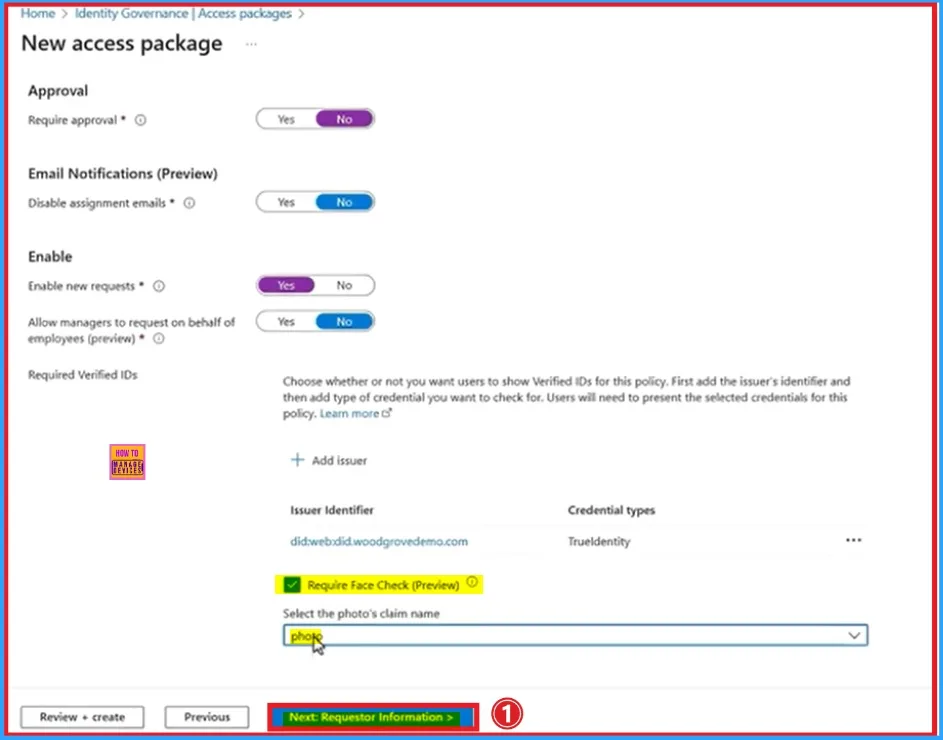
Here, you can configure required verified IDs, which gives you more options to configure the issuer. I will choose Woodgrove in this case and select credential types. This is where you can require Face Check. And select the Photo’s claim name. In this case, it is the Photo option.
Lifecycle Tab
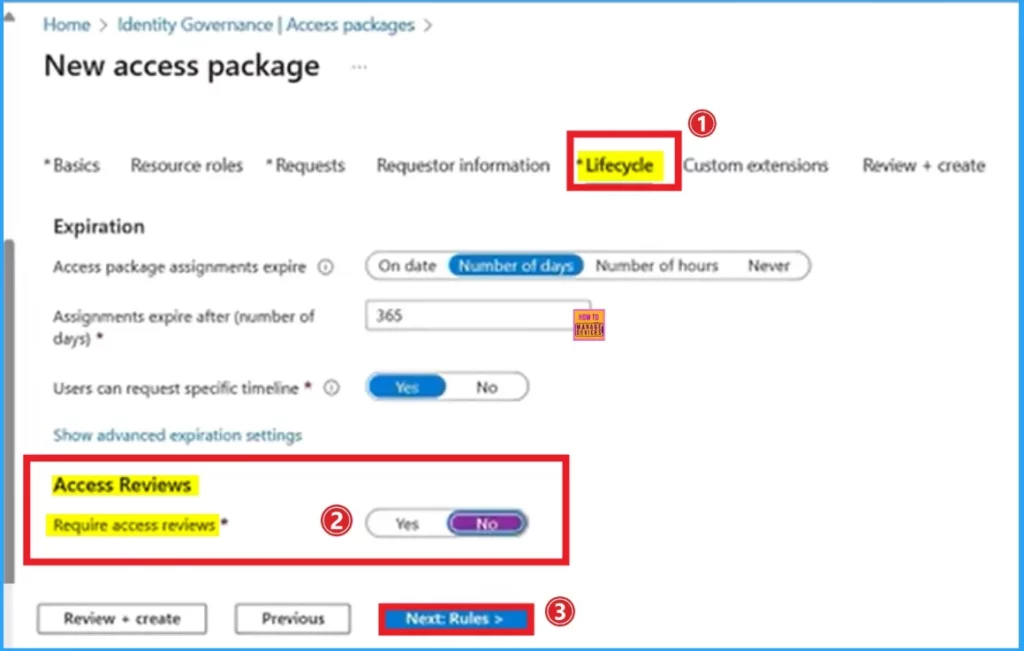
No further modifications are needed on this tab. Here, you can enable or disable the Access Reviews field. I disabled this field and clicked on the Next button to continue.
Custom Extensions
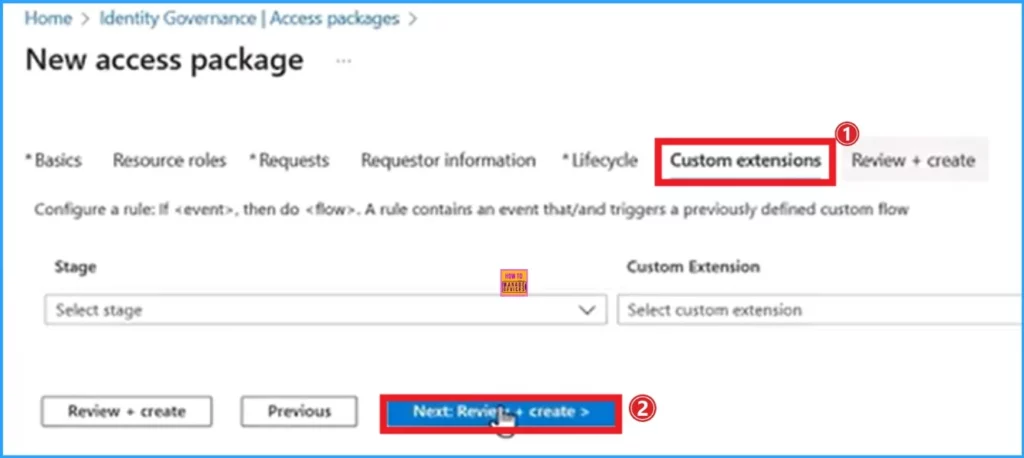
This tab is not mandatory for creating Access Packages. If you want to add custom extensions, select the stage and Custom extension on this tab. After that, click on the Next button.
Review + Create Tab
On the review + create tab, you can recheck all the details that are added on the previous tabs. If you want to make any changes, click on the previous button. Otherwise, you can click on the Create button.
Monitoring Status
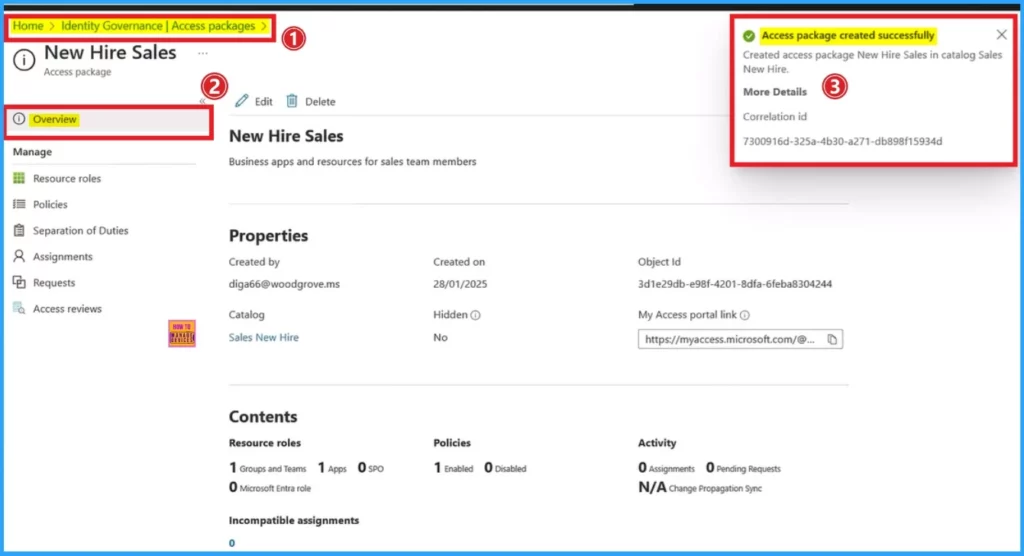
After creating the Access Package, you will get a success message on the Entra Portal. To check the overview of the created access package, go to Home > Identity Governance > Access Packages. Search for the Access Package on the Access Package page. On this page, you can see the details of Properties and the content of Access Package.
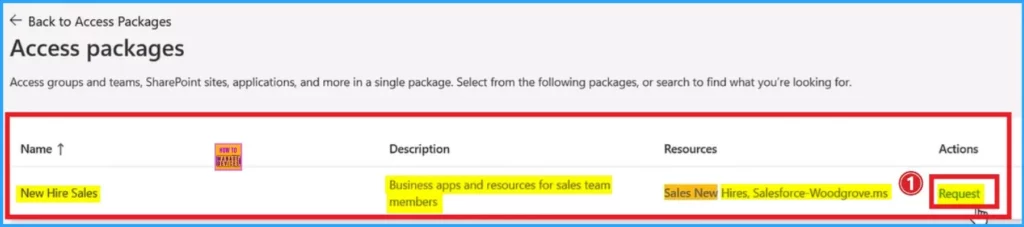
You can switch over to a requesting users view, when they request the access package. Click on the Request button to request access. Look at the below window.
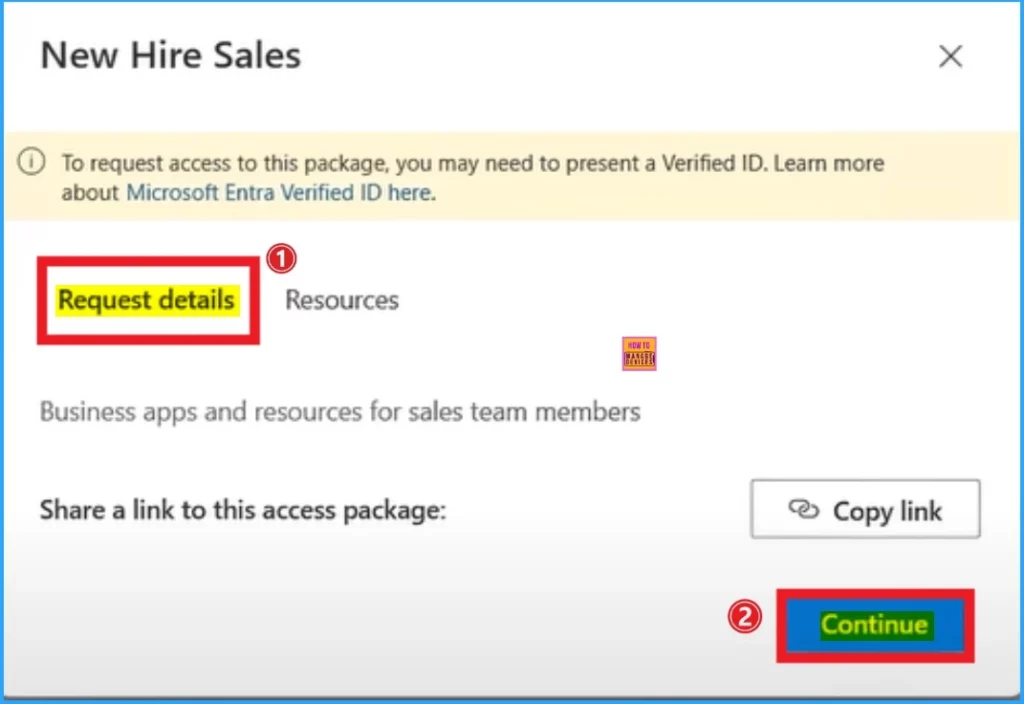
To request access to this package, you may need to present a Verified ID. To do so, click on the Continue button. The screenshot below will guide you.
On the below screenshot you can see a QR Code. You can use this QR Code to present your Verified ID. Use your phone to scan. This QR code is valid for 5 minutes. Follow the screenshot below.
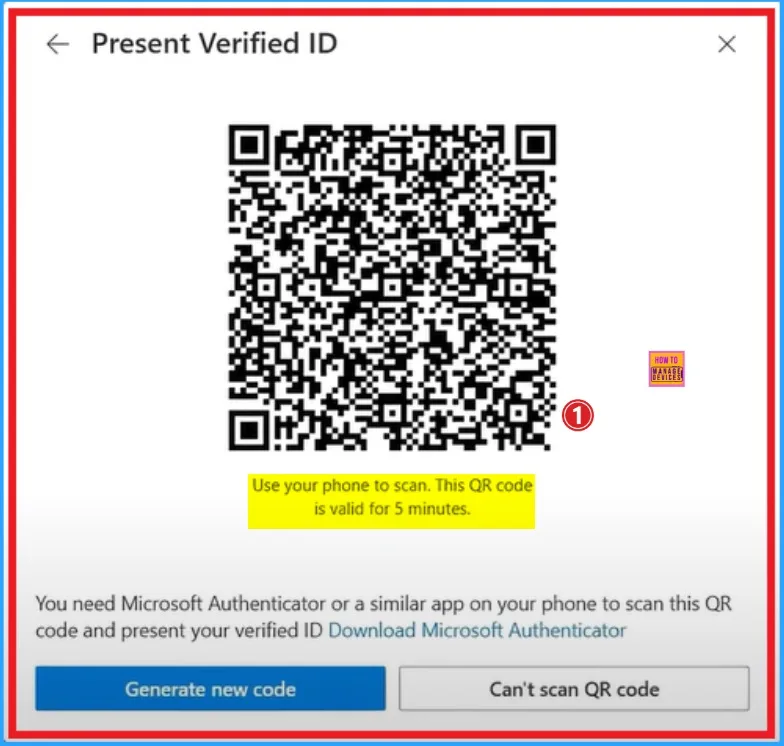
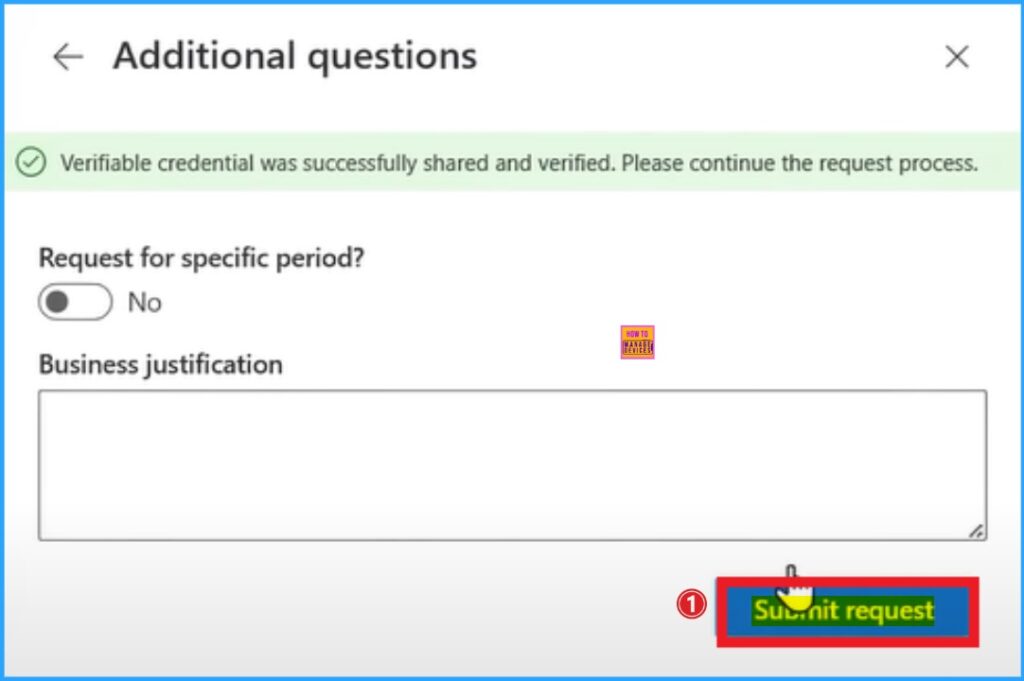
This service will perform the Face Check just like i have shown before to satisfy the request. The verifiable credential was successfully shared and verified. To continue the request process click on the Submit Request button.
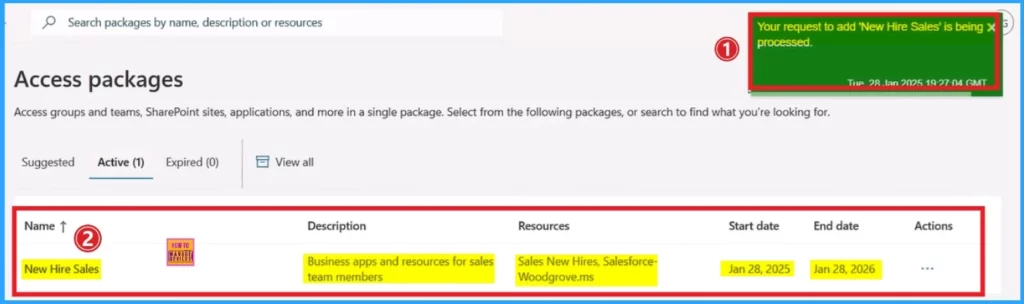
If the access Request is successful, Microsoft Entra then authorizes permissions to access the package that you have assigned. Look at the screenshot below.
Need Further Assistance or Have Technical Questions?
Join the LinkedIn Page and Telegram group to get the latest step-by-step guides and news updates. Join our Meetup Page to participate in User group meetings. Also, Join the WhatsApp Community to get the latest news on Microsoft Technologies. We are there on Reddit as well.
Resource
Microsoft’s New AI Face Check Makes Digital ID Super Easy
Author
Anoop C Nair has been Microsoft MVP from 2015 onwards for 10 consecutive years! He is a Workplace Solution Architect with more than 22+ years of experience in Workplace technologies. He is also a Blogger, Speaker, and Local User Group Community leader. His primary focus is on Device Management technologies like SCCM and Intune. He writes about technologies like Intune, SCCM, Windows, Cloud PC, Windows, Entra, Microsoft Security, Career, etc.
Discussion