






AVD Add New Personal VMs to Existing Host Pool
Let’s quickly find out how to add new Personal VMs to the Existing Host Pool using the AVD portal. If you want the same feature for the AVD 2020 spring release (a.k.a WVD V2), refer to the following post Add new Session Hosts to Existing Host Pool.
The assumption here is all the other AVD setups are in place. You already have an existing personal host pool with many VMs in it! The latest information is available: AVD Add New Session Hosts To Existing Host Pool | Registration Key HTMD Blog (anoopcnair.com).
A Personal Virtual Desktop utilizes a single Virtual Machine (VM) for each user to operate their desktop. This setup closely resembles traditional endpoint computing, where each user has their own physical device with its own operating system (OS), memory, and other components.
In Azure Virtual Desktop environments, host pools consist of one or more identical virtual machines (VMs). Each host pool can include an app group, allowing users to interact with applications as they would on a physical desktop.

Related Post – AVD Host Pool Creation Guide with New Template
Add New Personal VMs
We must go through several steps to add a New Personal VM to the Existing Host Pool.
Step #1 –Create a Resource
To create a new session host VM, click the + Add button. Please note that certain options such as Subscription, Resource Group, Host Pool Name, Location, and Host Pool Type are preselected for the host pool and cannot be changed.
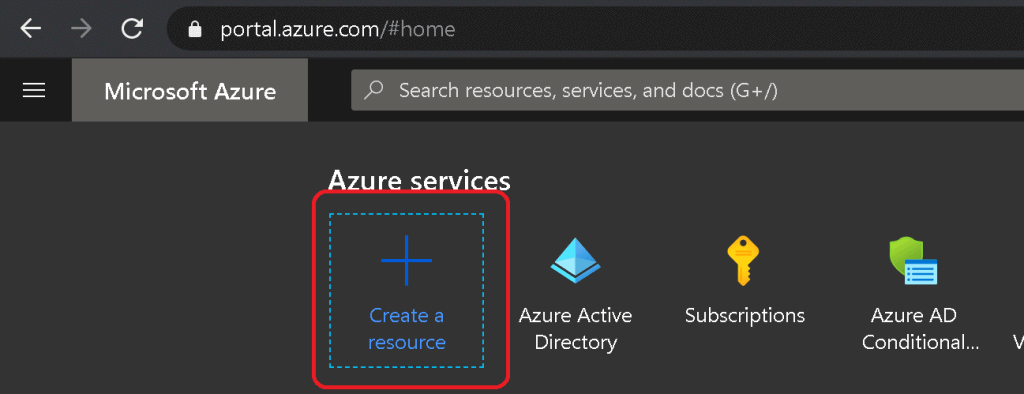
Click on + Create a Resource
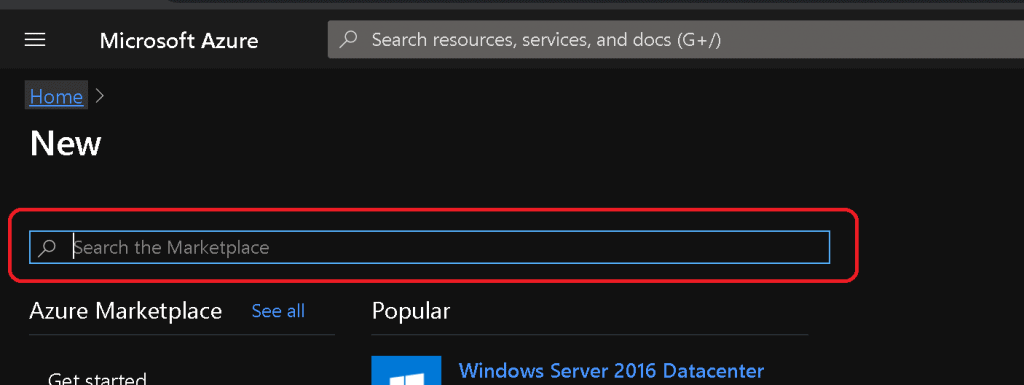
Search the Marketplace with “Windows Virtual Desktop – Provision a host pool“.
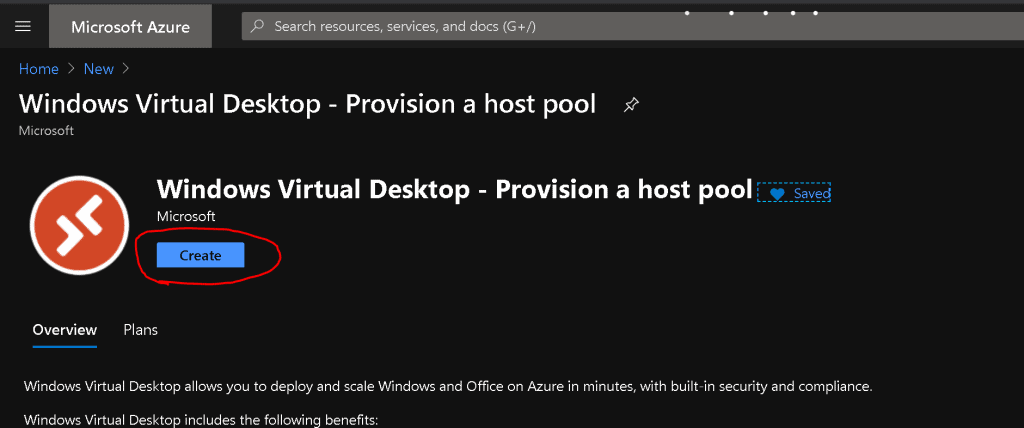
- Click on “Windows Virtual Desktop – Provision a host pool“.
Click on Create
Step #2 – Host Pool Selection
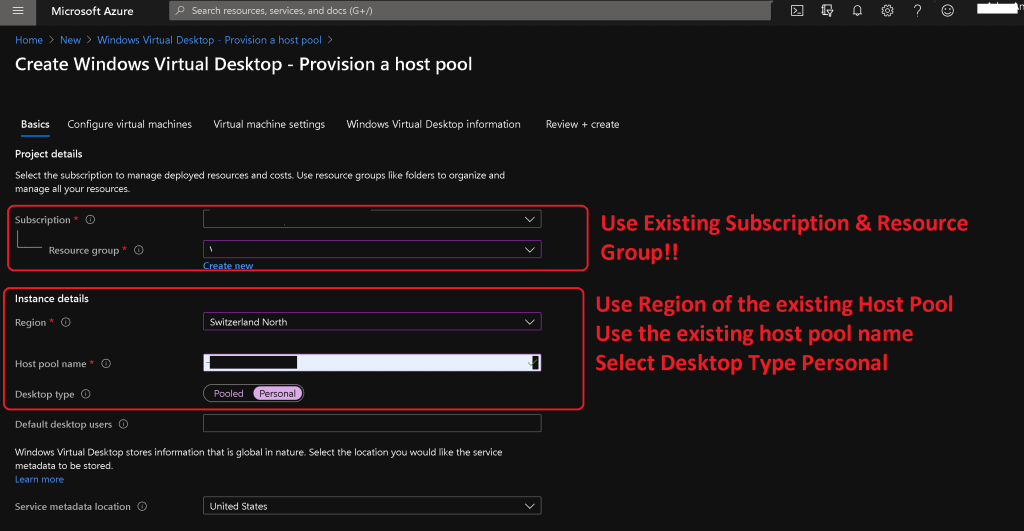
Let’s go through this step’s normal configuration of Host Pool Creation. Use the Existing Host Pool Name
- Use the same Azure Region of the existing Host Pool
- Use the existing host pool name
- Select Desktop Type Personal
Step #3 – Personal VM Configuration
Configure Virtual Machines
- Total number of Users – Number of VMs – 2 (because I selected desktop type as personal)
- Virtual Machine Size – 2x Standard D2s v3
- Virtual Machine Prefix:
NOTE! DO NOT USE the same prefix name you used previously. Using the same prefix will create huge issues with your current VMs.
Step #4 – Virtual Machine Settings
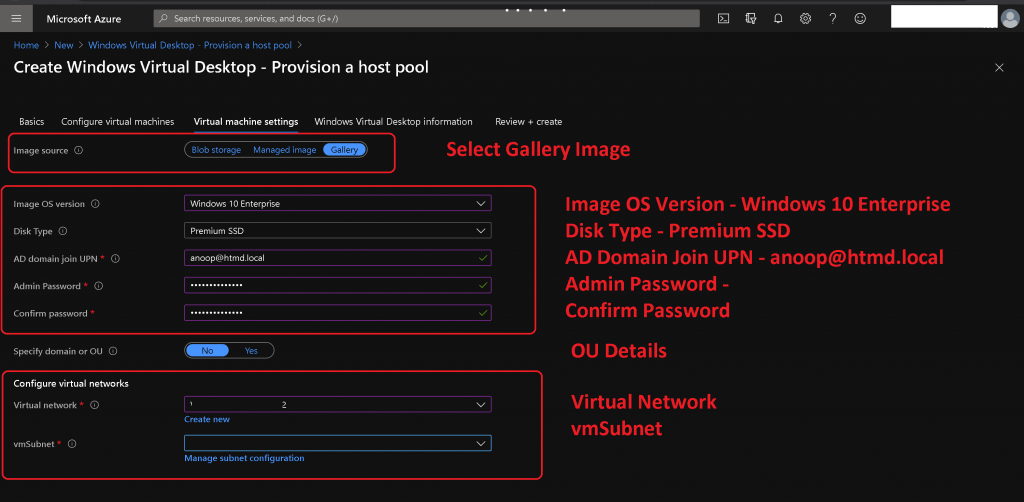
First, I must set the image source to Gallery, select the Windows 10 Enterprise OS version, and choose the Premium SSD disk type. Following that, I will need to input the AD Domain Join UPN as anoop@htmd.local and proceed to set the admin password, confirm the password, and enter the OU details.
- Select Virtual Network
- Select vmSubnet
Step #5 – Windows Virtual Desktop Information
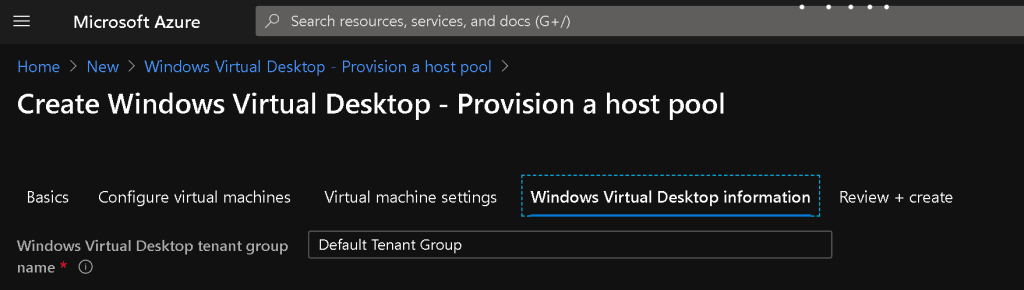
- Windows Virtual Desktop tenant group name – Default Tenant Group
- Enter Windows Virtual Desktop tenant name – Anoop
- Enter Windows Virtual Desktop tenant RDS Owner
- Select Service principle
- Enter Application ID
- Enter Password
- Enter Confirm password
- Enter Azure AD tenant ID
- Select Service principle
Review + Create
- Let’s review and create
- Once you finish the new deployment, the new personal VMs will be available for the users.
Results
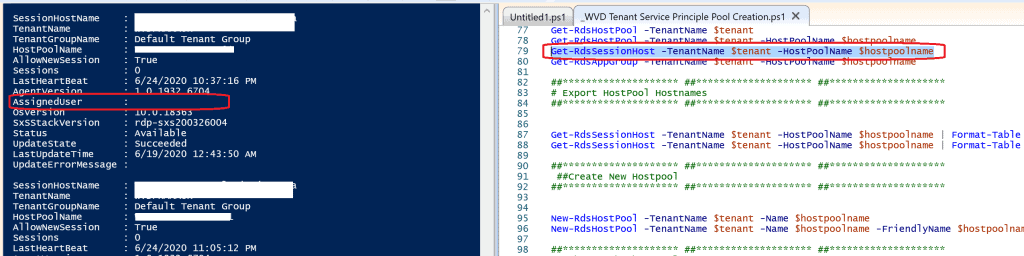
Run the following PowerShell command to find out new personal VMs added to the host pool.
Get-RdsSessionHost -TenantName $tenant -HostPoolName $hostpoolname
Resources
- WVD Life Cycle Management Remove Published Remote Apps with PowerShell
- WVD Architecture Changes for v2 | New Portal Admin Experience
We are on WhatsApp. To get the latest step-by-step guides and news updates, Join our Channel. Click here –HTMD WhatsApp.
Author
Anoop C Nair is Microsoft MVP! He is a Device Management Admin with more than 20 years of experience (calculation done in 2021) in IT. He is a Blogger, Speaker, and Local User Group HTMD Community leader. His primary focus is Device Management technologies like SCCM 2012, Current Branch, and Intune. He writes about ConfigMgr, Windows 11, Windows 10, Azure AD, Microsoft Intune, Windows 365, AVD, etc.
Discussion