






Create AVD Azure AD Dynamic Device Group using systemLabels Property
Let’s learn how you can create Azure Virtual Desktop Devices Dynamic Group using systemLabels Property in Azure AD. By creating a dynamic device group in Azure Active Directory, you can conveniently group AVD together.
AAD Dynamic membership is supported for both security groups and Microsoft 365 Groups. When defining a group membership rule, user and device attributes are assessed to determine matches with the specified criteria. It is worth noting that Azure AD device property attribute systemlabels have been identified and brought to attention by Scott Duffey, Microsoft PM.
The systemLabels attribute is a read-only property that cannot be directly set using Intune. This attribute is associated with Azure Virtual Desktop (AVD) devices and provides information about system labels assigned to these devices.
AAD dynamic Device groups and dynamic device collections in SCCM share similarities in their purpose and functionality. An Azure Active Directory (AAD) dynamic device group is a collection of devices that are grouped together based on a shared attribute value.

Intune also supports the use of nested Azure AD groups through the Membership -> Assigned option. This functionality is similar to adding AD security groups to SCCM collections using the direct rule. However, when using the Assigned option in Intune, you won’t be able to view all the individual members of the AD groups.
- Create AAD Dynamic Groups Based On MDM Intune SCCM Management
- AVD Azure AD Dynamic Device Group For Windows 10 Multi-Session | Enterprise For Virtual Desktops
Create AVD Azure AD Dynamic Device Group using systemLabels Property
The following steps help you to create an AAD dynamic device group based on Systemlabels. This guide will use the Device attribute property Systemlabels of the devices to create a dynamic group. This dynamic group allows you to apply policies that specifically target all or a subset of AVDs based on the rules you define.
- Sign in to the Azure Portal or Azure AD admin center https://aad.portal.azure.com/ with a Global administrator, Intune administrator, or User administrator role in the Azure AD organization.
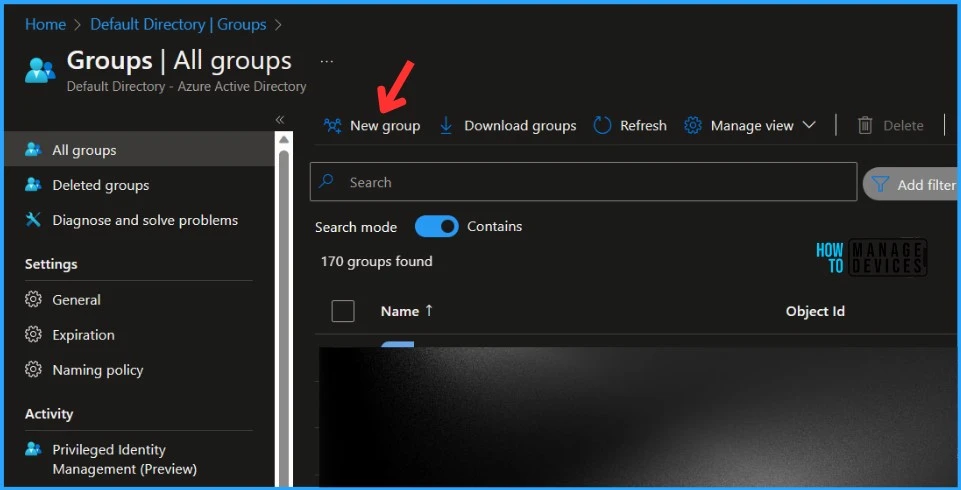
- Select All groups, and select New group.
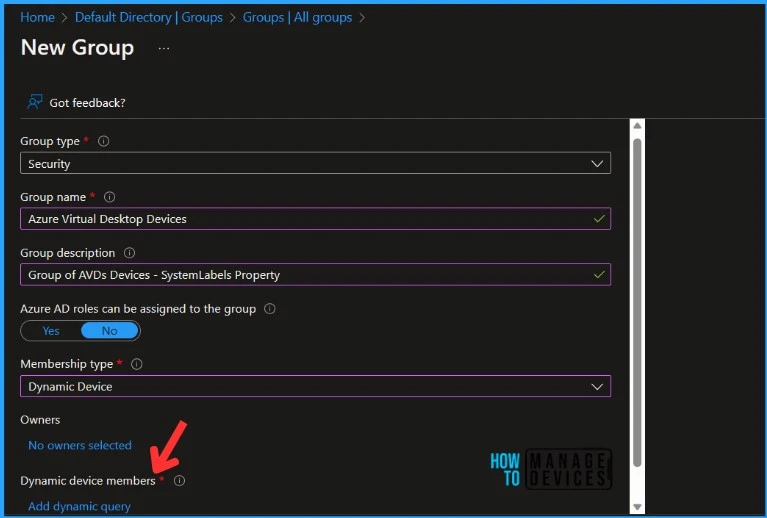
On the New Group, Here you need to add the required information to proceed with Dynamic Group. The mandatory field is Group type, Group Name, and Membership type.
- Select Security – Group Type from the drop-down option.
- Enter Group Name “Azure Virtual Desktop Devices” or provide a name according to your convenience.
- Enter Group Description “Group of AVDs Devices – SystemLabels Property” (Add a description to make it clear for everyone).
- Select Dynamic Device as the Membership type, and click on Add Dynamic Query under Dynamic Device Member.
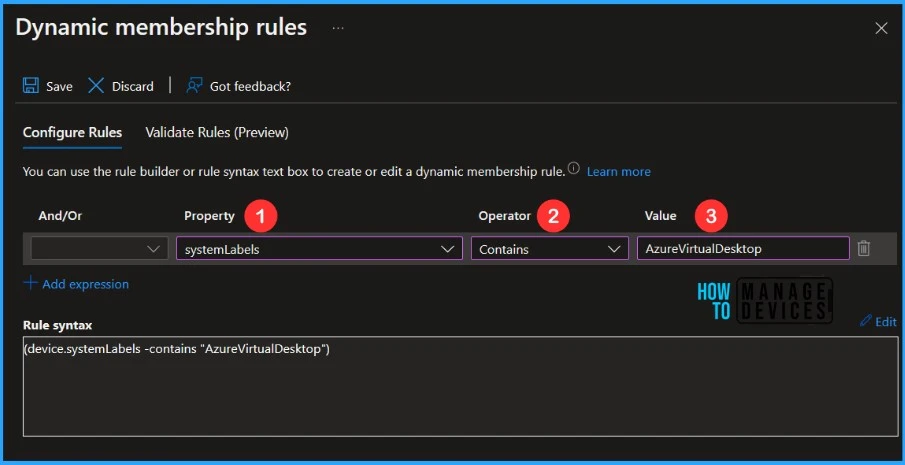
On the Dynamic Membership Rules blade, select systemLabels property column drop-down options. You can select the option name “Contains” from the operator column, and the Value should be AzureVirtualDeskop or CloudPC (In case you want to filter Windows 365, Cloud PC).
In the dynamic query builder, use the following query to target AVD devices based on the systemLabels property.
| Device attribute | Values | Rules [For Example] |
|---|---|---|
| systemLabels | Any string matching the Intune device property for tagging Modern Workplace devices | (device.systemLabels -contains “AzureVirtualDesktop”) |
| systemLabels | Any string matching the Intune device property for tagging Windows 365 Cloud PC | (device.systemLabels -contains “CloudPC”) |
The Validate Rules tab will run your query against your selected target users or devices and confirm if they would meet the requirements to be a group member or not. Let’s see how Intune Admin validates Azure AD Dynamic Group Rules.
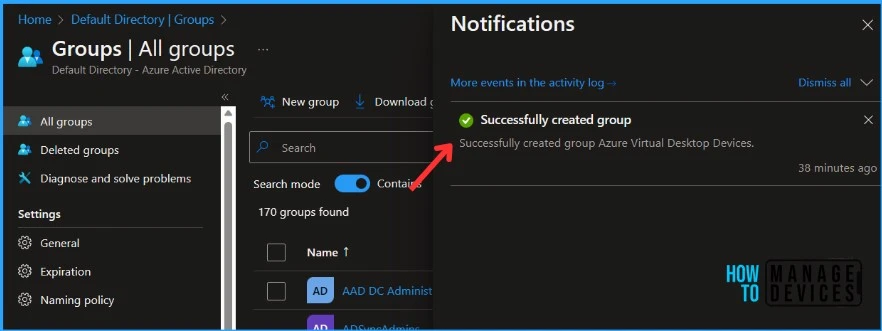
Click on Save and Create button to complete the process of building Azure AD dynamic device group creation. A notification will appear with a message, Successfully created group Azure Virtual Desktop Devices.
Azure AD will evaluate the dynamic query periodically and automatically include AVD devices that match the specified system label in the group. This allows you to dynamically manage the membership of the group based on the properties of the AVD devices.
Author
About Author – Jitesh, Microsoft MVP, has over six years of working experience in the IT Industry. He writes and shares his experiences related to Microsoft device management technologies and IT Infrastructure management. His primary focus is Windows 10/11 Deployment solution with Configuration Manager, Microsoft Deployment Toolkit (MDT), and Microsoft Intune.




I’ve looked at multiple AVD instances we run and none of them have the systemLabels attribute populated. Would love to use this but without more info from MS on what causes this to be populated we’re a bit stuck.
So what are all the value systemLabels attribute supports?
I cannot find anywhere from MS Docs.
Thanks,
Go to Microsoft Entra Admin Centre
– You will need to add a Device query to see the systemlable
I’ve found that
(device.devicePhysicalIds -any (_ -contains “[AzureResourceId]”))
seems to work by default whereas systemLabel does not.