






AVD Life Cycle Management Remove Published Remote Apps with PowerShell
AVD life cycle management is essential for many IT Pros and decision-makers. In this post, we will be able to see how to remove published remote apps with PowerShell.
In a real-world scenario, you might need to remove existing remote apps and add new remote apps. Running the PowerShell commands requires many steps.
Try these PowerShell commands in your non-production environments before trying these commands in the production AVD environment.
Related Post – Learn How to Publish AVD Remote Apps with PowerShell

Prerequisite – Remove AVD Remote Apps
Ensure that you have gone through all the prerequisites before removing remote apps from the RDS environment. I assume you have an AVD tenant and have already published remote apps to users.
NOTE! – Windows Virtual Desktop (AVD) has the restriction that within a host pool, a user cannot be assigned to both a desktop app group and a remote app group.
Install Azure AD, RD PowerShell Module – Remove Published Remote Apps
##Install & Import AzureAD Module
Install-Module -Name AzureAD
Import-Module -Name AzureAD
##Install & Import RD - AVD Module
Install-Module -Name Microsoft.RDInfra.RDPowerShell
Import-Module -Name Microsoft.RDInfra.RDPowerShell
Login to RD Account – Authenticate with Azure AD
## Login with Azure AD Account user name and password
Add-RdsAccount -DeploymentUrl https://rdbroker.wvd.microsoft.com

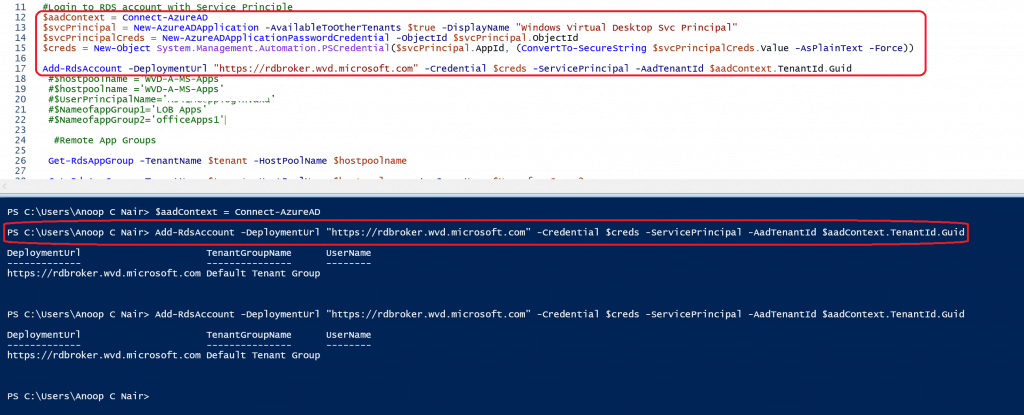
#Login to RDS account with Service Principle
$aadContext = Connect-AzureAD
$svcPrincipal = New-AzureADApplication -AvailableToOtherTenants $true -DisplayName "Windows Virtual Desktop Svc Principal"
$svcPrincipalCreds = New-AzureADApplicationPasswordCredential -ObjectId $svcPrincipal.ObjectId
$creds = New-Object System.Management.Automation.PSCredential($svcPrincipal.AppId, (ConvertTo-SecureString $svcPrincipalCreds.Value -AsPlainText -Force))

Add-RdsAccount -DeploymentUrl "https://rdbroker.wvd.microsoft.com" -Credential $creds -ServicePrincipal -AadTenantId $aadContext.TenantId.Guid
Set Variables – AVD Remote Apps (Remove Published Remote Apps)
#Set the Variable
$hostpoolname ='WVD-A-MS-Apps'#$hostpoolname ='AVD-A-MS-Apps'
$UserPrincipalName='ACN@HowToManageDevices.com'
$NameofappGroup1='LOB Apps'
$NameofappGroup2='officeApps'
Identify Remote Apps Published to Remote App Group
Following PowerShell commands helps you confirm the associated small app groups and host pool before removing the published remote apps.
- RDS App Group Details (Desktop App and Remote App Groups for the RDS Session Host)
- List of the apps associated with an RDS Remote App Group
- List of the users related to RDS Remote App Group
NOTE – You might not have access to run this query if you are login to RDS using SPN. Instead, you might need to have appropriate access to Azure AD to list the users in the Azure AD Group.
#Get the details of AVD Remote App Groups
Get-RdsAppGroup -TenantName $tenant -HostPoolName $hostpoolname

 ##List of Remote App Group
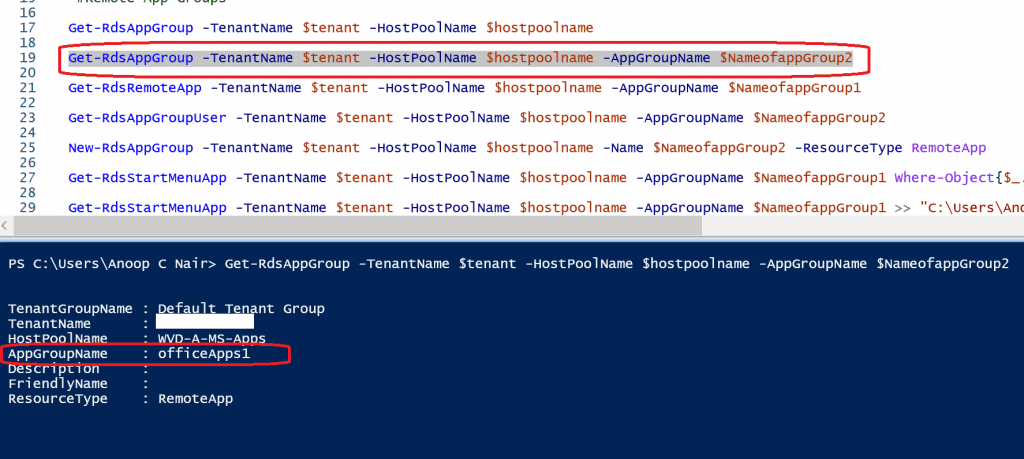
Get-RdsAppGroup -TenantName $tenant -HostPoolName $hostpoolname -AppGroupName $NameofappGroup2

##List of Users associated to Remote App Group
Get-RdsAppGroupUser -TenantName $tenant -HostPoolName $hostpoolname -AppGroupName $NameofappGroup2
AVD Remove Published Remote Apps
You might need to perform the following activities before removing published remote apps.
Remove User from Remote Apps Group
NOTE! – The AVD remote app groups should be empty before you can remove them.
##Remove the Users from Remote Apps Groups
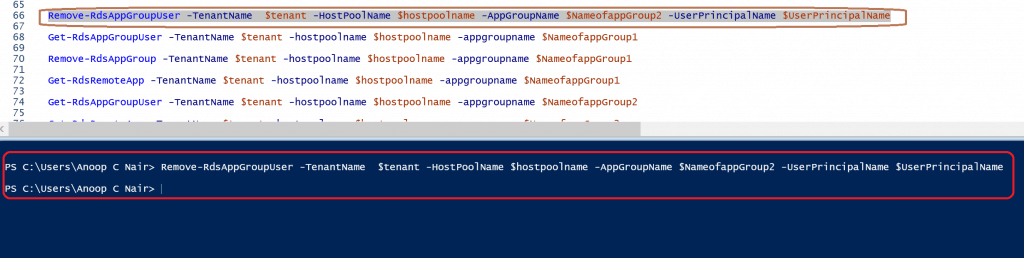
Remove-RdsAppGroupUser -TenantName  $tenant -HostPoolName $hostpoolname -AppGroupName $NameofappGroup2 -UserPrincipalName $UserPrincipalName
Are no Users Part of Remote Apps Groups?
##Make Sure NO Users are part of Remote App Groups
Get-RdsAppGroupUser -TenantName $tenant -hostpoolname $hostpoolname -appgroupname $NameofappGroup2
List of Published Remote Apps Associated with Remote App Group
Find the list of published remote apps associated with the remote app group.
NOTE! – We need to remove all the published remote apps before removing the remote app group.
##Get the list of Published AVD Remote Apps
Get-RdsRemoteApp -TenantName $tenant -hostpoolname $hostpoolname -appgroupname $NameofappGroup2
Remove Published AVD Remote App
The following PowerShell command will help you remove the published remote apps associated with an RDS small group.
##Remove Published Remote App Version
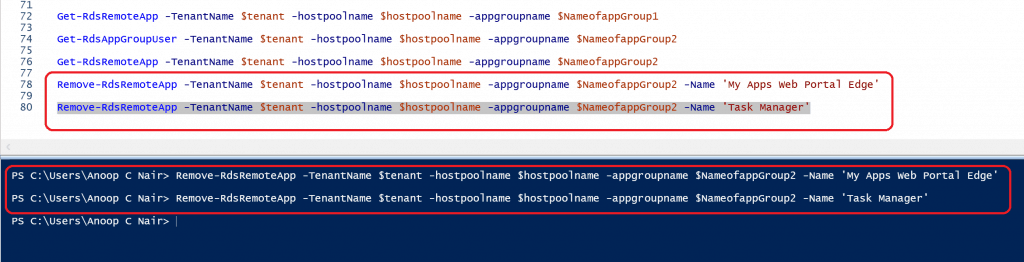
Remove-RdsRemoteApp -TenantName $tenant -hostpoolname $hostpoolname -appgroupname $NameofappGroup2 -Name 'My Apps Web Portal Edge'

Remove-RdsRemoteApp -TenantName $tenant -hostpoolname $hostpoolname -appgroupname $NameofappGroup2 -Name 'Task Manager'
Remove Published Remote App Group
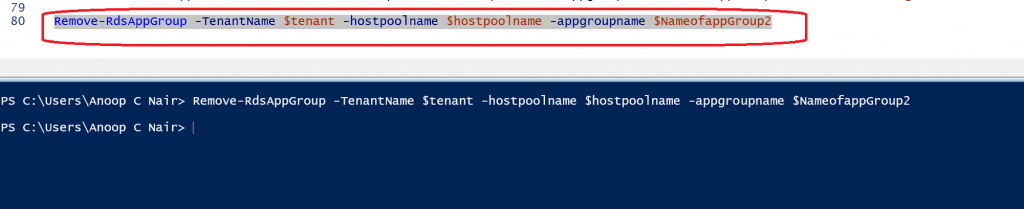
The following command will help us to remove the RDS remote app groups.
NOTE! – This removal or deletion is possible only when no published apps are associated with that group.
## RD App Removal PowerShell Command
Remove-RdsAppGroup -TenantName $tenant -hostpoolname $hostpoolname -appgroupname $NameofappGroup2
Resources
- AVD Host Pool Creation Guide With New Template
- Install Subscribe Windows RD Client for WVD End User Step-by-Step Guide
- AVD Video PlayList https://aka.ms/WVDPlaylist
- AVD AMA 28th Aug 2019 Windows Virtual Desktop Microsoft WVD FAQs from AMA
- Microsoft VDI Story AVD Concept Setup Guide Myths Known Issues
- SCCM Intune Support for Persistent Non-Persistent VDI VMs
We are on WhatsApp. To get the latest step-by-step guides and news updates, Join our Channel. Click here –HTMD WhatsApp.
Author
Anoop C Nair is Microsoft MVP! He is a Device Management Admin with more than 20 years of experience (calculation done in 2021) in IT. He is a Blogger, Speaker, and Local User Group HTMD Community leader. His main focus is on Device Management technologies like SCCM 2012, Current Branch, and Intune. He writes about ConfigMgr, Windows 11, Windows 10, Azure AD, Microsoft Intune, Windows 365, AVD, etc.

Discussion