






Learn How to Setup Azure AD Device Cleanup Rules
In one of my recent blog posts, I shared a step-by-step guide to Setup Automatic Intune Device Cleanup Rules. The Azure AD device cleanup options were sketchy when I wrote that post.
In this post, you will learn options to set up Azure AD Device Cleanup Rules. I stumbled across an Azure AD session from Microsoft Ignite 2018. Microsoft announced some exciting developments about Azure AD device cleanup options in this session.
Microsoft is trying to solve deployment and management device lifecycle issues. Microsoft understands that there is a big concern about the stale devices in Azure AD.
The Microsoft Azure AD team is actively developing a range of options, two of which are already available in Public Preview.

- UX/GUI support options for Azure AD device cleanup (Azure portal?)
- PowerShell Support to delete the stale AAD device records
Video – Azure AD and Intune Cleanup
In this video, we will delve into the details of Intune Device Clean-up Rules, focusing on removing stale records from Intune and Azure AD and automating maintenance tasks for Intune.
UX Support for Azure AD Device Cleanup
Microsoft announced (above ignite session) their plans to have a UX option to support Azure AD device cleanup rules in the Azure portal.
I didn’t see any other announcement related to this UX option to automatically delete the stale devices from Azure AD.
Unlike Intune cleanup rules, there is no UX option to clean up AAD devices automatically. However, if you go to the Azure portal and navigate to the Azure AD -> Devices blade, you might be able to see a column called “Activity.”
The “Activity” column entries provide details of a device’s approximate last logon timestamp.
Azure AD introduced a new property called ApproximateLastLogonTimestamp. If the delta between now and the value of the activity timestamp exceeds the timeframe you have defined for active devices, a device is considered to be stale.
- I would recommend going through Microsoft documentation to have more details.
NOTE 1 – You shouldn’t consider a timestamp younger than 14 days an indicator for a stale device.
NOTE 2—Intune’s minimum value for the device cleanup rule is 90 days. So, I might keep both the AAD and Intune cleanup timeframes the same. What do you think about this?
Powershell to Cleanup Azure AD Stale Devices
I’m a UX/GUI lover, and I don’t want non-core technical support folks running PowerShell commands to clean up Azure AD devices. But you don’t have the option to clean up Azure AD devices other than using PowerShell.
The PowerShell command called “Get-MsolDevice” can be used to clean up Azure AD devices.
Connect-MsolService
Connect to Azure AD using the Connect-MsolService cmdlet to connect to the Azure AD tenant.
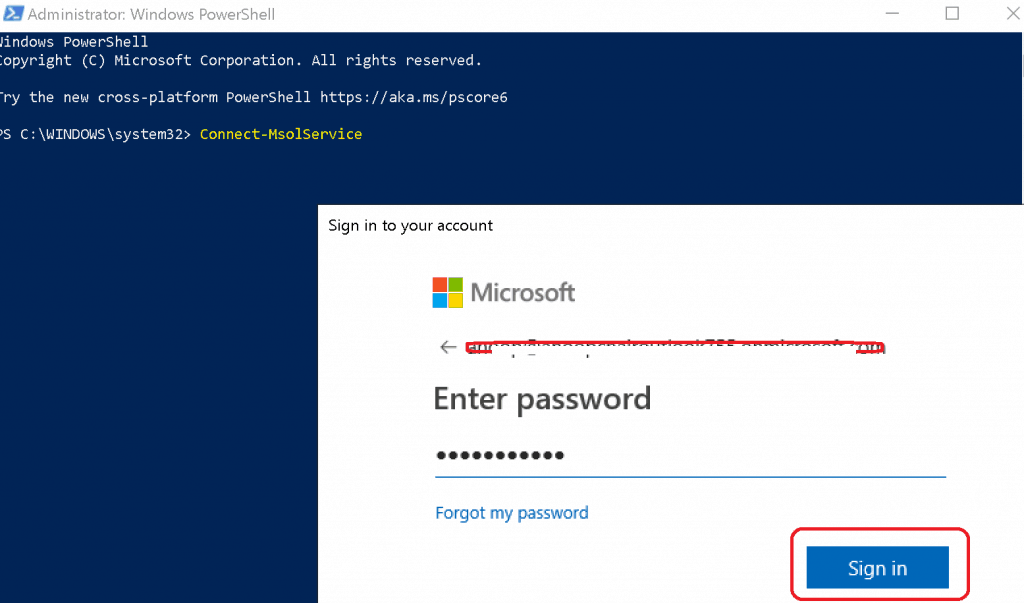
Get-MsolDevice
Get the list of devices using the following PowerShell command Get-MsolDevice.
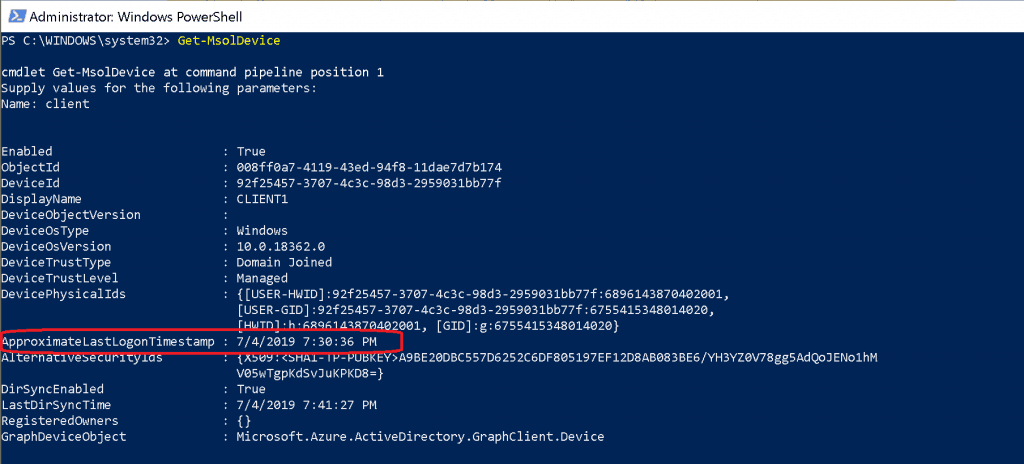
PS C:\WINDOWS\system32> Get-MsolDevice
cmdlet Get-MsolDevice at command pipeline position 1
 Supply values for the following parameters:
 Name: client
 Enabled                       : True
 ObjectId                      : 008ff0a7-4119-43ed-94f8-11dd7b174
 DeviceId                      : 92f25457-3707-4c3c-9-2959031bb77f
 DisplayName                   : CLIENT1
 DeviceObjectVersion           :
 DeviceOsType                  : Windows
 DeviceOsVersion               : 10.0.18362.0
 DeviceTrustType               : Domain Joined
 DeviceTrustLevel              : Managed
 DevicePhysicalIds             : {[USER-HWID]:927-3707-4c3c-98d3-2959031bb77f:68961470402001,
                                 [USER-GID]:92f25457-3707-4c3c-98d3-2959031bb77f:6755415348014020,
                                 [HWID]:h:6896143802001, [GID]:g:6755418014020}
 ApproximateLastLogonTimestamp : 7/4/2019 7:30:36 PM
 AlternativeSecurityIds        : {X509:A9BE20DBC557D6252C6DF805D8AB083BE6/YH3YZ0V78gg5AdQoJENo1hM
                                 V05wTgpKdSvjjPKD8=}
 DirSyncEnabled                : True
 LastDirSyncTime               : 7/4/2019 7:41:27 PM
 RegisteredOwners              : {}
 GraphDeviceObject             : Microsoft.Azure.ActiveDirectory.GraphClient.Device
Get-MsolDevice -all
You can use Get-MsolDevice to get all the device details without any filter.
PS C:\WINDOWS\system32> Get-MsolDevice -all | select-object -Property Enabled, DeviceId, DisplayName, DeviceTrustType, ApproximateLastLogonTimestamp | export-csv C:\devicelist-summary.csv
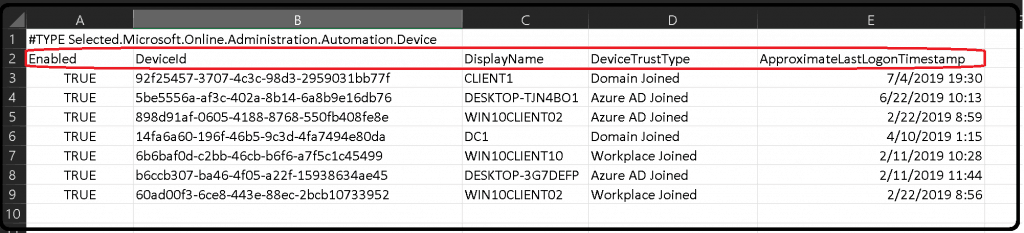
- The following Powershell command can be used to export the Azure AD stale devices to an Excel spreadsheet.
Following is a sample of the Excel export. You can try running the following PowerShell command to get this result.
Get-MsolDevice -all | select-object -Property Enabled, DeviceId, DisplayName, DeviceTrustType, ApproximateLastLogonTimestamp | export-csv C:\devicelist-summary.csv
| DeviceId | DisplayName | DeviceTrustType | ApproximateLastLogonTimestamp |
|---|---|---|---|
| 92f2545-3707-4c3c-9d3-2959031bb77f | CLIENT1 | Domain Joined | 7/4/2019 19:30 |
| 898d9af-005-4188-8768-550fb408fe8e | WIN10CLIENT02 | Azure AD Joined | 2/22/2019 8:59 |
| 6b6bafd-c2bb-46cb-b6f-af5c1c45499 | WIN10CLIENT10 | Workplace Joined | 2/11/2019 10:28 |
| b6cc307-ba46-4f05-a22f-158634ae45 | DESKTOP-3G7DEFP | Azure AD Joined | 2/11/2019 11:44 |
| 60adf3-6ce8-443e-88ec-2b10733952 | WIN10CLIENT02 | Workplace Joined | 2/22/2019 8:56 |
Disable-MsolDevice
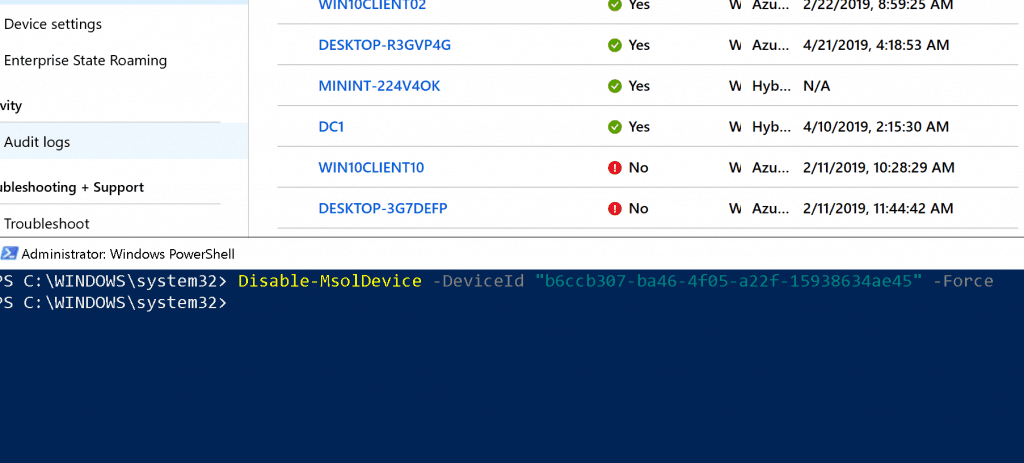
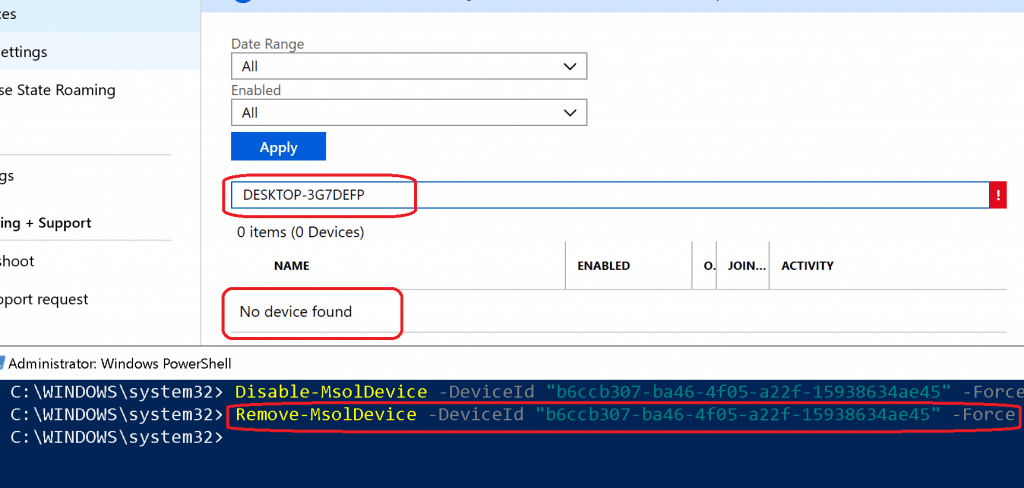
- In the following example, I’m using the Deviceid property of DESKTOP-3G7DEFP to DISABLE that device from Azure AD.
Disable the Azure AD stale device using the following PowerShell command.
Disable-MsolDevice -DeviceId "b6ccb307-ba46-4f05-a22f-15938634ae45" -Force
PS C:\WINDOWS\system32> Disable-MsolDevice
 cmdlet Disable-MsolDevice at command pipeline position 1
 Supply values for the following parameters:
 DeviceId: b6ccb307-ba46-4f05-a22f-15938s4ae45
 Confirm
 Continue with this operation?
 [Y] Yes  [N] No  [S] Suspend  [?] Help (default is "Y"): Y
Remove-MsolDevice
- In the following example, I’m using the Deviceid property of DESKTOP-3G7DEFP to DELETE that device from Azure AD.
DELETE the Azure AD stale device using the following PowerShell command. Remove-MsolDevice -DeviceId “b6ccb307-ba46-4f05-a22f-15938634ae45” -Force
Resources
- How To: Manage stale devices in Azure AD
- Get-MsolDevice Parameters
- Disable-MsolDevice Parameters
- Remove-MsolDevice Parameters
We are on WhatsApp. To get the latest step-by-step guides and news updates, Join our Channel. Click here –HTMD WhatsApp.
Author
Anoop C Nair is Microsoft MVP! He is a Device Management Admin with more than 20 years of experience (calculation done in 2021) in IT. He is a Blogger, Speaker, and Local User Group HTMD Community leader. His main focus is on Device Management technologies like SCCM 2012, Current Branch, and Intune. He writes about ConfigMgr, Windows 11, Windows 10, Azure AD, Microsoft Intune, Windows 365, AVD, etc




This article needs a lot of rework – it is so so out of date.
The concept is (sort of) okay, but execution and example code is way out of date.
StaffThank you som for the feedback. I have a request if that is ok. More specific details to make it up to data are much appreciated.
It would be great to have an automated process for this.
geez, what a pain in the crack, just to clean up old devices… bring back old AD, or add some decent functionality already MS.
StaffWe will reach there soon …. the AAD will be better soon … but never ever the world will go back to 445 SMB domain join and Active Directory ..I presume.
How to remove bulk devices from Azure portal…is till not clear.
How do you bulk disable all the users that have not had any activity in over 90 days?