






Let’s learn to clear Microsoft Teams Cache on Windows 11 and Android mobiles. We will show you how to remove the Microsoft Teams app cache on Windows 11 and Android mobile devices using different methods.
Is it safe to delete the Microsoft Teams cache? You won’t lose any user data by clearing the Cache. Restarting Teams after you remove the Cache might take longer than usual because the Teams cache files have to be rebuilt.
Clearing Microsoft Teams’ Cache helps you resolve issues like suddenly being unable to log in to Teams and other progressively worsening performance issues. It also allows you to remove everything that Microsoft Teams stores locally on your PC.
Microsoft Teams is a business communication platform and is the ultimate messaging app for your organization developed by Microsoft. Microsoft Teams is a collaboration platform built for hybrid work; it offers workspace chat and videoconferencing file storage and application integration.

- How to Deploy MS Teams Using ConfigMgr Step-by-Step Guide|SCCM
- Best Option to Deploy MS Teams MSI Using SCCM | ConfigMgr
What is the Advantage of Clearing Microsoft Teams Cache on Windows 11?
Is it possible to clear the Cache or history on Teams? Yes, it is simple and easy; it will help you to remove all the Teams Add-ons, web cache, icons, thumbnails, local message history, and display images. The following are the advantages of clearing Teams Cache.
1. Solve the problem of the slowness
2. Helps to increase storage space
3. Helps to prevent you from using old forms
4. Helps to protect your personal information
5. Helps our applications run better
6. Helps to the smooth functioning of Teams
How to Clear Microsoft Teams Cache on Windows 11
Microsoft Teams is a great software that allows users to text, have audio/video meetings, take remote control, etc. If you get issues such as a long time to run the application, blank pages being loaded, and inability to access shared files, clearing the Cache of Microsoft Teams is the best solution.
Every app has a cache; the Cache helps store temporary data. First, close Microsoft Teams before clearing its Cache, and log OUT of your account.
- Click the Close symbol from MS Teams
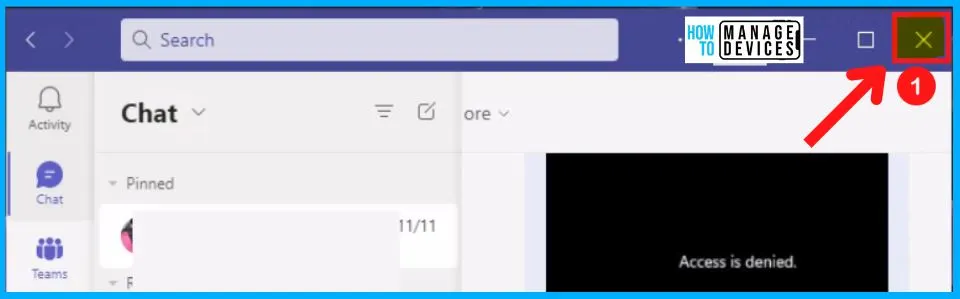
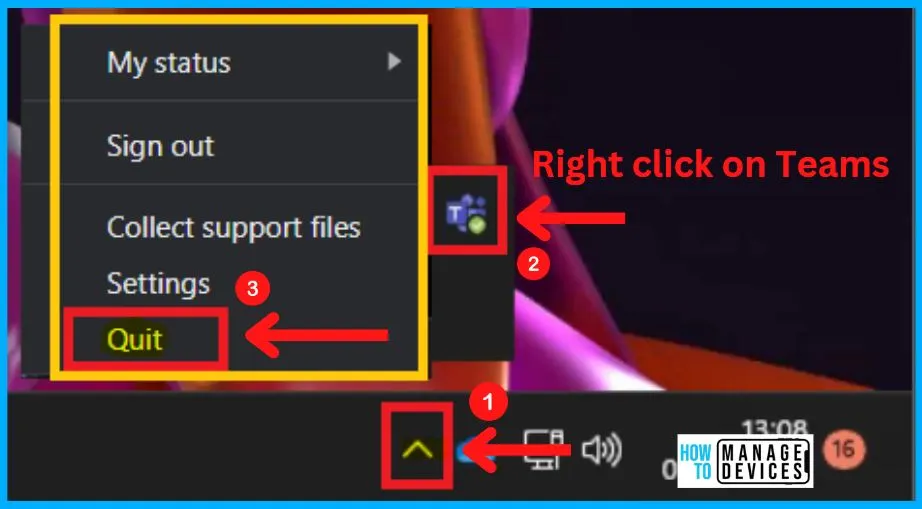
Before you proceed with the cache clearing, it is very important to close all instances of Microsoft Team apps from your device. First, you need to quit the Team app from the Taskbar of Windows 11.
- Click on the upward arrow on the taskbar.
- A context Menu will appear, right click on the Microsoft Teams icon.
- Select Quit to close Microsoft Teams completely (see the below screenshot.
Different Methods to Clear Cache on Microsoft Teams
There are different methods available to clear the Cache on Microsoft Teams. Clearing the Cache is very important to the smooth functioning of Teams. The following are the methods used to remove the Cache in Microsoft Teams.
- Using File Explorer
- Using Run Dialogue Box
- Using Task Manager
1. Using File Explorer
Using File Explorer to clear the Cache on Microsoft Teams is one of the simple and easy methods. The below steps and screenshot show how to remove the Cache on Microsoft Teams.
- Select File Explorer from the Start menu
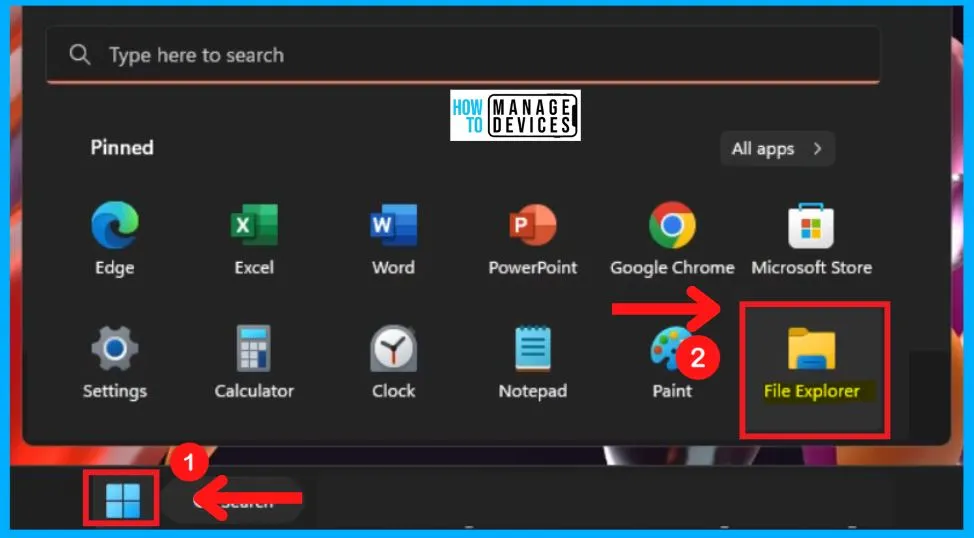
AppData is the program file that helps you to store user-specific information related to the program. On every Windows 11 PC, you can easily find all the cached files in your “AppData” folder.
- Select the Address Bar
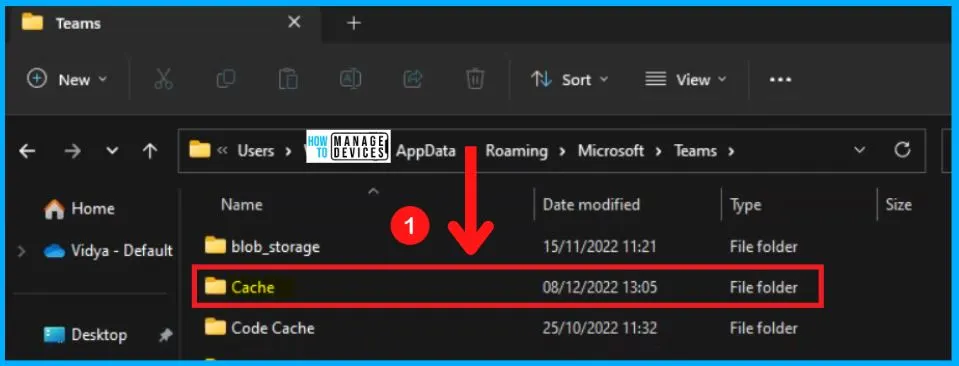
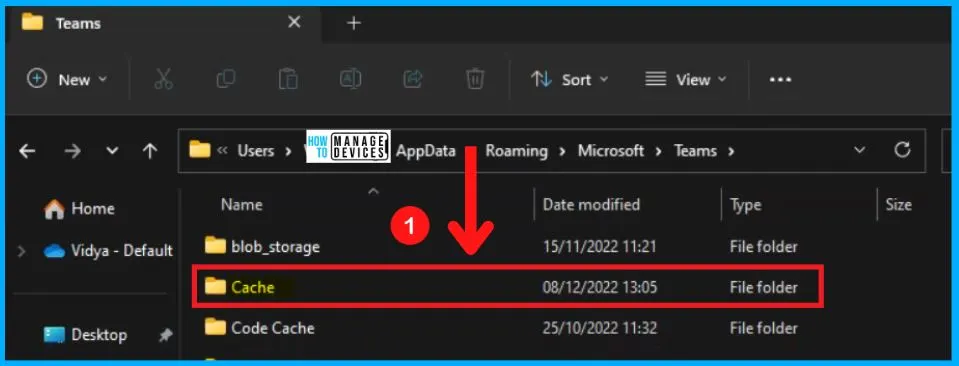
- Enter %appdata%\Microsoft\Teams
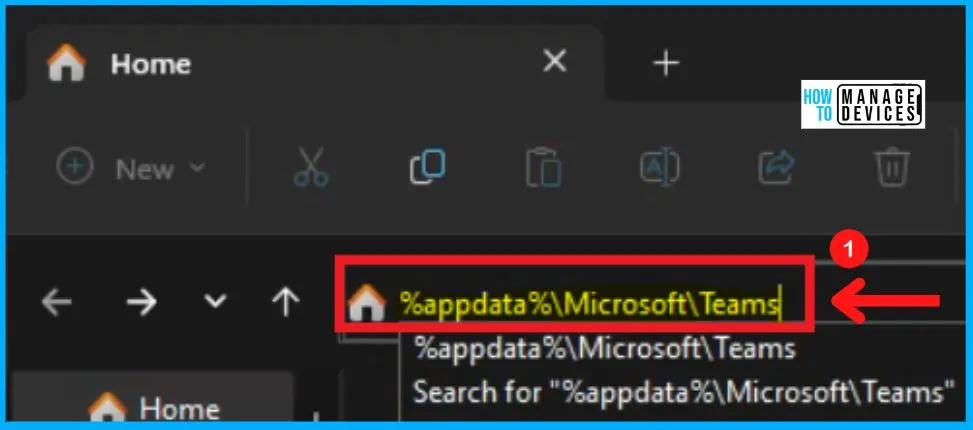
The Cache is a hardware or software component that helps you to store data, and it is a reserved storage location that collects temporary data to support websites, browsers, and apps to load faster.
- Select Cache from the below screenshot
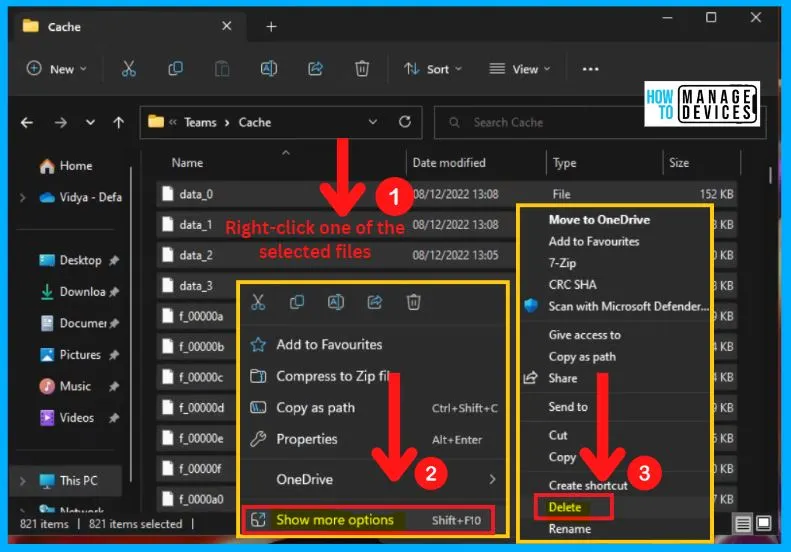
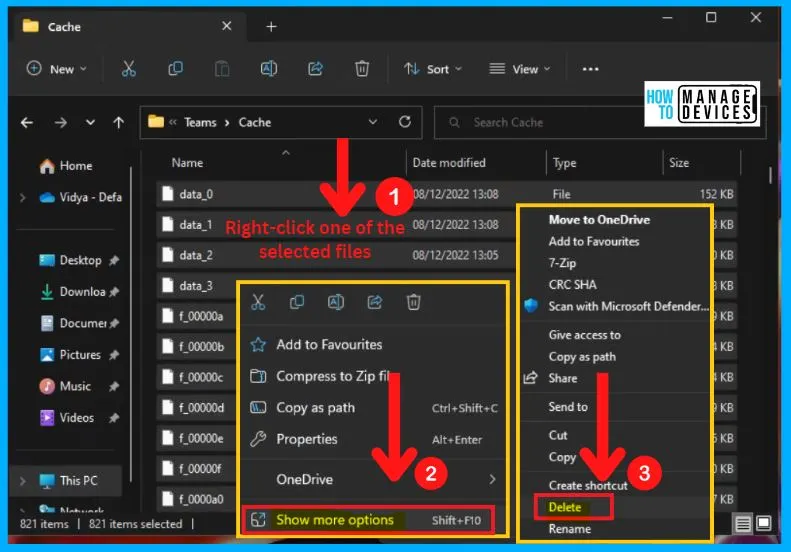
After selecting Cache, select all files in the cache folder. Right-clicking one of the selected files will show a context menu offering the options such as add to Favourites; properties show more options, etc.
- Click “Show more options” from the context menu
- Click the Delete option from the below screenshot
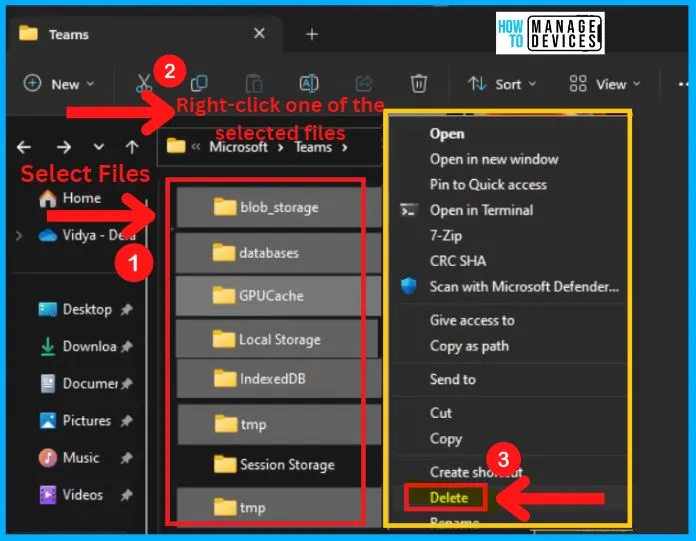
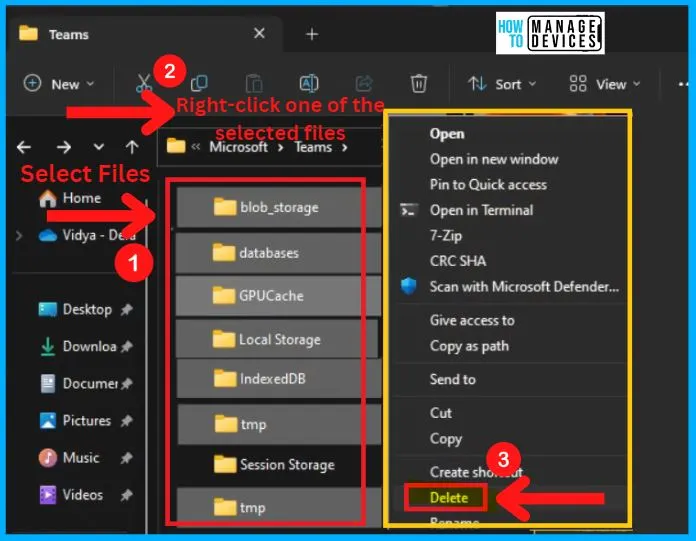
Select the files such as blob-storage, databases, GPUCache, local storage, indexedDB, and tmp (see screenshot below). Right-click one of the selected files, and from the context menu, select Delete.
| Teams Files | Used to |
|---|---|
| Blob-storage | A binary large object (BLOB or blob) helps you to store images, audio, or other multimedia things. |
| Databases | A tool for collecting and organizing information helps store information about people, products, etc. |
| GPU Cache | GPU Cache helps you to store files; it will be safe to delete the GPUCache folder |
| Local storage | Local storage is a low-cost solution to saving data |
| IndexedDB | It is the fast-growing client-side storage technology |
| tmp | A software program generates the transitory backup, storage, or file system. |
MS Team is a workspace for real-time collaboration, communication, meetings, and file and app sharing. After clearing the Cache, close the File explorer window and open Microsoft Teams.
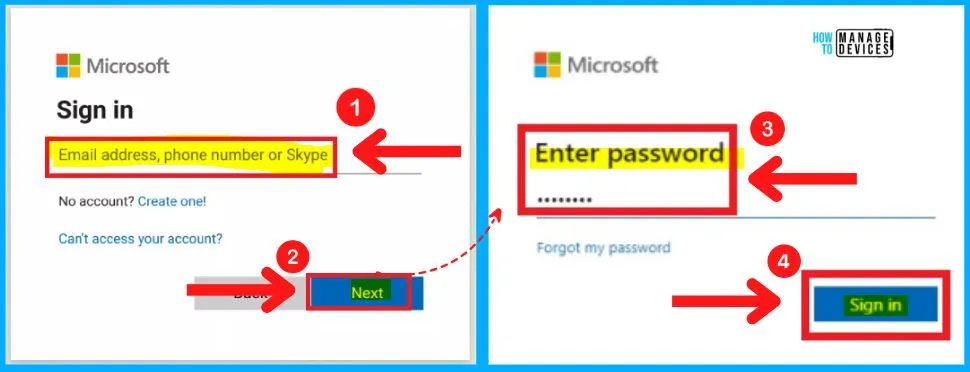
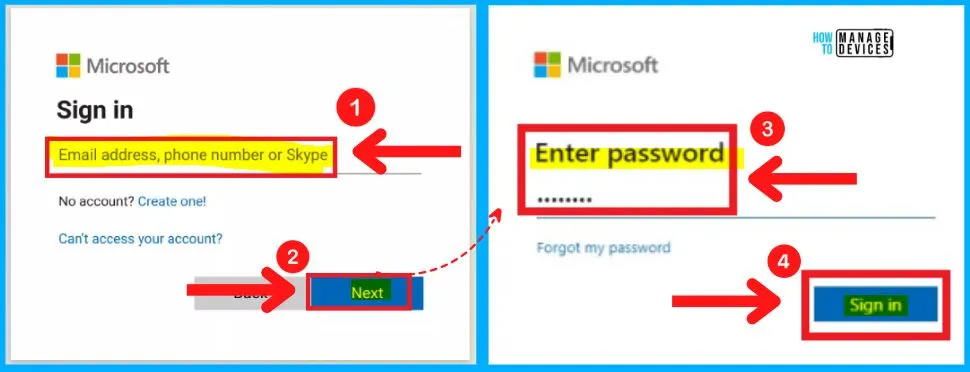
- Enter your Email address, phone number, or skype to sign in to MS Teams
- Click the Next button from the below screenshot
- Enter your Password
- Click Sign IN button from the below screenshot
- New Features in Microsoft Teams August September Update
- Turn Off or On Microsoft Teams Suggested Replies Feature Available on Windows 11 Desktop
2. Using Run Dialogue Box
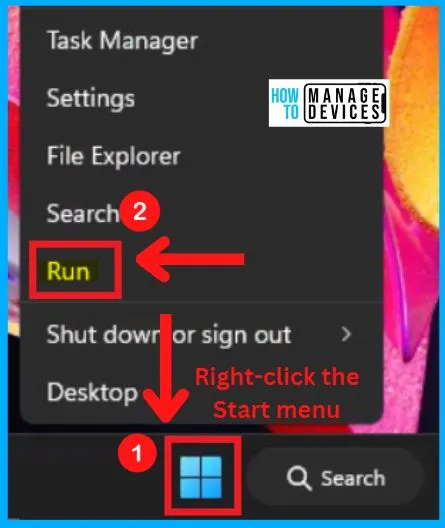
You can quickly access the Run command dialog box from the Start menu or press the keyboard shortcut Windows key + R to open the Run dialog box.
- Right-click the Start menu
- Select the Run command dialog box from the context menu
A cache is a high-speed data storage layer that helps you to store a subset of data, typically transient. Select Cache from the below screenshot.
Select all the files from the Cache and right-click one of the selected files; it will open a context menu. Select “show more options” from the context menu and choose Delete from the below screenshot.
Select the files such as blob-storage, databases, GPUCache, local storage, indexedDB, and tmp (see screenshot below). Right-click one of the selected files, and from the context menu, select Delete.
Open Microsoft Teams, Log in with your Email address, phone number, or skype, and click Next from the below screenshot. Enter your Password and click the Sign IN button from the below screenshot.
- FIX Microsoft Teams App Issues Repair Options Available on Windows 11
- Outlook Teams Desktop Application Login Issues M365 Incident MO414814
3. Using Task Manager
Task manager is a system monitor program. It is used to provide information about the applications running on a computer. It helps to show you what programs are running on your Windows computer.
- Select Task Manager from the Start menu
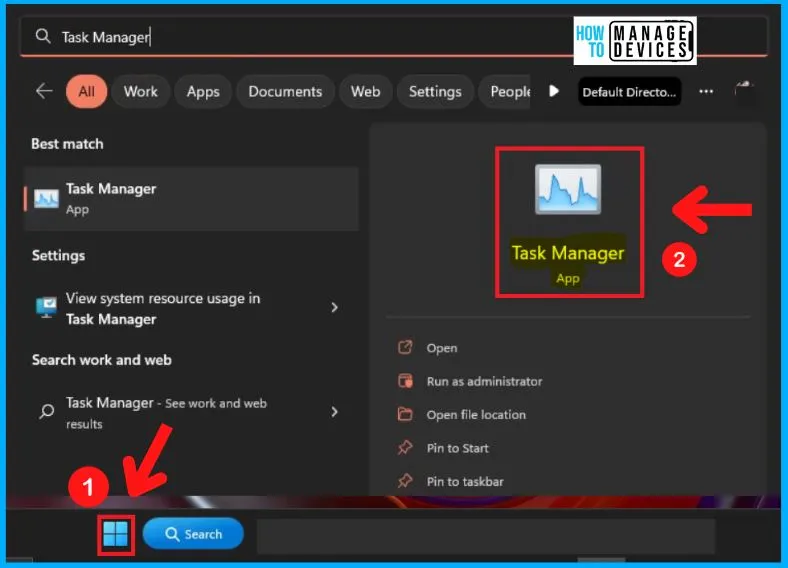
Task manager helps you to show all Apps and background processes. It also allows you to show the Run new task, End task, Efficiency mode, etc.
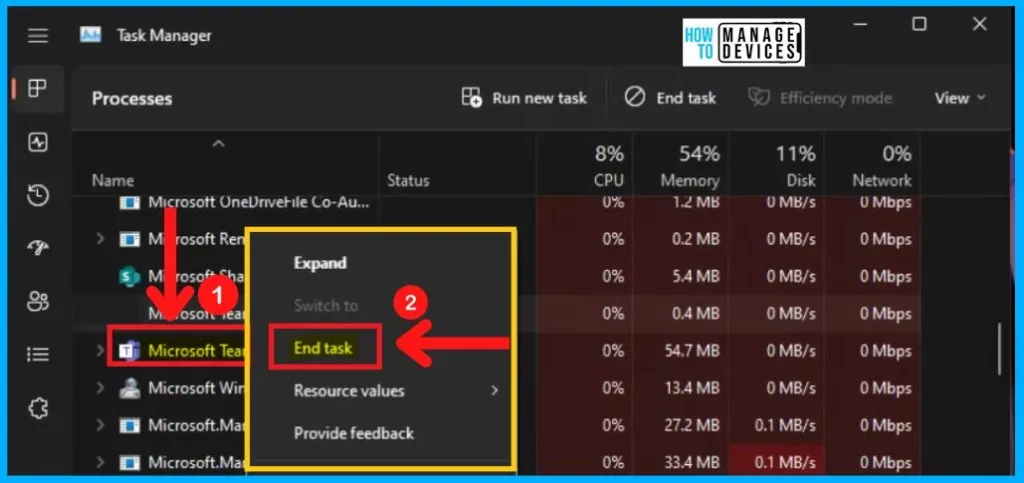
- Scroll down and find Microsoft Teams from Task Manager
- Right-click the MS Teams and select End Task
- The best option to Disable or Enable Read Receipts in Microsoft Teams
- Disable or Enable Keyboard Shortcut to Temporarily Unmute in Microsoft Teams
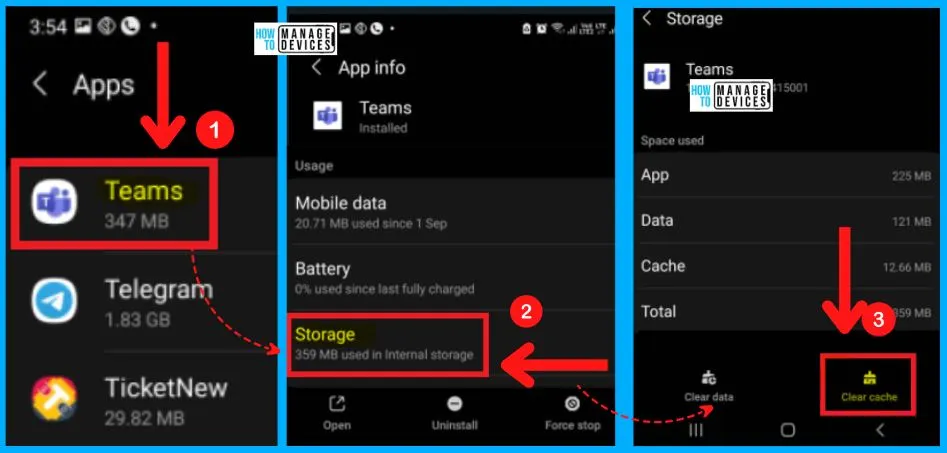
How to Clear Microsoft Teams Cache on Android Device
Let’s see how to clear your Microsoft Teams Cache on Android mobile devices. Teams mobile app helps you to make your busy lives easier. It also allows you to share content in a meeting from your cell phone. You can easily transfer a call from your laptop to your phone.
- Select Settings app from your Android device
- Choose Apps from the Settings window
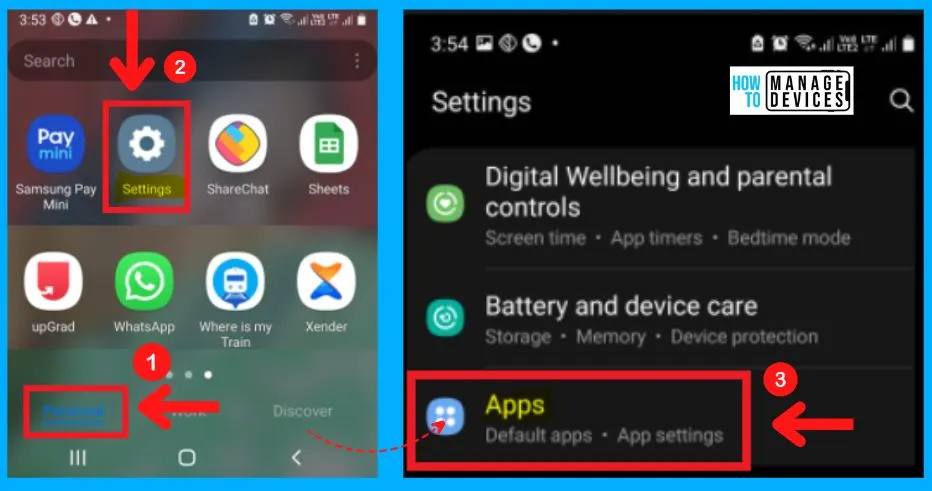
You can easily scroll down and find the Teams app from the Apps section. Select Storage from Teams app info. The storage section shows the internal storage of the Teams app.
- Click the Clear cache button below 3rd screenshot.
Author
About Author – Vidya is a computer enthusiast. She is here to share quick tips and tricks with Windows 11 or Windows 10 users. She is also keen to find solutions to day-to-day tech problems and write about them.




Discussion