






How to Control Apps Accessing Motion Privacy Policy using Intune
Hi, today I would like to explore how to Control Apps Accessing Motion privacy policy using Intune. Windows 11 offers privacy controls for app permissions and data collection. Intune provides 99 privacy settings specifically for Windows 11 management. This policy lets you control if apps can use motion sensors.
There are two ways to manage this motion sensor access: you can set a general rule for all apps, or can set different rules for individual apps. To do this, you need the app’s Package Family Name, which you can find using a PowerShell command (Get-AppPackage Windows PowerShell cmdlet.).
You can manage app access to motion data in three ways. Choosing User is in control lets employees decide in their device’s privacy settings. Force Allow allows all apps access, and users can’t change this. Conversely, Force Deny blocks all apps, and users also can’t override this. The most restrictive value is 2 to deny apps access to motion data.
If you don’t set this policy, your employees will be able to control whether Windows apps can access motion data through their device’s Privacy settings. When the rules for app motion data access change, people need to restart any open apps or their computers for the changes to work.

Table of Contents
What is Description Framework Properties in Intune’s Settings Catalog?
Description Framework Properties in Intune’s Settings Catalog give you the basic information about each setting. This includes its name, what kind of value it needs, how you can use it, and what it’s set to by default. It helps you understand and set up each setting right.
For example, the Description Framework Properties of Let Apps Access Motion policy is given below for your reference.
Property Name Property Value
Format i
ntAccess Type Add, Delete, Get, Replace
Default Value 0
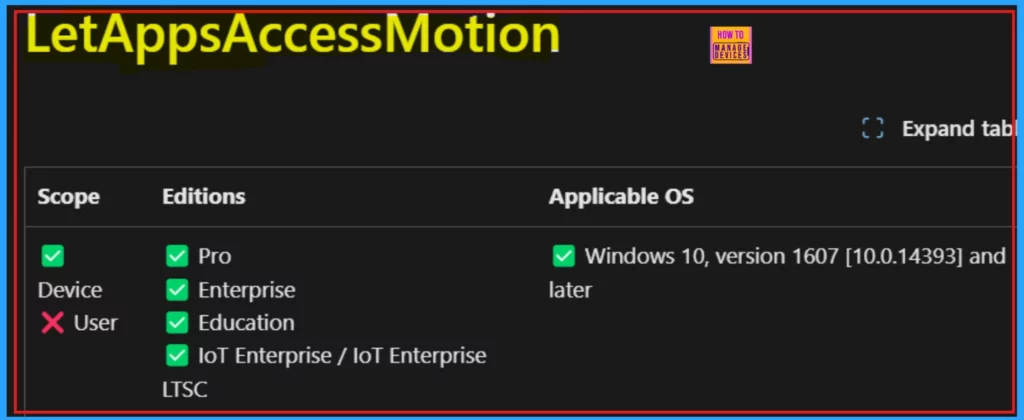
Windows CSP – Privacy Settings
Check the CSP details for Intune’s Let Apps Access Motion policy to know which devices and Windows versions it works with before you set it up. This helps you configure it correctly. Allowed Values: In Intune’s Settings Catalog, Allowed Values are the specific, pre-defined choices available when configuring a setting.
| Value | Description | Decription |
|---|---|---|
| 0 (Default) | User in control | Lets employees decide app motion data access in their device’s privacy settings. |
| 1 | Force allow | Allows all Windows apps access to motion data, which employees cannot modify. |
| 2 | Force deny | Blocks all Windows apps from motion data, and employees can’t change this. |
Group policy mapping: Intune helps organizations switch from old computer policies to the cloud using Group Policy mapping. The Group Policy mapping of the Let Apps Access Motion policy is given below for your reference.
| Name | Value |
|---|---|
| Name | LetAppsAccessMotion |
| Friendly Name | Let Windows apps access motion |
| Element Name | Default for all apps. |
| Location | Computer Configuration |
| Path | Windows Components > App Privacy |
| Registry Key Name | Software\Policies\Microsoft\Windows\AppPrivacy |
| ADMX File Name | AppPrivacy.admx |
./Device/Vendor/MSFT/Policy/Config/Privacy/LetAppsAccessMotion
- Manage Apps Access Permission for Account Info Using Intune
- Allow or Block VPN Roaming Over Cellular in Connectivity using Intune Policy
- Enable or Disable Hotspot Authentication in Networks using Intune Policy
Steps to Control Apps Accessing Motion Privacy Policy using Intune
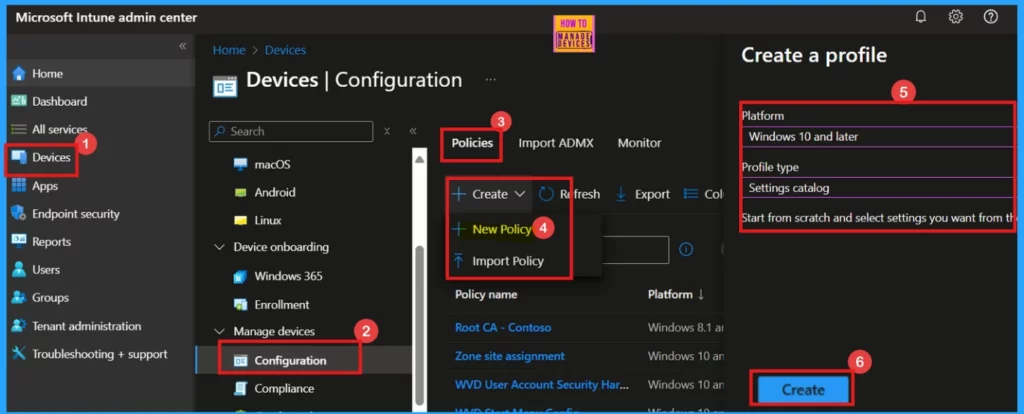
You can easily set up the Let Apps Access Motion policy within the Microsoft Intune admin center. To get started, navigate to the Intune Admin Center, then go to Devices > Configuration, and click Create > + New Policy.
Once you are creating a new policy, you wll need to specify the platform and profile type. In this case, select Windows 10 and later as the platform and Settings Catalog as the profile type.
- Then, click the Create button to proceed.
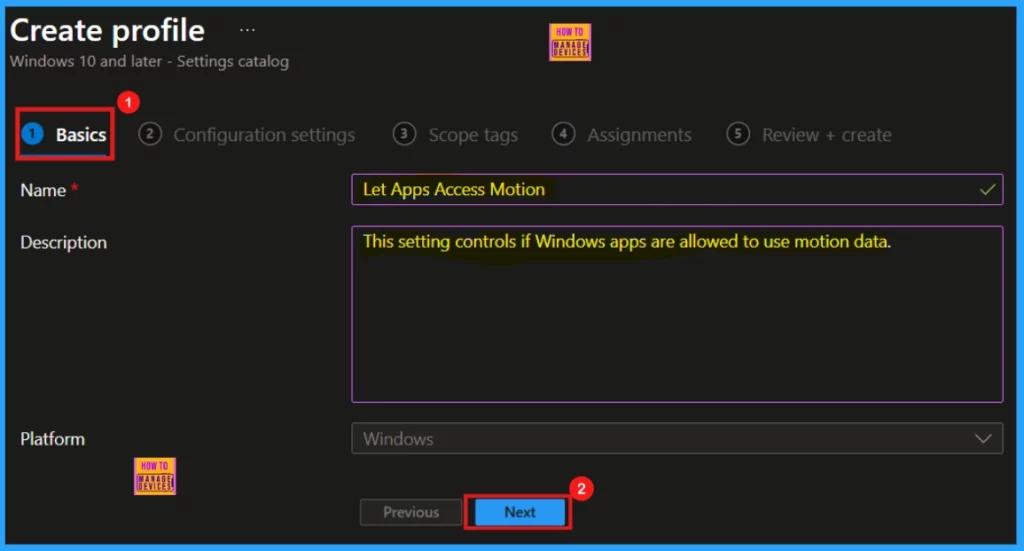
Basics
The Basic tab is where you shoud name your policy. You can also add a description to explain what the policy does. This is optional, but helpful for providing more context about the policy’s purpose. After that click Create.
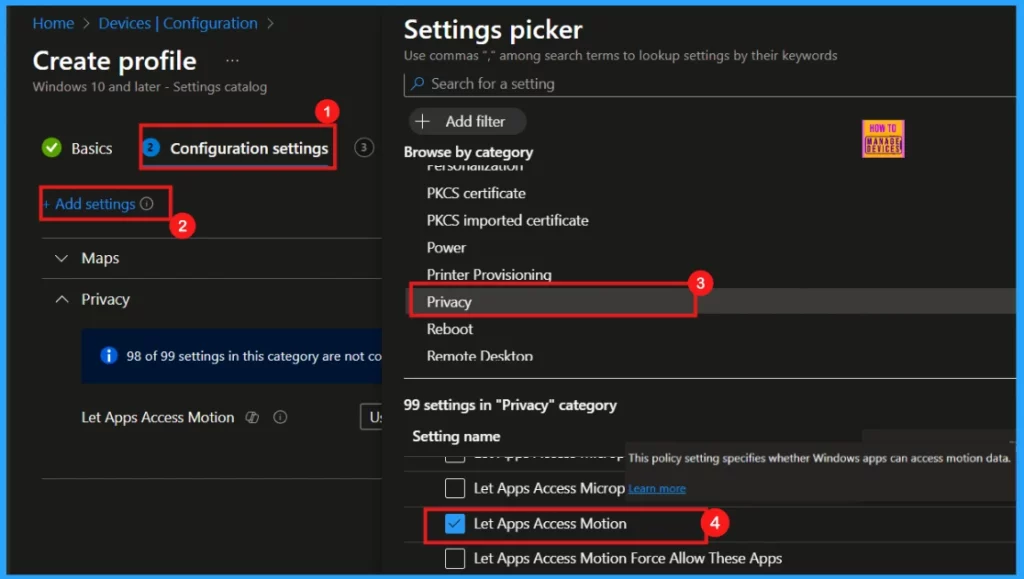
Configuration Settings
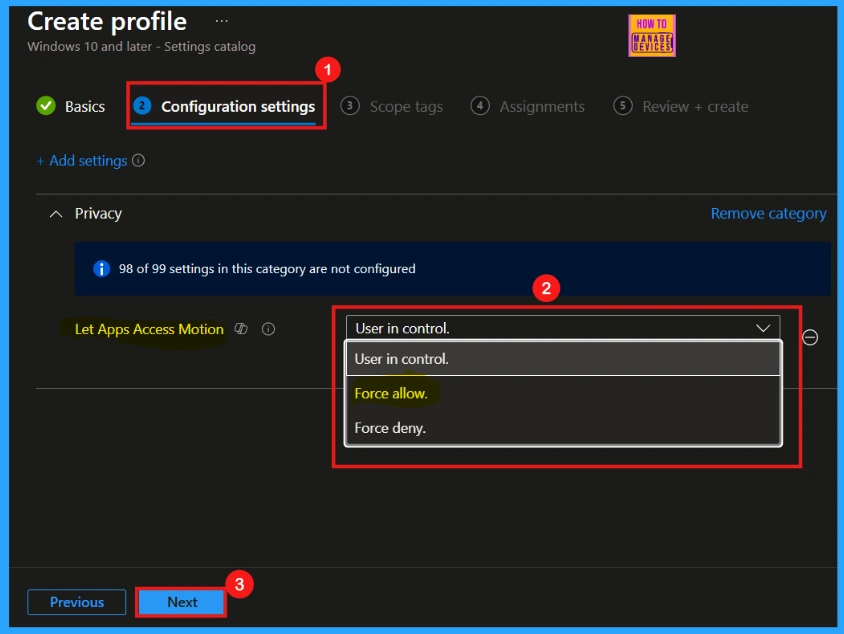
On the Configuration Settings tab, you can find the different settings to manage your devices. Click on the +Add settings link. Then, choose the Privacy category and select the Let App Access Motion setting. After that, you can close the Settings Picker window.
Once you have chosen the policy on the Configuration settings page, you will see it in the next window. Here you can choose the desired value. Depending on the policy, you might see options like Enable/Disable, Allow/Block or other specific features. Select the value that best suits your organization’s requirements
- In this case, I select, Force Allow option to configure my policy. (refer table 1 for more details).
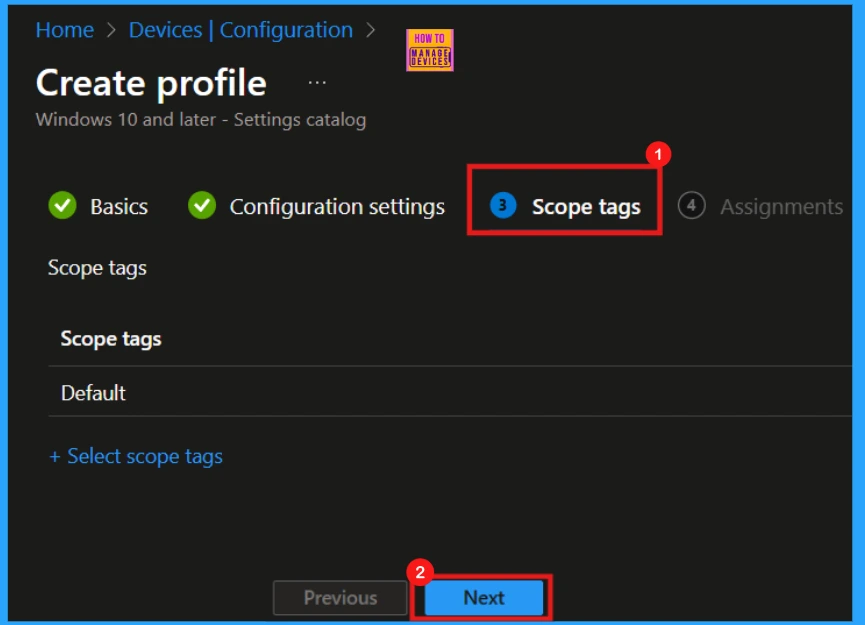
Scope Tags
Scope tags are optional but useful for managing specific Intune policies. For this policy creation, I’m skipping the scope tags section and moving forward. Click Next to continue.
Assignments
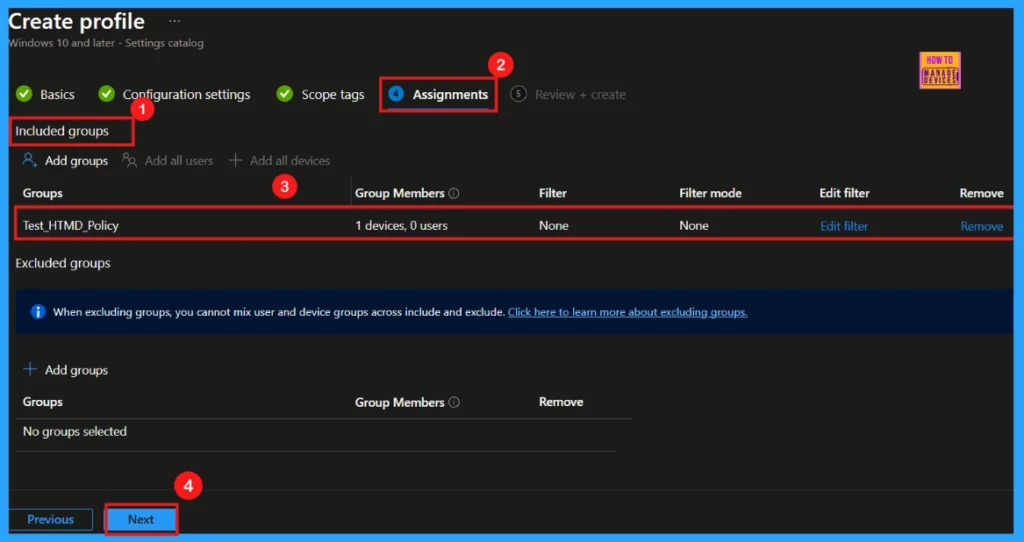
Assignments in the Intune settings is the step where you target your created policies or profiles to the right users or devices. This makes sure your configurations are applied correctly and do not affect unintended recipients.
- Click on the +Add groups option under included groups.
- Select the group from the list of groups on your tenant.
- Here, I select Test_HTMD_Policy as my group.
- Click on the Select button.
- You can see the selected group on the Assignment tab.
- Click Next to proceed.
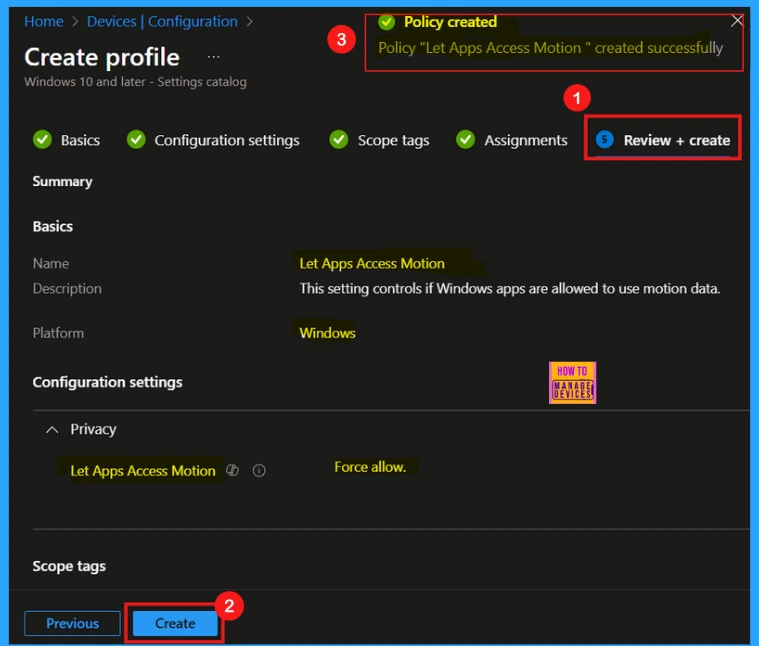
Review + Create Tab
The Review + Create tab is the last stage when you are making a new policy in Intune’s Settings Catalog. Here, you can double-check all the settings you have given before you make it configure. If you are satsified with the exisiting informations click Create and save your policy.
- You will receive a notification stating that the policy Let Apps Access Motion created successfully.
Device and User Check-in Status
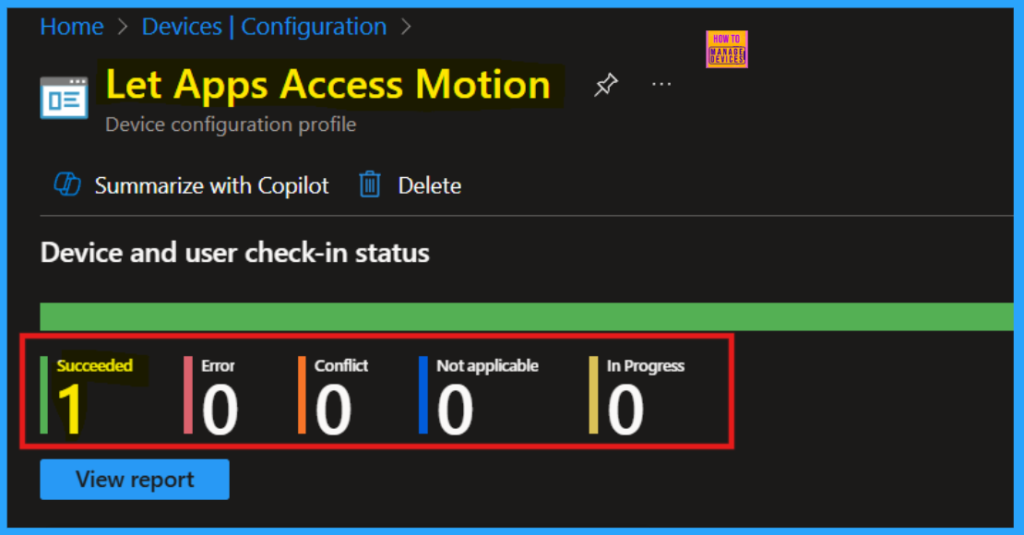
The Device and User Check-in Status in Intune shows you which devices and users have received a specific policy. Once the policy is created, you can initiate a sync on the device through the Company Portal to speed up its deployment. Afterward, you can monitor the deployment status in the Intune Portal, where a status of succeeded (1) indicates that the policy has been successfully applied to one device.
Client Side Verification through Event Viewer
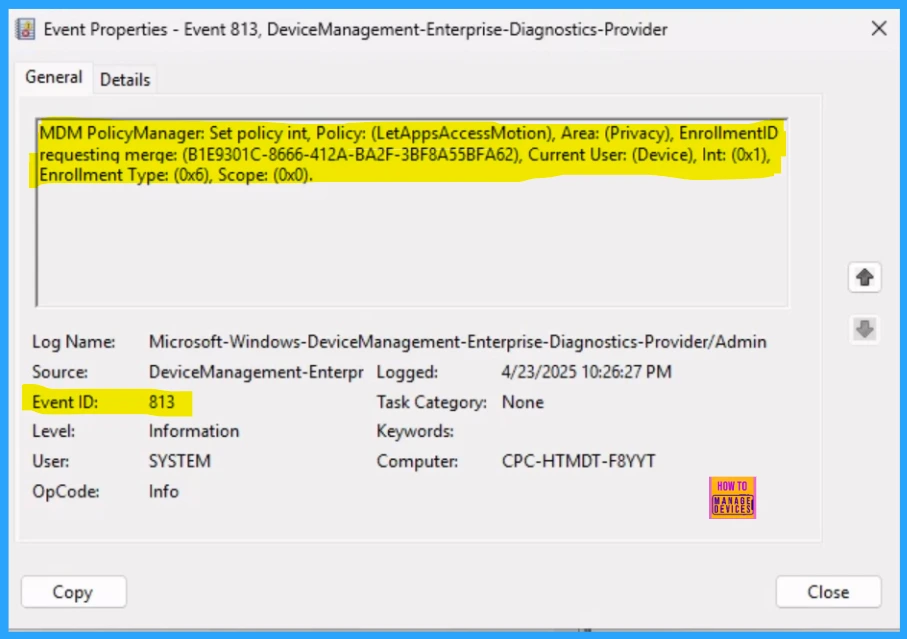
To verify the client-side application of the policy, you can use Event Viewer. Open Event Viewer and go to Application and Services Logs > Microsoft > Windows > DeviceManagement-Enterprise-Diagnostics-Provider > Admin.
MDM PolicyManager: Set pol cy int, Policy: [LetAppsAccessMotion), Area:(Privacy), EnrollmentID requesting merge: (B1E9301C-8566-412A-BA2F-3BF8A55BFA62), Current User: (Device), Int: (0x1), Enrollment Type: (0x6), Scope: (0x0).
How to Remove Assigned Group from LetAppsAccessMotion Policy
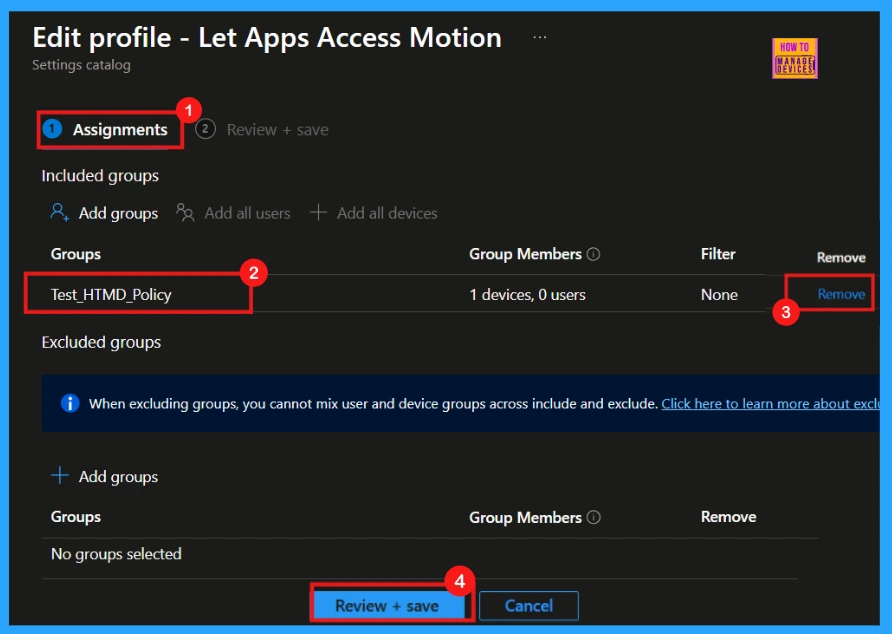
It is important to remove a group’s assignment to an Intune policy when that policy is no longer needed for them. This could be because their role changed, they are using new technology, or they require different policies.
Removing an assigned group from the Let Apps Access Motion policy is straightforward. Simply open the policy, navigate to the Assignment tab, and then select the Edit option. You can find more detailed instructions in the post linked below.
Learn How to Delete or Remove App Assignment from Intune using Step by Step Guide
Delete Let Apps Access Motion Policy
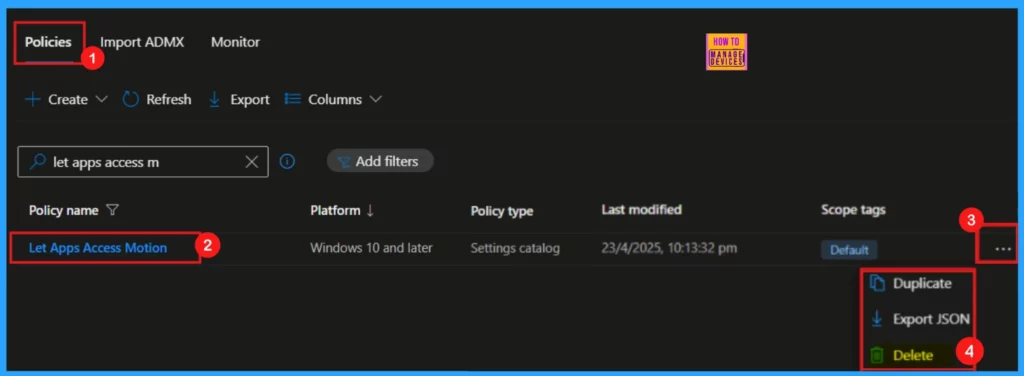
You should delete Intune policies that are outdated, create conflicts, or are incorrectly configured. This keeps your Intune environment organized, prevents the application of old settings, and makes it easier to troubleshoot problems. It is easy to delete the Let Apps Access Motion policy from Intune by following a few simple steps in the Intune Portal. (refer Fig.12 )
For detailed information you can refer our previous post – How to Delete Allow Clipboard History Policy in Intune Step by Step Guide
Need Further Assistance or Have Technical Questions?
Join the LinkedIn Page and Telegram group to get the latest step-by-step guides and news updates. Join our Meetup Page to participate in User group meetings. Also, Join the WhatsApp Community to get the latest news on Microsoft Technologies. We are there on Reddit as well.
Author
Anoop C Nair has been Microsoft MVP for 10 consecutive years from 2015 onwards. He is a Workplace Solution Architect with more than 22+ years of experience in Workplace technologies. He is a Blogger, Speaker, and Local User Group Community leader. His primary focus is on Device Management technologies like SCCM and Intune. He writes about technologies like Intune, SCCM, Windows, Cloud PC, Windows, Entra, Microsoft Security, Career, etc.


Discussion