






How Windows App Enhances File and Folder Access on Azure Virtual Desktop and Windows 365
Let’s discuss how Windows App Enhances File and Folder Access on Azure Virtual Desktop and Windows 365. The latest release of the Windows App dramatically improves the performance of local file and folder enumeration inside Windows365 Cloud PCs and Azure Virtual Desktop remote apps or desktops.
In remote desktop setups, users can make their local computer drives available inside the remote session. The users can open files, copy data, or work with their local folders directly from the remote desktop, just like they would on their PC.
Enumeration is the process where the remote system looks through a folder on a redirected drive and shows all the files and subfolders it contains. This happens during a remote desktop session when you open File Explorer, when an app tries to load files from your local drive, or when scripts need to read a lot of files.
If this process is slow, it can cause delays. Fast and efficient enumeration is important to make sure users can quickly access their local files while working remotely. In this post, you’ll find everything you need to know about how the Windows App improves file and folder access on Azure Virtual Desktop (AVD) and Windows 365 Cloud PCs, making remote work faster and more simple than ever.

Table of Contents
What Exactly has Improved in the Latest Windows App Release?
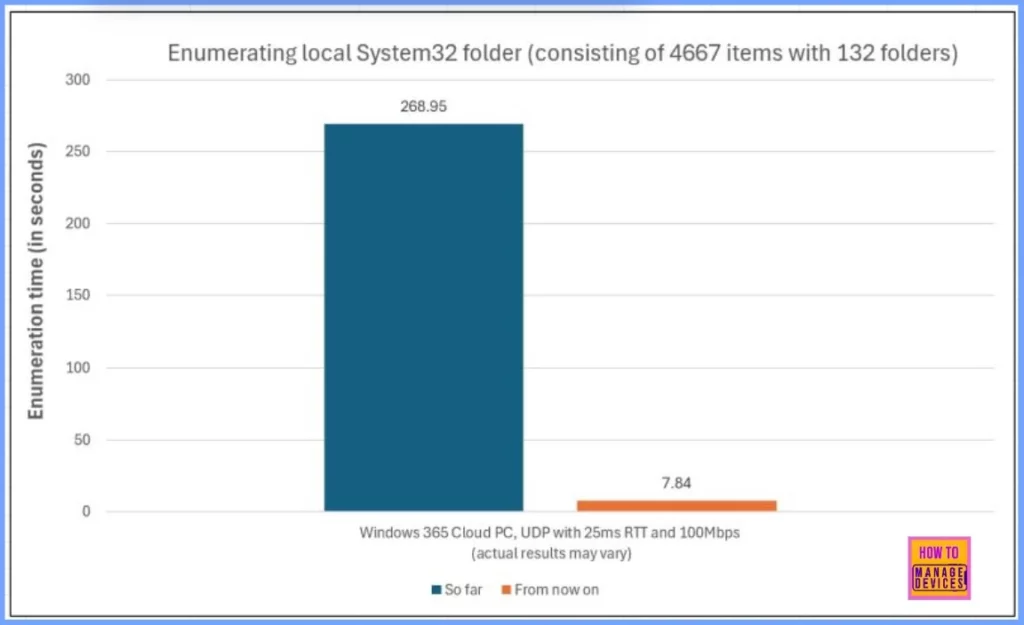
The update significantly improves file and folder enumeration on redirected drives. Tasks that used to take several minutes, especially in high-latency environments, now complete in just a few seconds.
How Windows App Enhances File and Folder Access on Azure Virtual Desktop and Windows 365
When a user opens a redirected drive in a remote session, the system has to scan and display all the files and folders in that location. If the folder contains a lot of items, this process can take a long time and slow down the remote desktop experience.
- How long it takes mostly depends on how fast data can travel between the user’s local device and the remote system.
| Requirement | Details |
|---|---|
| Operating System Version | Windows 11, version 24H2 |
| Cumulative Update Required | March 2025 Cumulative Update (KB5053598) or later |
| Improved Feature | File and folder enumeration on redirected drives |
| Benefit | Faster access to folders, especially in high-latency environments |
| Applies To | Session hosts used in Azure Virtual Desktop (AVD) and Windows 365 Cloud PCs |
Steps to Improve Redirected Drive Performance in AVD and Windows 365 via Windows App
Once your session hosts are updated to Windows 11 version 24H2 and have the March 2025 Cumulative Update (KB5053598) or a later version installed, you’ll need to make a small configuration change to fully unlock the improved performance for redirected drive access. This involves adding a specific registry key to enable faster file and folder enumeration during remote sessions.
Step 1: Add the Registry Key
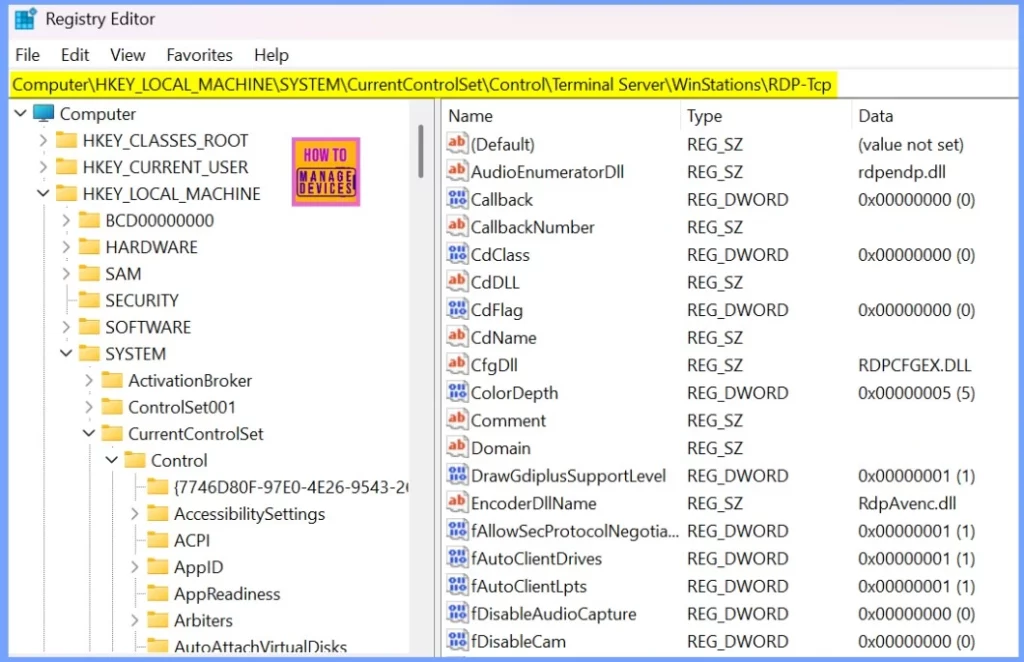
You’ll need to manually add a registry key to each session host (virtual machine or physical host used in AVD or W365). This registry key tells the RDP session to prefetch directory queries, which speeds up how quickly files and folders are listed from redirected drives.
Note: Always back up the registry before making any changes. Changes take effect after a reboot or RDP service restart.
Registry Path: HKEY_LOCAL_MACHINE\SYSTEM\CurrentControlSet\Control\Terminal Server\WinStations\RDP-Tcp
| Setting | Value |
|---|---|
| Type | REG_DWORD |
| Value Name | fAllowQueryDirPrefetch |
| Value Data | 1 (to enable the feature) |
Step 2: Use the Latest Windows App / Remote Desktop Client
To take advantage of this performance improvement on the client side, users must connect using either the latest version of the Windows App for Windows or the latest version of the Remote Desktop client for Windows.
Important: This enhancement is currently only supported on Windows. Users connecting from macOS, iOS, Android, or web-based clients will not experience the performance gains at this time.
Step 3: Test and Validate
Once the registry key has been added and the client app is updated, users can launch a remote session and access a redirected drive containing a large number of files or folders. At this point, they should notice a significantly faster response when opening directories, with file listings appearing almost instantly—even in high-latency environments.
Need Further Assistance or Have Technical Questions?
Join the LinkedIn Page and Telegram group to get the latest step-by-step guides and news updates. Join our Meetup Page to participate in User group meetings. Also, Join the WhatsApp Community to get the latest news on Microsoft Technologies. We are there on Reddit as well.
Resources
Author
Anoop C Nair has been Microsoft MVP from 2015 onwards for 10 consecutive years! He is a Workplace Solution Architect with more than 22+ years of experience in Workplace technologies. He is also a Blogger, Speaker, and Local User Group Community leader. His primary focus is on Device Management technologies like SCCM and Intune. He writes about technologies like Intune, SCCM, Windows, Cloud PC, Windows, Entra, Microsoft Security, Career, etc.
Discussion