






Turn On or Off Microsoft Vulnerable Driver Blocklist
Let’s learn how to Turn on or off Microsoft Vulnerable Driver Blocklist. Microsoft has introduced several new features to users, and these features can help block vulnerable drivers. The Microsoft Vulnerable Driver Blocklist is a security feature designed to block drivers with known vulnerabilities from Windows systems.
The vulnerable driver blocklist is designed to help harden systems against non-Microsoft-developed drivers across the Windows ecosystem. Vulnerable drivers can harm your computer, and this feature can help users avoid this problem.
When vulnerable drivers terminate the security processes, it’s done in a disguised manner, such that everything appears normal to the user. With this new feature, Windows Security can detect and block these problematic drivers, keeping your computer safer.
This feature is very user-friendly and easy to understand. This blog post will help you understand how this feature helps your PCs and how to turn the Microsoft Vulnerable Driver Blocklist on and off.

- Turn On Diagnostic Data Viewer in Windows 11
- Turn On or Off Password Protected Sharing in Windows 11
What are the Features of Microsoft Vulnerable Driver?
The Microsoft Vulnerable Driver Blocklist is a crucial Windows operating system security component. Enabling it will enhance the security of Windows operating systems. The blocklist feature is enabled by default on Windows 10 and Windows 11 systems. The main features of the Vulnerable Driver Blocklist are given below.
1. The feature is critical from a security point of view.
2. It prevents running vulnerable drivers that could terminate critical processes on the PC.
3. Users can easily disable Microsoft Vulnerable Driver Blocklist from Windows Security or the Registry Editor.
Turn on or Off Microsoft Vulnerable Driver Blocklist
The blocklist plays a crucial role in the defense mechanism of Windows. There are 2 methods used to turn on or off microsoft vulnerable driver Blocklist. The table below gives the details.
| Different methods |
|---|
| Using Windows Security |
| Using Registry Method |
1. Using Windows Security
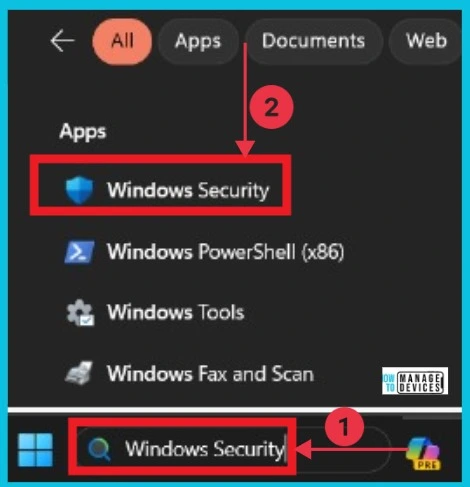
The first and easiest method is to use Windows security. To do this, Open Windows Security by searching for it in the Start menu. Then you have to click on the Windows security.
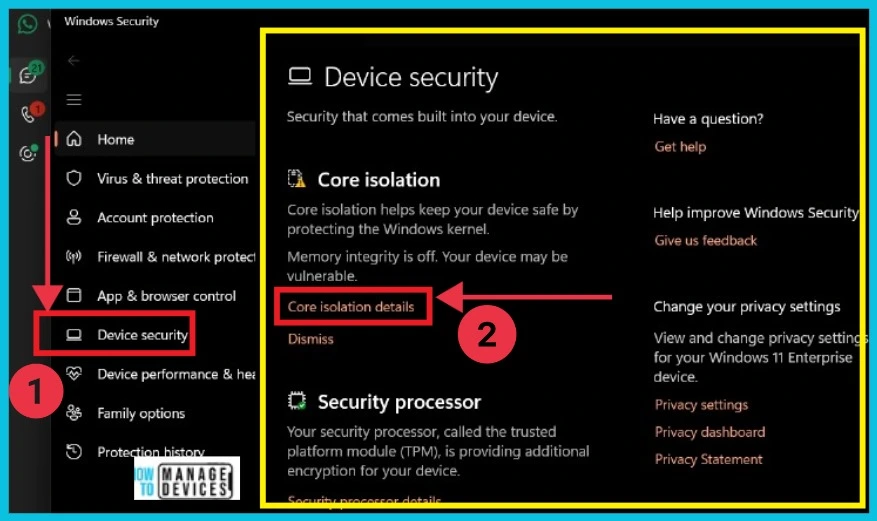
When you open Windows Security, a new window pops up. In that window, look on the left side and click on “Device Security.” This will open up Device Security settings. Next, click on “Core isolation details.” This step is important because it helps protect the core part of Windows, called the kernel, which is vital for keeping your devices safe.
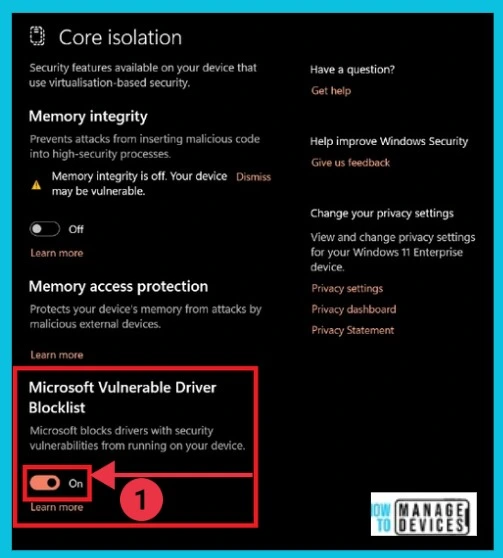
When you open Core Isolation settings, you’ll find the Microsoft Vulnerable Driver Blocklist option. You can turn this option on or off. Microsoft will stop drivers with security problems from running on your device when it’s on. This helps keep your device safer from potential threats. So, by toggling this option, you’re giving yourself more control over your device’s security.
- Turn On and Off Location Sharing in Edge
- Enable Disable Auto-restart Notifications for Windows Update in Windows 11
2. Using Registry
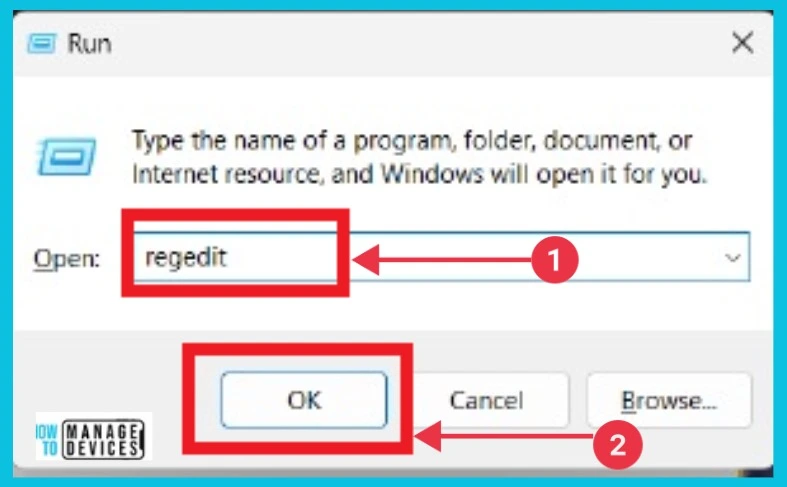
The registry is the second method for turning the Vulnerable driver blocklist on or off. Press the Windows key+R on the keyboard to open the Run Command, type regedit, and then click the OK button.
In the Registry Editor, give the path to the address bar and press enter to continue.
- HKEY_LOCAL_MACHINE\SYSTEM\CurrentControlSet\Control\CI\Config
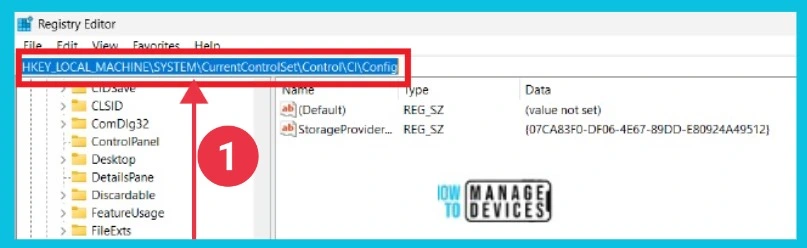
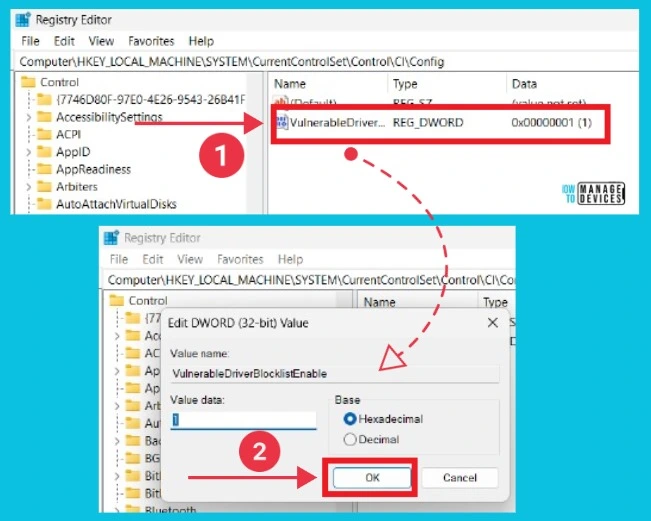
After you give the path, you can see a new window of Registry Editor. Click Vulnerable Driver on the right. Now you can get another small pop-up window with value data 1 and base Hexadecimal, then click OK.
| Action | Set Value data |
|---|---|
| Enable | 1 |
| Disable | 0 |
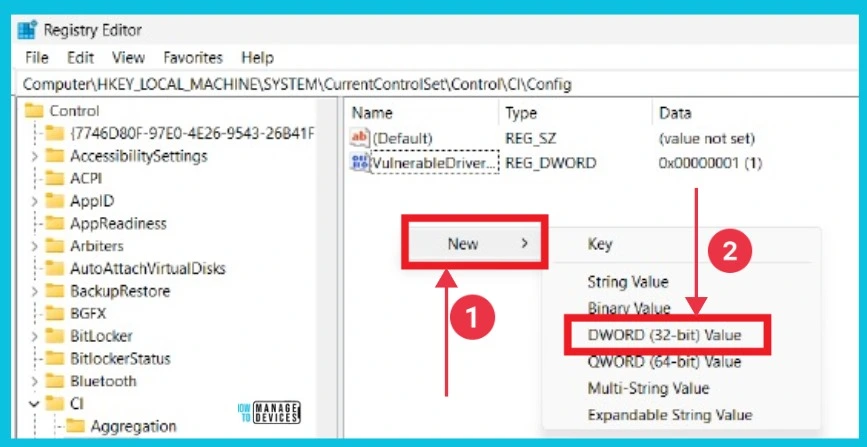
If you can’t find the DWORD, follow these steps, Right-click on an empty area. Hover over “New” and select “DWORD (32-bit) Value.
We are on WhatsApp now. To get the latest step-by-step guides, news, and updates, Join our Channel. Click here. HTMD WhatsApp.
Author
Sumitha was introduced to the world of computers when she was very young. She loves to help users with their Windows 11 and related queries. She is here to share quick news, tips and tricks with Windows security.




Discussion