





Download AVD Session Desktop RDP File RDPW File to Check RDP Settings
Let’s check how to Download AVD Session Desktop RDP File RDPW File to Check RDP Settings. In this post, you will find a way to Download the AVD Session Desktop RDP file or RDPW File to check RDP settings for troubleshooting.
I have been working on some AVD RDP settings issues and wanted to check whether the RDP configurations flow to the AVD RDP client.
Let’s learn how to check the RDP settings configured on the server side (Azure portal) flowing down to the AVD web client. The Azure portal has many AVD RDP setting options, and there are four (4) segregations of RDP settings.
- Connection Information
- Session Behavior
- Device Redirection
- Display settings
- Advanced
Table of Contents
Why Download RDP | RDPW File?
As I mentioned above, the RDP/RDPW file is required to check whether your server-side RDP settings to the configuration are getting down to the AVD client-side.

For example, you have configured USB storage redirection RDP settings from the Azure portal using the following option:
- USB redirection (usbdevicestoredirect:s: value – USB redirection)
- Redirect all USB devices that another high-level redirection has not already redirected.
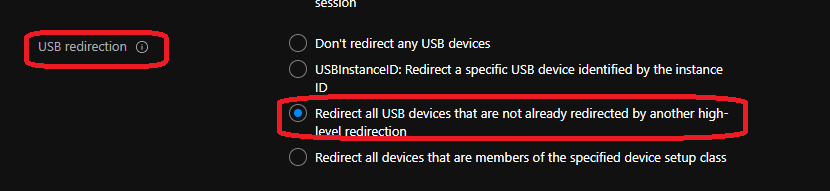
You can confirm the actual value of the Advanced tab in RDP settings for the host pool from the Azure portal AVD section.
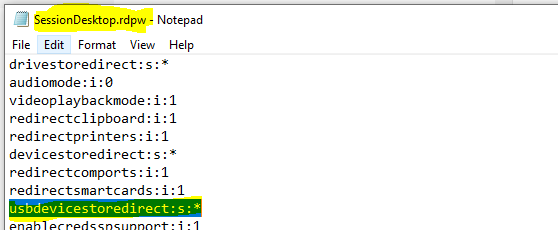
usbdevicestoredirect:s:*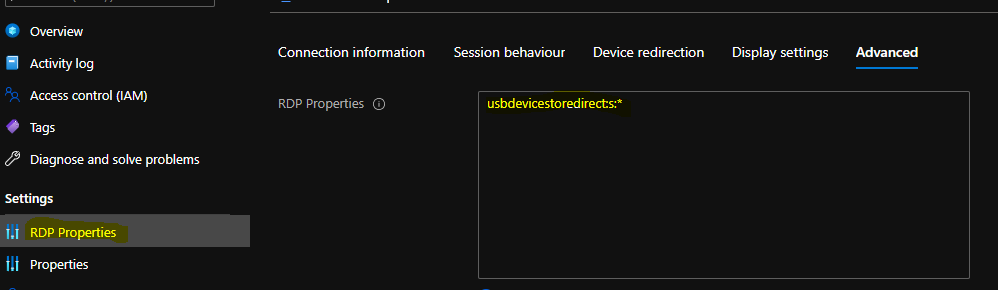
How to Download AVD Session Desktop RDP | RDPW File?
Let’s find out how to download the AVD Session Desktop RDP | RDPW File.
NOTE! – The download RDP Settings file option is not available for non-web client versions of AVD. So, you won’t download the RDP file for the AVD session host from MSI/Microsoft Store AVD client.
- First, you must log in to the AVD web client portal.
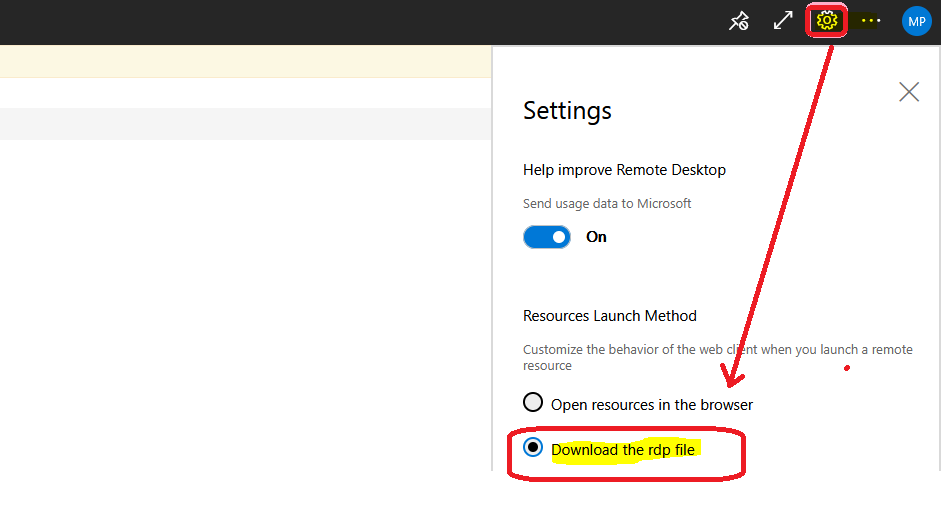
- After logging in, click on the Settings option on the right-hand side of your web client portal.

Select the option to download the RDP file.
NOTE! – Make sure you change the option back to Open resources in the browser once you download the WVD RDP file. Otherwise, you won’t be able to access the session host from the web client.
Results
Let’s check and confirm whether the RDP settings are flowing down from the results below.
Click on the Session Host icon from your AVD workspace to download the RDP file.
There are two options to view the file.
Select Open to view the RDP file without downloading it.
Select Save File to download the RDP/RDPW file.
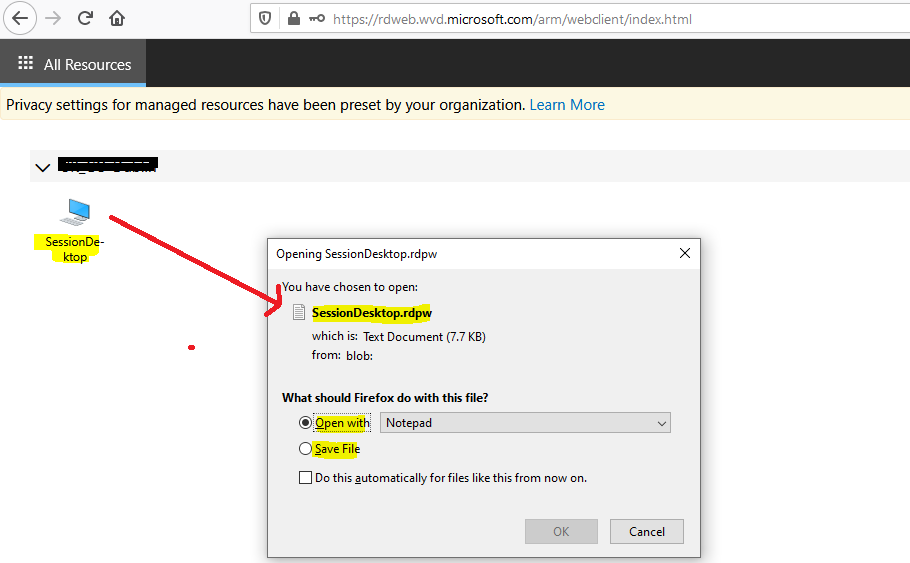
- Open the SessionDesktop.rdpw file with the Notepad application.
- Check whether the USB storage redirects RDP settings (usbdevicestoredirect:s:*) are available.
So, we can confirm that the USB redirection RDP settings configured in the Azure portal are flowing to the client side.
Resources
- Download RD Client for WVD.
- https://docs.microsoft.com/en-us/windows-server/remote/remote-desktop-services/clients/rdp-files
We are on WhatsApp. To get the latest step-by-step guides and news updates, Join our Channel. Click here –HTMD WhatsApp.
Author
Anoop C Nair has been Microsoft MVP for 10 consecutive years from 2015 onwards. He is a Workplace Solution Architect with more than 22+ years of experience in Workplace technologies. He is a Blogger, Speaker, and Local User Group Community leader. His primary focus is on Device Management technologies like SCCM and Intune. He writes about technologies like Intune, SCCM, Windows, Cloud PC, Windows, Entra, Microsoft Security, Career, etc.



Its worth noting that you can – in fact you automatically, download the RDP files in the Windows WVD Client (MSRDC). These are automatically downloaded to %localappdata%\rdclientwpf when you subscribe to the WVD resource feed and then every time you do a refresh.
The RDP files are in a per Workspace GUID folder: %localappdata%\rdclientwpf\%GUID%\ which is difficult to work out. So you need to open the xyz.RDP file in Notepad and look for either remotedesktopname:s: or remoteapplicationname:s section to definitively identify which desktop/remoteapp this file relates to. Once you have found it then you will see the redirections at the top of the file.
You can make changes to the RDP properties in the portal – then do a refresh in the WVD client and the client will download an updated version of the RDP file which will no have the updated setting within it.
StaffHello Tom – Thank you for the details. Very useful information. Appreciate the detailed explanation.
Hello Anoop, Need your expert guidance
I have 2 user cases w.r.t WVD session desktop:
1. Launch Session Desktop automatically when my laptop starts and followed by
2. AAD user to automatically login to Session Desktop without prompting for credentials?
Regards,
Ravi
StaffHello Ravi – Are you asking whether the above-mentioned user experience is feasible in the Azure Virtual Desktop world or not? If so, the SSO is possible using ADFS cert based configuration. https://docs.microsoft.com/en-us/azure/virtual-desktop/authentication#single-sign-on-sso