






Get SCCM BitLocker Recovery Key using Console Extension | PowerShell Script
Let’s check the easiest way to get SCCM Bitlocker Recovery Key for a Device using the Console extension. There are different ways to check the Bitlocker recovery using SQL query or MEM Admin center using Cloud Attach feature.
Let’s see the easiest method to check the recovery key from the SCCM admin console itself. I think this option is useful for helpdesk admin. They can get the Bitlocker Recovery key from the admin console. Also, check out the SCCM Bitlocker PowerShell script to get the recovery key.
Traditionally, the organizations were using the MBAM to manage Bitlocker Recovery keys with Active Directory integration. Many of them are already migrated to the SCCM BitLocker solution in our environment. Bitlocker recovery keys are stored in SCCM DB, but it’s encrypted.
Use SCCM to manage BitLocker Drive Encryption (BDE) for on-premises Active Directory Joined Windows 10 or 11 clients. Administration and monitoring websites (helpdesk portal) and self-service portals are also part of the SCCM Bitlocker solution.

This post assumes you already have planned and completed the setup of Bitlocker with SCCM. All the settings are configured as per Microsoft documentation and work fine from the Windows client-side.
- Free SCCM Right Click Tools Community Console Extension
- Create Script Deployment Type Using PowerShell
SCCM Bitlocker Console Extension
Let’s learn about SCCM Bitlocker Console Extension to get the recovery key for a Windows 11/10 client. This is published by a Microsoft Employee and Software Engineer Seth from SCCM (MEM) team.
I have explained the XML-Based architecture of console extensions. The new way of installing SCCM console extensions is in the gree SCCM Right Click Tools Community Console Extension post.
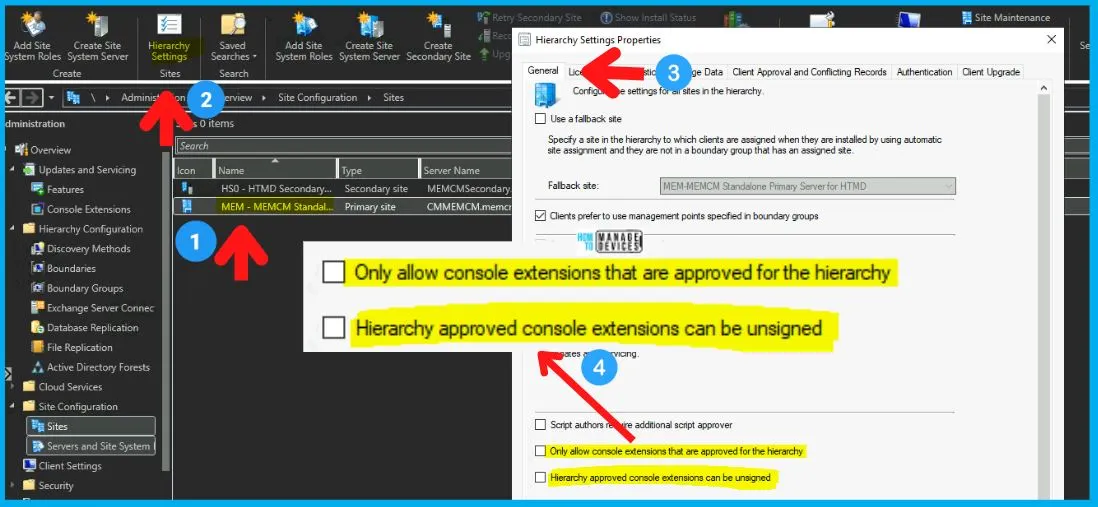
Console Extension global settings can be configured from SCCM console -> \Administration\Overview\Site Configuration\Sites -> Hierarchy settings -> General tab.
Download
Get the SCCM BitLocker Recovery Key console extension published in Community Hub. You can use the following link to get direct access and download the Bitlocker Recovery Key console extension.
- Navigate to \Community\Community hub
- Download from Community Hub -> https://communityhub.microsoft.com/item/53701
- Click on the download button to start the download and object creation process.
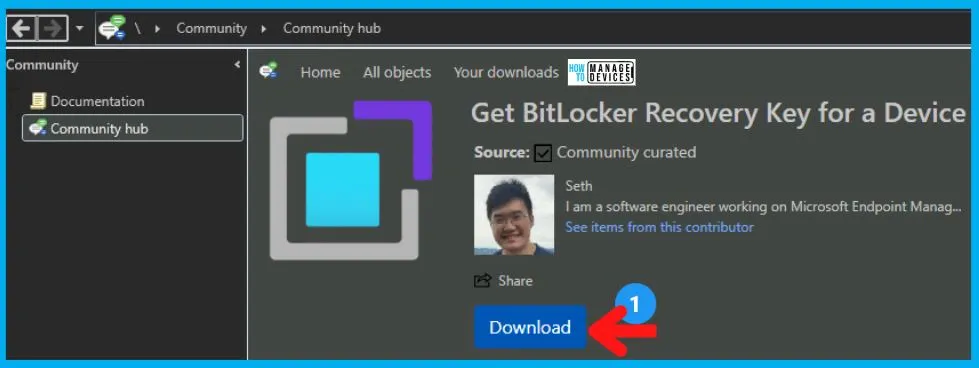
An internet connection is required to download the content from GitHub using the community hub. The content is downloaded, and the console extension is created to Get BitLocker Recovery Key for a Device.
You can navigate to the following location in the SCCM console to get more details on the new right-click tool and the Bitlocker recovery key for Windows 11/10 devices. The Console Extension is the new home for all modern console extensions.
- Navigate to \Administration\Overview\Updates and Servicing\Console Extensions.
- Check out the Get BitLocker Recovery Key console extension.
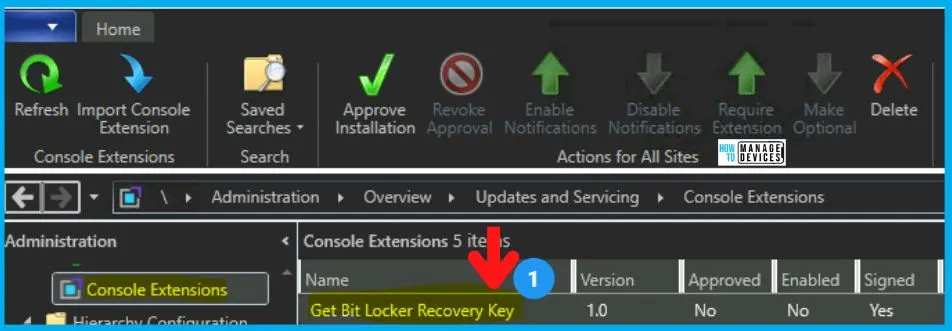
Install SCCM Bitlocker Recovery Key Console Extension
Let’s install SCCM Bitlocker Recovery Key Console Extension. Before installing the console extension, you need to enable it to Install using Approve Installation button. The local Install button will be disabled until the extension is approved for installation.
Let’s follow the steps to Approve the Installation, and once approved, you can install the extension on the local computer/server.
- Select Get Bitlocker Recovery Key Extension and click on Approve Installation button.
- Click on Yes on the message box. “Are you sure you want to approve the selected console extensions for installation?”
- Ensure the Approved column says YES against the Get Bitlocker Recovery Key extension.
- Click on the Install button from the Local Extension section as shown below.
- Click on the OK button when you see the message box with the following note.
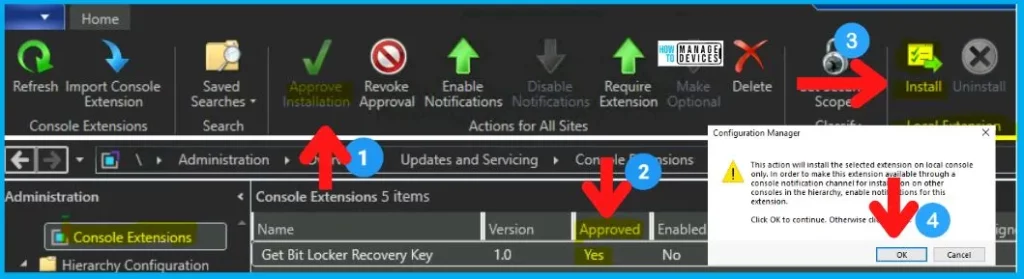
This Install action will install the selected extension only on the local console. The console will get closed immediately after clicking on the OK button.
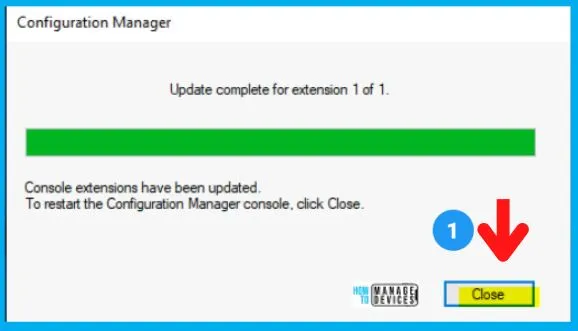
You will have to make sure all the other console instances are closed if you are doing this on a primary server or any terminal server. You get the following screen once the extension is installed. Click on the CLOSE button to restart the Configuration Manager console.
Read More -> How to Enable SCCM Console Notification From Microsoft | ConfigMgr
Make SCCM Bitlocker Recovery Key Extension Available
You can make SCCM Bitlocker Recovery Key Extension Available for other admins. The console notification is one of the best use cases for making the extension available and making it required for other Admins.
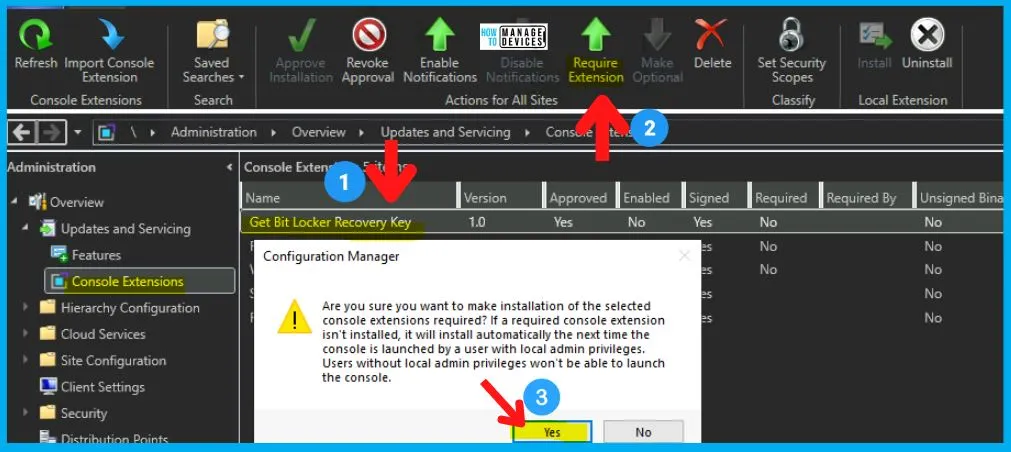
You can make the extension required by clicking on Require Extension button from the ribbon menu. Click on the YES button to make the console extension required.
NOTE! – If a required console isn’t installed, it will install automatically the next time a user launches the console with local admin privileges. The users without local admin privileges won’t be able to launch the console.
The file location of Bitlocker Recovery Key Extension
Let’s check the file location of the Bitlocker Recovery Key Extension. Here you go -> Drive Letter F:\Program Files\Microsoft Configuration Manager\AdminConsole\Extensions\3f72f649-c718-4f22-a993-d82e3920505b\.
This SCCM BitLocker recovery key extension calls a PowerShell script to get the recovery key details for a Windows 11 or Windows 10 device.
<ActionDescription Class="Executable" DisplayName="Get Recovery Key" MnemonicDisplayName="Get Recovery Key" Description="Gets the BitLocker Recovery Key for this device">
   <ShowOn>
      <string>DefaultContextualTab</string>
      <string>ContextMenu</string>
   </ShowOn>
   <Executable UseShellProcessing="false">
      <FilePath>powershell.exe</FilePath>
      <Parameters>-command .\..\Extensions\3f72f649-c718-4f22-a993-d82e3920505b\1.0\bin\RecoveryKey.ps1 ##SUB:ResourceId##</Parameters>
   </Executable>
</ActionDescription>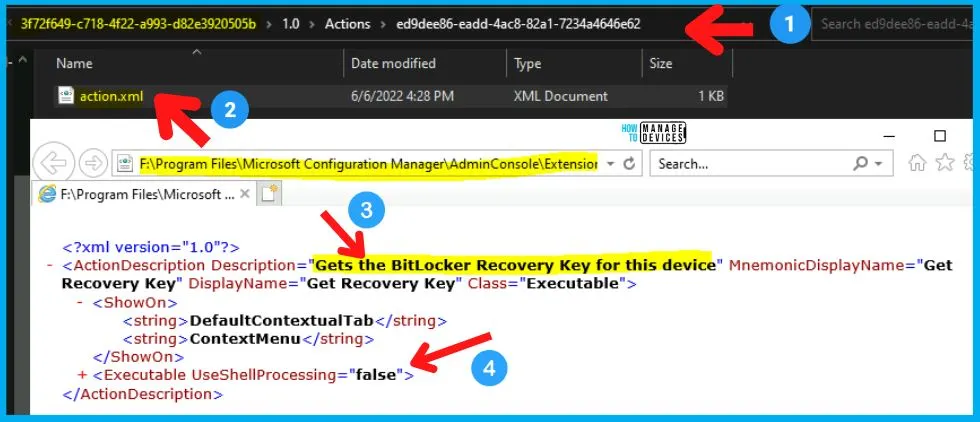
PowerShell Script to Get SCCM Bitlocker Recovery Key
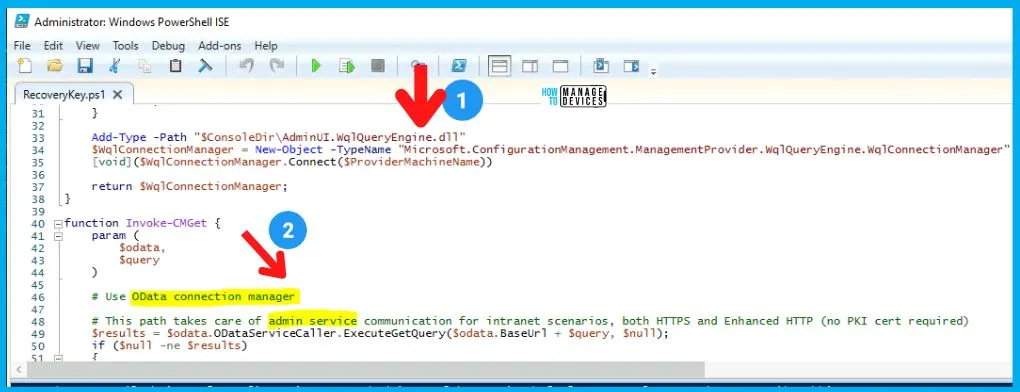
Let’s check the PowerShell Script to Get SCCM Bitlocker Recovery Key. This is the PS script that is part of the Console Extension created by Seth.
NOTE! – This PS script gives you an example of how to use admin service communication for intranet scenarios, both HTTPS and Enhanced HTTP (no PKI cert required).
Param (
[string]$MachineId
)

# This function expects console to be installed
$ConsoleDir = "$ENV:SMS_ADMIN_UI_PATH\.."

function Connect-CMAdminService {

    $WqlConnectionManager = Get-WmiConnectionManager
    $ProviderMachineName = $WqlConnectionManager.NamedValueDictionary["ProviderMachineName"];

    # Create ODataConnectionManager to communicate with AdminService
    Add-Type -Path "$ConsoleDir\AdminUI.ODataQueryEngine.dll"
    $ODataConnectionManager = New-Object -TypeName "Microsoft.ConfigurationManagement.ManagementProvider.ODataQueryEngine.ODataConnectionManager" -ArgumentList $WqlConnectionManager.NamedValueDictionary,$WqlConnectionManager
    [void]($ODataConnectionManager.Connect($ProviderMachineName))

    return $ODataConnectionManager;
}

function Get-WmiConnectionManager {

    # Get the provider machine - add server name if remote from the site server
    $AllProviderLocations=Get-WmiObject -Query "SELECT * FROM SMS_ProviderLocation" -Namespace "root\sms"
    foreach($ProviderLocation in $AllProviderLocations)
    {
        $ProviderMachineName = $ProviderLocation.Machine

        # Pick first provider
        break;
    }

    Add-Type -Path "$ConsoleDir\AdminUI.WqlQueryEngine.dll"
    $WqlConnectionManager = New-Object -TypeName "Microsoft.ConfigurationManagement.ManagementProvider.WqlQueryEngine.WqlConnectionManager"
    [void]($WqlConnectionManager.Connect($ProviderMachineName))

    return $WqlConnectionManager;
}

function Invoke-CMGet {
    param (
        $odata,
        $query
    )

    # Use OData connection manager

    # This path takes care of admin service communication for intranet scenarios, both HTTPS and Enhanced HTTP (no PKI cert required)
    $results = $odata.ODataServiceCaller.ExecuteGetQuery($odata.BaseUrl + $query, $null);
    if ($null -ne $results)
    {
        return ($results.ToString() | ConvertFrom-Json).value;
    }
    return $null;

    # Using invoke REST method, for the intranet scenario, requires PKI cert bound to the port, but the same method can be used for token auth scenarios
    # $uri = $odata.BaseUrl + $query;
    # return (Invoke-RestMethod -Method Get -Uri $uri -UseDefaultCredentials).value;
}

function Invoke-CMPost {
    param (
        $odata,
        $query,
        $body
    )

    $jsonBody = (ConvertTo-Json $body);

    # Enable this to troubleshoot POST issues
    # Write-Host ($odata.BaseUrl + $query)
    # Write-Host $jsonBody

    # This path takes care of admin service communication for intranet scenarios, both HTTPS and Enhanced HTTP (no PKI cert required)
    $results = $odata.ODataServiceCaller.ExecutePost($odata.BaseUrl + $query, $null, $jsonBody);
    if ($null -ne $results)
    {
        return ($results.ToString() | ConvertFrom-Json);
    }
    return $null;

    # Using invoke REST method, for the intranet scenario, requires PKI cert bound to the port, but the same method can be used for token auth scenarios
    # $uri = $odata.BaseUrl + $query;
    # return (Invoke-RestMethod -Method Post -Uri $uri -UseDefaultCredentials -Body $jsonBody -ContentType "application/json");
}

function Get-CMDevice-GetRecoveryKeys {
    param (
        [string]$DeviceKey
    )

    $uri = "v1.0/Device($($DeviceKey))/RecoveryKeys";
    $odata = Connect-CMAdminService
    $results = Invoke-CMGet $odata $uri
    return $results
}

function Get-CMDevice-PostRecoveryKeyValue {
    param (
        [string]$MachineId,
        [string]$KeyId
    )

    $uri = "v1.0/Device($($MachineId))/AdminService.GetRecoveryKeyValue";
    $odata = Connect-CMAdminService
    $body = @{
        RecoveryKeyId = $KeyId;
    };
    Invoke-CMPost $odata $uri $body
}

$KeyIds = Get-CMDevice-GetRecoveryKeys $MachineId
Write-Output ($KeyIds | Format-List | Out-String)

if ([string]::IsNullOrEmpty($KeyIds))
{
    Write-Output "This device does not have any recovery key."
}
else
{
    $KeyId = Read-Host -Prompt "Enter the RecoveryKeyId you want the value for"
    $KeyValues = Get-CMDevice-PostRecoveryKeyValue $MachineId $KeyId
    Write-Output ($KeyValues | Format-List | Out-String)
}
Right Click Tool – SCCM Bitlocker Recovery Key
Let’s find out the Right Click Tool to get SCCM Bitlocker Recovery Key using the PowerShell script called RecoveryKey.ps1.
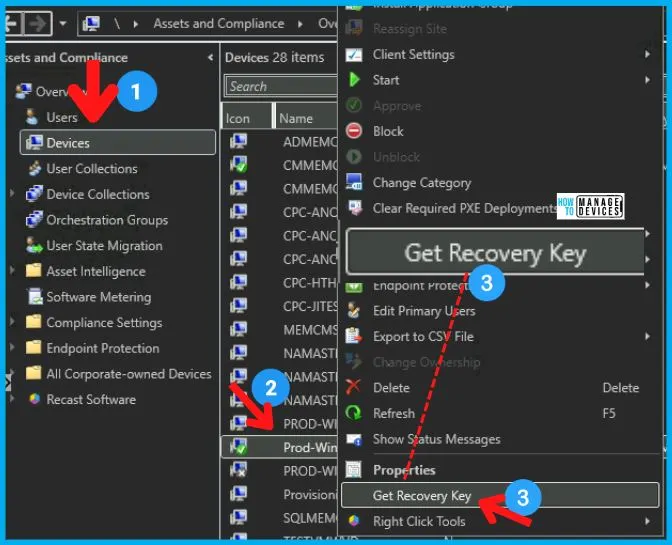
You can navigate to the following location in the console to reach the “Get the Recovery Key” right-click menu option.
- Navigate to \Assets and Compliance\Overview\Devices
- Select the device that you want to get the Bitlocker Recovery Key.
- Right-Click on the device object and select the Get Recovery Key option from the bottom, as you can see in the screenshot.
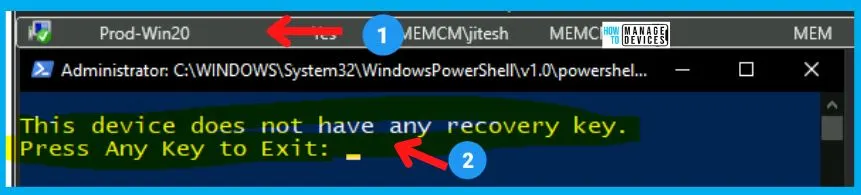
The following screenshot gives us an example where you don’t have a Bitlocker recovery key for a device. The results are shown in the PowerShell window. This is not the perfect enterprise-class solution, but this works perfectly fine for Helpdesk admins.
Tenant Attach | Cloud Attach Recovery Key Option
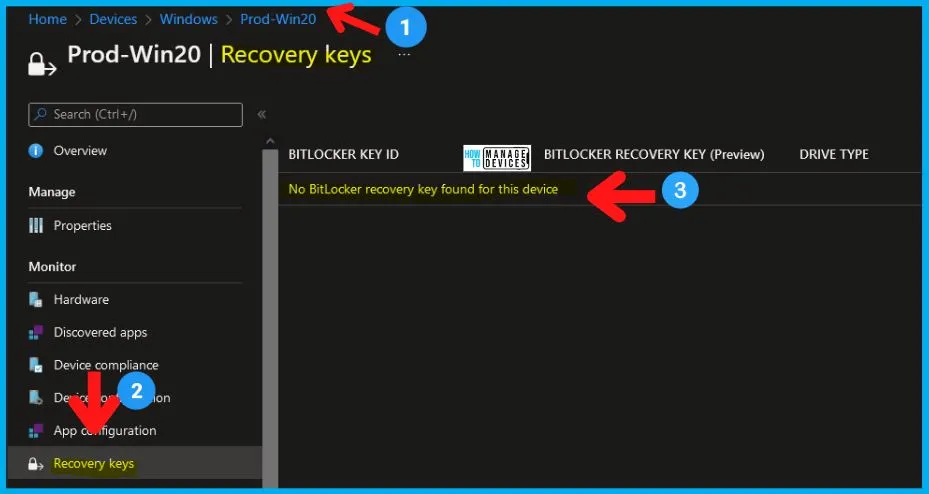
Let’s see the best option to get the Bitlocker Recovery Key for Tenant Attach/Cloud Attach Windows 11 or Windows 10 devices. You can get the Recovery Key details from the MEM Admin center portal.
You can navigate to the following option from the Devices node in the MEM Admin center (Intune) portal. The recovery key option will be available only for Tenant/Cloud Attach and Co-Managed scenarios.




all of my devices have message they dont have recovery key. did i miss some special setup?
StaffAre you able to check the recovery key from the web portals for all the devices? I wanted to make sure that everything related to SCCM Bitlocker is working perfectly fine.
Same with all mine what are we missing?
Staffwhat is happening …can you reply to my previous comment? You can get the Recovery key from other places?
When I run it, I can see the powershell window open then quickly close. Nothing else much happens. Has anyone found a resolution for that?
Get-WmiObject : Invalid namespace “root\sms”
At line:24 char:27
+ … erLocations=Get-WmiObject -Query “SELECT * FROM SMS_ProviderLocation” …
+ ~~~~~~~~~~~~~~~~~~~~~~~~~~~~~~~~~~~~~~~~~~~~~~~~~~~~~~~~~
+ CategoryInfo : InvalidArgument: (:) [Get-WmiObject], ManagementException
+ FullyQualifiedErrorId : GetWMIManagementException,Microsoft.PowerShell.Commands.GetWmiObjectCommand
Exception calling “Connect” with “1” argument(s): “Value cannot be null.
Parameter name: configMgrServerPath”
At line:35 char:5
+ [void]($WqlConnectionManager.Connect($ProviderMachineName))
+ ~~~~~~~~~~~~~~~~~~~~~~~~~~~~~~~~~~~~~~~~~~~~~~~~~~~~~~~~~~~
+ CategoryInfo : NotSpecified: (:) [], MethodInvocationException
+ FullyQualifiedErrorId : ArgumentNullException
Exception calling “Connect” with “1” argument(s): “parameter cannot be null, empty or whitespace”
At line:16 char:5
+ [void]($ODataConnectionManager.Connect($ProviderMachineName))
+ ~~~~~~~~~~~~~~~~~~~~~~~~~~~~~~~~~~~~~~~~~~~~~~~~~~~~~~~~~~~~~
+ CategoryInfo : NotSpecified: (:) [], MethodInvocationException
+ FullyQualifiedErrorId : ArgumentException
You cannot call a method on a null-valued expression.
At line:49 char:5
+ $results = $odata.ODataServiceCaller.ExecuteGetQuery($odata.BaseU …
+ ~~~~~~~~~~~~~~~~~~~~~~~~~~~~~~~~~~~~~~~~~~~~~~~~~~~~~~~~~~~~~~~~~
+ CategoryInfo : InvalidOperation: (:) [], RuntimeException
+ FullyQualifiedErrorId : InvokeMethodOnNull
This is the error I assume everyone is getting.
worked fine for me.. but how users can obtain the key for their device? i am missing this self-service-portal like the mbam server has it.
Best wishes
Also getting:
Get-WmiObject : Invalid namespace “root\sms”
Any suggestion or solution?
Hello
If you receive “Get-WmiObject : Invalid namespace “root\sms” , you need to edit the powershell script , from location :
C:\Program Files (x86)\Microsoft Endpoint Manager\AdminConsole\Extensions\3f72f649-c718-4f22-a993-d82e3920505b\1.0\bin\RecoveryKey.ps1 ( or equivalent) …. , line 24 , also add : -ComputerName “YourSCCMSiteServerName”.
Ex:
$AllProviderLocations=Get-WmiObject -Query “SELECT * FROM SMS_ProviderLocation” -Namespace “root\sms” -ComputerName “YourSCCMSiteServerName”
I make the modification and the error disapear but whatever the computer i check who has bitlocker activate, the script always exit with : “This device does not have any recovery key”
Any idea of what make it not working properly ?
Thanks
I made the edit Cristi suggested, and it gets past that, but then I get this error. I am in no way a PS person, so any help here is appreciated.
Exception calling “ExecuteGetQuery” with “2” argument(s): “PageNotFound”
At line:49 char:5
+ $results = $odata.ODataServiceCaller.ExecuteGetQuery($odata.BaseU …
+ ~~~~~~~~~~~~~~~~~~~~~~~~~~~~~~~~~~~~~~~~~~~~~~~~~~~~~~~~~~~~~~~~~
+ CategoryInfo : NotSpecified: (:) [], MethodInvocationException
+ FullyQualifiedErrorId : ODataObjectNotFoundException
This device does not have any recovery key.
To get this to work from a remote system:
action.xml:
line 8: -executionpolicy remotesigned -command xxxxxxx
recoverykey.ps1
line 24: $AllProviderLocations=Get-WmiObject -computername SCCMPRIMARYSERVER -Query xxxxxxxxxx
I have applied all the suggested fixes so far but I am now getting the same thing as Warren – When I run it, I can see the Powershell window open, then quickly close. Nothing else much happens.
Any suggestions on what we can try to fix this?
Thank you!
Hello,
I have tried it on primary SCCM server and it works very well. This is exactly what I need for local IT staff. I can not let them use site server for this purpose so I am looking the way how it run remotly. Off course I am getting the same results as above so want to ask ypu folks if anybody managed this right click tool running with remote console.
Thanx!
StaffHi, Is it opening additional Firewall ports? I never tried this scenario though!
@Tad let me add other thing.
If somebody works with powershell every day, he has set his own profile.ps1.
The script fails on permissions for that file.
To avoid these red lines add this parameter in action.xml file:
-NoProfile
It will look like:
-ExecutionPolicy RemoteSigned -NoProfile -command .\..\Extensions\3f72f649-c718-4f22-a993-d82e3920505b\1.0\bin\RecoveryKey.ps1 ##SUB:ResourceId##
Is there any way to get this extension installed into an “offline” SCCM environment that does not have Internet access? I work in disconnected environments and am implementing Bitlocker and would like to have this tool, in concert with SCCM Bitlocker control.
I installed the extenstions in my console. Previously when i would right click on a machines i would see the option to get the recovery key. However, now the option is not there on any console. I removed the extension and re-insalled it. Same issue. The option is no longer there. What has gone wrong?