






How to Create Draft Edit and Answer Questions Word Document Using Microsoft 365 Copilot in Word
Today, I will explore How to Create, Draft, Edit, and Answer Questions Word Document using Microsoft 365 Copilot in Word. Copilot helps a new way of working smartly, not just a better way of doing the same things.
Microsoft is using smart AI to establish Microsoft 365 Copilot—your work copilot. It utilises big language models (LLMs) and your data in the Microsoft 365 apps and Microsoft Graph to make your words a super-powerful production device.
Microsoft 365 is a versatile, cloud-powered productivity platform. With a subscription, you can access the latest productivity apps, including Microsoft Teams, Word, Excel, PowerPoint, Outlook, OneDrive, and more. You can install it on PCs, Macs, tablets, and phones, ensuring you can work effortlessly through all your devices.
Copilot gives you total control. You can decide what to keep, modify, or throw away. It also gives you more creativity in Word, analytical skills in Excel, demonstrating skills in PowerPoint, efficiency in Outlook, and the capacity to work together in Teams.

Table of Contents
What are the Risks Associated with Microsoft Copilot?
What is Microsoft 365 Copilot in Word
Copilot in Word is a tool that can assist you improve your writing in different ways. You can draft content, select detailed information from other documents, generate summaries for the current page, get ideas about specific topics, ask questions about your document, and even change text into tables or take ideas for reworking your content.
If you want more general information about the selected document, you can ask Copilot Chat to research and update its contents.
- Top 83 Windows 11 Desktop Admin Interview Questions
- Top 46 Azure Virtual Desktop AVD Interview Questions
- Free Generic Windows 10 Product Keys from Microsoft
How to Create Draft Edit and Answer Questions Word Document
Copilot in Word provides a first draft for you, and you don’t want to start with a blank page. It helps you to edit and refine, saving time in writing, researching, and editing. As the author, you’re the controller for showing your unique ideas and directing Copilot to compact, rephrase, or provide feedback.
Draft Word Document with Copilot
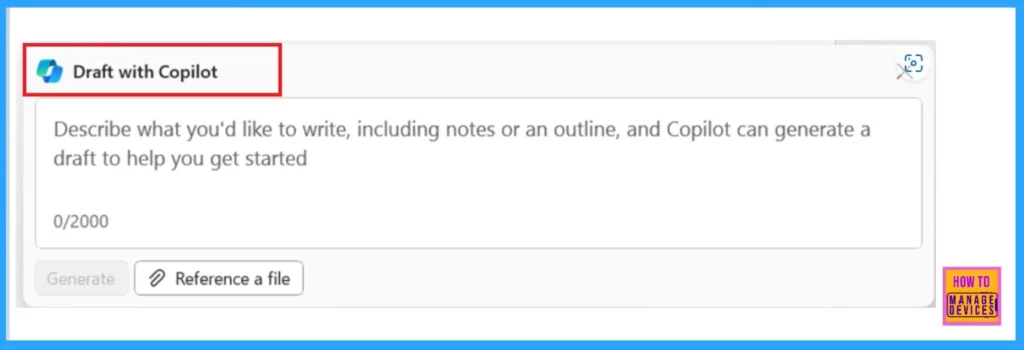
If you are creating a new document or editing a current one, Copilot can help. The Draft with Copilot feature appears when you begin a new document or add a new line to an existing one.
You can provide a simple sentence or more complicated outlines, notes, or reference files in the copilot’s description. For example, you could tell Copilot, “Write an essay about Badminton” or “Create a paragraph about a balanced diet”.
Note: This feature is available to customers with either a Microsoft 365 Copilot (work) or Copilot Pro (home) license.
If you have a Copilot for Microsoft365 license, you could access the Reference a file button to search for and include up to three of your remaining files as responses to create the content Copilot drafts.
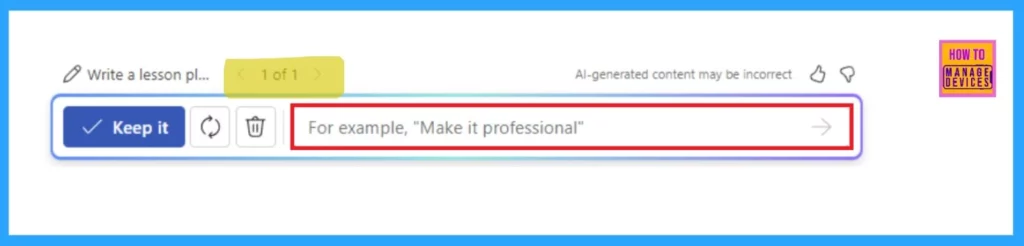
In the next step, the copilot is generated and shows new content. You can keep it or trash it by clicking the discard icon. You can also ask the Copilot to generate another result using the regenerate icon. You can alter your original prompt using the < and > icons to navigate Copilot’s suggestions.
In the Copilot compose box, you can type details on what changes you need Copilot to respond to. For example, write Make it professional; Copilot will modify its response based on your commands.
Edit Word document with Copilot
You can use Copilot in Word for text editing. For example, if you have a lot of text, that would be more understandable in a table. Here, you can highlight the text and ask Copilot in Word to convert the text into a table.
- In the left margin next to your text, select the Copilot icon.
- From the menu, select Rewrite to have Copilot provide rewritten options.
- You can also adjust Copilot’s response by selecting the
 Adjust tone button or
  Regenerate to receive a new set of reactions.
 - After highlighting text in your document, you can also choose to visualize your text as a table.
- From the menu, select Visualize as a table to have Copilot turn the text into a table.
- Select Regenerate to receive a new table or
 Discard to remove the generated table.
 - Fine-tune the table by entering details about what to adjust in the Copilot compose box, like “Add an empty third column.”
- Select < and > to navigate Copilot’s suggestions for Rewrite and Visualize as a table.
Note: This feature is available to customers with a Microsoft 365 Copilot (work) or Copilot Pro (home) license.
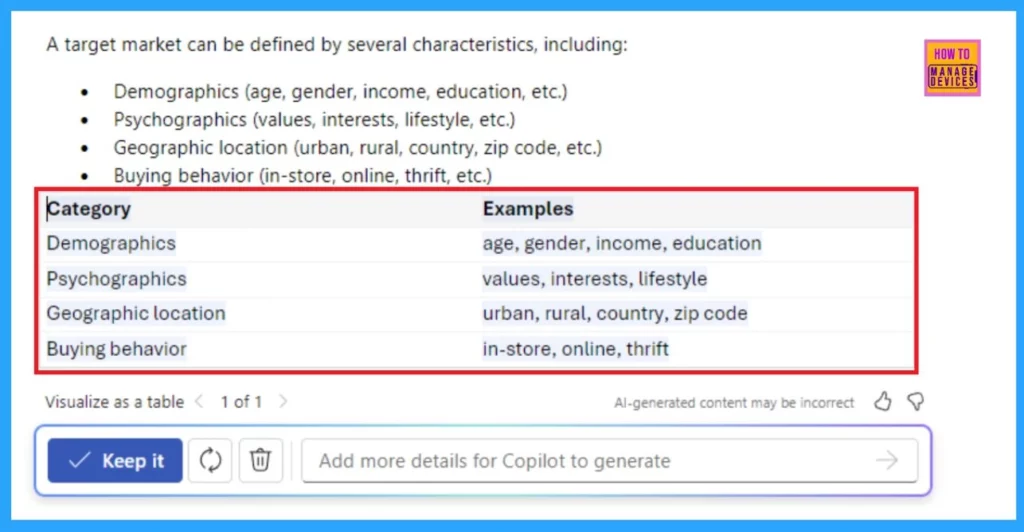
The following table shows the visualization of the four types of market segmentation.
| Category | Examples |
|---|---|
| Demographics | Age, Gender, Income, Education |
| Psychographics | Values, Interests, Lifestyle |
| Geographic (location) | Urban,Rural, Country, Zip code |
| Behavioral (Buying) | In-store, Online Thrift |
Chat with Copilot
Besides creating and editing the content, Copilot in Word can answer questions about the document you read. After Copilot responds to your prompt, you can view references with documents from where Copilot used information in your document.
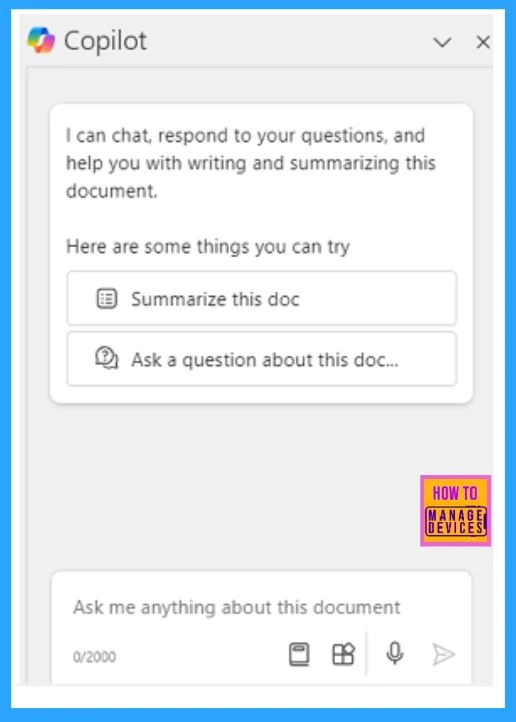
You can open the Copilot pane by clicking the Copilot button in the ribbon’s Home tab. You can chat, evaluate, and create content for your document. Copilot will provide references to the sources from which it recovers its information for generating summaries or asking questions about the documents.
Join the LinkedIn Page and Telegram group to get the latest step-by-step guides and news updates. Join our Meetup Page to participate in User group meetings. Also, Join the WhatsApp Community to get the latest news on Microsoft Technologies. We are there on Reddit as well.
Author
Anoop C Nair has been Microsoft MVP for 10 consecutive years from 2015 onwards. He is a Workplace Solution Architect with more than 22+ years of experience in Workplace technologies. He is a Blogger, Speaker, and Local User Group Community leader. His primary focus is on Device Management technologies like SCCM and Intune. He writes about technologies like Intune, SCCM, Windows, Cloud PC, Windows, Entra, Microsoft Security, Career, etc.


Discussion