






New Entra SSO and Device Management Dialog – Allow my Organization to Manage this Device Option is Enabled
The New Entra SSO and Device Management Dialog. Also, note that Allow my Organization to Manage this Device option is Enabled by default with new SSO as well. Microsoft is preparing to launch a new Single Sign-On (SSO) dialog for Entra in October 2024. This upgrade simplifies user access and secures resources across various applications.
The Single Sign-On (SSO) enrollment dialog page is a important feature that displays when you try to access secure resources in applications like Outlook. This dialog invites you to add your Microsoft Entra account to your current device.
The New Entra SSO comes with the Allow My Organization to Manage this Device option. This option is enabled by default and is not very good for many IT users. Users benefit from better security features that reduce the need to enter their credentials repeatedly when they enrol their accounts.
In this post, we will provide you with all the essential details about the upcoming launch of the new Entra Single Sign-On (SSO) dialog. The device management in the below-explained dialogue is Entra SSO/Registration/Workplace join. You can disable it using a registry fix.

Table of Contents
What Does Selecting “Yes, all apps” Do?
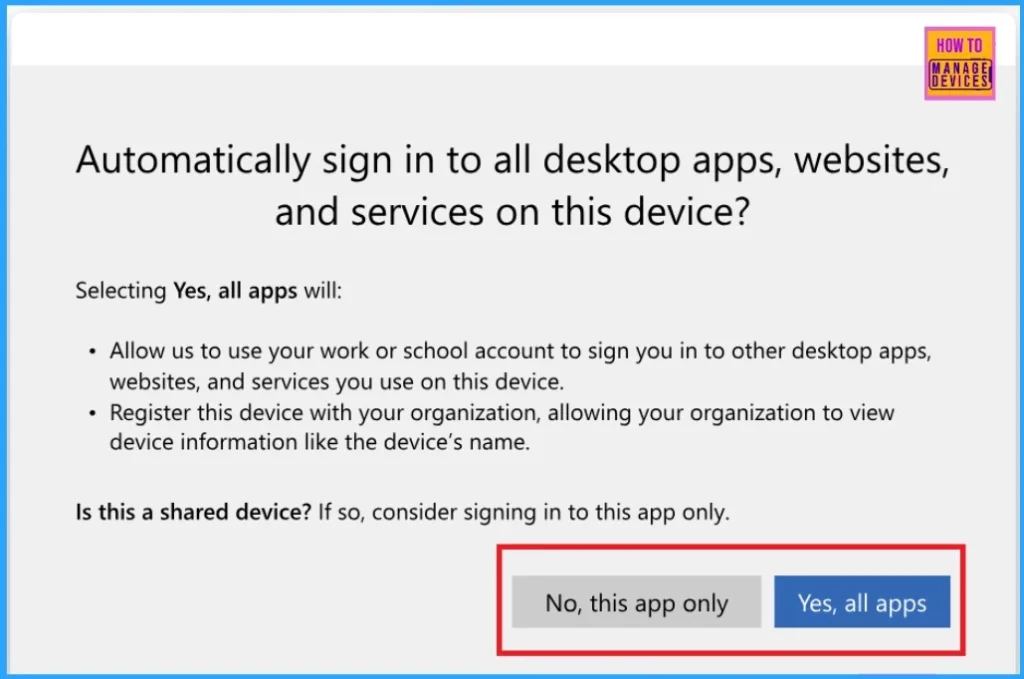
By choosing “Yes, all apps,” you will be automatically signed in to desktop applications that utilize your work or school account. As a result, you do not have to enter your credentials every time you launch these apps.
What Happens When We Select “No, this App Only” from Entra SSO Dialog?
By selecting “No, this app only,” you’re only signed in to the app you currently use. Your account won’t be added to the device or appear in the Windows Settings under Accounts. Additionally, you won’t be automatically signed in to other apps.
New Entra SSO and Device Management Dialog – Allow my Organization to Manage this Device Option is Enabled
The Single Sign-On (SSO) enrollment page appears when you try to access secure resources. It asks if you want to add your Microsoft Entra account to the device, which helps your administrator ensure your device meets security standards.
- By adding your account, you can sign in quickly to all desktop apps and benefit from extra security features.
- This page only shows up for Microsoft Entra accounts.
| New Feature | Details |
|---|---|
| Feature Name | Entra Single Sign-On (SSO) Dialog |
| Rollout Start | October 2024 |
| Purpose | Simplify access to protected resources across applications |
- Create Microsoft Entra ID Users with PowerShell Script
- What is Entra ID One Person One License Details
- Optimize Entra License with New Entra License Utilization Feature
Automatically Sign into All Desktop Apps Websites and Services on this Device?
Selecting “Yes, all apps” allows your work or school account to automatically sign you into all desktop apps, websites, and services you use on this device. Your account will be used to sign you in across other apps, websites, and services on the device, so you won’t need to enter your credentials repeatedly.
- Your device will be registered with your organization, enabling your organization to access certain information about the device, such as its name.
- If you’re using a shared device, signing in to just the current app might be better than allowing access to all apps.
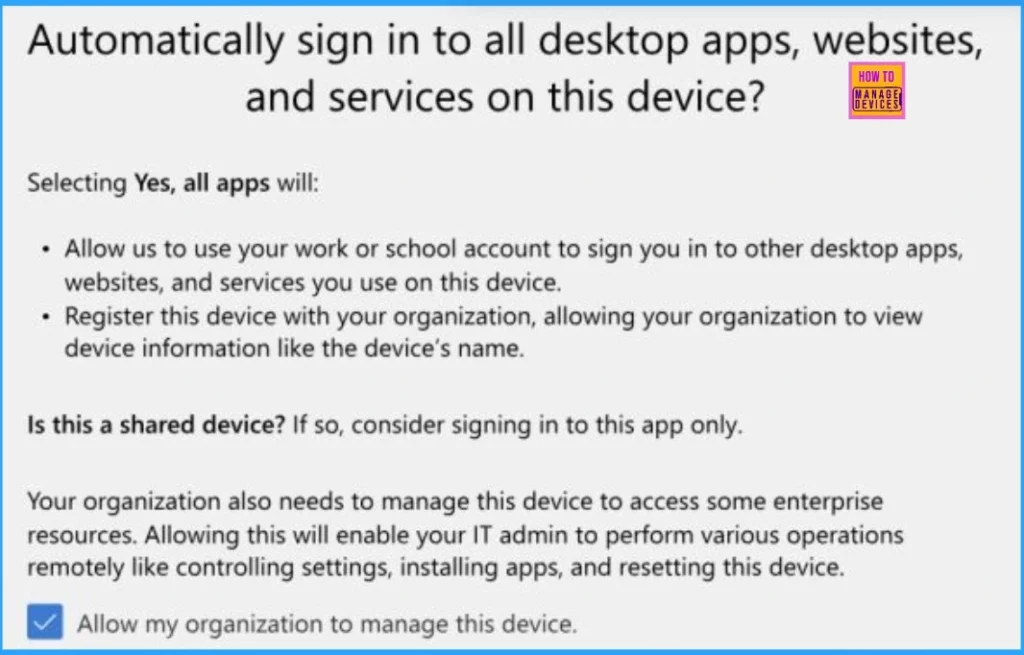
Additionally, this dialog provides more information, such as that your organization may need to manage the device to access specific resources. By agreeing, your IT admin can remotely control settings, install apps, and even reset the device if necessary.
What is Entra SSO/Registration/Workplace Join
Entra SSO/Registration/Workplace join is mainly used to join BYO (personal) devices to access organizational resources using limited MDM management options.
What is Mobile Device Management (MDM)?
MDM allows your organization’s administrator to manage the security and applications on your personal or corporate device without affecting your privacy.
What can an Administrator See if I Enroll in MDM?
If you enroll in Mobile Device Management (MDM), your organization can view the following details about your device.
> Device owner
> Device name
> Device serial number
> Device model (e.g., Google Pixel)
> Device manufacturer (e.g., Microsoft)
> Operating system and version (e.g., iOS 12.0.1)
> Device IMEI (International Mobile Equipment Identity)
What can an Administrator Never See even if I Enroll in MDM?
If you enroll in Mobile Device Management (MDM), your organization cannot access the following personal information on your device.
> Calling and web browsing history
> Email and text messages
> Contacts
> Calendar entries
> Passwords
> Pictures, including those in the photos app or camera roll
> Content of user-created documents
What Happens if you Check the Device Management Checkbox but only Sign in to this App?
If you check the device management checkbox but choose “No, this app only,” Mobile Device Management (MDM – Entra SSO/Registration/Workplace Join) will not be activated. MDM can only be enabled if you select “Yes, all apps.” Simply checking the checkbox without choosing “Yes, all apps” won’t activate MDM.
- Top 5 Security Layers of Protection
- Block Users Personal Devices to Join Entra ID using Intune
- External Collaboration Settings in Entra ID
Join the LinkedIn Page and Telegram group to get the latest step-by-step guides and news updates. Join our Meetup Page to participate in User group meetings. Also, Join the WhatsApp Community to get the latest news on Microsoft Technologies. We are there on Reddit as well.
Author
Anoop C Nair has been Microsoft MVP from 2015 onwards for 10 consecutive years! He is a Workplace Solution Architect with more than 22+ years of experience in Workplace technologies. He is also a Blogger, Speaker, and Local User Group Community leader. His primary focus is on Device Management technologies like SCCM and Intune. He writes about technologies like Intune, SCCM, Windows, Cloud PC, Windows, Entra, Microsoft Security, Career, etc.
Discussion