






Enable Watermarking for Secure Windows 365 and AVD Experience
This post guides you to enable Watermarking for AVD and Windows 365. The watermarking feature enables organizations to add visible identification marks to the desktop or applications running within the Virtual Desktop environment. These watermarks appear as QR codes for Windows 365 and AVD Experience.
By combining watermarking and screen capture protection, organizations can create a comprehensive security strategy for Azure Virtual Desktop. By implementing watermarking, you can track the origin of documents or screenshots captured within the virtual desktop, making it easier to identify any potential leaks or breaches.
Azure Virtual Desktop provides flexible options for applying watermarks. Admins can configure them to appear across the entire desktop or selectively on specific screen sizes. This customization ensures that the watermarking process aligns with the organization’s security policies and compliance requirements.
Furthermore, watermarking in Azure Virtual Desktop can be adjusted in terms of transparency, size, and position, providing administrators with the flexibility to design a watermark that suits their needs without obstructing user productivity.

Overall, By implementing watermarks, organizations can add an extra layer of security to their virtual desktop infrastructure and safeguard their sensitive information from unauthorized access or distribution.
- Deploy Windows 365 Security Baseline Policies To Cloud PCs
- RDP Remote Desktop Protocol Investments To Improve Windows 365 And AVD Experience
Prerequisites for Watermarking
To implement watermarking in Azure Virtual Desktop, there are a few prerequisites that need to be in place. Here are the key prerequisites to consider:
- A Remote Desktop client that supports watermarking. The following clients currently support watermarking:
- Windows Desktop client, version 1.2.3317 or later, on Windows 10 and later.
- Azure Virtual Desktop Insights is configured for your environment.
Note! Importing the administrative template to Microsoft Intune is currently not supported. You should eventually be able to configure these features using the Intune settings catalog.
Download Administrative Template for Azure Virtual Desktop
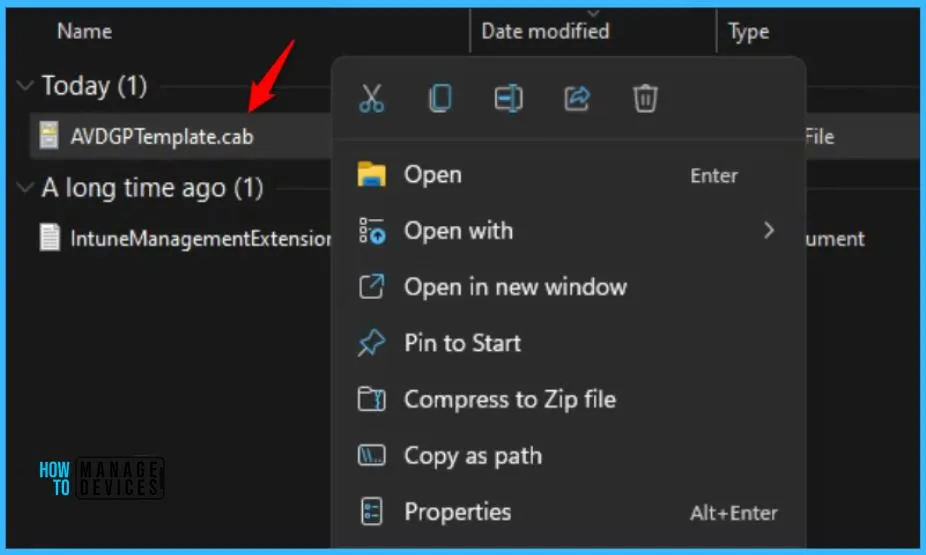
To configure Watermarking, You need to download the Azure Virtual Desktop policy templates file. Once you click on the link, The file (AVDGPTemplate.cab) will automatically be started download.
The next step is to add the remote desktop template to the local group policy while extracting the contents of the .cab file and .zip archive. Double-click or open the cab file and extract the contents of the cab file.
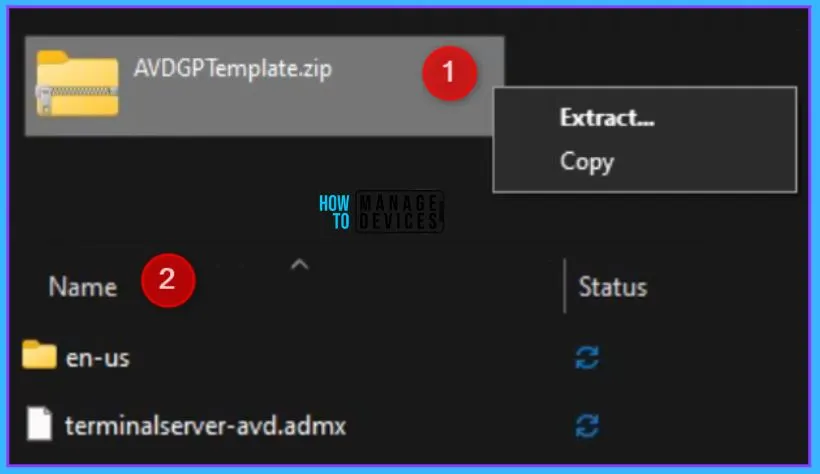
Here you need to copy AVDGPTemplates.zip file to a folder and extract the contents. The next step is to extract the contents of the zip to a folder.
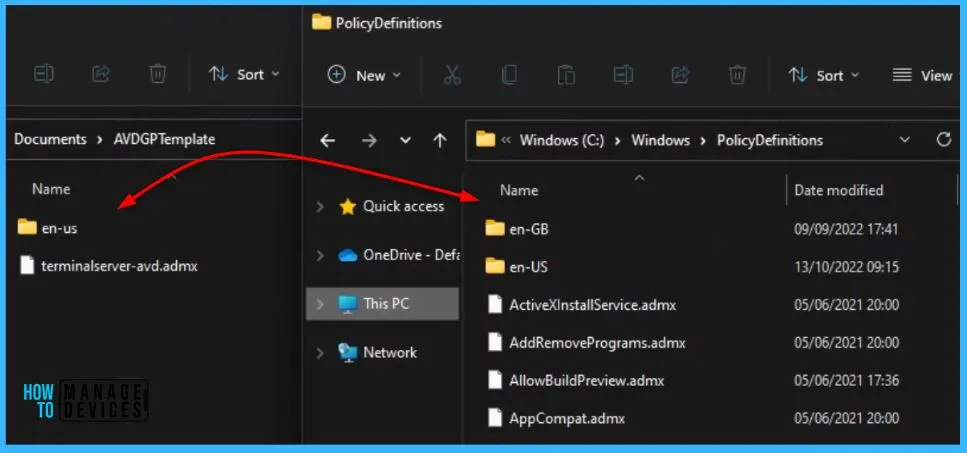
Open the extracted folder “\AVDGPTemplate” to copy the admx, adml files to file to the %windir%\ PolicyDefinitions folder.
You can use Local Group Policy Editor on the target computer to configure policies on individual computers. This approach lets you apply policy settings that only affect the local device.
You must install Remote Desktop Templates into Cloud PC if you are using Local Policies after you extract the templates, open AVDGPTemplate.
- Copy the terminalserver-avd.admx file to the %windir%\PolicyDefinitions folder.
- Copy the en-us\terminalserver-avd.adml file to the %windir%\PolicyDefinitions\en-us folder.
Here you see the admx files has copied to the local client machine in the source location C:\Windows\ PolicyDefinitions folder.
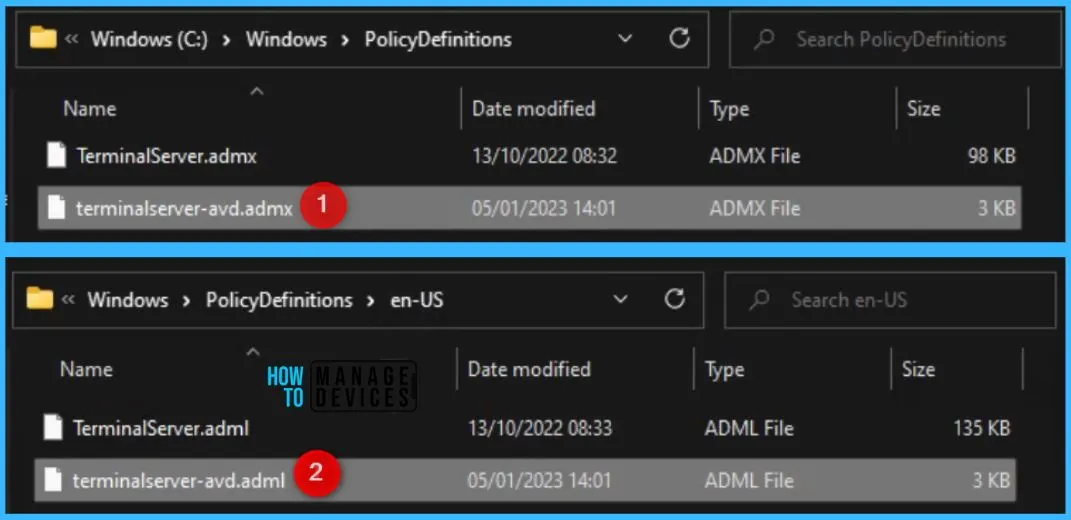
When you add the administrative template files to the appropriate location, Remote Desktop policy settings are immediately available in the Local Group Policy Editor.
Enable Watermarking using Group Policy
To confirm the files loaded correctly, open Local Group Policy Editor directly (Windows key + R and enter gpedit.msc) or open MMC and load the Local Group Policy Editor snap-in.
In Group Policy Editor, Navigate to the Computer Configuration > Administrative Templates > Windows Components > Remote Desktop Services > Remote Desktop Session Host > Azure Virtual Desktop. You should see multiple Azure Virtual Desktop policies.
In the Azure Virtual Desktop Settings, locate the policy, Enable watermarking, and Double-click on the policy to open and get the detailed view.
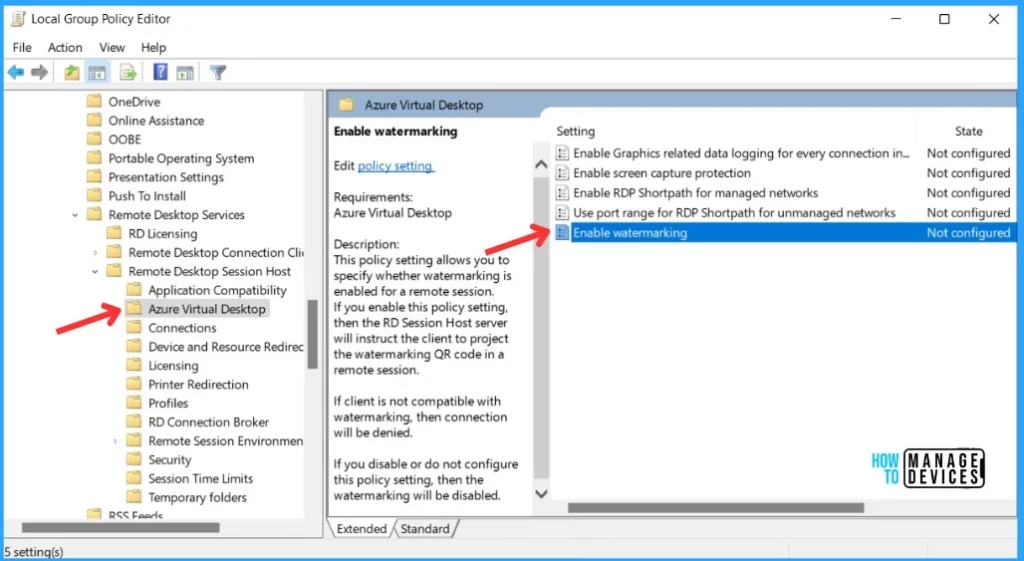
This policy setting allows you to specify whether watermarking is enabled for a remote session. If you enable this policy setting, then the RD Session Host server will instruct the client to project the watermarking QR code in a remote session.
If the client is not compatible with watermarking, then the connection will be denied. If you disable or do not configure this policy setting, then the watermarking will be disabled.
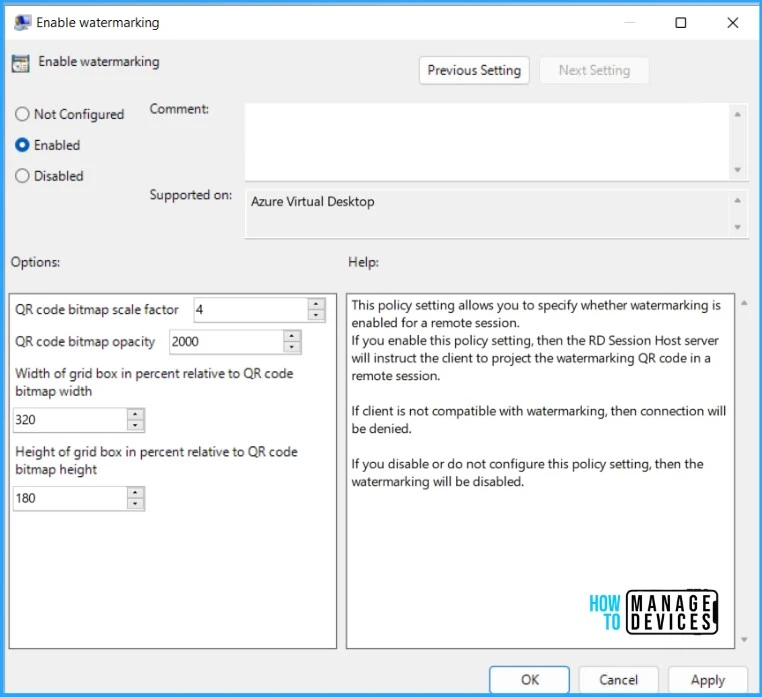
You can refer to the below table to get the various options to be configured while enabling watermarking. The default value will appear automatically. However, you can adjust it based on the requirements.
| Option | Values | Description |
|---|---|---|
| QR code bitmap scale factor | 1 to 10 (default = 4) | The size in pixels of each QR code dot. This value determines how many the number of squares per dot in the QR code. |
| QR code bitmap opacity | 100 to 9999 (default = 700) | How transparent the watermark is, where 100 is fully transparent. |
| Width of grid box in percent relevant to QR code bitmap width | 100 to 1000 (default = 320) | Determines the distance between the QR codes in percent. When combined with the height, a value of 100 would make the QR codes appear side-by-side and fill the entire screen. |
| Height of grid box in percent relevant to QR code bitmap width | 100 to 1000 (default = 180) | Determines the distance between the QR codes in percent. When combined with the width, a value of 100 would make the QR codes appear side-by-side and fill the entire screen. |
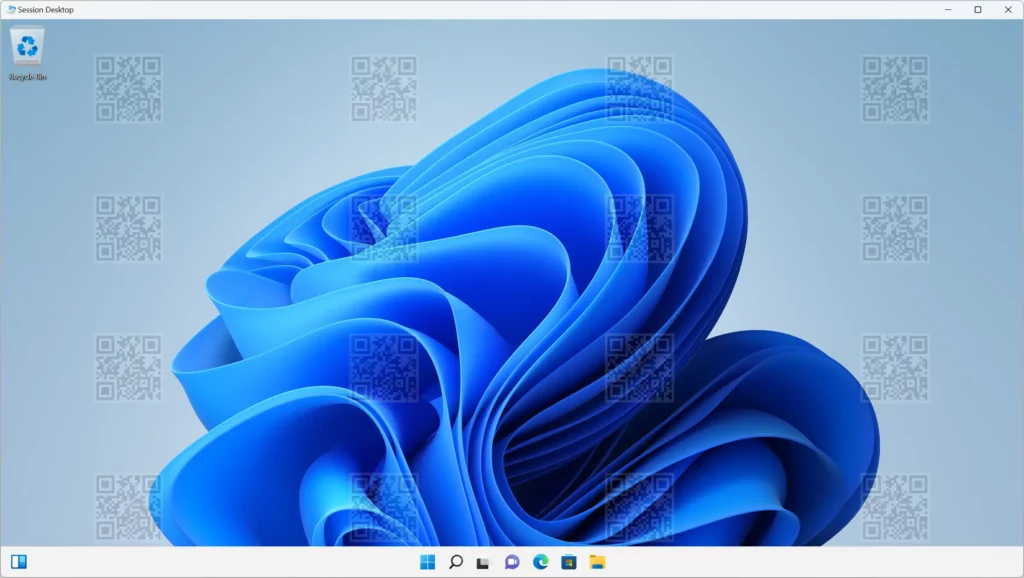
When you enable watermarking, QR code watermarks appear as part of remote desktops. The QR code contains the connection ID of a remote session that admins can use to trace the session.
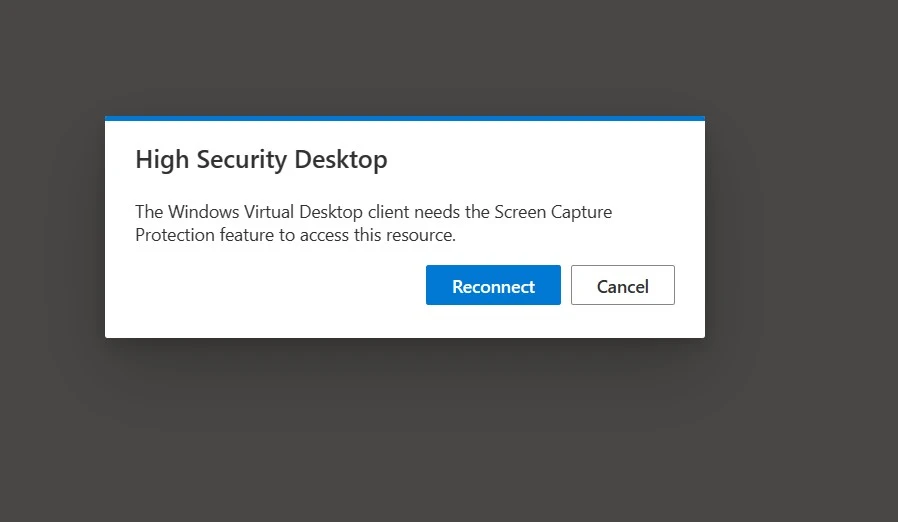
Once watermarking is enabled on a session host, only clients that support watermarking can connect to that session host. Suppose you try to connect from an unsupported client. The connection will fail in that case, and you will get an error message indicating, ” The Windows Virtual Desktop client needs the Screen Capture Protection feature to access this resource.”
Watermarking is for remote desktops only. With remote apps, watermarking is not applied, and the connection is allowed.
Note! With General Availability on 31/07/2023, Microsoft introduced support for Azure Virtual Desktop web client. Available by downloading and adding administrative templates for Azure Virtual Desktop.
Author
About Author – Jitesh, Microsoft MVP, has over six years of working experience in the IT Industry. He writes and shares his experiences related to Microsoft device management technologies and IT Infrastructure management. His primary focus is Windows 10/11 Deployment solution with Configuration Manager, Microsoft Deployment Toolkit (MDT), and Microsoft Intune.




Discussion