


Skip to content
Find Device From MAC Address Using SCCM Query

Find Device From MAC Address Using SCCM Query

Written By Jitesh Kumar
Last Updated June 23, 2022
Posted In SCCM
SHARE

Let’s find the easiest method to create SCCM Query to find device from MAC Address. You can create and run queries to locate devices in a Configuration Manager hierarchy that match your query criteria.

You might have experienced the different scenarios where the device has the PXE boot issue with SCCM, which could be due to multiple MAC for the devices. Finding the devices with a mac address helps you resolve the issue and perform the deployment without wasting much time.

Here you can also check how to Fix SCCM PXE issues with C Type Network adapter and Duplicate MACIDs. There is a common practice that we have seen within many organizations that the C Type (or USB) network adapter is used for OS deployment scenarios and PXE/Unknow computer scenarios.

There are seventeen (17) default or out-of-box WQL queries available in the Configuration Manager console itself. We have many posts that explain the WQL queries and dynamic collections. Here you can check how to Create SCCM dynamic device Collection for Visual Studio Upgrade using a WQL query.

Patch My PC

Most of the default WQL queries are useful. However, some of them are not useful for most scenarios, and In the below section, you will find out the steps to Create SCCM WQL Queries.

Find Device From MAC Address Using SCCM Query

The following points help you to create queries to find the device from MAC Address in Configuration Manager –

In the Configuration Manager console, select Monitoring. Select Queries, Right-click on Queries, and choose Create Query.

Select Create Query – Find Device From MAC Address Using SCCM Query 1

On the General tab of the Create Query Wizard, specify a unique name and, optionally, a comment for the query.
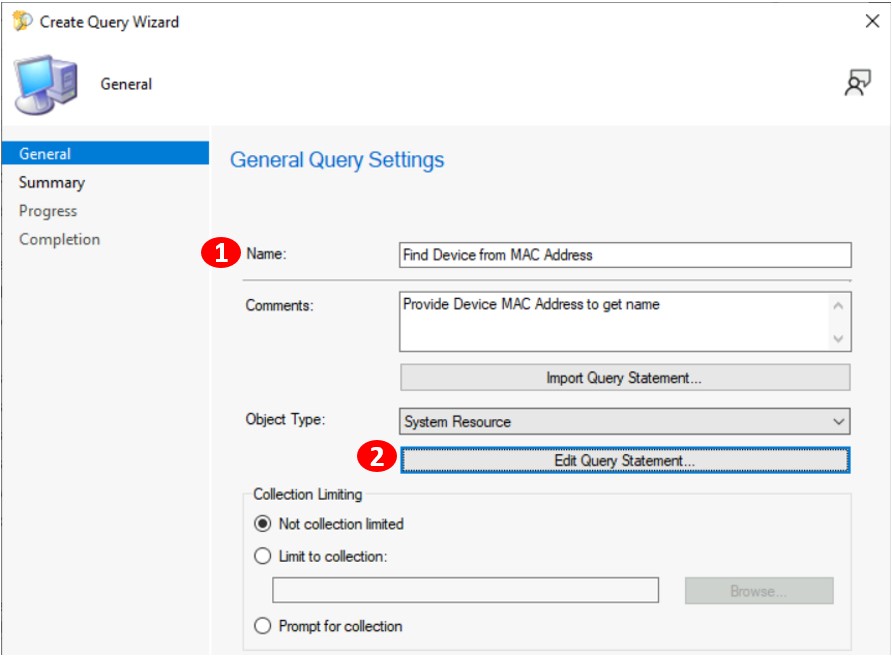
Specify Query Details – Find Device From MAC Address Using SCCM Query 2

Select Show Query Language to enter or edit the query directly in WMI Query Language (WQL).
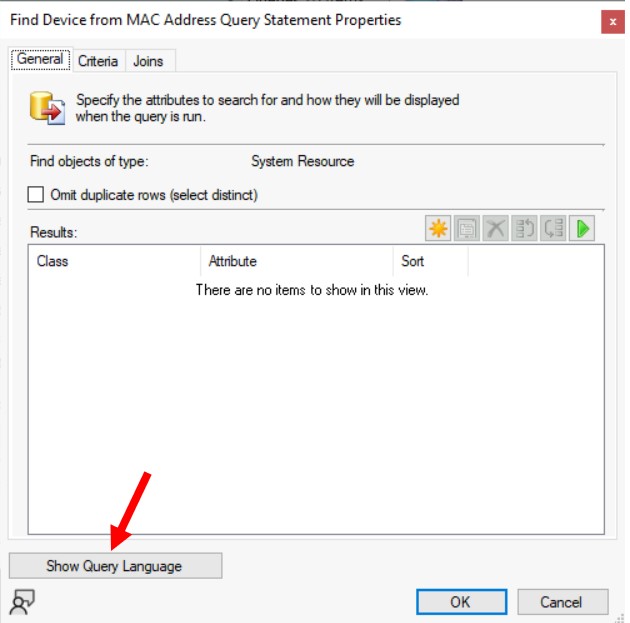
Click Show Query Language – Find Device From MAC Address Using SCCM Query 3

In the Query Language, Copy and paste the following WMI Query Language (WQL) and Click OK –

SELECT SMS_R_System.Name, SMS_R_System.MACAddresses
FROM  SMS_R_System
WHERE SMS_R_System.MACAddresses = ##PRM:SMS_R_System.MACAddresses##
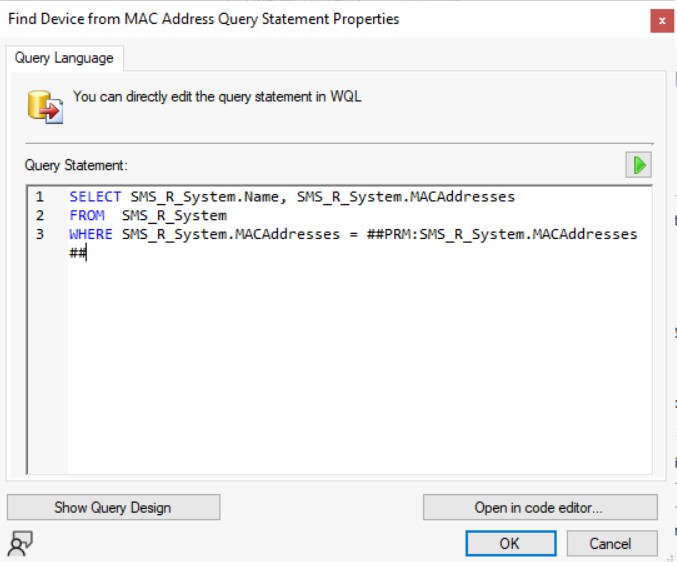
Specify Query – Find Device From MAC Address Using SCCM Query 4

On the next screen of Query Settings, Click Next.

On the Summary page, review the details and Click Next to confirm the settings.
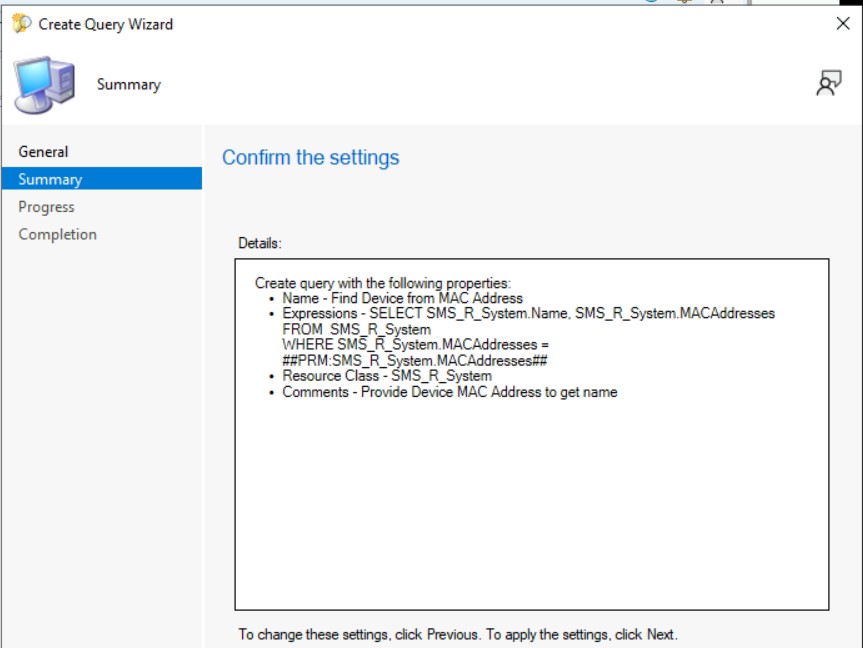
Create Query Wizard – Find Device From MAC Address Using SCCM Query 5

The task “Create Query Wizard” completed successfully. Click Close to finish the wizard.
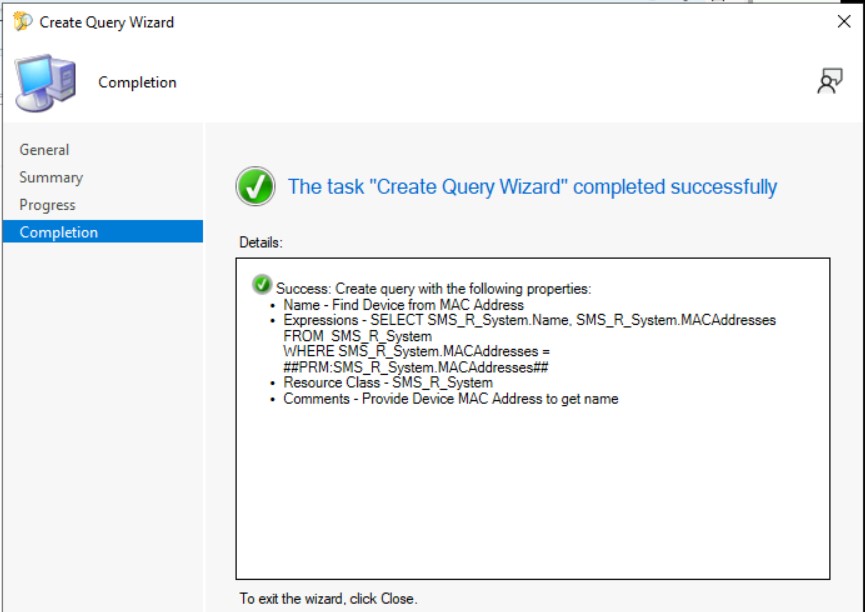
The task “Create Query Wizard” completed successfully

Once you completed the wizard. The new query appears in the Queries node in the Monitoring workspace. Right-click on the query and select Run, Or you can also double-click on the query to run.
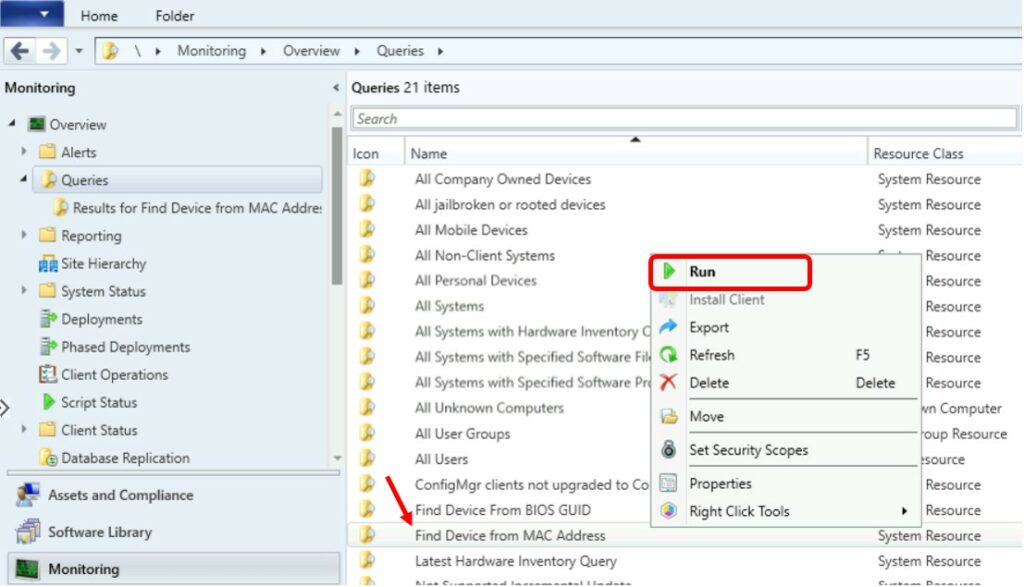
Find the query and select Run

Here a prompt will appear to Enter the MAC Addresses of the device, which you want to check.

Enter a value for MAC Addresses - Find Device From MAC Address Using SCCM Query
Enter a value for MAC Addresses – Find Device From MAC Address Using SCCM Query

Here you can see the results for Find Device From MAC Address displays information for the device.
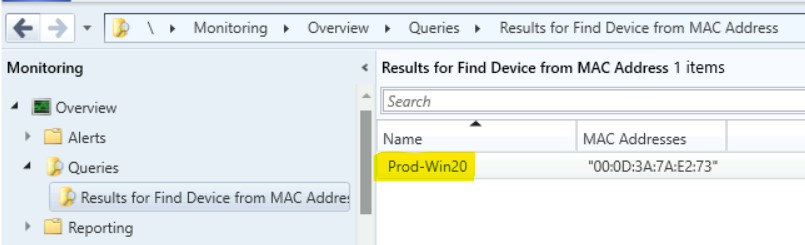
Results for Find Device from MAC Address

Find Device from MAC Address in SCCM Console

You can search for a MAC Address in a device view of the Configuration Manager console. The options are useful for the admins to perform quick troubleshooting for OSD deployments.

In SCCM Console, Navigate to the Assets and Compliance > Devices. Select the Devices node

You can also search for the Mac Address of the computer name by entering it under the Search window. The Device search results will show the device details held the MAC address.

Device Search Results - Find Device from MAC Address in SCCM Console 1
Device Search Results – Find Device from MAC Address in SCCM Console 1

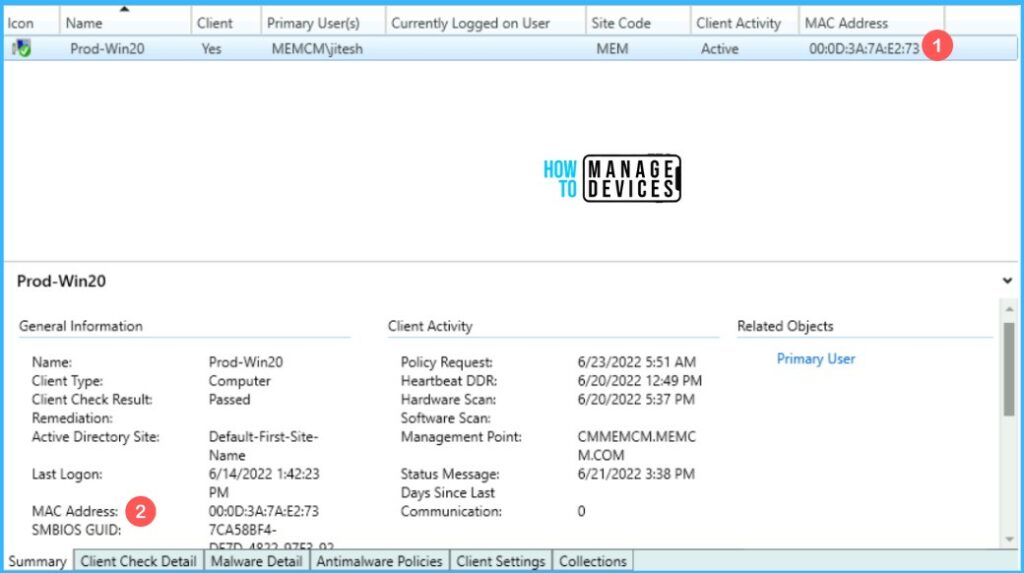
If you cannot see the MAC Address column in the Device Node. To add the MAC Address column, Right-click on a column detail name and Select the MAC Address column.
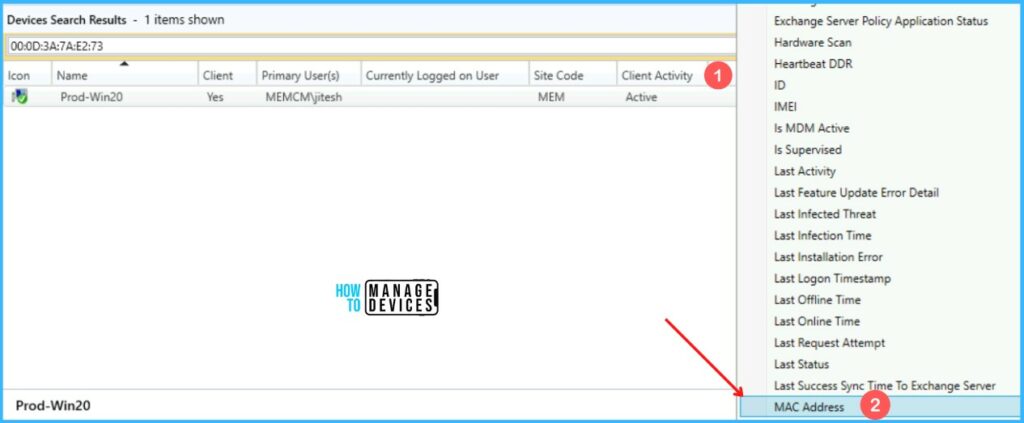
Enabled MAC Address - Find Device from MAC Address in SCCM Console 2
Enabled MAC Address – Find Device from MAC Address in SCCM Console 2

Here you can see MAC Addresses for the devices appearing in the Summary tab and the MAC Address column showing the details.
Find Device from MAC Address in SCCM Console 3

Author

Written by

Jitesh has over 5 years of working experience in the IT Industry. He writes and shares his experiences related to Microsoft device management technologies and IT Infrastructure management. His primary focus area is Windows 10 Deployment solution with Configuration Manager, Microsoft Deployment Toolkit (MDT), and Microsoft Intune.

Discussion

Join the discussion

Your email address will not be published. Required fields are marked *

Related guides

Intune

Windows 11 KB5101650 KB5099414 July 2026 Patch and 3 Zero Day Vulnerabilities and 570 Flaws

Key Takeaways Windows 11 KB5101650 KB5099414 July 2026 Patch and 3 Zero Day Vulnerabilities and 570 Flaws! In the July 2026 Patch, Microsoft introduced new features designed to improve the overall Windows experience. The update adds enhancements to Windows Update for more flexible update management and introduces Point-in-Time Restore, providing an additional recovery option for […]

AC Anoop C Nair 9 min read
Intune

2026 June KB5094126 KB5093998 Windows 11 Patch | 3 Zero Day Vulnerabilities and 200 Flaws

Key Takeaways 2026 June KB5094126 KB5093998 Windows 11 Patch | 3 Zero Day Vulnerabilities and 200 Flaws! The June 2026 Windows 11 Patch Tuesday update brings several improvements to File Explorer. It adds support for additional archive formats, including UU, CPIO, XAR, and NuGet Packages (NUPKG). The update also preserves View and Sort preferences in […]

AC Anoop C Nair 10 min read
Intune

2026 May KB5089549 KB5087420 Windows 11 Patch | 0 Zero Day Vulnerabilities and 120 Flaws

Key Takeaways The Windows 11 May 2026 Patch KB5089549 KB5087420 Update brings important security fixes, performance improvements, and reliability enhancements across the operating system. The update introduces new features such as Xbox Mode for gaming, File Explorer improvements, enhanced input and sharing experiences, better taskbar and Windows Hello reliability, and additional enterprise management capabilities for […]

AC Anoop C Nair 8 min read
SCCM

ConfigMgr 2603 Introduces New Early Update Enrollment Process

Key Takeaways In this post we are discussing the ConfigMgr 2603 Introduces New Early Update Enrollment Process. Microsoft has officially released Configuration Manager version 2603 to the Early Update Ring, giving organizations an opportunity to test upcoming improvements before the global production rollout. The release is targeted at enterprises running ConfigMgr version 2409 or later […]

AC Anoop C Nair 3 min read



