






How to Get Highlights from the Past 7 Days in Microsoft Teams Chat
Let’s discuss How to Get Highlights from the Past 7 Days Prompt in Microsoft Teams Chat. Microsoft has introduced this feature, which helps users review the main points, action items, and decisions without having to scroll through long threads.
As you know, Microsoft Teams changed entirely after the arrival of Copilot. Teams are the best platform for meetings and collaboration, and the Copilot capabilities empower the user’s abilities. Copilot Highlights from the Past 7 Days Prompts efficiently locate information from chat.
There are many prompts available to access information on this feature. With these features, you can avoid manual scrolling and searching on chat to find content from your Teams chat. Remember that users only use this feature on Teams when you activate Copilot in your chat.
In your prompts, you can use time-based phrases like “yesterday,” “last month,” “6 months ago,” or ” December 2023.” This blog post will help you explore time-based prompts in Microsoft Chat. I will provide a step-by-step guide for using this feature.


How to Get Highlights from the Past 7 Days in Microsoft Teams Chat
This feature lets users easily catch information from your chat at a specific time. This capability can be applied to your one-on-one or group chat, meeting chat, or Teams channel.
- Drag Teams Presenter Toolbar during Screen Sharing Frustrating Experience is Going to End Soon
- Introducing Microsoft Teams in VDI
- How to Enable Optimize Video Option in Microsoft Teams Screen Sharing Feature
- Windows 365 Cloud PC Gallery Images Pre-Install New Microsoft Teams
Use Copilot in a One-On-One or Group Chat
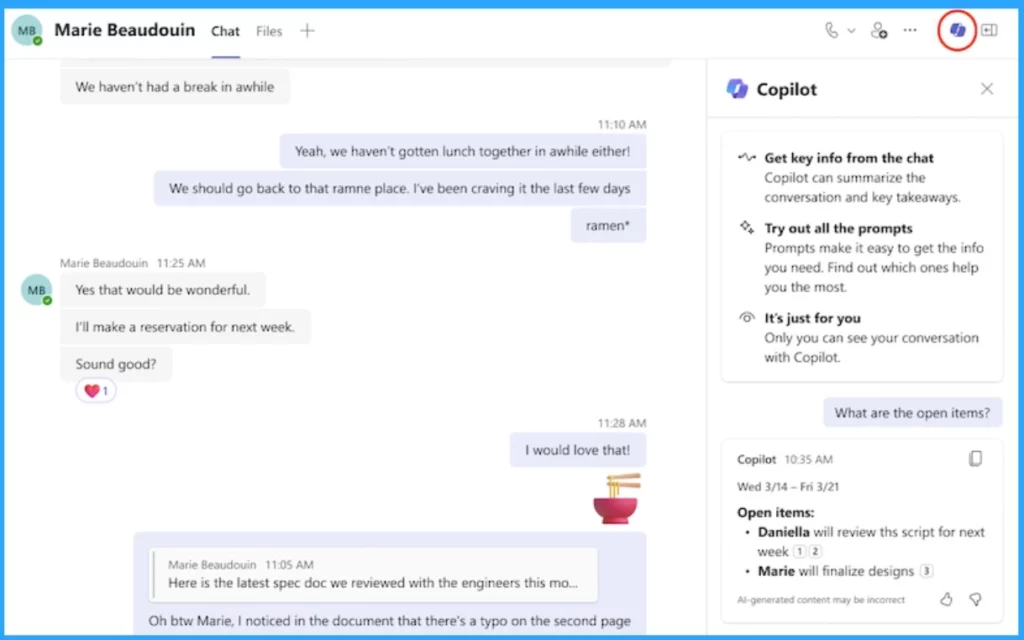
You can access Copilot time-based prompts in a One-On-One or Group Chat. It helps users easily catch up on essential messages from group chat. As you know, accessing specific messages from a Teams Group chat is usually very difficult.
- Open Microsoft Teams and Go to Chat on the left side of Teams
- Click on the Copilot icon in the upper-right corner of the chat
- Select a specific chat from the list
- Under the compose box to the right of your chat, select More prompts to choose from the following options:
| Different Time-Based Prompts on one-on-one or group chat |
|---|
| Highlights from the past day. |
| Highlights from the past 7 days |
| Highlights from the past 30 days |
| What decisions were made |
| What are the open items |
You can type the prompt in the compose box and Send it. The following list shows the different prompts you can try on your Teams Chat.
- Summarize what I’ve missed.
- What were the key takeaways from last month?
- What did [a member of the chat] say?
- What links were shared?
After sending the prompt, Copilot will respond to it. You must include a clear time frame to get a targeted result, like “December 2023” or “last month.” Remember that Messages from a Specified time period are only considered by Copilot, and this is reflected by the timestamp in Copilot’s response.
Use Copilot in a Meeting Chat
Time-based prompts can also be available on Microsoft Teams Meeting Chat. When your meeting is transcribed, Copilot references information from the meeting transcript in its responses.
- Open your Microsoft Teams
- Open the Meeting Chat
- Select Open Copilot in the chat’s upper-right corner; you will see the Copilot icon.
- In this window, you can see a Compose box to the right of your chat; select View prompts to choose from the following options:
| Different Prompts available on Meeting Chat |
|---|
| Recap the meeting |
| List action items |
| Suggest follow-up questions |
| What questions are unresolved? |
| List different perspectives by topic |
| List the main ideas we discussed |
| Generate meeting notes |
| Highlights from the meeting chat |
After that, type your prompt in the compose box and click the Send button. You can access the meeting chat according to your prompt on the Teams.
- Easy Way to Remove Microsoft Teams Personal with Intune
- New Hide General Channel Feature in Microsoft Teams
Use Copilot in a Teams Channel
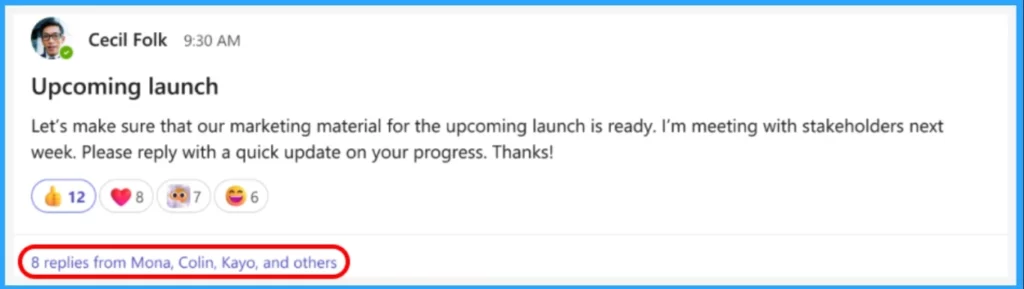
Different prompts can be used to access specific information on your Teams Channel also. You can select a specific channel with a team for this. Within the channel discussion, select the link below the channel post to expand the replies and see the full conversation.
From this immersive channel post view, select Open Copilot in the upper-right corner. After that, you can access the Compose box.
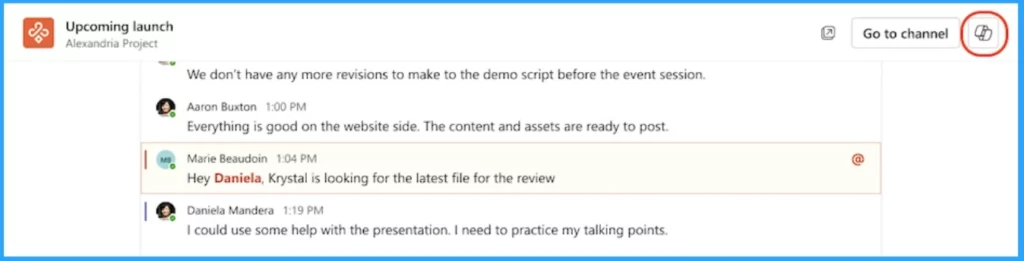
Under the compose box to the right of your channel, select More prompts to choose from the following options:
- Highlights from the conversation.
- What decisions were made?
- What are the open items?
Type a prompt in the compose box, then select Send. The Copilot will show information according to the prompt.
We are on WhatsApp now. To get the latest step-by-step guides, news, and updates, Join our Channel. Click here. HTMD WhatsApp.
Author
Anoop C Nair has been Microsoft MVP from 2015 onwards for 10 consecutive years! He is a Workplace Solution Architect with more than 22+ years of experience in Workplace technologies. He is also a Blogger, Speaker, and Local User Group Community leader. His primary focus is on Device Management technologies like SCCM and Intune. He writes about technologies like Intune, SCCM, Windows, Cloud PC, Windows, Entra, Microsoft Security, Career, etc.




Discussion