






How to Deploy Zoom Application Using SCCM
Let’s check the best option for Deploy Zoom application Using SCCM (a.k.a. Configuration Manager). Three ways can be used to mass deploy the Zoom Desktop Client for Windows 10 devices.
- MSI
- Group Policy
- Registry Configurations
In this post, I will cover the Zoom application MSI deployment and installation using ConfigMgr. More details about Group Policy Options for the Windows Desktop Client are available here.
What is Zoom Meeting Client? – Most of you know Zoom meetings and the security concerns with Zoom meeting clients. However, I have seen many organizations use Zoom meetings to interact with external clients.
This cloud-based video conferencing software allows organizations to conduct virtual meetings and collaborate in real-time. Zoom is one of the competitors for Microsoft Teams, a video conferencing solution from Microsoft.

Table of Contents
Download Zoom MSI – How to Deploy Zoom Application Using SCCM
The best way to deploy the Zoom MSI package on Configuration Manager-managed devices. You can download Zoom Full Installer MSI from Zoom (around ~46 MB) and deploy it.
- Deploy Zoom Using Intune Step by Step Guide
- Manage Zoom Settings using Intune Administrative Templates
- SCCM Configuration Manager Application Creation Deployment Installation
Download https://zoom.us/client/latest/ZoomInstallerFull.msi
Zoom Command-Line Options
The following are the command-line options for deploying the Zoom client. You can use these commands while you deploy this MSI using Configuration Manager | SCCM. More details https://support.zoom.us/hc/en-us/articles/201362163-Mass-Installation-and-Configuration-for-Windows
msiexec /i ZoomInstallerFull.msi /quiet /qn /norestart
NOTE: You can Disable auto-launch for the Zoom MSI installer. When a user logs in to Windows, Zoom is installed with the MSI, and a shortcut to start Zoom is added to the user’s desktop.
Create Zoom Application Using SCCM
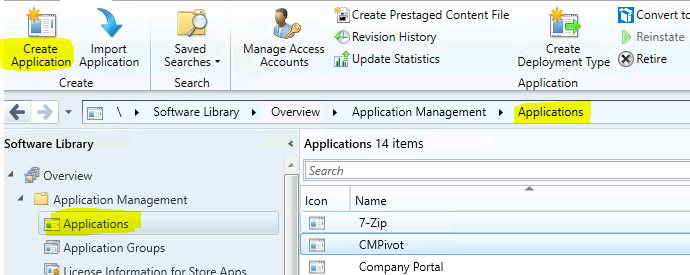
Launch ConfigMgr Console. Navigate to \Software Library\Overview\Application Management\Applications. Right-click on the Applications node.
- Select Create Application
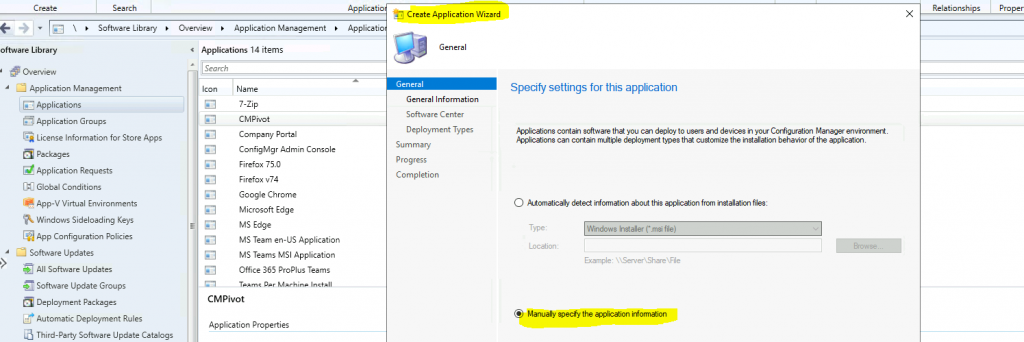
Specify Settings for this Application
Select the option called “Manually specify the application information“. Click on the Next button.
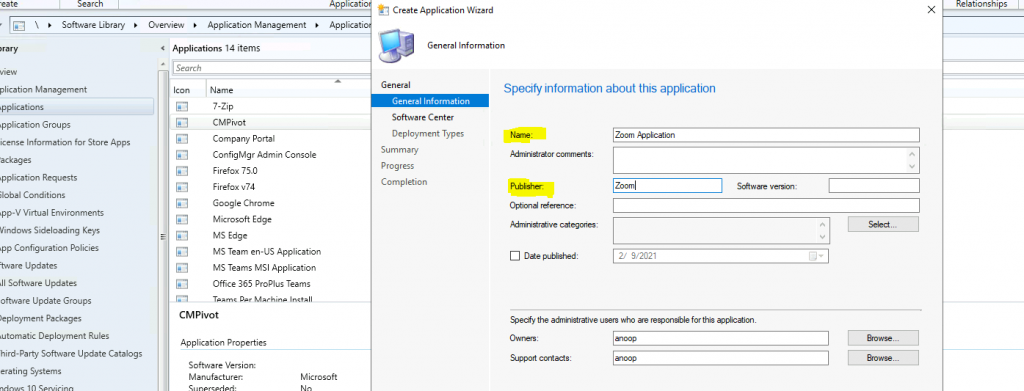
Enter the name of the application you want to deploy—Zoom MSI Application—and the Publisher Name—Zoom.
- Click on NEXT to continue.
Download the following Zoom ICON. Save the picture to a network location and use it for the next step.

Click on Browse to select the Software Center ICON for Zoom
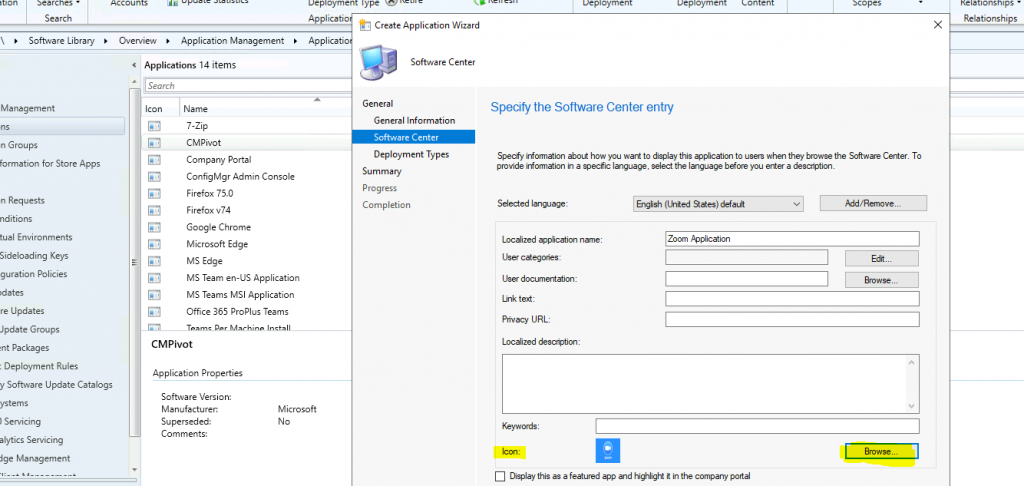
Click on the NEXT button once the Zoom ICON is uploaded. On the Deployment Types page, you need to provide the following details.
- Deployment Types include information about the installation method and the source files for the application.
- Click on the ADD button to configure the Zoom application
Deployment Type Creation for Zoom
Specify the settings for this deployment type. Type of the Application – Windows Installer (*.msi file).
- Click on the Browse button to automatically identify the information about the deployment type from the Zoom Installation File.
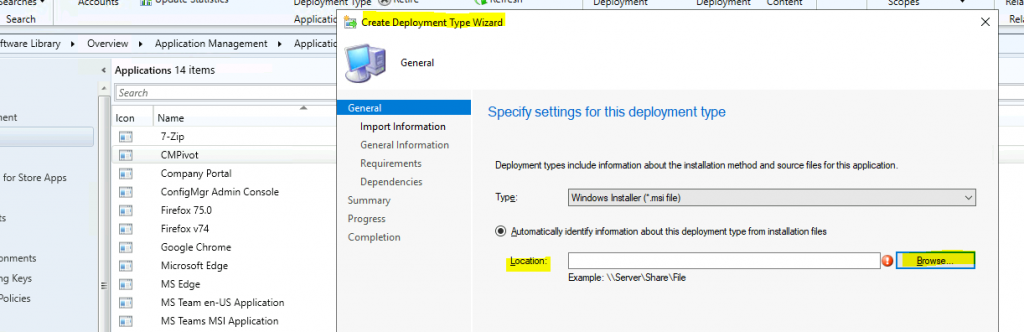
Select the Downloaded Teams MSI – ZoomInstallerFull.msi. Click on NEXT to continue.
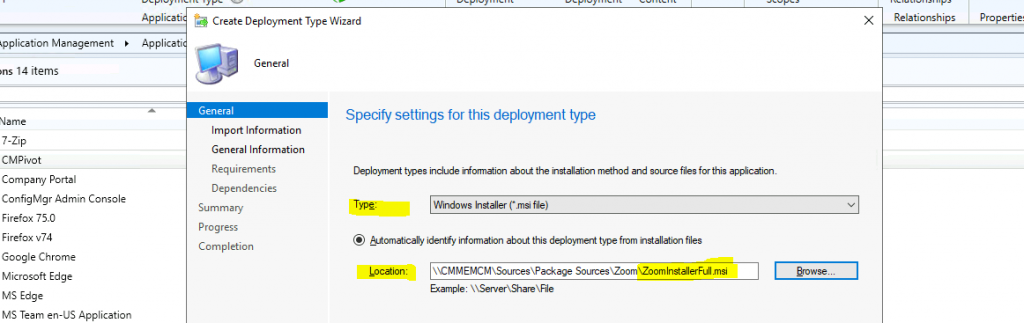
Click on NEXT to continue. The following is the information that SCCM imported from the Zoom MSI file.
- General Information
- Name: Zoom – Windows Installer (.msi file) Technology: Windows Installer (.msi file)
- Software version:
- Detection Method
- Product code: {B73AF550-CC30-41D8-8C24-4D61B087EFB7}
- User Experience
- Installation behavior: Install for system if resource is device; otherwise install for user
Enter the Name of the deployment – Teams Machine-Wide Installer – Windows Installer (*.msi file).
- Installation Program – for 64-bit Zoom MSI installation
- msiexec /i ZoomInstallerFull.msi /quiet /qn /norestart
- Select Installation Behavior – Install for the system if the resource is the device; otherwise, install for the user
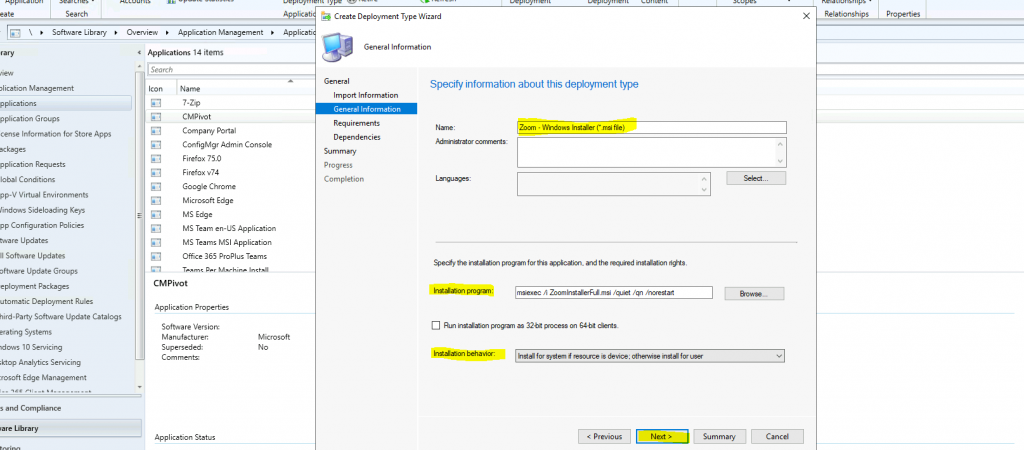
Click on NEXT to continue on the Requirements page.
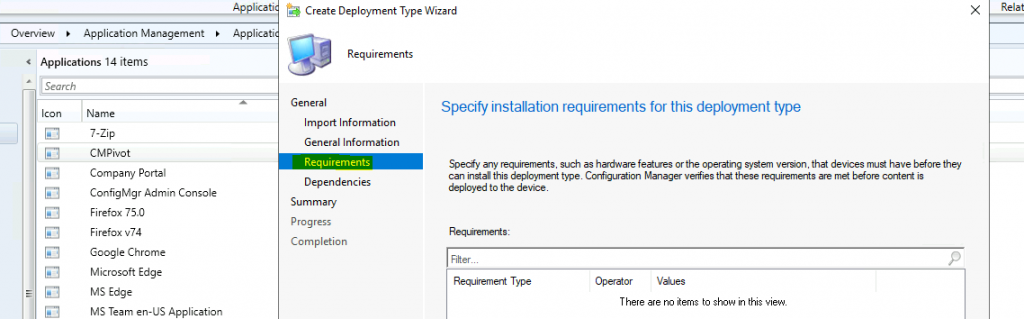
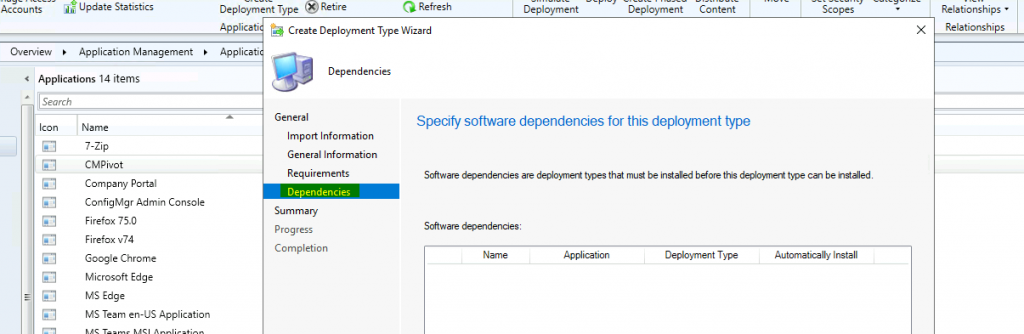
Select the Software Dependencies of the Zoom application. Click the NEXT to Continue.
Confirm the Settings of Teams Deployment configuration. Click on NEXT to continue. The following is the general information.
| General Information |
|---|
| Name: Zoom – Windows Installer (.msi file) • Technology: Windows Installer (.msi file) |
| Administrator comments |
| Languages: |
| Content: • Content location: \CMMEMCM\Sources\Package Sources\Zoom • Installation program: msiexec /i ZoomInstallerFull.msi /quiet /qn /norestart |
| Detection Method: • Product code, equals, {B73AF550-CC30-41D8-8C24-4D61B087EFB7} |
| Installation behavior: Install for system if resource is device; otherwise install for user Requirements: Dependencies: |
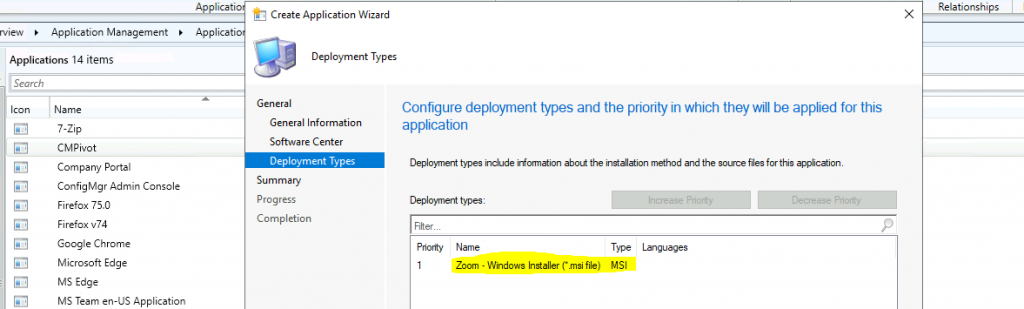
Click on CLOSE to complete the Zoom Application Deployment type using SCCM.
- Click on NEXT to Continue
- Click on NEXT, NEXT, and CLOSE to complete the application creation process
Deploy Zoom Using SCCM
Let’s see how to deploy Zoom using SCCM. This is not different from any other application deployment in SCCM. You must know whether this is going to a user or device collection.
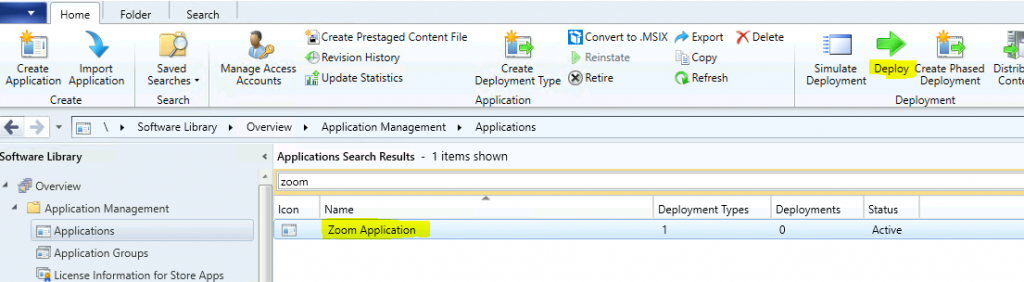
- Navigate to \Software Library\Overview\Application Management\Applications
- Right-click on the Zoom application that we created in the above section
- Select DEPLOY
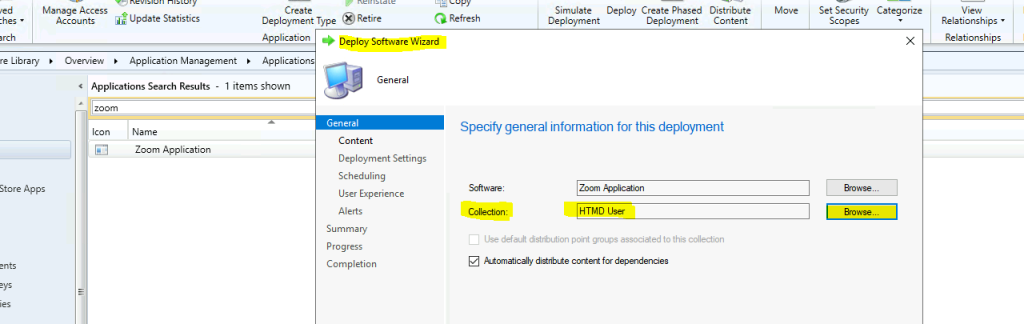
Click on the BROWSE button near the Collection. Select the User COLLECTION for which you want to deploy the Zoom application.
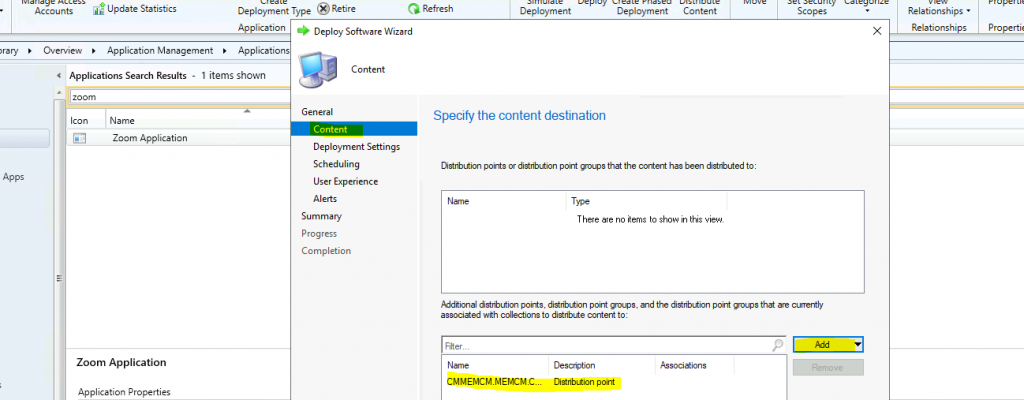
Click on the ADD button to distribute the Teams application’s source files to the Distribution Point server. Select the Distribution Point option.
- Select DP CMMEMCM.MEMCM.COM
- Click OK to continue
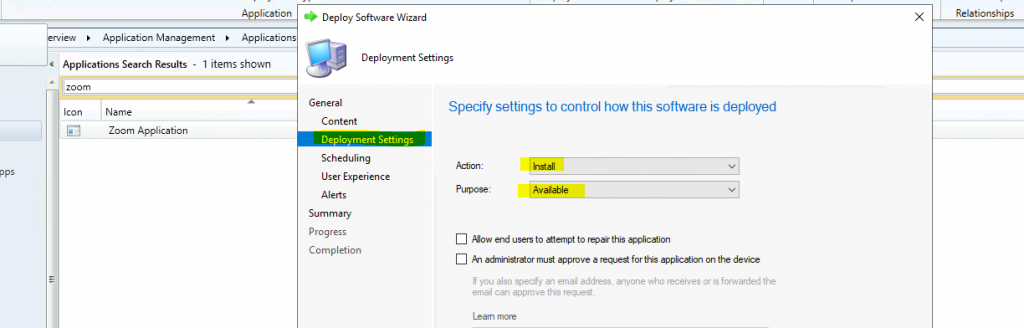
Click on NEXT to continue. Select the installation ACTION as INSTALL. Select the Purpose as REQUIRED.
Schedule the installation of the Zoom application on to Windows 10 devices.
- Installation Deadline
- Available as soon as possible (Next policy cycle)
- Click on the NEXT button on the USER EXPERIENCE page
- Click on the NEXT button on the ALERTS page
- Click NEXT and Confirm the summary page
General
 •    Software: Zoom Application
 •    Collection: HTMD User (Member Count: 1)
 •    Use default distribution point groups associated to this collection: Disabled
 •    Automatically distribute content for dependencies: Enabled
 Deployment Settings
 •    Action: Install
 •    Purpose: Available
 •    Allow end users to attempt to repair this application: Disabled
 •    Allow clients to use a metered Internet connection to download content: Disabled
 Application Settings (retrieved from application in software library)
 •    Application Name: Zoom Application
 •    Application Version:
 •    Application Deployment Types: Windows Installer (*.msi file)
 Scheduling
 •    Time based on: UTC
 •    Available Time: As soon as possible
 •    Deadline Time: Disabled
 •    Delayed enforcement on deployment: Disabled
 User Experience
 •    User notifications: Display in Software Center and show all notifications
 •    Ignore Maintenance Windows: Disabled
 •    System restart  (if required to complete the installation): Disabled
 •    Commit changes at deadline or during a maintenance window (requires restarts): Enabled
 Alerts
 •    Enable System Center Operations Manager maintenance mode: Disabled
 •    Generate System Center Operations Manager alert when a software installation fails: Disabled
 •    Create a deployment alert when the threshold is lower than the following: Disabled
 •    Create a deployment alert when the threshold is higher than the following: Disabled
 Content (1):
 •    CMMEMCM.MEMCM.COM
Click CLOSE to finish the deploy Zoom using SCCM.
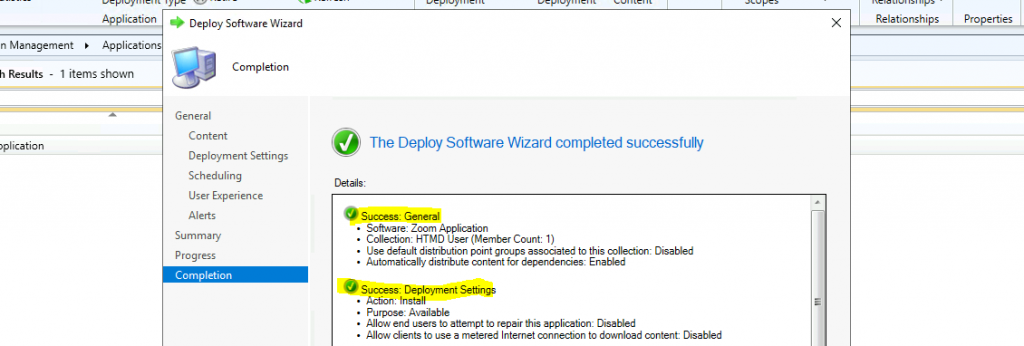
Results – Zoom Application
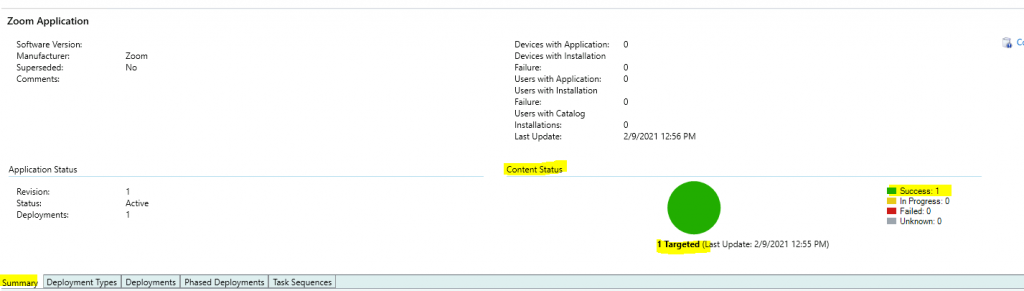
Make sure the content is distributed to the DP. The screenshot below helps you show more details.
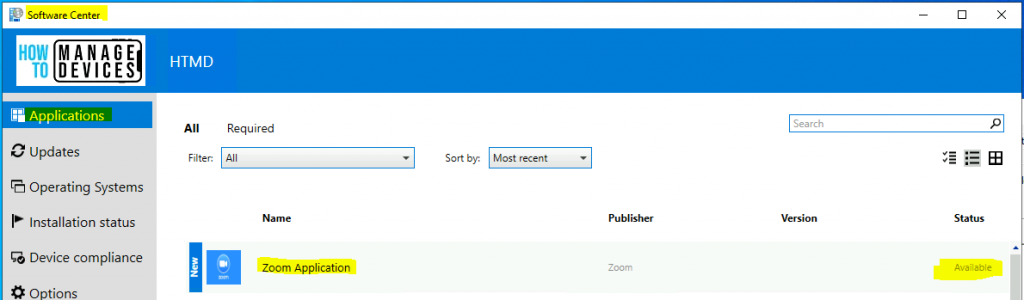
Software Center shows the Zoom application as available. You can click on the Zoom app icon. Click on the Install button.
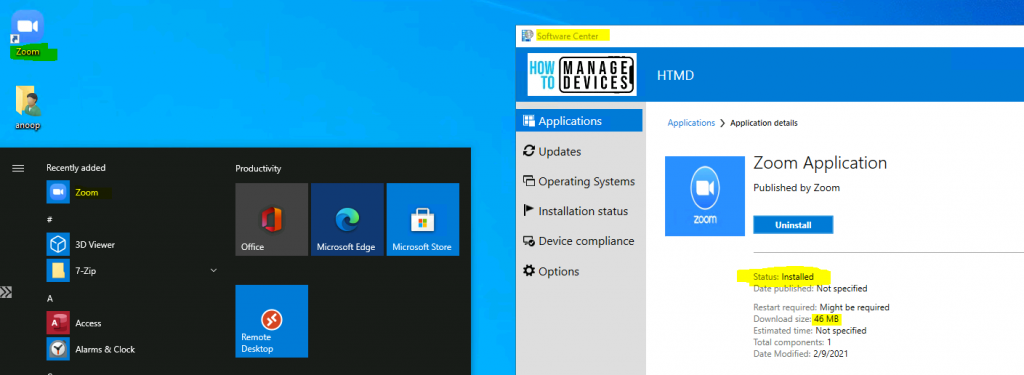
The Software Center shows that the Zoom application was successfully installed on the Windows 10 Device. You can also check whether the desktop shortcut for the Zoom application has been created.
Resources
We are on WhatsApp now. To get the latest step-by-step guides, news, and updates, Join our Channel. Click here – HTMD WhatsApp.
Author
Anoop C Nair is Microsoft MVP! He is a Device Management Admin with more than 20 years of experience (calculation done in 2021) in IT. He is a Blogger, Speaker, and Local User Group HTMD Community leader. His primary focus is Device Management technologies like SCCM 2012, Current Branch, and Intune. He writes about ConfigMgr, Windows 11, Windows 10, Azure AD, Microsoft Intune, Windows 365, AVD, etc.




Discussion