






How to Fix Intune Android App Installation Error 0xC7D14FB2
Hey there, today we are discussing on topic related to How to Fix Android App Installation Error 0xC7D14FB2 in Intune. This error code 0xC7D14FB2 is the Android App Installation error and it is refers that something went wrong while trying to download an app onto your device using Microsoft Intune.
As we all know that MS Intune manage organizational devices, with this its very easy to install the android devices to the users device. Some times there are many reasons we get errors when the app deployment time. Also, we are covered many types errors in Intune.
The Error 0xC7D14FB2 means that the app couldn’t be downloaded through Microsoft Intune. This usually happens on Android devices using the older DA method. The error code 0xC7D14FB2 (942583886) is a oly mentioning the error happens with several reasons.
Sometimes, the app doesn’t install and shows an error like 0xC7D14FB2. This usually means something went wrong while downloading and it may cause several reasons including internet issues. So in this post lets discuss why this error happened and what are the reasons behind it and what is the necessary steps we have to take.

Table of Contents
How to Fix Intune Android App Installation Error 0xC7D14FB2
Above we discussed a lot things about the error 0xC7D14FB2. This error are mentioned in the MS document. Here there is an description about the issue that This error occurs when the download fails. This error can
commonly occur due to Wi-Fi issues or slow connections.
| Error Code | Error message/code | Description |
|---|---|---|
| 0xC7D14FB2 | The download failed because of an unknown error. | This error occurs when the download fails. This error can commonly occur due to Wi-Fi issues or slow connections. If the app is an available app, the notification can be dismissed. However, if the app is required, it cannot be dismissed. |

- Samsung Knox API Deprecation Impacts Intune Settings for Android Device Administrator Managed Devices
- Intune End of Support for Android Device Administrator
- How to Detect Android Enterprise Rooted Devices using Intune Compliance Policy
Device Administrator Scenarios
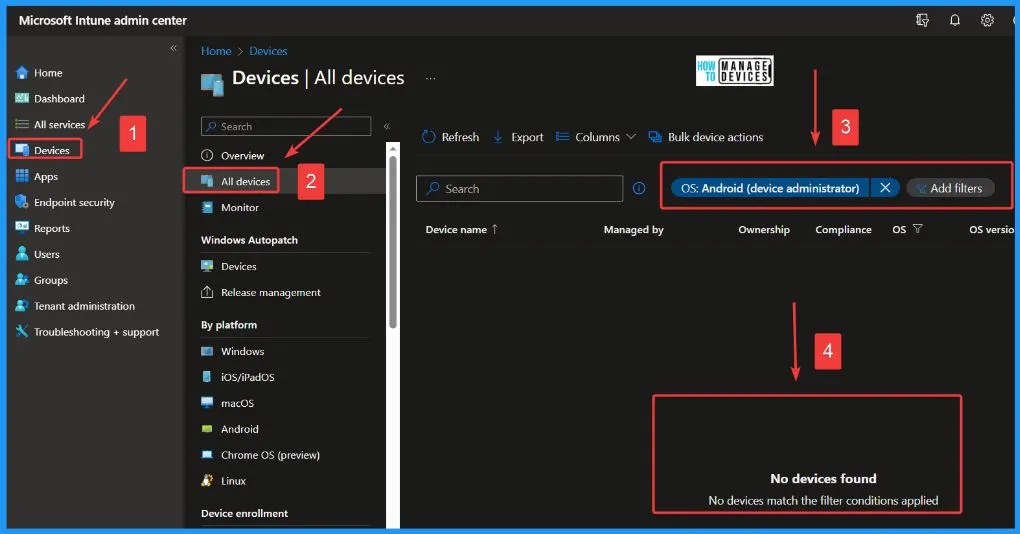
This error happens mostly on devices using Device Administrator (DA), which is an older way to manage Android phones through Intune. Microsoft now recommends using the newer method called Android Enterprise (AE). If any organization use this then it will may the reason for this issue because Intune End of Support for Android Device Administrator.
Read More: Intune End of Support for Android Device Administrator
KNOX Scenarios
Sometimes KNOX security feature are the cause of these type of errors. With this feature some times apps are installed silently so if someting goes wrong in the installation process the user never know about it. Now this feature is depreceated and it is not working for new Android versions.

Workaround for the Issue
The main reason of this issue is considerd as the Wi-Fi issues or slow connections. There are very common issue from the user side. You can check the connection are stable check the internet speed also. If you confirms that the Internet connection is very slow or not connceted properly you can easily fix that first then re install the application.
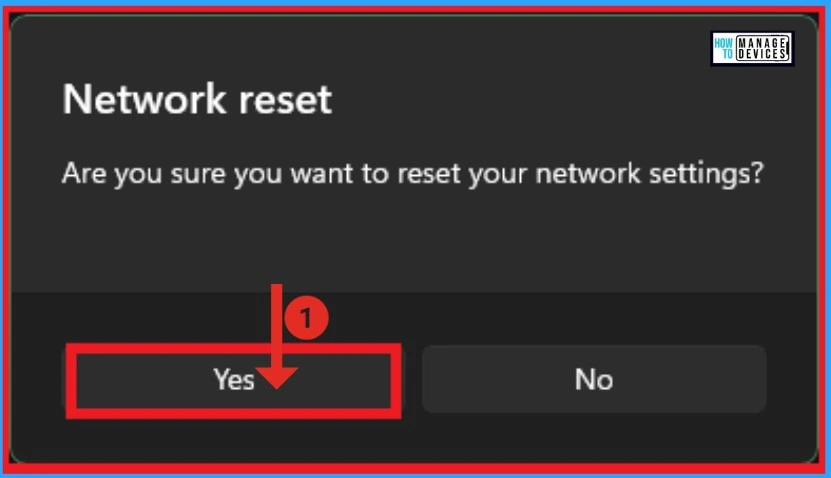
- You can also use thge Network Reset option the issue is not fixed
Restart You System
If you still this issue is ongoing there is another way that you have to wait for sometimes and you can also restart your system. Sometimes the internet issues not resolving, rebooting can refresh the network connections.
Retry to Install
The another solution is to you can retry to install the application. Look for the Intune or Company Portal message indicating the app failed to install. Then you can click on the retry option.
Need Further Assistance or Have Technical Questions?
Join the LinkedIn Page and Telegram group to get the latest step-by-step guides and news updates. Join our Meetup Page to participate in User group meetings. Also, join the WhatsApp Community to get the latest news on Microsoft Technologies. We are there on Reddit as well. You can see these details have been discussed in Reddit and other social media forums.
Author
Anoop C Nair has been Microsoft MVP for 10 consecutive years from 2015 onwards. He is a Workplace Solution Architect with more than 22+ years of experience in Workplace technologies. He is a Blogger, Speaker, and Local User Group Community leader. His primary focus is on Device Management technologies like SCCM and Intune. He writes about technologies like Intune, SCCM, Windows, Cloud PC, Windows, Entra, Microsoft Security, Career, etc.
Discussion