






Maximum Number of Devices Per User in Azure AD for Azure AD Join Scenario AVD Windows 365
Let’s check more details of the maximum number of devices per user in Azure AD. This is critical for AVD or Windows 365 scenarios when planning to implement the Azure AD Join scenario. I have seen the maximum number of devices per user in PoC scenarios.
AVD and Windows 365 started supporting the Azure AD join scenario. So, it’s important to understand this scenario. There are two similar configurations in the modern device management world; you will learn about both of these scenarios in this post. You can configure the maximum allowed devices per user in MEM Intune and Azure Active Directory.
You might get the following error “The maximum number of devices that can be joined to the workplace by the user has been reached.” The default value of the maximum number of devices per user in Azure AD is 50 devices.
There are automatic cleanup rules available for Azure AD and Intune. You will need to configure these rules correctly to remove the stale devices from Azure AD and Intune. The following are the posts that help to configure the automatic device cleanup rules.

Issue Maximum Number of Devices per user Limit
Now, let’s understand the issue related Maximum Number of Devices per user Limit. When you have a per-user device limit is set to 10 in Azure AD and the user is trying to login to another device, then the user might get the following error.
This is more supposed to happen for POC user or test user that has more than regular users. You might get similar errors (explained below) for Azure Virtual Desktop(AVD) and Windows 365 Cloud PC when you start using the Azure AD join scenario.
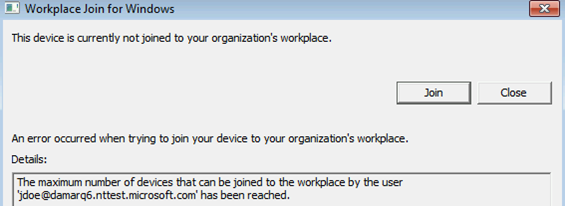
NOTE! – I have also seen many users working without any problem when they have more than a maximum number of devices per user limit. I think this can happen for the Hybrid Azure AD scenario.
As per Microsoft documentation, the maximum number of devices limit is not applicable for a hybrid for the Azure Active Directory join scenario (domain-joined + Azure AD Registered).

In the other scenario, you will see that this maximum number of device limit does not generally create a big issue if you use a device authentication-based group policy. This is mainly applicable for Intune device limitations scenario; this could be because the user is not enrolling the device to Intune.
The Intune enrollment happens using the device-based authentication group policy for the Azure Virtual Desktop scenario. This needs more testing and clarity in Microsoft documentation.
Self Service from Users – Cleanup Devices
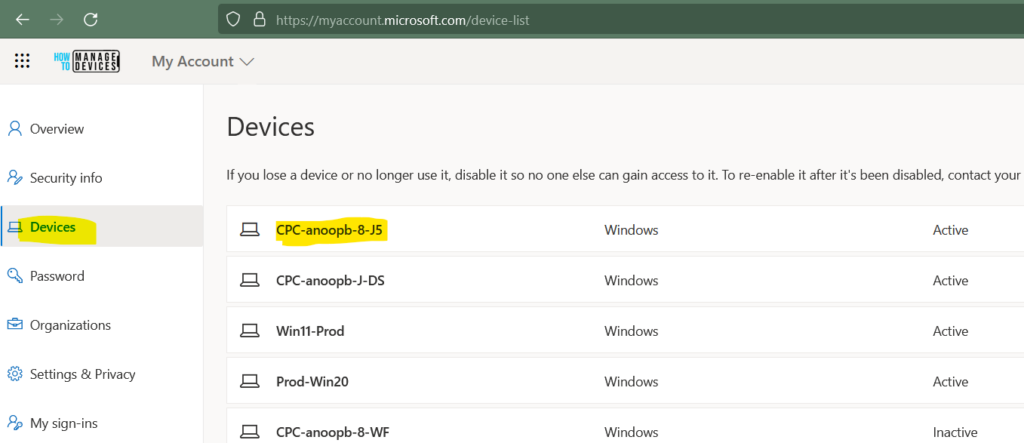
You can ask end-users to remove their old devices from the following portal as a self-service portal. The end-users can launch the myaccount portal and navigate to the Devices list to remove the old unwanted devices.
As I mentioned above, there are automatic cleanup options available for Azure AD and Intune. You can refer to the above posts to get more details.
End-user can login to – https://myaccount.microsoft.com/device-list
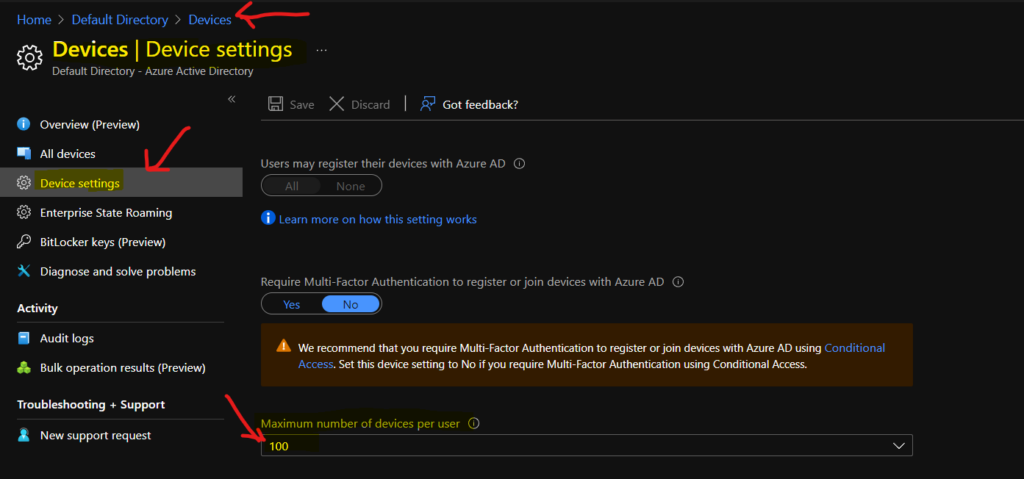
Azure AD Device Settings – Maximum number of devices per user
From Intune’s perspective, Azure Virtual Desktop and Windows 365 Cloud PC enrollments are treated as nonuser enrollment scenarios or shared device enrollment scenarios. The only applicable hard limit for the maximum number of devices per user is Azure AD Device Settings.
You will need to be cautious about the hard limits in the Azure Active Directory for AVD and Windows 365 Cloud PC management scenarios. A maximum number of devices setting in Azure AD Device Settings helps you select the maximum number of Azure AD joined or Azure AD registered devices that a user can have in Azure AD.
If users reach this limit, they can’t add more devices until one or more of the existing devices are removed. The default value of the Maximum number of devices setting is 50. But the recommended value as per the Microsoft portal is 20!
You can increase the value up to 100. If you enter a value above 100, Azure AD will set it to 100. You can also use Unlimited to enforce no limit other than existing quota limits.
- Open portal.azure.com
- Search for Azure AD
- Navigate to Azure AD – Users and groups – Devices – Device settings
- Maximum number of devices per user: 50 (or Unlimited for PoC scenarios)
You can select the option called UNLIMITED from the drop-down menu to remove the device limit restrictions for Azure AD. I think this would be ideal for Azure Virtual Desktop scenarios when it comes to non-persistent devices.
Intune Device Limit restriction for User Based MDM Enrollment
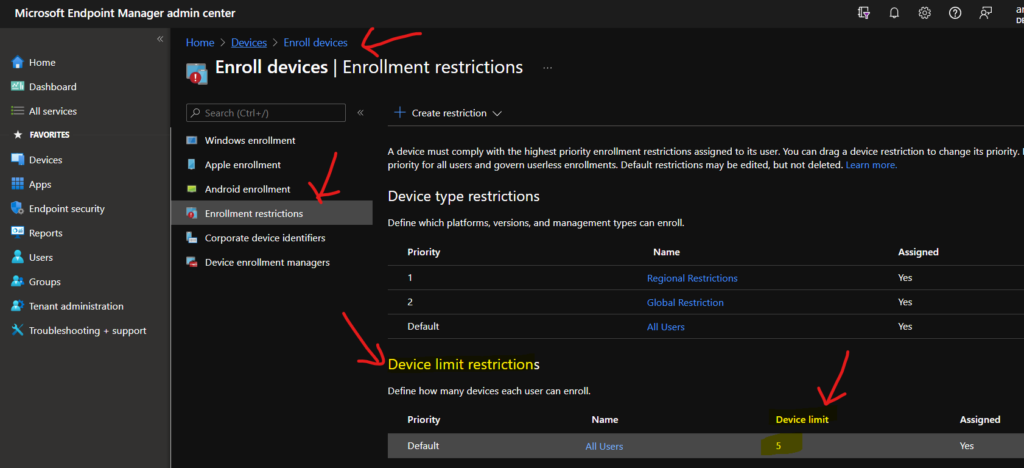
Intune Device Limit restriction is the policy to restrict the number of devices a user can enroll into Intune. The following are the default device limit policies values available in Microsoft Endpoint Manager Intune.
- The default value of Intune device limit restriction is five(5).
- The maximum value of Intune device limit is fifteen(15).
NOTE! – The device limit restrictions are not appliable for AVD and Windows 365 Cloud PC Azure AD join and hybrid scenarios as per Microsoft documentation.
To change the Device Limit restriction values from the MEM Intune portal, follow the steps mentioned below.
- Login to MEM Admin Center portal – endpoint.microsoft.com
- Navigate to Devices – Enroll Devices – Enrollment Restrictions.
- Check the default policy called Device Limit Restrictions.
The Device Limit Restrictions policy is assigned to all users by default as an outbox setting.
Intune Device limit restrictions don’t apply for the following Windows enrollment types:
- Co-managed enrollments
- GPO enrollments
- Azure Active Directory joined enrollments
- Bulk Azure Active Directory joined enrollments
- Autopilot enrollments
- Device Enrollment Manager enrollments
Resources
https://docs.microsoft.com/en-us/azure/active-directory/devices/device-management-azure-portal
Author
Anoop is Microsoft MVP! He is a Solution Architect in enterprise client management with more than 20 years of experience (calculation done in 2021) in IT. He is Blogger, Speaker, and Local User Group HTMD Community leader. His main focus is on Device Management technologies like SCCM 2012, Current Branch, and Intune. He writes about ConfigMgr, Windows 11, Windows 10, Azure AD, Microsoft Intune, Windows 365, AVD, etc……………




Hi Anoop,
What will happen to already enrolled devices if we reduce the number of devices to be enrolled in Intune iOs/Android/MacOS) ? For example : If the current restriction level is 5 and an user already have 3 devices enrolled. Later we change that limit to 2 from 5. Then what will be the impact on the user? I am not able to find an answer to this.
Thanks,
Sudipta