






How to Use Microsoft Intune Connector with Multiple Domains Security Update Insights
Let’s discuss how to Use Microsoft Intune Connector with Multiple Domains Security Update Insights. Microsoft introduced an important security change as part of a secure future initiative called Intune Connector for Active Directory. The change has many impacts.
The new enhancement will impact customers deploying Microsoft Entra hybrid joined devices with Windows Autopilot and provide guidance on how to prepare. With the new update, Windows Autopilot uses the Intune Connector for Active Directory to deploy devices that are Microsoft Entra hybrid joined.
Do you know what the Intune Connector for Active Directory is? It is a tool used in conjunction with Windows Autopilot to deploy devices that are Microsoft Entra hybrid joined. The Intune Connector for Active Directory, also known as the Offline Domain Join (ODJ) Connector.
Microsoft updated the Intune Connector for Active Directory to strengthen security in customers’ environments. In this update, a Managed Service Account (MSA) is used instead of a SYSTEM account. In this blog post, I will explain more about the Intune Connector for Active Directory.

Table of Contents
How to Use Microsoft Intune Connector with Multiple Domains Security Update Insights
Due to this new update, the old connector, which uses the local SYSTEM account, will no longer be available for download in Intune and will stop being supported in late May 2025. After that, Microsoft will stop accepting enrollments from the old connector build. Existing customers who already have the old Connector for Active Directory can continue to work.
- Fix Issue with Entra Hybrid Joined Devices Unjoined and Rejoined after Intune Enrollment
- Block Users Personal Devices to Join Entra ID using Intune
- Troubleshooting Entra ID Connect Sync Issue Authentication Failure with Entra ID
Managed Service Account (MSA)
A Managed Service Account (MSA) is a type of domain account in Active Directory designed to provide automatic password management and simplified Service Principal Name (SPN) management. An MSA can run services on a computer in a secure and easy to maintain manner, while maintaining the capability to connect to network resources as a specific user principal.
| Types of MSA | Details |
|---|---|
| Standalone Managed Service | It is used on a single domain-joined machine and can only access resources within that domain |
| Group Managed Service | These provide the same functionality as sMSAs but extend that functionality over multiple servers. |
Account Permissions Required between the New and Old Connector
There are many differences between new and old connectors. Each connector has many account permissions required. The table below shows the account permissions required for each connector.
| Features | Old Connector | New Connector |
|---|---|---|
| Logged on account | SYSTEM | Domain\MSA |
| Password management | Set by user, subject to domain rules | |
| Privilege set size (see notes for more details) | MAX | |
| Registry access rights | Full, implicit | |
| Enrollment certificate rights | Full, implicit | |
| Create computer object rights (required for hybrid Autopilot scenario) | If connector is on the same machine as domain controller, unlimited. If connector is not on the domain controller, delegation required |
Setting Up the Connector
To set up the Intune Connector for Active Directory, there are several steps you must follow before beginning. First, you need to uninstall the existing connector by uninstalling it from the Settings app on Windows. Then, uninstall it using the ODJConnectorBootstrapper.exe (select Uninstall). The following table shows the minimum requirements needed to install and set up the new connector.
| Requirements | Details |
|---|---|
| Downloading the connector build from Intune | Microsoft Entra account with Intune Service Administrator permissions |
| Installation | .Net 4.7.2 |
| Windows Server with 2008 R2 functional level | |
| Setting up the connector | Local administrator permissions |
| Microsoft Entra account with an Intune license assigned and Intune Service Administrator permission | |
| Domain account with local administrator privileges | |
| Domain account should have permission to create msDS-ManagedServiceAccount objects |
Downloading the Connector
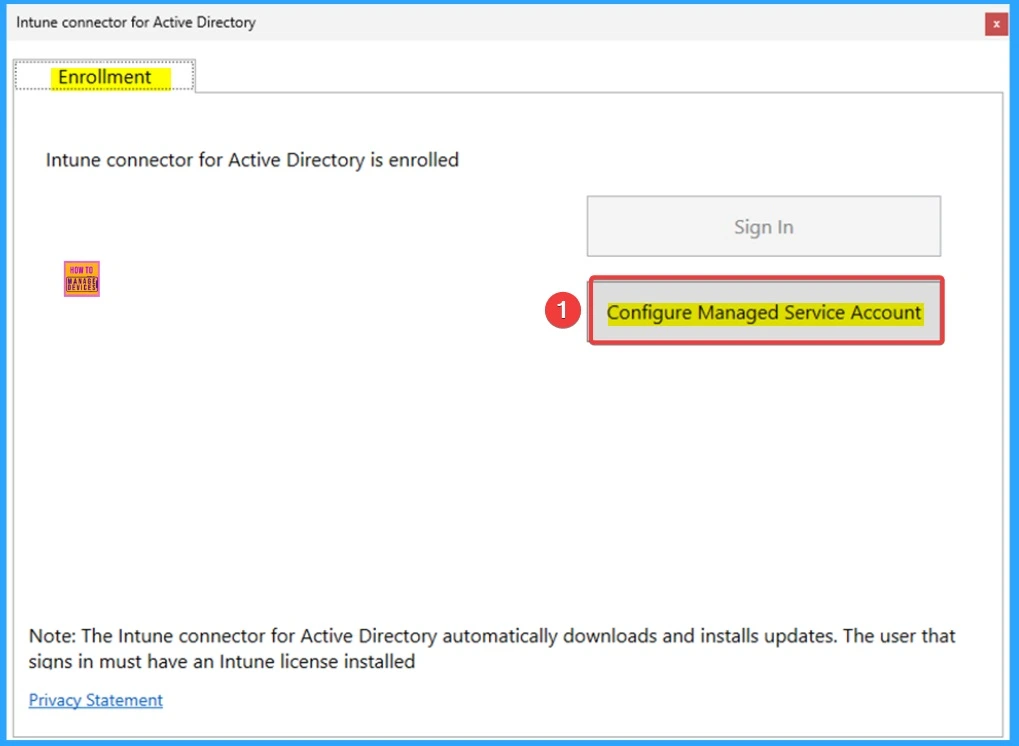
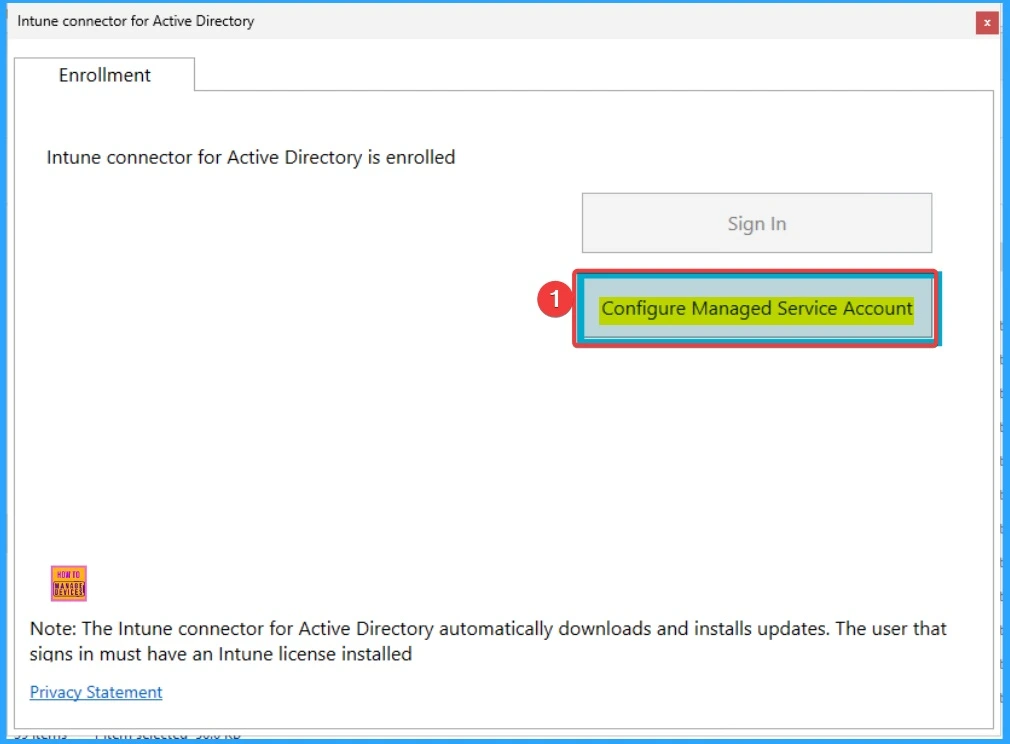
From the Intune admin center, you can download the new connector and install it in your environment. After that, go to the connector wizard, choose Sign In, and sign in with a Microsoft Entra account with Intune service admin permissions. You’ll notice a new Configure Managed Service Account option.
After signing in, the connector will enroll, and only the Configure Managed Service Account option will be available. The account with Intune admin permissions should select that option to complete the set-up.
Configuring Organizational Units (OUs) for Domain Join
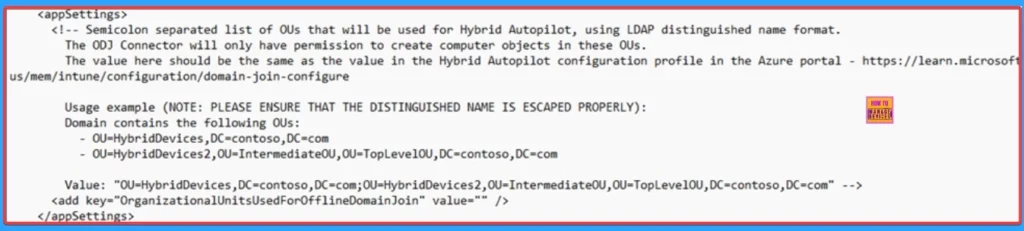
To create computer objects in any OU, MSAs don’t have access by default. You will need to update the ODJConnectorEnrollmentWiazard.exe.config file, you wish to use a custom OU for the domain join. This can be done at any time (either before enrollment, or after the connector is enrolled).
- Update ODJConnectorEnrollmentWizard.exe.config:
- Default location is “C:\Program Files\Microsoft Intune\ODJConnector\ODJConnectorEnrollmentWizard”
- Add all the OUs required in OrganizationalUnitsUsedForOfflineDomainJoin
- OU name should be the distinguished name (see Additional information section)
Note: MSA is only granted access to the OUs configured in this file (and the default Computers container). If any OUs are removed from this list, completing the rest of the steps will revoke access
After that Open ODJConnectorEnrollmentWizard (or restart it if it was open) and select the “Configure Managed Service Account” button. Follow the below screenshot.
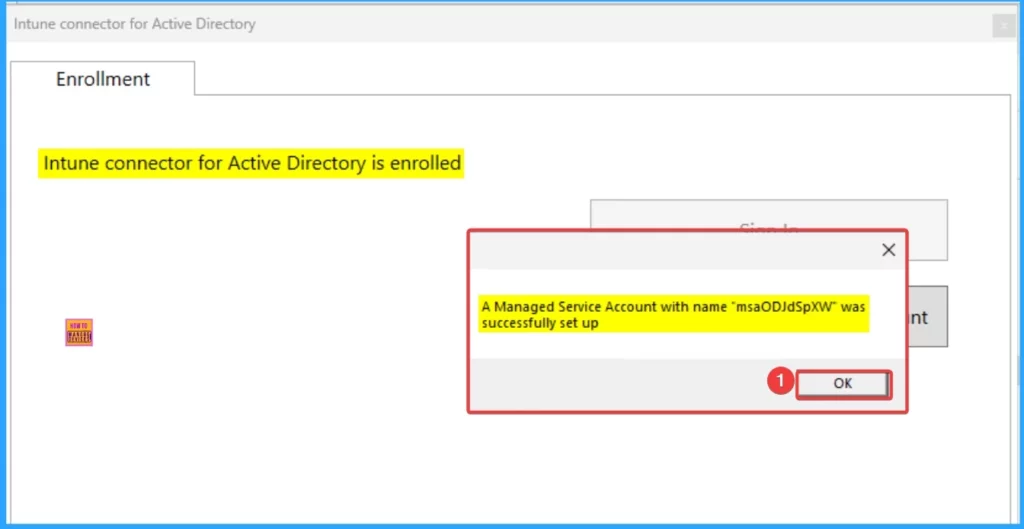
Then, you will get a pop-up window that shows a success message, such as “A Managed Service Account with name “msaODJdSpXW” was successfully set up. Click on the OK button.
How to Use Intune Connector with Multiple Domains
Customers who are already using the connector with more than one domain will be able to use the new connector by setting up a separate server per domain and installing a separate connector build for each domain.
Configuring the Connector
To configure the connector you have to follow some steps. The Intune Connector for Active Directory needs to be installed on each domain that you plan to use for domain join. If you need to have a second account redundancy, you will need to install the connector on a different server (in the same domain).
To ensure the connector is configured correctly, and that the MSA has appropriate permissions on the desired OUs, follow the above steps. To ensure that all connectors are present in the in the Microsoft Intune admin center. Follow the below steps and screenshot.
- Open Microsoft Intune admin center
- Go to Devices > Enrollment > Windows
- Under Windows Autopilot, select Intune Connector for Active Directory)
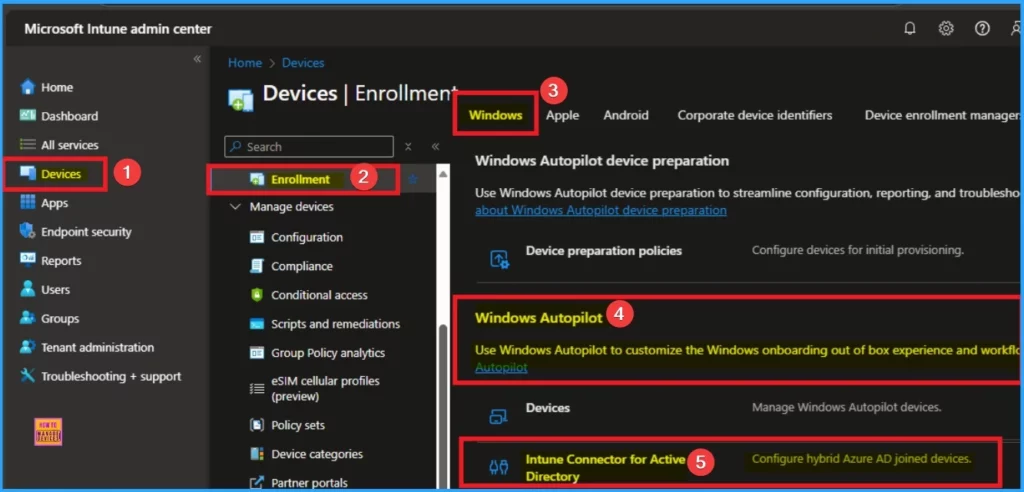
After that, you can see the available versions of Connect on your tenant. To configure the connector, you need a version greater than 6.2501.2000.5. Look at the screenshot below.

Configure Domain Join Profile
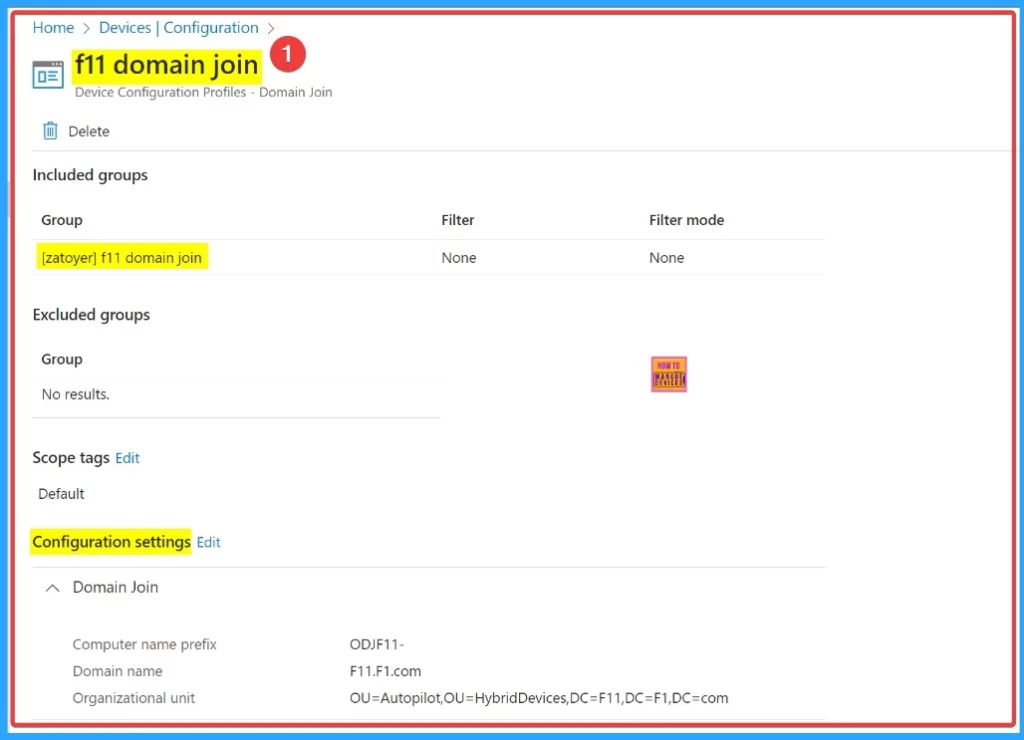
To configure a domain join profile, follow these steps: Create a domain join profile for each domain that you want to use for hybrid joining devices during Autopilot. Target the domain join profile to the appropriate device groups. Domain join profiles are configured to target different groups with different domain names.
Example 1
On the below screenshot, the selected group is [zatoyer]f11 domain join. On the The expected result for this is Connector in domain F11.F1.com will only join domain F11.F1.com. The following are the configuration settings details.
- Computer name prefix – ODJF11-
- Domain name – F11.F1.com
- Organizational unit – OU=Autopilot,OU=HybridDevices,DC=F11,DC=F1,DC=com
Example 2
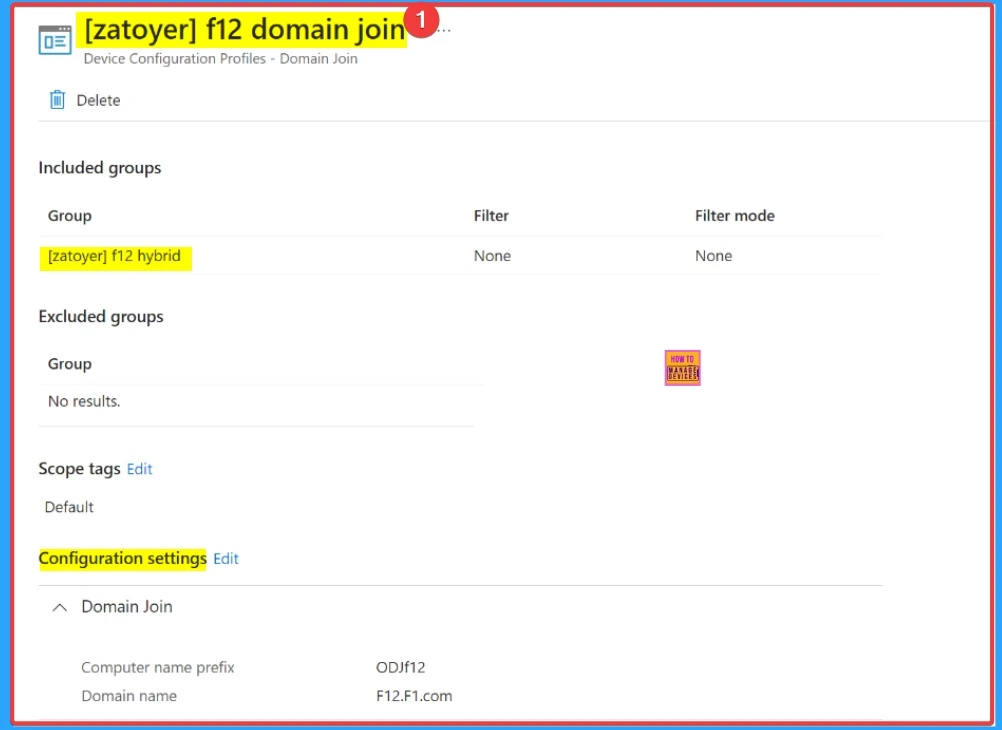
The screenshot below shows the second example. The[zatoyer] f12 domain join is the domin name. The expected result is that the Connector in domain F12.F1.com will only join domain F12.F1.com. The following are the configuration settings details of the domain join.
- Computer name prefix – ODJf12
- Domain name – F12.F1.com
Retrieving Organizational Unit Distinguished Name
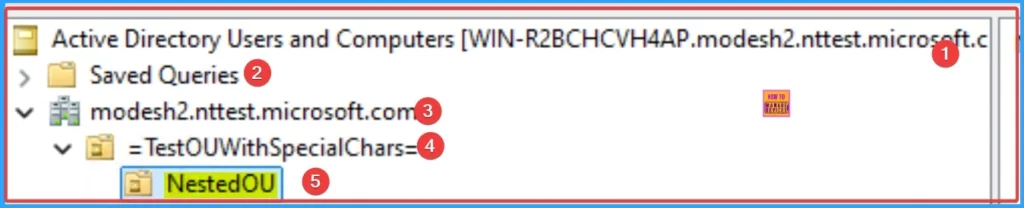
To customize the OUs that the MSA has access to, here are two easy methods to retrieve their distinguished names. The following is the structure.
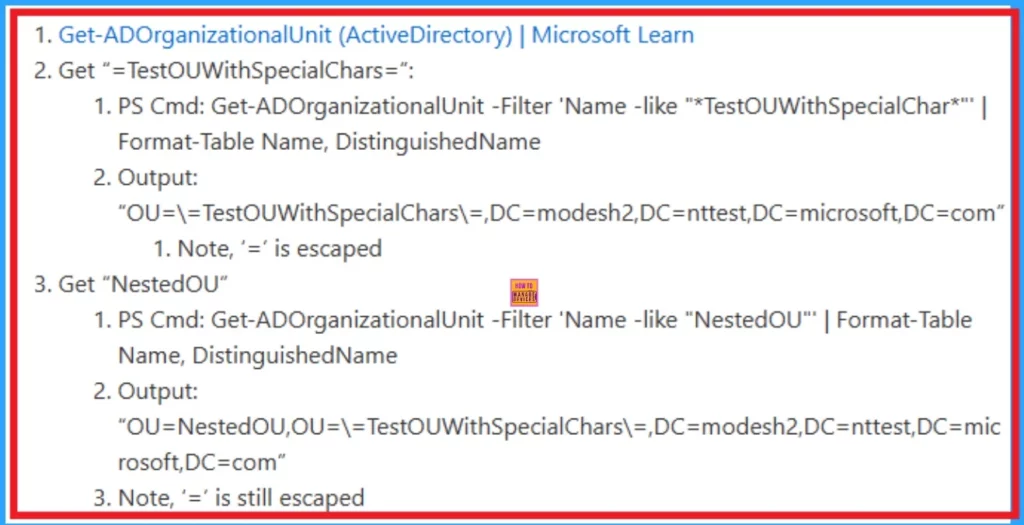
PowerShell Script
The following are the PowerShell scripts for customizing the OUs that the MSA has access to. You can copy the script below and use it to customize the OUs that the MSA has access to.
Active Directory Users and Computers
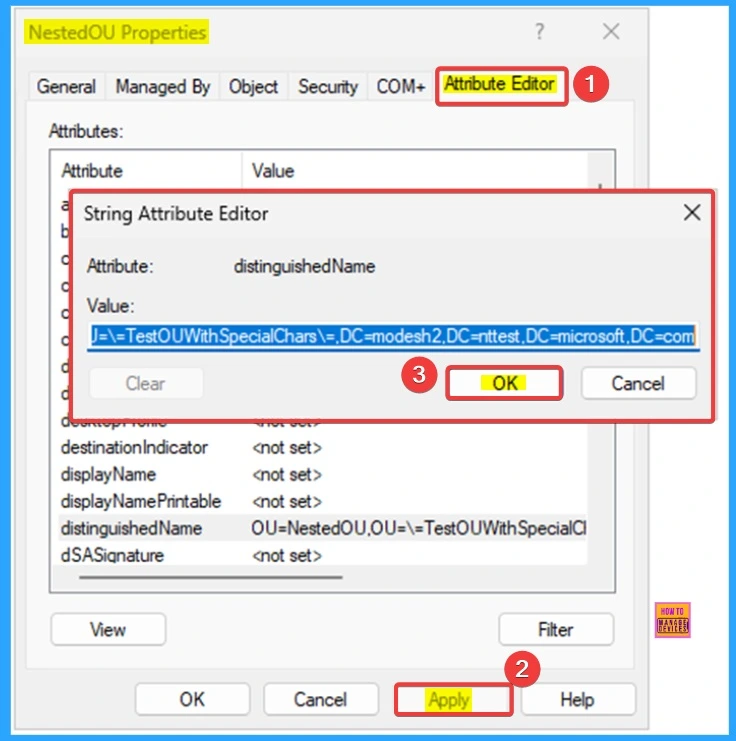
To Active Directory Users and Computers, Select “View” from the menu, and enable “Advanced Features”. Then, right-click on the specific OU and click “Properties”. Navigate to the “Attribute Editor” tab
Select “distinguishedName” attribute and click “View”.
Need Further Assistance or Have Technical Questions?
Join the LinkedIn Page and Telegram group to get the latest step-by-step guides and news updates. Join our Meetup Page to participate in User group meetings. Also, Join the WhatsApp Community to get the latest news on Microsoft Technologies. We are there on Reddit as well.
Resource
Microsoft Intune Connector for Active Directory security update
Author
Anoop C Nair has been Microsoft MVP from 2015 onwards for 10 consecutive years! He is a Workplace Solution Architect with more than 22+ years of experience in Workplace technologies. He is also a Blogger, Speaker, and Local User Group Community leader. His primary focus is on Device Management technologies like SCCM and Intune. He writes about technologies like Intune, SCCM, Windows, Cloud PC, Windows, Entra, Microsoft Security, Career, etc.
Discussion